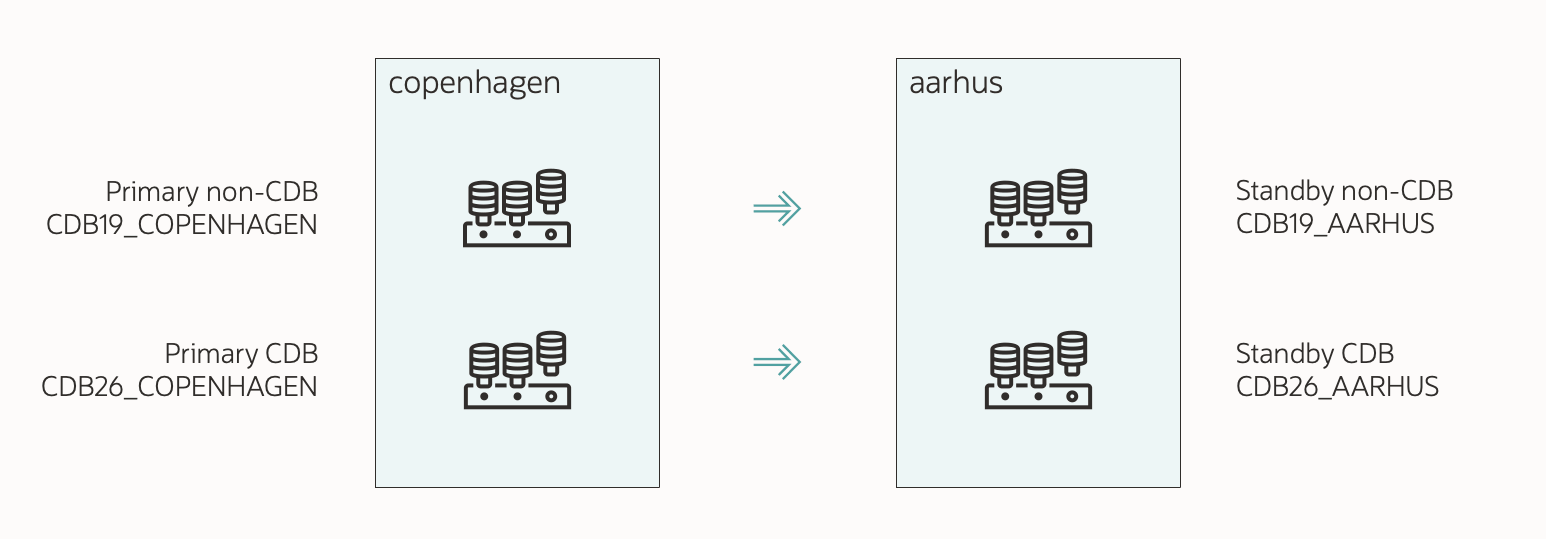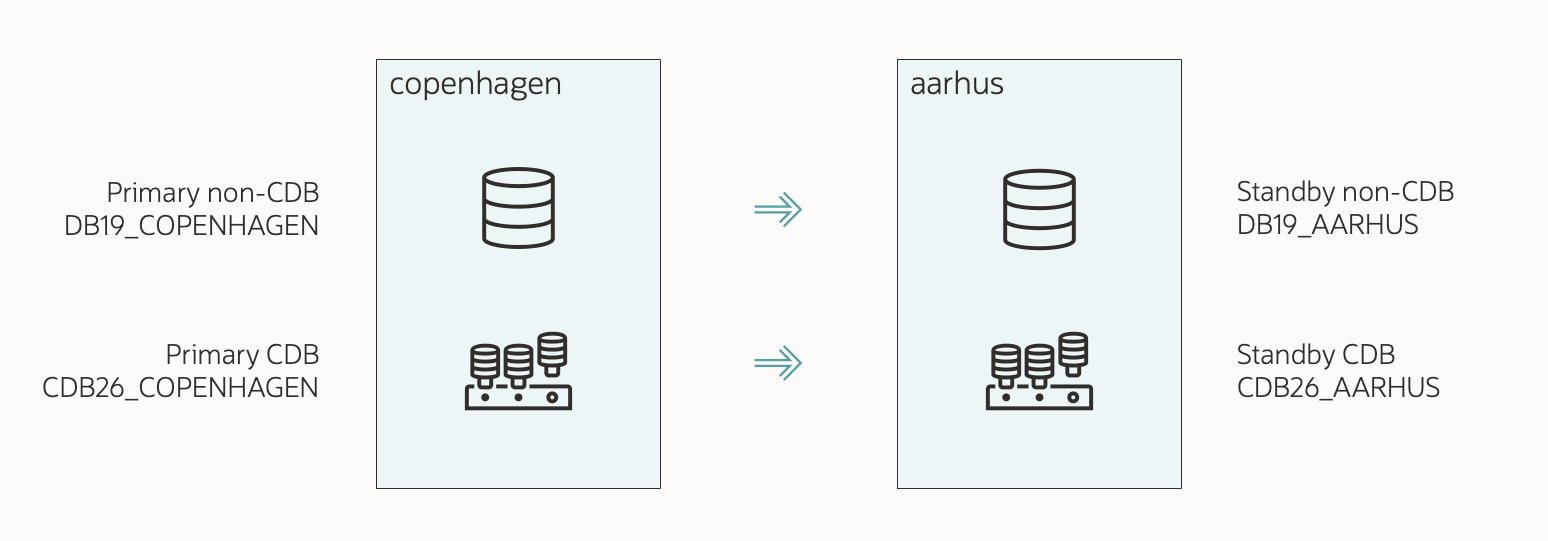
Upgrade Oracle Database 19c CDB to Oracle AI Database 26ai

Let me show you how you upgrade an entire container database, including all PDBs, to Oracle AI Database 26ai.

How to Upgrade

I’ve already prepared my database and installed a new Oracle home. The maintenance window has started, and users have left the database.

  1. This is my AutoUpgrade config file:

    global.global_log_dir=/home/oracle/autoupgrade/logs/CDB19
    upg1.source_home=/u01/app/oracle/product/19
    upg1.target_home=/u01/app/oracle/product/26
    upg1.sid=CDB19
    
    • sid contains the name of SID or my database.
    • I specify the source and target Oracle homes. I’ve already installed the target Oracle home.
    • Check the appendix for additional parameters.
  2. I start AutoUpgrade in deploy mode:

    java -jar autoupgrade.jar -config CDB19.cfg -mode deploy
    
    • AutoUpgrade starts by creating a guaranteed restore point to protect my database.
    • Then, it analyzes the database for upgrade readiness and executes the pre-upgrade fixups. Next is the actual upgrade, followed by post-upgrade checks and fixups.
  3. While the job progresses, I monitor it:

    upg> lsj -a 30
    
    • The -a 30 option automatically refreshes the information every 30 seconds.
    • I can also use status -job 100 -a 30 to get detailed information about a specific job.
  4. In the end, AutoUpgrade completes the upgrade:

    Job 100 completed
    ------------------- Final Summary --------------------
    Number of databases            [ 1 ]
    
    Jobs finished                  [1]
    Jobs failed                    [0]
    Jobs restored                  [0]
    Jobs pending                   [0]
    
    ---- Drop GRP at your convenience once you consider it is no longer needed ----
    Drop GRP from CDB19: drop restore point AUTOUPGRADE_9212_CDB191927000
    
    Please check the summary report at:
    /home/oracle/autoupgrade/logs/CDB19/cfgtoollogs/upgrade/auto/status/status.html
    /home/oracle/autoupgrade/logs/CDB19/cfgtoollogs/upgrade/auto/status/status.log
    
    • This includes the post-upgrade checks and fixups, incl. updating /etc/oratab and Grid Infrastructure configuration.
  5. I review the Autoupgrade Summary Report. The path is printed to the console:

    vi /home/oracle/autoupgrade/logs/CDB19/cfgtoollogs/upgrade/auto/status/status.log
    
  6. I take care of the post-upgrade tasks.

  7. I update any profiles or scripts that use the database.

  8. When I’m done testing the database – including application testing – and I decided that a rollback is not needed, I’ll drop the GRP:

    SQL> drop restore point AUTOUPGRADE_9212_CDB191927000;
    

That’s It!

With AutoUpgrade, you can easily upgrade your entire CDB.

Check the other blog posts related to upgrade to Oracle AI Database 26ai.

Happy upgrading!

Appendix

What If My Database Is A RAC Database?

There are no changes to the procedure if you have an Oracle RAC database. AutoUpgrade detects this and sets CLUSTER_DATABASE=FALSE at the appropriate time. It also updates the Grid Infrastructure configuration.

For warp-speed upgrades, take a look at distributed upgrade.

What If I Use Oracle Restart?

No changes. AutoUpgrade detects this and automatically updates the Grid Infrastructure configuration.

What If My Database Is Encrypted

You must use an auto-login keystore. AutoUpgrade checks this during the pre-upgrade analysis.

Multitenant Upgrade

A few words about an upgrade of an entire CDB. AutoUpgrade first upgrades the root container. When that completes, it will upgrade the seed container and your PDBs. The latter part happens in parallel.

So, upgrading a CDB is always slower than just upgrading a single PDB. If you’re tight on time, consider upgrading just the PDB. This is called an unplug-plug upgrade.

Other Config File Parameters

The config file shown above is a basic one. Let me address some of the additional parameters you can use.

  • drop_grp_after_upgrade: AutoUpgrade doesn’t drop the GRP after the upgrade. This allows you to roll back even after a successful upgrade if your application testing reveals a problem. However, it means that you must manually remember to drop the GRP. Otherwise, you’ll eventually run out of space in FRA, and that will halt your database. Set this parameter to yes, and AutoUpgrade drops the GRP if the upgrade completes without problems.

  • timezone_upg: AutoUpgrade upgrades the database time zone file after the actual upgrade. This requires an additional restart of the database and might take significant time if you have lots of TIMESTAMP WITH TIME ZONE data. If so, you can postpone the time zone file upgrade or perform it in a more time-efficient manner.

  • raise_compatible: If you want to raise the initialization parameter COMPATIBLE immediately after the upgrade, you can use this parameter. Don’t use if you have standby databases, because there’s a specific procedure for raising COMPATIBLE in a Data Guard configuration. Don’t use it if you want to keep the option of downgrading.

  • before_action / after_action: Extend AutoUpgrade with your own functionality by using scripts before or after the job.

  • em_target_name: Allow AutoUpgrade to create blackouts before restarting the database and to update the target configuration after the upgrade. Requires a local installation of emcli. See this blog post for details.

  • rman_catalog_connect_string: Relevant for databases that store backup metadata in a recovery catalog. Upgrades the recovery catalog schema following an upgrade. See this blog post for details.

How to Prepare Your Oracle Database for Release 26ai

Here is a list of things to check and carry out while preparing for Oracle AI Database 26ai.

These tasks are not mandatory, but I recommend them based on my experience. It increases your chances of upgrading successfully.

Get ready for Oracle AI Database 26ai upgrade

Weeks Before

Versioning

Oracle AI Database 26ai introduces a new versioning schema. Although 26ai replaces 23ai, in the database, the version remains the same:

After upgrade to 26ai, the version remains 23.0.0.0.0:

SQL> select version from v$instance;

VERSION
-------
23.0.0.0.0

If you check version_full, you’ll see that the second digit reflects the new version:

SQL> select version_full from v$instance;

VERSION
-------
23.26.0.0.0

Platform Certification

Ensure that the new release supports your operating system. When available, you can check it in the installation guides. However, you can find the most up-to-date information in the Product Certification Matrix tab in My Oracle Support.

Use Certifications tab in My Oracle Support to find up-to-date platform certifications

Clients

Check which clients are connecting to the database and ensure their client driver versions are compatible with Oracle AI Database 26ai. The client/server interoperability matrix gives you an overview of which clients work with which servers.

Client Database 26ai Database 19c
26ai Yes Yes
21c Yes Yes
19c Yes Yes
18c No Yes
12.2.0.1 No Yes
12.1.0.2 No Yes
11.2.0.4 No Yes

19c supports much older clients compared to 26ai. If you’re using such old clients, start upgrading them right away. This also applies to database links.

Optionally, monitor the database over time to generate a list of clients connecting.

AutoUpgrade

Get the latest version of AutoUpgrade from My Oracle Support. I recommend that you always use the latest version. AutoUpgrade is fully backward compatible, so any newer version can upgrade older releases of Oracle AI Database.

Upgrade Readiness

Run AutoUpgrade in analyze mode to determine your database’s upgrade readiness. Check the summary report for findings with no fixups. Such findings must be dealt with manually.

You can run the analysis even before you install the new Oracle home. Simply specify target_version=26 in your AutoUpgrade config file, and AutoUpgrade knows which checks to run.

Dictionary Check

Check the dictionary in your most important databases. You can run a dictionary check together with an AutoUpgrade analysis. In your config file:

upg1.run_dictionary_health=full

Or, you can run it separately using DBMS_DICTIONARY_CHECK.

Behavior Changes

Review the upgrade guide for information on deprecated and desupported features, plus any behavior changes.

Also, use ORAdiff to check for changes between your current release and 26ai. Use the Report menu item to generate a report that you can share with your company.

It’s also a good idea to look at the new reserved keywords. Especially, those marked as reserved. Don’t use those keywords in object/column names, queries, or the like.

Grid Infrastructure

  • If Grid Infrastructure manages your database either in RAC or Oracle Restart configuration, you should upgrade it as well. If you can tolerate an additional maintenance window, I’d recommend upgrading Grid Infrastructure in advance.

  • Grid Infrastructure 26ai can manage databases from 19c and onwards. Any older database must be moved away from the system.

  • I recommend keeping the GI and database patch levels in sync. If you want to upgrade the database to 26.1, then upgrade GI to the same Release Update. If that’s not possible, at least keep it within two Release Updates.

Days Before

Statistics

Gather dictionary and fixed objects statistics:

begin
   dbms_stats.gather_fixed_objects_stats;
   dbms_stats.gather_schema_stats('SYS');
   dbms_stats.gather_schema_stats('SYSTEM')
end;
  • I prefer gathering schema stats rather than dictionary stats. I’ve seen a few edge cases solved by schema stats, and generally, current stats on SYS and SYSTEM are sufficient.

  • Gather statistics no earlier than seven days before the upgrade. If AutoUpgrade determines your statistics are older than that, it will gather them as part of the upgrade. This extends downtime unnecessarily.

  • If you’re curious, you can find details about the importance of fixed objects statistics in a blog post by Maria Colgan.

Install Oracle Home

You can use AutoUpgrade to:

In release 26ai, the Oracle homes that you download are already patched with the latest Release Update and OPatch.

On the Day of Upgrade

Backup

If time allows, run a level 0 backup. If not, you have to settle with a level 1.

Don’t run the backups inside your maintenance windows; that’s a waste of downtime. Start the backup in advance, so it finishes just before the maintenance window begins.

AutoUpgrade automatically creates a guaranteed restore point before starting the upgrade.

Scheduler

Normally, it is not necessary to disable the scheduler. But in some situations, it can be beneficial.

That’s It

You are now ready to begin your journey to Oracle AI Database 26ai and its many exciting new features.

Check the other blog posts related to upgrade to Oracle AI Database 26ai.

Happy upgrading!

The Best Approach For Backup Before Upgrade

While doomscrolling on LinkedIn the other day, I came across an interesting post:

What is the best approach to take 65TB database backup before upgrade from 12c to 19c?

This post started a discussion with many good answers and ideas. Let me add my thoughts.

The Ideas

Cold Backup

Stop DB and take a cold backup.

  • I don’t recommend this.
  • A cold backup means downtime.
  • An online backup works just as fine.

Don’t Make Any Preparations

You should be able to restore at any time within the timeframe specified by your business/SLA.

  • You should always be prepared!
  • If our SLA allows us to use four hours, why not make it faster?
  • You could start an additional level 0 or level 1 backup before the maintenance window. That would reduce the number of archive logs, thereby reducing the time to restore.

Partial Offline Backup

Set app tablespace to read-only, then perform a partial offline backup (or a regular backup). In case of a restore, you need to restore less data.

  • This is a special backup strategy that you normally don’t use. Be sure to test and practice it.
  • A good solution for Standard Edition 2 databases, since you don’t have access to Flashback Database or parallel RMAN backups/restores.
  • A viable approach, but not my favorite, since it’s a technique that you rarely use.

Data Guard

Just keep your standby not upgraded.

  • This conflicts with the MAA guidelines that suggest keeping the standbys online and applying redo.
  • But I like this approach. You need a little more time after the upgrade to go live, because the standby must catch up. But that shouldn’t take long, as an upgrade doesn’t generate that much redo.
  • If you have multiple standbys, this technique becomes even more attractive. Have some standbys follow the primary (to go live faster) and a few lagging behind (in case you need to rollback).

Flashback Database

Or keep compatible at 12 and create a guaranteed restore point before the upgrade so you can flashback.

  • Yes – my favorite.
  • Flashback Database should be your first rollback option. It’s so fast and so convenient.

Another reply:

I just enable Flashback Database, create guaranteed restore point, and start the upgrade. After validation of application, drop the guarantee restore point.

  • The answer suggests that Flashback Database was the only rollback option.
  • As much as I love Flashback Database, don’t rely solely on it.
  • It should be your first option, but not the only one.
  • By the way, you don’t have to enable Flashback Database to create a guaranteed restore point. Without Flashback Database turned on, you can still revert back to a restore point.

Downgrade

Oracle Database also has downgrade method.

  • Downgrade is a cool option. But it’s a fallback option – something you can use days or weeks later following a successful upgrade.
  • If the upgrade crashes midway, you can’t use a downgrade to go back.

Data Pump

Export import is a good option.

  • Export/import is not a rollback plan. Similar to downgrade, if the upgrade crashes midway, you won’t be able to use Data Pump.
  • Days or weeks later, you can use Data Pump. But it might be a viable option for larger databases.

GoldenGate

Another approach can be use of GoldenGate

  • This is an awesome way to upgrade.
  • Especially if you go the extra mile and use active/active replication. Then, you can gradually move sessions to the new database and test things slowly.
  • But are you willing to pay the price? Not only license fees, but also the added complexity.

What Does Oracle Say?

If you check the Upgrade Guide you will find one recommendation:

Perform a level 0 backup if time allows. Otherwise, at least a level 1 backup.

By doing a level 1 backup close to the maintenance window, then you can limit the amount of archive logs that you would need to apply on top of your level 0/1 backups. This can dramatically reduce the time it takes to restore.

In addition, AutoUpgrade automatically creates a guaranteed restore point prior to the upgrade.

My Final Thoughts

This discussion on LinkedIn is a really good example that there’s no such thing as one-size-fits-all in tech. It always depends…

I recommend finding a solution that:

  • You’re comfortable with.
  • Fits your business requirements and SLA.
  • You know work, and you gain that knowledge by testing it. You never know that it works until you test it.
  • Doesn’t stand alone. You need multiple rollback options.

What are your thoughts? Which rollback options do you have? Leave a comment below.

Happy upgrading!

Upgrade to Oracle AI Database 26ai

Get ready for the future and enjoy the many new cool features in Oracle AI Database 26ai. It is just an upgrade away.

This blog post gives you a quick overview of the upgrade to Oracle AI Database 26ai. Plus, it is the starting point of a whole series of blog posts with all the details.

Things to Know

  • You can upgrade to Oracle AI Database 26ai if your database runs 19c or 21c.

    • If you have an older database, you must first upgrade to 19c and then upgrade again to 26ai.
    • If you’re on 23ai, you can just patch the database; no upgrade needed, no need to re-certify your app.
  • Oracle AI Database 26ai supports the multitenant architecture only. If your database is a non-CDB, you must also convert it to a pluggable database as part of the upgrade.

  • Although the Multitenant Option requires a separate license, you can still run databases on the multitenant architecture without it. Oracle allows a certain number of pluggable databases in a container database without the Multitenant Option. Check the license guide for details, and be sure to set max_pdbs=3 if you don’t have the license.

  • Oracle AI Database 26ai is the next long-term support release. It means you can stay current with patches for many years. At the time of writing, Premier Support ends in December 2031, but check Release Schedule of Current Database Releases (Doc ID 742060.1) for up-to-date information.

  • In Oracle AI Database 26ai, AutoUpgrade is the only recommended tool for upgrading your database. Oracle desupported the Database Upgrade Assistant (DBUA).

  • You can also use Data Pump or Transportable Tablespaces to migrate your data directly into a 26ai PDB. Even if the source database runs on a lower release and in a non-CDB. In fact, you can export from Oracle v5 and import directly into a 26ai PDB.

Important Things about Multitenant Migration

  • The multitenant conversion is irreversible. Not even Flashback Database can help if you want to roll back. You must consider this when planning for a potential rollback.
  • For smaller databases, you can rely on RMAN backups. However, for larger databases, a restore may take too long.
  • For rollback, you can use a copy of the data files:
    • The CREATE PLUGGABLE DATABASE statement has a COPY clause, which copies the data files and uses the copies for the new PDB.
    • Refreshable clone PDB can minimize the time needed to copy the data files by doing it in advance and rolling forward with redo.
    • Use image copies of your data files and roll forward with RMAN.
    • Use a standby database for rollback.
    • Storage snapshots
  • Depending on your Data Guard configuration, the plug-in operation needs special attention on your standby databases. If you have standby databases, be very thorough and test the procedure properly.
  • In the worst case, you can break your standby databases without knowing it. Be sure to check your standby databases at the end of the migration. I recommend performing a switchover to be sure.
  • The multitenant conversion requires additional downtime. Normally, I’d say around 10-20 minutes of additional downtime. But if you have Data Guard and must fix your standby databases within the maintenance window, then you need even more time.

And Then …

Over the coming months, I will publish several blog posts with step-by-step instructions and other info. Stay tuned!

By the way, this blog post was originally posted a while ago for Oracle Database 23ai, but we all know what happened there. So, let’s start over with Oracle AI Database 26ai.

Happy upgrading!

Other Blog Posts

Non-CDB

  • Upgrade Oracle Database 19c Non-CDB to 26ai and Convert to PDB

  • Upgrade Oracle Database 19c Non-CDB to 26ai and Convert to PDB Using Refreshable Clone PDB

  • Upgrade Oracle Database 19c Non-CDB to 26ai and Convert to PDB with Data Guard and Re-using Data Files (Enabled Recovery)

  • Upgrade Oracle Database 19c Non-CDB to 26ai and Convert to PDB with Data Guard and Restoring Data Files (Deferred Recovery)

CDB

  • Upgrade Oracle Database 19c CDB to 26ai

  • Upgrade Oracle Database 19c CDB to 26ai with Data Guard

PDB

  • Upgrade Oracle Database 19c PDB to 26ai

  • Upgrade Oracle Database 19c PDB to 26ai using Refreshable Clone PDB

  • Upgrade Oracle Database 19c PDB to 26ai with Data Guard using Refreshable Clone PDB

  • Upgrade Oracle Database 19c PDB to 26ai with Data Guard and Re-using Data Files (Enabled Recovery)

  • Upgrade Oracle Database 19c PDB to 26ai with Data Guard and Restoring Data Files (Deferred Recovery)

OCI

How To Upgrade 100 PDBs And Move Them To Another Server

The other day, I helped a customer with an interesting case:

We have a 19c CDB with 100 PDBs running on old hardware. We need to upgrade and move the PDBs to a new server with Oracle Database 23ai. We would like to move the PDBs in batches.

Here’s how I would do that using AutoUpgrade and refreshable clone PDBs.

How To

  • In each PDB, you must create a user that you can use for the database link:
    create user dblinkuser identified by dblinkuser;
    grant create session to dblinkuser;
    grant select_catalog_role to dblinkuser;
    grant create pluggable database to dblinkuser;
    grant read on sys.enc$ to dblinkuser;
    
    • Repeat this process for every source PDB.
  • In the target CDB, create a database link in the root container for every PDB:
    create database link clonepdb1
    connect to dblinkuser
    identified by dblinkuser
    using 'sourcehost/pdb1';
    
    • Repeat this process for each PDB and assign a unique name to the database link.
  • Create an AutoUpgrade config that upgrades a batch of the PDBs. In this case, PDBs 1-4:
    global.global_log_dir=/home/oracle/logs
    global.keystore=/home/oracle/keystore
    
    upg1.sid=CDB19
    upg1.target_cdb=CDB23
    upg1.source_home=/u01/app/oracle/product/19
    upg1.target_home=/u01/app/oracle/product/23
    upg1.pdbs=PDB1,PDB2,PDB3,PDB4
    upg1.source_dblink.PDB1=CLONEPDB1 1800
    upg1.source_dblink.PDB2=CLONEPDB2 1800
    upg1.source_dblink.PDB3=CLONEPDB3 1800
    upg1.source_dblink.PDB4=CLONEPDB4 1800
    upg1.target_pdb_copy_option.PDB1=FILE_NAME_CONVERT=NONE
    upg1.target_pdb_copy_option.PDB2=FILE_NAME_CONVERT=NONE
    upg1.target_pdb_copy_option.PDB3=FILE_NAME_CONVERT=NONE
    upg1.target_pdb_copy_option.PDB4=FILE_NAME_CONVERT=NONE
    upg1.target_pdb_name.PDB1=PDBNEW1
    upg1.target_pdb_name.PDB2=PDBNEW2
    upg1.target_pdb_name.PDB3=PDBNEW3
    upg1.target_pdb_name.PDB4=PDBNEW4
    upg1.parallel_pdb_creation_clause.PDB1=2
    upg1.parallel_pdb_creation_clause.PDB2=2
    upg1.parallel_pdb_creation_clause.PDB3=2
    upg1.parallel_pdb_creation_clause.PDB4=2
    upg1.start_time=01/10/2026 02:30:00
    
    • In source_dblink you specify the name of the database link that you previously created. You must assign the right database link to the right PDB. The following number (1800) is the refresh rate in seconds. You can adjust that accordingly.
    • In this example, you’re using Oracle Managed Files, and FILE_NAME_CONVERT=NONE allows the target CDB to automatically generate new file names.
    • I recommend renaming the PDB to avoid any confusion. You can do that with target_pdb_name.
    • Also, limit the number of parallel processes that the target CDB can use to copy the PDB over the network. The file copy happens for all PDBs at the same time, so in this case, the target CDB should have at least 8 CPUs. Also, take the resources of the source CDB into consideration.
  • Run AutoUpgrade in analyze mode on the source database host. This checks the PDBs for upgrade readiness:
    java -jar autoupgrade.jar -config upgrade.cfg -mode analyze
    
  • Run AutoUpgrade in deploy mode on the target database host:
    java -jar autoupgrade.jar -config upgrade.cfg -mode deploy
    
    • The target CDB now starts to copy the PDBs over.
    • After that, it periodically refreshes the PDBs with redo from the source database.
    • It doesn’t proceed with the actual upgrade.
    • Instead, it waits until you reach the time specified by the start_time parameter.
  • Downtime starts now
  • Run AutoUpgrade in fixups mode on the source database host. This runs recommended and required pre-upgrade fixups in the PDBs:
    java -jar autoupgrade.jar -config upgrade.cfg -mode fixups
    
  • Instruct AutoUpgrade to move on with the upgrade even though the start_time hasn’t been reached yet:
    upg> proceed -job <job-number>
    
  • AutoUpgrade now performs a final refresh to bring over the latest changes. Then, it upgrades the PDBs concurrently. It will upgrade CPU_COUNT/2 at the same time. You can tweak that using catctl_options.
  • Be sure to stop the source PDBs that are running in the 19c CDB.

That’s it! You’ve now moved and upgraded the first batch of PDBs. You can repeat the process with the next batch.

In One Batch

Technically, you can put all PDBs into the same configuration file and move/upgrade them all at the same time.

However, you might as well use Data Guard to build a standby database and then perform an upgrade of the entire CDB.

However, if possible, I would recommend moving/upgrading the PDBs in batches.

Final Words

AutoUpgrade and refreshable clones are a perfect match.

What would you recommend? Leave a comment and let me know what you would suggest.

Further Reading

Connor McDonald Is Wrong!

In a recent blog post, Connor McDonald was calling out LinkedIn clickbait.

Someone made incorrect claims about Oracle Database on LinkedIn to draw attention. According to sources (himself), Connor tried to resist the urge to jump in but failed. We all know that Resistance is futile.

Connor wrote a good blog post showing that the attention-seeking author of the LinkedIn post is wrong!

Upgrades Are Risky and Complex

One of the false claims was that:

Upgrades are risky and complex. Want to upgrade? Prepare for a long, nerve-wracking process where something will break.

Connor replied:

Upgrades are now editing a 10 line configuration file and running autoupgrade. One line command and you’re good to go.

Here’s the config file Connor used:

global.autoupg_log_dir=/default/current/location
upg1.dbname=employee
upg1.start_time=NOW
upg1.source_home=/u01/app/oracle/product/11.2.0/dbhome_1
upg1.target_home=/u01/app/oracle/product/19.1.0/dbhome_1
upg1.sid=emp
upg1.log_dir=/scratch/auto
upg1.upgrade_node=node1
upg1.target_version=19.1

But you can make it even simpler.

  • autoupg_log_dir defaults to $ORACLE_BASE/cfgtoollogs/autoupgrade.
  • dbname is not used anymore.
  • start_time=now is the default.
  • log_dir is not needed when you use global.autoupg_log_dir.
  • upgrade_node is rarely needed. Only when you have one config file that is used on multiple hosts.
  • target_version is only needed when the target Oracle home doesn’t exist yet.

You could do the same with this simplified config file:

upg1.source_home=/u01/app/oracle/product/11.2.0/dbhome_1
upg1.target_home=/u01/app/oracle/product/19.1.0/dbhome_1
upg1.sid=emp

You don’t like config files? OK – use environment variables instead. Here’s how to upgrade completely without a config file:

export ORACLE_HOME=/u01/app/oracle/product/11.2.0/dbhome_1
export TARGET_ORACLE_HOME=/u01/app/oracle/product/19.1.0/dbhome_1
export ORACLE_SID=emp
java -jar autoupgrade.jar -config_values -mode deploy

Upgrades Are Simple, Fast, and Safe

I might be a little biased, but I think upgrades are:

Simple

  • Since we introduced AutoUpgrade in 2019, upgrades have become even easier.
  • Keep it simple or customize it to your exact needs – you decide.
  • Use the preupgrade analysis and run hundreds of tests on your database. If it passes the test, you’re good to go.
  • Still worried? Use the dictionary check to ease your mind.

Fast

Safe

Was Connor Wrong?

No, Connor was not wrong. Connor was right!

He just needed a tiny correction. Connor made it look like AutoUpgrade is easy, when it is in fact very easy.

Sorry for the clickbait!

Happy upgrading!

Upgrade a PDB to Oracle Database 23ai Using Replay Upgrade

When you upgrade a PDB to Oracle Database 23ai, there is a new method for performing the upgrade. It’s called Replay Upgrade.

I would call it a convenience feature. You simply plug in to a higher release CDB and open the PDB. The CDB detects the lower-release PDB and performs the upgrade. You don’t have to invoke AutoUpgrade.

Here’s how to do it.

A Few Words on Replay Upgrade

In Oracle Database 23ai, you can upgrade the data dictionary in two ways:

  • Parallel Upgrade – Has been around for quite a few releases. It’s what you’ve used before and can still use.
  • Replay Upgrade – The new thing that enables you to upgrade the data dictionary by simplying plugging in a lower-release PDB and allowing the CDB to perform the upgrade – without using AutoUpgrade.

I suggest you watch this video about the fundamental differences between the two methods.

Replay Upgrade is not a substitute for the entire upgrade project. Even with Replay Upgrade, you must still run the pre-upgrade and post-upgrade tasks. The version of the PDB must be one that allows for a direct upgrade to Oracle Database 23ai: 19c or 21c.

AutoUpgrade uses Parallel Upgrade. You can force AutoUpgrade to use Replay Upgrade in your config file:

upg1.replay=yes

How To Upgrade Using Replay Upgrade

  1. You must perform the pre-upgrade tasks while the PDB is in the lower-release CDB.
  2. One of such tasks is to analyze the PDB for upgrade readiness:
    java -jar autoupgrade.jar ... -mode analyze
    
  3. If needed, run the pre-upgrade fixups:
    java -jar autoupgrade.jar ... -mode fixups
    
  4. Plug in a lower-release PDB into a higher-release CDB. It doesn’t matter whether you plugged in from a manifest file, using refreshable clone PDBs or any other method.
  5. Open the PDB:
    alter pluggable database PDB1 open;
    
    • When you open the PDB in normal mode, Replay Upgrade starts.
    • The open command doesn’t complete until the upgrade completes. The command is not hanging; it’s simply upgrading in the background.
    • If you open the PDB in upgrade mode, Replay Upgrade does not start.
  6. During the open command, you can see in the alert log that the CDB upgrades the PDB:
    2025-03-31T14:02:37.955470+00:00
    ORANGE(6):Starting Upgrade on PDB Open
    
  7. When the open command completes, the PDB will be upgraded. But it will open in restricted mode until you run Datapatch. From alert.log:
    ORANGE(6) Error Violation: SQL Patch, Cause: '23.5.0.24.07 Release_Update2407102158' is installed in the CDB but no release updates are installed in the PDB, Action: Call datapatch to install in the PDB or the CDB
    2025-03-31T14:11:03.803899+00:00
    ORANGE(6):Opening pdb with no Resource Manager plan active
    Violations: Type: 1, Count: 1
    Completed: Pluggable database ORANGE opened read write
    Completed:    alter pluggable database orange open
    
  8. Run Datapatch:
    $ORACLE_HOME/OPatch/datapatch -pdbs PDB1
    
  9. Restart the PDB to remove restricted mode:
    alter pluggable database PDB1 close immediate;
    alter pluggable database PDB1 open;
    
  10. Run post-upgrade tasks.

Want To Try It?

In our upgrade lab, Hitchhiker’s Guide for Upgrading to Oracle Database 23ai, there is no lab on Replay Upgrade.

You can still perform a Replay Upgrade if you want. I’ve created instructions in the appendix that you can use. The lab takes 15 minutes to complete.

My Database Is A Non-CDB

Replay Upgrade performs an upgrade-on-open. Interestingly, it can also perform a convert-on-open. The latter will run the same commands you’ll find in noncdb_to_pdb.sql, which you normally run to convert a non-CDB to a PDB.

So, you can simply plug a 19c non-CDB into a 23ai CDB. When you open the PDB, the CDB upgrades and converts to a PDB.

My Recommendation

I recommend using AutoUpgrade. It ensures that you run all the tasks and automates them completely, giving you the safest upgrade.

Replay Upgrade does look a lot easier at first glance, but you still need to remember all the pre-upgrade and post-upgrade tasks. When there’s something you must run manually, there’s always the risk that you forget one or two of the tasks.

For me, Replay Upgrade is a convenience feature you can use in a lab or demo environment or if you think it’s easier to incorporate in your automation. But even with automation, you can still use AutoUpgrade with the -noconsole command line option.

But the choice is yours.

Happy upgrading!

Appendix

Replay Upgrade Queries and Commands

  • Here’s how you can tell whether Replay Upgrade (Upgrade on Open and Convert On Open) is enabled:
    select property_name, property_value 
    from   database_properties
    where  property_name like '%OPEN%';
    
    You can set the property in the root container and in the PDB.
  • Here’s how to disable Replay Update:
    alter database upgrade sync off;
    

Hands-On Lab

Here are the instructions for trying a Replay Upgrade in our Hands-On Lab.

The below steps perform a Replay Upgrade of the ORANGE PDB from CDB19 to CDB23.

  1. Start by provisioning a new lab and connecting to it. The lab runs in Oracle LiveLabs and is completely free. No installation is required.
  2. Start the CDB19 database. It’s a container database on Oracle Database 19c:
    . cdb19
    env | grep ORA
    sqlplus / as sysdba<<EOF
       startup;
    EOF
    
  3. Create an AutoUpgrade config file:
    cd /home/oracle/scripts
    cat > orange-replay.cfg <<EOF 
    global.autoupg_log_dir=/home/oracle/logs/orange-replay
    upg1.source_home=/u01/app/oracle/product/19
    upg1.target_home=/u01/app/oracle/product/23
    upg1.sid=CDB19
    upg1.target_cdb=CDB23
    upg1.pdbs=ORANGE
    upg1.target_pdb_copy_option.ORANGE=file_name_convert=none
    upg1.timezone_upg=NO
    EOF
    
  4. Run AutoUpgrade in analyze mode:
    cd
    java -jar autoupgrade.jar -config scripts/orange-replay.cfg -mode analyze
    
    • AutoUpgrade analyzes the ORANGE PDB for upgrade readiness.
  5. Check the preupgrade summary report:
    cat /home/oracle/logs/orange-replay/cfgtoollogs/upgrade/auto/status/status.log
    
    • The report states Check passed and no manual intervention needed.
  6. Run the preupgrade fixups:
    java -jar autoupgrade.jar -config scripts/orange-replay.cfg -mode fixups
    
    • AutoUpgrade runs pre-upgrade fixups, if any.
  7. Unplug ORANGE from the 19c CDB:
    . cdb19
    sqlplus / as sysdba<<EOF
        alter pluggable database ORANGE close;
    	alter pluggable database ORANGE unplug into '/home/oracle/orange.xml';
    	drop pluggable database ORANGE keep datafiles;
    EOF
    
  8. Plug into the 23ai CDB and open ORANGE:
    . cdb23
    env | grep ORA
    sqlplus / as sysdba<<EOF
       set timing on
       create pluggable database ORANGE using '/home/oracle/orange.xml' nocopy;
       alter pluggable database orange open;
    EOF
    
    • The open command upgrades the PDB. The command runs for several minutes.
    • In the end, the command completes but prints Warning: PDB altered with errors.
  9. Run Datapatch on the ORANGE PDB:
    $ORACLE_HOME/OPatch/datapatch -pdbs ORANGE
    
  10. Restart ORANGE:
    sqlplus / as sysdba<<EOF
    	alter pluggable database orange close;
    	alter pluggable database orange open;
    	select open_mode, restricted from v\$pdbs where name='ORANGE';
    EOF
    
    • The PDB now opens normally (READ WRITE) and unrestricted.
  11. Run the post-upgrade fixups:
    java -jar autoupgrade.jar \
       -preupgrade "dir=/home/oracle/logs/orange-replay/fixups,inclusion_list=ORANGE" \
       -mode postfixups
    
    
  12. That’s it. ORANGE has now been upgraded:
    sqlplus / as sysdba<<EOF
    	select open_mode, restricted from v\$pdbs where name='ORANGE';
    	alter session set container=ORANGE;
    	select version_full from v\$instance;
    EOF
    

Recreate Database Services After Moving An Oracle Database

Oracle recommends that you connect to the database via custom services. In your connect string, don’t connect:

  • Directly to the SID
  • Or to the database’s default service (the service with the same name as the database).

When you move a database around, in some situations, the database does not retain these services, for instance, when you:

  • Migrate a non-CDB to PDB using refreshable clone PDB
  • Upgrade a PDB using refreshable clone PDB
  • Move a PDB to a different CDB using refreshable clone PDB
  • Migrating a database using Full Transportable Export/Import or transportable tablespaces

The services are important because your application and clients connect to the database through that service. Also, the service might define important properties for things like Application Continuity or set default drain timeout.

Here’s how to recreate such services.

Database Managed Services

A database-managed service is one that you create directly in the database using dbms_service:

begin
   dbms_service.create_service(
      service_name=>'SALESGOLD',
      network_name=>'SALESGOLD');
   dbms_service.start_service('SALESGOLD');   
end;
/

After the migration, you must manually recreate the service in the target database.

dbms_metadata does not support services. So, you must query v$services in the source database to find the service’s defition. Then, construct a call to dbms_service.create_service and dbms_serice.start_service.

Clusterware Managed Services

I recommend defining services in Grid Infrastructure if you are using Oracle RAC or using Oracle Restart to manage your single instance database. Luckily, Grid Infrastructure supports exporting and importing service defitions.

  • You export all the services defined in the source database:

    srvctl config service \
       -db $ORACLE_UNQNAME \
       -exportfile my_services.json \
       -S 2
    
  • You edit the JSON file.

    1. Remove the default services. Keep only your custom services.
    2. Remove the dbunique_name attribute for all services.
    3. If you are renaming the PDB, you must update the pluggable_database attribute.
    4. Update the res_name attribute so it matches the resource name of the target database. Probably you just need to exchange the db_unique_name part of the resource name. You can find the resource name as grid when you execute crsctl stat resource -t.
  • You can now import the services into the target database:

    srvctl add service \
       -db $ORACLE_UNQNAME \
       -importfile my_services.json
    
  • Finally, you start the service(s):

    export ORACLE_SERVICE_NAME=SALESGOLD
    srvctl start service \
       -db $ORACLE_UNQNAME \
       -service $ORACLE_SERVICE_NAME
    

Additional Information

  • The export/import features work from Oracle Database 19c, Release Update 19 and beyond.
  • You can also export/import the definition of:
    • Database: srvctl config database -db $ORACLE_UNQNAME -S 2 -exportfile my_db.json.json
    • PDB: srvctl config pdb -db $ORACLE_UNQNAME -S 2 -exportfile my_pdb.json
    • ACFS filesystem: srvctl config filesystem -S 2 -exportfile /tmp/my_filesystem.json
  • At time of writing, this functionality hasn’t made it into the documentation yet. Consider yourself lucky knowing this little hidden gem.

Final Words

Remember to recreate your custom services after a migration. Your application needs the service to connect in a proper way.

Further Reading

How to Upgrade Oracle Database with Username and Password

Normally, you upgrade an Oracle Database with native operating system authentication. The upgrade tooling connects to the database as / as sysdba. However, in some organizations, this is not allowed for security reasons. Every connection must be with username and password.

How can you upgrade an Oracle Database using username and password?

Set-Up

First, I’ll disable connections using native operating system authentication. I do that in sqlnet.ora.

$ env | grep TNS
TNS_ADMIN=/u01/app/oracle/product/19/network/admin
$ cat $TNS_ADMIN/sqlnet.ora
sqlnet.authentication_services=(none)

Let me check that it is disabled:

$ sqlplus / as sysdba

SQL*Plus: Release 19.0.0.0.0 - Production on Wed Nov 6 09:55:05 2024
Version 19.21.0.0.0

Copyright (c) 1982, 2022, Oracle.  All rights reserved.

ERROR:
ORA-01017: invalid username/password; logon denied

Upgrade Without Operating System Authentication

  1. I ensure that my AutoUpgrade is the latest version, or at least version 24.7.241021:
$ java -jar autoupgrade.jar -version
build.version 24.7.241021
build.date 2024/10/21 11:16:20 -0400
build.hash babf5a631
build.hash_date 2024/10/18 18:36:27 -0400
build.supported_target_versions 12.2,18,19,21,23
build.type production
build.label (HEAD, tag: v24.7, origin/stable_devel, stable_devel)
build.MOS_NOTE 2485457.1
build.MOS_LINK https://support.oracle.com/epmos/faces/DocumentDisplay?id=2485457.1
  1. This is my AutoUpgrade config file. There’s nothing special in it, except for global.keystore which tells AutoUpgrade where to store its keystore. AutoUpgrade uses the keystore to keep your password safe until it is needed.
$ cat UPGR.cfg
global.autoupg_log_dir=/home/oracle/logs/autoupgrade-UPGR
global.keystore=/home/oracle/autoupgrade-keystore
upg1.source_home=/u01/app/oracle/product/19
upg1.target_home=/u01/app/oracle/product/23
upg1.sid=CDB19
upg1.timezone_upg=NO
  1. Now, I’m starting AutoUpgrade in -load_password mode. This is the first time I use it, so AutoUpgrade prompts for a password that it can use to encrypt the keystore:
$ java -jar autoupgrade.jar -config UPGR.cfg -load_password
Processing config file ...

Starting AutoUpgrade Password Loader - Type help for available options
Creating new AutoUpgrade keystore - Password required
Enter password:
Enter password again:
AutoUpgrade keystore was successfully created
  1. To enter the username and password for my database, I change the group to PWD:’
PWD> group PWD
Group [PWD] is already active
  1. Then, I can enter my username and password for my database (CDB19). AutoUpgrade validates the credentials, so you better make sure they work at this point:
PWD> add CDB19 -user SYS
Enter your secret/Password:
Re-enter your secret/Password:
Database SID: cdb19              User: SYS
  1. I save the keystore and convert it into an auto-login keystore, so I don’t have to enter the keystore password every time I use AutoUpgrade:
PWD> save
Convert the AutoUpgrade keystore to auto-login [YES|NO] ? yes
  1. Exit the keystore.
PWD> exit

AutoUpgrade Password Loader finished - Exiting AutoUpgrade
  1. Finally, I start the upgrade by starting AutoUpgrade in deploy mode:
java -jar autoupgrade.jar -config UPGR.cfg -mode deploy

That’s it!

Now, I can upgrade my Oracle Database without relying on native operating system authentication, using username and password instead.

SQLNET.ORA

Just a few words about sqlnet.ora and how to set up native operating system authentication.

  • Your operating system user (for instance, oracle) must be added to the appropriate groups in your operating system.
  • On UNIX/Linux, you allow native operating system authentication by authentication_services=beq in sqlnet.ora, or you can omit the parameter completely.
  • On Windows, you allow native operating system authentication by authentication_services=nts in sqlnet.ora. If you omit the parameter, then it won’t work.

Happy Upgrading!

Upgrade Encrypted PDB in Cloud to Oracle AI Database 26ai

Here’s a cool way of upgrading your Oracle Database in OCI to Oracle AI Database 26ai.

This post was originally written for Oracle Database 23ai, but it can be used to Oracle AI Database 26ai as well.

I will move my PDB to a new Base Database System using refreshable clone PDBs and AutoUpgrade.

The benefit of using this approach is:

  • Much shorter downtime than an in-place upgrade.
  • A brand-new Base Database System, which means the operating system and Oracle Grid Infrastructure is already on a newer version.

I’m using a Base Database Service as an example, but the target system could also be Exadata Database Service, Exadata Cloud@Customer, or, in fact, any other offering of Oracle Database.

My Environment

I have one PDB that I want to upgrade. It’s called SALES.

Source

  • Base Database System on 19.23.0
  • Name DBS19

Target

  • Base Database System on 23.4.0
  • Name DBS23

How To

Prepare AutoUpgrade

  • Get the latest version of AutoUpgrade:
    wget https://download.oracle.com/otn-pub/otn_software/autoupgrade.jar
    
    Copy the new version of AutoUpgrade to your source and target system. You can put it into $ORACLE_HOME/rdbms/admin if you like, but it is not a requirement.
  • I create an AutoUpgrade config file, named sales.cfg, which I store on both servers:
    global.autoupg_log_dir=/u01/app/oracle/cfgtoollogs/autoupgrade
    global.keystore=/u01/app/oracle/cfgtoollogs/keystore
    upg1.source_home=/u01/app/oracle/product/19.0.0.0/dbhome_1
    upg1.target_home=/u01/app/oracle/product/23.0.0.0/dbhome_1
    upg1.sid=CDB19
    upg1.pdbs=SALES
    upg1.target_cdb=CDB23
    upg1.source_dblink.SALES=CLONEPDB 600
    upg1.target_pdb_copy_option.SALES=file_name_convert=none
    upg1.target_version=23
    upg1.start_time=12/05/2024 02:00:00
    
    • I must specify global.keystore to allow AutoUpgrade to create a keystore to work with my encrypted PDB.
    • source_home and target_home list the Oracle Home of the source and target CDB, respectively. It doesn’t matter that the two homes exist on one server only.
    • sid and target_cdb contain the SID of the source and target CDB, respectively. The parameters are case sensitive.
    • pdbs contains the name of the PDB I want to upgrade, sales. If needed, I could specify more PDBs. Don’t include the domain or use the service name.
    • source_dblink has the name of the database link (CLONEPDB) and the rate at which the target CDB brings over redo and rolls forward the copy (600 seconds or 10 minutes).
    • I want to use ASM and Oracle Managed Files, so I set target_pdb_copy_option accordingly.
    • Since my source and target CDB are not on the same host, AutoUpgrade can’t automatically determine the target version. I specify that manually using target_version.
    • start_time specifies when downtime starts. At this point, AutoUpgrade refreshes the PDB for the last time and then moves on with the upgrade.

Prepare Source PDB

  • I connect to the source PDB. I create a user (for a database link) and grant privileges:

    create user dblinkuser identified by ... ;
    grant create session, 
          create pluggable database, 
          select_catalog_role to dblinkuser;
    grant read on sys.enc$ to dblinkuser;
    
  • After the upgrade, I can drop the user.

Prepare Target CDB

  • I connect to the target CDB and create a database link pointing to my source PDB:

    create database link clonepdb
    connect to dblinkuser
    identified by dblinkuser
    using '';
    
  • Check that the database link works:

    select * from dual@clonepdb;
    

    If the query fails with ORA-02085, then you can use alter system set global_names=false;.

Analyze and Fix Source PDB

  • First, I analyze the source PDB for upgrade readiness. On the source system:
    java -jar autoupgrade.jar -config sales.cfg -mode analyze
    
  • The summary report lists the following precheck failures, which I safely ignore:
    • TDE_PASSWORDS_REQUIRED – I will fix that on the target system.
    • TARGET_CDB_AVAILABILITY – the target CDB is remote, and AutoUpgrade can’t analyze it.
  • Then, I execute the preupgrade fixups:
    java -jar autoupgrade.jar -config sales.cfg -mode fixups
    
    • This changes my source PDB, so I do it as close to my maintenance window as possible.
    • AutoUpgrade issues a warning that the target Oracle home is not present. You can safely disregard this.

Upgrade

  • Since my PDB is encrypted, I must add the source and target CDB keystore password to the AutoUpgrade keystore. I start the load password console on the target host:

    java -jar autoupgrade.jar -config sales.cfg -load_password
    
  • In the load password console, I add the keystore passwords of the source and target CDB:

    TDE&gt; add CDB19
    Enter your secret/Password:    
    Re-enter your secret/Password: 
    TDE&gt; add CDB23
    Enter your secret/Password:    
    Re-enter your secret/Password: 
    
  • I save the passwords and convert the AutoUpgrade keystore to an auto-login keystore:

    TDE&gt; save
    Convert the keystore to auto-login [YES|NO] ? 
    
  • I start AutoUpgrade in deploy mode:

    java -jar autoupgrade.jar -config sales.cfg -mode deploy
    
    • AutoUpgrade:
      • Copies the data files over the database link.
      • Rolls the copies of the data files forward with redo from the source.
      • At the time specified by start_time, issues a final refresh and disconnects the PDB from the source. You can change the start time using the proceed command in the AutoUpgrade console.
      • Upgrades the PDB.
    • You can monitor the upgrade by using the command lsj -a 30.
  • I have now upgraded my PDB to Oracle Database 23ai.

The Fine Print

Before Upgrade

  • Ensure that redo is kept in the Fast Recovery Area of the source database until it has been applied on the target. Either postpone your archive backups or change the archive log deletion policy so the archive logs remain on disk.
  • Familiarize yourself with the concept of the AutoUpgrade keystore.
  • The source PDB must be Oracle Database 19c or newer to upgrade directly to Oracle Database 23ai.

During Upgrade

  • Disconnect users from the source database. Right before the upgrade starts, AutoUpgrade executes a final refresh. The last redo from the source database is applied to ensure no data is lost. You must ensure that no users are connected to the source database after this time. Otherwise, that data will be lost.

  • AutoUpgrade starts the final refresh at the start time specified in the config file:

    upg1.start_time=25/09/2023 06:30:00
    
  • You must be careful about disconnecting users from the source database. Remember, AutoUpgrade connects to the source database over a database link as a regular user (not SYS). This means the listener must be available, and you can’t enable restricted session or similar means.

  • Check this blog post if you want to be in control over when the final refresh happens.

After Upgrade

  • Recreate the services that you use in your connect strings.
  • Update your connection string. The PDB is now on a different Base Database System.
  • Start a new full backup of the target database after the migration.
  • The OCI console will recognize and display the new PDB after a while. You don’t have to do anything … than to wait for the automatic sync job.

Data Guard

When using refreshable clone PDBs you can’t reuse the data files on the standby database. It is similar to STANDBYS=NONE on the CREATE PLUGGABLE DATABASE statement. So, you plug in with deferred recovery on the standby database.

The easiest solution is to configure Data Guard after you have upgraded the database. However, it might not always be feasible. If your target CDB already has Data Guard, then you need to restore the data files to the standby database and enable recovery. Check Making Use Deferred PDB Recovery and the STANDBYS=NONE Feature with Oracle Multitenant (Doc ID 1916648.1) for details.

Real Application Clusters (RAC)

AutoUpgrade detects if the target CDB is a RAC database. You don’t have to specify or do anything. AutoUpgrade handles everything for you.

Further Reading