
Upgrading your Base Database Service consists of two things:
- Upgrading DB System (Grid Infrastructure)
- Upgrading Database
It is really easy. Just hit the Upgrade button twice.
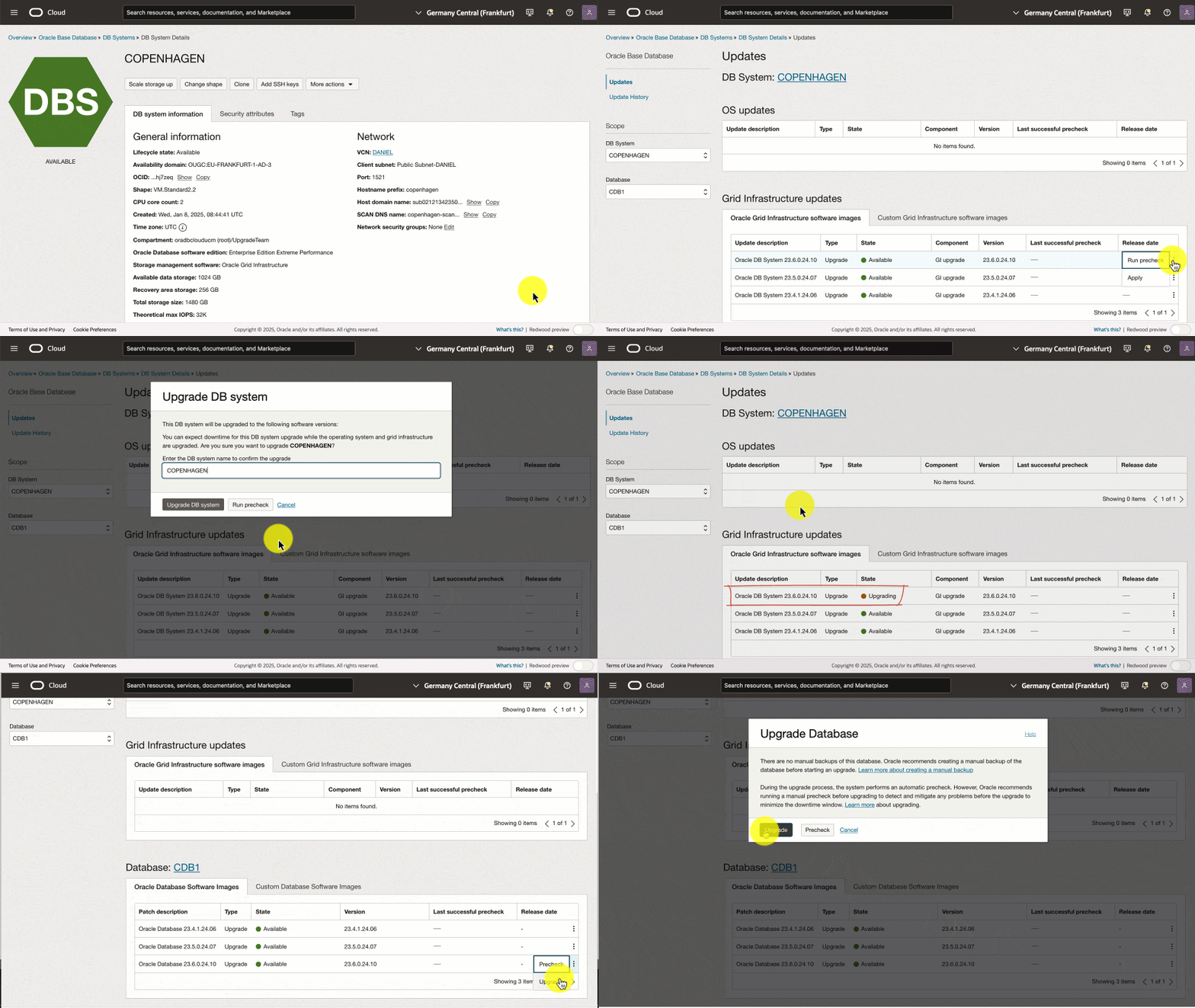
However, underneath the hood, there’s more to it.
This post was originally written for Oracle Database 23ai, but it works the same way to Oracle AI Database 26ai.
Requirements
- The operating system must be Oracle Linux 8 (else see appendix):
[oracle@host]$ cat /etc/os-release - Grid Infrastructure and Database must be 19c or 21c. Check the version of the DB System in the OCI Console or:
[grid@host]$ crsctl query crs activeversion - The database must be in archivelog mode:
select log_mode from v$database; - The database must be a container database (else see appendix):
select cdb from v$database;
How To Upgrade
Before Upgrade
-
In the OCI Console, perform a precheck of the DB System update.
-
Also, perform a precheck of the Database update.
-
Although the Database update precheck succeeds, I recommend you check the preupgrade summary. You can find that on the host:
cd /u01/app/oracle/cfgtoollogs/dbua/$ORACLE_UNQNAME/$ORACLE_SID/100/prechecks cat *_preupgrade.log- The precheck halts only on critical errors. Nevertheless, there might be other issues that you want to attend to.
- Also, the precheck report might list post-upgrade actions that you should attend to.
-
Oracle recommends that you take a manual backup before starting. For Standard Edition databases, a manual backup is the only fallback method available.
-
You must disable automatic backup during upgrade.
Upgrade
- You need downtime for the upgrade – even if you use Oracle RAC!
- First, upgrade Grid Infrastructure.
- Your database and service configuration persists. Those settings are carried over to the new Grid Infrastructure configuration.
- Second, upgrade the database. The tooling
- Automatically creates a guaranteed restore point to protect your database. The name of the restore point is prefixed BEFORE#DB#UPGRADE#, and the restore point is automatically removed following a successful upgrade. This applies to Enterprise Edition only.
- Uses Database Upgrade Assistant (DBUA) to perform the upgrade with default options. This causes DBUA to perform things like timezone file upgrade as well. This prolongs the upgrade duration, but there’s no way to disable it.
After Upgrade
- You should take a new manual backup and re-enable automatic backups (if previously disabled).
- The documentation states that you should manually remove the old Database Oracle home. However, the upgrade process does that automatically. The old Grid Infrastructure Oracle home still exists, and currently, there’s no way to remove it.
- The
compatibleparameter is left at the original value. Oracle recommends raising it a week or two after the upgrade when you are sure a downgrade won’t be needed.alter system set compatible='23.6.0' scope=spfile; shutdown immediate startup- As you can see changing
compatiblerequires a restart. If you can’t afford additional downtime after the upgrade, then be sure to raisecompatibleimmediately after the upgrade. - Also note that for some specific enhancements (vector database related) to work, you need to set
compatibleto23.6.0. - Finally, check this advice on
compatibleparameter in general.
- As you can see changing
- The tooling updates
.bashrcautomatically, but if you have other scripts, be sure to change those.
Monitoring and Troubleshooting
Grid Infrastructure
- You can find the logs from the Grid Infrastructure upgrade here:
/u01/app/grid/crsdata/<hostname>/crsconfig - The log file is really verbose, so here’s a way to show just the important parts:
grep "CLSRSC-" crsupgrade_*.log - The parameter file used during the upgrade:
/u01/app/23.0.0.0/grid/crs/install/crsconfig_params
Database
- Although the upgrade is made with DBUA, it will call AutoUpgrade underneath the hood to perform the preupgrade analysis. You can find their log files here:
/u01/app/oracle/cfgtoollogs/dbua/$ORACLE_UNQNAME/$ORACLE_SID/100/prechecks - Once the upgrade starts, you can list the jobs running by the DCS agent (as root):
dbcli list-jobs ID Description Created Status ---------------------------------------- --------------------------------------------------------------------------- ----------------------------------- ---------- ... bf255c15-a4d5-4f3c-a532-2f0b8c567ad9 Database upgrade precheck with dbResId : d5a7000a-35c8-46a5-9a21-09d522d8a654 Thursday, January 09, 2025, 06:14:01 UTC Success f6fac17a-3871-4cb1-b8f0-281ac6313c6a Database upgrade with resource Id : d5a7000a-35c8-46a5-9a21-09d522d8a654 Thursday, January 09, 2025, 07:13:54 UTC Running- Notice the ID for the upgrade job. You need it later.
- Get details about the job (as root):
dbcli describe-job -i <job-id> Job details ---------------------------------------------------------------- ID: f6fac17a-3871-4cb1-b8f0-281ac6313c6a Description: Database upgrade with resource Id : d5a7000a-35c8-46a5-9a21-09d522d8a654 Status: Running Created: January 9, 2025 at 7:13:54 AM UTC Progress: 13% Message: Error Code: Task Name Start Time End Time Status ------------------------------------------------------------------------ ----------------------------------- ----------------------------------- ---------- Database home creation January 9, 2025 at 7:14:05 AM UTC January 9, 2025 at 7:19:14 AM UTC Success PreCheck executePreReqs January 9, 2025 at 7:19:14 AM UTC January 9, 2025 at 7:24:31 AM UTC Success Database Upgrade January 9, 2025 at 7:24:32 AM UTC January 9, 2025 at 7:24:32 AM UTC Running- Get more details by addid
-l Verboseto the command.
- Get more details by addid
- Progress about the actual database upgrade:
cd /u01/app/oracle/cfgtoollogs/dbua/<job-id> tail -100f silent.log - Database upgrade log files
/u01/app/oracle/cfgtoollogs/dbua/<job-id>/$ORACLE_UNQNAME
How Long Does It Take?
Although upgrading is easy, it does require a substantial amount of downtime.
Here are the timings from a test upgrade of a basic system with just one PDB and 4 OCPUs:
| Component | Stage | Time |
|---|---|---|
| Oracle DB System 23.6.0.24.10 | Precheck | 2m |
| Oracle DB System 23.6.0.24.10 | Upgrade | 1h 26m |
| Oracle Database 23.6.0.24.10 | Precheck | 19m |
| Oracle Database 23.6.0.24.10 | Upgrade | 3h 28m |
| Total | 5h 15m |
The database might be accessible at some point during the upgrade. But since you can’t tell when you should consider the entire period as downtime.
Why Does It Take So Long?
Typically, when you upgrade a database you have already – outside of the maintenance window – deployed a new Oracle Home. When you use the tooling, this happens inside the maintenance window. The tooling can’t deploy an Oracle Home prior to the upgrade. In addition, the upgrade is executed with DBUA using default options, which for instance means that the time zone file is upgraded as well.
What else matters? Check this video.
Can I Make It Faster?
The biggest chance of reducing the upgrade time, is to remove unused components. Databases in OCI comes with all available components, which is nice on one hand, but it adds a lot of extra work to the upgrade. Mike Dietrich has a good blog post series on removing components.
If you scale up on OCPUs for the upgrade, you will also see a benefit. The more PDBs you have in your system, the greater the potential benefit. The databases uses parallel upgrade to process each PDB but also to process multiple PDBs at the same time, so parallel with parallel. When you add more OCPUs to your system, the cloud tooling automatically raises CPU_COUNT which is the parameter the upgrade engine uses to determine the parallel degree.
For CDBs with many PDBs you can overload the upgrade process and assign more CPUs than you have in reality. This can give quite a benefit, but since the cloud tooling doesn’t allow you to control the upgrade, this is unfortunately not an option.
An upgrade is not dependent on I/O, so scaling up to faster storage doesn’t bring any benefit.
So, there is some tweaking potential, but probably not as much as you hope for. If you are concerned about downtime, your best option is to switch approach from upgrading the entire CDB to indivual PDBs using refreshable clones. Depending on the circumstances, you should easily be able to get below 1 hour.
Rollback
If either part of the upgrade fails, the OCI Console will present you with a Rollback button that you can use.
Data Guard
If you use Data Guard, you must upgrade the standby database first, then the primary database. The Data Guard configuration persists. Check the documentation for details.
Final Words
I’ve shown how to perform the entire upgrade in one maintenance window. If you want, you can split the process into two pieces. First, upgrade Grid Infrastructure and then the database. But that would require several duplicate tasks and two separate maintenance windows.
Since this method incurs many hours of downtime, I encourage you to upgrade individual PDBs using refreshable clone PDBs. Using this method you should be able to get under 1 hour for an upgrade.
Be sure to check the other blog posts in this series.
Happy Upgrading!
Appendix
My Database Is A Non-CDB
You must convert a non-CDB database to a pluggable database as part of the upgrade. You can convert convert it in-place.
Alternatively (and my favorite), you can use refreshable clones and move the non-CDB into a new Base Database Service that is already using a container database. You can perform the non-CDB to PDB migration and the upgrade in one operation with very little downtime—much less than an in-place upgrade and conversion.
You can read about it here and here.
My System Is Running Oracle Linux 7
You must upgrade the operating system first, a separate process requiring additional downtime. Consider using refreshable clones.
Further Reading
- Blog post series, Upgrade to Oracle AI Database 26ai
- Documentation, Oracle Base Database Service, Upgrade a DB System
- Documentation, Oracle Base Database Service, Upgrade a Database
 Databases Are Fun