

From the inception of Oracle AutoUpgrade, our clear ambition has been to support all platforms where you can run Oracle Database.
We still work with this ambition in mind, and the latest version of AutoUpgrade lifts additional platform restrictions. Now, you can enjoy AutoUpgrade’s true awesomeness on even more platforms.
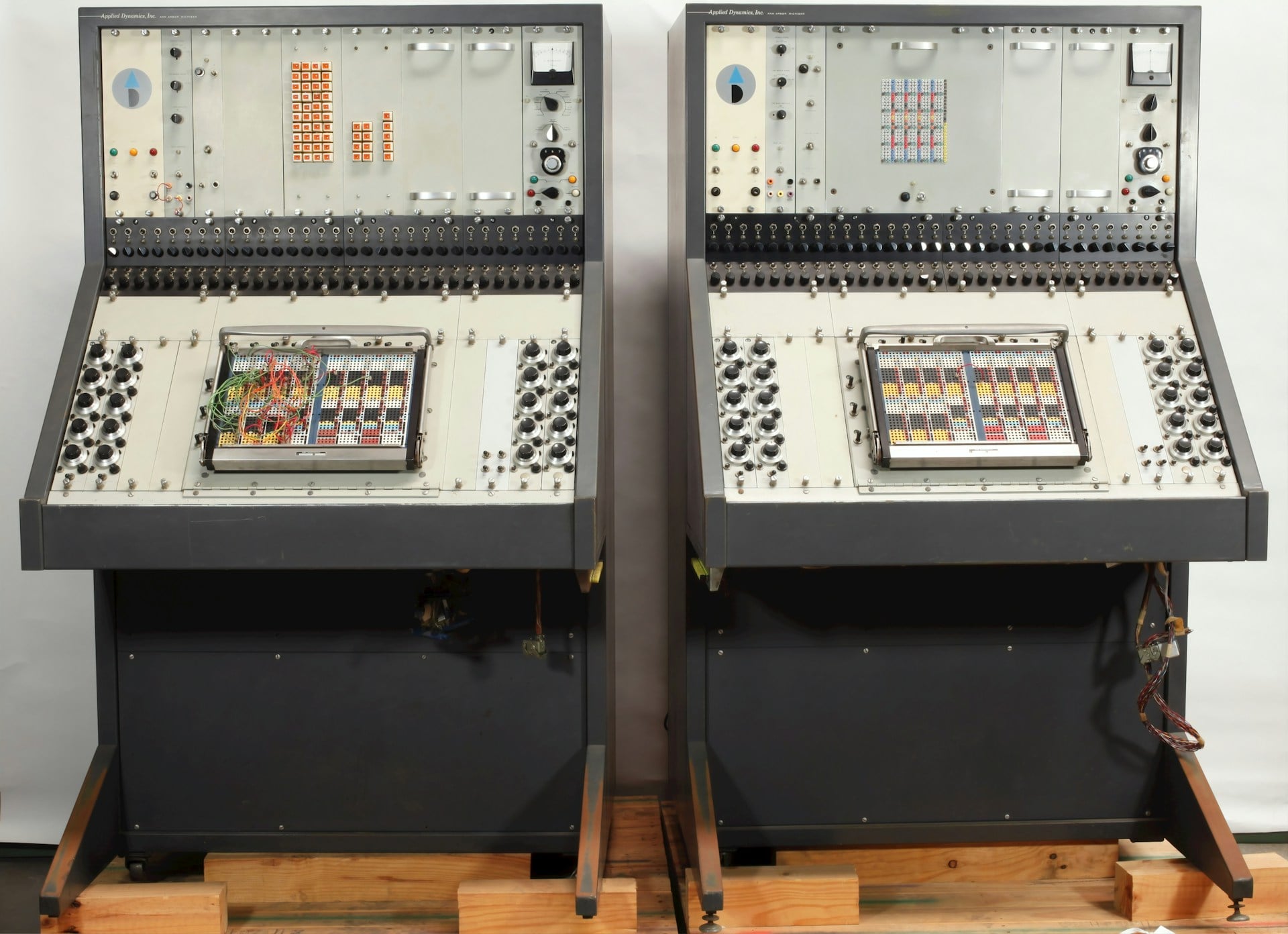
Photo by Museums Victoria on Unsplash
Patching
You can now use one-button patching on the following platforms:
- Linux x86-64
- LINUX ARM
- Microsoft Windows x64
- Oracle Solaris on SPARC
- Oracle Solaris on x86-64
- IBM AIX on POWER Systems
How to Patch a Database
- Ensure that you have the latest version of AutoUpgrade:
wget https://download.oracle.com/otn-pub/otn_software/autoupgrade.jar - Patch your database using the instructions from my previous blog post or our webinar.
How to Download Patches for Other Platforms
You can also use AutoUpgrade to just download patches from My Oracle Support and you can download for multiple platforms.
-
Ensure that you have the latest version of AutoUpgrade:
wget https://download.oracle.com/otn-pub/otn_software/autoupgrade.jar -
Create a config file. Note there are two prefixes – one for Linux and one for Windows.
global.global_log_dir=/home/oracle/autoupgrade-patching/log global.keystore=/home/oracle/autoupgrade-patching/keystore patch1.folder=/home/oracle/autoupgrade-patching/patch patch1.patch=RECOMMENDED patch1.target_version=19 patch1.platform=LINUX.X64 patch2.folder=/home/oracle/autoupgrade-patching/patch patch2.patch=RECOMMENDED patch2.target_version=19 patch2.platform=WINDOWS.X64 -
Download the latest Release Update and other recommended patches for Linux and Windows:
java -jar autoupgrade.jar -config download.cfg -patch -mode download
You can tweak it even further:
- Download for additional platforms by adding more prefixes. Check the documentation for supported platform names.
- Download one-off patches or other patches by adding them to the
patchparameter.
Some useful information:
- If you omit
platformit defaults to your current platform. If AutoUpgrade doesn’t support your current platform (like when you run AutoUpgrade on a Mac), it defaults to LINUX.X64. - Rodrigo Jorge from my team has a good blog post showing how to use download mode.
Windows
AutoUpgrade has supported upgrading on Windows right since the beginning – with the exception of Oracle RAC. But now, this restriction is lifted, so you can upgrade your Oracle RAC as well.
For patching, AutoUpgrade also supports Oracle RAC on Windows. But for now, it doesn’t perform rolling patching (nor does it do so on any platform). You still need opatchauto for that.
Instead, AutoUpgrade performs an all-node patching. It brings down all nodes at once, which means database downtime.
Linux 9
The latest release also includes a few bugs related to Oracle Linux 9. You should be able to use AutoUpgrade on this platform without problems.
Happy patching


Hi Daniel!
Hope you‘re doing well!
Great blog post. Playing around with that because it could improve our rdbms install procedure (Download patches and creating initial patched rdbms home) from a duration of days to a couple of Hours.
With yours and the post from Rodrigo I get it to work till the download action.
Then I got this error Message:
> java -jar autoupgrade.jar -patch -config download.cfg -mode download
AutoUpgrade Patching 25.1.250212 launched with default internal options
Processing config file …
Loading AutoUpgrade Patching keystore
AutoUpgrade Patching keystore was successfully loaded
There were conditions found preventing AutoUpgrade Patching from successfully running
*Downloading Oracle Patch files
Patch query failed
*login-ext.identity.oraclecloud.com*
Do you know what that means? Do I need another account instead of my MoS login?
many thanks and best regards
Christian (from Swiss Bank)
LikeLike
Hi Christian,
I’m doing fine thanks. I hope all is well on your end too.
I’ve never seen that error before, and it shouldn’t be necessary to use any special user. If you can access MOS using a browser from the same computer, then there’s something we need to look at.
In that case, please file an SR and attach the AutoUpgrade zip file. Please e-mail the SR number to me.
Thanks,
Daniel
LikeLike
Many thanks for the response Daniel. SR is this one: 3-39926819131.
Wrote a mail to Mike because I’m not sure about your mail address but got an auto-response because of absence.
thanks
Christian
LikeLike
Thanks,
I’ll have a look at it.
Regards,
Daniel
LikeLike
Hi,
I had the same problem. After a full day debugging I found out that the root cause is my MOS password. It contained a special character which caused the error. After changing my password to a less complex it worked for me.
Regards,Aaron
LikeLike
Hi Aaron,
I’m glad that you found a solution. But I’m puzzled to hear that a special character in your password broke AutoUpgrade.
Do you have a SR where this issue is described? If not, could you share the special character with me in an e-mail (daniel.overby.hansen (at) oracle.com). I’d love to follow up on that.
Thanks,
Daniel
LikeLike