
When you upgrade your Oracle Database, you should also decide how to raise the COMPATIBLE parameter. The considerations are the same when you use Data Guard, but the procedure is different.
Why
The main reason for raising COMPATIBLE is to enable new features.
Some new features are not backward compatible, e.g., blockchain tables. When someone introduces such features, the database:
is no longer backward compatible
can no longer be downgraded
When you upgrade, COMPATIBLE stays at the old setting. You need to actively raise it and allow the use of these new features. You are in total control.
Here is a video with more details about COMPATIBLE.
When
I recommend that you raise COMPATIBLE one or two weeks after the upgrade.
When you have seen that the new release works fine in production.
When you are confident that a database downgrade won’t be needed.
Raising COMPATIBLE requires a database restart, i.e., an outage. If such is unacceptable, you must raise COMPATIBLE as part of the upgrade. But be advised, it severely limits your fallback options.
AutoUpgrade does not change COMPATIBLE, unless you explicitly state it in the config file:
I recommend that you always set COMPATIBLE to the default of a database release:
19.0.0
21.0.0
If you only have non-CDBs then it might not matter much. But in a multitenant environment, having a uniform, COMPATIBLE setting is very beneficial. This allows PDBs to move between CDBs without problems.
How
You need to raise COMPATIBLE on all databases in your Data Guard configuration. The order is important:
First, standby databases (individual order is not important)
STANDBY SQL> --Ensure redo apply is running
STANDBY SQL> alter database recover managed standby database disconnect from session;
STANDBY SQL> alter system set compatible='19.0.0' scope=spfile sid='*';
STANDBY SQL> alter database recover managed standby database cancel;
[oracle@standby]$ srvctl stop database -d $ORACLE_UNQNAME
[oracle@standby]$ srvctl start database -d $ORACLE_UNQNAME -o mount
STANDBY SQL> alter database recover managed standby database disconnect from session;
Last, primary database
PRIMARY SQL> alter system set compatible='19.0.0' scope=spfile sid='*';
[oracle@primary]$ srvctl stop database -d $ORACLE_UNQNAME
[oracle@primary]$ srvctl start database -d $ORACLE_UNQNAME
Let me show you how to upgrade your database to Oracle Database 19c when it is protected by Data Guard. I will use AutoUpgrade and follow the MAA method.
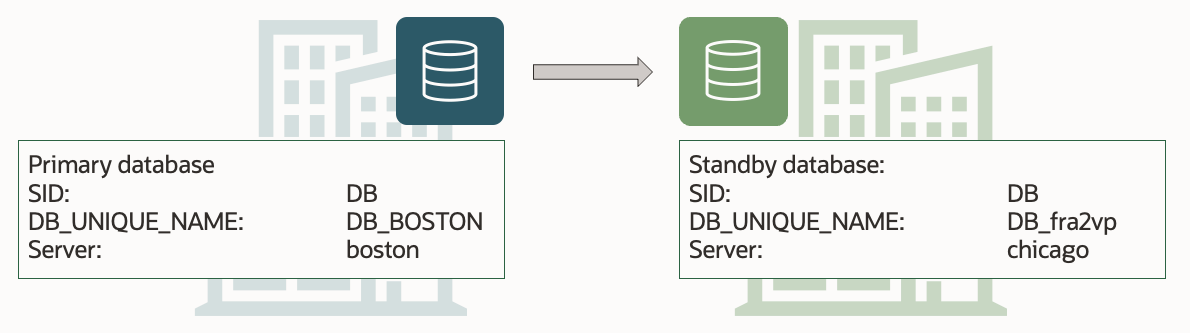
This is my demo environment:
Grid Infrastructure is managing the database.
Data Guard is configured using Data Guard broker.
Overall, the process looks like this:
This procedure starts right before I start AutoUpgrade in DEPLOY mode. Downtime has begun, and no users are connected to the database.
Before Upgrade
I always use the latest version of AutoUpgrade. Download it and put it into $ORACLE_HOME/rdbms/admin.
A newer version of AutoUpgrade can also upgrade to older database releases, so don’t worry if the AutoUpgrade version doesn’t match the Oracle Database release that you are upgrading to.
Disable Fast-Start Failover (FSFO)
Fast-Start Failover must be disabled during upgrade. I connect to Data Guard CLI (dgmgrl) and disable it:
DGMGRL> disable fast_start failover;
Restore Point
I need to protect the standby database against errors during the upgrade. I create a guaranteed restore point on the standby database:
STANDBY SQL> alter database recover managed standby database cancel;
STANDBY SQL> create restore point stdby_before_upg guarantee flashback database;
STANDBY SQL> alter database recover managed standby database disconnect from session;
Set Parameters
If I plan on making changes to the database initialization parameters as part of the upgrade of the primary database, I probably also want to make the same changes on the standby database.
I can make changes to database initialization parameters using these AutoUpgrade config file parameters:
remove_underscore_parameters
add_after_upgrade_pfile
add_during_upgrade_pfile
del_after_upgrade_pfile
del_during_upgrade_pfile
I can also review the Preupgrade Summary Report for suggested changes to the database initialization parameters.
Save the changes to the SPFile only:
STANDBY SQL> alter system set ... scope=spfile;
Restart Standby Database In New Oracle Home
The standby database must be started in the new Oracle Home; the Oracle Home I upgrade to.
Ideally, I have stored these files outside the Oracle Home; like ASM. In that case, I don’t need to do anything:
SPFile
Password file
Data Guard broker config files
Network files (sqlnet.ora, tnsnames.ora etc.)
If I stored the files inside the Oracle Home, I must move them to the new Oracle Home (see appendix).
Next, I restart the database in the new Oracle Home. I must restart in mount mode:
[oracle@standby]$ #Set environment to new Oracle Home
[oracle@standby]$ export ORACLE_HOME=/u01/app/oracle/product/19.0.0.0/dbhome_1
[oracle@standby]$ export PATH=$ORACLE_HOME/bin:$PATH
[oracle@standby]$ srvctl upgrade database -d $ORACLE_UNQNAME -oraclehome $ORACLE_HOME
[oracle@standby]$ srvctl start database -d $ORACLE_UNQNAME -o mount
I don’t need to explicitly start redo apply. My Data Guard broker configuration has APPLY-ON for the standby database. Since the broker is still enabled, it will ensure that redo apply is started.
Finally, be sure also to change my profiles and /etc/oratab (see appendix).
Upgrade
Upgrade the primary database by starting AutoUpgrade in DEPLOY mode:
As the upgrade progresses, it makes a lot of changes to the database data dictionary. Those changes are written to redo, which the standby database will apply. Thus, the upgrade happens implicitly on the standby database via the redo.
After Upgrade
Check Standby Database
Ensure that the standby database has caught up and applied all the redo generated during the upgrade.
I use Data Guard CLI (dgmgrl) to check it. First, the configuration:
DGMGRL> show database "DB_BOSTON"
DGMGRL> show database "DB_fra2vp"
Both databases should have status SUCCESS, and the standby database must report no apply lag.
If Data Guard broker reports an erroror the standby database is not applying logs, I can try to enable the configuration again:
DGMGRL> enable configuration;
Validate Data Guard
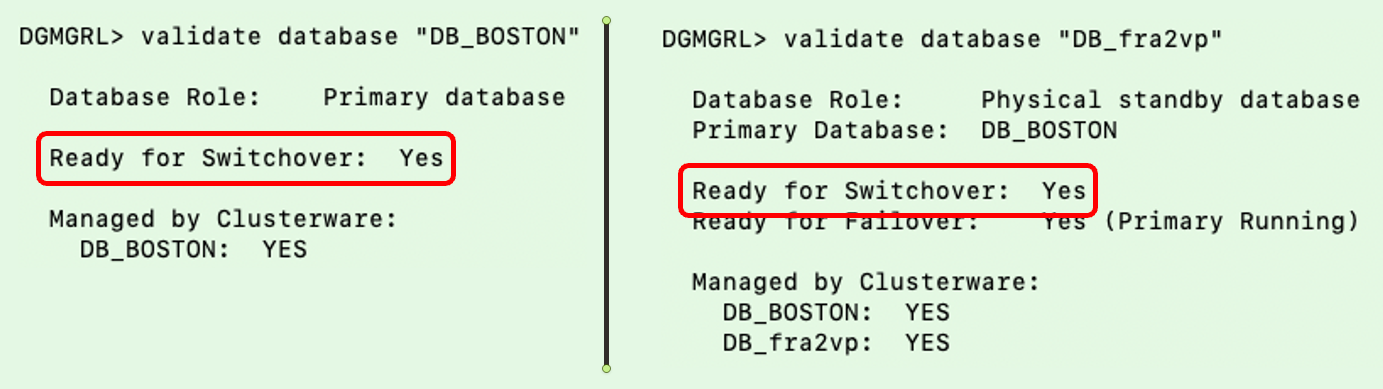
I validate the setup and ensure both databases are ready for a switchover. The database will not allow a switchover if there are any problems in the Data Guard setup. It is a good way of checking things are fine:
If the database is licensed to use Active Data Guard, I can now open the standby database in READ ONLY mode.
Remove Restore Points
After the upgrade, I should perform the necessary tests to validate the new database release. Only when I am convinced to go live on the new release, should I remove the restore points on both databases.
Miscellaneous
Check the database registration in listener.ora. I must update the Oracle Home information if there is a static configuration.
What If
What if your Oracle Database is not managed by Grid Infrastructure?
You can still use the above procedure, but you must change the commands accordingly.
What if you don’t use Data Guard broker?
Manually configured Data Guard environments are fully supported by AutoUpgrade, but you must change some commands accordingly.
Conclusion
It is not that complicated to upgrade your database, even if it is part of a Data Guard setup. Using AutoUpgrade is fully supported and highly recommended. A little extra legwork is needed to take care of the standby database. But the good thing is that your Data Guard setup is maintained throughout the process.
Here is a query to determine the location of the Data Guard broker config files. In this example, the files are stored outside the Oracle Home; in ASM:
SQL> select name, value from v$parameter where name like 'dg_broker_config_file%';
NAME VALUES
---------------------- --------------------------------
dg_broker_config_file1 +DATA/DB_FRA2PR/dr1db_fra2pr.dat
dg_broker_config_file2 +DATA/DB_FRA2PR/dr2db_fra2pr.dat
Database Files
Here is a command to see where the SPFile and password file are located. In this example, the SPFile is stored outside the Oracle Home. However, the password file is in the default location inside the Oracle Home. The latter must be moved when you restart a database in the new Oracle Home:
Here is a little snippit to update /etc/oratab to match the new release Oracle Home. Since I am using Grid Infrastructure to manage my database, I don’t set the database to start automatically:
export NEW_ORACLE_HOME=/u01/app/oracle/product/19.0.0.0/dbhome_1
export ORACLE_SID=DB
#Backup file
cp /etc/oratab /tmp/oratab
#Use sed to remove the line that starts with ORACLE_SID
sed '/^'"$ORACLE_SID"':/d' /tmp/oratab > /etc/oratab
#Add new entry
echo "$ORACLE_SID:$NEW_ORACLE_HOME:N" >> /etc/oratab
Updating .bashrc
Here is a little snippit to update .bashrc replacing the old Oracle Home with the new Oracle Home:
When I run AutoUpgrade in ANALYZE mode and check the preupgrade summary report, I find this information message:
Synchronize your standby databases before database upgrade.
The standby database is not currently synchronized with its associated primary database.
To keep data in the source primary database synchronized with its associated standby databases, all standby databases must be synchronized before database upgrade. See My Oracle Support Note 2064281.1 for details.
Don’t worry about it. It tells me to ensure that all redo gets applied
What does it say? Basically, it says that all redo generated on the primary database before the downtime window started, should be sent to and applied on the standby database. This way, my standby database is ready to replace your primary database at any time, if something goes really wrong.
Strictly speaking it is not necessary to ensure that, but it is strongly recommended.
Oracle Database is capable of downgrading, and it is a cool fallback mechanism. You can use it even after go-live. Plus, Data Guard plays nicely together with downgrade. You don’t have to rebuild the standby database following a downgrade if you follow the correct procedure.
When To Use Downgrade
You should only consider downgrading after go-live. When users have made changes to your Oracle Database. In that case, you can downgrade to the previous release without any data loss. Before go-live, Flashback Database is our preferred fallback mechanism.
A comparison between the two:
Flashback Database
Downgrade
Data loss
No data loss
Use before go-live
Use after go-live
After flashback, database is identical with before-upgrade state
After downgrade, database is compatible with before-upgrade state, but not identical
Requires Enterprise Edition
Works in all editions
Preferred method
General Considerations
It is a requirement that you have not changed the COMPATIBLE parameter. As soon as you change COMPATIBLE after upgrade, you can no longer downgrade your Oracle Database. If you have already changed the COMPATIBLE parameter, you must use other fallback methods like Data Pump or RMAN restore.
The old release Oracle Home must still exist on primary and standby hosts. I recommend that you keep them until you are absolutely sure you will not downgrade your Oracle Database.
When you downgrade your database, I recommend leaving your Grid Infrastructure at the new release. Don’t downgrade Grid Infrastructure as well. Ideally, you upgraded Grid Infrastructure to the new release in advance in a previous maintenance window. Thus, you know it can handle the old release of the database. Save yourself the added complexity of also downgrading Grid Infrastructure.
Data Guard broker does not support going back to a previous version. You must disable the broker before downgrade and afterward create a new configuration or restore broker configuration files from the old release.
The following works for Data Guard configuration with a physical standby database. Other considerations and a different procedure apply if you have a logical standby database.
Downgrade
To downgrade an Oracle Database protected by Data Guard the following applies:
You can downgrade hours, days, or even months after the upgrade. As long as you haven’t changed the COMPATIBLE parameter.
You must mount the standby database and start redo apply in real-time apply mode. Keep it running during the entire process.
You must not open the standby database until the end of the process.
The downgrade happens on the primary database. A downgrade will make changes to the data dictionary. Those changes are applied on the standby via redo.
A downgrade with a standby database generally follows the same procedure as a regular database. However, at the end of each step, you must ensure that the standby database has applied all the redo generated by the primary database during that step. I usually issue a few log switches and check the current sequence (SEQUENCE#) on the primary database. Then I wait for that sequence to be applied on the standby database.
AutoUpgrade can’t perform downgrades. You need to do this manually.
In the following, $NEW_ORACLE_HOME refers to the release you were upgrading to (e.g., 19c), and $OLD_ORACLE_HOME refers to the release you upgraded from (e.g., 12.1.0.2).
Set the environment in your session to the new Oracle Home.
For RAC, set CLUSTER_DATABASE parameter:
alter system set cluster_database=false scope=spfile sid='*'
Stop the primary database:
srvctl stop database -d $ORACLE_UNQNAME
Start the primary database (if RAC, just one instance) in downgrade mode:
startup downgrade
Set the executable flag on downgrade script in the new Oracle Home:
chmod +x $ORACLE_HOME/bin/dbdowngrade
Start downgrade script on primary database. The environment is still set to the new release Oracle Home.
$ORACLE_HOME/bin/dbdowngrade
Important: Ensure that the standby database has applied all redo from the downgrade operation. Perform a few log switches and note the sequence number. Ensure the standby database has applied that sequence.
Shut down primary database and standby database (if RAC, all instances).
Downgrade the standby database in Grid Infrastructure. This tells Grid Infrastructure to start the database in the old Oracle Home (in this example, it is 12.1.0.2):
Important: Switch the environment in your session to the old Oracle Home.
Start the standby database (if RAC, all instances).
Start redo apply:
alter database recover managed standby database disconnect from session
Start primary database in upgrade mode (if RAC, only one instance):
startup upgrade
Finish the downgrade:
set echo on termout on serveroutput on timing on
spool catrelod.log
@?/rdbms/admin/catrelod.sql
Recompile:
@?/rdbms/admin/utlrp.sql
Set CLUSTER_DATABASE parameter and shut down:
alter system set cluster_database=true scope=spfile sid='*'
shutdown immediate
Downgrade the primary database in Grid Infrastructure. Grid Infrastructure will now start the database in the old Oracle Home (in this example it is 12.1.0.2):
select comp_id, status
from dba_registry
where status not in ('VALID', 'OPTION OFF')
Important: Ensure that the standby database has applied all redo from the downgrade operation. Perform a few log switches and note the sequence number. Ensure the standby database has applied that sequence.
Start Data Guard broker on primary and standby database
Either restore broker config files from old release, and start Data Guard broker.
Or, start Data Guard broker and recreate the configuration.
: Ensure that your Data Guard configuration works. Use validate database command in Data Guard broker on all databases and ensure they are ready for switchover.
Optionally, test your Data Guard by doing a switchover.
No specific Data Guard-related changes. The above procedure is written for a non-CDB database. The procedure is slightly different for a CDB; check the documentation or the demo below.
RAC
On the standby database, you can leave all instances running, and you don’t need to change CLUSTER_DATABASE.
Demo
Downgrade of a CDB running RAC and Data Guard environment:
When you upgrade your Oracle Database, you should also prepare for fallback. Data Guard plays nicely together with Flashback Database. You don’t have to rebuild the standby database following a Flashback Database if you follow the correct procedure.
When To Use Flashback Database
Flashback Database is easy to use, and it is our preferred fallback mechanism. However, Flashback Database also means data loss because the database is rewinded. So, Flashback Database is only useful before you go live on the new release.
A comparison between Flashback Database and downgrade.
Flashback Database
Downgrade
Data loss
No data loss
Use before go-live
Use after go-live
After flashback, database is identical with before-upgrade state
After downgrade, database is compatible with before-upgrade state, but not identical
It is a requirement that you have not changed the COMPATIBLE parameter. As soon as you change COMPATIBLE after upgrade, you can no longer use Flashback Database. If you have already changed the COMPATIBLE parameter, you must use other fallback methods like Data Pump or RMAN restore.
The old release Oracle Home must still exist on primary and standby hosts. I recommend that you keep them until you are absolutely sure you will not flashback (nor downgrade) your Oracle Database.
When you flashback your database, I recommend that you leave your Grid Infrastructure at the new release. Don’t downgrade Grid Infrastructure as well. Ideally, in a previous maintenance window, you upgraded Grid Infrastructure to the new release in advance. Thus, you know it can handle the old release of the database. Save yourself the added complexity of also downgrading Grid Infrastructure.
Data Guard broker does not support going back to a previous version. You must disable the broker during flashback and afterward create a new configuration or restore broker configuration files from the old release.
The following works for Data Guard configuration with a physical standby database. Other considerations and a different procedure apply if you have a logical standby database.
You must have a restore point on primary and all standby databases.
First, create restore points on standby database, then on primary database. The SCN of the restore points on the standby database must be lower than the SCN of the restore point on the primary database.
I recommend using guaranteed restore points when upgrading.
Don’t rely on restore point propagation. Manually create the restore points on the standby database.
The order of the operation is important: First, handle standby databases (order of standby databases is not important), then primary database.
On YouTube, we have a good introduction to using Flashback Database as fallback. You can also flip through the slides.
How To Flashback With AutoUpgrade
The following assumes:
You manually created a restore point on the standby database.
AutoUpgrade created a restore point on the primary database (default, controlled by restoration).
AutoUpgrade was configured to keep the restore point after upgrade (default, controlled by drop_grp_after_upgrade).
$NEW_ORACLE_HOME refers to the release you were upgrading to (e.g. 19c) and $OLD_ORACLE_HOME refers to the release you upgraded from (e.g. 12.1.0.2).
The procedure:
The environment in your session is set to the new Oracle Home.
Stop Data Guard broker on all databases:
alter system set dg_broker_start=false scope=both sid='*'
Stop standby database (all instances, if RAC).
Flashback primary database using AutoUpgrade. nn is the AutoUpgrade job id that executed the upgrade:
java -jar autoupgrade.jar -config ... -restore -jobs nn
AutoUpgrade handles everything on primary database, like
/etc/oratab
Grid Infrastructure downgrade
SPFile
Etc.
Start standby database in mount mode (only one instance, if RAC).
Flashback the standby database:
flashback database to restore point ...
Shut down the standby database.
Downgrade the standby database clusterware configuration. Grid Infrastructure will now start the database in the old Oracle Home (in this example it is 12.1.0.2):
Start Data Guard broker on primary and standby database
Either restore broker config files from old release and start Data Guard broker.
Or, start Data Guard broker and recreate the configuration.
: Ensure that your Data Guard configuration works. Use validate database command in Data Guard broker on all databases and ensure they are ready for switchover.
Optionally, test your Data Guard by doing a switchover.
Remember to drop the guaranteed restore points on all databases.
That’s it!
Demo
Flashback of a CDB running RAC and Data Guard environment:
You can upgrade your Oracle Database to a new release and keep the Data Guard setup intact. There is no need to rebuild a physical standby database after the upgrade.
When you upgrade the primary database, many changes go into the data dictionary. These changes are recorded in the redo stream and sent to the standby database. When the standby database applies the redo, it is implicitly upgraded.
You can do it in the same maintenance window as the database upgrade, but I recommend that you perform the GI upgrade in an earlier maintenance window. A newer version of GI can run earlier versions of Oracle Database, so you can safely upgrade GI in advance. Doing so will give you time to adapt to the new GI release.
Also, in advance, you should install the new Oracle Home on both primary and standby hosts. The two Oracle Homes must have the same patches applied, and I recommend that you always apply the latest Release Update and have a look at 555.1 for important one-offs.
How To
When upgrading with Data Guard, there are two approaches:
Before the upgrade starts on the primary database, you shut down the standby database. You keep it shut down until the upgrade has completed on the primary database and you have finished your tests. When you are sure you will stay on the new release, the standby database is restarted and synchronized with the primary database. It will take some time before you can go live because the standby database must apply all the redo generated during the upgrade.
If you need to fall back, you can use Flashback Database on the primary database. In addition, no matter what happens to the primary database, you still have the standby database immediately ready in the pre-upgrade state.
My team recommends this method. We prefer to sacrifice a little downtime to achieve even better protection.
MAA Method
The standby database is open and applies redo while the primary database is upgraded. This means that the standby database is closely following the primary database. You can go live very soon after the upgrade completes because there is little or very little apply lag.
The downside is when you must fall back. In that case, you have two databases to bring back in time with Flashback Database. In the very unlikely event that something happens during flashback on both databases, you may need to restore your backup.
The MAA team recommends this method as it guarantees the lowest downtime.
Which One To Choose?
If you have two or more standby databases, you can combine the two methods and get the best of both worlds. Otherwise, rest assured that both methods work fine and are supported.
Standby Offline
MAA
Maximum protection
Minimum downtime
Upgrade team recommendation
MAA recommendation
Redo transport deferred
Redo transport enabled
Redo apply stopped
Redo apply active
Protected by offline standby and guaranteed restore point
Protected by guaranteed restore point
AutoUpgrade default
Of course, AutoUpgrade supports both methods. You can check the other blog post in the series for detailed instructions.
If you are running Oracle Database on Exadata, you should read the dedicated procedure created by the Maximum Availability Architecture (MAA) team.
Multiple Standby Databases
Not much changes if you have many standby databases in your Data Guard configuration. The procedure is basically the same, except that you must execute commands on all the standby databases. The order of the standby databases does not matter (unless you have cascaded standby databases – see below).
Data Guard Broker
If you have configured your Data Guard setup using Data Guard broker, then you can leave it running during the upgrade. There used to be some problems with Data Guard broker during upgrade to previous releases, but it works fine when you upgrade to Oracle Database 19c.
However, you must disable Fast-Start Failover before the upgrade. After a successful upgrade, you can enable it again.
Cascaded Standby Databases
If you have cascaded standby databases, the following applies according to the documentation:
If there are cascaded standbys in your configuration, then those cascaded standbys must follow the same rules as any other standby, but should be shut down last, and restarted in the new home first.
You must treat cascaded standby databases like any other standby database. However, the order is now important. Imagine this scenario:
Primary database: BOSTON
Standby database: CHICAGO
Cascaded standby database: NEWYORK
When the procedure tells you to stop standby databases: First CHICAGO, then NEWYORK
When the procedure tells you to start standby databases: First NEWYORK, then CHICAGO
Far Sync
A far sync database should be treated like any other standby database. Like cascaded standby databases the order of the shutdown is important to ensure that all redo from primary reaches the standby database connected via the far sync.
Logical Standby
When you have logical standby databases in your Data Guard configuration, things are slightly different. In that case, look in the documentation.
When upgrading an Oracle Database, do we need to disable the scheduler (DBMS_SCHEDULER)?
The short answer is: No …. or perhaps.
What Happens During Analyze
When you use AutoUpgrade in Analyze mode (java -jar autoupgrade.jar -mode analyze), it will check your database. It is a non-intrusive check, and normal operations can continue, including use of the scheduler.
What Happens During Deploy
When downtime starts, and you are ready to upgrade your database, you start AutoUpgrade in Deploy mode (java -jar autoupgrade.jar -mode deploy).
Analyze And Fixups
First, AutoUpgrade will re-analyze the database, and based on the findings; it will run pre-upgrade fixups. The fixups make changes to the database, like gathering dictionary statistics, emptying recycle bin and other administrative tasks. The scheduler remains active during this period, so if you have any jobs that do administrative things on the database, like gathering statistics, there is a chance that they will collide. But typically not a problem.
Upgrade
Then the actual upgrade of the database can start. This happens while the database is started in upgrade mode (STARTUP UPGRADE)
When the database is started in upgrade mode, many things are disabled automatically. The scheduler being one of them.
Examples of other changes that happen in upgrade mode:
System triggers are disabled
Certain parameters are changed
Resource Manager is disabled
You can check the alert log for more information. Here is a snippet:
2022-05-17T11:56:54.585122+02:00
AQ Processes can not start in restrict mode
Post-Upgrade
After the actual upgrade, the database is restarted in normal mode. The scheduler becomes enabled again.
In this phase, AutoUpgrade is recompiling invalid objects and performing post-upgrade fixups. Changes will be made to the database, like re-gathering dictionary statistics. Similar to the pre-upgrade fixups, depending on the nature of your scheduler jobs, there is a risk of things colliding. That can cause waits or concurrency issues.
Finally, the time zone file is upgraded. This process requires the database to be started in upgrade mode again. Again, the scheduler will be automatically disabled.
What Is The Answer?
From a functional point of view the scheduler is enabled and working during some parts of an upgrade. Only during the most critical parts is it automatically disabled.
So, the answer is: No, you do not need to disable the scheduler during upgrade. The database will automatically disable it when needed.
But the database is restarted multiple times which of course will affect any running scheduler jobs.
Depending on the nature of your scheduler jobs, you might decide to disable it completely during the entire database upgrade. For instance, if you have long-running jobs or jobs that are sensitive to being interrupted.
On the other hand, if your jobs are short-running, restart easily, or you basically don’t care, then it is perfectly fine to leave it all running during a database upgrade.
Manually Disable The Scheduler
If you decide to disable the scheduler manually, you should temporarily change job_queue_processes:
SQL> alter system set job_queue_processes=0 scope=both;
Don’t forget to set it to the original value after the upgrade.
When you start Oracle Database in upgrade mode, you can only run queries on fixed views. If you attempt to run other views or PL/SQL, then you receive errors.
When the database is started in upgrade mode, only queries on fixed views execute without errors. This restriction applies until you either run the Parallel Upgrade Utility (catctl.pl) directly, or indirectly by using the dbupgrade script). Before running an upgrade script, using PL/SQL on any other view, or running queries on any other view returns an error.
Starts the database in OPEN UPGRADE mode and sets system initialization parameters to specific values required to enable database upgrade scripts to be run. UPGRADE should only be used when a database is first started with a new version of the Oracle Database Server.
When run, upgrade scripts transform an installed version or release of an Oracle database into a later version, for example, to upgrade an Oracle9i database to Oracle Database 10g. Once the upgrade completes, the database should be shut down and restarted normally.
Many commands that involve Transparent Data Encryption (TDE) require inputting the TDE keystore password. Also, when you use AutoUpgrade. on an encrypted Oracle Database you probably need to store the TDE keystore password using the -load_password option.
Manually inputting passwords is unsuitable for an environment with a high degree of automation. In Oracle Database it is solved by Secure External Password Store (SEPS) (as of Oracle Database 12.2). In a previous blog post, I showed how you could use it to your advantage.
This blog post is about how to use AutoUpgrade together with SEPS.
Good News
As of version 22.2 AutoUpgrade fully supports Oracle Database with a Secure External Password Store. If SEPS contains the TDE keystore password, you don’t have to input the password using the -load_password option.
If you are using AutoUpgrade in some sort of automation (like Ansible), you should look into SEPS. AutoUpgrade can use SEPS when the TDE keystore password is needed, and you can upgrade and convert completely unattended.
How To
The Oracle Database DB12 is encrypted and on Oracle Database 12.2. I want to upgrade, convert, and plug it into CDB2 on Oracle Database 19c.
Ensure that your Oracle Databases DB12 and CDB2 are properly configured with a Secure External Password Store and it contains the TDE keystore password.
Ensure that AutoUpgrade is version 22.2 or higher:
$ java -jar autoupgrade.jar -version
Create your AutoUpgrade config file and set global.keystore as specified in a previous blog post:
Action Required is empty and verifies that I don’t need to input the TDE keystore passwords. AutoUpgrade checked SEPS in CDB2 and found that it works. It is impossible to check SEPS in DB12 because it is on Oracle Database 12.2. The functionality was added in Oracle Database 19c.
You must configure an AutoUpgrade keystore. Even though you are not loading any TDE keystore passwords, it is still required. Some commands require a passphrase (or transport secret) and AutoUpgrade must store them in its keystore.
Whenever a database is using SEPS, and a TDE keystore password is required, AutoUpgrade will use the IDENTIFIED BY EXTERNAL STORE clause.
What Else
You can mix and match. If only one database uses SEPS, you can input the other TDE keystore password manually using the -load_password option. AutoUpgrade will check your database configuration and ask only for the needed TDE keystore passwords.
Converting an encrypted non-CDB to a PDB requires the keystore passwords of the non-CDB and the target CDB. You can do it with AutoUpgrade, and you can upgrade in the same operation.
How To
The Oracle Database DB12 is encrypted and on Oracle Database 12.2. I want to upgrade, convert, and plug it into CDB2 on Oracle Database 19c.
Ensure that AutoUpgrade is version 22.2 or higher:
$ java -jar autoupgrade.jar -version
Create your AutoUpgrade config file and set global.keystore as specified in a previous blog post:
Add the TDE keystore passwords into the AutoUpgrade keystore:
$ java -jar autoupgrade.jar -config DB12.cfg -load_password
TDE> add DB12
Enter your secret/Password:
Re-enter your secret/Password:
TDE> add CDB2
Enter your secret/Password:
Re-enter your secret/Password:
Save the passwords into the AutoUpgrade keystore. I choose to create an auto-login keystore:
TDE> save
Convert the keystore to auto-login [YES|NO] ? YES
TDE> exit
If AutoUpgrade does not report any other problems, start the upgrade and conversion. Since I chose to create an AutoUpgrade auto-login keystore, I don’t have to provide the password when AutoUpgrade starts:
First, AutoUpgrade upgrades the database to Oracle Database 19c. This is a regular non-CDB database upgrade. It requires an auto-login keystore.
After the upgrade, AutoUpgrade exports the encryption keys into a file. To avoid writing the encryption keys in clear text in the export file, the database needs a passphrase (transport secret) to encrypt the encryption key. AutoUpgrade generates a passphrase and stores it in the AutoUpgrade keystore. In addition, the database needs the keystore password. This is the WITH SECRET and IDENTIFIED BY clauses of the ADMINISTER KEY MANAGEMENT EXPORT KEYS statement.
The encryption keys is imported into CDB$ROOT of the target CDB. To load the encryption keys from the export file, the database needs the passphrase and keystore password (of the target CDB). AutoUpgrade gets both password from the AutoUpgrade keystore. This is the WITH SECRET and IDENTIFIED BY clauses of the ADMINISTER KEY MANAGEMENT IMPORT KEYS statement.
The pluggable database is created from the manifest file using CREATE PLUGGABLE DATABASE statement.
AutoUpgrade executes the ADMINISTER KEY MANAGEMENT IMPORT KEYS statement again – this time while connected to the PDB itself.
Finally, AutoUpgrade completes the PDB conversion by running noncdb_to_pdb.sql.
The encryption keys are imported two times – first in CDB$ROOT and then in the PDB itself. AutoUpgrade must import into CDB$ROOT if the PDB has any of the system tablespaces (SYSTEM or SYSAUX) or the undo tablespace encrypted.
Fallback
AutoUpgrade fallback functionality also works for an upgrade and PDB conversion. But there are a few requirements:
A target_pdb_copy_option must be specified.
The database must be Enterprise Edition.
A guaranteed restore point must be created (default behavior).
It is not possible to revert the PDB conversion. To fall back the data files must be copied as part of the PDB conversion. You specify that the data files are copied by using the config file parameter target_pdb_copy_option.
As an example, if I want to copy the data files during plug-in and generate OMF names, I use this parameter:
AutoUpgrade automatically creates a guaranteed restore point in the beginning of an upgrade. AutoUpgrade will issue a FLASHBACK DATABASE statement to revert the upgrade. The parameter restoration governs the creation of the restore point. The default value is YES, meaning AutoUpgrade creates a guaranteed restore point, and fallback is possible.
If all prerequisites are met, I can revert the entire operation and return the database to the original state (from 19c PDB back into a 12.2 non-CDB). 103 is the job id of the upgrade/PDB conversion:
An unplug-plug upgrade of an encrypted PDB requires the keystore password of the source and target CDB, and you can do it with AutoUpgrade.
How To
The pluggable database PDB1 is encrypted and is plugged into CDB1, which is Oracle Database 12.2. I want to upgrade the PDB to Oracle Database 19c by plugging it into CDB2.
Ensure that AutoUpgrade is version 22.2 or higher:
$ java -jar autoupgrade.jar -version
Create your AutoUpgrade config file and set global.keystore as specified in a previous blog post:
Add the TDE keystore passwords into the AutoUpgrade keystore:
$ java -jar autoupgrade.jar -config PDB1.cfg -load_password
TDE> add CDB1
Enter your secret/Password:
Re-enter your secret/Password:
TDE> add CDB2
Enter your secret/Password:
Re-enter your secret/Password:
Save the passwords into the AutoUpgrade keystore. I choose to create an auto-login keystore:
TDE> save
Convert the keystore to auto-login [YES|NO] ? YES
TDE> exit
If AutoUpgrade does not report any other problems, start the unplug-plug upgrade. Since I chose to create an AutoUpgrade auto-login keystore, I don’t have to provide the password when AutoUpgrade starts:
When AutoUpgrade needs to unplug the encrypted PDB into a manifest file, the source CDB will need the TDE keystore password. AutoUpgrade can get it from its keystore. This is the IDENTIFIED BY clause of the ALTER PLUGGABLE DATABASE ... UNPLUG INTO statement.
The encryption keys of the PDB go into the manifest file. The database doesn’t want to write the encryption keys in clear text in the manifest file and asks for a passphrase that can encrypt the encryption keys. AutoUpgrade generates a passphrase and stores the passphrase in the AutoUpgrade keystore. This is the ENCRYPT USING clause of the ALTER PLUGGABLE DATABASE ... UNPLUG INTO statement.
When the PDB plugs into the target CDB, the target CDB will need the TDE keystore password. This is the IDENTIFIED BY clause of the CREATE PLUGGABLE DATABASE ... USING statement.
The database must get the encryption keys of the PDB from the manifest files. The encryption keys are encrypted using a passphrase. The database asks AutoUpgrade about the passphrase which is stored in the AutoUpgrade keystore. This is the DECRYPT USING clause of the CREATE PLUGGABLE DATABASE ... USING statement.
Fallback
AutoUpgrade fallback functionality also works on an encrypted PDB. When it comes to unplug-plug upgrades and fallback capability, it is a requirement that the data files were copied as part of the upgrade process.
In the above example, a fallback using AutoUpgrade would not be possible. Since I did not specify a target_pdb_copy_option the data files were re-used. Other means of falling back to the original state is needed.
Had I specified a target_pdb_copy_option in my config file, a fallback would be possible. In the below example, I am specifying a copy option. file_name_convert=none means that the data files are copied and new OMF names are generated:
In CDBs the default way of storing TDE encryption keys is in a united keystore. The CDB has one keystore and all PDBs store their encryption keys in that one keystore.
With Oracle Database 19.14 a new option became possible: isolated keystore. The CDB still has a keystore that PDBs can use. But you can also configure each individual PDB to use its own keystore.
You can load a password for an isolated keystore using:
Upgrading a non-CDB or an entire CDB is straightforward with AutoUpgrade. There is only one requirement:
An auto-login keystore must be present.
Upgrade Non-CDB and CDB
The auto-login keystore enables the database to open the TDE keystore without a DBA manually entering the keystore password. During a database upgrade, the database will restart multiple times. The upgrade process embeds the restarts, and there is no way for a DBA to intervene halfway to enter the TDE keystore password. Hence, it is required to use an auto-login keystore.
You can query the database for the type of the TDE keystore:
SQL> select wallet_type from v$encryption_wallet;
AUTOLOGIN
It must be an AUTOLOGIN keystore or a LOCAL_AUTOLOGIN. I like the local autologin keystore because it adds an additional layer of security.
When a proper keystore is in place, you can start the upgrade.
As of Oracle Database 19c, WALLET_ROOT initialization parameter.
ENCRYPTION_WALLET_LOCATION sqlnet.ora parameter.
$ORACLE_BASE/admin/DB_UNIQUE_NAME/wallet
$ORACLE_HOME/admin/DB_UNIQUE_NAME/wallet
Oracle recommends using the parameter WALLET_ROOT when your database is on Oracle Database 19c. The parameter is introduced in Oracle Database 19c, and all other methods have been deprecated.
It is easier to configure the TDE keystore using WALLET_ROOT than sqlnet.ora.
AutoUpgrade can implement the changes needed to switch to the WALLET_ROOT parameter as part of an upgrade . I recommend doing that.
TNS_ADMIN
Often, sqlnet.ora defines the TDE keystore configuration. This means that the TNS_ADMIN location is important.
TNS_ADMIN defaults to $ORACLE_HOME/network/admin. But sometimes, it is relocated either via a profile (like .bashrc) or using srvctl setenv database. AutoUpgrade fully supports both methods.
But it does happen from time to time that there are issues with the TNS_ADMIN location. Recently, I saw it at a customer. The customer used a dedicated sqlnet.ora for each database. The parameter ENCRYPTION_WALLET_LOCATION was unique in each of the sqlnet.ora files. They had issues with their profiles and AutoUpgrade picked up the wrong sqlnet.ora. This caused AutoUpgrade to report issues with the TDE keystore during analyze phase.
Luckily, there is functionality in AutoUpgrade to override the TNS_ADMIN location:
You can put them into the config file. AutoUpgrade will set the TNS_ADMIN environment variable before executing any command. That will effectively override any other TNS_ADMIN setting:
Usually, I would not recommend using these parameters. In most cases, the correct TNS_ADMIN location is set and all is good. Use only when you encounter issues.