Upgrade a PDB to Oracle Database 23ai Using Replay Upgrade

When you upgrade a PDB to Oracle Database 23ai, there is a new method for performing the upgrade. It’s called Replay Upgrade.

I would call it a convenience feature. You simply plug in to a higher release CDB and open the PDB. The CDB detects the lower-release PDB and performs the upgrade. You don’t have to invoke AutoUpgrade.

Here’s how to do it.

A Few Words on Replay Upgrade

In Oracle Database 23ai, you can upgrade the data dictionary in two ways:

  • Parallel Upgrade – Has been around for quite a few releases. It’s what you’ve used before and can still use.
  • Replay Upgrade – The new thing that enables you to upgrade the data dictionary by simplying plugging in a lower-release PDB and allowing the CDB to perform the upgrade – without using AutoUpgrade.

I suggest you watch this video about the fundamental differences between the two methods.

Replay Upgrade is not a substitute for the entire upgrade project. Even with Replay Upgrade, you must still run the pre-upgrade and post-upgrade tasks. The version of the PDB must be one that allows for a direct upgrade to Oracle Database 23ai: 19c or 21c.

AutoUpgrade uses Parallel Upgrade. You can force AutoUpgrade to use Replay Upgrade in your config file:

upg1.replay=yes

How To Upgrade Using Replay Upgrade

  1. You must perform the pre-upgrade tasks while the PDB is in the lower-release CDB.
  2. One of such tasks is to analyze the PDB for upgrade readiness:
    java -jar autoupgrade.jar ... -mode analyze
    
  3. If needed, run the pre-upgrade fixups:
    java -jar autoupgrade.jar ... -mode fixups
    
  4. Plug in a lower-release PDB into a higher-release CDB. It doesn’t matter whether you plugged in from a manifest file, using refreshable clone PDBs or any other method.
  5. Open the PDB:
    alter pluggable database PDB1 open;
    
    • When you open the PDB in normal mode, Replay Upgrade starts.
    • The open command doesn’t complete until the upgrade completes. The command is not hanging; it’s simply upgrading in the background.
    • If you open the PDB in upgrade mode, Replay Upgrade does not start.
  6. During the open command, you can see in the alert log that the CDB upgrades the PDB:
    2025-03-31T14:02:37.955470+00:00
    ORANGE(6):Starting Upgrade on PDB Open
    
  7. When the open command completes, the PDB will be upgraded. But it will open in restricted mode until you run Datapatch. From alert.log:
    ORANGE(6) Error Violation: SQL Patch, Cause: '23.5.0.24.07 Release_Update2407102158' is installed in the CDB but no release updates are installed in the PDB, Action: Call datapatch to install in the PDB or the CDB
    2025-03-31T14:11:03.803899+00:00
    ORANGE(6):Opening pdb with no Resource Manager plan active
    Violations: Type: 1, Count: 1
    Completed: Pluggable database ORANGE opened read write
    Completed:    alter pluggable database orange open
    
  8. Run Datapatch:
    $ORACLE_HOME/OPatch/datapatch -pdbs PDB1
    
  9. Restart the PDB to remove restricted mode:
    alter pluggable database PDB1 close immediate;
    alter pluggable database PDB1 open;
    
  10. Run post-upgrade tasks.

Want To Try It?

In our upgrade lab, Hitchhiker’s Guide for Upgrading to Oracle Database 23ai, there is no lab on Replay Upgrade.

You can still perform a Replay Upgrade if you want. I’ve created instructions in the appendix that you can use. The lab takes 15 minutes to complete.

My Database Is A Non-CDB

Replay Upgrade performs an upgrade-on-open. Interestingly, it can also perform a convert-on-open. The latter will run the same commands you’ll find in noncdb_to_pdb.sql, which you normally run to convert a non-CDB to a PDB.

So, you can simply plug a 19c non-CDB into a 23ai CDB. When you open the PDB, the CDB upgrades and converts to a PDB.

My Recommendation

I recommend using AutoUpgrade. It ensures that you run all the tasks and automates them completely, giving you the safest upgrade.

Replay Upgrade does look a lot easier at first glance, but you still need to remember all the pre-upgrade and post-upgrade tasks. When there’s something you must run manually, there’s always the risk that you forget one or two of the tasks.

For me, Replay Upgrade is a convenience feature you can use in a lab or demo environment or if you think it’s easier to incorporate in your automation. But even with automation, you can still use AutoUpgrade with the -noconsole command line option.

But the choice is yours.

Happy upgrading!

Appendix

Replay Upgrade Queries and Commands

  • Here’s how you can tell whether Replay Upgrade (Upgrade on Open and Convert On Open) is enabled:
    select property_name, property_value 
    from   database_properties
    where  property_name like '%OPEN%';
    
    You can set the property in the root container and in the PDB.
  • Here’s how to disable Replay Update:
    alter database upgrade sync off;
    

Hands-On Lab

Here are the instructions for trying a Replay Upgrade in our Hands-On Lab.

The below steps perform a Replay Upgrade of the ORANGE PDB from CDB19 to CDB23.

  1. Start by provisioning a new lab and connecting to it. The lab runs in Oracle LiveLabs and is completely free. No installation is required.
  2. Start the CDB19 database. It’s a container database on Oracle Database 19c:
    . cdb19
    env | grep ORA
    sqlplus / as sysdba<<EOF
       startup;
    EOF
    
  3. Create an AutoUpgrade config file:
    cd /home/oracle/scripts
    cat > orange-replay.cfg <<EOF 
    global.autoupg_log_dir=/home/oracle/logs/orange-replay
    upg1.source_home=/u01/app/oracle/product/19
    upg1.target_home=/u01/app/oracle/product/23
    upg1.sid=CDB19
    upg1.target_cdb=CDB23
    upg1.pdbs=ORANGE
    upg1.target_pdb_copy_option.ORANGE=file_name_convert=none
    upg1.timezone_upg=NO
    EOF
    
  4. Run AutoUpgrade in analyze mode:
    cd
    java -jar autoupgrade.jar -config scripts/orange-replay.cfg -mode analyze
    
    • AutoUpgrade analyzes the ORANGE PDB for upgrade readiness.
  5. Check the preupgrade summary report:
    cat /home/oracle/logs/orange-replay/cfgtoollogs/upgrade/auto/status/status.log
    
    • The report states Check passed and no manual intervention needed.
  6. Run the preupgrade fixups:
    java -jar autoupgrade.jar -config scripts/orange-replay.cfg -mode fixups
    
    • AutoUpgrade runs pre-upgrade fixups, if any.
  7. Unplug ORANGE from the 19c CDB:
    . cdb19
    sqlplus / as sysdba<<EOF
        alter pluggable database ORANGE close;
    	alter pluggable database ORANGE unplug into '/home/oracle/orange.xml';
    	drop pluggable database ORANGE keep datafiles;
    EOF
    
  8. Plug into the 23ai CDB and open ORANGE:
    . cdb23
    env | grep ORA
    sqlplus / as sysdba<<EOF
       set timing on
       create pluggable database ORANGE using '/home/oracle/orange.xml' nocopy;
       alter pluggable database orange open;
    EOF
    
    • The open command upgrades the PDB. The command runs for several minutes.
    • In the end, the command completes but prints Warning: PDB altered with errors.
  9. Run Datapatch on the ORANGE PDB:
    $ORACLE_HOME/OPatch/datapatch -pdbs ORANGE
    
  10. Restart ORANGE:
    sqlplus / as sysdba<<EOF
    	alter pluggable database orange close;
    	alter pluggable database orange open;
    	select open_mode, restricted from v\$pdbs where name='ORANGE';
    EOF
    
    • The PDB now opens normally (READ WRITE) and unrestricted.
  11. Run the post-upgrade fixups:
    java -jar autoupgrade.jar \
       -preupgrade "dir=/home/oracle/logs/orange-replay/fixups,inclusion_list=ORANGE" \
       -mode postfixups
    
    
  12. That’s it. ORANGE has now been upgraded:
    sqlplus / as sysdba<<EOF
    	select open_mode, restricted from v\$pdbs where name='ORANGE';
    	alter session set container=ORANGE;
    	select version_full from v\$instance;
    EOF

    

Which Grid Infrastructure Should I Install on My Brand New Exadata?

I received a question from a customer:

We just got a brand-new Exadata. We will use it for critical databases and stay on Oracle Database 19c for the time being. Which Grid Infrastructure should we install: 19c or 23ai?

I recommend installing Oracle Grid Infrastructure 19c (GI 19c).

The Reason

GI 19c has been out since 2019. It is currently at the 23rd Release Update (19.26), and used on many thousands of systems. Those systems include some of the most critical systems you can find.

GI 19c is a very proven release that has reached a very stable state. Proven and stable – two attributes that are very valuable for a mission-critical system.

Additionally, I would apply the latest Release Update – at the time of writing that’s 19.26. Also, I would include fixes from Oracle Database 19c Important Recommended One-off Patches (Doc ID 555.1).

Further, I would ensure the databases were on the same Release Update, 19.26. If that’s impossible, at least keep the database within two Release Updates of Grid Infrastructure, so, minimum 19.24.

In this case, the customer migrates the databases from a different platform onto the new Exadata system. The source database is already running GI 19c, and keeping the same GI release on the new system means there’s one less change to deal with.

Why Not Oracle Grid Infrastructure 23ai?

First, there’s absolutely nothing wrong with the quality of Oracle Grid Infrastructure 23ai (GI 23ai).

When I recommend GI 19c over GI 23ai, it is a matter of choosing between two good options.

But GI 23ai has been out for Exadata for over half a year. Much less than GI 19c, which is about to reach six years of general availability.

Every piece of software as a few rough edges to grind off and I would expect that for GI 23ai as well.

For a mission-critical system, there’s no need to take any chances, which is why I recommend GI 19c.

When To Use Oracle Grid Infrastructure 23ai

If the customer wants to use Oracle Database 23ai – either now or in the foreseeable future – then they should install GI 23ai. No doubt about that.

Also, for less critical systems, including test and development systems, I would recommend GI 23ai as well.

Why Not Both?

I added this after a report on LinkedIn by my colleague, Alex Blyth.

Alex agrees with my recommendation but adds the following:

What I also would have said is, you can have your cake, and you can eat it too. This means Exadata can do more than one thing at a time. With virtualization, you can have a VM cluster with 19c Database and GI for critical databases, and another VM cluster (up to 50 per DB server with X10M / X11M and the latest Exadata System Software) that is running DB and GI 23ai. What’s more, you could also deploy Exadata Exascale and take advantage of the high-performance shared storage for the VM images, and the awesome instant database snapshot and cloning capabilities for DB 23ai.

He raises a really good point.

Exadata is the world’s best database platform and the flexibility it offers with virtualization would allow this customer the stability they need for their mission-critical database, plus, getting started with the many new features on 23ai.

The best of both worlds!

Final Words

Although I work in the upgrade team and love upgrades, I don’t recommend them at any cost.

For mission-critical systems, stability and maturity are paramount, and that influences my recommendation of GI 19c.

But get started with Oracle Grid Infrastructure and Database 23ai today. Install it in your lab and then on your less important systems. There are many great enhancements to exploring on Oracle Database 23ai.

Prepare yourself for the next release in due time.

It’s a Wrap – MakeIT 2024

In the last days of May, I had the absolute pleasure of attending the MakeIT 2024 conference. Once again, the conference was held in the beautiful seaside city of Portorož, Slovenia.

The conference is a joint venture with the JCON conference, so you can catch one or two sessions on Java as well. I really value learning about related technologies as well. This year I listened in on caching options in Java and the use of JDBC driver.

You should come next year. There is also a good selection of English speakers, so even for foreigners, there is a reason to travel.

MakeIT 2024 banner

The Slides

Workshop – Patching Oracle Database

This is a full workshop on patching Oracle Database. It includes a hands-on lab, so you can try it on your own.

You should flip through the slides if you want a deep dive on patching.

You can also try the hands-on lab for free.

Best Practices for Upgrade to Oracle Database 23ai

This session and the slides help you prepare for the next long-term support release of Oracle Database.

Patch Me If You Can

This session and the slides give a quick fly-over of the essentials of patching.

Oracle Data Pump – News, Internals, Tips and Tricks

I had the pleasure of talking about Oracle Data Pump and presenting some new features. If you’re curious about a faster way of creating indexes and adding constraints, you can flip through the slides.

Thanks

Thanks to the organizer of MakeIT 2024 for pulling off yet another successful conference, to the sponsors for making it all possible, and to everyone who attended my sessions or the conference in general.

Impressions

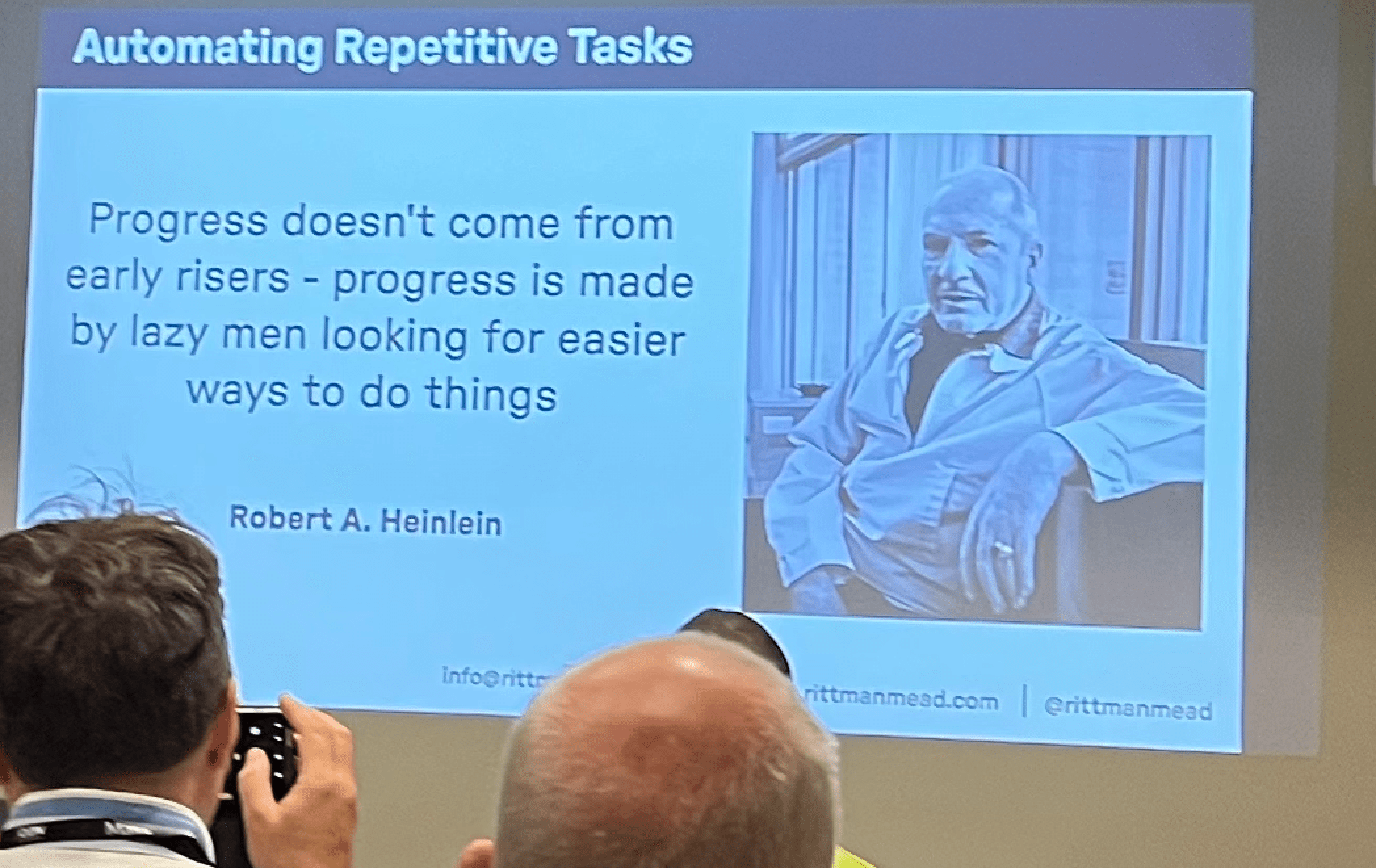
Quote of the conference Quote of the conference

My Data Pump talk My Data Pump talk

Going to conference is hard Going to conference is hard

Low hanging clouds at the airport Low hanging clouds at the airport

Upgrade Encrypted PDB in Cloud to Oracle AI Database 26ai

Here’s a cool way of upgrading your Oracle Database in OCI to Oracle AI Database 26ai.

This post was originally written for Oracle Database 23ai, but it can be used to Oracle AI Database 26ai as well.

I will move my PDB to a new Base Database System using refreshable clone PDBs and AutoUpgrade.

The benefit of using this approach is:

  • Much shorter downtime than an in-place upgrade.
  • A brand-new Base Database System, which means the operating system and Oracle Grid Infrastructure is already on a newer version.

I’m using a Base Database Service as an example, but the target system could also be Exadata Database Service, Exadata Cloud@Customer, or, in fact, any other offering of Oracle Database.

My Environment

I have one PDB that I want to upgrade. It’s called SALES.

Source

  • Base Database System on 19.23.0
  • Name DBS19

Target

  • Base Database System on 23.4.0
  • Name DBS23

How To

Prepare AutoUpgrade

  • Get the latest version of AutoUpgrade:
    wget https://download.oracle.com/otn-pub/otn_software/autoupgrade.jar
    
    Copy the new version of AutoUpgrade to your source and target system. You can put it into $ORACLE_HOME/rdbms/admin if you like, but it is not a requirement.
  • I create an AutoUpgrade config file, named sales.cfg, which I store on both servers:
    global.autoupg_log_dir=/u01/app/oracle/cfgtoollogs/autoupgrade
    global.keystore=/u01/app/oracle/cfgtoollogs/keystore
    upg1.source_home=/u01/app/oracle/product/19.0.0.0/dbhome_1
    upg1.target_home=/u01/app/oracle/product/23.0.0.0/dbhome_1
    upg1.sid=CDB19
    upg1.pdbs=SALES
    upg1.target_cdb=CDB23
    upg1.source_dblink.SALES=CLONEPDB 600
    upg1.target_pdb_copy_option.SALES=file_name_convert=none
    upg1.target_version=23
    upg1.start_time=12/05/2024 02:00:00
    
    • I must specify global.keystore to allow AutoUpgrade to create a keystore to work with my encrypted PDB.
    • source_home and target_home list the Oracle Home of the source and target CDB, respectively. It doesn’t matter that the two homes exist on one server only.
    • sid and target_cdb contain the SID of the source and target CDB, respectively. The parameters are case sensitive.
    • pdbs contains the name of the PDB I want to upgrade, sales. If needed, I could specify more PDBs. Don’t include the domain or use the service name.
    • source_dblink has the name of the database link (CLONEPDB) and the rate at which the target CDB brings over redo and rolls forward the copy (600 seconds or 10 minutes).
    • I want to use ASM and Oracle Managed Files, so I set target_pdb_copy_option accordingly.
    • Since my source and target CDB are not on the same host, AutoUpgrade can’t automatically determine the target version. I specify that manually using target_version.
    • start_time specifies when downtime starts. At this point, AutoUpgrade refreshes the PDB for the last time and then moves on with the upgrade.

Prepare Source PDB

  • I connect to the source PDB. I create a user (for a database link) and grant privileges:

    create user dblinkuser identified by ... ;
    grant create session, 
          create pluggable database, 
          select_catalog_role to dblinkuser;
    grant read on sys.enc$ to dblinkuser;
    
  • After the upgrade, I can drop the user.

Prepare Target CDB

  • I connect to the target CDB and create a database link pointing to my source PDB:

    create database link clonepdb
    connect to dblinkuser
    identified by dblinkuser
    using '';
    
  • Check that the database link works:

    select * from dual@clonepdb;
    

    If the query fails with ORA-02085, then you can use alter system set global_names=false;.

Analyze and Fix Source PDB

  • First, I analyze the source PDB for upgrade readiness. On the source system:
    java -jar autoupgrade.jar -config sales.cfg -mode analyze
    
  • The summary report lists the following precheck failures, which I safely ignore:
    • TDE_PASSWORDS_REQUIRED – I will fix that on the target system.
    • TARGET_CDB_AVAILABILITY – the target CDB is remote, and AutoUpgrade can’t analyze it.
  • Then, I execute the preupgrade fixups:
    java -jar autoupgrade.jar -config sales.cfg -mode fixups
    
    • This changes my source PDB, so I do it as close to my maintenance window as possible.
    • AutoUpgrade issues a warning that the target Oracle home is not present. You can safely disregard this.

Upgrade

  • Since my PDB is encrypted, I must add the source and target CDB keystore password to the AutoUpgrade keystore. I start the load password console on the target host:

    java -jar autoupgrade.jar -config sales.cfg -load_password
    
  • In the load password console, I add the keystore passwords of the source and target CDB:

    TDE&gt; add CDB19
    Enter your secret/Password:    
    Re-enter your secret/Password: 
    TDE&gt; add CDB23
    Enter your secret/Password:    
    Re-enter your secret/Password: 
    
  • I save the passwords and convert the AutoUpgrade keystore to an auto-login keystore:

    TDE&gt; save
    Convert the keystore to auto-login [YES|NO] ? 
    
  • I start AutoUpgrade in deploy mode:

    java -jar autoupgrade.jar -config sales.cfg -mode deploy
    
    • AutoUpgrade:
      • Copies the data files over the database link.
      • Rolls the copies of the data files forward with redo from the source.
      • At the time specified by start_time, issues a final refresh and disconnects the PDB from the source. You can change the start time using the proceed command in the AutoUpgrade console.
      • Upgrades the PDB.
    • You can monitor the upgrade by using the command lsj -a 30.
  • I have now upgraded my PDB to Oracle Database 23ai.

The Fine Print

Before Upgrade

  • Ensure that redo is kept in the Fast Recovery Area of the source database until it has been applied on the target. Either postpone your archive backups or change the archive log deletion policy so the archive logs remain on disk.
  • Familiarize yourself with the concept of the AutoUpgrade keystore.
  • The source PDB must be Oracle Database 19c or newer to upgrade directly to Oracle Database 23ai.

During Upgrade

  • Disconnect users from the source database. Right before the upgrade starts, AutoUpgrade executes a final refresh. The last redo from the source database is applied to ensure no data is lost. You must ensure that no users are connected to the source database after this time. Otherwise, that data will be lost.

  • AutoUpgrade starts the final refresh at the start time specified in the config file:

    upg1.start_time=25/09/2023 06:30:00
    
  • You must be careful about disconnecting users from the source database. Remember, AutoUpgrade connects to the source database over a database link as a regular user (not SYS). This means the listener must be available, and you can’t enable restricted session or similar means.

  • Check this blog post if you want to be in control over when the final refresh happens.

After Upgrade

  • Recreate the services that you use in your connect strings.
  • Update your connection string. The PDB is now on a different Base Database System.
  • Start a new full backup of the target database after the migration.
  • The OCI console will recognize and display the new PDB after a while. You don’t have to do anything … than to wait for the automatic sync job.

Data Guard

When using refreshable clone PDBs you can’t reuse the data files on the standby database. It is similar to STANDBYS=NONE on the CREATE PLUGGABLE DATABASE statement. So, you plug in with deferred recovery on the standby database.

The easiest solution is to configure Data Guard after you have upgraded the database. However, it might not always be feasible. If your target CDB already has Data Guard, then you need to restore the data files to the standby database and enable recovery. Check Making Use Deferred PDB Recovery and the STANDBYS=NONE Feature with Oracle Multitenant (Doc ID 1916648.1) for details.

Real Application Clusters (RAC)

AutoUpgrade detects if the target CDB is a RAC database. You don’t have to specify or do anything. AutoUpgrade handles everything for you.

Further Reading

How to Prepare Your Oracle Database for Release 23ai

Here is a list of things to check and carry out while preparing for Oracle Database 23ai.

These tasks are not mandatory, but I recommend them based on my experience. It increases your chance of upgrading with success.

Get ready for Oracle Database 23ai upgrade

Weeks Before

Platform Certification

Ensure that the new release supports your operating system. When available, you can check it in the installation guides. However, you can find the most up-to-date information in the Certifications tab in My Oracle Support.

Use Certifications tab in My Oracle Support to find up-to-date platform certifications

Clients

Check the clients connecting to the database and ensure their client driver version is compatible with Oracle Database 23ai. The client/server interoperability matrix gives you an overview of which clients work with which servers.

Optionally, monitor the database over time to generate a list of clients connecting.

AutoUpgrade

Get the latest version of AutoUpgrade from My Oracle Support. I recommend that you always use the latest version. AutoUpgrade is fully backward compatible, so any newer version can upgrade older releases of Oracle Database.

Upgrade Readiness

Run AutoUpgrade in analyze mode to determine the upgrade readiness of your Oracle Database. Check the summary report for findings with no fixups. Such findings must be dealt with manually.

You can run the analysis even before you install the new Oracle home. Simply specify target_version=23 in your AutoUpgrade config file, and AutoUpgrade knows which checks to run.

Dictionary Check

Check the dictionary on your most important databases. You can run a dictionary check together with an AutoUpgrade analysis. In your config file:

upg1.run_dictionary_health=full

Or, you can run it separately using DBMS_DICTIONARY_CHECK.

Behavior Changes

Review the upgrade guide to find information about deprecated and desupported features, plus any behavior changes.

Grid Infrastructure

If Grid Infrastructure manages your database either in RAC or Oracle Restart configuration, you should upgrade it as well. If you can tolerate an additional maintenance window, I’d recommend upgrading Grid Infrastructure in advance.

Days Before

Statistics

Gather dictionary and fixed objects statistics:

begin
   dbms_stats.gather_fixed_objects_stats;
   dbms_stats.gather_schema_stats('SYS');
   dbms_stats.gather_schema_stats('SYSTEM')
end;

I prefer gathering schema stats rather than dictionary stats. I’ve seen a few edge cases solved by schema stats, and generally, current stats on SYS and SYSTEM are sufficient.

Gather statistics no earlier than seven days before the upgrade. If AutoUpgrade determines your statistics are older than that, it will gather them as part of the upgrade. This extends down time unnecessarily.

If you’re curious, you can find details about the importance of fixed objects statistics in a blog post by Maria Colgan.

Install Oracle Home

Install an Oracle Database 23ai Oracle home. In release 23ai, the Oracle homes that you download are already patched with the latest Release Update.

If you have additional patches to apply, do so now. You should have all patches in place before you start the upgrade.

On the Day of Upgrade

Backup

If time allows, run a level 0 backup. If not, you have to settle with a level 1.

Scheduler

Normally, it is not necessary to disable the scheduler. But in some situations, it can be beneficial.

That’s It

You are now ready to start the journey to Oracle Database 23ai and the many exciting new features.

Happy upgrading!

Oracle Database 23ai Is Here – Time to Sharpen Multitenant Skills

Last week Oracle announced the release of Oracle Database 23ai with many significant enhancements. It is available in Oracle Cloud Infrastructure but according to Release Schedule of Current Database Releases (Doc ID 742060.1) other platforms are following soon.

One important thing about Oracle Database 23ai is that it only supports the multitenant architecture. Once you upgrade beyond Oracle Database 19c, you must also convert your database to a pluggable database.

To give you the best possible starting point for the multitenant migration, our team has prepared two webinars about the multitenant architecture. Actually, we planned on just one. Still, we have so many things to share that we decided to make two webinars. When product managers get a chance to talk, they talk a lot!

Move to Oracle Database 23ai – Everything you need to know about Oracle Multitenant

Part 1

May 16, 14:00 CEST, 2024

  • Multitenant architecure
    • Introduction
    • Consolidation strategies
    • Benefits
  • Creation of container database
    • Recommendations
    • Parameters
  • Migration methods
    • Best practices
    • Data Guard
    • RAC
    • Transparent Data Encryption (TDE)
    • What to remember after migration
    • Rollback and fallback
    • Customer case

Part 2

June 27, 14:00 CEST, 2024

  • Operations
    • Cloning
    • Connecting
    • Running scripts
    • Resource Manager
    • Tips and tricks
    • Recommendations
    • Customer case
  • Patching
    • Entire CDB
    • Individual PDB
    • Recommendations
    • Datapatch
  • Upgrading
    • CDB upgrades
    • PDB upgrades (unplug-plug)
    • Replay upgrade
    • Best practices
    • Downgrade
    • Customer case

Sign Up

You can sign up here. My team (Mike, Rodrigo, Roy and Alex) will be there and answer all your questions. I promise we won’t end the webinar until there are no more questions.

If you miss the webinar, you can watch a recording later on our YouTube channel. Be sure to subscribe so you don’t miss out.

Even if you already use Oracle Database on multitenant architecture, I guarantee there are still new things to learn.

As always: All tech, no marketing!