How to Patch Oracle Database With One Command

With the latest release of Oracle AutoUpgrade, patching an Oracle Database is much easier. Once I’ve configured AutoUpgrade, it takes just one command. That includes finding and downloading the right patches and creating a new Oracle home.

Let’s see how I can do it.

Configuration

  1. Get the latest version of AutoUpgrade:
    wget https://download.oracle.com/otn-pub/otn_software/autoupgrade.jar
    
  2. I need to create a config file:
    • global.global_log_dir is the logging and working directory of AutoUpgrade.
    • global.keystore is where AutoUpgrade can create a software keystore that stores my My Oracle Support credentials.
    • sid and source_home describe the database that I want to patch.
    • target_home is the location of the new Oracle home that AutoUpgrade creates for me.
    • folder is the location where AutoUpgrade can find or download patches.
    • patch tells AutoUpgrade to apply the latest Release Update including the OJVM and Data Pump bundle patches, plus update OPatch.
global.global_log_dir=/home/oracle/autoupgrade-patching/log
global.keystore=/home/oracle/autoupgrade-patching/keystore
patch1.source_home=/u01/app/oracle/product/19
patch1.target_home=/u01/app/oracle/product/19_25_0
patch1.sid=FTEX
patch1.folder=/home/oracle/autoupgrade-patching/patch
patch1.patch=RECOMMENDED
  1. Currently, AutoUpgrade can’t download the Oracle Database 19c base release (LINUX.X64_193000_db_home.zip). I must do that manually and place it in the folder specified by the config file entry folder. I expect the next version to handle it automatically.
$ cd /home/oracle/autoupgrade-patching/patch
$ ls -l
total 2987996
-rw-r--r--. 1 oracle oinstall 3059705302 Mar 18  2020 LINUX.X64_193000_db_home.zip
  1. I need to load my My Oracle Support credentials into the AutoUpgrade keystore so AutoUpgrade can use them to download patches. The first time AutoUpgrade creates the keystore, and I must provide a keystore password:
$ java -jar autoupgrade.jar -config FTEX.cfg -patch -load_password
Processing config file ...

Starting AutoUpgrade Patching Password Loader - Type help for available options
Creating new AutoUpgrade Patching keystore - Password required
Enter password:
Enter password again:
AutoUpgrade Patching keystore was successfully created
  1. I add my credentials. This is the username and password that I use to connect to My Oracle Support:
MOS> add -user daniel.overby.hansen@oracle.com
Enter your secret/Password:
Re-enter your secret/Password:
  1. I save the keystore and convert it to an auto-login keystore:
MOS> save
Convert the AutoUpgrade Patching keystore to auto-login [YES|NO] ? YES
  1. I exit the keystore.
MOS> exit

AutoUpgrade Patching Password Loader finished - Exiting AutoUpgrade Patching

Patch

With one command, I will patch my Oracle Database:

$ java -jar autoupgrade.jar -config FTEX.cfg -patch -mode deploy
AutoUpgrade Patching 24.7.241021 launched with default internal options
Processing config file ...
Loading AutoUpgrade Patching keystore
AutoUpgrade Patching keystore was successfully loaded

Connected to MOS - Searching for specified patches

------------------------------------------------------------
Downloading files to /home/oracle/autoupgrade-patching/patch
------------------------------------------------------------
DATABASE RELEASE UPDATE 19.25.0.0.0
    File: p36912597_190000_Linux-x86-64.zip - VALIDATED

DATAPUMP BUNDLE PATCH 19.25.0.0.0
    File: p37056207_1925000DBRU_Generic.zip - VALIDATED

OJVM RELEASE UPDATE 19.25.0.0.0
    File: p36878697_190000_Linux-x86-64.zip - VALIDATED

OPatch 12.2.0.1.44 for DB 19.0.0.0.0 (Oct 2024)
    File: p6880880_190000_Linux-x86-64.zip - VALIDATED
------------------------------------------------------------

+-----------------------------------------+
| Starting AutoUpgrade Patching execution |
+-----------------------------------------+
1 Non-CDB(s) will be processed
Type 'help' to list console commands
patch> Job 100 completed
------------------- Final Summary --------------------
Number of databases            [ 1 ]

Jobs finished                  [1]
Jobs failed                    [0]
Jobs restored                  [0]
Jobs pending                   [0]

---- Drop GRP at your convenience once you consider it is no longer needed ----
Drop GRP from FTEX: drop restore point AU_PATCHING_9212_FTEX1921000


Please check the summary report at:
/home/oracle/autoupgrade-patching/log/cfgtoollogs/patch/auto/status/status.html
/home/oracle/autoupgrade-patching/log/cfgtoollogs/patch/auto/status/status.log

That’s it! My database is now running on Oracle Database 19.25.0.

Fine Print

AutoUpgrade does out-of-place patching according to our recommendations. It will use a brand-new Oracle home, and copies all configuration files from the old to the new Oracle home.

AutoUpgrade currently requires:

  • Oracle Database 19c
  • Single instance database (non-CDB or entire CDB)

If you need more details, please check out the webinar One-Button Patching with AutoUpgrade. The slide deck has additional details.

What About

This is the first release, and naturally, it comes with restrictions. We’re working hard behind the scenes to lift those requirements.

Will AutoUpgrade support other platforms? Yes. AutoUpgrade supports most of the platforms where you run Oracle Database, including Windows, AIX and SPARCH Solaris.

What about in-place patching, using cloned Oracle homes, and support for gold images? It’s in the plans.

Will you support other Oracle Database releases? Yes – anything newer than Oracle Database 19c

What about Data Guard and RAC? You can use AutoUpgrade for Data Guard. RAC is in the plans.

What about Grid Infrastructure? We’re focusing on Oracle Database. You should have a look at Oracle Fleet Patching and Provisioning.

What about … We’re looking for new, great ideas. Please create an enhancement request in My Oracle Support and send me the number. I’ll check it and add it to our backlog. Feel free to also send me an email with your suggestion.

Happy Patching!

Can I Name My PDB in Lowercase?

A customer asked me:

I’m using AutoUpgrade to convert to a PDB, and I want to name the PDB in lowercase. How do I do that?

First, let’s understand how AutoUpgrade decides on the name for the PDB when you convert a non-CDB.

AutoUpgrade and PDB Name

AutoUpgrade uses the DB_UNIQUE_NAME of the non-CDB as the name of the PDB.

In the beginning, AutoUpgrade used the SID of the database, but that wasn’t smart for a RAC database since the SID is suffixed by the instance ID.

Now, DB_UNIQUE_NAME might not be smart for a Data Guard configuration, but that’s how it is at the moment. We have a better solution on our backlog.

Anyway, you can override the default and choose the PDB name with the target_pdb_name config file parameter:

upg1.source_home=/u01/app/oracle/product/19
upg1.target_home=/u01/app/oracle/product/23
upg1.sid=DB19
upg1.target_cdb=CDB23
upg1.target_pdb_name.DB19=SALES
  • In the above case, AutoUpgrade renames the DB19 to SALES during plug-in.

If you write sales in lowercase, AutoUpgrade converts it to uppercase. If you put quotes around “sales”, AutoUpgrade throws an error.

AutoUpgrade accepts uppercase PDB names only. Why?

PDB Naming Rules

Let’s take a look in the documentation. I’ll find the CREATE PLUGGABLE DATABASE statement.

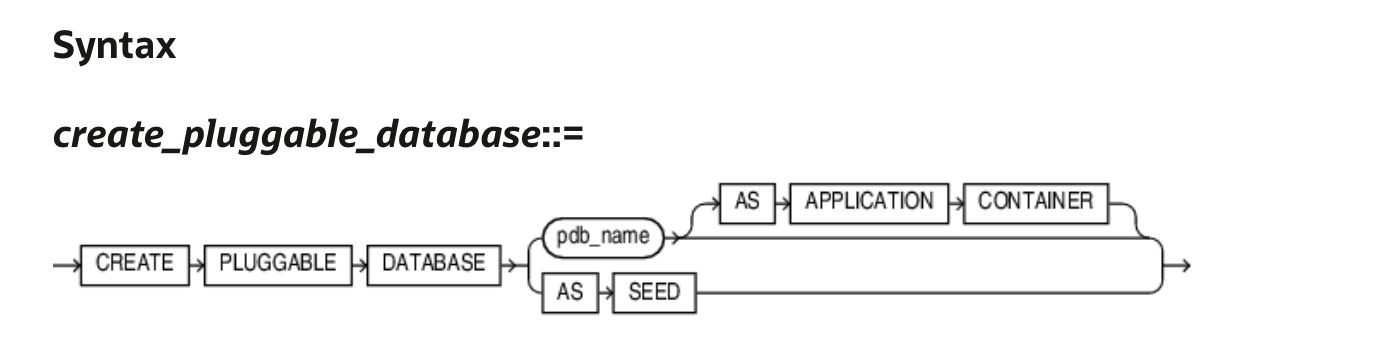
Syntax diagram for the CREATE PLUGGABLE DATABASE statement

The semantics for pdb_name lists:

The name must satisfy the requirements listed in “Database Object Naming Rules”. The first character of a PDB name must be an alphabet character. The remaining characters can be alphanumeric or the underscore character (_).

Let’s take a look at the Database Object Naming Rules:

… However, database names, global database names, database link names, disk group names, and pluggable database (PDB) names are always case insensitive and are stored as uppercase. If you specify such names as quoted identifiers, then the quotation marks are silently ignored. …

  • Names of disk groups, pluggable databases (PDBs), rollback segments, tablespaces, and tablespace sets are limited to 30 bytes.

So, AutoUpgrade is just playing by the rules.

The Answer

So, the answer is that the database use PDB names in alphanumeric uppercase. AutoUpgrade knows this and automatically converts to uppercase. The customer must accept that PDB names are uppercase.

These are the requirements for the PDB names

  • First character must be an alphabet character.
  • The name must be all uppercase.
  • The name can contain alphanumeric (A-Z) and the underscore (_) characters.
  • No longer than 30 bytes.
  • Don’t try to enquoute the name.
  • Nonquoted identifiers (like PDB names) cannot be Oracle SQL reserved words.
  • The PDB name must be unique in the CDB, and it must be unique within the scope of all the CDBs whose instances are reached through a specific listener.

Daniel’s Recommendation

I recommend that you use globally unique PDB names. In your entire organization, no PDBs have the same name. That way, you can move PDBs around without worrying about name collisions.

I know one customer that generates a unique number and prefix with P:

  • P00001
  • P00002
  • P00003

They have a database with a simple sequence and a function that returns P concatenated with the sequence number. The expose the function in their entire organization through a REST API using ORDS. Simple and yet elegant.

Final Words

I’ve spent more than 20 years working with computers. I have been burnt by naming issues so many times that I’ve defined a law: Daniel’s law for naming in computer science:

  • Use only uppercase alphanumeric characters
  • US characters only (no special Danish characters)
  • Underscores are fine
  • Never use spaces
  • Don’t try to push your luck when it comes to names :-)

A Few Details about Using Refreshable Clone PDB for Non-CDB to PDB Migration

Our team has been advocating the use of refreshable clone PDB for non-CDB to PDB migrations using AutoUpgrade. It is a great feature and our entire team loves it – so does many of the customers we work with.

However, in a recent non-CDB to PDB migration, we encountered some issues with refreshable clone PDB and AutoUpgrade.

Can My Target Container Database Be a RAC Database?

Yes, this works perfectly fine.

Be aware that CREATE PLUGGABLE DATABASE statement scales out on all nodes in your cluster. By default, the database also uses parallel processes, so potentially, this will put quite a load on the source non-CDB. Consider restricting the use of parallel processes using the AutoUpgrade config file parameter:

upg1.parallel_pdb_creation_clause=4

Since the creation scales out on all nodes, all nodes must be able to resolve the connect identifier to the source non-CDB. If you use an alias from tnsnames.ora, be sure to add that on all nodes. Failure to do so will lead to an error during the CREATE PLUGGABLE DATABASE command:

ERROR at line 1:
ORA-65169: error encountered while attempting to copy file
+DATAC1/SRCDB/DATAFILE/system.262.1178083869
ORA-17627: ORA-12154: TNS:could not resolve the connect identifier specified
ORA-17629: Cannot connect to the remote database server

What Happens If the Source Database Extends a Data File?

If the source database extends a data file – either through AUTOEXTEND ON NEXT or manually by a user – the target database extends the matching data file as well. Here is an extract from the target alert log when it extends a data file:

2024-08-27T07:01:26.671975+00:00
PDB1(4):Media Recovery Log +RECOC1/SRCDB/partial_archivelog/2024_08_27/thread_2_seq_4.276.1178089277
2024-08-27T07:01:32.773191+00:00
PDB1(4):Resize operation completed for file# 26, fname +DATA/TGTCDB_HBZ_FRA/20A568D1FD5DB0A6E0633D01000AC89B/DATAFILE/srctbs02.290.1178089287, old size 10240K, new size 1058816K

It works with smallfile and bigfile tablespaces.

What Happens If I Create a Tablespace on the Source Database?

The target database attempts to create the same tablespace.

For this to work, one of the following must be true:

If either one of the above isn’t true, you’ll receive an error during ALTER PLUGGABLE DATABASE ... REFRESH:

ORA-00283: recovery session canceled due to errors
ORA-01274: cannot add data file that was originally created as
'+DATAC1/SRCDB/DATAFILE/srctbs04.282.1178091655'
You can use PDB_FILE_NAME_CONVERT instead.

It works with smallfile and bigfile tablespaces.

What Happens If I Add a Data File to an Existing Tablespace?

The target database attempts to add a matching data file.

The target database must be able to translate the data file location according to the section above.

2024-08-27T06:51:19.294612+00:00
PDB1(4):Media Recovery Log +RECOC1/SRCDB/partial_archivelog/2024_08_27/thread_2_seq_4.276.1178088679
2024-08-27T06:51:20.268208+00:00
PDB1(4):Successfully added datafile 25 to media recovery
PDB1(4):Datafile #25: '+DATA/TGTCDB_HBZ_FRA/20A568D1FD5DB0A6E0633D01000AC89B/DATAFILE/srctbs01.289.1178088681'

What Happens If I Set a Tablespace Read-Only?

The refreshable clone PDB does not support this. Neither is going the other way: setting a tablespace read-write.

If you do so, the database reports an error:

alter pluggable database pdb2 refresh
*
ERROR at line 1:
ORA-00283: recovery session canceled due to errors
ORA-65339: unsupported operation on the source PDB

From the alert log:

2024-08-28T05:23:02.893946+00:00
PDB2(6):Error! unsupported source PDB operation: 21
2024-08-28T05:23:02.994035+00:00
PDB2(6):Media Recovery failed with error 65339

Operation 21 is setting a tablespace read-only. If you set a tablespace read-write, the database reports operation 20 instead.

PDB2(7):Error! unsupported source PDB operation: 20

You will not be able to refresh the PDB anymore. You must re-create the refreshable clone PDB.

What Happens If I Restart the Source Database?

Refreshable clone PDB does not support restarting the source database.

When you restart the source database, the source database places a special marker in the redo stream. This even happens for a clean shutdown (SHUTDOWN NORMAL). The target CDB does not understand how to recover beyond this marker.

alter pluggable database pdb2 refresh
*
ERROR at line 1:
ORA-00283: recovery session canceled due to errors
ORA-65339: unsupported operation on the source PDB

From the alert log:

2024-08-28T05:27:00.451985+00:00
PDB2(4):Error! unsupported source PDB operation: 3
2024-08-28T05:27:00.710236+00:00
PDB2(4):Media Recovery failed with error 65339

Operation 3 is the source database restart.

You will not be able to refresh the PDB anymore. You must re-create the refreshable clone PDB.

How Do I Drain My Source Database Before Migration?

Right before the migration, when you cut the connection from the source non-CDB to the target PDB, it could be useful to restart the database. But that’s not possible.

I suggest that you:

  • Ensure that the target CDB connects to the source non-CDB using a dedicated service. This applies to the database link that you establish between the two databases.
  • Stop all other services and specify a drain timeout.
  • Shut down the application that connects to the source non-CDB.
  • Kill sessions manually.

Remember that the target database connects to the source database via a database link, so stopping the database listener is not an option. Nor is enabling RESTRICTED SESSION.

Update: Armando managed to perform the migration using restricted session. Check his comment (see below) for details.

What Happens If I Restart the Target Container Database?

You can safely restart the target CDB while you have a refreshable clone PDB. This works fine.

What About NOLOGGING Operations?

You can’t perform NOLOGGING operations on the source database.

Since refreshable clone PDB relies on redo, then a NOLOGGING operation on the source will prevent that data from going to the target. When you try to query the NOLOGGING table on the target database after the migration, you will receive an error:

SQL> select count(*) from t1
       *
ERROR at line 1:
ORA-28304: Oracle encrypted block is corrupt (file # 186, block # 131)
ORA-01110: data file 186:
'+DATA/TGTCDB_HBZ_FRA/20CF181D4A925E06E0633D01000ACB50/DATAFILE/srctbs01.297.117
8266961'
ORA-26040: Data block was loaded using the NOLOGGING option

Thanks to Marcelo for leaving a comment. He suggests that you set the source non-CDB in FORCE LOGGING mode. This is a good idea to avoid this potential nightmare:

alter database force logging;

You can read more about NOLOGGING operations in The Gains and Pains of Nologging Operations (Doc ID 290161.1).

What About Hot Backups?

You can’t perform hot backup operations on the source database.

If you do so, you’ll run into the following error:

2025-11-21T14:31:06.845676+00:00
SALES(4):Error! unsupported source PDB operation: 1
2025-11-21T14:31:07.845923+00:00
SALES(4):Media Recovery failed with error 65339

Please note that I’m not referring to RMAN online backups. I’m talking about the old-school ALTER DATABASE BEGIN BACKUP and ALTER DATABASE END BACKUP commands.

Any restrictions on data types or object types?

No. The refreshable clone is a physical copy of the database, so there are no restrictions on data types or object types.

Services

You must recreate your services after the migration. Neither database managed services nor Clusterware managed services survive the migration.

Further Readin

Summary

Despite these minor restrictions, migration from non-CDB to PDB using refreshable clone PDB and AutoUpgrade is still a very handy method. Knowing the restrictions upfront ensures that you can successfully migrate the database.

Happy migrating!

How to Prepare Your Oracle Database for Release 23ai

Here is a list of things to check and carry out while preparing for Oracle Database 23ai.

These tasks are not mandatory, but I recommend them based on my experience. It increases your chance of upgrading with success.

Get ready for Oracle Database 23ai upgrade

Weeks Before

Platform Certification

Ensure that the new release supports your operating system. When available, you can check it in the installation guides. However, you can find the most up-to-date information in the Certifications tab in My Oracle Support.

Use Certifications tab in My Oracle Support to find up-to-date platform certifications

Clients

Check the clients connecting to the database and ensure their client driver version is compatible with Oracle Database 23ai. The client/server interoperability matrix gives you an overview of which clients work with which servers.

Optionally, monitor the database over time to generate a list of clients connecting.

AutoUpgrade

Get the latest version of AutoUpgrade from My Oracle Support. I recommend that you always use the latest version. AutoUpgrade is fully backward compatible, so any newer version can upgrade older releases of Oracle Database.

Upgrade Readiness

Run AutoUpgrade in analyze mode to determine the upgrade readiness of your Oracle Database. Check the summary report for findings with no fixups. Such findings must be dealt with manually.

You can run the analysis even before you install the new Oracle home. Simply specify target_version=23 in your AutoUpgrade config file, and AutoUpgrade knows which checks to run.

Dictionary Check

Check the dictionary on your most important databases. You can run a dictionary check together with an AutoUpgrade analysis. In your config file:

upg1.run_dictionary_health=full

Or, you can run it separately using DBMS_DICTIONARY_CHECK.

Behavior Changes

Review the upgrade guide to find information about deprecated and desupported features, plus any behavior changes.

Grid Infrastructure

If Grid Infrastructure manages your database either in RAC or Oracle Restart configuration, you should upgrade it as well. If you can tolerate an additional maintenance window, I’d recommend upgrading Grid Infrastructure in advance.

Days Before

Statistics

Gather dictionary and fixed objects statistics:

begin
   dbms_stats.gather_fixed_objects_stats;
   dbms_stats.gather_schema_stats('SYS');
   dbms_stats.gather_schema_stats('SYSTEM')
end;

I prefer gathering schema stats rather than dictionary stats. I’ve seen a few edge cases solved by schema stats, and generally, current stats on SYS and SYSTEM are sufficient.

Gather statistics no earlier than seven days before the upgrade. If AutoUpgrade determines your statistics are older than that, it will gather them as part of the upgrade. This extends down time unnecessarily.

If you’re curious, you can find details about the importance of fixed objects statistics in a blog post by Maria Colgan.

Install Oracle Home

Install an Oracle Database 23ai Oracle home. In release 23ai, the Oracle homes that you download are already patched with the latest Release Update.

If you have additional patches to apply, do so now. You should have all patches in place before you start the upgrade.

On the Day of Upgrade

Backup

If time allows, run a level 0 backup. If not, you have to settle with a level 1.

Scheduler

Normally, it is not necessary to disable the scheduler. But in some situations, it can be beneficial.

That’s It

You are now ready to start the journey to Oracle Database 23ai and the many exciting new features.

Happy upgrading!

Show Me Your Upgrade Runbook and Let’s See What You Can Remove

Recently, I talked to a customer about upgrading Oracle Database. I was showing how you can get the most out of AutoUpgrade. The customer showed me their runbook, and together, we found several redundant tasks. AutoUpgrade already handled many of the checks and tasks.

Leave a comment and show me the tasks in your runbook. Let’s see if we can find something to remove.

What Did We Find At the Customer?

Before Upgrade

  • Purging recycle bin The customer actively used the recycle bin and manually purged it before upgrading. However, AutoUpgrade has a check on the recycle bin. From the prechecks log file:
    2024-04-17 10:15:51.775 INFO Running check PURGE_RECYCLEBIN [DB12] - CheckTrigger.call#96 
       EXECUTE IMMEDIATE 'SELECT COUNT(*) FROM sys.recyclebin$'
    
    And purges it – if needed – during prefixups. From the prefixups log file:
    2024-04-17 10:15:44.972 INFO Running fixup [PURGE_RECYCLEBIN][DB12][PLSQL][PURGE DBA_RECYCLEBIN
    2024-04-17 10:15:44.972 INFO [EB5A67] [PURGE DBA_RECYCLEBIN
    2024-04-17 10:15:44.976 INFO [EB5A67] Executing SQL [/* [EB5A67]  */PURGE DBA_RECYCLEBIN
    2024-04-17 10:15:45.316 INFO # PURGE_RECYCLEBIN - Check.runFix#292 
    2024-04-17 10:15:45.317 INFO Finished fixup [PURGE_RECYCLEBIN][DB12][SUCCESSFUL] - FixUpTrigger.executeFixUp#231 
    

After Upgrade

  • Execute catuppst.sql This script performs:

    … remaining upgrade actions that do not require that the database be open in UPGRADE mode

    AutoUpgrade handles this part for you. Here is an extract from the phase overview during upgrade:

    $ grep -B2 "catuppst"  dbupgrade/phase.log
    [phase 102] type is 1 with 1 Files
    
    @catuppst.sql
    
  • Recompiling objects The customer recompiled objects using utlrp.sql. This is usually not needed. By default, AutoUpgrade performs a recompilation in the postfixups phase unless you override the behavior with run_utlrp. Here is an extract from the autocompile log file found in the postfixups directory:

    13:12:42   6      select count(*) into cnt from sys.dba_objects
    13:12:42   7         where status = 'INVALID';
    13:12:42   8      IF cnt > 0 THEN
    13:12:42   9          :utlprp_name := '/u01/app/oracle/product/23.0.0.0/dbhome_2/rdbms/admin/utlprpom.sql 2';
    13:12:42  10          :utldtchk_name := '/u01/app/oracle/product/23.0.0.0/dbhome_2/rdbms/admin/utldtchk.sql';
    13:12:42  11      END IF;
    
  • Datapatch The customer executed Datapatch after a successful upgrade. The upgrade engine already does this as one of the very last phases. Here is an extract from upg_summary.log:

    Component                               Current         Full     Elapsed Time
    Name                                    Status          Version  HH:MM:SS
    
    ...
    Datapatch                                                        00:00:09
    
  • Gathering database statistics The customer already knew that AutoUpgrade gathers dictionary statistics and that they needed to gather fixed objects statistics after a while. But, they were gathering database statistics to refresh the statistics on their application schemas. Although this is a good idea in some cases, I would not recommend this. AutoUpgrade does not touch user data during a database upgrade, so if you had good statistics before the upgrade, they are also good after. The only case I can think of is upgrades from Oracle Database 11.2.0.4. Oracle Database introduced new histogram types in Oracle Database 12c, which could significantly benefit some databases.

    By the way, here is a handy trick to gather fixed objects statistics some time after the upgrade.

Conclusion

While working with this customer, we found several redundant items. Getting those items out of the runbook means less overall downtime – and a less complex upgrade. AutoUpgrade makes upgrading Oracle Database much easier.

Please leave a comment if there are tasks that AutoUpgrade should do for you.

Appendix

Further Reading

How to Upgrade to Oracle Database 19c and Migrate to a PDB Using Refreshable Clone PDBs

At the recent Oracle DatabaseWorld at CloudWorld I spoke to several customers that had to upgrade to Oracle Database 19c and convert their non-CDB into the multitenant architecture.

Here is how to do it using Refreshable Clone PDBs.

My source database is:

  • A non-CDB
  • On Oracle Database 12.2 or newer

I want to:

  • Upgrade to Oracle Database 19c
  • Convert the database to a PDB
  • Plug it into an existing CDB

The Problem With PDB Conversion

The conversion to multitenant does not offer the same rollback options as an upgrade. Normally, when you upgrade a database, you rely on Flashback Database as the primary rollback option. However, that does not work for conversion to multitenant.

When you plug your non-CDB into a CDB, the CDB makes changes to the data file headers. Those changes are irreversible and prevents you from ever using those data files in a non-CDB. Not even Flashback Database can revert the changes.

So, what are your rollback options?

  • Restore a backup It might take longer than your organization can accept.
  • Make a copy of the data files before conversion It requires disk space and a longer downtime window to copy the data files.

This is where Refreshable Clone PDBs come into play.

Refreshable Clone PDBs

Here is an overview of what AutoUpgrade does for you:

Overview of the process

  1. AutoUpgrade creates a PDB in the target CDB as a refreshable clone PDB of the source non-CDB.
  2. The target CDB starts to copy the data files from the source non-CDB.
  3. The target CDB refreshes the PDB. In other words, it rolls forward the data files using the redo from the source non-CDB.
  4. Now, downtime starts. AutoUpgrade issues a final refresh to bring over the latest changes.
  5. AutoUpgrade disconnects the refreshable clone PDB from its source. Now, the PDB is a real, stand-alone PDB. AutoUpgrade upgrades the PDB and converts it into a proper PDB.

If something happens during the upgrade or conversion and you want to roll back, simply start the original non-CDB. It is left completely untouched.

You can learn about the concept in detail in our AutoUpgrade 2.0 webinar:

Refreshable clone PDBs does not work for cross-endian migrations (like AIX to Linux), but cross-platform should work fine (like Windows to Linux).

How To

  1. In the source non-CDB, I create a user:
    create user dblinkuser identified by ... ;
    grant create session, 
       create pluggable database, 
       select_catalog_role to dblinkuser;
    grant read on sys.enc$ to dblinkuser;
    
  2. In my target CDB, I create a database link connecting to my source non-CDB:
    create database link clonepdb 
       connect to dblinkuser identified by ...
       using 'source-db-alias';
    
    You can drop the database link after the migration.
  3. I create an AutoUpgrade config file called noncdb1.cfg:
    upg1.source_home=/u01/app/oracle/product/12.2.0.1
    upg1.target_home=/u01/app/oracle/product/19
    upg1.sid=NONCDB1
    upg1.target_cdb=CDB1
    upg1.source_dblink.NONCDB1=CLONEPDB 600
    upg1.target_pdb_name.NONCDB1=PDB1
    upg1.start_time=25/09/2023 06:30:00
    
    • source_home and target_home is the Oracle Home of the source non-CDB and target CDB respectively.
    • sid is the source non-CDB that I want to upgrade and convert.
    • target_cdb is the CDB into which I want to plug in the non-CDB. You must create the CDB in advance or use an existing one.
    • source_dblink has the name of the database link (CLONEPDB) and the rate at which the target CDB brings over redo and rolls forward the copy (600 seconds or 10 minutes).
    • target_pdb_name specifies that I want to rename the non-CDB to PDB1 when I plug it in. You can leave this out if you want to keep the name.
    • start_time specifies when downtime starts. At this point, AutoUpgrade refreshes the PDB for the last time and then moves on with upgrade and PDB conversion.
  4. Start AutoUpgrade in analyze mode on the source system:
    java -jar autoupgrade.jar -mode analyze -config noncdb1.cfg
    
  5. Run AutoUpgrade in fixups mode on the source system:
    java -jar autoupgrade.jar -mode fixups -config noncdb1.cfg
    
    • This runs the fixups identified by AutoUpgrade in analyze mode. You can run this task even after you start AutoUpgrade in deploy mode. Just ensure that the fixups complete before the final refresh (as specified in the start_time paramter).
  6. If there are no errors found in the analysis, I start AutoUpgrade in deploy mode:
    java -jar autoupgrade.jar -mode deploy noncdb1.cfg
    
    • AutoUpgrade copies the data files over the database link.
    • Rolls the copies of the data files forward with redo from the source non-CDB.
    • At one point, issues a final refresh and disconnects the PDB from the source non-CDB.
    • Upgrades and converts the database to a PDB.

Here’s a demo of it:

Words of Caution

Disconnect Users from Source Database

Right before the upgrade and conversion starts, AutoUpgrade executes a final refresh. The last redo from the source non-CDB is applied to ensure no data is lost. You must ensure that no users are connected to the source non-CDB after this time. Otherwise, that data will be lost.

AutoUpgrade starts the final refresh at the start time specified in the config file:

upg1.start_time=25/09/2023 06:30:00

You must be careful about disconnecting users from the source non-CDB. Remember, AutoUpgrade connects to the source non-CDB over a database link as a regular user (not SYS). This means the listener must be available, and you can’t enable restricted session or similar means.

Data Guard

If the target CDB is protected by Data Guard, special attention is needed to handle the standby databases. I explain the details in our AutoUpgrade 2.0 webinar:

Redo

The procedure relies on redo from the source non-CDB. Ensure that redo is kept in the Fast Recovery Area of the source non-CDB until it has been applied on the target PDB. Either postpone your archive backups or change the archive log deletion policy so the archive logs remain on disk.

Final Refresh

Check this blog post if you want to be in control over when the final refresh happens.

Services

You must recreate the services used in your connect strings.

Appendix

Further Reading

Upgrading with Oracle Database Vault – AIOUG Follow-up

Last week I presented to AIOUG. My session was Upgrades and Migrations – What’s Cooking. I managed to answer most of the questions except one. As promised, here’s the answer.

Oracle Database Vault

One question came up on Oracle Database Vault. I couldn’t answer the question live. I knew we had recently made changes in this area, but the details were lost.

What do you need to consider when upgrading an Oracle Database that uses Oracle Database Vault?

First, when AutoUpgrade performs the pre-upgrade analysis, it will detect the presence of Oracle Database Vault. Information is written in the pre-upgrade summary reminding you to take due care.

You have two options when you upgrade to Oracle Database 19c or later:

  • Disable Oracle Database Vault during the upgrade
  • Or, grant the role DV_PATCH_ADMIN to SYS during the upgrade

You can find more information in Requirement for Upgrading Database with Database Vault (Doc ID 2757126.1).

Thanks

Thanks to AIOUG for hosting my webinar. I really enjoy presenting to the community in India. The audience is always really engaging and asks a lot of questions.

Unfortunately, I have yet to have the opportunity to present in person in India. I hope to change that one day.

Upgrade, Data Guard and Downtime

How about downtime when you upgrade your Oracle Database with Data Guard?

Short answer: You should expect slightly more downtime. Unless you head into a rolling upgrade.

How Long Does An Upgrade Take?

If I had a dime for every time someone asked me this question, I would have bought a tractor, retired, and worked full-time at our farm.

What a handsome Ford

My boss, Mike, created a long blog post about it without giving a real answer. If he can’t estimate it, no one can!

But I will give it a try anyway. A ballpark figure is 15-45 minutes for the actual upgrade. Then add all the extra stuff that surrounds the upgrade.

Does Data Guard Change That?

Yes, it does. Extra downtime is needed.

You don’t add any extra time to the actual upgrade of the primary database. During the upgrade, redo transport is on, and the primary database ships redo to the standby database, but it has no significant impact on the duration of the upgrade.

But you do need a little extra time before and after the upgrade.

Primary Standby Added Time
Restart Data Guard in new Oracle Home 5 min
Upgrade primary database
Verify standby has applied all redo 2 min
Optionally, test a switchover 5 min
TOTAL 7-12 min

If you follow the standby offline approach, you need more downtime. In that approach, you keep the standby database offline during the entire upgrade, and it needs time to catch up afterward. I would estimate it adds 5 min of extra downtime, totaling 12-17 min instead.

This is the best you can do with a physical standby database. But …

Rolling Upgrades

If you want to upgrade with almost no downtime at all, you can do rolling upgrades. A rolling upgrade uses DBMS_ROLLING to reduce the downtime for an upgrade to the time it takes to perform a regular switchover.

Under the hood, a rolling upgrade uses Data Guard as well. This blog post series is about upgrading with physical standby databases, but a rolling upgrade requires a logical standby database. It’s out of scope for this blog post series.

Why don’t we all do rolling upgrades?

  • A logical standby database has more restrictions than a physical one.
  • A logical standby database uses SQL apply instead of redo apply. SQL apply is not as efficient as redo apply and can become a performance bottleneck.
  • It’s more complicated.

But rolling upgrades are really cool, as you will see in this demo.

You can find more details in our webinar How Low Can You Go? Zero Downtime Operations. Slides and recording is available on demand.

Other Blog Posts in This Series

Upgrade, Data Guard, and Restore Points

Flashback Database is the best way to protect your Oracle Database during upgrade. It requires that you create restore points before the upgrade. If the upgrade fails, getting back to the starting point is easy and fast.

Enterprise Edition

It requires Enterprise Edition, but so does Data Guard. So it is not an issue here.

Guaranteed Restore Points

The restore points that you create to protect your Oracle Database upgrade should be guaranteed restore points. This ensures that you can always go back to the starting point. If you run out of disk space in your Fast Recovery Area (FRA), the database will halt and thus not jeopardize your fallback plan. The alternative to regular restore points is that the database will overwrite flashback logs to maintain operation, which is not desirable in this situation. You are relying on the restore point as your fallback.

Order of Creation

Always follow this order when creating restore points:

  1. All standby databases
  2. Primary database

The SCN of the restore points on the standby database must be the same or lower than on the primary database.

Imagine this scenario:

SCN Primary Standby
100 Restore point created
105 Restore point created
110 Upgrade starts
200 Upgrade fails

To flashback:

Primary Standby
Flash back standby database to SCN 100
Flash back primary database to SCN 105
Open primary database with resetlogs. Creates a new incarnation as of SCN 105
Roll forward standby database from SCN 101 to 105 and follow new incarnation

If the restore point on the standby database was created at SCN 106, then the primary database is already at a new incarnation (as of SCN 105). The standby database can’t follow and needs to be completely rebuilt.

Primary Database

When you upgrade with AutoUpgrade, it will create a guaranteed restore point for you. It is the default behavior.

The restore point created by AutoUpgrade protects the primary database only.

Standby Database

Always create the restore points on the standby database:

From the docs:

Restore points that are created on a primary database are automatically replicated to the standby database. The restore points created on the standby database are called replicated restore points. Irrespective of whether a restore point on the primary database is a guaranteed restore point or a normal restore point, the corresponding replicated restore point is always a normal restore point.

By design, all replicated restore points are not guaranteed; even if it was guaranteed on the primary database. When you protect a standby database during upgrade, you want the restore point to be guaranteed; thus, you must create them manually.

To create a restore point on the standby database, you must cancel redo apply:

SQL> alter database recover managed standby database cancel;
SQL> create restore point STBY_GRP guarantee flashback database;
SQL> alter database recover managed standby database disconnect from session;

If you forget to cancel redo apply, you run into:

SQL> create restore point STBY_GRP guarantee flashback database;
create restore point STBY_GRP guarantee flashback database
*
ERROR at line 1:
ORA-38784: Cannot create restore point 'STBY_GRP'.
ORA-01153: an incompatible media recovery is active

Remove Restore Points

Don’t forget to remove the restore points after the upgrade. Do so when you have run your tests, and you are sure you won’t go back to the old release:

SQL> drop restore point STBY_GRP;
  • The order of removal is not important
  • It does not require downtime to remove the restore points

If you instruct AutoUpgrade to remove the restore point after upgrade (drop_grp_after_upgrade), it will happen only on the primary database. You must manually remove the restore points from the standby database.

Failure to remove the restore points will eventually fill up the FRA bringing the database to a complete halt.

Other Blog Posts in This Series

How To Upgrade Data Guard – Standby Offline Method

Let me show you how to upgrade your database to Oracle Database 19c when it is protected by Data Guard. I will use AutoUpgrade and follow the Standby Offline method.

This is my demo environment: Overview of the environment that is used for this procedure

  • Grid Infrastructure is managing the database.
  • Data Guard is configured using Data Guard broker.

Overall, the process looks like this: Overview of upgrade with a data guard

This procedure starts right before I start AutoUpgrade in DEPLOY mode. Downtime has begun, and no users are connected to the database.

Before Upgrade

I always use the latest version of AutoUpgrade. Download it and put it into $ORACLE_HOME/rdbms/admin.

A newer version of AutoUpgrade can also upgrade to older database releases, so don’t worry if the AutoUpgrade version doesn’t match the Oracle Database release that you are upgrading to.

Disable Fast-Start Failover (FSFO)

Fast-Start Failover must be disabled during upgrade. I connect to Data Guard CLI (dgmgrl) and disable it:

DGMGRL> disable fast_start failover;

Restore Point

My standby database is protected against errors during the upgrade by keeping it offline. However, to be on the safe side, I also create a guaranteed restore point on the standby database:

STANDBY SQL> alter database recover managed standby database cancel;
STANDBY SQL> create restore point stdby_before_upg guarantee flashback database;
STANDBY SQL> alter database recover managed standby database disconnect from session;

Stop Data Guard

I shut down and disable the standby database. Disabling the database is strictly speaking not necessary, but a better-safe-than-sorry approach:

[oracle@standby]$ $ORACLE_HOME/bin/srvctl stop database -d $ORACLE_UNQNAME -stopoption immediate
[oracle@standby]$ $ORACLE_HOME/bin/srvctl disable database -d $ORACLE_UNQNAME

Upgrade

During the upgrade, I want to defer redo log shipping to the standby database. I use the AutoUpgrade config file parameter defer_standby_log_shipping (see appendix for complete config file):

upg1.defer_standby_log_shipping=yes

Next, I upgrade the primary database by starting AutoUpgrade in DEPLOY mode:

[oracle@primary]$ java -jar autoupgrade.jar -config DB.cfg -mode deploy

As the upgrade progresses, it makes a lot of changes to the database data dictionary. Those changes are written to redo, which will accumulate on the primary database. The database will not send the redo logs to the standby database (yet).

At the end of the upgrade, AutoUpgrade informs me that redo log transport has been deferred and that I must enable it again:

---- Data Guard broker configuration is disabled. Enable it once ready to sync up standby database  ----
Enable Data Guard from DB_BOSTON using the following DGMGRL command: 
EDIT DATABASE DB_BOSTON SET STATE=TRANSPORT-ON;

After the upgrade, you should perform the necessary tests to validate the new database release. You should continue only when you are convinced to go live on the new release.

Remember that the standby database was left behind before we started, so if all other fails, simply restart the standby database and connect your users to it.

After Upgrade

Restart Standby Database In New Oracle Home

  • Ideally, I have stored these files outside the Oracle Home; like ASM. In that case, I don’t need to do anything:

    • SPFile
    • Password file
    • Data Guard broker config files
    • Network files (sqlnet.ora, tnsnames.ora etc.)

    If I stored the files inside the Oracle Home, I must move them to the new Oracle Home (see appendix).

  • I change my profiles and /etc/oratab (see appendix).

  • I upgrade the database in Grid Infrastructure, which updates the Oracle Home information. Grid Infrastructure now starts the database in the new Oracle Home. If you are licensed for Active Data Guard, you can change the startoption from mount to read only:

    [oracle@standby]$ export NEW_ORACLE_HOME=/u01/app/oracle/product/19.0.0.0/dbhome_1
    [oracle@standby]$ export ORACLE_HOME=$NEW_ORACLE_HOME
    [oracle@standby]$ $ORACLE_HOME/bin/srvctl upgrade database -db $ORACLE_UNQNAME -o $ORACLE_HOME
    [oracle@standby]$ $ORACLE_HOME/bin/srvctl modify database -db $ORACLE_UNQNAME -s "mount" -r PHYSICAL_STANDBY
    [oracle@standby]$ $ORACLE_HOME/bin/srvctl enable database -d $ORACLE_UNQNAME
    [oracle@standby]$ $ORACLE_HOME/bin/srvctl start database -d $ORACLE_UNQNAME
    

Set Parameters

Suppose I made any changes to the database initialization parameters as part of the upgrade of the primary database. In that case, I probably also want to make the same changes on the standby database.

I can make changes to database initialization parameters using these AutoUpgrade config file parameters:

  • remove_underscore_parameters
  • add_after_upgrade_pfile
  • add_during_upgrade_pfile
  • del_after_upgrade_pfile
  • del_during_upgrade_pfile

I can also review the Preupgrade Summary Report for suggested changes to the database initialization parameters.

STANDBY SQL> alter system set ... scope=both;

Re-enable Data Guard

To re-enable the Data Guard config, I use Data Guard CLI (dgmgrl) and re-enable redo transport:

DGMGRL> edit database "DB_BOSTON" set state=transport-on;

Now, redo is shipping to the standby database, and it will apply it. When the redo generated during the upgrade is applied on the standby database, it is implicitly upgraded.

Wait For Redo Apply

Ensure the standby database has caught up and applied all the redo generated during the upgrade.

DGMGRL> show database "DB_fra24r"

Database - DB_fra24r

  Role:               PHYSICAL STANDBY
  Intended State:     APPLY-ON
  Transport Lag:      0 seconds (computed 1 second ago)
  Apply Lag:          1 hours 56 seconds (computed 1 second ago)
  Average Apply Rate: 3.38 MByte/s
  Real Time Query:    OFF
  Instance(s):
    DB

  Database Warning(s):
    ORA-16853: apply lag has exceeded specified threshold

Database Status:
WARNING

The database reports a WARNING because there is an apply lag. The standby database has not caught up yet.

Wait a while and repeat the show database command until status changes to SUCCESS and there is no apply lag. Use Data Guard Broker to verify data guard setup after upgrade

If Data Guard broker reports an error the standby database is not applying logs, I can try to enable the configuration again:

DGMGRL> enable configuration;

Validate Data Guard

I validate the setup and ensure both databases are ready for a switchover. The database will not allow a switchover if there are any problems in the Data Guard setup. It is a good way of checking things are fine:

DGMGRL> validate database "DB_BOSTON"
DGMGRL> validate database "DB_fra24r"

After upgrading a primary database (data guard) with autoupgrade you can use validate database to ensure everything is fine

Optionally, I perform a switchover as well:

DGMGRL> switchover to "DB_fra24r"

Re-enable Fast-Start Failover

I can now re-enable FSFO:

DGMGRL> enable fast_start failover;

Remove Restore Points

After the upgrade, I should perform the necessary tests to validate the new database release. I should remove the restore points on both databases when I am convinced to go live on the new release.

Miscellaneous

Check the database registration in listener.ora. I must update the Oracle Home information if there is a static configuration.

What If

  • What if your Oracle Database is not managed by Grid Infrastructure? You can still use the above procedure, but you must change the commands accordingly.

  • What if you don’t use Data Guard broker? Manually configured Data Guard environments are fully supported by AutoUpgrade, but you must change some commands accordingly.

Conclusion

It is not that complicated to upgrade your database, even if it is part of a Data Guard setup. Using AutoUpgrade is fully supported and highly recommended. A little extra legwork is needed to take care of the standby database. But the good thing is that your Data Guard setup is maintained throughout the process. This procedure showed how to use the standby offline approach, which requires slightly more downtime but gives you extra protection.

Other Blog Posts in This Series

Appendix

Broker Config Files

Here is a query to determine the location of the Data Guard broker config files. In this example, the files are stored outside the Oracle Home; in ASM:

SQL> select name, value from v$parameter where name like 'dg_broker_config_file%';

NAME                   VALUES
---------------------- --------------------------------
dg_broker_config_file1 +DATA/DB_FRA2PR/dr1db_fra2pr.dat
dg_broker_config_file2 +DATA/DB_FRA2PR/dr2db_fra2pr.dat

Database Files

Here is a command to see where the SPFile and password file are located. In this example, the SPFile is stored outside the Oracle Home. However, the password file is in the default location inside the Oracle Home. The latter must be moved when you restart a database in the new Oracle Home:

[oracle@standby]$ srvctl config database -d $ORACLE_UNQNAME | grep -E "Spfile|Password"
Spfile: +DATA/<DB_UNIQUE_NAME>/PARAMETERFILE/spfileDB.ora
Password file: 

Updating /etc/oratab

Here is a little snippet to update /etc/oratab to match the new release Oracle Home. Since I am using Grid Infrastructure to manage my database, I don’t set the database to start automatically:

export NEW_ORACLE_HOME=/u01/app/oracle/product/19.0.0.0/dbhome_1
export ORACLE_SID=DB
#Backup file
cp /etc/oratab /tmp/oratab
#Use sed to remove the line that starts with ORACLE_SID
sed '/^'"$ORACLE_SID"':/d' /tmp/oratab > /etc/oratab
#Add new entry
echo "$ORACLE_SID:$NEW_ORACLE_HOME:N" >> /etc/oratab

Updating .bashrc

Here is a little snippet to update .bashrc replacing the old Oracle Home with the new Oracle Home:

export OLD_ORACLE_HOME=/u01/app/oracle/product/12.2.0.1/dbhome_1
export NEW_ORACLE_HOME=/u01/app/oracle/product/19.0.0.0/dbhome_1
cp ~/.bashrc ~/.bashrc-backup
sed 's|'"$OLD_ORACLE_HOME"'|'"$NEW_ORACLE_HOME"'|g' ~/.bashrc-backup > ~/.bashrc

Alert Log Messages

Before the upgrade of the primary database, I stop the standby database. Since I didn’t defer redo transport in the primary database, it will complain about losing connection to the standby database. The primary database alert log will contain an entry similar to this:

2022-08-19T05:21:39.389976+00:00
ARCH: Attempting destination LOG_ARCHIVE_DEST_2 network reconnect (1089)
ARCH: Destination LOG_ARCHIVE_DEST_2 network reconnect abandoned
krsg_gap_ping: Error 1089 when pinging <standby> (Process:TT00) (PID:82492)
2022-08-19T05:21:46.606834+00:00
TT04: Attempting destination LOG_ARCHIVE_DEST_2 network reconnect (3113)
TT04: Destination LOG_ARCHIVE_DEST_2 network reconnect abandoned
2022-08-19T05:21:46.607255+00:00
Errors in file /u01/app/oracle/diag/rdbms/db_boston/DB/trace/DB_tt04_66302.trc:
ORA-03113: end-of-file on communication channel
Error 3113 for archive log file 3 to '<standby>'
2022-08-19T05:21:47.002610+00:00
Errors in file /u01/app/oracle/diag/rdbms/db_boston/DB/trace/DB_tt04_66302.trc:
ORA-03113: end-of-file on communication channel

I can safely ignore it. My monitoring system might detect this and start to complain.

Config File

For your reference, this is the config file I used. It contains only the required information. All other parameters have a default value:

upg1.sid=DB
upg1.source_home=/u01/app/oracle/product/12.2.0.1/dbhome_1
upg1.target_home=/u01/app/oracle/product/19.0.0.0/dbhome_1
upg1.defer_standby_log_shipping=yes

Synchronize Standby Database

When I run AutoUpgrade in ANALYZE mode and check the preupgrade summary report, I find this information message:

Synchronize your standby databases before database upgrade.

The standby database is not currently synchronized with its associated primary database.

To keep data in the source primary database synchronized with its associated standby databases, all standby databases must be synchronized before database upgrade. See My Oracle Support Note 2064281.1 for details.

Don’t worry about it. It tells me to ensure that all redo gets applied.

What does it say? Basically, it says that all redo generated on the primary database before the downtime window started, should be sent to and applied on the standby database. This way, my standby database is ready to replace your primary database at any time, if something goes really wrong. Strictly speaking it is not necessary to ensure that, but it is strongly recommended.

Further Reading