How to Exclude Audit Trail From Data Pump Export

A user left a comment in the Utilities Guide:

I want to exclude the audit trail from a Data Pump export, but I can’t find a specific example.

First, thanks to the user for leaving a comment. We read every one of them and use them to improve the documentation.

Let me show you how to exclude the audit trail from your Data Pump export.

Exclude Audit Trail You can exclude the audit during export and import using the exclude parameter.

expdp … full=y exclude=audit_trails Data Pump includes the audit trail only in full exports. Data Pump excludes all kinds of audit trail, including traditional, unified, and fine-grained. It’s not possible to exclude just one audit trail while keeping the others. It’s all or nothing. I recommend using the exclude on the export command, if possible. Don’t try to exclude the underlying parts of the audit trails (such as the AUDSYS schema or the AUD$ table). What About The Policies Data Pump handles audit policies differently, and they might be included in schema and table exports.

To exclude traditional audit policies: expdp … exclude=audit To exclude unified audit policies: expdp … exclude=audit_policy How Did I Know That? The exclude parameter is very powerful, and there’s no room in the documentation to list all the different options you can exclude.

But the database can tell you exactly what you can exclude. Here’s a list of the audit-related object paths that you can exclude in a full export:

SQL> select object_path, comments from database_export_objects where upper(comments) like ‘%AUD%’;

OBJECT_PATH COMMENTS


AUDIT Audits of SQL statements AUDIT_CONTEXT Audit Namespace Context AUDIT_DEFAULT Procedural system privilege audits AUDIT_OBJ Object audits on the selected tables AUDIT_POLICY Audit Policy AUDIT_POLICY_ENABLE Audit Policy Enable AUDIT_TRAILS Database Audit Trails and their configuration

(output truncated)

75 rows selected. For schema and table exports, check schema_export_objects and table_export_objects, respectively.

Additional Notes Remember, traditional auditing is deprecated in Oracle AI Database 26ai. It’s time to start using Unified Auditing. Check out the syntax converter script in Traditional to Unified Audit Syntax Converter – Generate Unified Audit Policies from Current Traditional Audit Configuration (Doc ID 2909718.1). The audit trail is important information. If you exclude the audit trail during a database migration, I recommend archiving it beforehand. You don’t want to lose your audit information. Happy exporting!

How to Use NOLOGGING to Make Imports Faster

You can use NOLOGGING operations to speed up data loads. Imports are all about loading data.

When Data Pump loads the rows into your database and creates indexes, you can avoid generating redo.

You save:

  • Time – because a NOLOGGING operation is faster.
  • Space – because no redo means no archive logs.

But, there are serious implications! If you need to restore the database, those tables and indexes will not be there.

How To

You can toggle the logging clause of a table or index using the Data Pump import parameter transform. To use NOLOGGING.

impdp ... transform=disable_archive_logging:y

The Effect

I made a small test with a simple schema with four identical tables. Each table is 3 GB.

Setting Time to Import Redo, GB
LOGGING 4m 22s 12.2
NOLOGGING 1m 45s 0.047

Many factors affect the numbers, so your result might be very different. Check for yourself.

Underneath the Hood

The LOGGING information is only changed temporarily during the import. At the end of the import, the LOGGING information is reset to its original state.

I enabled Data Pump trace:

impdp ... \
   transform=disable_archive_logging:y \
   trace=1FF0300

And by grepping in the database trace directory, I could find these events:

FTEX_dw00_854409.trc:KUPW:09:38:39.351: 1:       ALTER TABLE "CONSTR_VALIDATE"."T1"  NOLOGGING
FTEX_dm00_854407.trc:KUPM:09:40:20.527: W-3 . . imported "CONSTR_VALIDATE"."T1"                      381.6 MB 23312384 rows in 101 seconds using direct_path
FTEX_dw01_854413.trc:KUPW:09:40:20.619: 2:       ALTER TABLE "CONSTR_VALIDATE"."T1" LOGGING

Words of Caution

I strongly recommend that you only use this feature when:

  1. You fully understand the implications of NOLOGGING operations.
  2. You install the Data Pump Bundle Patch. There are a handful of bugs related to this feature, including one bug where the Data Pump fails to restore the original LOGGING value, leaving the object in NOLOGGING mode.
  3. You have a plan for ensuring the recoverability of your database. Either you don’t care about the data at all, or you start a level 0 backup right away.
  4. You have a plan for your standby databases if you use Automatic Correction of Non-logged Blocks at a Data Guard Standby Database.

Notes

  • This feature doesn’t work if you have FORCE LOGGING enabled. The database silently ignores the NOLOGGING clause.

    select force_logging from v$database;
    
  • In a Data Guard configuration, you most likely use FORCE LOGGING, so don’t expect it to work here. Unless you’re using Automatic Correction of Non-logged Blocks at a Data Guard Standby Database.

  • This feature doesn’t work on Oracle Autonomous Database (ADB) Serverless and Dedicated because it ignores the NOLOGGING clause. ADB protects your data at any cost, and, thus, completely ignores that setting.

  • A Data Pump import always generates redo, even when you are using NOLOGGING operations. The database logs all actions on the data dictionary and UNDO. Furthermore, DML operations on the Data Pump control table are also logged.

Migrations

You can safely use this feature during a migration if you plan to perform a level 0 backup and build your standby databases within the maintenance window.

However, if you’re tight on time, you often take a level 0 backup before the import and rely on archive logs for recoverability. In such a situation, you must not use this feature. The same applies if you build your standby database before the import.

Just the Indexes

A compromise is to use NOLOGGING on the indexes only:

transform=disable_archive_logging:y:index
transform=disable_archive_logging:n:table

The rationale being that you can always rebuild your indexes again. Keep your tables safe, but if something happens, simply recreate the indexes.

In such a situation, it’s good to have the index definitions ready. You can use the SQLFILE option to extract the index DDLs from the dump file:

impdp ... sqlfile=indexes.sql include=index

Conclusion

You can speed up imports by using NOLOGGING operations. It also reduces the amount of redo generation.

Appendix

Give It a Try

You can use our Data Pump hands-on lab to try it yourself. Provision a lab and use the commands below:

# Create directory and copy dump file
mkdir /home/oracle/dpdir
cp /home/oracle/scripts/faster-import-lob.dmp /home/oracle/dpdir

# Create parameter file
# Change the transform parameter accordingly
cd
cat > imp.par <<EOF
directory=dpdir
dumpfile=faster-import-constraints.dmp
parallel=4
logtime=all
metrics=yes
transform=constraint_novalidate:y
transform=disable_archive_logging:y
trace=1FF0300
EOF

# Get rid of previous archived logs
. ftex
rman target /<<EOF
   delete noprompt archivelog all;
EOF
rm -rf /u02/fast_recovery_area/FTEX/archivelog/*

# Data Pump prereqs and a restart to reset metrics
sqlplus / as sysdba<<EOF
   drop user constr_validate cascade;
   grant datapump_exp_full_database, datapump_imp_full_database to dpuser identified by oracle;
   alter user dpuser default tablespace users;
   alter user dpuser quota unlimited on users;
   create or replace directory dpdir as '/home/oracle/dpdir';
   alter system set streams_pool_size=128m scope=spfile;
   shutdown immediate
   startup
EOF

# Remove existing trace files
rm -rf /u01/app/oracle/diag/rdbms/ftex/FTEX/trace/*

# Start import
impdp dpuser/oracle parfile=imp.par

# Measure redo via DB and file system
du -h /u02/fast_recovery_area/FTEX/archivelog
sqlplus / as sysdba<<EOF
   SELECT VALUE / 1024 / 1024 AS redo_generated_mb FROM v\$sysstat WHERE name = 'redo size';
EOF

Copy Data Pump Files Before the End of the Export

In Oracle Database 23ai, you can copy the dump files even before the export completes.

This saves time during your migration because you can start moving files to the target host while the export is in progress. Additionally, it potentially saves disk space because you can move the files away from the source host.

Which Files Can You Move

  1. After starting the Data Pump export, you must connect to the database using:

    • The same user who started the export
    • A user with DATAPUMP_EXP_FULL_DATABASE role
  2. Replace the job owner and name, and execute:

    set serverout on
    declare
       l_job_owner    varchar2(30) := 'DPUSER';
       l_job_name     varchar2(30) := 'SYS_EXPORT_FULL_01';
       l_handle       number;
       l_stsmask      integer := dbms_datapump.ku$_status_job_status;
       l_job_state    varchar2(30);
       l_status       ku$_status;
       l_dump_file    ku$_dumpfile;
    begin
       l_handle := dbms_datapump.attach(l_job_name, l_job_owner);
       dbms_datapump.get_status(l_handle, l_stsmask, NULL, l_job_state, l_status);
       dbms_datapump.detach(l_handle);
       
       for i in l_status.job_status.files.first..l_status.job_status.files.last() loop
          
          l_dump_file := l_status.job_status.files(i);
    
          if l_dump_file.file_type = dbms_datapump.ku$_dumpfile_type_template then
            continue;
          end if;
    
          if (l_dump_file.file_bytes_written = l_dump_file.file_size) then
             dbms_output.put_line('DONE: ' || l_dump_file.file_name);
          end if;
    
        end loop; 
    end;
    /
    
    
  3. The code lists all the files that Data Pump has marked as completed. Data Pump no longer writes to those files, and you can safely start moving them to the target system.

Prerequisites

  • You must use multiple dump files. You do that by including %L in your DUMPFILE specification.
    DUMPFILE=exp%L.dmp
    
  • You must specify a file size that allows Data Pump to rotate into multiple files when they are full. I suggest using 5G, which is also a good setting for most cloud migrations.
    FILESIZE=5G
    

What About

  • The code examines the max file size and bytes written to determine if the file is full. This is not the same as the physical size of the file in the operating system. You can’t use the file size information from the file system.

  • What about using rsync or similar tools? I guess that could work; however, we didn’t test that.

  • You could query the Data Pump control table for the information:

    SELECT file_name
    FROM <control_table>
    WHERE process_order = -21
    AND file_max_size = completed_bytes
    AND file_max_size <> 0
    ORDER BY file_name;
    
    • However, querying the control table is not a supported approach. Use the above PL/SQL.

Happy exporting!

How To Install Data Pump Bundle Patch On Running Database Without Downtime

As discussed previously, the Release Updates rarely include any Data Pump fixes. If you start a Data Pump job, the absence of the many fixes may lead to errors or severe performance problems.

Hence, I always recommend that you install the Data Pump bundle patch before starting a Data Pump job.

But the fixes are not part of the Release Update and they are not RAC rolling installable, so it sounds like a pain to install, right? But it is not!

The Data Pump bundle patch is a Non-Binary Online Installable patch, so you can apply it without any downtime.

How To Apply Data Pump Bundle Patch

  1. I start with a running Oracle Database called FTEX.
    ps -ef | grep pmon
    oracle     53316       1  0 13:57 ?        00:00:00 ora_pmon_FTEX
    
  2. I verify that the Oracle home does not have the Data Pump bundle patch:
    $ORACLE_HOME/OPatch/opatch lspatches
    
    37499406;OJVM RELEASE UPDATE: 19.27.0.0.250415 (37499406)
    37654975;OCW RELEASE UPDATE 19.27.0.0.0 (37654975)
    37642901;Database Release Update : 19.27.0.0.250415 (37642901)
    
    OPatch succeeded.
    
  3. I ensure that no Data Pump jobs are running currently.
  4. I patch my database.
    $ORACLE_HOME/OPatch/opatch apply
    
    [output truncated]
    
    Verifying environment and performing prerequisite checks...
    OPatch continues with these patches:   37777295
    
    Do you want to proceed? [y|n]
    y
    User Responded with: Y
    All checks passed.
    Backing up files...
    Applying interim patch '37777295' to OH '/u01/app/oracle/product/19_27'
    
    Patching component oracle.rdbms.dbscripts, 19.0.0.0.0...
    
    Patching component oracle.rdbms, 19.0.0.0.0...
    Patch 37777295 successfully applied.
    Log file location: /u01/app/oracle/product/19_27/cfgtoollogs/opatch/opatch2025-06-23_14-26-49PM_1.log
    
    OPatch succeeded.   
    
    • Although the FTEX database is still running, OPatch doesn’t complain about files in use.
    • This is because the Data Pump bundle patch is marked as a non-binary online installable patch.
    • I can safely apply the patch to a running Oracle home – as long as no Data Pump jobs are running.
    • For cases like this, it’s perfectly fine to use in-place patching.
  5. I complete patching by running Datapatch:
    $ORACLE_HOME/OPatch/datapatch
    
    [output truncated]
    
    Adding patches to installation queue and performing prereq checks...done
    Installation queue:
      No interim patches need to be rolled back
      No release update patches need to be installed
      The following interim patches will be applied:
        37777295 (DATAPUMP BUNDLE PATCH 19.27.0.0.0)
    
    Installing patches...
    Patch installation complete.  Total patches installed: 1
    
    Validating logfiles...done
    Patch 37777295 apply: SUCCESS
      logfile: /u01/app/oracle/cfgtoollogs/sqlpatch/37777295/27238855/37777295_apply_FTEX_2025Jun24_09_10_15.log (no errors)
    SQL Patching tool complete on Tue Jun 24 09:12:19 2025   
    

That’s it! I can now enjoy the many benefits of the Data Pump bundle patch – without any downtime for a single instance database.

Happy patching!

Appendix

What about Oracle RAC Database

Although the Data Pump Bundle Patch is not a RAC Rolling Installable patch, you can still apply it to an Oracle RAC Database following the same approach above.

Simply apply the patch in turn on all nodes in your cluster. You should use OPatch with the -local option and not OPatchAuto. When all nodes are patched, you can run Datapatch.

Is It the Same as an Online or Hot Patch

No, a Non-Binary Online Installable patch is not the same as an Online or Hot patch.

A patch that only affects SQL scripts, PL/SQL, view definitions and XSL style sheets (i.e. non-binary components). This is different than an Online Patch, which can change binary files. Since it does not touch binaries, it can be installed while the database instance is running, provided the component it affects is not in use at the time. Unlike an Online Patch, it does not require later patching with an offline patch at the next maintenance period.

Source: Data Pump Recommended Proactive Patches For 19.10 and Above(Doc ID 2819284.1)

Is the Data Pump Bundle Patch Really That Important

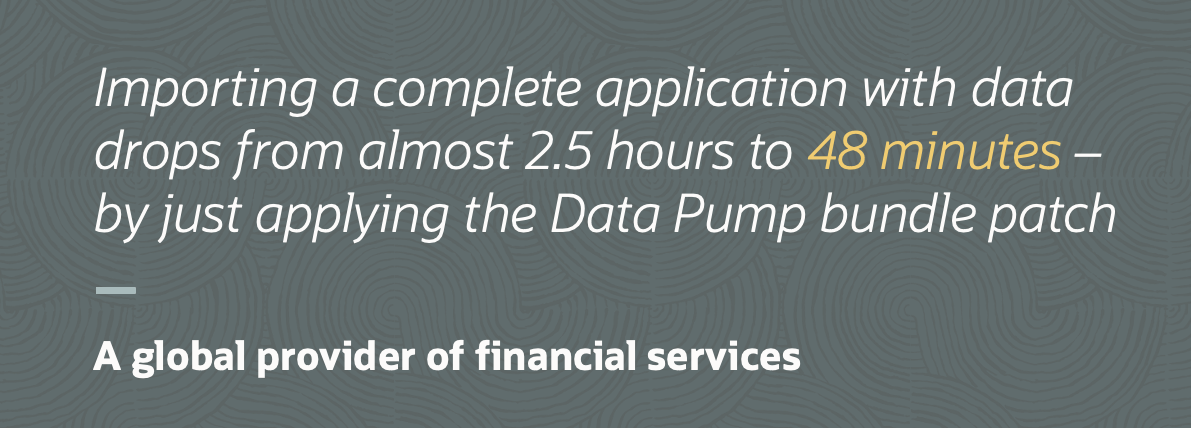
Yes. There are more than 200 fixes for Data Pump. If you start a Data Pump job without it, you might face errors or severe performance issues.

Here’s a statement from a customer, I worked with.

Applying the bundle patch reduced the time for an import to drop from 2,5 hours to 48 minutes

Pump Your Data Pump Skills

Oracle Data Pump is a powerful tool for moving data between databases, but many users only scratch the surface of what it can do. That’s why we created a hands-on lab that will take you beyond the basics and into the details.

Get started with Supercharge data movement with Data Pump.

Learn Oracle Database on Oracle LiveLabs

What Can I Learn

If you invest two hours, this is some of what you get in return:

  • Apply best practices
  • Deal with LOBs effectively
  • Speed up imports using NOVALIDATE constraints
  • Use checksums and encryption to validate your dump files
  • Monitor and trace a job
  • Start a job using the PL/SQL interface

If you’re looking for more details, check out the lab instructions.

Oracle LiveLabs

The lab runs in Oracle LiveLabs.

  • Completely free
  • Nothing to install
  • Runs in a browser

You can check our other labs or flip through the huge catalog of labs on Oracle Database.

Get Started

Start your lab today.

If you want more on Data Pump, check our webinars Data Pump Extreme – Deep Dive with Development and Data Pump Best Practices and Real World Scenarios.

Never Stop Learning

Can I Use Data Pump for Incremental Backups of a Table?

I received this question from a customer:

We take backups of a critical table using Data Pump. The table is very large, so the export takes very long time. How can we speed up the process by doing incremental exports in Data Pump?

My short answer is:

There’s no native functionality in Data Pump that can perform an incremental export of a table.

What would you expect of an incremental export?

  • Does it require an immutable table?
  • Does it include only the new rows?
  • Does it also include the updated rows?
  • What do you want to do about deleted rows?

At first glance, it might sound like a trivial requirement, but as always, the devil is in the details.

Speed Up The Export

The customer has a working solution today, but it is too slow. Let’s see if we can speed up the export.

  • Use the parallel parameter to allow Data Pump to export faster. What’s the best setting for the fastest export? Generally speaking:

    • On-prem, x86-64: 2 x physical cores
    • On-prem, other architectures: It depends :)
    • OCI, OCPU: Number of OCPUs
    • OCI; ECPU: Number of ECPUs / 4

    But make your own tests to see what works best for you.

  • Use multiple dump files by specifying the %L wildcard on the dumpfile parameter. Each Data Pump worker must have exclusive access to a dump file for optimal write speed. Just use the %L wildcard and Data Pump creates as many files as needed.

  • Use compression if your license allows. Compressing the data will burn CPU, but it will significantly reduce the amount of data that has to be written to the dump file. I’ve seen numerous cases where compressing an export speeds it up significantly.

  • If the table is partitioned, Data Pump can use multiple workers on the same table. All workers can use parallel query to extract data – so parallel with parallel. The performance gain you can get from partitioning the table might be marginal. But give it a try.

  • If you have a standby database, you can temporarily convert it into a snapshot standby database and perform the export there. That will allow you to use all available resources without affecting the primary database.

Our Table Is Immutable, We Just Want The New Rows

Here are some ideas if your table is immutable, i.e., you just insert new rows.

A Flag On The Table

You can add a new column, IS_NEW, and set the default value to 1. You can use that to select just the new rows:

  1. Lock the table:
    lock table sales in exclusive mode;
    
  2. Export the table using the query parameter to select only the new records:
    expdp ... tables=sales query="is_new=1";
    
  3. Update the rows. The commit releases the lock:
    update sales set is_new=0 where is_new=1;
    commit;
    

You must lock the table to avoid any issues concurrency issues. Without locking the table, you might end up in a situation where an uncommitted insert is not part of the export, but gets its flag updated by the post-export update.

The drawbacks:

  • Depending on the nature of the table, you effectively have downtime while you export.
  • You also have to add the new column, which might not be allowed.
  • Each export now generate redo during the update.
  • You have to design your table carefully so the flag won’t cause issues with row migration or prevent trailing null optimization.

Insert Timestamp

You could also add a column, insert_at, where the default value is SYSTIMESTAMP. This solution is similar to the one with a flag, but a timestamp can help avoid issues with uncommitted transactions.

When you export the rows, you export from present time minus two hours. Why two hours before? That is to ensure that there are no uncommitted transactions that won’t be part of the export. If there are transactions running longer than two hours, there is a risk of missing those records, leading to logical corruption. So, you could make it even longer – perhaps 24 hours before. But then you don’t get the most up-to-date data when you export.

This solution could avoid the issues of locking and redo generation, but it still requires adding a column to the table.

Plus, it doesn’t prevent anyone from updating the insert_at column, which can destroy your solution and lead to logical corruption.

Monotonically Increasing Or Decreasing Immutable Key

A Sequence

Instead of a flag, you can use a monotonically increasing or decreasing immutable key. That is a column in the table that is constantly increasing (or decreasing). So, something like a column using sequence-generated value. Can you use that as offset for your exports?

Sequences come with their own problems:

  1. You have to use sequences with the ORDER flag to avoid issues in Oracle RAC databases, but that can be a performance killer.
  2. You have to use NOCYCLE sequences, which is the default and probably won’t be an issue.
  3. If you use Application Continuity, you would also need to use the KEEP flag to avoid issues during a transaction replay.
  4. There is no way that the database can guarantee that the rows are inserted into the database in the order of the sequence. That would require that each session would commit in the order they got the sequence number. This would be a concurreny killer.

A sequence-generated key might sound like a good idea, but when you look in the details and take concurrency into consideration, it should be evident that a sequence is not a good idea.

A Word About ORA_ROWSCN Pseudocolumn

What’s ORA_ROWSCN?

ROWSCN reflects the system change-number (SCN) of the most recent change to a row.

It’s a pseudocolumn and part of every table. OK, sounds interesting. Can we use that?

Well, the documentation states some pretty important caveats that you must take into consideration if you build something using ORA_ROWSCN.

Further, ORA_ROWSCN can only say something has changed in this row. It can’t distinguish between a new and a modified row. Plus, it won’t give you deleted rows. So, is this of any benefit at all?

Checking Table At Point In Time

If you want to be able to see how a table looked at a specific time, there are some good options.

RMAN And Recover Table

RMAN has the ability to recover a table. It will recover the table to an auxiliary database, and then perform a Data Pump export of just that table. You can import the data and check how it looked at that specific time.

  1. Put your table into a dedicated tablespace.
  2. Back up the relevant tablespace together with SYSTEM and SYSAUX tablespaces (check separate requirements for a table in a PDB).
  3. Use RMAN functionality to keep that backup for as long as required.
  4. Now, your data is safe, and, if needed, you can restore it to any point in time that your backups allow.

Flashback Time Travel

You can also use Flashback Time Travel (it used to be called Flashback Data Archive).

The database tracks all changes to a table and allows you to query the table using Flashback Query at any previous point in time.

However, this requires that you add Flashback Archives to your database. It requires space, and there is a slight overhead.

Replicating Data

If you want to replicate your data to another database, for instance, a data warehouse, there are some good options.

What About Materialized Views?

The simplest approach is to use materialized views.

You can add materialized view logs to the production database, which enables it to track the changes using materialized view logs. In a remote database, you can incrementally apply those changes (a fast refresh) and have a complete and up-to-date version of the same table. Optionally, instead of replicating the entire table, you can replicate the outcome of a query, a view, even with joins.

What About GoldenGate

The ultimate replication technique is Oracle GoldenGate. It is an extensive product designed specifically for data replication. It will mine the redo to find all changes to your table and replicate them to another database. You can even offload the mining process to another database so your production database remains completely unaffected.

When I mention Oracle GoldenGate, I often hear:

Yeah, but it’s complex and expensive.

Perhaps. However, it is complex and expensive because data replication is a really big challenge. There are so many pitfalls and things to consider. Besides, if you’re in OCI, the price model for OCI GoldenGate is completely different and probably much more attractive.

If you try to make a do-it-yourself replication, you’re in for a big challenge, and the odds are against you.

Conclusion

Without knowing exactly which requirement an incremental export must satisfy, it’s impossible to come up with a solution. In this specific case, I would need more details to find a viable solution.

But I bet the solution I would come up with, would use some of the above features, but not Data Pump. Trying to build incremental backups with Data Pump is a very dangerouos path to tread. It is simply too hard and there are so many pitfalls, especially related to concurrency, to take into consideration.

Do you have a similar requirement? How did you solve the problem? Leave a comment below.

What Is Data Pump Import Doing In PROCACT_SCHEMA

At a recent event, a customer asked me a question.

I’m doing a Data Pump import, and processing PROCACT_SCHEMA takes a lot of time. What’s going on?

I love meeting our customers and hearing about these cases. So, let’s dig into it.

Situation

Here is an extract from the Data Pump import log:

08-SEP-24 18:10:18.604: W-4 Processing object type DATABASE_EXPORT/SCHEMA/PROCACT_SCHEMA
08-SEP-24 22:08:24.804: W-6      Completed 78693 PROCACT_SCHEMA objects in 14283 seconds
08-SEP-24 22:08:24.805: W-6      Completed by worker 1 78692 PROCACT_SCHEMA objects in 14283 seconds
08-SEP-24 22:08:24.826: W-6 Processing object type DATABASE_EXPORT/EARLY_POST_INSTANCE_IMPCALLOUT/MARKER

A few observations:

  • Seeing a customer using logtime=all and metrics=yes in their Data Pump jobs is great. It adds valuable diagnostic information to the log file.
  • Almost four hours on PROCACT_SCHEMA.
  • Almost 80.000 schemas – that’s a lot.
  • Only one active worker.

Tracing

The customer sent me a 10046 trace for that period. They had the suspicion that Data Pump was doing something for each schema. I had the same thought, so I sorted the trace file:

sort CDB01_dw00_54345.trc > sort.txt

Using my favorite text editor, I could scroll through the content and find this repeating call:

sys.dbms_logrep_imp.instantiate_schema(schema_name=>SYS_CONTEXT('USERENV','CURRENT_SCHEMA'), export_db_name=>'...', inst_scn=>'...');COMMIT; END; 

There’s not much public information about this package, but it is a package used during import to move logical replication settings – used by Oracle Streams and Oracle GoldenGate.

Oracle Streams

I’m not a big Streams expert, but I do know that it is desupported in Oracle Database 19c. But could there be some leftovers in the dictionary that caused Data Pump to move the configuration?

I asked the customer to query many of the DBA_STREAMS_* views in the database. One of them returned a lot of rows:

select count(*) from dba_streams_columns;

  COUNT(*)
----------
     72636

Solution

The customer asked for advice on using the Data Pump import parameter STREAMS_CONFIGURATION=NO. Judging from the parameter name, it sounds like a good idea, but the documentation reads:

… STREAMS_CONFIGURATION parameter specifies whether to import any GoldenGate Replication metadata that may be present in the export dump file.

But it states GoldenGate metadata – not Streams. But look in the 18c documentation:

… import any Streams metadata that may be present in the export dump file.

Streams and GoldenGate share a lot of the same architecture in the database because they serve the same purpose: Data replication. That’s why the parameter still exists even if Streams is desupported.

The customer didn’t use GoldenGate, so they decided to exclude the replication metadata during import:

impdp ... streams_configuration=no

The PROCACT_SCHEMA part of the import went from almost four hours to just 30 seconds!

Final Words

In this case, a full import, the issue happened during DATABASE_EXPORT/SCHEMA/PROCACT_SCHEMA. It could happen in a schema import as well. In that case, the phase would be SCHEMA_EXPORT/POST_SCHEMA/PROCACT_SCHEMA.

What is PROCACT? It is short for procedural actions. That phase handles things in the database that are not real objects nevertheless something you want to include. Data Pump calls out to other parts of the code to get the job done. That’s also why you typically see one worker active. I’d like to write a separate blog post about that one day.

A full export/import is convenient, but it includes everything, including the things you didn’t know you had in the database – leftovers or garbage data. A schema export/import is a cleaner approach but would still be affected by the above issue. If you’re short on time, consider a schema export/import and include just the objects that you really need. Something like:

impdp ... schemas=abc,def include=table,index,constraint,trigger,package


Happy data-pumping!

Faster Data Pump Import of LOBs Over Database Link

A colleague was helping a customer optimize an import using Data Pump via a database link that involved SecureFile LOBs.

Do you see a way to parallelize the direct import to improve performance and thus shorten the time it takes to import? Or is it not possible for LOB data?

Network mode imports are a flexible way of importing your data when you have limited access to the source system. However, it comes with the price of restrictions. One of them being:

  • Network mode import does not use parallel query (PQ) child processes.

In Data Pump, one worker will process a table data object which is either a:

  • Table
  • Table partition
  • Table subpartition

So, for a regular table, this means just one worker is processing the table and it doesn’t use parallel query. That’s bound to be slow for larger data sets, but can you do something?

Starting Point

To illustrate my point, I’ll use a sample data set consisting of:

  • One schema (BLOBLOAD)
  • With one table (TAB1)
  • Containing two columns
    • Number (ID)
    • BLOB (BLOB_DATA)
  • The table has around 16.000 rows
  • Size is 50 GB

Doing a regular Data Pump import over a database link is slow because there’s only one worker and no parallel query:

impdp ... \
   network_link=srclnk \
   schemas=blobload \
   parallel=4

...

21-OCT-24 05:30:36.813: Job "SYSTEM"."SYS_IMPORT_SCHEMA_01" successfully completed at Mon Oct 21 05:30:36 2024 elapsed 0 00:11:50

Almost 12 minutes!

Partitioning

Since we know that multiple workers can process different partitions of the same table, let’s try to partition the source table. I’ll use hash partitioning and ensure my partitions are equally distributed:

alter table tab1 
modify partition by hash (id) 
partitions 32 online;

Repeat the import:

impdp ... \
   network_link=srclnk \
   schemas=blobload \
   parallel=4

...

21-OCT-24 09:08:00.897: Job "SYSTEM"."SYS_IMPORT_SCHEMA_01" successfully completed at Mon Oct 21 09:08:00 2024 elapsed 0 00:04:26

Just 4m 26s – that’s a huge improvement!

In the log, file you’ll see that multiple workers are processing partitions individually. So, even without parallel query, I get parallelism because of multiple workers on the same table – each on different partitions.

But partitioning is a separately licensed option.

Using QUERY Parameter and Multiple Data Pump Imports

I’ve previously blocked about do-it-yourself parallelism for Data Pump exports of BasicFile LOBs. Can I use the same approach here?

The idea is to start multiple Data Pump jobs importing the same table, but each working on a subset of the data.

  • First, import just the metadata
    impdp ... \
       network_link=srclnk \
       schemas=blobload \
       content=metadata_only
    
  • Next, start 4 concurrent imports importing just the rows. Each import works on a subset of the data using thery query parameter:
    impdp ... \
       network_link=srclnk \
       schemas=blobload \
       content=data_only \
       query="where mod(id, 4)=0"
    
    impdp ... \
       network_link=srclnk \
       schemas=blobload \
       content=data_only \
       query="where mod(id, 4)=1"
    
    impdp ... \
       network_link=srclnk \
       schemas=blobload \
       content=data_only \
       query="where mod(id, 4)=2"
    
    impdp ... \
       network_link=srclnk \
       schemas=blobload \
       content=data_only \
       query="where mod(id, 4)=3"
    

No – that’s not possible. During imports, Data Pump acquires a lock on the table being imported using the APPEND hint. This is from a trace of the imports:

INSERT /*+  APPEND  NESTED_TABLE_SET_REFS   PARALLEL(KUT$,1)   */ INTO "BLOBLOAD"."TAB1"  KUT$ ("ID", "BLOB_DATA")
SELECT /*+ NESTED_TABLE_GET_REFS  PARALLEL(KU$,1)  */ "ID", "BLOB_DATA" FROM "BLOBLOAD"."TAB1"@srclnk KU$ WHERE mod(id, 4)=1

If you try to start multiple imports into the same table, you get an error:

ORA-02049: timeout: distributed transaction waiting for lock

So, let’s prevent that by adding data_options=disable_append_hint to each Data Pump import jobs.

Now, multiple Data Pump jobs may work on the same table, but it doesn’t scale lineary.

  • One concurrent job: Around 12 minutes
  • Four concurrent jobs: Around 8 minutes
  • Eight concurrent jobs: Around 7 minutes

It gives a performance benefit, but probably not as much as you’d like.

Two-Step Import

If I can’t import into the same table, how about starting four simultaneous Data Pump jobs using the do-it-yourself approach above, but importing into separate tables and then combining all the tables afterward?

I’ll start by loading 1/4 of the rows (notice the QUERY parameter):

impdp ... \
   network_link=srclnk \
   schemas=blobload \
   query=\(blobload.tab1:\"WHERE mod\(id, 4\)=0\"\)

While that runs, I’ll start three separate Data Pump jobs that each work on a different 1/4 of the data. I’m remapping the table into a new table to avoid the locking issue:

impdp ... \
   network_link=srclnk \
   schemas=blobload \
   include=table \
   remap_table=tab1:tab1_2 \
   query=\(blobload.tab1:\"WHERE mod\(id, 4\)=1\"\)

In the remaining two jobs, I’ll slightly modify the QUERY and REMAP_TABLE parameters:

impdp ... \
   network_link=srclnk \
   schemas=blobload \
   include=table \
   remap_table=tab1:tab1_3 \
   query=\(blobload.tab1:\"WHERE mod\(id, 4\)=2\"\)
impdp ... \
   network_link=srclnk \
   schemas=blobload \
   include=table \
   remap_table=tab1:tab1_4 \
   query=\(blobload.tab1:\"WHERE mod\(id, 4\)=3\"\)

Now, I can load the rows from the three staging tables into the real one:

ALTER SESSION FORCE PARALLEL DML;
INSERT /*+ APPEND PARALLEL(a) */ INTO "BLOBLOAD"."TAB1" a 
SELECT /*+ PARALLEL(b)  */ * FROM "BLOBLOAD"."TAB1_2" b;
commit;

INSERT /*+ APPEND PARALLEL(a) */ INTO "BLOBLOAD"."TAB1" a 
SELECT /*+ PARALLEL(b)  */ * FROM "BLOBLOAD"."TAB1_3" b;
commit;

INSERT /*+ APPEND PARALLEL(a) */ INTO "BLOBLOAD"."TAB1"  a
SELECT /*+ PARALLEL(b)  */ * FROM "BLOBLOAD"."TAB1_4" b;
commit;

This approach took around 7 minutes (3m 30s for the Data Pump jobs, and 3m 30s to load the rows into the real table). Slower than partitioning but still faster than the starting point.

This approach is complicated; the more data you have, the more you need to consider things like transaction size and index maintenance.

Conclusion

Network mode imports have many restrictions, which also affect performance. Partitioning is the easiest and fastest improvement, but it requires the appropriate license option. The final resort is to perform some complicated data juggling.

Alternatively, abandon network mode imports and use dump files. In dump file mode, one worker can use parallel query during export and import, which is also fast.

Thanks

I used an example from oracle-base.com to generate the test data.

VIEWS_AS_TABLES – A Hidden Data Pump Gem

VIEWS_AS_TABLES is a neat feature in Oracle Data Pump that allows you to export the contents of a view and import them as tables.

The idea is to export a view as if it were a table. The dump file contains a table definition:

  • With the same name as the view
  • With the same columns as the view
  • With the same data as the view

Show Me

  1. In the source database, you create a view, or you can use an existing view:
SQL> create view sales as select * from all_objects;
  1. Next, you export that view as a table:
$ expdp ... views_as_tables=sales
  1. In the target database, you import:
$ impdp ...
  1. The view is now a table:
SQL> select object_type from all_objects where object_name='SALES';

OBJECT_TYPE
-----------
TABLE

When To Use It

  • Faster import of data over a database link when using the QUERY parameter. Normally, the predicate in the QUERY parameter is evaluated on the target database, so during a Data Pump import over a database link, all rows are retrieved from the source database. Then, the QUERY parameter is applied to filter the rows. This is inefficient if you select a smaller portion of a larger table. By using VIEWS_AS_TABLES the filtering happens on the source database and might speed up the import dramatically.

  • Customized data export. Another case I worked on involved a system where the user must be able to extract certain data in a format of their choosing. The user could define a view, export it, and import it into their local database for further processing. The view could:

    • Include various columns and the user can decide the ordering and column names.
    • Join tables to create a more complete data set.
    • Translate columns with domain values to text (like 1 being NEW, 2 being IN PROGRESS and so forth).
    • De-normalize data to make it more human-readable.
    • Format dates and numbers according to the user’s NLS settings.
  • Transform tables are part of a migration. I’ve also seen some customers perform powerful transformations to data while the data was migrated. There are a lot of transformations already in Data Pump, but in these cases, the customer had more advanced requirements.

The Details

  • You can use VIEWS_AS_TABLES in all modes: full, tablespace, schema, and table.
  • The table has the same name as the view. But you can also use the REMAP_TABLE option in Data Pump to give it a new name.
  • During export, Data Pump:
    1. Creates an empty table with the same structure as the view (select * from <view> where rownum < 1).
    2. Exports the table metadata
    3. Unloads data from the view
    4. Drops the interim table
  • Data Pump also exports dependent objects, like grants, that are dependent on the view. On import, Data Pump adds those grants to the table.

Conclusion

A powerful feature that might come in handy one day to transform your data or boost the performance of network link imports.

Leave a comment and let me know how you used the feature.

How to Trace Oracle Data Pump

If you ever encounter problems with Oracle Data Pump, you can use this recipe to get valuable tracing.

Over the years, I’ve helped many customers with Data Pump issues. The more information you have about a problem, the sooner you can come up with a solution. Here’s my list of things to collect when tracing a Data Pump issue.

Daniel’s Tracing Recipe

1. AWR

  • Be sure you have a proper license to use AWR.

  • Set the snapshot interval to 15 minutes and create a new snapshot:

    exec dbms_workload_repository.modify_snapshot_settings(null, 15);
    exec dbms_workload_repository.create_snapshot;
    
  • If you are on Multitenant, do so in the root container and in the PDB.

2. SQL Trace

  • Depending on the nature of the problem, you can enable SQL trace of the Data Pump processes:

    alter system set events 'sql_trace {process: pname = dw | process: pname = dm} level=8';
    
    • You can change the trace level as required.
    • dm is the Data Pump control process, dw are worker processes.
  • If you already know the SQL ID causing problems, you can enable tracing for just that SQL:

    alter system set events 'sql_trace[SQL: <sql-id>]';
    
    • Replace <sql-id> with the offending SQL ID.

3. Start Data Pump

  • Start the Data Pump job that you want to trace:
    expdp ... metrics=yes logtime=all trace=<trace-setting>
    impdp ... metrics=yes logtime=all trace=<trace-setting>
    

4. AWR

  • Be sure you have a proper license to use AWR.

  • When the Data Pump job completes or after you stopped it, reset the snapshot interval to the original value and create a new AWR snapshot:

    exec dbms_workload_repository.modify_snapshot_settings(null, <original-value>);
    exec dbms_workload_repository.create_snapshot;
    
  • Create an AWR report spanning the entire period:

    @?/rdbms/admin/awrrpt
    
    • If needed, you can later on create AWR reports for a shorter period.
  • If you are on Multitenant, do so in the root container and in the PDB.

Get the Information

Collect the following information:

  1. The Data Pump log file.
  2. AWR reports – on CDB and PDB level
  3. Data Pump trace files
    • Stored in the database trace directory
    • Control process file name: *dm*
    • Worker process file names: *dw*

This should be a great starting point for diagnosing your Data Pump problem.

What Else

  • Remember, you can use the Data Pump Log Analyzer to quickly generate an overview and to dig into the details.

  • Regarding Data Pump parameters metrics=yes and logtime=all. You should always have those in your Data Pump jobs. They add very useful information at no extra cost. In Oracle, we are discussing whether these should be default in a coming version of Data Pump.

Leave a comment and let me know your favorite way of tracing Oracle Data Pump.