
How to Patch Oracle RAC Database 19c Using Manual Out-Of-Place

Let me show you how I patch an Oracle RAC Database 19c using out-of-place patching and by doing it manually – that is without using OPatchAuto.

The advantages of this solution:

  • I get more control over the process which is handy for automation
  • I can create my Oracle homes using gold images
  • Or, I can use brand-new Oracle homes instead of cloning existing Oracle homes which OPatchAuto does

My Demo System

  • 2 node Oracle RAC Database
    • Nodes: copenhagen1 and copenhagen2
    • SID: CDB1
    • Instances: CDB11 and CDB12
  • Runs Oracle Linux
  • GI home is already on 19.26
  • Database home is on 19.25

I want to:

  • Patch my database to 19.26 in a rolling manner
  • Patch just the database – GI home is already patched
  • Patch manually without using OPatchAuto

Preparation

I need to download the following to /u01/software on copenhagen1:

  1. The base release of:
    • Oracle Database (LINUX.X64_193000_db_home.zip)
  2. Latest OPatch from My Oracle Support (6880880).
  3. Patches from My Oracle Support:
    • 19.26 Release Update for Grid Infrastructure (37257886)

You can use AutoUpgrade to easily download GI patches.

I have already established SSH equivalence between the two nodes.

How to

1. Prepare a New Database Home

I can do this in advance. It doesn’t affect my current environment and doesn’t cause any downtime.

  1. I need to create a folder for the new database home. I must do this as oracle on both nodes, copenhagen1:
    [oracle@copenhagen1]$ export NEW_ORACLE_HOME=/u01/app/oracle/product/dbhome_1926
    [oracle@copenhagen1]$ mkdir -p $NEW_ORACLE_HOME
    
    copenhagen2:
    [oracle@copenhagen2]$ export NEW_ORACLE_HOME=/u01/app/oracle/product/dbhome_1926
    [oracle@copenhagen2]$ mkdir -p $NEW_ORACLE_HOME
    
  2. I extract the base release of Oracle Database into the new database home on the first node only:
    [oracle@copenhagen1]$ cd $NEW_ORACLE_HOME
    [oracle@copenhagen1]$ unzip -oq /u01/software/LINUX.X64_193000_db_home.zip
    
    Optionally, I can use a golden image. You can use a gold image from a single instance install. The Oracle home is identical.
  3. I update OPatch to the latest version:
    [oracle@copenhagen1]$ rm -rf OPatch
    [oracle@copenhagen1]$ unzip -oq /u01/software/p6880880_190000_Linux-x86-64.zip
    
  4. I want to apply the 19.26 Release Update while I install the database home. To do that, I must extract the patch file:
     [grid@copenhagen1]$ cd /u01/software
     [grid@copenhagen1]$ unzip -oq p37257886_190000_Linux-x86-64.zip -d 37257886
    
    • I must use the GI Release Update, not the database Release Update. The GI Release Update is a bundle patch consisting of the database and OCW Release Updates. I must apply both to my database home.
  5. Then, I can install the new database home and apply the patches at the same time:
    • The variable CLUSTER_NODES contains a comma separated list of all nodes in my cluster.
    • The parameter -applyRU is the path to the Database Release Update.
    • The parameter -applyOneOffs is the paths to the OCW Release Update.
    [oracle@copenhagen1]$ export CV_ASSUME_DISTID=OEL7.8
    [oracle@copenhagen1]$ export ORACLE_HOSTNAME=$(hostname)
    [oracle@copenhagen1]$ export CLUSTER_NODES=copenhagen1,copenhagen2
    [oracle@copenhagen1]$ export ORACLE_BASE=/u01/app/oracle
    [oracle@copenhagen1]$ export ORA_INVENTORY=/u01/app/oraInventory
    [oracle@copenhagen1]$ export OLD_ORACLE_HOME=$ORACLE_HOME
    [oracle@copenhagen1]$ export ORACLE_HOME=$NEW_ORACLE_HOME
    [oracle@copenhagen1]$ cd $ORACLE_HOME
    [oracle@copenhagen1]$ ./runInstaller -ignorePrereqFailure -waitforcompletion -silent \
         -responseFile $ORACLE_HOME/install/response/db_install.rsp \
         -applyRU /u01/software/37257886/37260974 \
         -applyOneOffs /u01/software/37257886/37268031 \
         oracle.install.option=INSTALL_DB_SWONLY \
         ORACLE_HOSTNAME=$ORACLE_HOSTNAME \
         UNIX_GROUP_NAME=oinstall \
         INVENTORY_LOCATION=$ORA_INVENTORY \
         SELECTED_LANGUAGES=en \
         ORACLE_HOME=$ORACLE_HOME \
         ORACLE_BASE=$ORACLE_BASE \
         oracle.install.db.InstallEdition=EE \
         oracle.install.db.OSDBA_GROUP=dba \
         oracle.install.db.OSBACKUPDBA_GROUP=dba \
         oracle.install.db.OSDGDBA_GROUP=dba \
         oracle.install.db.OSKMDBA_GROUP=dba \
         oracle.install.db.OSRACDBA_GROUP=dba \
         oracle.install.db.CLUSTER_NODES=$CLUSTER_NODES \
         oracle.install.db.isRACOneInstall=false \
         oracle.install.db.rac.serverpoolCardinality=0 \
         SECURITY_UPDATES_VIA_MYORACLESUPPORT=false \
         DECLINE_SECURITY_UPDATES=true
    
    • I install it in silent mode, but I could use the wizard instead.
    • You need to install the new database home in a way that matches your environment.
    • For inspiration, you can check the response file used in the previous database home on setting the various parameters.
    • If I have additional one-off patches to install, I add them to the comma-separated list.
  6. I run the root script on all nodes, copenhagen1:
    [root@copenhagen1]$ export NEW_ORACLE_HOME=/u01/app/oracle/product/dbhome_1926
    [root@copenhagen1]$ NEW_ORACLE_HOME/root.sh
    
    copenhagen2:
    [root@copenhagen2]$ export NEW_ORACLE_HOME=/u01/app/oracle/product/dbhome_1926
    [root@copenhagen2]$ $NEW_ORACLE_HOME/root.sh
    

2. Prepare Database

I can do this in advance. It doesn’t affect my current environment and doesn’t cause any downtime.

I will move the database into a new Oracle home, so I need to ensure the database configuration files are either outside the Oracle home or move them to the new Oracle home.

  1. I verify that my SP file and password file are stored in ASM – or at least outside the Oracle home:
    [oracle@copenhagen1]$ export ORACLE_HOME=$OLD_ORACLE_HOME
    [oracle@copenhagen1]$ srvctl config database -db $ORACLE_UNQNAME | grep file  
    
    • If the files are stored in the dbs folder, I copy them to new Oracle home on both nodes.
  2. I copy tnsnames.ora and sqlnet.ora to the new Oracle home on both nodes, copenhagen1:
    [oracle@copenhagen1]$ cp $OLD_ORACLE_HOME/network/admin/sqlnet.ora $NEW_ORACLE_HOME/network/admin
    [oracle@copenhagen1]$ cp $OLD_ORACLE_HOME/network/admin/tnsnames.ora $NEW_ORACLE_HOME/network/admin
    
    copenhagen2:
    [oracle@copenhagen2]$ cp $OLD_ORACLE_HOME/network/admin/sqlnet.ora $NEW_ORACLE_HOME/network/admin
    [oracle@copenhagen2]$ cp $OLD_ORACLE_HOME/network/admin/tnsnames.ora $NEW_ORACLE_HOME/network/admin
    
  3. I take care of any other configuration files in the Oracle home.
  4. I modify the database so it starts in the new Oracle home on the next restart.
    [oracle@copenhagen1]$ srvctl modify database -d $ORACLE_UNQNAME -o $NEW_ORACLE_HOME
    

3. Restart Instances

Now, I restart each instance in a rolling manner. On restart, the database starts in the new Oracle home. There is no database outage, however, each instance needs to restart.

Maintenance window starts now!

  1. I start draining the first instance, CDB11, running on copenhagen1:
    [oracle@copenhagen1]$ export ORACLE_HOME=$OLD_ORACLE_HOME
    [oracle@copenhagen1]$ export PATH=$ORACLE_HOME/bin:$PATH
    $ORACLE_HOME/bin/srvctl stop service \
       -d $ORACLE_UNQNAME \
       -service SALESGOLD \
       -drain_timeout 60 \
       -stopoption IMMEDIATE \
       -node copenhagen1
    
    • In this example, I have just one service that I’m shutting down. You probably have other services and other drain settings. You can adjust accordingly.
  2. After draining, I can shut down the instance, CDB11, on copenhagen1:
    [oracle@copenhagen1]$ $ORACLE_HOME/bin/srvctl stop instance \
       -d $ORACLE_UNQNAME \
       -i CDB11 \
       -force
    
  3. I immediately restart the instance:
    [oracle@copenhagen1]$ $ORACLE_HOME/bin/srvctl start instance \
       -d $ORACLE_UNQNAME \
       -i CDB11
    
    • The instance now restarts in the new Oracle home.
  4. I repeat the drain and restart cycle on the second instance, CDB12, running on copenhagen2. Repeat steps 1-3 but change any reference to the node and instance:
    • Change -node to copenhagen2
    • Change -i to CDB12
  5. I have now restarted all instances and they are running in the new Oracle home.
  6. I update any profiles (e.g., .bash_profile) and other scripts referring to the database home on all nodes.
  7. If the database is added to /etc/oratab, I change the file accordingly on all nodes.

4. Complete Patching

  1. I complete patching of the database by running Datapatch (ensure the environment is set correctly):
    [oracle@copenhagen1]$ env | grep ORA
    [oracle@copenhagen1]$ $ORACLE_HOME/OPatch/datapatch
    
    • I can do this while users are connected to the database.

Most likely, there are other changes that you need to make in your own environment:

  • Update Enterprise Manager registration
  • Upgrade RMAN catalog

That’s it! I have now patched my Oracle RAC Database.

Happy Patching!

Appendix

Deinstall

In the future, I should remove the old Oracle homes. I use the deinstall tool in the respective Oracle homes.

I would recommend waiting a week or two until I’m confident the new Release Updates are fine.

Rollback

If you need to roll back, you just reverse the process. Restart the instances in the old Oracle home and let Datapatch perform the rollback of the database changes.

Combine with SwitchGridHome

You can combine this method with SwitchGridHome for Grid Infrastructure patching.

Patch with OPatchAuto

An alternative to this method is to use OPatchAuto and out-of-place patching. Check the patch readme for instructions on how to use that method.

Disable Binary Options

If you need to disable binary options using make, you can do it immediately after installing the new Oracle home. Do it on all nodes.

Other Blog Posts in This Series

Which Grid Infrastructure Should I Install on My Brand New Exadata?

I received a question from a customer:

We just got a brand-new Exadata. We will use it for critical databases and stay on Oracle Database 19c for the time being. Which Grid Infrastructure should we install: 19c or 23ai?

I recommend installing Oracle Grid Infrastructure 19c (GI 19c).

The Reason

GI 19c has been out since 2019. It is currently at the 23rd Release Update (19.26), and used on many thousands of systems. Those systems include some of the most critical systems you can find.

GI 19c is a very proven release that has reached a very stable state. Proven and stable – two attributes that are very valuable for a mission-critical system.

Additionally, I would apply the latest Release Update – at the time of writing that’s 19.26. Also, I would include fixes from Oracle Database 19c Important Recommended One-off Patches (Doc ID 555.1).

Further, I would ensure the databases were on the same Release Update, 19.26. If that’s impossible, at least keep the database within two Release Updates of Grid Infrastructure, so, minimum 19.24.

In this case, the customer migrates the databases from a different platform onto the new Exadata system. The source database is already running GI 19c, and keeping the same GI release on the new system means there’s one less change to deal with.

Why Not Oracle Grid Infrastructure 23ai?

First, there’s absolutely nothing wrong with the quality of Oracle Grid Infrastructure 23ai (GI 23ai).

When I recommend GI 19c over GI 23ai, it is a matter of choosing between two good options.

But GI 23ai has been out for Exadata for over half a year. Much less than GI 19c, which is about to reach six years of general availability.

Every piece of software as a few rough edges to grind off and I would expect that for GI 23ai as well.

For a mission-critical system, there’s no need to take any chances, which is why I recommend GI 19c.

When To Use Oracle Grid Infrastructure 23ai

If the customer wants to use Oracle Database 23ai – either now or in the foreseeable future – then they should install GI 23ai. No doubt about that.

Also, for less critical systems, including test and development systems, I would recommend GI 23ai as well.

Why Not Both?

I added this after a report on LinkedIn by my colleague, Alex Blyth.

Alex agrees with my recommendation but adds the following:

What I also would have said is, you can have your cake, and you can eat it too. This means Exadata can do more than one thing at a time. With virtualization, you can have a VM cluster with 19c Database and GI for critical databases, and another VM cluster (up to 50 per DB server with X10M / X11M and the latest Exadata System Software) that is running DB and GI 23ai. What’s more, you could also deploy Exadata Exascale and take advantage of the high-performance shared storage for the VM images, and the awesome instant database snapshot and cloning capabilities for DB 23ai.

He raises a really good point.

Exadata is the world’s best database platform and the flexibility it offers with virtualization would allow this customer the stability they need for their mission-critical database, plus, getting started with the many new features on 23ai.

The best of both worlds!

Final Words

Although I work in the upgrade team and love upgrades, I don’t recommend them at any cost.

For mission-critical systems, stability and maturity are paramount, and that influences my recommendation of GI 19c.

But get started with Oracle Grid Infrastructure and Database 23ai today. Install it in your lab and then on your less important systems. There are many great enhancements to exploring on Oracle Database 23ai.

Prepare yourself for the next release in due time.

Recreate Database Services After Moving An Oracle Database

Oracle recommends that you connect to the database via custom services. In your connect string, don’t connect:

  • Directly to the SID
  • Or to the database’s default service (the service with the same name as the database).

When you move a database around, in some situations, the database does not retain these services, for instance, when you:

  • Migrate a non-CDB to PDB using refreshable clone PDB
  • Upgrade a PDB using refreshable clone PDB
  • Move a PDB to a different CDB using refreshable clone PDB
  • Migrating a database using Full Transportable Export/Import or transportable tablespaces

The services are important because your application and clients connect to the database through that service. Also, the service might define important properties for things like Application Continuity or set default drain timeout.

Here’s how to recreate such services.

Database Managed Services

A database-managed service is one that you create directly in the database using dbms_service:

begin
   dbms_service.create_service(
      service_name=>'SALESGOLD',
      network_name=>'SALESGOLD');
   dbms_service.start_service('SALESGOLD');   
end;
/

After the migration, you must manually recreate the service in the target database.

dbms_metadata does not support services. So, you must query v$services in the source database to find the service’s defition. Then, construct a call to dbms_service.create_service and dbms_serice.start_service.

Clusterware Managed Services

I recommend defining services in Grid Infrastructure if you are using Oracle RAC or using Oracle Restart to manage your single instance database. Luckily, Grid Infrastructure supports exporting and importing service defitions.

  • You export all the services defined in the source database:

    srvctl config service \
       -db $ORACLE_UNQNAME \
       -exportfile my_services.json \
       -S 2
    
  • You edit the JSON file.

    1. Remove the default services. Keep only your custom services.
    2. Remove the dbunique_name attribute for all services.
    3. If you are renaming the PDB, you must update the pluggable_database attribute.
    4. Update the res_name attribute so it matches the resource name of the target database. Probably you just need to exchange the db_unique_name part of the resource name. You can find the resource name as grid when you execute crsctl stat resource -t.
  • You can now import the services into the target database:

    srvctl add service \
       -db $ORACLE_UNQNAME \
       -importfile my_services.json
    
  • Finally, you start the service(s):

    export ORACLE_SERVICE_NAME=SALESGOLD
    srvctl start service \
       -db $ORACLE_UNQNAME \
       -service $ORACLE_SERVICE_NAME
    

Additional Information

  • The export/import features work from Oracle Database 19c, Release Update 19 and beyond.
  • You can also export/import the definition of:
    • Database: srvctl config database -db $ORACLE_UNQNAME -S 2 -exportfile my_db.json.json
    • PDB: srvctl config pdb -db $ORACLE_UNQNAME -S 2 -exportfile my_pdb.json
    • ACFS filesystem: srvctl config filesystem -S 2 -exportfile /tmp/my_filesystem.json
  • At time of writing, this functionality hasn’t made it into the documentation yet. Consider yourself lucky knowing this little hidden gem.

Final Words

Remember to recreate your custom services after a migration. Your application needs the service to connect in a proper way.

Further Reading

Patch Me If You Can

The January 2025 Release Update is out. I assume you’ve started the patching process already. You patch databases every quarter, right?

Patching Oracle Database means downtime (unless you have a RAC database), so it’s important to get it right. I recommend that you spend an hour or two sharpening your skills in our re-vamped hands-on lab:

Patch Me If You Can

  • It’s completely free
  • Runs in just a browser
  • Nothing to pay – nothing to install

For Everyone

If you’re a beginner, you can learn how to patch your Oracle Database.

If you’re an experienced patcher, you can learn how to use gold images and some patching internals that further deepen your knowledge on patching.

Lab outline:

  • Explore patching tools
  • Patch non-CDB and container databases
  • Use AutoUpgrade to patch an Oracle Database
  • Install Oracle homes
  • Perform a rollback
  • Selectively enable optimizer fixes

Go to the lab.

Pro Tips

It’s better to fail in our lab than in production!

Can I Use Data Pump for Incremental Backups of a Table?

I received this question from a customer:

We take backups of a critical table using Data Pump. The table is very large, so the export takes very long time. How can we speed up the process by doing incremental exports in Data Pump?

My short answer is:

There’s no native functionality in Data Pump that can perform an incremental export of a table.

What would you expect of an incremental export?

  • Does it require an immutable table?
  • Does it include only the new rows?
  • Does it also include the updated rows?
  • What do you want to do about deleted rows?

At first glance, it might sound like a trivial requirement, but as always, the devil is in the details.

Speed Up The Export

The customer has a working solution today, but it is too slow. Let’s see if we can speed up the export.

  • Use the parallel parameter to allow Data Pump to export faster. What’s the best setting for the fastest export? Generally speaking:

    • On-prem, x86-64: 2 x physical cores
    • On-prem, other architectures: It depends :)
    • OCI, OCPU: Number of OCPUs
    • OCI; ECPU: Number of ECPUs / 4

    But make your own tests to see what works best for you.

  • Use multiple dump files by specifying the %L wildcard on the dumpfile parameter. Each Data Pump worker must have exclusive access to a dump file for optimal write speed. Just use the %L wildcard and Data Pump creates as many files as needed.

  • Use compression if your license allows. Compressing the data will burn CPU, but it will significantly reduce the amount of data that has to be written to the dump file. I’ve seen numerous cases where compressing an export speeds it up significantly.

  • If the table is partitioned, Data Pump can use multiple workers on the same table. All workers can use parallel query to extract data – so parallel with parallel. The performance gain you can get from partitioning the table might be marginal. But give it a try.

  • If you have a standby database, you can temporarily convert it into a snapshot standby database and perform the export there. That will allow you to use all available resources without affecting the primary database.

Our Table Is Immutable, We Just Want The New Rows

Here are some ideas if your table is immutable, i.e., you just insert new rows.

A Flag On The Table

You can add a new column, IS_NEW, and set the default value to 1. You can use that to select just the new rows:

  1. Lock the table:
    lock table sales in exclusive mode;
    
  2. Export the table using the query parameter to select only the new records:
    expdp ... tables=sales query="is_new=1";
    
  3. Update the rows. The commit releases the lock:
    update sales set is_new=0 where is_new=1;
    commit;
    

You must lock the table to avoid any issues concurrency issues. Without locking the table, you might end up in a situation where an uncommitted insert is not part of the export, but gets its flag updated by the post-export update.

The drawbacks:

  • Depending on the nature of the table, you effectively have downtime while you export.
  • You also have to add the new column, which might not be allowed.
  • Each export now generate redo during the update.
  • You have to design your table carefully so the flag won’t cause issues with row migration or prevent trailing null optimization.

Insert Timestamp

You could also add a column, insert_at, where the default value is SYSTIMESTAMP. This solution is similar to the one with a flag, but a timestamp can help avoid issues with uncommitted transactions.

When you export the rows, you export from present time minus two hours. Why two hours before? That is to ensure that there are no uncommitted transactions that won’t be part of the export. If there are transactions running longer than two hours, there is a risk of missing those records, leading to logical corruption. So, you could make it even longer – perhaps 24 hours before. But then you don’t get the most up-to-date data when you export.

This solution could avoid the issues of locking and redo generation, but it still requires adding a column to the table.

Plus, it doesn’t prevent anyone from updating the insert_at column, which can destroy your solution and lead to logical corruption.

Monotonically Increasing Or Decreasing Immutable Key

A Sequence

Instead of a flag, you can use a monotonically increasing or decreasing immutable key. That is a column in the table that is constantly increasing (or decreasing). So, something like a column using sequence-generated value. Can you use that as offset for your exports?

Sequences come with their own problems:

  1. You have to use sequences with the ORDER flag to avoid issues in Oracle RAC databases, but that can be a performance killer.
  2. You have to use NOCYCLE sequences, which is the default and probably won’t be an issue.
  3. If you use Application Continuity, you would also need to use the KEEP flag to avoid issues during a transaction replay.
  4. There is no way that the database can guarantee that the rows are inserted into the database in the order of the sequence. That would require that each session would commit in the order they got the sequence number. This would be a concurreny killer.

A sequence-generated key might sound like a good idea, but when you look in the details and take concurrency into consideration, it should be evident that a sequence is not a good idea.

A Word About ORA_ROWSCN Pseudocolumn

What’s ORA_ROWSCN?

ROWSCN reflects the system change-number (SCN) of the most recent change to a row.

It’s a pseudocolumn and part of every table. OK, sounds interesting. Can we use that?

Well, the documentation states some pretty important caveats that you must take into consideration if you build something using ORA_ROWSCN.

Further, ORA_ROWSCN can only say something has changed in this row. It can’t distinguish between a new and a modified row. Plus, it won’t give you deleted rows. So, is this of any benefit at all?

Checking Table At Point In Time

If you want to be able to see how a table looked at a specific time, there are some good options.

RMAN And Recover Table

RMAN has the ability to recover a table. It will recover the table to an auxiliary database, and then perform a Data Pump export of just that table. You can import the data and check how it looked at that specific time.

  1. Put your table into a dedicated tablespace.
  2. Back up the relevant tablespace together with SYSTEM and SYSAUX tablespaces (check separate requirements for a table in a PDB).
  3. Use RMAN functionality to keep that backup for as long as required.
  4. Now, your data is safe, and, if needed, you can restore it to any point in time that your backups allow.

Flashback Time Travel

You can also use Flashback Time Travel (it used to be called Flashback Data Archive).

The database tracks all changes to a table and allows you to query the table using Flashback Query at any previous point in time.

However, this requires that you add Flashback Archives to your database. It requires space, and there is a slight overhead.

Replicating Data

If you want to replicate your data to another database, for instance, a data warehouse, there are some good options.

What About Materialized Views?

The simplest approach is to use materialized views.

You can add materialized view logs to the production database, which enables it to track the changes using materialized view logs. In a remote database, you can incrementally apply those changes (a fast refresh) and have a complete and up-to-date version of the same table. Optionally, instead of replicating the entire table, you can replicate the outcome of a query, a view, even with joins.

What About GoldenGate

The ultimate replication technique is Oracle GoldenGate. It is an extensive product designed specifically for data replication. It will mine the redo to find all changes to your table and replicate them to another database. You can even offload the mining process to another database so your production database remains completely unaffected.

When I mention Oracle GoldenGate, I often hear:

Yeah, but it’s complex and expensive.

Perhaps. However, it is complex and expensive because data replication is a really big challenge. There are so many pitfalls and things to consider. Besides, if you’re in OCI, the price model for OCI GoldenGate is completely different and probably much more attractive.

If you try to make a do-it-yourself replication, you’re in for a big challenge, and the odds are against you.

Conclusion

Without knowing exactly which requirement an incremental export must satisfy, it’s impossible to come up with a solution. In this specific case, I would need more details to find a viable solution.

But I bet the solution I would come up with, would use some of the above features, but not Data Pump. Trying to build incremental backups with Data Pump is a very dangerouos path to tread. It is simply too hard and there are so many pitfalls, especially related to concurrency, to take into consideration.

Do you have a similar requirement? How did you solve the problem? Leave a comment below.

Upgrade Oracle Base Database Service to Oracle AI Database 26ai

Upgrading your Base Database Service consists of two things:

  • Upgrading DB System (Grid Infrastructure)
  • Upgrading Database

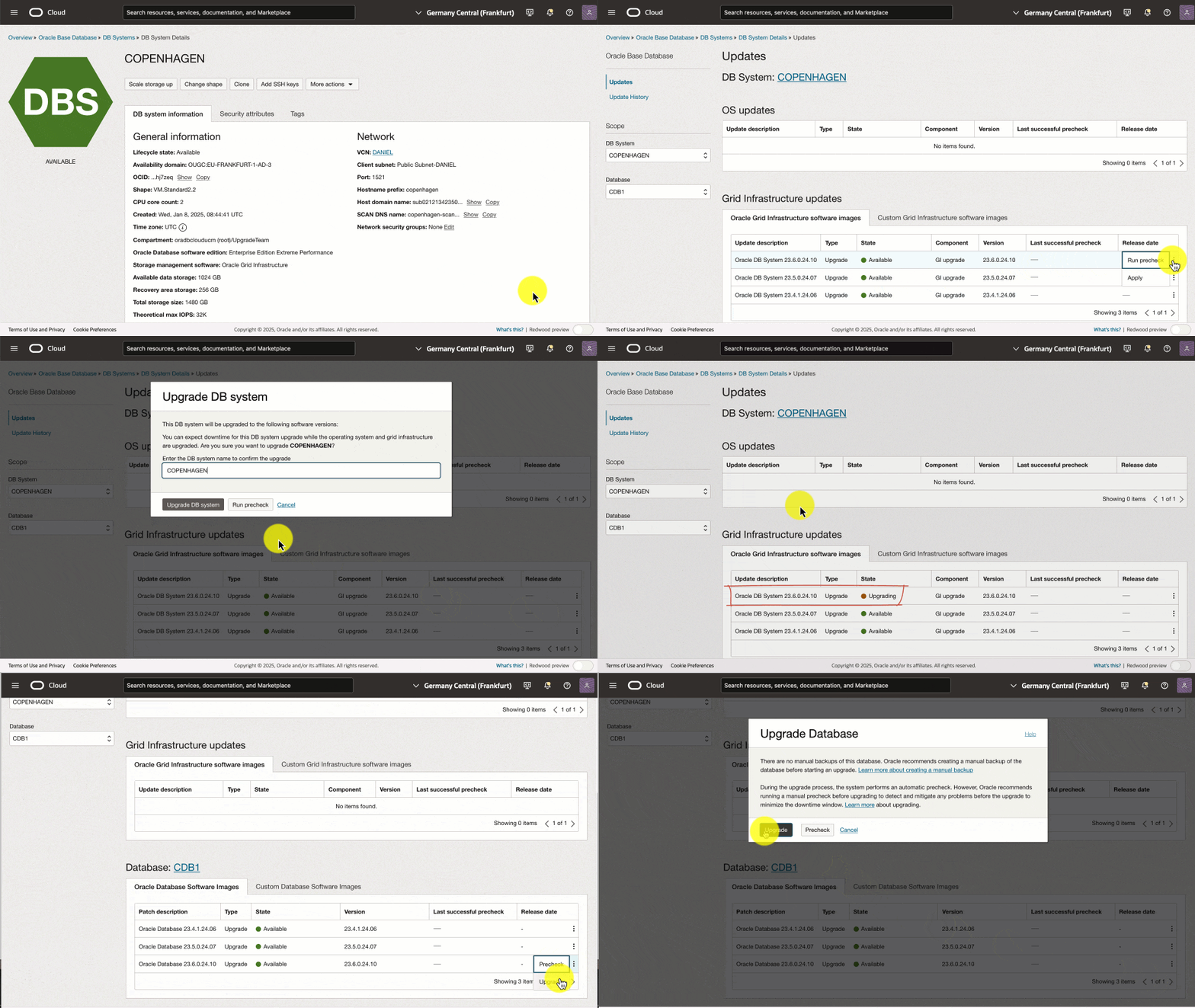
It is really easy. Just hit the Upgrade button twice.

Upgrading an Oracle Base Database Service

However, underneath the hood, there’s more to it.

This post was originally written for Oracle Database 23ai, but it works the same way to Oracle AI Database 26ai.

Requirements

  • The operating system must be Oracle Linux 8 (else see appendix):
    [oracle@host]$ cat /etc/os-release
    
  • Grid Infrastructure and Database must be 19c or 21c. Check the version of the DB System in the OCI Console or:
    [grid@host]$ crsctl query crs activeversion
    
  • The database must be in archivelog mode:
    select log_mode from v$database;
    
  • The database must be a container database (else see appendix):
    select cdb from v$database;
    

How To Upgrade

Before Upgrade

  • In the OCI Console, perform a precheck of the DB System update.

  • Also, perform a precheck of the Database update.

  • Although the Database update precheck succeeds, I recommend you check the preupgrade summary. You can find that on the host:

    cd /u01/app/oracle/cfgtoollogs/dbua/$ORACLE_UNQNAME/$ORACLE_SID/100/prechecks
    cat *_preupgrade.log
    
    • The precheck halts only on critical errors. Nevertheless, there might be other issues that you want to attend to.
    • Also, the precheck report might list post-upgrade actions that you should attend to.
  • Oracle recommends that you take a manual backup before starting. For Standard Edition databases, a manual backup is the only fallback method available.

  • You must disable automatic backup during upgrade.

  • Also, gather dictionary and fixed objects statistics.

Upgrade

  • You need downtime for the upgrade – even if you use Oracle RAC!
  • First, upgrade Grid Infrastructure.
    • Your database and service configuration persists. Those settings are carried over to the new Grid Infrastructure configuration.
  • Second, upgrade the database. The tooling
    • Automatically creates a guaranteed restore point to protect your database. The name of the restore point is prefixed BEFORE#DB#UPGRADE#, and the restore point is automatically removed following a successful upgrade. This applies to Enterprise Edition only.
    • Uses Database Upgrade Assistant (DBUA) to perform the upgrade with default options. This causes DBUA to perform things like timezone file upgrade as well. This prolongs the upgrade duration, but there’s no way to disable it.

After Upgrade

  • You should take a new manual backup and re-enable automatic backups (if previously disabled).
  • The documentation states that you should manually remove the old Database Oracle home. However, the upgrade process does that automatically. The old Grid Infrastructure Oracle home still exists, and currently, there’s no way to remove it.
  • The compatible parameter is left at the original value. Oracle recommends raising it a week or two after the upgrade when you are sure a downgrade won’t be needed.
    alter system set compatible='23.6.0' scope=spfile;
    shutdown immediate
    startup
    
    • As you can see changing compatible requires a restart. If you can’t afford additional downtime after the upgrade, then be sure to raise compatible immediately after the upgrade.
    • Also note that for some specific enhancements (vector database related) to work, you need to set compatible to 23.6.0.
    • Finally, check this advice on compatible parameter in general.
  • The tooling updates .bashrc automatically, but if you have other scripts, be sure to change those.

Monitoring and Troubleshooting

Grid Infrastructure

  • You can find the logs from the Grid Infrastructure upgrade here:
    /u01/app/grid/crsdata/<hostname>/crsconfig
    
  • The log file is really verbose, so here’s a way to show just the important parts:
    grep "CLSRSC-" crsupgrade_*.log
    
  • The parameter file used during the upgrade:
    /u01/app/23.0.0.0/grid/crs/install/crsconfig_params
    

Database

  • Although the upgrade is made with DBUA, it will call AutoUpgrade underneath the hood to perform the preupgrade analysis. You can find their log files here:
    /u01/app/oracle/cfgtoollogs/dbua/$ORACLE_UNQNAME/$ORACLE_SID/100/prechecks
    
  • Once the upgrade starts, you can list the jobs running by the DCS agent (as root):
    dbcli list-jobs
    
    ID                                       Description                                                                 Created                             Status
    ---------------------------------------- --------------------------------------------------------------------------- ----------------------------------- ----------
    ...
    bf255c15-a4d5-4f3c-a532-2f0b8c567ad9     Database upgrade precheck with dbResId : d5a7000a-35c8-46a5-9a21-09d522d8a654 Thursday, January 09, 2025, 06:14:01 UTC Success
    f6fac17a-3871-4cb1-b8f0-281ac6313c6a     Database upgrade with resource Id : d5a7000a-35c8-46a5-9a21-09d522d8a654    Thursday, January 09, 2025, 07:13:54 UTC Running
    
    • Notice the ID for the upgrade job. You need it later.
  • Get details about the job (as root):
    dbcli describe-job -i <job-id>
    
    Job details
    ----------------------------------------------------------------
                      ID:  f6fac17a-3871-4cb1-b8f0-281ac6313c6a
             Description:  Database upgrade with resource Id : d5a7000a-35c8-46a5-9a21-09d522d8a654
                  Status:  Running
                 Created:  January 9, 2025 at 7:13:54 AM UTC
                Progress:  13%
                 Message:
              Error Code:
    
    Task Name                                                                Start Time                          End Time                            Status
    ------------------------------------------------------------------------ ----------------------------------- ----------------------------------- ----------
    Database home creation                                                   January 9, 2025 at 7:14:05 AM UTC   January 9, 2025 at 7:19:14 AM UTC   Success
    PreCheck executePreReqs                                                  January 9, 2025 at 7:19:14 AM UTC   January 9, 2025 at 7:24:31 AM UTC   Success
    Database Upgrade                                                         January 9, 2025 at 7:24:32 AM UTC   January 9, 2025 at 7:24:32 AM UTC   Running
    
    • Get more details by addid -l Verbose to the command.
  • Progress about the actual database upgrade:
    cd /u01/app/oracle/cfgtoollogs/dbua/<job-id>
    tail -100f silent.log
    
  • Database upgrade log files
    /u01/app/oracle/cfgtoollogs/dbua/<job-id>/$ORACLE_UNQNAME
    

How Long Does It Take?

Although upgrading is easy, it does require a substantial amount of downtime.

Here are the timings from a test upgrade of a basic system with just one PDB and 4 OCPUs:

Component Stage Time
Oracle DB System 23.6.0.24.10 Precheck 2m
Oracle DB System 23.6.0.24.10 Upgrade 1h 26m
Oracle Database 23.6.0.24.10 Precheck 19m
Oracle Database 23.6.0.24.10 Upgrade 3h 28m
Total 5h 15m

The database might be accessible at some point during the upgrade. But since you can’t tell when you should consider the entire period as downtime.

Why Does It Take So Long?

Typically, when you upgrade a database you have already – outside of the maintenance window – deployed a new Oracle Home. When you use the tooling, this happens inside the maintenance window. The tooling can’t deploy an Oracle Home prior to the upgrade. In addition, the upgrade is executed with DBUA using default options, which for instance means that the time zone file is upgraded as well.

What else matters? Check this video.

Can I Make It Faster?

The biggest chance of reducing the upgrade time, is to remove unused components. Databases in OCI comes with all available components, which is nice on one hand, but it adds a lot of extra work to the upgrade. Mike Dietrich has a good blog post series on removing components.

If you scale up on OCPUs for the upgrade, you will also see a benefit. The more PDBs you have in your system, the greater the potential benefit. The databases uses parallel upgrade to process each PDB but also to process multiple PDBs at the same time, so parallel with parallel. When you add more OCPUs to your system, the cloud tooling automatically raises CPU_COUNT which is the parameter the upgrade engine uses to determine the parallel degree. For CDBs with many PDBs you can overload the upgrade process and assign more CPUs than you have in reality. This can give quite a benefit, but since the cloud tooling doesn’t allow you to control the upgrade, this is unfortunately not an option.

An upgrade is not dependent on I/O, so scaling up to faster storage doesn’t bring any benefit.

So, there is some tweaking potential, but probably not as much as you hope for. If you are concerned about downtime, your best option is to switch approach from upgrading the entire CDB to indivual PDBs using refreshable clones. Depending on the circumstances, you should easily be able to get below 1 hour.

Rollback

If either part of the upgrade fails, the OCI Console will present you with a Rollback button that you can use.

Data Guard

If you use Data Guard, you must upgrade the standby database first, then the primary database. The Data Guard configuration persists. Check the documentation for details.

Final Words

I’ve shown how to perform the entire upgrade in one maintenance window. If you want, you can split the process into two pieces. First, upgrade Grid Infrastructure and then the database. But that would require several duplicate tasks and two separate maintenance windows.

Since this method incurs many hours of downtime, I encourage you to upgrade individual PDBs using refreshable clone PDBs. Using this method you should be able to get under 1 hour for an upgrade.

Be sure to check the other blog posts in this series.

Happy Upgrading!

Appendix

My Database Is A Non-CDB

You must convert a non-CDB database to a pluggable database as part of the upgrade. You can convert convert it in-place.

Alternatively (and my favorite), you can use refreshable clones and move the non-CDB into a new Base Database Service that is already using a container database. You can perform the non-CDB to PDB migration and the upgrade in one operation with very little downtime—much less than an in-place upgrade and conversion.

You can read about it here and here.

My System Is Running Oracle Linux 7

You must upgrade the operating system first, a separate process requiring additional downtime. Consider using refreshable clones.

Further Reading

How To Roll Back After Patching

Here’s a question I received from a customer:

I’ve patched my database to 19.25 using AutoUpgrade and out-of-place patching. How do I roll back, if needed?

Basically, a rollback is the same as patching the database. You just do it the other way around – from the higher to the lower Oracle home. But let’s look at the details.

AutoUpgrade

I’m glad to hear that the customer uses AutoUpgrade for patching. It’s my recommended method, and it has many benefits.

If you use AutoUpgrade to patch your Oracle Database, you can also use it to roll back, but only before going live:

java -jar autoupgrade.jar -restore -jobs <n>
  • n is the job ID of the patching job.
  • AutoUpgrade undoes everything it did.

AutoUpgrade relies on Flashback Database as its rollback mechanism. So, it’s no good if users have already connected to the database and added/changed data.

Allow me to repeat: Only use AutoUpgrade to roll back before go-live!

After go-live, you must roll back manually.

Manually

You can manually roll back at any time – even after go-live.

Imagine you want to roll back from 19.25 (the new Oracle home) to 19.24 (the old Oracle home). Here’s how to do it.

  • You start by setting the environment.
    export OLD_ORACLE_HOME=/u01/app/oracle/product/dbhome_19_24
    export NEW_ORACLE_HOME=/u01/app/oracle/product/dbhome_19_25
    export ORACLE_HOME=$NEW_ORACLE_HOME
    export PATH=$ORACLE_HOME/bin:$PATH
    
  • Optionally, you run Datapatch sanity check in the new Oracle home (thanks Erik for pointing that out).
    $ORACLE_HOME/OPatch/datapatch -sanity_checks
    
  • You shut down the database running in the new Oracle home.
    sqlplus / as sysdba<<EOF
       shutdown immediate
    EOF
    
  • You move the following files back to the old Oracle home:
    • PFile
    • SPFile
    • Password file
    • Network files (like tnsnames.ora and sqlnet.ora)
    • Some of the files might not be present at all or be placed outside the Oracle home
    • Check this blog post for other files that might be stored in the Oracle home
    mv $NEW_ORACLE_HOME/dbs/init$ORACLE_SID.ora $OLD_ORACLE_HOME/dbs
    mv $NEW_ORACLE_HOME/dbs/spfile$ORACLE_SID.ora $OLD_ORACLE_HOME/dbs
    mv $NEW_ORACLE_HOME/dbs/orapw$ORACLE_SID $OLD_ORACLE_HOME/dbs
    mv $NEW_ORACLE_HOME/network/admin/sqlnet.ora $OLD_ORACLE_HOME/network/admin
    mv $NEW_ORACLE_HOME/network/admin/tnsnames.ora $OLD_ORACLE_HOME/network/admin
    
  • Update /etc/oratab and set the Oracle home to the old one.
  • Update your profile scripts to reflect the old Oracle home. It could be .bashrc.
  • Start the database in the old Oracle home.
    export ORACLE_HOME=$OLD_ORACLE_HOME
    export PATH=$ORACLE_HOME/bin:$PATH
    sqlplus / as sysdba<<EOF
       startup
    EOF
    
  • Run Datapatch.
    $ORACLE_HOME/OPatch/datapatch
    
  • Finally, you fix internal directories that point to paths inside the Oracle home:
    @?/rdbms/admin/utlfixdirs.sql
    

Datapatch

When you roll back, you must execute Datapatch. It will automatically detect that you are rolling back and perform the necessary actions.

For each patch there is an apply script that brings changes into the database. Datapatch executes the apply script during patching.

For each apply script, there is always a rollback script. It will reverse the actions of the apply script. Datapatch executes the rollback script when you roll back.

You can learn much more about Datapatch in this video.

Normally, you would roll back to the Oracle home from where you came, but that’s not a requirement. This scenario is fully supported:

  • Patch from 19.23 to 19.25
  • Roll back to 19.24

How To Practice?

We have a hands-on lab in which you can try rollbacks – using AutoUpgrade and manually.

Patch Me If You Can

The lab runs in Oracle Live Labs.

  • It’s completely free
  • It runs in just a browser

Happy patching!

Further Reading

Grid Infrastructure 19c Out-Of-Place Patching Fails on AIX

I’m a strong advocate for out-of-place patching, and I can see that many of my blog readers are interested in that topic as well. Thank you for that!

But a reader notified me about a specific issue that occurs during out-of-place patching of Oracle Grid Infrastructure 19c. The issue occurs when using OPatchAuto as well as SwitchGridHome.

Normally, I recommend creating a new Oracle home using the base release (so 19.3.0) and then applying the latest Release Update on top:

# Unzipping base release, 19.3.0
unzip -oq /u01/software/LINUX.X64_193000_grid_home.zip
# Install and patch Oracle home
./gridSetup.sh -ignorePrereq -waitforcompletion -silent \
   -applyRU ...

However, that fails on AIX:

Preparing the home to patch...
Applying the patch /u01/software/36916690/36916690/36917416...
OPatch command failed while applying the patch. For details look at the logs 
from /u01/app/19.25.0/grid/cfgtoollogs/opatchauto/.

The log file has a little more detail:

DeleteAction : Destination File ''/u01/app/19.25.0/grid/perl/bin/perl'' is not writeable.
Copy Action: Destination File ''/u01/app/19.25.0/grid/perl/bin/perl'' is not writeable.

The Solution

There is already a MOS note that describes a potential workaround:

Out of place (OOP) patching of 19c Release Update (RU) fails on AIX (Doc ID 2948468.1)

But the reader leaving the comment asked for a few more words.

My Words

First, you should continue to use out-of-place patching despite the above issue.

Second, instead of using the base release (19.3.0) as the basis for any new Oracle home, you must create a new base release. One that doesn’t contain the error that leads to the above issue.

  1. On a non-prod system, create a brand-new Grid Infrastructure installation using the base release (19.3.0).
  2. Use in-place patching to patch it to the latest Release Update (currently 19.25.0). You need to add a few parameters to the opatchauto command:
    <path_to_temp_home>/OPatch/opatchauto \
       apply <path-to-patch> \
       -binary \
       -oh <path_to_temp_home> \
       -target_type cluster
    
  3. Create a gold image of this 19.25.0 Oracle home.
    export NEW_GRID_HOME=/u01/app/19.25.0/grid
    $NEW_GRID_HOME/gridSetup.sh -createGoldImage \
       -destinationLocation $GOLDIMAGEDIR \
       -name gi_gold_image.zip \
       -silent
    
  4. You now have a new base release. It is almost as pristine as the 19.3.0 base release. It just contains the additional Release Update (19.3.0 + 19.25.0).
  5. When you need to patch another system, use out-of-place patching using SwitchGridHome. But instead of using the base release 19.3.0, you use your new gold image that is already patched to 19.25.0.
    #Don't do this
    #unzip -oq /u01/software/LINUX.X64_193000_grid_home.zip
    #Do this
    unzip -oq /u01/software/gi_gold_image.zip
    
  6. When you install the using gridSetup.sh you don’t have to apply the Release Update because the gold image contains it already. You can still apply any one-offs you need.
    ./gridSetup.sh -ignorePrereq -waitforcompletion -silent \
       -applyOneOffs <path_to_one_offs> \
       ...
    
  • There are no other changes to the procedure.

The issue is fixed in bug 34962446. However, I doesn’t seem to be available in 19c, so you have to repeat the above process for every Release Update.

If you still run into patching the Perl component, take a look at this MOS note:

Final Words

  • Is it a viable workaround? Yes, I believe so. There’s a little more work to, on the other hard, you’ve now started to use gold images, which is a huge advantage.

  • If you continue patching in-place or out-of-place using OPatchAuto, be sure to clean up the Oracle home from time to time.

  • The issue occurs starting with Release Update 19.18 because that’s where Oracle started to add patches to Perl in the Oracle home.

  • Thanks to Axel Dellin for helping me with some details.

You should not let this little bump on the road prevent you from using out-of-place patching.

Happy Patching

Reflections On 2024

2024 is coming close to an end, and what a year!

What Happened In 2024?

  • 7 releases of AutoUpgrade which included many new features. The one I’m most proud of is AutoUpgrade Patching. Being able to patch a database with just one command is a great help.

  • My team started the Oracle DBAs run the world appreciation campaign. The biggest and most important systems have an Oracle Database underneath and a DBA next to it. A lot happens in tech these days, and I think DBAs need more appreciation. If we meet at a conference, say hello and get a sticker with the slogan. Put the sticker on your bosses’ door, so they are constantly reminded.

    Oracle DBAs run the world

  • My most popular blog post was How to Patch Oracle Grid Infrastructure 19c Using In-Place OPatchAuto. But did you know there’s a much better way to patch Oracle Grid Infrastructure?

  • The most popular video on our YouTube channel was Virtual Classroom Seminar #19: Move to Oracle 23ai – Everything about Multitenant – PART 1. You spent more than 1.000 hours watching it. If you need more tech content, check out the other webinars. All tech, no marketing!

  • What’s your wish for 2025? Leave a comment to make it happen.

My Wishes For Next Year

  • I wish for even more customer feedback. If you have a good idea, please don’t hesitate to reach out. This enhancement and this one come from customer feedback. Your Feedback Matters!

  • I wish you try AutoUpgrade Patching when you patch your database in January next year (you do that, right?). At least use it to download patches. It’s so much easier than going through My Oracle Support.

  • I wish the world would be inspired by the Oracle community. Despite all our differences, we meet each other with an open mind and a smile. We share knowledge and work together towards the greater good. A big shout-out to the many volunteers that make our community thrive!

Get Ready By Stopping

When this blog post is out, I’ll already be on Christmas holiday (I started early this year). 😎🎄

I love working in tech, but you need time off to recharge your batteries. Especially as a DBA, you get frequent adrenalin kicks when making changes in production. 🪫🔌🔋

Wind down, spend time with family and friends, work on your hobby, listen to music, read a book, and learn something new. 🤗🎶📖

I’m sure 2025 will be just as awesome!

Fast Refresh Materialized Views and Migrations Using GoldenGate

Following the blog post about fast materialized views during transportable tablespace migrations, here’s a similar one for migrations using Oracle GoldenGate.

You can migrate using Oracle GoldenGate and avoid a complete refresh during downtime. Recent versions of Oracle GoldenGate can replicate materialized views and materialized view logs and in some cases a simple GoldenGate configuration will work fine.

However, if you are faced with a complex migration and the extract or replicat processes become a bottleneck, the below approach offers a fairly simple way to reduce the load on extract and replicat without having to perform a complete refresh during downtime.

The Basics

Like in the previous blog post, I will use an example based on a master table named SALES. If you need to catch up on materialized views, you can also check the previous blog post.

Overview of materialized view refresh process

Remote Master Table, Local Materialized View

In this example, you are migrating a database from source to target. This database holds the materialized view, and a remote database acts as the master database, where the master table and materialized view log reside.

Migrating a database which holds a materialized view that uses a remote master database

  1. In the source database, register the extract process and exclude the materialized view:
    TABLEEXCLUDE <schema>.SALES_MV
    
  2. If you configure DDL replication, I recommend excluding the materialized view and handling such changes in a different way:
    DDL EXCLUDE objtype 'snapshot'
    
  3. Perform the initial load on the target database.
    • This creates the materialized view and the database link to the remote database.
    • Start the replicat process.
  4. In the target database, perform a complete refresh of the materialized view:
    exec dbms_mview.refresh ('sales_mv','c');
    
    • This is before downtime, so who cares how long it takes to perform the complete refresh.
    • Although a fast refresh might be enough, it is better to be safe and avoid any problems with missing data.
    • You can configure a period fast refresh of the materialized view.
  5. In the remote database, both source and target databases have registered as materialized views.
    select owner, mview_site
    from dba_registered_mviews
    where name='SALES_MV';
    
  6. Downtime starts.
  7. Complete the migration tasks needed to move over to the target database. This is out of scope of this blog post.
  8. Shut down the source database.
  9. In the remote database, purge materialized view log entries that are related to the materialized view in the source database:
    exec dbms_mview.purge_mview_from_log('<mview-owner>', 'SALES_MV', '<source-db>');
    
  10. Unregister the materialized view in the source database:
    exec dbms_mview.unregister_mview('<mview-owner>', 'SALES_MV', '<source-db>');
    

If you want to reverse the application after moving to the target database and preserve the source database as a fallback, you postpone tasks 8-10.

Local Master Table, Remote Materialized View

In this example, you are migrating a database from source to target. This database holds the master table and materialized view log, while a remote database contains the materialized view.

Migrating a database which acts as master database holding a master table and materialized view log

  1. In the source database, register the extract process and include the master table, but exclude the materialized view log:
    TABLE <schema>.SALES
    TABLEEXCLUDE <schema>.MLOG$_SALES
    
  2. If you configure DDL replication, Oracle GoldenGate should automatically exclude the materialized view log. However, you can explicitly exclude it to be safe:
    DDL EXCLUDE objtype 'snapshot log'
    
  3. Perform the initial load on the target database.
    • This creates the master table and the materialized view log.
  4. In the target database, no remote database is using the master table yet. But replicat is keeping it up-to-date. However, the materialized view log might have orphan rows from the source database.
    • Drop and recreate the materialized view log.
  5. In the remote database, create a new database link to the target database and a new materialized view based on the master table in the target database.
    create database link ... using '<target-tns-alias>';
    create materialized view sales_mv2 ... ;
    
    • SALES_MV2 should look exactly like SALES_MV except that it fetches from the target database instead of the source database.
  6. Perform an initial complete refresh of SALES_MV2:
    exec dbms_mview.refresh ('sales_mv2','c');
    
    • The materialized view is not used by queries yet, so who cares how long it takes to perform the complete refresh.
    • You can configure a periodic refresh of the materialized view.
  7. Create a synonym that initially points to SALES_MV – the materialized view based on the source database. You will change it later on.
    create synonym sales_syn for sales_mv;
    
  8. Change your queries to reference SALES_SYN instead of SALES_MV directly.
    • You do this in a controlled manner ahead of the downtime window.
    • You can use auditing to detect usages of the materialized view (SALES_MV) and change all of them to use the synonym (SALES_SYN). Displaying the use of synonyms
  9. Downtime starts.
  10. Complete the migration tasks needed to move over to the target database. This is out of scope of this blog post.
  11. In the remote database, change the synonym to point to the materialized view that accesses the target database.
    create or replace synonym sales_syn for sales_mv2;
    
    • No application changes are needed because you made the applications use the synonym instead.
    • When you change the synonym to point to the new materialized view, this change is completely transparent to the application. Displaying the use of synonyms
  12. Drop the materialized view that accesses the source database.
    drop materialized view sales_mv;
    
  13. Shut down the source database.

If you want to reverse the application after moving to the target database and preserve the source database as a fallback, you postpone tasks 12-13.

If you can’t change the application to use the synonym (with a different name), then there’s another approach:

  • Keep accessing the SALES_MV until the downtime window. Don’t create the synonym yet.
  • Drop the original materialized view: drop materialized view sales_mv.
  • Create the synonym: create synonym sales_mv for sales_mv2.

Local Master Table, Local Materialized View

In this example, you are migrating a database from source to target. This database holds the master table, the materialized view log, and the materialized view. There is no remote database involved.

Migrating a database which acts as master database holding a master table and materialized view log

  1. In the source database, register the extract process and include the master table, but exclude the materialized view and materialized view log:
    TABLE <schema>.SALES
    TABLEEXCLUDE <schema>.SALES_MV
    TABLEEXCLUDE <schema>.MLOG$_SALES
    
  2. If you configure DDL replication, I recommend excluding the materialized view and materialized view log and handling such changes in a different way:
    DDL EXCLUDE objtype 'snapshot', EXCLUDE objtype 'snapshot log'
    
  3. Perform the initial load on the target database.
    • This creates the master table, the materialized view, and the materialized view log.
  4. In the target database, the replicat process replicates changes to the master table. No replication takes place on the materialized view or the materialized view log.
  5. Perform an initial complete refresh of SALES_MV:
    exec dbms_mview.refresh ('sales_mv','c');
    
    • The refresh uses the master table in the target database. The replicat process is keeping the master table up-to-date.
    • The materialized view is not used by queries yet, so who cares how long it takes to perform the complete refresh.
    • You can configure a periodic refresh of the materialized view.
  6. Downtime starts.
  7. Complete the migration tasks needed to move over to the target database. This is out of scope of this blog post.
  8. Shut down the source database.
  9. Keep an eye on the materialized view log (MLOG$_SALES) and ensure it doesn’t grow beyond reason.

If you want to reverse the application after moving to the target database and preserve the source database as a fallback, you postpone task 8.

Further Reading