How to Migrate from Oracle v5 to Oracle Database 23c

More often than you think, I get mails about migration options from ancient Oracle Database releases. Typically, it is from Oracle 8i or 9i. My high score is an inquiry about Oracle 7.2.

My good colleague, Rodrigo, calls it migrations from Jurassic Park data centers.

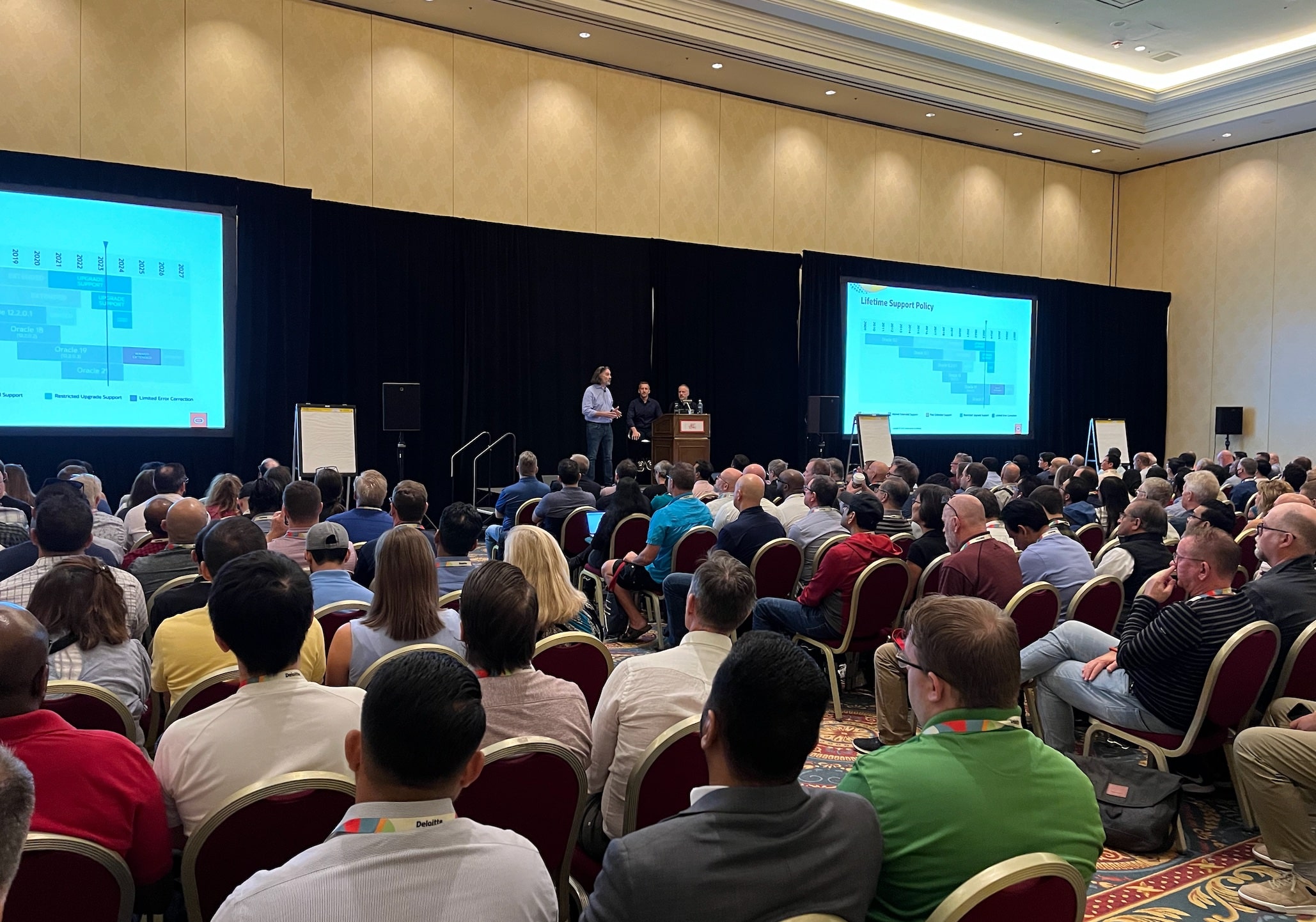
At one point, our team got so many questions about it that we decided to create a presentation. It premiered at Oracle DatabaseWorld at CloudWorld 2023. We named it:

Help! My Database Is Still On 8i

Migration Options From Oracle v5 and Newer

In Oracle Database 10g, Oracle introduced Data Pump – replacing the original export and import utilities. If possible, use Data Pump.

In older versions, you must use original export, exp. In recent versions of Oracle Database, Oracle desupported original export, but they still support original import utility, imp, for migrations from really old Oracle Database releases.

Oracle released original export back in Oracle v5. You can export data in Oracle v5 (or newer) and import it directly into an Oracle Database 23c PDB. This is 40 years of backward compatibility. This is rather impressive!

From Oracle 8i Database, you can use same-platform transportable tablespaces. From Oracle Database 10g, you can even do cross-platform transportable tablespaces.

To Which Version Should You Migrate?

If you have such old databases in your environment, I strongly recommend migrating to Oracle Autonomous Database. In Autonomous Database, Oracle will take care of the database for you. Oracle will patch it, maintain it, and upgrade it. You will never end up with a legacy database again. Note that the original import utility does not meet the security standards of Autonomous Database, so it is impossible to import directly into Autonomous Database. In such a situation, you first import into a staging database that supports Data Pump, and then into Autonomous Database.

Otherwise, I recommend going to the latest long-term support release. Also, you should migrate to the multitenant architecture and import directly into a PDB.

Client/Server Interoperability

Before you migrate the database, you must come up with a plan for your clients and applications. Older database clients can’t connect to modern databases.

With each Oracle Database release, the authentication mechanism changes to become more secure and support newer features. This means that clients must be of a certain version to communicate with the database.

If you migrate to Oracle Database 23c, your clients must be on 19c or newer. Check Client / Server Interoperability Support Matrix for Different Oracle Versions (Doc ID 207303.1) for details.

How to Migrate From 8i to Autonomous Database

Here’s a video showing you such a migration step-by-step.

The biggest pitfall in such migration is the loss of characters due to incorrect character set conversion. You must set the NLS_LANG environment variable to the character set of the database. Otherwise, you’ll use the default language setting of your operating system and that might lead to character loss.

Only in specific situations do you set the NLS_LANG to something else.

Appendix

Fun Fact

Here’s a list of Oracle Database releases, including their year of release, marque features, and a mobile phone of the same year.

Year of release Release Feature Mobile phone
1985 Oracle v5 Support for OS/2 Motorola DynaTAC – retail price in today’s prices $12.000
1988 Oracle v6 Oracle Parallel Server OPS) Motorola MicroTAC
1996 Oracle 7.3 Cost based optimizer Motorola StarTAC – popular amongst trekkis because it looks like a communicator
1998 Oracle 8i Database RMAN Nokia 5110 – you could change the cover (XpressOn covers)
2001 Oracle 9i Database Real Application Cluster (RAC) Sony Ericsson T68 – first phone with color screen
2003 Oracle Database 10g Data Pump Nokia 6600 – still one of the most sold units
2007 Oracle Database 11g Exadata iPhone
2013 Oracle Database 12c Multitenant Blackberry Q10
2019 Oracle Database 19c Automatic Indexing Huawai Mate X – foldable screen

Further Reading

It’s a Wrap – Danish Oracle User Group Day

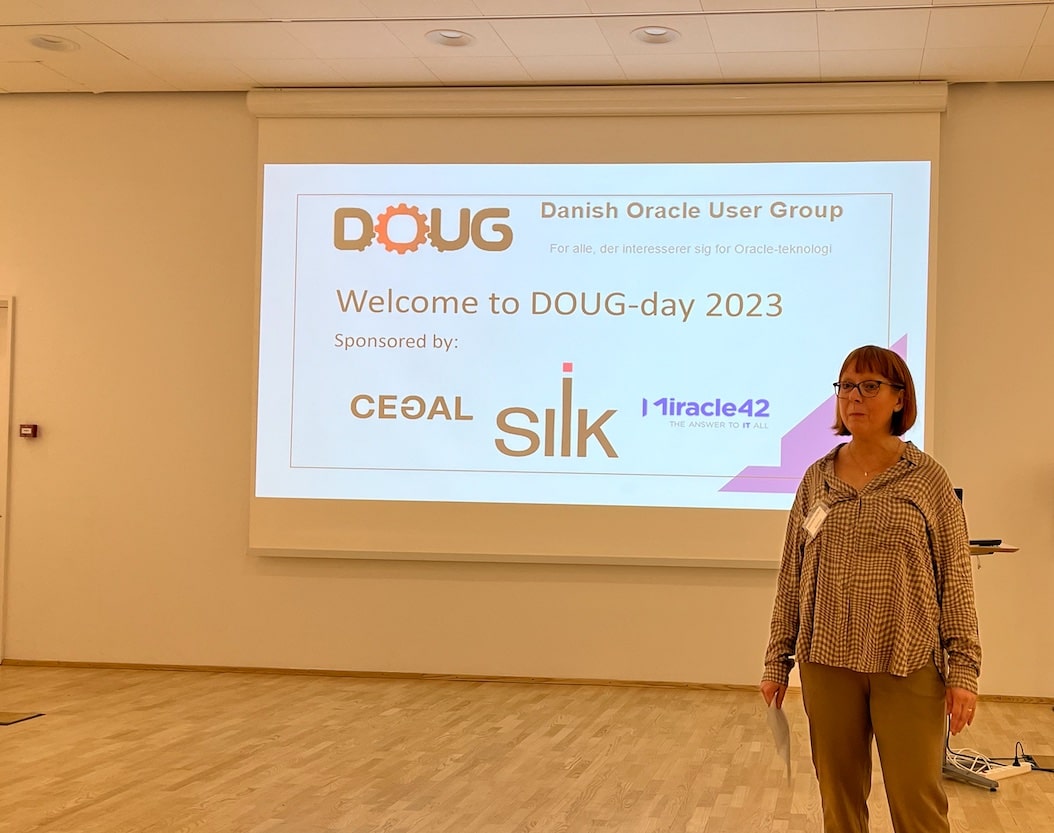
Yesterday, I had the pleasure of talking at the annual Danish Oracle User Group event. I want to share the slides and a few thoughts with you.

The event is part of the EMEA Community Tour, which continues today in Finland.

In Denmark, we had the pleasure of welcoming two guests from Italy. Traveling in Europe is easy, so why don’t you do like the two gentlemen from Italy? Find a user group event with an agenda of interest, book a flight, and enjoy the knowledge offered by our European communities.

Slides

Help! My Database Is Still On 8i!

Get the slides here.

This talk partly talks about the risk of old databases and how you can modernize; partly it is a walk down memory lane. If you don’t have any vintage database, it’s still worth flipping through the slides.

Patch Me If You Can

This was a no-slide zone, so there are no slides to share. But we did have an interesting talk about Datapatch and the ability to patch online.

Thank You!

The organizers of the event did a good job. Thank you for taking the time and effort pulling this together. Kudos!

Thanks to the sponsors:

And to Oracle Denmark for hosting the event.

Become an ACE

We had several Oracle ACEs at the event in Denmark. If you also love to share knowledge, you should apply for the community. If you know somebody who deserves a nomination, you should nominate them for the Oracle ACE program.

If you need help getting started, many seasoned Oracle ACEs are offering assistance. The MASH program engages with new speakers and helps them get started – FOR FREE!

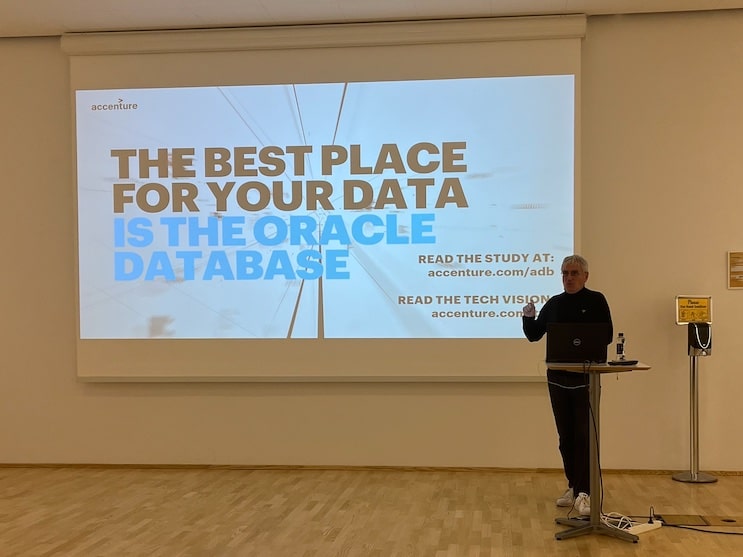
Jeannette Holland welcomes everyone to the event Julian Dontcheff on why you want to stay with Oracle Database Jeff Smith with insights into using Oracle ORDS and REST APIs

Things to Consider When Importing Advanced Queues using Oracle Data Pump

Oracle Data Pump supports moving Advanced Queues (AQ) using export/import and full transportable export/import. But there are some things to be aware of.

Data Pump Does Not Start Queues

Data Pump creates the queues during import but does not start the queues. At the end of the import, you must manually start the queues:

exec dbms_aqadm.start_queue(queue_name => ... );

Be sure to start all queue:

select owner, name, queue_table, enqueue_enabled, dequeue_enabled 
from   dba_queues;

This behavior is intentional. During a migration, you typically don’t want to use the queues. Depending on your use case, it can have unintended side effects. After the migration, when you confirm a successful migration and are ready to go live, you can manually start the queues.

If you forget to start the queues, your application will start to receive the following error:

ORA-25207: enqueue failed, queue string.string is disabled from enqueueing
ORA-25226: dequeue failed, queue string.string is not enabled for dequeue

The Database Does Not Create All Queue Objects

Data Pump creates the queues using the Advanced Queuing administration API DBMS_AQADM:

exec dbms_aqadm.create_queue_table( ...

The database then creates the essential parts of the underlying queue infrastructure: tables, views, IOTs, etc. This should include:

  • <queue_table_name>
  • AQ$_<queue_table_name>_E
  • AQ$_<queue_table_name>_I
  • AQ$_<queue_table_name>_T
  • AQ$_<queue_table_name>_F

In the source database, depending on your configuration and use of Advanced Queueing, you might also see the following objects:

  • AQ$_<queue_table_name>_C
  • AQ$_<queue_table_name>_D
  • AQ$_<queue_table_name>_G
  • AQ$_<queue_table_name>_H
  • AQ$_<queue_table_name>_L
  • AQ$_<queue_table_name>_P
  • AQ$_<queue_table_name>_S
  • AQ$_<queue_table_name>_V

This is intentional. The database creates those objects when needed. You should never create them or otherwise touch the underlying queue objects.

Typically, as part of a migration, you compare the count of objects in the source and target database to ensure nothing is lost. This comparison must consider the above.

For queue tables, it is sufficient to compare using the following query:

SQL> select count(*) 
     from dba_objects
     where owner='<schema>' 
           and object_type = 'QUEUE';

Definition Of Queue Tables Might Change

As stated, you should not worry about the underlying queue objects. However, if you compare the underlying queue objects, you might see that the definition of the object changes. I describe this situation in a different blog post.

Migrate Old Queues

If the queues are REALLY old, the queue compatibility setting might also be old. If so, I strongly recommend migrating the old queues to the newest version. You can learn more about that in this blog post.

Appendix

Further Reading

How to Upgrade to Oracle Database 19c and Migrate to a PDB Using Refreshable Clone PDBs

At the recent Oracle DatabaseWorld at CloudWorld I spoke to several customers that had to upgrade to Oracle Database 19c and convert their non-CDB into the multitenant architecture.

Here is how to do it using Refreshable Clone PDBs.

My source database is:

  • A non-CDB
  • On Oracle Database 12.2 or newer

I want to:

  • Upgrade to Oracle Database 19c
  • Convert the database to a PDB
  • Plug it into an existing CDB

The Problem With PDB Conversion

The conversion to multitenant does not offer the same rollback options as an upgrade. Normally, when you upgrade a database, you rely on Flashback Database as the primary rollback option. However, that does not work for conversion to multitenant.

When you plug your non-CDB into a CDB, the CDB makes changes to the data file headers. Those changes are irreversible and prevents you from ever using those data files in a non-CDB. Not even Flashback Database can revert the changes.

So, what are your rollback options?

  • Restore a backup It might take longer than your organization can accept.
  • Make a copy of the data files before conversion It requires disk space and a longer downtime window to copy the data files.

This is where Refreshable Clone PDBs come into play.

Refreshable Clone PDBs

Here is an overview of what AutoUpgrade does for you:

Overview of the process

  1. AutoUpgrade creates a PDB in the target CDB as a refreshable clone PDB of the source non-CDB.
  2. The target CDB starts to copy the data files from the source non-CDB.
  3. The target CDB refreshes the PDB. In other words, it rolls forward the data files using the redo from the source non-CDB.
  4. Now, downtime starts. AutoUpgrade issues a final refresh to bring over the latest changes.
  5. AutoUpgrade disconnects the refreshable clone PDB from its source. Now, the PDB is a real, stand-alone PDB. AutoUpgrade upgrades the PDB and converts it into a proper PDB.

If something happens during the upgrade or conversion and you want to roll back, simply start the original non-CDB. It is left completely untouched.

You can learn about the concept in detail in our AutoUpgrade 2.0 webinar:

Refreshable clone PDBs does not work for cross-endian migrations (like AIX to Linux), but cross-platform should work fine (like Windows to Linux).

How To

  1. In the source non-CDB, I create a user:
    create user dblinkuser identified by ... ;
    grant create session, 
       create pluggable database, 
       select_catalog_role to dblinkuser;
    grant read on sys.enc$ to dblinkuser;
    
  2. In my target CDB, I create a database link connecting to my source non-CDB:
    create database link clonepdb 
       connect to dblinkuser identified by ...
       using 'source-db-alias';
    
    You can drop the database link after the migration.
  3. I create an AutoUpgrade config file called noncdb1.cfg:
    upg1.source_home=/u01/app/oracle/product/12.2.0.1
    upg1.target_home=/u01/app/oracle/product/19
    upg1.sid=NONCDB1
    upg1.target_cdb=CDB1
    upg1.source_dblink.NONCDB1=CLONEPDB 600
    upg1.target_pdb_name.NONCDB1=PDB1
    upg1.start_time=25/09/2023 06:30:00
    
    • source_home and target_home is the Oracle Home of the source non-CDB and target CDB respectively.
    • sid is the source non-CDB that I want to upgrade and convert.
    • target_cdb is the CDB into which I want to plug in the non-CDB. You must create the CDB in advance or use an existing one.
    • source_dblink has the name of the database link (CLONEPDB) and the rate at which the target CDB brings over redo and rolls forward the copy (600 seconds or 10 minutes).
    • target_pdb_name specifies that I want to rename the non-CDB to PDB1 when I plug it in. You can leave this out if you want to keep the name.
    • start_time specifies when downtime starts. At this point, AutoUpgrade refreshes the PDB for the last time and then moves on with upgrade and PDB conversion.
  4. Start AutoUpgrade in analyze mode on the source system:
    java -jar autoupgrade.jar -mode analyze -config noncdb1.cfg
    
  5. Run AutoUpgrade in fixups mode on the source system:
    java -jar autoupgrade.jar -mode fixups -config noncdb1.cfg
    
    • This runs the fixups identified by AutoUpgrade in analyze mode. You can run this task even after you start AutoUpgrade in deploy mode. Just ensure that the fixups complete before the final refresh (as specified in the start_time paramter).
  6. If there are no errors found in the analysis, I start AutoUpgrade in deploy mode:
    java -jar autoupgrade.jar -mode deploy noncdb1.cfg
    
    • AutoUpgrade copies the data files over the database link.
    • Rolls the copies of the data files forward with redo from the source non-CDB.
    • At one point, issues a final refresh and disconnects the PDB from the source non-CDB.
    • Upgrades and converts the database to a PDB.

Here’s a demo of it:

Words of Caution

Disconnect Users from Source Database

Right before the upgrade and conversion starts, AutoUpgrade executes a final refresh. The last redo from the source non-CDB is applied to ensure no data is lost. You must ensure that no users are connected to the source non-CDB after this time. Otherwise, that data will be lost.

AutoUpgrade starts the final refresh at the start time specified in the config file:

upg1.start_time=25/09/2023 06:30:00

You must be careful about disconnecting users from the source non-CDB. Remember, AutoUpgrade connects to the source non-CDB over a database link as a regular user (not SYS). This means the listener must be available, and you can’t enable restricted session or similar means.

Data Guard

If the target CDB is protected by Data Guard, special attention is needed to handle the standby databases. I explain the details in our AutoUpgrade 2.0 webinar:

Redo

The procedure relies on redo from the source non-CDB. Ensure that redo is kept in the Fast Recovery Area of the source non-CDB until it has been applied on the target PDB. Either postpone your archive backups or change the archive log deletion policy so the archive logs remain on disk.

Final Refresh

Check this blog post if you want to be in control over when the final refresh happens.

Services

You must recreate the services used in your connect strings.

Appendix

Further Reading

Honey, I Shrunk the Database! Why Is My Database Smaller after Migration?

In a recent migration, a customer noticed that the size of the database decreased dramatically after the import. The size of the data files went from 500 GB to only 300 GB. Data Pump didn’t report any errors. Nevertheless, the customer was afraid that data was lost during migration.

The customer asked:

Am I missing data?

Why Would a Database Shrink During Import?

First, the following applies to Data Pump imports. If you migrate with transportable tablespaces or Data Guard, things are different.

Fragmentation

If you perform a lot of DML on a table, it will become fragmented over time. A fragmented table will use much more space, because the database will only re-use a data block with free space, once the free space reaches a certain limit (PCTUSED). Often, this leads to blocks that are never filled and waste of space.

When you import, the database neatly packs all blocks, and the table is completed defragmented.

Depending on the nature of your DML statements, you can see a dramatic impact on space usage for a defragmented table.

Indexes

After importing the data, Data Pump rebuilds the indexes. In many cases, an index has some level of fragmentation, but a rebuild removes all that, resulting in a neatly packed and efficient index. Most often, an index rebuild ends up using less space.

PCTFREE

If you change PCTFREE for an existing object, it applies to new blocks only. The existing blocks are left untouched. Any space saving from the lower setting applies to new data blocks only.

However, during an import (or index rebuild) the database builds the object from scratch and applies the setting to all the blocks. Now, all blocks have the new settings.

Connor’s Words

Connor McDonald was part of the original conversation with the customer. He phrased it like this:

Create a 100 GB table, and a 1 GB table. Your database is now (at least) 101 GB. Drop the 100 GB table and do an export/import. You now have a 1 GB database.

How Can You Know No Data Is Lost?

If you can’t use the database’s size to indicate whether data is lost, what do you do?

We covered this in one of our webinars, Migrating Very Large Databases.

Can the Database Become Bigger?

The headline of this blog post is a reference to Honey, I shrunk the kids. The sequel is called Honey, I Blew Up the Kid.

Then, can the database become bigger as part of an import? Yes, it may.

  • If you move from a singlebyte character set to Unicode, then characters stored in your database may take up more space. In particular, LOBs now take up much more space.
  • PCTFREE setting of your segments may also cause them to increase in size. Opposite of the case above.

It’s a Wrap – Oracle DatabaseWorld at CloudWorld 2023

I’m on my way back from Oracle DatabaseWorld at CloudWorld 2023. It’s been such a great week. I’ve met old friends and made new ones. I love being amongst our customers and helping them use the Oracle Database in the best possible way.

Slides

If you are curious, here are the slide decks from our sessions.

Try Our Hands-On Labs

This year, we had three hands-on labs. Two of them were brand-new and had their premiere:

Plus, we introduced a revamped version of our upgrade lab:

You can run all our labs in Oracle LiveLabs – FOR FREE! All it takes is a browser.

Cool Stuff

A while ago, we introduced ORAdiff. It’s a really cool tool that tells the difference between two releases or patch sets. Use it before you patch or upgrade. It’s completely free – just log on with your Oracle accont.

Thanks

Thanks to my team: Roy, Mike, Rodrigo and Bill. All the content we deliver is a geniune team effort.

Thanks to the organizers. They worked hard in the background, so we enjoy a well-organized conference. Especially thanks to Kay Malcolm and her team for organizing Oracle DatabaseWorld.

Thanks to you – our valued customer – for coming to our conference and engaging with us.

What’s Next

With great pleasure, I can share that we expanded the Oracle CloudWorld Tour. We will be visiting eight cities at the beginning of 2024. Stay tuned!

I hope to see you next year at Oracle CloudWorld, September 9-12 2024.

Banners at Oracle DatabaseWorld at CloudWorld The CloudWorld party Oracle Redbull Racing Audience at upgrade talk

Can Data Pump Export to ASM Storage?

The other day, I was helping my boss, Roy, with a benchmark for our session Data Pump New Features and Best Practice at Oracle DatabaseWorld at CloudWorld. I needed to find a database with access to very fast storage, and I decided to use a Base Database Service in OCI.

But the fast storage is on ASM. I never tried exporting with Data Pump to ASM storage. Is it possible?

How to Export to ASM Storage?

First, I create a directory in ASM:

ASMCMD> cd DATA
ASMCMD> mkdir DATA_PUMP

Then, I create a database directory pointing to the ASM directory:

SQL> create directory myasmdir as '+DATA/DATA_PUMP';
SQL> grant read, write to ... ;

And start a Data Pump export:

expdp ... \
   directory=myasmdir \
   dumpfile=exp%L.dmp \
   logfile=exp.log

It fails:

Connected to: Oracle Database 19c EE Extreme Perf Release 19.0.0.0.0 - Production
ORA-39002: invalid operation
ORA-39070: Unable to open the log file.
ORA-29283: invalid file operation: nonexistent file or path [29434]

It turns out that the ASM directory can’t hold the log file. You must store it in a regular file system (see appendix).

I create an additional directory for the log file:

SQL> create directory mylogdir as '/tmp';

Start the Data Pump export, now, redirecting the log file to regular storage:

expdp ... \
   directory=myasmdir \
   dumpfile=exp%L.dmp \
   logfile=mylogdir:exp.log

Appendix

Log File

If you don’t have any access to a regular local file system, you can also start a Data Pump job without writing to a log file:

expdp ... nologfile=y

Data Pump Bundle Patch

When you work with Data Pump in Oracle Database 19c, you should always install the Data Pump bundle patch. In 19.20.0, we have more than 150 Data Pump specific fixes included.

Is It Possible to Migrate SQL Plan Baselines Before You Migrate Data

In a recent migration, a customer had millions of SQL plan baselines. The customer performed a Full Transportable Export/Import, but the export of the SQL plan baselines took a lot of time. I suggested moving the SQL plan baselines the day before the downtime window.

But can you move SQL plan baselines into an empty database; before you move the data? Do SQL plan baselines care about the underlying schema objects the SQL accesses?

SQL Plan Baselines and Underlying Schema Objects

The optimizer matches a SQL statement with a SQL plan baseline using the signature of the SQL (see appendix). Originally, I thought that it was the SQL ID, but I was wrong:

SQL statements are matched to SQL plan baselines using the signature of the SQL statement. A signature is a unique SQL identifier generated from the normalized SQL text (uncased and with whitespaces removed).

SQL Plan Management uses the signature only to match SQLs to SQL plan baselines. There is no reference to the underlying schema objects, which is evident since the same SQL from different schemas share the same signature.

The conclusion is that importing SQL plan baselines into an empty database is safe before you move the data.

Empty Database and Plan Evolution

But there is a catch. You don’t want plan evolution to happen in a database with no data.

Plan evolution is the process that validates whether a plan performs better than existing ones and, if so, marks the plans as accepted. This can have undesired side effects in an empty database.

There are two ways to avoid this:

  • Disable the SPM Evolve Advisor Task:

    BEGIN
       DBMS_SPM.SET_EVOLVE_TASK_PARAMETER(
          task_name => 'SYS_AUTO_SPM_EVOLVE_TASK',
          parameter => 'ALTERNATE_PLAN_BASELINE',
          value => '');
       DBMS_SPM.SET_EVOLVE_TASK_PARAMETER(
          task_name => 'SYS_AUTO_SPM_EVOLVE_TASK',
          parameter => 'ALTERNATE_PLAN_SOURCE',
          value => '');
    END;
    /   
    
  • Don’t allow plans to auto-evolve using the accept_plans parameter:

    BEGIN
       DBMS_SPM.SET_EVOLVE_TASK_PARAMETER(
          task_name => 'SYS_AUTO_SPM_EVOLVE_TASK' ,
          parameter => 'ACCEPT_PLANS',
          value => 'FALSE');
    END;
    /
    

How to Migrate SQL Plan Baselines

DBMS_SPM

The easiest way you can move SQL plan baselines is using DBMS_SPM. You can find a good example of using it in the documentation.

Data Pump

Data Pump exports SQL plan baselines as part of the SQL Management Base (SMB). Data Pump includes the SMB as part of a full export only. To export the SMB only:

expdp ... full=y include=SMB

Please note that the SMB includes the following as well:

  • SQL Profiles
  • SQL Patches
  • SQL Plan Directives

How to Exclude SQL Plan Baselines

If you migrate SQL plan baselines in advance, you should exclude them from the production migration. As described above, the SQL plan baselines are part of the SQL Management Base. You exclude it using:

expdp ... exclude=SMB

That will exclude the items below. Depending on how you move the SQL plan baselines and if you need the other items in the target database, you might need to move these items manually:

  • SQL Profiles You can move SQL Profiles using DBMS_SQLTUNE.
  • SQL Patches You can move SQL Patches using DBM_SQLDIAG.
  • SQL Plan Directives You can move SQL plan directives using DBMS_SPD. Only relevant if you use Adaptive Statistics.

Appendix

SQL Signature

The signature of an SQL is:

A numeric hash value computed using a SQL statement text that has been normalized for case insensitivity and white space. It uniquely identifies a SQL statement. The database uses this signature as a key to maintain SQL management objects such as SQL profiles, SQL plan baselines, and SQL patches.

Let me use an example. If you have the following SQL text:

select * from dual

The signature is:

14103420975540283355

There is a function that calculates the signature from the SQL text:

col signature format 99999999999999999999999
select dbms_sqltune.sqltext_to_signature ('select * from dual') as signature from dual;

Acknowledgment

Thanks to Nigel Bayliss, optimizer product manager, for valuable assistance.

Sign up for Our Sessions at Oracle DatabaseWorld at CloudWorld

The content catalog for this year’s Oracle DatabaseWorld at CloudWorld is now ready. Overall there are more than 1.000 sessions, and almost 300 of those are strictly database related.

You can now start to add sessions to your schedule. I suggest that you hurry up and get started. Some of the sessions will for sure sell out quickly, especially the hands-on labs.

Sign up before it’s too late!

I have created an overview of all the sessions hosted by Database Upgrade, Migration and Patching. If you enjoy sessions by Mike Dietrich, Rodrigo Jorge, Roy Swonger or Bill Beauregard, add all of them to your schedule.

My Sessions

Best Practices for Upgrade and Migration to Oracle Database 23c

Usually, our most popular talk. What are the best practices for upgrading your Oracle Database and which of those best practices apply to database migrations as well? In Oracle Database 23c, you must migrate to the multitenant architecture; we will also discuss this. Presenting with us is Marco Oberli from Postfinance in Switzerland. They made some cool automation to upgrade their databases and allow users to provision copies for test and developer with the click of a button.

Link

No-Slide Zone – Database Patchings Insights

No slides at all – it’s an open discussion about patching Oracle Database and Grid Infrastructure. Bring all your questions, and together we will work it out. This is definitely my personal favorite. I always learn so much from all these great questions and discussions. Plus, it’s usually a lot of fun.

Link

Help! My Database Is Still on 8i!

We are often involved in migrations of really old databases. Not just 11g or 10g. Even older! Recently we had a question about Oracle7. We have demos to show how to migrate from those old databases. Also, we spin up an Oracle 8i database. Do you remember how to connect? How to take a backup? Finally, we dig into our archives and find a few horror stories. On stage is also Julian Dontcheff from Accenture. He also has some horror stories to share.

Link

Upgrade and Migrate to Oracle Database 19c and 23c the Easy Way

Our all-time favorite hands-on lab got an overhaul for this year’s event. If you are afraid of plan changes after an upgrade, come to this session. You will learn how to avoid that and keep your users happy. Also, we will guide you to upgrade and migrate your databases.

Remember to bring your laptop

Link

See You There

I really hope to see you at Oracle DatabaseWorld at CloudWorld. Remember to come by our demo booth and have a talk about Oracle Database.

We have so many exciting things to share. It’s a shame to miss out on the greatest Oracle Database event of the year.

How to Clone Oracle Grid Infrastructure Home Using Golden Images

Cloning Oracle Grid Infrastructure (GI) homes is a convenient way of getting a new GI Home. It’s particularly helpful when you need to patch out-of-place using the SwitchGridHome method.

When you have created a new GI home and applied all the necessary patches, you can turn it into a golden image. Later on, you can deploy from that golden image and avoid updating OPatch and apply patches.

How to Create a Golden Image

  1. First, only create a golden image from a freshly installed Oracle Home. Never use an Oracle Home that is already in use. As soon as you start to use an Oracle Home you taint it with various files and you don’t want to carry those files around in your golden image. The golden image must be completely clean.

  2. Then, you create a directory where you can store the golden image:

    export GOLDIMAGEDIR=/u01/app/grid/goldimages
    mkdir -p $GOLDIMAGEDIR
    
  3. Finally, you create the golden image. This command creates a golden image of the specified GI home:

    export NEW_GRID_HOME=/u01/app/19.20.0/grid
    $NEW_GRID_HOME/gridSetup.sh -createGoldImage \
       -destinationLocation $GOLDIMAGEDIR \
       -silent
    

    Be sure to do this before you start to use the new GI home.

  4. The installer creates the golden image as a zip file in the specified directory. The name of the zip file is unique and printed on the console. You can also use the secret parameter -name to specify a name for the zip file. To name the zip file gi_19_20_0.zip:

    $NEW_GRID_HOME/gridSetup.sh -createGoldImage \
       ... \
       -name gi_19_20_0.zip
    

No software must run out of the Oracle Home, when you create the gold image. Don’t use a production Oracle Home. I recommend using a test or staging server instead.

Check the documentation for further details.

How to Deploy from a Golden Image

  1. You must create a folder for the new GI home. You do it as root:

    export NEW_GRID_BASE=/u01/app/19.20.0
    export NEW_GRID_HOME=$NEW_GRID_BASE/grid
    mkdir -p $NEW_GRID_HOME
    chown -R grid:oinstall $NEW_GRID_BASE
    chmod -R 775 $NEW_GRID_BASE
    

    If you install the new GI home in a cluster, you must create the folder on all nodes.

  2. Then, you extract the golden image as grid:

    export NEW_GRID_HOME=/u01/app/19.20.0/grid
    cd $NEW_GRID_HOME
    unzip -q /u01/app/grid/goldimages/gi_19_20_0.zip
    
  3. Finally, you use gridSetup.sh to perform the installation:

    ./gridSetup.sh 
    

That’s it!

I recommend using golden images when you patch out-of-place using the SwitchGridHome method.

Appendix

Oracle Restart vs. Oracle RAC

If you create a GI home for use with Oracle RAC, you can’t use that gold image for a new GI home for Oracle Restart.

Such two GI homes would be very different. You must have two gold images. One for RAC and one for Restart.

Further Reading

Other Blog Posts in This Series