The source database is Oracle Database 19c. They configured AutoUpgrade to upgrade to Oracle Database 23ai using refreshable clone PDBs. However, this test measured only the initial copy of the data files – the CLONEDB stage in AutoUpgrade.
Parallel
Time
Throughput
Source CPU %
Default
269s
3,6 GB/s
3%
Parallel 4
2060
0,47 GB/s
1%
Parallel 8
850
1,14 GB/s
1%
Parallel 16
591
1,65 GB/s
2%
A few observations:
Cloning a 1 TB database in just 5 minutes.
Very little effect on CPU + I/O on source, entirely network-bound.
The throughput could scale almost up to the limit of the network.
By the way, this corresponds with reports we’ve received from other customers.
Learnings
The initial cloning of the database is very fast and efficient.
You should be prepared for the load on the source system. Especially since the network is a shared resource, it might affect other databases on the source system, too.
The target CDB determines the default parallel degree based on its own CPU_COUNT. If the target system is way more powerful than the source, this situation may worsen.
Use the AutoUpgrade config file entry parallel_pdb_creation_clause to select a specific parallel degree. Since the initial copy happens before the downtime, you might want to set it low enough to prevent overloading the source system.
A year and a half ago, Mike Dietrich and I ran the Real World Upgrade and Migrate to Oracle Database 19c and 23ai workshop in Belgium and The Netherlands. Now, we’re returning with…
Advanced Real World Oracle Database Upgrade and Migration to 19c and 23ai
Perhaps not the most creative title for a sequel. But what the title lacks in creativity, we will compensate tenfold in content.
If you’re interested in database tech, Mike and I invite you to join our workshops.
… a day full of technical best practices, tips, tricks and advices based on real world customer experience
The Agenda
Here are the topics that we will cover:
Release Strategy with Oracle Database 19c and 23ai
Oracle Database Patching – We are going to change the game!
New Features in AutoUpgrade
How to size, build and operate a Multitenant environment efficiently
Data Pump – The best new performance features and optimizations
Migrations for hands-on DBAs
Cross-platform migrations – Pushing the limits
Oracle Database 23ai Feature Update for DBAs and Developers
It’s all tech, no marketing!
When and Where
The workshops take place at the Oracle offices in Utrecht and Vilvoorde. We start at 09:00 and finish at 16:30 or when we’ve answered the last question.
The workshops are an in-person event. It’s not possible to join remotely.
Sign Up
The workshops are free, but registration is required.
Any piece of software has errors. It’s just a fact of life.
Should you encounter problems with AutoUpgrade, you can help us by compiling a zip package. This package contains valuable information that we need to troubleshoot.
Are You Using the Latest Version
Before generating a zip package, check that you’re using the latest version of AutoUpgrade… Perhaps the issue is already fixed:
When you migrate or upgrade with refreshable clone PDBs, you sometimes want to decide when the final refresh happens. Perhaps you must finish certain activities in the source database before moving on.
I’ve discussed this in a previous post, but now there’s a better way.
The Final Refresh Dilemma
In AutoUpgrade, the final refresh happens at the time specified by the config file parameter start_time. This is the cut-over time where no further changes to the source database, gets replicated in the target database.
You specify start_time in the config file, and then you start the job. Typically, you start it a long time before start_time to allow the creation of the new PDB.
So, you must specify start_time in the config file and that’s when you believe the final refresh should happen. But things might change in your maintenance window. Perhaps it takes a little longer to shut down your application or there’s a very important batch job that must finish. Or perhaps you can start even earlier.
In that case, a fixed start time is not very flexible.
The Solution
You can use the proceed command in the AutoUpgrade console to adjust the start time, i.e., the final refresh.
Start the job in deploy mode as you normally would:
java -jar autoupgrade.jar ... -mode deploy
AutoUpgrade now starts the CLONEPDB stage and begins to copy the database.
Wait until the job reaches the REFRESHPDB stage:
+----+-------+----------+---------+-------+----------+-------+--------------------+
|Job#|DB_NAME|     STAGE|OPERATION| STATUS|START_TIME|UPDATED|             MESSAGE|
+----+-------+----------+---------+-------+----------+-------+--------------------+
| 100|  CDB19|REFRESHPDB|EXECUTING|RUNNING|  14:10:29| 4s ago|Starts in 54 minutes|
+----+-------+----------+---------+-------+----------+-------+--------------------+
Total jobs 1
In this stage, AutoUpgrade is waiting for start_time to continue the migration. It refreshes the PDB with redo from the source at the specified refresh interval.
I must start well before the maintenance window, so AutoUpgrade has enough time to copy the database.
You can now change the start time. If you want to perform the final refresh and continue immediately, use the proceed command:
Or, you can change the start time to a relative value, example 1 hour 30 min from now:
proceed -job 100 -newStartTime +1h30m
After the final refresh, AutoUpgrade disconnects the refreshable clone PDB, turns it into a regular PDB, and moves on with the job.
Wrapping Up
AutoUpgrade offers complete control over the process. You define a start time upfront, but as things change, you can adjust it in flight.
Refreshable clone PDBs are a fantastic method for non-CDB to PDB migrations and for upgrades of individual PDBs.
There are a few quirks to be aware of, and if you are using Data Guard bear in mind that you can only plug in with deferred recovery. Other than that – it’s just to say…
Here’s a blog post series about patching Oracle Data Guard in single instance configuration. For simplicity, I am patching with Oracle AutoUpgrade to automate the process as much as possible.
You need an outage until you’ve patched all databases.
You need to do more work during the outage.
You turn off redo transport while you patch.
Standby-first with restart
All the patches you apply must be standby-first installable (see appendix).
You need an outage to stop the primary database and restart it in the target Oracle home.
During the outage, you have to do less work to do compared to all at once and less work overall compared to standby-first with switchover.
The primary database remains the same. It is useful if you have an async configuration with a much more powerful primary database or just prefer to have a primary database at one specific location.
Standby-first with switchover
All the patches you apply must be standby-first installable (see appendix).
You need an outage to perform a switchover. If your application is well-configured, users will just experience it as a brownout (hanging for a short period while the switchover happens).
During the outage, you have little to do, but overall, there are more steps.
After the outage, if you switch over to an Active Data Guard, the workload from the read-only workload has pre-warmed the buffer cache and shared pool.
Summary
All at one
Standby-first with restart
Standby-first with switchover
Works for all patches
Works for most patches
Works for most patches
Bigger interruption
Bigger interruption
Smaller interruption
Downtime is a database restart
Downtime is a database restart
Downtime/brownout is a switchover
Slightly more effort
Least effort
Slightly more effort
Cold database
Cold database
Pre-warmed database if ADG
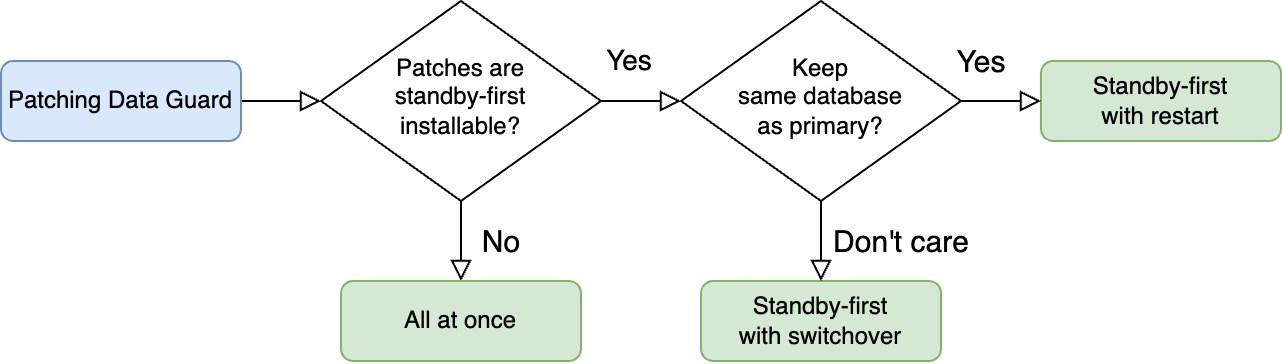
Here’s a decision tree you can use to find the method that suits you.
What If
RAC
These blog posts focus on single instance configuration.
Conceptually, patching Data Guard with RAC databases is the same; you can’t use the step-by-step guides in this blog post series. Further, AutoUpgrade doesn’t support all methods of patching RAC databases (yet).
I suggest that you take a look at these blog posts instead:
You can use these blog posts if you’re using Oracle Restart. You can even combine patching Oracle Restart and Oracle Database into one operation using standby-first with restart.
We’re Really Sensitive To Downtime?
In these blog posts, I choose the easy way – and that’s using AutoUpgrade. It automates many of the steps for me and has built-in safeguards to ensure things don’t go south.
But this convenience comes at a price: sligthly longer outage. Partly, because AutoUpgrade doesn’t finish a job before all post-upgrade tasks are done (like Datapatch and gathering dictionary stats).
If you’re really concerned about downtime, you might be better off with your own automation, where you can open the database for business as quickly as possible while you run Datapatch and other post-patching activities in the background.
Datapatch
Just a few words about patching Data Guard and Datapatch.
You always run Datapatch on the primary.
You run Datapatch just once, and the changes to the data dictionary propagates to the standby via redo.
You run Datapatch when all databases are running out of the new Oracle home or when redo transport is turned off. The important part is that the standby that applies the Datapatch redo must be on the same patch level as the primary.
Happy patching
Appendix
Standby-First Installable
You can only perform standby-first patch apply if all the patches are marked as standby-first installable.
Standby-first patch apply is when you patch the standby database first, and you don’t disable redo transport/apply.
You can only use standby-first patch apply if all the patches are classified as standby-first installable. For each of the patches, you must:
Examine the patch readme file.
One of the first lines will tell if this specific patch is standby-first installable. It typically reads:
> This patch is Data Guard Standby-First Installable
Release Updates are always standby-first installable, and so are most of the patches for Oracle Database.
In rare cases, you find a non-standby-first installable patch, so you must patch Data Guard using all at once.
Proceed with the following when your maintenance window starts.
Update listener.ora on the standby host (see appendix). I change the ORACLE_HOME parameter in the static listener entry (suffixed _DGMGRL) so it matches my target Oracle home.
Perform draining in advance according to your practices.
Depending on how your application is configured, the users will experience this interruption as a brown-out or downtime.
Update listener.ora on the new standby host (copenhagen). I change the ORACLE_HOME parameter in the static listener entry (suffixed _DGMGRL) so it matches my target Oracle home.
Since I’m reusing the same config file, I must add the -clear_recovery_data flag. Otherwise, AutoUpgrade gets a little confused.
Happy Patching!
Appendix
Static Listener Entry
In this blog post, I update the static listener entries required by Data Guard broker (suffixed DGMGRL). My demo environment doesn’t use Oracle Restart or Oracle Grid Infrastructure, so this entry is mandatory.
If you use Oracle Restart or Oracle Grid Infrastructure, such entry is no longer needed.
One of the advantages of standby-first patch apply, is that I can test the patches in a production-like environment (the standby) before applying them to the primary. Should I find any issues with the patches, I can stop the process and avoid impacting the primary database.
Here’s an overview of the process.
For demo purposes, my Data Guard configuration consists of two databases:
SID: SALES
Databases: SALES_COPENHAGEN and SALES_AARHUS
Hosts: copenhagen and aarhus
Primary database: SALES_COPENHAGEN running on copenhagen
How To
This procedure starts right after I’ve patched the standby (SALES_AARHUS). It runs out of the target Oracle home, whereas the primary database (SALES_COPENHAGEN) still runs on the source Oracle home.
Test the patch apply by running Datapatch on the standby:
[oracle@aarhus] $ORACLE_HOME/OPatch/datapatch
One always runs Datapatch on the primary database and the changes made by the patches goes into redo to the standby.
But, since I converted to a snapshot standby, it is now opened like a normal database and I can run Datapatch on it.
If Datapatch completes without problems on the standby, I can be pretty sure it will do so on the primary as well. The standby is after all an exact copy of the primary database.
Optionally, perform additional testing on the standby.
I can connect any application and perform additional tests.
I can make changes to any data in the standby. It is protected by a restore point.
When done, convert the snapshot standby back to a physical standby:
DGMGRL> convert database SALES_AARHUS to physical standby;
This implicitly shuts down the standby, flashes back to the restore point and re-opens the database as a physical standby.
All changes made when it was a snapshot standby, including the Datapatch run, are undone.
Continue the patching procedure on the primary database as described elsewhere.
Is It Safe?
Sometimes, when I suggest using the standby for testing, people are like: Huh! Seriously?
What Happens If I Need to Switch Over or Fail Over?
I can still perform a switchover or a failover. However, they will take a little bit longer.
When I convert to snapshot standby:
Redo transport is still active.
Redo apply is turned off.
So, the standby receives all redo from the primary but doesn’t apply it. Since you normally test for 10-20 minutes, this would be the maximum apply lag. On a well-oiled standby, it shouldn’t take more than a minute or two to catch up.
When performing a switchover or failover on a snapshot standby, you should expect an increase with the time it takes to:
Shut down
Flashback
Apply redo
I’d be surprised if that would be more than 5 minutes. If your RTO doesn’t allow for a longer period:
Get a second standby.
Consider the reduction in risk you get when you test on the standby. Perhaps a short increase in RTO could be allowed after all.
What Happens If Datapatch Fails
If Datapatch fails on my snapshot standby, I should be proud of myself. I just prevented the same problem from hitting production.
Let me show you how I patch my Oracle Data Guard configuration. I make it easy using Oracle AutoUpgrade. I patch all at once – all databases at the same time – which means a short downtime. I can use this approach for all patches – even those that are not standby-first installable.
I recommend this approach only when you have patches that are not standby-first installable.
My Data Guard configuration consists of two databases:
SID: SALES
Databases: SALES_COPENHAGEN and SALES_AARHUS
Hosts: copenhagen and aarhus
Primary database: SALES_COPENHAGEN running on copenhagen
Preparations
You should do these preparations in advance of your maintenance window. They don’t interupt operations on your databases.
Proceed with the following when your maintenance window starts.
I connect to the primary database using Data Guard broker and disable redo transport from the primary database:
DGMGRL> edit database sales_copenhagen set state='TRANSPORT-OFF';
I update listener.ora on both hosts (see appendix). I change the ORACLE_HOME parameter in the static listener entry (suffixed _DGMGRL) so it matches my target Oracle home.
I reload the listener on both hosts:
lsnrctl reload
Downtime starts!
Perform draining in advance according to your practices.
I update my profile and scripts so they point to the target Oracle home.
When patching completes in both hosts, I re-enable redo transport:
DGMGRL> edit database sales_copenhagen set state='TRANSPORT-ON';
Verify the Data Guard configuration and ensure the standby database is receiving and applying redo:
DGMGRL> show database SALES_COPENHAGEN;
DGMGRL> show database SALES_AARHUS;
DGMGRL> validate database SALES_COPENHAGEN;
DGMGRL> validate database SALES_AARHUS;
That’s it.
Happy Patching!
Appendix
Static Listener Entry
In this blog post, I update the static listener entries required by Data Guard broker (suffixed DGMGRL). My demo environment doesn’t use Oracle Restart or Oracle Grid Infrastructure, so this entry is mandatory.
If you use Oracle Restart or Oracle Grid Infrastructure, such entry is no longer needed.
Proceed with the following when your maintenance window starts.
Update listener.ora on the standby host (see appendix). I change the ORACLE_HOME parameter in the static listener entry (suffixed _DGMGRL) so it matches my target Oracle home.
Perform draining in advance according to your practices.
Shut down your application.
Update listener.ora on the primary host (see appendix). I change the ORACLE_HOME parameter in the static listener entry (suffixed _DGMGRL) so it matches my target Oracle home.
AutoUpgrade detects it’s running against the primary database, and executes Datapatch and all the post-upgrade tasks.
Verify the Data Guard configuration and ensure the standby database is receiving and applying redo:
DGMGRL> show database SALES_COPENHAGEN;
DGMGRL> show database SALES_AARHUS;
DGMGRL> validate database SALES_COPENHAGEN;
DGMGRL> validate database SALES_AARHUS;
That’s it.
Happy Patching!
Appendix
Static Listener Entry
In this blog post, I update the static listener entries required by Data Guard broker (suffixed DGMGRL). My demo environment doesn’t use Oracle Restart or Oracle Grid Infrastructure, so this entry is mandatory.
If you use Oracle Restart or Oracle Grid Infrastructure, such entry is no longer needed.
The Data Pump bundle patch (DPBP) contains many handy fixes for users of Data Pump and DBMS_METADATA. In 19.26 it includes 218 fixes – most of them are functional fixes but there’s a fair share of performance fixes as well.
I often advocate for applying the DPBP, and that leads to the following question:
If the Data Pump bundle patch is that important, why isn’t it included in the Release Updates?
Touché!
Release Updates
There are a number of requirements that any patch must meet to be included in a Release Update. One of them is that the patch must be RAC Rolling Installable.
DPBP doesn’t meet this requirement meaning, it will never be part of a Release Update (unless there’s an improved way of patching, uhh, cliffhanger, read on…).
Why?
The short version:
Data Pump fixes generally contain PL/SQL changes (mostly to DBMS_DATAPUMP).
When Datapatch applies such fixes, it will issue a CREATE OR REPLACE command for the relevant packages.
If someone is using Data Pump, they have a pin on the packages, and Datapatch can’t replace it. Datapatch will wait for 15 minutes maximum, at which point it bails out (ORA-04021), and the patching is incomplete.
The PL/SQL engine is optimized for speed and such pins are held longer than you might expect. Normally, that’s good because it gives you faster PL/SQL execution, but when patching it is potentially a problem.
Data Pump strictly obeys the rules and since it doesn’t meet the RAC Rolling criteria, we don’t include them in Release Updates.
There’s a longer version, too, but that’ll have to wait for another day.
There’s no Data Pump bundle patch in Oracle Database 21c; it’s an innovation release. If you’re on that release, you need to request the individual fixes you need.
Patching With Data Pump Bundle Patch
Here are some facts about DPBP:
The patch is bound to one Release Update. When you move to the next Release Update, you need a newer version of DPBP.
If you patch with AutoUpgrade Patching (which I strongly recommend), then DPBP is automatically added when you set patch=recommended. AutoUpgrade finds the right bundle patch for your platform and adds it together with the Release Update and other patches.
Do I Need to Remove DPBP Before Applying the Next Patch?
No, if you’re using out-of-place patching (which you should). When you prepare the new Oracle home, simply install the DPBP matching the Release Update, and that’s it. Datapatch will figure it out when it runs.
If you’re using in-place patching, then you need to roll off DPBP before you can apply the newer Release Update. After that, you can apply the newer DPBP as well. This is a tedious task and proves why in-place patching is not preferable.
Non-Binary Online Installable
Although DPBP is not RAC Rolling Installable, you can still apply it easily without any database downtime.
DPBP is a non-binary online installable patch, which means that you can apply it to a running database (opatch apply + Datapatch). Just ensure that no Data Pump jobs are running, and it will apply without problems. This applies even to single instance databases.
Roy Swonger explains how to apply the Data Pump bundle patch as a non-binary online installable patch
It is not the same as a hot patch or an online patch:
A patch that only affects SQL scripts, PL/SQL, view definitions and XSL style sheets (i.e. non-binary components). This is different than an Online Patch, which can change binary files. Since it does not touch binaries, it can be installed while the database instance is running, provided the component it affects is not in use at the time. Unlike an Online Patch, it does not require later patching with an offline patch at the next maintenance period.
We are working on improving our patching mechanism. Data Pump and Datapatch will become aware of each other and there will be ways for Datapatch to engage with Data Pump during patching that allows patching to complete.
Stay tuned for more information.
You Need More Information
Let me finish off with some additional information for you to consume if you’re interested in the inner workings of Data Pump:








 Databases Are Fun