
Patching Eats Your SYSTEM Tablespace

Everyone says: Patch your software!

I keep saying: Patch your Oracle Database!

Let me tell you a little secret. All that patching is eating space in your SYSTEM tablespace…

This blog post is a continuation of Mike’s many blog posts on the topic. It adds an example with some real numbers.

Apply And Rollback Scripts

Normally, the apply and rollback scripts are stored in the Oracle home. Here’s an example:

$ ll $ORACLE_HOME/sqlpatch
drwxr-xr-x. 4 oracle oinstall     38 Apr 18  2019 29517242
drwxr-xr-x. 3 oracle oinstall     22 Jul 28 05:28 36878697
drwxr-xr-x. 3 oracle oinstall     22 Jul 28 05:27 36912597
drwxr-xr-x. 3 oracle oinstall     22 Jul 28 05:30 37056207
drwxr-xr-x. 3 oracle oinstall     22 Aug 11 08:34 37102264
drwxr-xr-x. 3 oracle oinstall     22 Aug 11 08:32 37260974
drwxr-xr-x. 3 oracle oinstall     22 Aug 11 08:36 37470729
drwxr-xr-x. 3 oracle oinstall     22 Aug 11 08:47 37499406
drwxr-xr-x. 3 oracle oinstall     22 Aug 11 08:44 37642901
drwxr-xr-x. 3 oracle oinstall     22 Aug 11 08:49 37777295

When Datapatch applies patches to your Oracle Database, it uses the apply and rollback scripts from the Oracle home.

But during apply, Datapatch also takes the rollback scripts and stores them inside the database – in the SYSTEM tablespace. This ensures that Datapatch can always roll back patches, regardless of whether the rollback scripts are in the Oracle home.

When you use the OPatch cleanup or uses out-of-place patching, there is a risk that Datapatch might need a rollback script which is no longer found in the Oracle home. But then Datapatch simply finds it in the SYSTEM tablespace instead.

This avoild a lot of chaotic situations with missing rollback scripts.

Storing The Scripts

Datapatch uses two tables that both have a column named PATCH_DIRECTORY:

select * from dba_registry_sqlpatch;
select * dba_registry_sqlpatch_ru_info;

This query shows each patch action and corresponding usage for apply/rollback script:

select * from (
   select description, round(dbms_lob.getlength(PATCH_DIRECTORY)/1024/1024, 2) as size_mb
   from dba_registry_sqlpatch
   where action='APPLY' and description not like 'Database Release Update%'
   union
   select 'Release Update ' || RU_version as description, round(dbms_lob.getlength(PATCH_DIRECTORY)/1024/1024) as size_mb
   from dba_registry_sqlpatch_ru_info)
order by description;

Here’s an example of an Oracle Database that I have patched a few times.

DESCRIPTION                                       SIZE_MB
------------------------------------------------- -------
DATAPUMP BUNDLE PATCH 19.25.0.0.0                    1.03
DATAPUMP BUNDLE PATCH 19.26.0.0.0                    1.03
DATAPUMP BUNDLE PATCH 19.27.0.0.0                    1.03
DATAPUMP BUNDLE PATCH 19.28.0.0.0                    1.04
OJVM RELEASE UPDATE: 19.25.0.0.241015 (36878697)      .01
OJVM RELEASE UPDATE: 19.26.0.0.250121 (37102264)      .02
OJVM RELEASE UPDATE: 19.27.0.0.250415 (37499406)      .02
OJVM RELEASE UPDATE: 19.28.0.0.250715 (37847857)      .02
Release Update 19.25.0.0.0                            175
Release Update 19.26.0.0.0                            184
Release Update 19.27.0.0.0                            194
Release Update 19.28.0.0.0                            203
Release Update 19.3.0.0.0                               4

10 rows selected.

That’s around 750 MB.

Cleaning Up

Datapatch only needs the rollback scripts for the patches that are currently applied. You can remove all other scripts:

$ORACLE_HOME/OPatch/datapatch -purge_old_metadata

Using the above environment, this is the result of the cleanup:

DESCRIPTION                                       SIZE_MB
------------------------------------------------- -------
DATAPUMP BUNDLE PATCH 19.25.0.0.0                    
DATAPUMP BUNDLE PATCH 19.26.0.0.0                    
DATAPUMP BUNDLE PATCH 19.27.0.0.0                    
DATAPUMP BUNDLE PATCH 19.28.0.0.0                    1.04
OJVM RELEASE UPDATE: 19.25.0.0.241015 (36878697)     
OJVM RELEASE UPDATE: 19.26.0.0.250121 (37102264)     
OJVM RELEASE UPDATE: 19.27.0.0.250415 (37499406)     
OJVM RELEASE UPDATE: 19.28.0.0.250715 (37847857)      .02
Release Update 19.25.0.0.0                           
Release Update 19.26.0.0.0                           
Release Update 19.27.0.0.0                           
Release Update 19.28.0.0.0                            203
Release Update 19.3.0.0.0                               

10 rows selected.

Datapatch now only uses little more than 200 MB.

A few comments about the cleanup functionality:

  • It is available via patch 37738908. Hopefully, it will be part of the 19.29 Release Update.
  • You can safely execute the cleanup. Datapatch doesn’t remove scripts that it might need at a later point.
  • Oracle recommends that you run the cleanup in an off-peak period.
  • The cleanup happens via a TRUNCATE TABLE command which effectively reclaims space so other segments may use it. However, it doesn’t shrink the tablespace, so the physical size of the data files remain the same.
  • To facilitate the TRUNCATE TABLE command, those records that must remain is copied to a new table. After truncating the original table, those records are moved back and the temporary table is dropped. This might lead to a little increase in space usage while Datapatch cleans up.
  • When you upgrade, the upgrade engine truncates those tables. They are of no use following an upgrade.

Final Words

Check your Oracle Database. How much space does Datapatch use? What was the largest amount of space you could reclaim? Let me know in the comments below.

Update

  • 03-SEP-2025: I correctly wrote that the tables use the SYSAUX tablespace. They use the SYSTEM tablespace. Also, I added a detail about the cleanup might take up a little more space temporarily. Thanks to Pete for letting me know.


AutoUpgrade New Features: Create Oracle Home Path Dynamically

Some customers prefer to install Oracle homes in a path that indicates the patch level, like:

/u01/app/oracle/dbhome_1928

1928 indicates this is Oracle Database 19c with Release Update 28. If you use AutoUpgrade to create your Oracle home, you can specify that path in your config file:

patch1.target_home=/u01/app/oracle/dbhome_1928

To ease automation, AutoUpgrade can dynamically determine the target Oracle home using placeholders. After downloading the patches, it checks which Release Update it will apply.

patch1.target_home=/u01/app/oracle/dbhome_%RELEASE%%UPDATE%

Easier Patching

Take a look at this config file

global.global_log_dir=/home/oracle/autoupgrade-patching/log
global.keystore=/home/oracle/autoupgrade-patching/keystore
global.folder=/home/oracle/patch-repo
patch1.source_home=/u01/app/oracle/product/dbhome_1927
patch1.target_home=/u01/app/oracle/product/dbhome_%RELEASE%%UPDATE%
patch1.sid=FTEX
patch1.patch=RECOMMENDED
  • patch=RECOMMENDED or even patch=RU would always get the latest Release Update. At time of writing, that would be 19.28.
  • target_home contains the placeholders. After AutoUpgrade determined that 19.28 is the latest Release Update, it would dynamically determine the Oracle home path.
  • You would still need to update source_home in the config file. It will change after each run because you use out-of-place patching.

Now, you can just start AutoUpgrade every quarter:

java -jar autoupgrade.jar \
     -config FTEX.cfg \
     -patch \
     -mode deploy
  • AutoUpgrade downloads the latest Release Update and builds a new Oracle home for your – with a dynamically created path reflecting the Release Update.

Ain’t that easy?

Other Release Updates

What if you want to install an older Release Update. That works too:

patch1.target_home=/u01/app/oracle/product/dbhome_%RELEASE%_%UPDATE%
patch1.patch=RU:19.27,OPATCH

This will install the Oracle home in:

/u01/app/oracle/product/dbhome_19_27

Even Easier

Here’s another way. It requires that the environment is set correctly and works entirely without a config file.

export ORACLE_SID=FTEX
export ORACLE_HOME=/u01/app/oracle/product/19
export AU_LOG_DIR="/home/oracle/autoupgrade-patching/log_"`date +%Y%m%d_%H%M%S`
java -jar autoupgrade.jar \
     -config_values "global.global_log_dir=$AU_LOG_DIR,global.folder=/home/oracle/patch-repo,download=no,target_home=/u01/app/oracle/product/dbhome_%RELEASE%%UPDATE%,patch=RECOMMENDED" \
     -patch \
	 -mode deploy
  • AutoUpgrade takes sid and source_home from the environment variables ORACLE_SID and ORACLE_HOME.
  • Then you specify other parameters as a comma-separated list using -config_values.
  • Notice the target_home with placeholders in the long list of parameters.
  • The AutoUpgrade logging directory uses a timestamp to ensure a new one is used on each invocation.

Final Words

It’s now easier to automate creation of Oracle homes using AutoUpgrade.

Do you think this feature is useful? Do you need other replacement variables?

Leave a comment below and let me know.

Data Pump Export Doesn’t Use Schema Name to Exclude a Table

Imagine a database with two schemas, each with two tables with the same name:

Schema Table
APPUSER T1
APPUSER T2
REPUSER T1
REPUSER T2

How can I export the two schemas and exclude REPUSER.T1 – but keep APPUSER.T1?

Let’s Try

  • I can use the EXCLUDE command line parameter:

    expdp schemas=APPUSER,REPUSER exclude="TABLE:\" = 'T1'\""
    
    • This filter removes all tables named T1 regardless of the schema.
    • This won’t work, because it also excludes APPUSER.T1.
    • The same applies if I use the filter in ('T1') or like ('T1').
  • Can I add the schema to the filter?

    expdp schemas=APPUSER,REPUSER exclude=TABLE:"='REPUSER.T1'"
    
    • This filter causes Data Pump to exclude all tables named REPUSER.T1. It doesn’t interpret this as SCHEMA.TABLE_NAME.
    • The filter works solely on the table name. Internally, the filter is added to a query on a dictionary view and here schema and table name are two different columns. So, a single predicate won’t work.
  • Currently, in Data Pump there is no way to shape the EXCLUDE parameter that meets the requirements. Bummer!

Solutions

  • I can use two Data Pump jobs and use the filter only on REPUSER:

    expdp schemas=APPUSER
    expdp schemas=REPUSER exclude="TABLE:\" = 'T1'\""
    
    • In the interest of time, I can start the Data Pump jobs at the same time. I can even import the two dump files simultaneously.
    • Might not work if there are cross-schema dependencies.
  • I can also export APPUSER.T1 later on:

    expdp schemas=APPUSER,REPUSER exclude="TABLE:\" = 'T1'\""
    expdp tables=APPUSER.T1
    
    • Although I can start the two exports at the same time, my table import has to wait for the first job to complete.
  • Do you have any creative solutions? Leave a comment and let me know.

Happy exporting!

How To Downgrade a PDB from Oracle Database 23ai

When talking about upgrades, Oracle Database has a great fallback mechanism; a downgrade. Even after going live on Oracle Database 23ai, you can get back to Oracle Database 19c or 21c – with no data loss.

How to Downgrade From Oracle Database 23ai

My PDB, PDB1, has already been upgraded to Oracle Database 23ai. Now, I want to downgrade to Oracle Database 19c. In the downgrade process, I will unplug from CDB23 and into CDB19.

  1. I open the PDB in downgrade mode:
    alter pluggable database PDB1 close immediate;
    alter pluggable database PDB1 open downgrade;
    
    • Downgrade mode is a special mode – similar to upgrade mode. It enables exclusive access to the database and disables a lot of features.
  2. I set the environment to CDB23 and start the downgrade process:
    cd $ORACLE_HOME/bin
    ./dbdowngrade -c 'PDB1'
    
    • The -c command line parameter starts a downgrade of a specific PDB; not the entire CDB.
  3. After the downgrade, I close and unplug from CDB23:
    alter pluggable database PDB1 close;
    alter pluggable database PDB1 unplug into '/home/oracle/scripts/pdb1.xml';
    
  4. Now, I connect to CDB19 running on Oracle Database 19c. I plug in and open the PDB in upgrade mode:
    create pluggable database PDB1 using '/home/oracle/scripts/pdb1.xml';
    alter pluggable database PDB1 open upgrade;
    
  5. I switch to PDB1 and complete the downgrade by running the catrelod.sql script:
    alter session set container=PDB1;
    @$ORACLE_HOME/rdbms/admin/catrelod.sql
    
  6. Then, I recompile all invalid objects:
    @$ORACLE_HOME/rdbms/admin/utlrp.sql
    
  7. A restart of the PDB. I open in normal mode:
    alter pluggable database PDB1 close;
    alter pluggable database PDB1 open;
    
  8. I gather new dictionary statistics:
    exec dbms_stats.gather_dictionary_stats;
    
    • After a while, when the database is warmed up, I also gather fixed objects statistics.
  9. I verify that all components are VALID or OPTION OFF:
    select comp_id, version, status from dba_registry;
    
  10. I run Datapatch to ensure all SQL patches are properly applied:
    $ORACLE_HOME/OPatch/datapatch
    

That’s it!

Worth Knowing About Downgrades

  • The downgrade is a two-step process.

    • The first part happens while the database is running in the new Oracle Home. Startup in a special downgrade mode and execute catdwgrd.sql to start the downgrade.
    • Next, restart the database in the old Oracle Home and start in upgrade mode. catrelod.sql will re-install any missing objects in the database and finish the downgrade.
  • Oracle recommends that you install the latest Release Update in both Oracle homes; the one that you downgrade from, and the one to which you downgrade.

  • You can only downgrade if the compatible hasn’t been changed after the upgrade.

  • If the timezone file was upgraded, the same timezone file must be present in the old Oracle Home.

  • Before you start the downgrade, there’s no need to roll off any patches with Datapatch. The downgrade mechanism takes care of that.

  • The data dictionary in a downgraded database is not identical to the pre-upgraded database. The data dictionary will be different, but compatible. Here are some examples:

    • Generally, dropping objects is avoided.
    • New tables are most likely not dropped but truncated.
    • New indexes are most likely kept.
  • Although you can downgrade a database from Oracle Database 23ai to 19c, you can’t undo the multitenant migration. To get back to a non-CDB you must use other means like Data Pump, transportable tablespaces, or GoldenGate.

Want to Try?

Hopefully, you never need to downgrade a PDB. But I bet you can resist the urge to try it. Right? RIGHT?

In our hands-on lab, Hitchhiker’s Guide for Upgrading to Oracle Database 23ai, there is a downgrade exercise. Give it a try. The lab is free to use and doesn’t require any installation – it runs completely inside a browser.

Happy downgrading!

Appendix

Further Reading

AutoUpgrade New Features: Patch OCW Component In Oracle Home

Every Oracle home contains an Oracle Clusterware (OCW) component. It’s used to interact with Grid Infrastructure when you are using Oracle Restart or Oracle RAC. But even when you don’t use those, the component is still part of your Oracle home.

The Database Release Update doesn’t update the OCW component in your Oracle home. You must use the Grid Infrastructure Release Update for that.

In AutoUpgrade, it is easy to update the OCW component. Let’s see how it works.

How To Also Patch The OCW Component

  • My database hasn’t been patched for a while:

    $ORACLE_HOME/OPatch/opatch lspatches
    
    35648110;OJVM RELEASE UPDATE: 19.21.0.0.231017 (35648110)
    35787077;DATAPUMP BUNDLE PATCH 19.21.0.0.0
    35643107;Database Release Update : 19.21.0.0.231017 (35643107)
    29585399;OCW RELEASE UPDATE 19.3.0.0.0 (29585399)
    
    • I’ve never updated the OCW component, so it’s still on the patch level of the base release, 19.3.0.0.0.
  • I use the latest version of AutoUpgrade:

    wget https://download.oracle.com/otn-pub/otn_software/autoupgrade.jar
    
  • I create an AutoUpgrade config file, FTEX.cfg:

    global.global_log_dir=/home/oracle/autoupgrade-patching/log
    global.keystore=/home/oracle/autoupgrade-patching/keystore
    patch1.source_home=/u01/app/oracle/product/19
    patch1.target_home=/u01/app/oracle/product/19_27
    patch1.sid=FTEX
    patch1.folder=/home/oracle/patch-repo
    patch1.patch=OPATCH,RU,OCW,DPBP,OJVM
    
    • By adding OCW to the patch parameter, AutoUpgrade also downloads the GI Release Update and updates the OCW component.
  • I patch the database:

    java -jar autoupgrade.jar -config FTEX.cfg -patch -mode deploy
    
  • When AutoUpgrade completes, I check the new patch level:

    $ORACLE_HOME/OPatch/opatch lspatches
    
    37499406;OJVM RELEASE UPDATE: 19.27.0.0.250415 (37499406)
    37654975;OCW RELEASE UPDATE 19.27.0.0.0 (37654975)
    37777295;DATAPUMP BUNDLE PATCH 19.27.0.0.0
    37642901;Database Release Update : 19.27.0.0.250415 (37642901)
    
    • Notice how the OCW Release Update is now 19.27.0.0.0.

Some Details

  • When AutoUpgrade downloads patches, because I specified OCW, it will also download the GI Release Update:

     --------------------------------------------
     Downloading files to /home/oracle/patch-repo
     --------------------------------------------
     DATABASE RELEASE UPDATE 19.27.0.0.0
         File: p37642901_190000_Linux-x86-64.zip - LOCATED
     
     DATAPUMP BUNDLE PATCH 19.27.0.0.0
         File: p37777295_1927000DBRU_Generic.zip - LOCATED
     
     GI RELEASE UPDATE 19.27.0.0.0
         File: p37641958_190000_Linux-x86-64.zip / 83%
    
  • Including OCW is a smart way of downloading the GI Release Update. You can use it to patch your Grid Infrastructure.

  • In Oracle Database 23ai, you can download fully updated gold images. Besides having the latest Release Update, they also come with fully updated OCW components.

Is It Needed?

Should you update the OCW component when you patch your Oracle Database? Is it needed if you don’t use Oracle Restart, Oracle RAC, or Oracle ASM?

It is optional, but even if no GI Stack (ASM, Clusterware or RAC) is used inside the server, it is recommended not to ignore the security patches of the installed components. And apply the most recent OCW Patch.

How to apply OCW Release Update patches on db_home non-RAC / non-ASM (Doc ID 2970542.1)

Mike Dietrich has a good point as well:

As I neither use RHP/FPP or any of the HA components nor EM in my tiny little lab environments, I’m pretty certain that I won’t need the OCW bundle. But this may be different in your environments. And it doesn’t harm to apply it of course.

Adding the Oracle 19.14.0 OCW / GI bundle patch to my database home

Further, I know many customers who never patch the OCW component and haven’t run into related problems.

My recommendation: Update the OCW component when you patch your Oracle Database. Using AutoUpgrade it is so easy, that there’s no reason not to.

Happy patching!

AutoUpgrade New Features: Custom Oracle Home Name

When you create a new Oracle home using AutoUpgrade, you can now give it a custom name.

What do I mean by a custom name? Let’s examine the Oracle Inventory:

cat /u01/app/oraInventory/ContentsXML/inventory.xml

<?xml version="1.0" standalone="yes" ?>
<!-- Copyright (c) 1999, 2025, Oracle and/or its affiliates.
All rights reserved. -->
<!-- Do not modify the contents of this file by hand. -->
<INVENTORY>
<VERSION_INFO>
   <SAVED_WITH>12.2.0.7.0</SAVED_WITH>
   <MINIMUM_VER>2.1.0.6.0</MINIMUM_VER>
</VERSION_INFO>
<HOME_LIST>
<HOME NAME="OraDB19Home1" LOC="/u01/app/oracle/product/19" TYPE="O" IDX="1"/>
<HOME NAME="OraDB21Home1" LOC="/u01/app/oracle/product/21" TYPE="O" IDX="2"/>
<HOME NAME="OraDB23Home1" LOC="/u01/app/oracle/product/23" TYPE="O" IDX="3"/>
</HOME_LIST>
<COMPOSITEHOME_LIST>
</COMPOSITEHOME_LIST>
</INVENTORY>

The Oracle home name is listed in the NAME attribute on the HOME element.

When you install a new Oracle home, the installer automatically generate a name for you, like OraDb19Home1.

In AutoUpgrade, you can decide to use a custom name instead of an auto-generated one.

How To Specify A Custom Oracle Home Name

  • I use the latest version of AutoUpgrade
    wget https://download.oracle.com/otn-pub/otn_software/autoupgrade.jar
    
  • I create the following config file:
    global.global_log_dir=/home/oracle/autoupgrade-patching/log
    global.keystore=/home/oracle/autoupgrade-patching/keystore
    patch1.source_home=/u01/app/oracle/product/19
    patch1.target_home=/u01/app/oracle/product/19_28
    patch1.home_settings.home_name=DBHOME1928
    patch1.sid=FTEX
    patch1.folder=/home/oracle/patch-repo
    patch1.patch=RU,OCW,DPBP,OJVM,OPATCH
    
    • Notice the home_settings.home_name parameter. This is where I specify the custom name for the new Oracle home.
  • I patch the database using AutoUpgrade:
    java -jar autoupgrade.jar -config FTEX.cfg -mode deploy
    
  • I check the inventory:
    grep -i "19_28" /u01/app/oraInventory/ContentsXML/inventory.xml
    <HOME NAME="DBHOME1928" LOC="/u01/app/oracle/product/19_28" TYPE="O" IDX="4"/>
    
    • AutoUpgrade created the new Oracle home with the name DBHOME1928.

What Do I Use It For

For a regular Oracle home, it’s used seldom. I’ve seen some customers using certain Oracle home names as part of their corporate standard, but most people don’t care.

However, in a read-only Oracle home, the name is important. It now becomes part of Oracle Base Home which is the location for most of the writable files from the Oracle home.

Do you have a specific use case for the Oracle home name or do you have a corporate standard mandating a certain name? Leave a comment and let me know.

Happy patching!

Can I Use the Oracle Database 23ai Preinstall RPM for Oracle Database 19c?

A customer asked me:

My ops team wants to use the Oracle Database 23ai preinstallation RPM for all our new servers. For now, the servers will host Oracle Database 19c only. In the future, we will use Oracle Database 23ai on those servers as well.

The preinstallation RPM contains instructions on which packages to install and which system settings to set. According to the Oracle Database 19c Installation Guide for Linux, this is how you run it:

dnf install oracle-database-preinstall-19c

Let’s find out whether you can use the 23ai preinstallation RPM for 19c.

Inspecting the Package

  • I use an Oracle Linux 8 test system. First, I install both packages:

    dnf -y install oracle-database-preinstall-19c
    dnf -y install oracle-database-preinstall-23ai
    
  • Next, I look at the files in the 19c RPM:

    rpm -ql oracle-database-preinstall-19c
    
    /etc/rc.d/init.d/oracle-database-preinstall-19c-firstboot
    /etc/security/limits.d/oracle-database-preinstall-19c.conf
    /etc/sysconfig/oracle-database-preinstall-19c
    /etc/sysconfig/oracle-database-preinstall-19c/oracle-database-preinstall-19c-verify
    /etc/sysconfig/oracle-database-preinstall-19c/oracle-database-preinstall-19c.param
    /usr/bin/oracle-database-preinstall-19c-verify
    /usr/share/licenses/oracle-database-preinstall-19c
    /usr/share/licenses/oracle-database-preinstall-19c/LICENSE
    /var/log/oracle-database-preinstall-19c
    /var/log/oracle-database-preinstall-19c/results
    
  • The file oracle-database-preinstall-19c.param contains the settings, groups, and users. In the 23ai RPM, there is a similar file, oracle-database-preinstall-23ai.param. I can compare the two files to see any differences:

    #Remove comments before comparing
    sed '/^\(#\|kernelcomment\|usercomment\)/d' /etc/sysconfig/oracle-database-preinstall-19c/oracle-database-preinstall-19c.param > /tmp/19c.params
    sed '/^\(#\|kernelcomment\|usercomment\)/d' /etc/sysconfig/oracle-database-preinstall-23ai/oracle-database-preinstall-23ai.param > /tmp/23ai.params
    
    diff /tmp/19c.params /tmp/23ai.params
    
  • Then, I can analyze the differences. < is the 19c setting, > is the 23ai setting.

    28c28
    < kernel:*:*:*:net.ipv4.ip_local_port_range:9000 65500
    ---
    > kernel:*:*:*:net.ipv4.ip_local_port_range:9000 65535
    
    • Port range extended in 23ai.
    52,53c52
    < boot:x86_64:*:*:*:numa:off
    < boot:*:*:*:*:transparent_hugepage:never
    ---
    > boot:*:*:*:*:numa:off
    > boot:*:*:*:*:transparent_hugepage:madvise
    
    • NUMA off for all architectures. Not a big deal, as this is Oracle Linux and Oracle Database runs on 64-bit architecture only.
    • But there is a change in the setting for transparent hugepages. Knowing how much havoc transparent hugepages have caused, this is an important change. I’ll get back to that.
    63a63,64
    > kernel:*:*:*:kernel.panic:10
    
    • Adding a kernel panic setting. Shouldn’t cause any concern.

Transparent Hugepage

  • The setting for transparent hugepages changes from never to madvise. In this setting, the kernel only assigns huge pages to application processes that explicitly request huge pages through the madvise() system call (ref. Oracle Linux 8 – Configuring Huge Pages).

  • The 23ai installation guide lists:

    For optimal performance, Oracle recommends that you set Transparent HugePages to madvise on all Oracle Database servers UEK7 and later kernels and not disable Transparent HugePages as was recommended in prior releases.

  • Let me check my kernel version:

    uname -r
    
    5.15.0-307.178.5.el8uek.x86_64
    
    • el8uek means my kernel is UEK8, so I can use the new setting on this system.
  • But I will use this server for Oracle Database 19c and 23ai, so can I use the new madvise setting?

    Transparent huge page memory is enabled by default on Oracle Linux and Exadata. The ‘madvise’ parameter used in the kernel command enables transparent huge pages and assigns huge pages to memory regions explicitly requested by applications using the madvise system call. In the case that Oracle Database 19c and 23ai are running on the same server, Oracle recommends setting transparent huge pages to ‘madvise’.

    Huge Pages or Transparent Huge Pages in Context of Exadata

  • So, it should be safe to run with the new setting for Oracle Database 19c. If you are concerned, you can revert to never until you install Oracle Database 23ai.

Packages

  • I can find the dependencies of the two preinstallation RPMs:
    rpm -qR oracle-database-preinstall-19c > /tmp/19c.pkgs
    rpm -qR oracle-database-preinstall-23ai > /tmp/23ai.pkgs
    
  • Then, I can find the difference:
    diff /tmp/19c.pkgs /tmp/23ai.pkgs
    
  • There are many differences because the 23ai RPM now lists minimum versions for many packages. Assuming that you automatically install the latest version of the packages, I will disregard those differences.
  • This brings me to this list. These dependencies are not part of the 23ai RPM:
    ethtool
    libaio-devel
    libnsl
    libstdc++-devel
    openssl-libs
    
    • I would need to install those manually if I wanted to use the 23ai RPM.
  • For completeness, these are the new packages in the 23ai RPM:
    fontconfig >= 2.13.1
    policycoreutils
    policycoreutils-python-utils
    

Conclusion

You can use the 23ai preinstallation RPM if you take care of the missing packages.

I recommend running both preinstallation RPMs instead in the listed order:

dnf install oracle-database-preinstall-19c
dnf install oracle-database-preinstall-23ai

Then, you proceed with installation of Oracle homes using AutoUpgrade.

Happy installing!

Appendix

Credits

A thank-you to Rodrigo Jorge for helping with this article.

How To Install Data Pump Bundle Patch On Running Database Without Downtime

As discussed previously, the Release Updates rarely include any Data Pump fixes. If you start a Data Pump job, the absence of the many fixes may lead to errors or severe performance problems.

Hence, I always recommend that you install the Data Pump bundle patch before starting a Data Pump job.

But the fixes are not part of the Release Update and they are not RAC rolling installable, so it sounds like a pain to install, right? But it is not!

The Data Pump bundle patch is a Non-Binary Online Installable patch, so you can apply it without any downtime.

How To Apply Data Pump Bundle Patch

  1. I start with a running Oracle Database called FTEX.
    ps -ef | grep pmon
    oracle     53316       1  0 13:57 ?        00:00:00 ora_pmon_FTEX
    
  2. I verify that the Oracle home does not have the Data Pump bundle patch:
    $ORACLE_HOME/OPatch/opatch lspatches
    
    37499406;OJVM RELEASE UPDATE: 19.27.0.0.250415 (37499406)
    37654975;OCW RELEASE UPDATE 19.27.0.0.0 (37654975)
    37642901;Database Release Update : 19.27.0.0.250415 (37642901)
    
    OPatch succeeded.
    
  3. I ensure that no Data Pump jobs are running currently.
  4. I patch my database.
    $ORACLE_HOME/OPatch/opatch apply
    
    [output truncated]
    
    Verifying environment and performing prerequisite checks...
    OPatch continues with these patches:   37777295
    
    Do you want to proceed? [y|n]
    y
    User Responded with: Y
    All checks passed.
    Backing up files...
    Applying interim patch '37777295' to OH '/u01/app/oracle/product/19_27'
    
    Patching component oracle.rdbms.dbscripts, 19.0.0.0.0...
    
    Patching component oracle.rdbms, 19.0.0.0.0...
    Patch 37777295 successfully applied.
    Log file location: /u01/app/oracle/product/19_27/cfgtoollogs/opatch/opatch2025-06-23_14-26-49PM_1.log
    
    OPatch succeeded.   
    
    • Although the FTEX database is still running, OPatch doesn’t complain about files in use.
    • This is because the Data Pump bundle patch is marked as a non-binary online installable patch.
    • I can safely apply the patch to a running Oracle home – as long as no Data Pump jobs are running.
    • For cases like this, it’s perfectly fine to use in-place patching.
  5. I complete patching by running Datapatch:
    $ORACLE_HOME/OPatch/datapatch
    
    [output truncated]
    
    Adding patches to installation queue and performing prereq checks...done
    Installation queue:
      No interim patches need to be rolled back
      No release update patches need to be installed
      The following interim patches will be applied:
        37777295 (DATAPUMP BUNDLE PATCH 19.27.0.0.0)
    
    Installing patches...
    Patch installation complete.  Total patches installed: 1
    
    Validating logfiles...done
    Patch 37777295 apply: SUCCESS
      logfile: /u01/app/oracle/cfgtoollogs/sqlpatch/37777295/27238855/37777295_apply_FTEX_2025Jun24_09_10_15.log (no errors)
    SQL Patching tool complete on Tue Jun 24 09:12:19 2025   
    

That’s it! I can now enjoy the many benefits of the Data Pump bundle patch – without any downtime for a single instance database.

Happy patching!

Appendix

What about Oracle RAC Database

Although the Data Pump Bundle Patch is not a RAC Rolling Installable patch, you can still apply it to an Oracle RAC Database following the same approach above.

Simply apply the patch in turn on all nodes in your cluster. You should use OPatch with the -local option and not OPatchAuto. When all nodes are patched, you can run Datapatch.

Is It the Same as an Online or Hot Patch

No, a Non-Binary Online Installable patch is not the same as an Online or Hot patch.

A patch that only affects SQL scripts, PL/SQL, view definitions and XSL style sheets (i.e. non-binary components). This is different than an Online Patch, which can change binary files. Since it does not touch binaries, it can be installed while the database instance is running, provided the component it affects is not in use at the time. Unlike an Online Patch, it does not require later patching with an offline patch at the next maintenance period.

Source: Data Pump Recommended Proactive Patches For 19.10 and Above(Doc ID 2819284.1)

Is the Data Pump Bundle Patch Really That Important

Yes. There are more than 200 fixes for Data Pump. If you start a Data Pump job without it, you might face errors or severe performance issues.

Here’s a statement from a customer, I worked with.

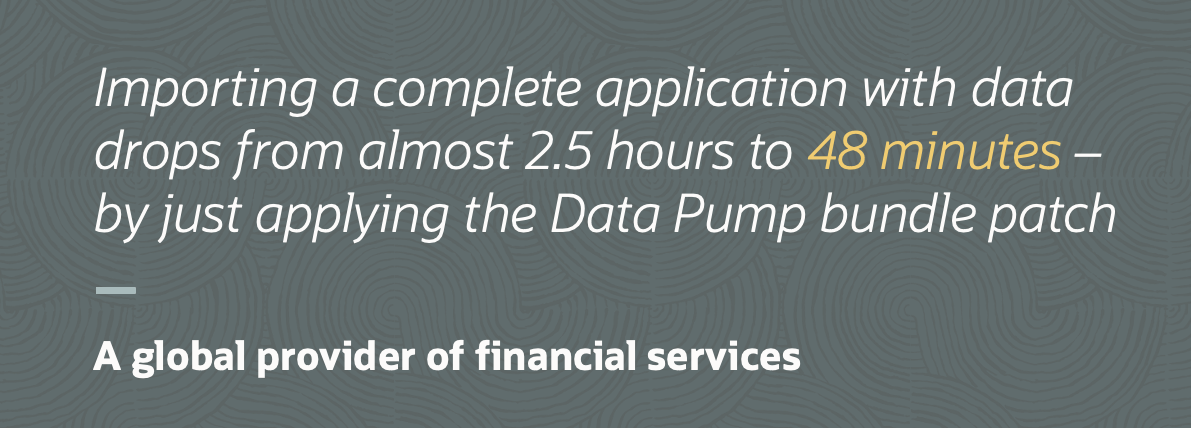
Applying the bundle patch reduced the time for an import to drop from 2,5 hours to 48 minutes

The Easiest Way To Download Patches for Oracle Grid Infrastructure

Whether you patch Oracle Grid Infrastructure manually, using your own automation, or Oracle Fleet Patching and Provisioning, it all starts with downloading the patches.

Although AutoUpgrade doesn’t patch Grid Infrastructure, it can still download the latest version of OPatch and the GI Release Update.

How To Download Grid Infrastructure Release Update

I have already configured the AutoUpgrade keystore and saved my My Oracle Support credentials. You find instructions on how to do that here (search for Creating an AutoUpgrade Keystore).

  1. I download the latest version of AutoUpgrade:

    wget https://download.oracle.com/otn-pub/otn_software/autoupgrade.jar
    
  2. I create a config file called get-gi-patches.cfg:

    global.global_log_dir=/home/oracle/autoupgrade/logs
    global.keystore=/home/oracle/autoupgrade/keystore
    
    patch1.patch=RU,OPATCH,OCW
    patch1.target_version=19
    patch1.platform=LINUX.X64
    patch1.folder=/home/oracle/autoupgrade/patches
    
  3. I create the folder for the patches (config file parameter folder).

    mkdir -p /home/oracle/autoupgrade/patches
    
  4. I download the patches by starting AutoUpgrade in download mode:

    java -jar autoupgrade.jar -config get-gi-patches.cfg -mode download
    
  5. Here’s the output from AutoUpgrade:

    AutoUpgrade Patching 25.3.250509 launched with default internal options
    Processing config file ...
    Loading AutoUpgrade Patching keystore
    AutoUpgrade Patching keystore is loaded
    
    Connected to MOS - Searching for specified patches
    
    -----------------------------------------------------
    Downloading files to /home/oracle/autoupgrade/patches
    -----------------------------------------------------
    DATABASE RELEASE UPDATE 19.27.0.0.0
        File: p37642901_190000_Linux-x86-64.zip - VALIDATED
    
    GI RELEASE UPDATE 19.27.0.0.0
        File: p37641958_190000_Linux-x86-64.zip - VALIDATED
    
    OPatch 12.2.0.1.46 for DB 19.0.0.0.0 (Apr 2025)
        File: p6880880_190000_Linux-x86-64.zip - VALIDATED
    -----------------------------------------------------   
    
  6. That’s it! After a few minutes, I’ve downloaded the latest GI Release Update and OPatch. GI RELEASE UPDATE 19.27.0.0.0 – p37641958_190000_Linux-x86-64.zip OPatch 12.2.0.1.46 for DB 19.0.0.0.0 (Apr 2025) – p6880880_190000_Linux-x86-64.zip

Is it really that easy? Yes, it is…

I can now patch my GI Oracle home – for Oracle RAC Database and Oracle Restart.

Happy patching!

Appendix

I Want To Download A Previous Release Update

Rather than downloading the latest Release Update, you can choose to download a specific Release Update. You can specify that in the patch parameter:

patch1.patch=RU:19.26,OPATCH,OCW
  • Notice how the RU keyword has a suffix specifying the exact Release Update.

Oracle DatabaseWorld

While you wait for the big show in Las Vegas later this year, here’s something to whet your appetite.

Oracle DatabaseWorld Multicloud AI Edition

Hit the Watch on demand button to get free access to all these sessions and get up-to-date on Oracle Database. You can watch the videos anywhere and anytime.

What’s On

Get an overview with the keynotes or dive into the details in specialized sessions.

  • Take a look into at crystal ball and hear about Oracle’s vision for data and AI. Our Executive Vice President, Juan Loaiza, shares how Oracle Database’s cutting-edge converged data architecture helps customers bring AI to data.

  • Also, there are three track keynotes giving you further details on different topics.

  • Mike Dietrich and I give you a head start on your upgrade to Oracle Database 23ai in our session Upgrade to Oracle Database 23ai: Best Practices and Customer Experience.

  • Plus, a number of other sessions that go into the details as well.

I Got Questions

If you need more information on upgrades to Oracle Database 23ai or have questions after watching our session, reach out to me and I’ll get you sorted.

You can also try upgrades in our hands-on lab. It’s free and runs in a browser – nothing to install. And – it’s better to fail in our lab, than in production.

Happy learning!