When A Refreshable Clone Takes Over The Service

Following my advice, a customer migrated a database to multitenant using refreshable clone PDB. The CDB was on the same host as the non-CDB.

When we prepare the migration and create the refreshable clone, the users can no longer connect to the source database.

The users were getting ORA-01109: database not open when connecting to the source database.

But this was before the final refresh and before the migration was supposed to happen.

Why did the refreshable clone PDB interfere with operations in the source database?

The Details

The customer has a non-CDB called SALES, which they wanted to migrate into CDB1. They wanted the PDB to keep the original name, SALES.

Any database registers a default service at the listener. The name of the default service is the same as the name of the database.

In this case, the non-CDB registered the sales service:

$ lsnrctl status

Service "sales" has 1 instance(s).
  Instance "SALES", status READY, has 1 handler(s) for this service...

The customer used AutoUpgrade for the migration. When preparing for the migration, they started in deploy mode, and AutoUpgrade created the refreshable clone.

Bear in mind that these steps are preparations only. The switch to the PDB should happen at a later time.

Look what happens to the listener:

$ lsnrctl status

Service "sales" has 2 instance(s).
  Instance "CDB1", status READY, has 1 handler(s) for this service...
  Instance "SALES", status READY, has 1 handler(s) for this service...

The CDB also registers a sales service. It does so because of the refreshable clone PDB with the same name.

The users were connecting to the default service, sales. The listener handed off the connections to the CDB, not the non-CDB.

Since the PDB was still a refreshable clone PDB, it was not open, and users received ORA-01109: database not open.

Besides that, the refreshing process didn’t work either. The refresh of the PDB happens over a database link to the source database. Guess what happened?

2025-05-09T07:25:58.854934+00:00
Errors in file /u01/app/oracle/diag/rdbms/cdb19/CDB19/trace/CDB19_ora_61633.trc:
ORA-17627: ORA-01109: database not open
ORA-17629: Cannot connect to the remote database server
ORA-17627 signalled during: ALTER PLUGGABLE DATABASE FTEX REFRESH...

Yes, it couldn’t connect to the source database either. It ended up trying to connect to itself.

Optimal Solution

The real problem is the connections to the default service, sales. The service with the same name as the database.

This service is not meant for general use. You should create your own service and have your application connect through that.

Why is using default services a bad idea?

  • You can’t customize the default service.
  • The default service is for administrative use only.
  • You easily end up with collisions like this one. This can also happen with two PDBs in different CDBs on the same host.
  • If you rename the database, you also rename the default service and have to update all connection strings.

Why are custom services a good idea?

  • Custom services allow you to set many attributes. While this might not be important for a single-instance database, it is essential for Data Guard and RAC.
  • When you clone a database, a custom service doesn’t follow with it. You have to create the services in the clone when and if it is appropriate.

You can create custom services using DBMS_SERVICE or srvctl. You can find more about that in a previous blog post.

Other Solutions

Other feasible solutions exist, but none of them address the real issue, which I believe is the use of the default service.

  • Rename the PDB so it creates a default service with a different name. After migration, you can rename it.
  • Create a static listener entry that forces the listener to route connections to the non-CDB. However, static listener entries are really not nice, and you should use dynamic registration whenever possible.
  • Create a second listener for the CDB. That’s just cumbersome.

Recommendation

  • Keep using refreshable clone PDB for migrations. It’s a great way to migrate, patch, or upgrade databases.

  • Always create your own custom service. Don’t use the default service.

Using Refreshable Clone PDBs from a Standby Database

The other day, I found myself praising refreshable clone PDBs to a customer (which I often do because it’s a killer feature). They liked the feature too but asked:

> We are concerned about the impact on the source database. When AutoUpgrade connects to the source database and clones the database, can we offload the work to a standby database?

Refreshable clone PDBs can eat up your resources if you don’t constrain the target CDB. So, let’s see what we can do.

Mounted Standby Database

This won’t work, because you must be able to connect to the database via a regular database link. Further, AutoUpgrade and the cloning process must be able to execute queries in the source database, which is not possible on a mounted database.

Open Standby Database / Active Data Guard

What if you stop redo apply and open the standby database? Or if you have Active Data Guard?

In this case, the database would be open in read-only mode, and those queries would work. However, the refreshable clone PDB feature was developed to work in and require a read-write database, so this won’t work either – Not even if you enable automatic redirection of DML operations (ADG_REDIRECT_DML).

Even if this case would work, we wouldn’t recommend it. Because, we recommend that you run analyze and fixups mode on the source database, which wouldn’t be possible on a read-only database. You could run analyze and fixups on the primary database. But is that really an option? If you’re worried about affecting your primary and want to offload to the standby, would running those commands on the primary be an option?

Snapshot Standby Database

What about a snapshot standby? That’s a read-write database. Let’s give it a try.

  1. Convert the source standby to a snapshot standby:
    DGMGRL> convert database '...' to snapshot standby;
    
    • The standby must remain a snapshot standby for the entire duration of the job. If you need to switch over or fail over to the standby, you must restart the entire operation.
  2. Ensure the PDB is open on the source standby.
    alter pluggable database ... open;
    
    • Otherwise, you will run into ORA-03150 when querying the source database over the database link.
  3. In the source standby, create the user used by the database link and grant appropriate permissions:
    create user dblinkuser identified by ...;
    grant create session, create pluggable database, select_catalog_role to dblinkuser;
    grant read on sys.enc$ to dblinkuser;
    
  4. In the target CDB, create a database link that points to the PDB in source standby:
    create database link clonepdb
    connect to dblinkuser identified by ...
    using '';
    
  5. Create an AutoUpgrade config file:
    global.global_log_dir=/home/oracle/autoupgrade/log
    global.keystore=/home/oracle/autoupgrade/keystore
    upg1.source_home=/u01/app/oracle/product/19.0.0.0/dbhome_1
    upg1.target_home=/u01/app/oracle/product/23.0.0/dbhome_1
    upg1.sid=CDB19
    upg1.target_cdb=CDB23
    upg1.pdbs=PDB1
    upg1.source_dblink.PDB1=CLONEPDB 300
    upg1.target_pdb_copy_option.PDB1=file_name_convert=none
    upg1.start_time=+12h
    
  6. Start AutoUpgrade in deploy mode:
    java -jar autoupgrade.jar ... -mode deploy
    
  7. Convert the source standby back to a physical standby:
    DGMGRL> convert database '...' to physical standby;
    

Is It Safe?

Using a standby database for anything else than your DR strategy, is sometimes perceived as risky. But it is not, as I explain in this blog post (section What Happens If I Need to Switch Over or Fail Over?).

Happy upgrading!

Get the Slides and Recording Of “Migration to Oracle Autonomous Database – Part 1: Planning”

Last week, we aired our first webinar in our 4-part series on migration to Oracle Autonomous Database.

Migration to Oracle Autonomous Database – Part 1: Planning

The slides are available for download, and you can read the Q&A.

The Next Webinars

To complete your journey to Autonomous Database, be sure to sign up for the other webinars:

Often, you need to make changes to the database or application to fit into an Autonomous Database. In part 2, we show you how to deal with the findings from the Cloud Premigration Advisor Tool (CPAT).

Part 3 is all about demos—demos on how to migrate to Autonomous Database using a number of different techniques.

Finally, how is the life of a DBA after migrating to an Autonomous Database? Is there anything left to do? We think there is, and we’ll show you the cool life of a DBA on an Autonomous Database.

Happy Migrating

We’re looking for customers to collaborate with. If you’re already working on a migration project, contact us today. You might be our next reference customer.

As a last remark, subscribe to our YouTube channel so you never miss out on our tech videos.

Hey, Let Me Kill Your Network!

This short story is about the awesomeness of AutoUpgrade and refreshable clone PDBs.

Colleagues of mine were testing upgrades to Oracle Database 23ai using refreshable clone PDBs. They wanted to see how fast AutoUpgrade would clone the PDB and how that affected the source system.

The Systems

The source and target systems were identical:

  • Exadata X10M
  • 2-node RAC
  • 190 CPU/node
  • 25Gbps network/node

The database:

  • 1 TB in size
  • All data files on ASM

The Results

The source database is Oracle Database 19c. They configured AutoUpgrade to upgrade to Oracle Database 23ai using refreshable clone PDBs. However, this test measured only the initial copy of the data files – the CLONEDB stage in AutoUpgrade.

Parallel Time Throughput Source CPU %
Default 269s 3,6 GB/s 3%
Parallel 4 2060 0,47 GB/s 1%
Parallel 8 850 1,14 GB/s 1%
Parallel 16 591 1,65 GB/s 2%

A few observations:

  • Cloning a 1 TB database in just 5 minutes.
  • Very little effect on CPU + I/O on source, entirely network-bound.
  • The throughput could scale almost up to the limit of the network.
  • By the way, this corresponds with reports we’ve received from other customers.

Learnings

  • The initial cloning of the database is very fast and efficient.
  • You should be prepared for the load on the source system. Especially since the network is a shared resource, it might affect other databases on the source system, too.
  • The target CDB determines the default parallel degree based on its own CPU_COUNT. If the target system is way more powerful than the source, this situation may worsen.
  • Use the AutoUpgrade config file entry parallel_pdb_creation_clause to select a specific parallel degree. Since the initial copy happens before the downtime, you might want to set it low enough to prevent overloading the source system.
  • Be careful. Don’t kill your network!

Happy upgrading!

AutoUpgrade New Features: Control Start Time When Using Refreshable Clone PDBs

When you migrate or upgrade with refreshable clone PDBs, you sometimes want to decide when the final refresh happens. Perhaps you must finish certain activities in the source database before moving on.

I’ve discussed this in a previous post, but now there’s a better way.

The Final Refresh Dilemma

In AutoUpgrade, the final refresh happens at the time specified by the config file parameter start_time. This is the cut-over time where no further changes to the source database, gets replicated in the target database.

Overview of the phases when using refreshable clone PDBs

You specify start_time in the config file, and then you start the job. Typically, you start it a long time before start_time to allow the creation of the new PDB.

So, you must specify start_time in the config file and that’s when you believe the final refresh should happen. But things might change in your maintenance window. Perhaps it takes a little longer to shut down your application or there’s a very important batch job that must finish. Or perhaps you can start even earlier.

In that case, a fixed start time is not very flexible.

The Solution

You can use the proceed command in the AutoUpgrade console to adjust the start time, i.e., the final refresh.

  1. Get the latest version of AutoUpgrade:

    wget https://download.oracle.com/otn-pub/otn_software/autoupgrade.jar
    
  2. Start the job in deploy mode as you normally would:

    java -jar autoupgrade.jar ... -mode deploy
    
    • AutoUpgrade now starts the CLONEPDB stage and begins to copy the database.
  3. Wait until the job reaches the REFRESHPDB stage:

    +----+-------+----------+---------+-------+----------+-------+--------------------+
    |Job#|DB_NAME|     STAGE|OPERATION| STATUS|START_TIME|UPDATED|             MESSAGE|
    +----+-------+----------+---------+-------+----------+-------+--------------------+
    | 100|  CDB19|REFRESHPDB|EXECUTING|RUNNING|  14:10:29| 4s ago|Starts in 54 minutes|
    +----+-------+----------+---------+-------+----------+-------+--------------------+
    Total jobs 1
    
    • In this stage, AutoUpgrade is waiting for start_time to continue the migration. It refreshes the PDB with redo from the source at the specified refresh interval.
    • I must start well before the maintenance window, so AutoUpgrade has enough time to copy the database.
  4. You can now change the start time. If you want to perform the final refresh and continue immediately, use the proceed command:

    proceed -job 100
    

    Or, you can change the start time:

    proceed -job 100 -newStartTime 29/03/2025 02:00:00
    

    Or, you can change the start time to a relative value, example 1 hour 30 min from now:

    proceed -job 100 -newStartTime +1h30m
    
  5. After the final refresh, AutoUpgrade disconnects the refreshable clone PDB, turns it into a regular PDB, and moves on with the job.

Wrapping Up

AutoUpgrade offers complete control over the process. You define a start time upfront, but as things change, you can adjust it in flight.

Refreshable clone PDBs are a fantastic method for non-CDB to PDB migrations and for upgrades of individual PDBs.

There are a few quirks to be aware of, and if you are using Data Guard bear in mind that you can only plug in with deferred recovery. Other than that – it’s just to say…

Happy migrating, happy upgrading!

Further Reading

Recreate Database Services After Moving An Oracle Database

Oracle recommends that you connect to the database via custom services. In your connect string, don’t connect:

  • Directly to the SID
  • Or to the database’s default service (the service with the same name as the database).

When you move a database around, in some situations, the database does not retain these services, for instance, when you:

  • Migrate a non-CDB to PDB using refreshable clone PDB
  • Upgrade a PDB using refreshable clone PDB
  • Move a PDB to a different CDB using refreshable clone PDB
  • Migrating a database using Full Transportable Export/Import or transportable tablespaces

The services are important because your application and clients connect to the database through that service. Also, the service might define important properties for things like Application Continuity or set default drain timeout.

Here’s how to recreate such services.

Database Managed Services

A database-managed service is one that you create directly in the database using dbms_service:

begin
   dbms_service.create_service(
      service_name=>'SALESGOLD',
      network_name=>'SALESGOLD');
   dbms_service.start_service('SALESGOLD');   
end;
/

After the migration, you must manually recreate the service in the target database.

dbms_metadata does not support services. So, you must query v$services in the source database to find the service’s defition. Then, construct a call to dbms_service.create_service and dbms_serice.start_service.

Clusterware Managed Services

I recommend defining services in Grid Infrastructure if you are using Oracle RAC or using Oracle Restart to manage your single instance database. Luckily, Grid Infrastructure supports exporting and importing service defitions.

  • You export all the services defined in the source database:

    srvctl config service \
       -db $ORACLE_UNQNAME \
       -exportfile my_services.json \
       -S 2
    
  • You edit the JSON file.

    1. Remove the default services. Keep only your custom services.
    2. Remove the dbunique_name attribute for all services.
    3. If you are renaming the PDB, you must update the pluggable_database attribute.
    4. Update the res_name attribute so it matches the resource name of the target database. Probably you just need to exchange the db_unique_name part of the resource name. You can find the resource name as grid when you execute crsctl stat resource -t.
  • You can now import the services into the target database:

    srvctl add service \
       -db $ORACLE_UNQNAME \
       -importfile my_services.json
    
  • Finally, you start the service(s):

    export ORACLE_SERVICE_NAME=SALESGOLD
    srvctl start service \
       -db $ORACLE_UNQNAME \
       -service $ORACLE_SERVICE_NAME
    

Additional Information

  • The export/import features work from Oracle Database 19c, Release Update 19 and beyond.
  • You can also export/import the definition of:
    • Database: srvctl config database -db $ORACLE_UNQNAME -S 2 -exportfile my_db.json.json
    • PDB: srvctl config pdb -db $ORACLE_UNQNAME -S 2 -exportfile my_pdb.json
    • ACFS filesystem: srvctl config filesystem -S 2 -exportfile /tmp/my_filesystem.json
  • At time of writing, this functionality hasn’t made it into the documentation yet. Consider yourself lucky knowing this little hidden gem.

Final Words

Remember to recreate your custom services after a migration. Your application needs the service to connect in a proper way.

Further Reading

Fast Refresh Materialized Views and Migrations Using Transportable Tablespaces

In some databases, fast refresh materialized views are important for good performance. During a migration using transportable tablespaces, how do you ensure the materialized views are kept up-to-date and avoid a costly complete refresh or stale data?

The Basics

The database populates a materialized view with data from a master table. To enable fast refresh on a materialized view, you must first create a materialized view log on the master table. The materialized view log captures changes on the master table. Then, the database applies the changes to the materialized view, thus avoiding a complete refresh.

When a user changes data in the master table (SALES), those changes are recorded in the materialized view log (MLOG$_SALES) and then used to refresh the materialized view (SALES_MV).

The master table and the materialized view log must reside in the same database (known as the master database). Hence, they are depicted in bluish colors. The materialized view is often in a different database, and then uses a database link to get the changes.

You only need materialized view logs if the materialized view is a fast refresh type.

A fast refresh materialized view needs to perform a complete refresh the first time, before it can move on with fast refreshes (thanks to my good friend, Klaus, for leaving a comment).

Remote Master Table, Local Materialized View

In this example, you are migrating a database from source to target. This database holds the materialized view, and a remote database acts as the master database, where the master table and materialized view log reside.

Migrating a database which holds a materialized view that uses a remote master database

The materialized view and the underlying segment are stored in a tablespace in the source database. That segment is used to recreate the materialized view in the target database without any refresh needed.

  1. You must perform the following in the migration downtime window.
  2. In the source database, stop any periodic refresh of the materialized view.
  3. Optionally, perform a fast refresh of the materialized view:
    exec dbms_mview.refresh ('sales_mv','f');
    
  4. Start the migration using transportable tablespaces.
    • Set the tablespaces read-only.
    • Perform a final incremental backup.
    • Data Pump sets the tablespaces read-write in the target database.
    • Shut down the source database. Otherwise, you might risk it interfering with the target database’s refresh.
  5. In the target database, you can now perform a fast refresh.
    • Data Pump has already recreated the database link to the remote master database.
    • Although the materialized view is now in a different database, it can fetch the recent changes from the master database starting with the last refresh in the source database.
  6. In the master database, both materialized views from the source and target database are now registered:
    select * from dba_registered_mviews where name='SALES_MV';
    
  7. Purge materialized view log entries that are related to the materialized view in the source database:
    exec dbms_mview.purge_mview_from_log('<mview-owner>', 'SALES_MV', '<source-db>');
    
  8. Unregister the materialized view in the source database:
    exec dbms_mview.unregister_mview('<mview-owner>', 'SALES_MV', '<source-db>');
    
  9. In the target database, re-enable periodic refresh of the materialized view.

Local Master Table, Remote Materialized View

In this example, you are migrating a database from source to target. This database holds the master table and materialized view log, while a remote database contains the materialized view.

Migrating a database which acts as master database holding a master table and materialized view log

The master table and materialized view log are stored in a tablespace in the source database. The migration moves the data to the target database. The materialized view is in the same database, so no remote database or database link is involved.

  1. You must perform the following in the migration downtime window.
  2. In the remote database, stop any periodic refresh of the materialized view.
  3. Optionally, perform a fast refresh of the materialized view:
    exec dbms_mview.refresh ('sales_mv','f');
    
  4. Start the migration using transportable tablespaces.
    • Set the tablespaces read-only.
    • Perform a final incremental backup.
    • Data Pump sets the tablespaces read-write in the target database.
    • Shut down the source database. Otherwise, you might risk it interfering with the target database’s refresh.
  5. In the remote database, ensure that the database link now points to the new target database.
    • If the database link uses a TNS alias, you can update it.
    • Or recreate the database link with a new connect descriptor.
  6. Perform a fast refresh.
    exec dbms_mview.refresh ('sales_mv','f');
    
    • If you hit ORA-04062: timestamp of package "SYS.DBMS_SNAPSHOT_UTL" has been changed, run the refresh again.
  7. Re-enable periodic refresh of the materialized view.
  8. In the target database, ensure that the materialized view log is now empty.
    select * from mlog$_sales;
    

Local Master Table, Local Materialized View

In this example, you are migrating a database from source to target. This database holds the master table, the materialized view log, and the materialized view. There is no remote database involved.

Migrating a database which acts as master database holding a master table and materialized view log

The master table and materialized view log are stored in a tablespace in the source database. The migration moves the data to the target database. The materialized view is in the same database, so there is no remote database or database link involved.

  1. You must perform the following in the migration downtime window.
  2. In the source database, stop any periodic refresh of the materialized view.
  3. Perform a fast refresh of the materialized view:
    exec dbms_mview.refresh ('sales_mv','f');
    
  4. Ensure the materialized view log is empty, i.e., all rows have been refreshed into the materialized view.
    select count(*) from mlog$_sales;
    
    • The query must return 0 rows. If more rows, then perform an additional fast refresh.
    • If a remote materialized view uses the materialized view log then it is acceptable to move on if you are sure the local materialized view is completely updated.
  5. Start the migration using transportable tablespaces.
    • Set the tablespaces read-only.
    • Perform a final incremental backup.
    • Data Pump sets the tablespaces read-write in the target database.
    • Shut down the source database. Otherwise, you might risk it interfering with the target database’s refresh.
  6. In the target database, perform a fast refresh.
    exec dbms_mview.refresh ('sales_mv','f');
    
  7. Re-enable periodic refresh of the materialized view.
  8. Ensure that the materialized view log is now empty.
    select * from mlog$_sales;
    

A word of caution here. The materialized view must be completely up-to-date in the source database before the migration. After the migration, the same materialized view won’t be able to refresh the pre-migration rows. That is why you are checking for rows in mlog$_sales.

Any new changes made in the target database will sync fine.

Further Reading

AutoUpgrade New Features: Drop Database Link When Using Refreshable Clones

With the latest version, 24.8, AutoUpgrade can drop the database link after using refreshable clones.

Details

  • Certain jobs in AutoUpgrade require a database link to the source database.
  • Whenever you specify a database link using source_dblink, you can optionally instruct AutoUpgrade to drop it.
  • The default value is no, meaning AutoUpgrade leaves the database link in place.

How To

  • Get the latest version of AutoUpgrade:

    wget https://download.oracle.com/otn-pub/otn_software/autoupgrade.jar
    
  • Instruct AutoUpgrade to drop the database link after completing the job:

    upg1.drop_dblink=yes
    

Happy Upgrading

I’m a huge fan of using refreshable clones for upgrades and non-CDB to PDB migrations.

Granted, this is not the most ground-breaking enhancement we’ve introduced. But it’s yet another thing that makes your life a little easier.

What do you think could make AutoUpgrade even easier to use? Leave a comment and let us know.

Control The Final Refresh When Using Refreshable Clone PDBs in AutoUpgrade

When you migrate or upgrade with refreshable clone PDBs, you sometimes want to decide when the final refresh happens. Perhaps you must finish certain activities in the source database before moving on.

Here’s how to do that in AutoUpgrade.

The Final Refresh Dilemma

In AutoUpgrade, the final refresh happens at the time specified by the config file parameter start_time.

Overview of the phases when using refreshable clone PDBs

You specify start_time in the config file, but once you start the job, you cannot change it. Remember that you normally start AutoUpgrade a long time before start_time to allow the creation of the new PDB.

In some situations, you want more control. You might want to finish some work on the source database before AutoUpgrade starts the final refresh. Perhaps you need to kick users off or coordinate activities with other teams.

In that case, a fixed start time is not very flexible.

The Solution

Update: Check out the new proceed command.

Imagine my downtime window starting on Saturday, 30 November, 02:00.

At that time, I need to ask the application team to shut down the applications in the database, I need to run certain pre-migration tasks, and finally kill sessions if needed. So, I don’t want AutoUpgrade to start at 02:00 – I want to decide at which point after 02:00 that AutoUpgrade should start.

Here’s my approach

  • I create a config file and set the start_time parameter to the start of my downtime window.
    upg1.start_time=30/11/2024 02:00:00
    
  • I start AutoUpgrade in deploy mode before my downtime starts:
    java -jar autoupgrade.jar -config ... -mode deploy
    
    • I must start well before the downtime window so AutoUpgrade has enough time to copy the database.
    • Imagine my tests show it takes around four hours to copy the database. I decide to start on Friday, 29 November, 16:00, so the copy should end around 20:00 – well enough time before my downtime window.
  • AutoUpgrade now starts the CLONEPDB phase:
    +----+-------+--------+---------+-------+----------+-------+---------------------------+
     |Job#|DB_NAME|   STAGE|OPERATION| STATUS|START_TIME|UPDATED|                    MESSAGE|
     +----+-------+--------+---------+-------+----------+-------+---------------------------+
     | 100|   TEAL|CLONEPDB|EXECUTING|RUNNING|  02:00:00| 4s ago|Creating pluggable database|
     +----+-------+--------+---------+-------+----------+-------+---------------------------+
    
    • Note the START_TIME value. It is the time when the final refresh happens.
  • I wait for AutoUpgrade to create the PDB and enter the REFRESHPDB phase:
    +----+-------+----------+---------+-------+----------+-------+----------------------+
    |Job#|DB_NAME|     STAGE|OPERATION| STATUS|START_TIME|UPDATED|               MESSAGE|
    +----+-------+----------+---------+-------+----------+-------+----------------------+
    | 100|   TEAL|REFRESHPDB|EXECUTING|RUNNING|  02:00:00| 2s ago|PDB TEAL was refreshed|
    +----+-------+----------+---------+-------+----------+-------+----------------------+
    
  • Then I stop the job:
    upg> stop -job 100
    
    • If I exit AutoUpgrade after stopping the job, don’t worry. As soon as I restart AutoUpgrade, it will pick up from where it left and continue with the job.
  • When I stop the job, there is no periodic refresh. I should refresh the PDB in the target CDB manually at regular intervals:
    SQL> alter pluggable database teal refresh;
    
    • If I don’t perform any periodic refresh, the redo will accumulate, and the final refresh will take longer. Keep the final refresh shorter by refreshing more often.
  • After the start of my downtime window (the start_time parameter), when I’m done on the source database and want to proceed with the final refresh, I resume the job in AutoUpgrade.
    upg> resume -job 100
    
  • AutoUpgrade now realizes it is past the defined start_time and immediately moves on with the final refresh and the rest of the job.

Wrapping Up

Ideally, AutoUpgrade should offer better control over the process. We have a task on our backlog to come up with a better solution.

Update: Use the proceed command in AutoUpgrade to control the start time

However, refreshable clone PDBs are still a fantastic method for non-CDB to PDB migrations and for upgrades of individual PDBs.

There are a few quirks to be aware of, and if you are using Data Guard bear in mind that you can only plug in with deferred recovery. Other than that – it’s just to say…

Happy Migrating!

Further Reading

Sure, Let Me Analyze This 200.000-Line Log File

Imagine importing a large database using Oracle Data Pump. In the end, Data Pump tells you success/failure and the number of errors/warnings encountered. You decide to have a look at the log file. How big is it?

$ du -h import.log
 29M   import.log

29 MB! How many lines?

$ wc -l import.log
  189931 import.log

Almost 200.000 lines!

How on earth can you digest that information and determine whether you can safely ignore the errors/warnings recorded by Data Pump?

Data Pump Logfile Analyzer

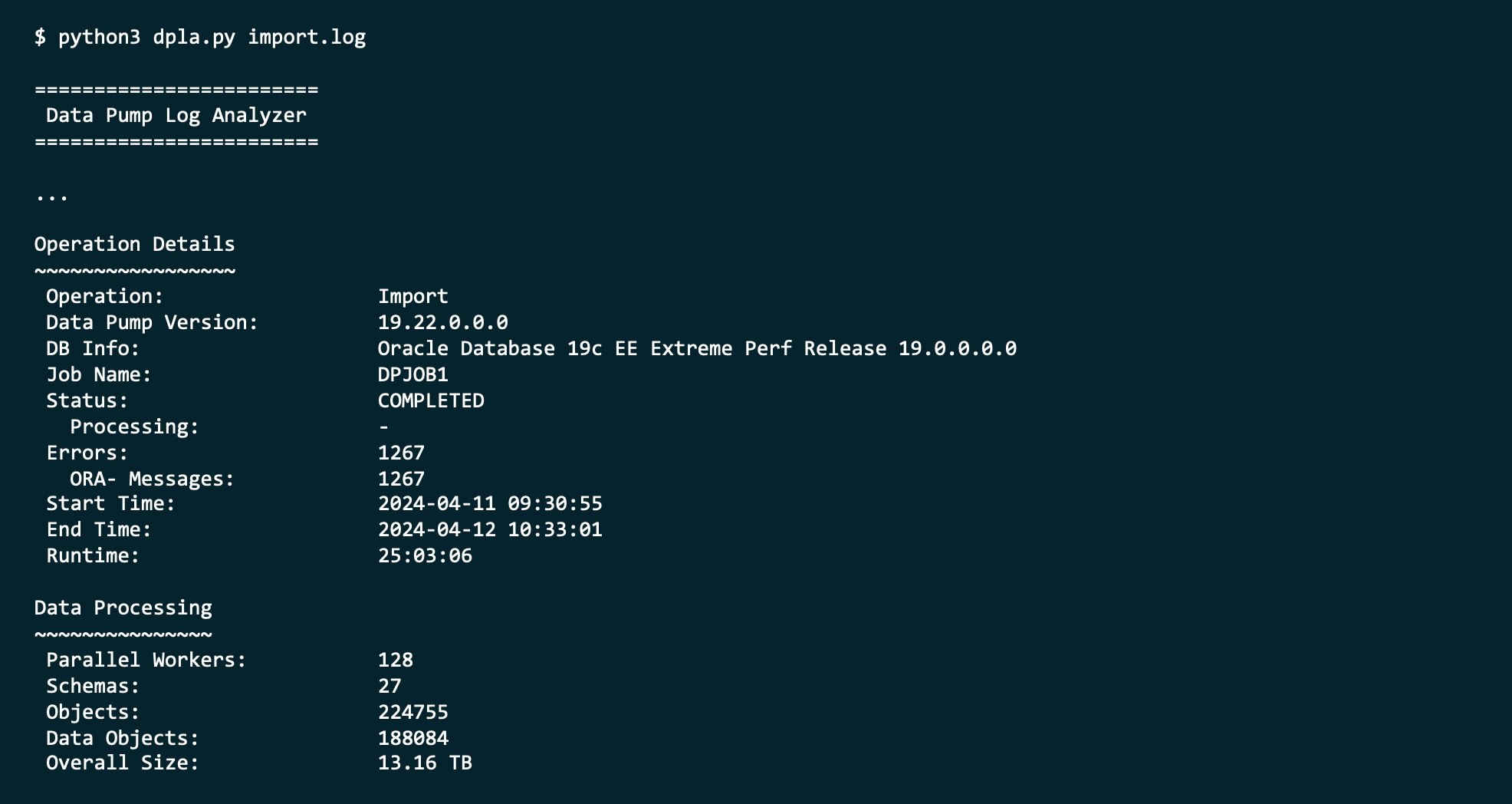
This is where Data Pump Logfile Analyzer (DPLA) can help you.

DPLA can summarize the log file into a simple report. Summary of a Data Pump job

It can give you an overview of each type of error. Showing the errors reported in a Data Pump log file

It can tell you where Data Pump spent the most time. Showing which Data Pump phases took the longest

It can produce an interactive HTML report. HTML report from Data Pump Log Analyzer

And so much more. It’s a valuable companion when you use Oracle Data Pump.

Tell Me More

DPLA is not an official Oracle tool.

It is a tool created by Marcus Doeringer. Marcus works for Oracle and is one of our migration superstars. He’s been involved in the biggest and most complicated migrations and knows the pain of digesting a 200.000-line log file.

He decided to create a tool to assist in the analysis of Data Pump log files. He made it available for free on his GitHub repo.

Give It a Try

Next time you have a Data Pump log file, try to use the tool. It’s easy, and instructions come with good examples.

If you like it, be sure to star his repo. ⭐

If you can make it better, I’m sure Marcus would appreciate a pull request.

Thanks, Marcus, good job! 💪