Upgrading in the Cloud – VM DB Systems – Automated Upgrade to 19c – The Details

Following a previous blog post here are all the details on automated upgrades in OCI, and (possibly) the answers to your questions.

Precheck

The precheck ensures the database is ready to upgrade. It uses DBUA which again uses preupgrade.jar to execute the checks. It is similar to running AutoUpgrade in analyze mode. The check is non-intrusive and can be executed while the database is in use.

Normally, when you use preupgrade.jar we always recommend you download the latest version from My Oracle Support. However, this is not possible when you use the tooling. The new, target Oracle Home is always deployed as part of the precheck process – and deleted again after the precheck. There is no way you can replace the preupgrade.jar package. You must use the version of preupgrade.jar that comes with the Oracle Home.

If there are no issues that prevent you from upgrading, you will see this message: The precheck completed and found no errors - the database is ready to upgrade

However, it could also be that there is an error in the database that must be fixed: If a critical issue prevents you from upgrading, a message will be displayed in the console

If you want to see the output from the precheck you must log on to the database host and find the file:

vi $ORACLE_BASE/cfgtoollogs/dbua/upgrade<timestamp>/$ORACLE_UNQNAME/upgrade.xml

Only the XML output is available, which might be a little hard to read. If you prefer you can also download AutoUpgrade to the server and run it in analyze mode. It can produce a much better output, and it works even if the target Oracle Home is not present. Create a simple config file:

upg1.sid=DB11204
upg1.source_home=/u01/app/oracle/product/11.2.0.4/dbhome_1
upg1.target_version=19

And now start AutoUpgrade in analyze mode:

java -jar autoupgrade.jar -config DB11204.cfg -mode analyze

You can use the preupgrade report to determine which issues prevents the upgrade from starting.

The database must be in ARCHIVELOG mode and the size of your Fast Recovery Area (FRA) must be at least 15G (parameter db_recovery_file_dest_size). As well, you must have 15G of free space on the mount point that hosts the FRA.

Upgrade

When you upgrade your database, all PDBs in the database are upgraded as well. There is no way to change it. If a PDB is closed when the upgrade starts, it is opened and upgraded. After the upgrade, the PDB is left opened and in READ WRITE state. But the state is not saved, so after a CDB restart, the PDB will start in whatever state that has been previously saved.

The first version of the tooling does not support standby database. If your database is a primary database, you must remove the standby database, upgrade, and then recreate the standby database. It is in the plan for future enhancements to get this streamlined.

Fallback

Enterprise Edition databases are protected by a guaranteed restore point (GRP) and Flashback Database. The tooling automatically creates the GRP before it starts to work on the database. If an error occurs during the upgrade, you can use the OCI console to initiate a roll back.

If the database upgrade fails on an Enterprise Edition database it is possible to roll back to a guaranteed restore point using Flashback Database

After successful upgrade the GRP is dropped again. The GRP only protects the database during the upgrade, so you can’t rely on the GRP as a fallback mechanism if you decide to fall back after the upgrade. Let’s say that your testing reveals a critical problem after the upgrade, then your only fallback mechanism is to restore a backup.

Since Flashback Database is an Enterprise Edition feature, this fallback mechanism is not available on Standard Edition databases.

In addition, it is strongly recommended that you perform a manual backup of the database before you start the upgrade. The console will also give you this warning, before you can start the upgrade.

Monitoring and Troubleshooting

When you have started the upgrade, you can’t monitor it from the console. You must log on to the host. When you do so, be aware that the timestamps shown in the OCI console are UTC, but the timestamps in the log files on the host is local timestamp (depending on your region).

Using dbcli

Log on as root and use the dbcli tool to monitor the progress. First, list jobs:

[root@host]$ dbcli list-jobs

Which should produce a list like this: Use dbcli list-jobs to list the jobs - including the upgrade - that run on the host Next, you can get additional information about the job using the ID:

[root@host]$ dbcli describe-job -i <id>

Which give you more details: dbcli describe-job can give you more detailed information about the upgrade

Using DBUA Log Files

But you can get even better information by looking in the log files from DBUA. Use the job id from the dbcli command to find the log file:

[oracle@host]$ export ORACLE_BASE=/u01/app/oracle
[oracle@host]$ export DBCLI_JOBID=f4b2597f-990f-4442-a774-153f3713fb7a
[oracle@host]$ tail -f -n 10 $ORACLE_BASE/cfgtoollogs/dbua/$DBCLI_JOBID/silent.log

And for really detailed information look in this directory:

[oracle@host]$ export ORACLE_BASE=/u01/app/oracle
[oracle@host]$ export DBCLI_JOBID=f4b2597f-990f-4442-a774-153f3713fb7a
[oracle@host]$ cd $ORACLE_BASE/cfgtoollogs/dbua/$DBCLI_JOBID/$ORACLE_UNQNAME

Using DCS Agent

The OCI control plane communicates with your DB System using an agent, and sometimes it can be useful to look in those logs:

[root@host]$ cd /opt/oracle/dcs/log
[root@host]$ vi dcs-agent.log

To find the log entries that are related to a specific upgrade search for the job ID:

[root@host]$ cat dcs-agent.log | grep "<job-id>" | more

Q&A

Which version and release update can I upgrade to?

The tooling only allows upgrades to Database 19c. If you need to upgrade to any other version, you must do it manually.

You can decide to upgrade to an Oracle provided image or a custom image: When you upgrade you can choose an Oracle provided image, or your own custom database software image However, for both type of images, the Release Update (or patch level) must be the latest or previous two Release Updates. Even if you have a custom database software image that is older, it can’t be used. You must upgrade to one of the recent Release Updates. If you select 19.0.0.0 you will not get the base release, but the latest Release Update. If you use the APIs this is a smart way of specifying that you always want the latest Release Update.

Where are my log files?

The output from the precheck is stored here:

  • $ORACLE_BASE/cfgtoollogs/dbua/upgrade<timestamp>

The output from the actual upgrade is stored here:

  • $ORACLE_BASE/cfgtoollogs/dbua/<job-id>
  • $ORACLE_BASE/cfgtoollogs/dbua/<job-id>/$ORACLE_UNQNAME

In addition, you can get details about the upgrade using dbcli:

[root@host]$ dbcli list-jobs
[root@host]$ dbcli describe-job -i <job-id>

Why is it taking so long to perform a precheck?

It consists of three phases:

  1. Deploy new Oracle Home to the VM DB System
  2. Precheck of the database
  3. Removing the new Oracle Home

The precheck (phase 2) is really fast. Just as fast as if you would run AutoUpgrade in analyze mode or using preupgrade.jar. The extra time is needed to deploy and remove the Oracle Home again. For each execution of the precheck the procedure repeats, and a new Oracle Home is deployed. It is never re-used.

Why is the upgrade slower than if I do it manually?

Typically, when you upgrade a database you have already – outside of the maintenance window – deployed a new Oracle Home. When you use the tooling, this happens inside the maintenance window. The tooling can’t deploy an Oracle Home prior to the upgrade. In addition, the upgrade is executed with DBUA using default options, which for instance means that the time zone file is upgraded as well. If you are sensitive to downtime and would like to complete the upgrade faster, you must perform the upgrade manually.

Will my 11.2.0.4 database get converted to a PDB?

No, the database is upgraded as-is and there is no PDB conversion. We are working on making it possible to perform the non-CDB conversion as well. If you must convert the non-CDB to a PDB, you must move the database to a new VM DB System that already have a CDB provision. In that case, I would recommend that you use the manual upgrade and plug-in as described in another blog post.

Can I perform an automated upgrade using dbcli?

No, although the command line help of dbcli suggests that such an option exist, it can’t be used.

Other Posts in This Series

New Version of AutoUpgrade

Our developers just published a new version of AutoUpgrade. Head over to My Oracle Support and download version 21.1.1.

The version says 21, but it can still upgrade your databases to lower release. So, you should use this new version to upgrade to Oracle Database 19c as well.

The supported target Oracle Database versions that are supported by the new version of AutoUpgrade

What’s New

A total of 48 enhancements and bug fixes made it into the new release. It has been 35 working days since the last release (and that includes Thanksgiving week) which means that the team has put in – on average – close to 1,5 changes into AutoUpgrade every, single working day. I find that quite impressive. And it really supports our message that you should always use the latest version of AutoUpgrade.

In My Oracle Support note 2485457.1 you can find a complete change log. Also, you can also visit the 21c New Feature Guide for additional information.

Unplug/plug Upgrade

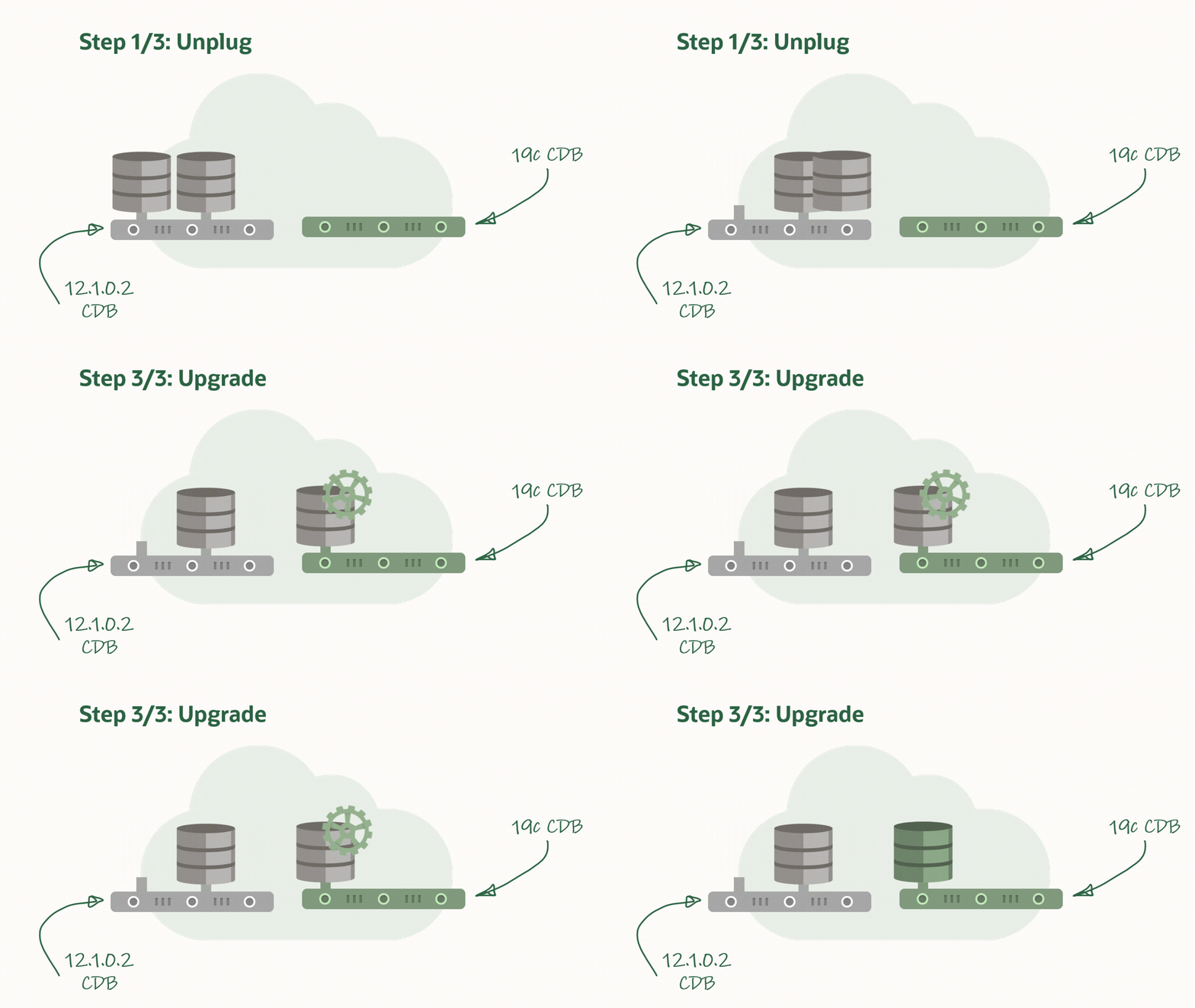
The first things that I would like to highlight is unplug/plug upgrade. Instead of upgrading an entire CDB, you can now choose to unplug one or many PDBs, plug them into a higher release CDB, and upgrade the individual PDBs.

How an unplug/upgrade works of an Oracle Database PDB

How do you specify to upgrade only one PDB? Use target_cdb and pdbs?

upg1.sid=CDB1
upg1.pdbs=PDB3
upg1.source_home=/u01/app/oracle/product/12.2.0.1
upg1.target_home=/u01/app/oracle/product/19
upg1.target_cdb=CDB2

When doing unplug/plug upgrades you must be aware of the COMPATIBLE setting in the higher release CDB. If COMPATIBLE is higher, when the PDB plugs in, COMPATIBLE will silently and automatically be raised by the CDB. This means that you lose the capability of doing downgrades and flashback database.

You can read more about unplug/plug upgrades in the documentation

AutoUpgrade and Oracle Data Guard

In addition, AutoUpgrade now detects that you are upgrading a primary database in a Data Guard setup. In that case, it will automatically defer redo log transport to the standby databases and disable the Data Guard broker. After the upgrade, the broker is automatically restarted, but you need to manually reconfigure the standby databases, and eventually re-enable redo log transport.

You might ask: Why don’t AutoUpgrade handle it all for me? This is to preserve your fallback capabilities. Even after a successful upgrade, you still might want to revert back to the old version. Let’s say your testing finds a critical issue. You might still have a restore point on the primary database, but what if – for some reason – flashing back fails? Then you still have your standby database which was disabled right before the upgrade.

You can read more about AutoUpgrade and Data Guard in the documentation.

More

A few hints for the interested reader to explore. Have a look at the config file option catctl_options. You can use that to control the level of parallelism for a specific upgrade.

Also, if you don’t want AutoUpgrade to handle your network files (e.g. sqlnet.ora, tnsnames.ora) you disable it using manage_network_files.

You can read more about those options in the documentation.

Conclusion

Get the latest version of AutoUpgrade and benefit from the many new features. Keep an eye out for additional blog posts that will dig deeper into the new features.

Is AutoUpgrade resumable?

Short answer: Yes!

Recently, I have been asked a few similar questions:

  • What happens if my SSH session with AutoUpgrade is lost? (see appendix)
  • What happens if AutoUpgrade crashes?
  • What happens if I exit the console by mistake?

First, don’t panic. Second, just restart AutoUpgrade using the same command line. During startup, AutoUpgrade will figure out that it should recover the lost session, and will restart the upgrades.

AutoUpgrade can automatically detect a previous session, and restart from where it left

When AutoUpgrade dies or is terminated, the database upgrades that it started, dies with it. This could happen if you lost your SSH session. The database upgrade stops, but the database is still running, most likely in UPGRADE mode. If you exit AutoUpgrade by mistake (typing exit in the job console), it will first stop the upgrade, and then shutdown the database. In any case, when you afterwards restart AutoUpgrade, it will figure out that a previous AutoUpgrade session was running. It will recover information from the previous session, and if needed restart the database. After that, it will restart the upgrade. If the previous database upgrade was at phase 54, AutoUpgrade will restart from phase 54. This means that all previous work in the upgrade is preserved, and you can resume as if nothing had happened.

Don’t Recover Previous Session

If you for some reason don’t want AutoUpgrade to recover the previous session. Let’s imagine that AutoUpgrade crashed, and you decided to restore the database. Now you want to start all over. In that case, you need to clear the recovery data, otherwise, AutoUpgrade will get confused.

You can read more about the parameters in the documentation.

The Little Hammer (Preferred)

You can clear the recovery for a specific job by adding clear_recovery_data on the command line and use jobs parameter to specific exactly for which jobs recovery data must be cleared.

$ java -jar autoupgrade.jar -config PROD.cfg -mode analyze -clear_recovery_data -jobs 100,101,102

Now, AutoUpgrade will start right from the beginning again but only for the specified jobs.

The Big Hammer

If you don’t specify jobs parameter then AutoUpgrade will clear recovery data for all jobs:

$ java -jar autoupgrade.jar -config PROD.cfg -mode analyze -clear_recovery_data

Be advised, that this will happen for all the upgrades that are specified in the config file. Remember, that one of the big benefits of AutoUpgrade is that one config file can be used to upgrade 10s or 100s of databases.

The Sledgehammer

I would recommend the previous hammers but use this approach as the last solution: Delete all files that are used by AutoUpgrade.

First, delete the directory specified in global.autoupg_log_dir. Next, delete the directory specified in .log_dir. Typically and by default, the second directory is a subdirectory to the first one, so in most cases you just have to delete the first directory. If you have multiple upgrades specified in the same config file you potentially need to delete multiple directories for prefix1.log_dir, prefix2.log_dir and so forth.

Be aware that you are clearing out all information that is used by AutoUpgrade. If you use the same global logging directory for multiple AutoUpgrade sessions (which I would not recommend), then you will be seriously messing things up. But if you are only upgrading this specific database on the server, then you can safely delete the directories to start all over.

Restoring a Test Database – Starting All Over

Very often a test database is upgraded multiple times. Even after a successful upgrade, you might want to retry the upgrade with different settings. If you use AutoUpgrade you must clear the recovery data as specified above. AutoUpgrade doesn’t know that you have restored the database. For all it know, the previous upgrade was successful.

Conclusion

Resuming an AutoUpgrade session is very simple. Just start AutoUpgrade with the same command line. It identifies the previous AutoUpgrade session, and resumes automatically. All the previous work is recovered, and the upgrade will resume from where it was stopped.

Appendix

Lost SSH Session

I heard from several people that they experienced the SSH session timing out because AutoUpgrade didn’t produce any screen output while the upgrade took place. We have put into a our plans to make some sort of regular screen output, so this should be avioded.

Before it is implemented, I would suggest that you look at the keep alive options in SSH:

$ man ssh

Personally, I always start SSH this way, and you can put it into your SSH config:

ssh -o ServerAliveInterval=300

Upgrade & Plug In: With ASM, Data Guard, TDE and no Keystore Password

I was helping a customer the other day together with Mike. They were upgrading from 18c to 19c and had to convert the database to a PDB as well. At first glance, it seemed pretty straightforward, but things got complicated because:

  • They have standby databases and want the Data Guard setup to survive the plug-in operation.
  • They are using ASM.
  • They are using TDE Tablespace Encryption and have also encrypted their SYSTEM and SYSAUX tablespace.
  • The DBA that will carry out the upgrade and plug-in is not allowed to have the TDE Keystore password. They have separation of duties, so only the security admins have the keystore password.

Can you do that? Yes, you can! Let me tell you how.

Upgrade

First, upgrade the database. You can easily maintain the Data Guard setup during an upgrade. I wrote a blog post about a little while ago. In addition, to upgrade a database with encrypted tablespaces you don’t need the keystore password. You must configure the database to use an auto login keystore, and that’s it. If you are concerned about the use of an auto-login keystore, you can simply remove it again after the upgrade.

External Store for a Keystore Password

The plug-in operation will require the keystore password. But the DBA doesn’t know it – so we need to find a solution for that. The solution is to store the keystore password in an external store. I also wrote a blog post about that a while ago. When you have it configured you can exchange the commands that require a keystore password, like:

SQL> ADMINISTER KEY MANAGEMENT ... KEYSTORE IDENTIFIED BY "S3c3tPassw0rd";

With this:

SQL> ADMINISTER KEY MANAGEMENT ... KEYSTORE IDENTIFIED BY EXTERNAL STORE;

The database will get the keystore password from an external store, which is basically a file in the file system which is encrypted with a password that only the database know.

The security admins would need to do this in the CDB that will receive the non-CDB database. They can do it in advance, so they can relax while the DBA carries out the operation in a maintenance window. If the TDE keystore is already configured using the WALLET_ROOT parameter, you can use the feature right away. Otherwise, you need a database restart to configure it.

Like with the auto-login keystore, if you are concerned about the security, you can simply disable it again after the operation.

Plug In

Now things get complicated. When you plug in your non-CDB database the manifest file contains information on where the data files are located – but only on the primary database. This is an extract of a manifest file (the one you create with DBMS_PDB.DESCRIBE):

<PDB>
  ...
  <tablespace>
    <name>SYSTEM</name>
    ...
	<file>
      <path>+DATA/SALES1/DATAFILE/system.311.1058127529</path>

After plug-in, the CDB can start to use the data files right away. It reads from the manifest files where the data files are located. But there is no information on where files are located on the standby database. To overcome this you must create aliases in the ASM instance on the standby host. The aliases will point back to the original data files (used by the standby database). So, when the plug-in happens and redo start to flow to the standby database, it will know which data files to recover. If you are storing data files in a regular file system, you could use soft links to serve the same purpose.

The procedure is already very well described:

I won’t repeat the procedure as the above articles are really good. But these articles don’t consider the situation where your SYSTEM and/or SYSAUX tablespace is encrypted.

If that is the case, you must import your encryption keys into CDB$ROOT before you execute the CREATE PLUGGABLE DATABASE command. In Reusing the Source Standby Database Files When Plugging a non-CDB as a PDB into the Primary Database of a Data Guard Configuration (Doc ID 2273304.1) it should happen right before step 17.2.2:

SQL> alter session set container=CDB$ROOT;
SQL> administer key management import keys ... keystore identified by external store ... ;
SQL> --Continue with step 17.2.2
SQL> create pluggable database .... ;

Dots and Underscores

When you follow the MOS notes you might wonder why the dots in the ASM aliases are replaced with underscores. At first glance, I had no idea, but it worked. I later learned the following:

The format for an ASM filename is [filetype|tablespacename].[ASM file number].[file incarnation], but basically it is three pieces of name separated by periods. We can’t create any filename or alias that mimics that format. So the scripts change those periods to underscores (‘_’). That is allowed.

ORA-15032 and ORA-15046

Most likely you get this error because there are already existing aliases on the ASM file. Only one alias is allowed per file.

  1. You can verify that by using the ls command in ASMCMD. If it is an alias the Name column will look similar to this alias1 => +DATA/......
  2. Ensure the database is not using the alias. If it does, rename the file in the database.
  3. Remove the alias from ASM. It is strongly recommended to use rmalias. Although also possible with rm I consider it much safer to use rmalias.

Conclusion

You can upgrade and convert your database to a PDB without comprising your standby database. In addition to that, you can configure your database in such a way that you don’t even need to type in the TDE keystore password.

Enabling Local Undo With AutoUpgrade

If you have databases that run in shared undo mode you should switch to local undo mode. Starting from 12.2 this is the default and recommended undo mode, and it offers a lot of cool functionality. Obviously, at the expense of having multiple undo tablespaces. There are already many good blog posts out there that the benefits of local undo and how to enable it.

AutoUpgrade To The Rescue

If you are planning an upgrade with AutoUpgrade, you can also enable local undo during the upgrade. You should simply just configure it in the config file:

upg1.enable_local_undo=YES

And AutoUpgrade will take care of the rest for you. It will even create undo tablespaces in PDB$SEED and all of the PDBs. Once again AutoUpgrade can make your life easier.

What Happens

Before creating the new undo tablespaces, the database will determine the attributes of the tablespace. By default, it will use a ratio of 30% compared to CDB$ROOT:

  • Initial data file size (calculated from current file size)
  • Maximum data files size (MAXBYTES)
  • Grow by (INCREMENT_BY)

Example (default ration 30 %):

Attribute CDB$ROOT PDB
Initial data file size current file size, 500M 150M
Maximum data file size 32G 9.6G
Grow by 5M 1.5M

You can control the ratio using the parameter _seed_root_undo_ratio in CDB$ROOT. To set the percentage to 10% use the following command before the upgrade:

ALTER SYSTEM SET "_seed_root_undo_ratio"=10 SCOPE=SPFILE;

With this knowledge you can now calculate the space you need for all those extra undo tablespaces. Thus, you can avoid to run out of disk space, or have the tablespace set at undesirable size.

After the upgrade, I would advice you to review the undo tablespace size per PDB. Different workload requires different amount of undo. And especially the increment_by attribute can become so low that it will lead to too frequent data file grow operations.

If your database is already in local undo mode then the parameter _seed_root_undo_ratio has no effect at all. The database will not start a grow or shrink operation to meet the ratio defined by the parameter. Once you have switched to local undo mode, you are in full control yourself.

Conclusion

Be sure to enable local undo for all CDBs databases when you upgrade to 12.2 or later releases. If you have many PDBs and you use AutoUpgrade to enable it, be aware of disk space needed for all those tablespaces. And review the settings afterwards.

Mike Dietrich wrote about a similar situation when you create CDBs using DBCA.

Resources

Classic Preupgrade Tool and Change of Server

In short: If you are using the classic Preupgrade tool (preupgrade.jar) you should ensure that the tool is present in target Oracle Home. The MOS note How to Download and Run Oracle’s Database Pre-Upgrade Utility (Doc ID 884522.1) has been updated to highlight the following: > If the upgrade-to version is 12.2 or higher, then save the file to your target $ORACLE_HOME/rdbms/admin directory and then unzip the file.

You can use this example:

cp preupgrade_19_cbuild_7_lf.zip /u01/app/oracle/product/19.0.0.0/dbhome_1/rdbms/admin/
cd /u01/app/oracle/product/19.0.0.0/dbhome_1/rdbms/admin/
unzip preupgrade_19_cbuild_7_lf.zip

If you are moving the database to a new server as part of the upgrade, ensure that the same version of the Preupgrade tool is used on both the source and target database host.

Background

Lately, I have been involved in a few cases, where customers reported that the classic Preupgrade tool failed during post-upgrade fixups:

@postupgrade_fixups.sql 

DECLARE
*
ERROR at line 1:
ORA-20000: In run_check, Pre-Upgrade Package Requested Check "post_disable_bct_upg" does not exist 
ORA-06512: at line 1 
ORA-06512: at "SYS.DBMS_PREUP", line 293 
ORA-06512: at "SYS.DBMS_PREUP", line 5227 
ORA-06512: at "SYS.DBMS_PREUP", line 3239 
ORA-06512: at line 139 

After guidance from our developers, I learnt that you must extract the classic Preupgrade tool (all the files) into the target Oracle Home before you execute the post-upgrade fixups. Specifically, the files must go into $ORACLE_HOME/rdbms/admin. And you can safely overwrite the existing files. Or, back them up first if you are cautious.

This is especially relevant when you are upgrading the database and moving the database to a new server as well. I have a blog post series on upgrading on VM DB Systems in OCI and they all involve moving the database to a new server. And my initial editions of the posts didn’t have this information.

When you run the classic Preupgrade tool on the source database you should be using the latest version of the tool. You can download it from My Oracle Support. You run the tool on the source database before you shut it down, and move the database to another server. When the upgrade is completed, and you execute the post-upgrade fixups it will use auxiliary packages from the target Oracle Home to make some of the fixups. If the two versions of the auxiliary packages are out of sync, you might run into problems.

One of the developers wrote:

> When postupgrade_fixups.sql is executed, preupgrade_package.sql is executed again, but it is taken from the $ORACLE_HOME/rdbms/admin. As it has a different version, then it is not able to execute the postupgrade fixup

Conclusion

I have been upgrading databases for many years, and I haven’t been aware of this. That I haven’t run into problems before, is just pure luck, I assume.

And remember, always use the latest version of the tool from My Oracle Support.

Further Reading

Using the Pre-Upgrade Information Tool for Oracle Database How to Download and Run Oracle’s Database Pre-Upgrade Utility (Doc ID 884522.1) Database Preupgrade tool check list. (Doc ID 2380601.1)

How To Gather Fixed Object Statistics After Upgrade With AutoUpgrade

In a previous blog post I wrote about the importance of gathering fixed objects statistics at the right time.

I argued that you could create a scheduler job that re-gathers fixed objects statistics after a number of days (and the database is warmed-up). If you like that idea here is how you can implement that in AutoUpgrade.

Schedule Fixed Objects Statistics Gathering

CDB

First, create a file named /home/oracle/sched_gfos/sched_gfos.sql:

BEGIN
   DBMS_SCHEDULER.CREATE_JOB (
      job_name => '"SYS"."GATHER_FIXED_OBJECTS_STATS_ONE_TIME"',
	  job_type => 'PLSQL_BLOCK',
	  job_action => 'BEGIN DBMS_STATS.GATHER_FIXED_OBJECTS_STATS; END;',
	  start_date => SYSDATE+7,
	  auto_drop => TRUE,
	  comments => 'Gather fixed objects stats after upgrade - one time'   
   );
   DBMS_SCHEDULER.ENABLE (
      name => '"SYS"."GATHER_FIXED_OBJECTS_STATS_ONE_TIME"'
   );
END;
/

Next, create a script named /home/oracle/sched_gfos/sched_gfos.sh. It will run the SQL script in all PDBs including CDB$ROOT, except PDB$SEED. I don’t want to run in PDB$SEED because it is normally in READ ONLY state:

export ORACLE_SID=CDB1
export ORACLE_HOME=/u01/app/oracle/product/19
export PATH=$ORACLE_HOME/bin:$PATH
$ORACLE_HOME/perl/bin/perl $ORACLE_HOME/rdbms/admin/catcon.pl -n 4 -C 'PDB$SEED' -e -b sched_gfos -d /home/oracle/sched_gfos/ sched_gfos.sql

And then I add the following line to my config file:

upg1.after_action=/home/oracle/sched_gfos/sched_gfos.sh

Non-CDB

First, create a file named /home/oracle/sched_gfos/sched_gfos.sql:

BEGIN
   DBMS_SCHEDULER.CREATE_JOB (
      job_name => '"SYS"."GATHER_FIXED_OBJECTS_STATS_ONE_TIME"',
	  job_type => 'PLSQL_BLOCK',
	  job_action => 'BEGIN DBMS_STATS.GATHER_FIXED_OBJECTS_STATS; END;',
	  start_date => SYSDATE+7,
	  auto_drop => TRUE,
	  comments => 'Gather fixed objects stats after upgrade - one time'   
   );
   DBMS_SCHEDULER.ENABLE (
      name => '"SYS"."GATHER_FIXED_OBJECTS_STATS_ONE_TIME"'
   );
END;
/
EXIT

Next, create a script named /home/oracle/sched_gfos/sched_gfos.sh:

export ORACLE_SID=DB1
export ORACLE_HOME=/u01/app/oracle/product/19
export PATH=$ORACLE_HOME/bin:$PATH
sqlplus / as sysdba @/home/oracle/sched_gfos/sched_gfos.sql

And then I add the following line to my config file:

upg1.after_action=/home/oracle/sched_gfos/sched_gfos.sh

Appendix

A previous version of AutoUpgrade gathered fixed objects stats immediately after upgrade. This was not in line with our own recommendations. This has been fixed in AutoUpgrade 19.9.2. Thanks to a keen reader of the blog, Robert Ortel, who made a comment on this.

For reference, here is the workaround I shared to fix the wrong behaviour.

Prevent AutoUpgrade From Gathering Fixed Objects Statistics

AutoUpgrade is by design very flexible and there is a way to override the default fixups. It is very well described in our documentation and Mike Dietrich has a really good blog post about it.

The fixup that you want to override and disable is:

[checkname]          POST_FIXED_OBJECTS
[stage]              POSTCHECKS
[fixup_available]    YES
[runfix]             YES <== Change to NO 
[severity]           RECOMMEND

And you should change runfix to NO. Save the checklist file and reference it from the AutoUpgrade config file using the checklist parameter.

How To Gather Fixed Objects Statistics After Upgrade

Often, I see that re-gathering fixed objects statistics are one of those post-upgrade tasks that is forgotten – or completed in a wrong way. Here’s a quick way to avoid that.

TL;DR

To ensure that fixed objects statistics are gathered after upgrade, run this in your database after upgrade:

BEGIN
   DBMS_SCHEDULER.CREATE_JOB (
      job_name => '"SYS"."GATHER_FIXED_OBJECTS_STATS_ONE_TIME"',
	  job_type => 'PLSQL_BLOCK',
	  job_action => 'BEGIN DBMS_STATS.GATHER_FIXED_OBJECTS_STATS; END;',
	  start_date => SYSDATE+7,
	  auto_drop => TRUE,
	  comments => 'Gather fixed objects stats after upgrade - one time'   
   );
   DBMS_SCHEDULER.ENABLE (
      name => '"SYS"."GATHER_FIXED_OBJECTS_STATS_ONE_TIME"'
   );
END;
/

If you upgrade a CDB run this in all your PDBs and CDB$ROOT. If you upgrade a single PDB, just run this in that specific PDB.

It will create a scheduler job that fires in seven days and gathers fixed objects statistics. Once the job has been started, the job definition will be automatically deleted.

What Is Fixed Objects Statistics

It is important that fixed objects statistics are representative and especially after upgrade they must be re-gathered. A long time ago (in this galaxy, not one far, far away), Maria Colgan made a really good blog post about it. If you want to know more about it, I suggest that you read her blog post.

How Is That Related To Upgrade?

After you have completed the actual database upgrade, there is a significant number of post-upgrade tasks that you have to carry out. There is a whole chapter about it in the Database Upgrade documentation. One of the chapters specifically mention that you have to gather statistics on fixed objects. And the documentation is really clear:

… Oracle strongly recommends that you regather fixed object statistics after you have run representative workloads on Oracle Database.

Normally, this is not a problem because the DBA can just do it right after the upgrade. But …

… Oracle recommends that you do it after the system is in a runtime state, and the most important types of fixed object tables are populated.

So, you should not do this right after the upgrade. The system won’t be in a runtime state or in a warmed-up state. Actually, the database is in the opposite state. It has just been restarted multiple times and there are no representative workloads in the memory structures. Chances are that you could make things even worse.

You must wait until there is a representative workload on the system!

The Solution

The optimal solution is of course that the DBA ensures that these statistics are re-gathered during peak hours or right after. However, this will require some sort of intelligent automation or a DBA that really knows his or her database. These days – with hundreds or thousands of databases under management – that’s hard. And manual tasks have a risk of being forgotten – DBAs are humans after all.

A good solution could be to create a scheduler job that fires a number of days after the upgrade. That should allow for the database to warm up and the memory structures to fill with representative data. It’s not optimal – but for sure it is better than forgetting it.

Upgrading in the cloud – VM DB Systems – 11.2.0.4 to 19c (minimal downtime)

This blog post is a follow-up blog post to a previous post. The procedure I described earlier was a simple approach that required downtime while the entire database is moved from one VM DB System to another. If you have strict requirements to downtime you might not be able to use that approach. In this blog post I will come up with an alternative. I will describe how you can use incremental backups to significantly lower the downtime required. Instead of doing a full backup when the database is down my idea is to:

  • Take a level 0 backup while the source database is up and running
  • Restore the database on target system
  • These two steps take time – but I don’t care because the source database is still up
  • Take incremental backup on source database
  • Recover target database using incremental backup
  • Perform final incremental backup/recover after downtime has started
Overview of DB Systems and databases

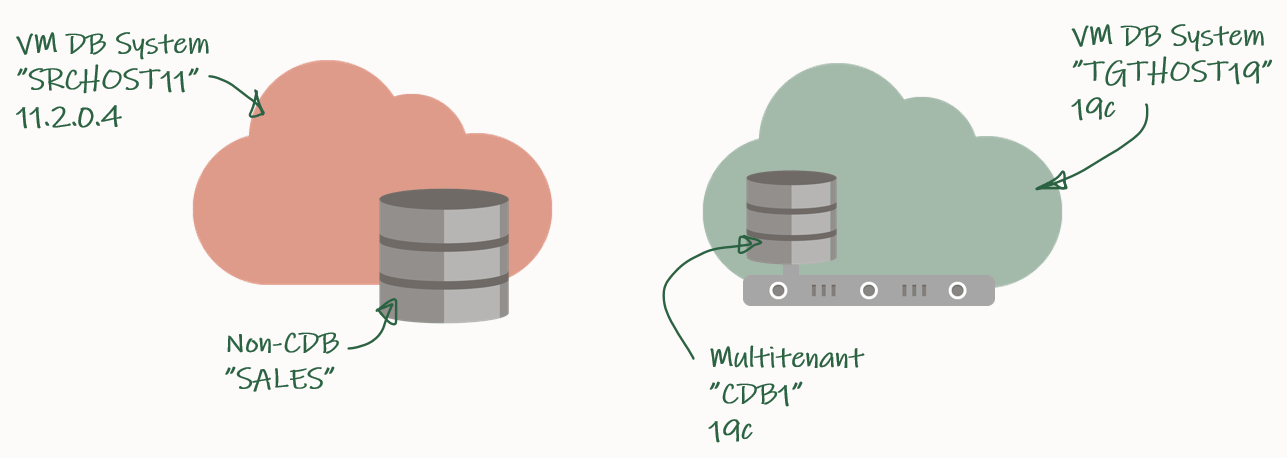
My source environment is the red environment. The DB System is called SRCHOST11 and it has an 11.2.0.4 database that is called SALES. Due to the restrictions of the VM DB System I have to move the database to a new DB System in order to upgrade it. I have created a brand-new target environment – the green environment – on the release that I want to target. I have named the DB System TGTHOST19 and it has a multitenant database called CDB1. When I am done, the target environment – CDB1 – will also contain a PDB named SALES. The SALES PDB will be the original 11.2.0.4 database that has been upgraded and converted.

For a short period of time I need to spin up a second database instance on the target system. This second – or temporary – instance will be a duplicate of the source database (as non-CDB database) and I will upgrade it to the new release. Then I can plug in the database as a PDB in the precreated CDB database and get rid of the second/temporary instance. You will see how it works later in the blog post.

Backup Database

I need to exchange files between the source and the target systems, and I will use a File Storage service for that. Check out the documentation if you need help creating one – I created one already called upgsales and now I can mount it on my source system:

[opc@srchost11]$ sudo mkdir -p /mnt/upgsales
[opc@srchost11]$ sudo chmod 777 /mnt/upgsales/
[opc@srchost11]$ sudo mount x.x.x.x:/upgsales /mnt/upgsales

While the source database is still open and in use, I will start preparing the backup. First, the password file and wallet:

[oracle@srchost11]$ mkdir -p /mnt/upgsales/backup
[oracle@srchost11]$ cp /opt/oracle/dcs/commonstore/wallets/tde/$ORACLE_UNQNAME/ewallet.p12 /mnt/upgsales/
[oracle@srchost11]$ cp $ORACLE_HOME/dbs/orapw$ORACLE_SID /mnt/upgsales/orapw$ORACLE_SID

If you are really concerned about security, you can copy the wallet file directly to the target system – instead of via the File Storage service. The File Storage service itself is secured, but the fewer places you have a copy of the wallet – the better and the safer, I assume. Further, you can also encrypt traffic to and from the File Storage service.

Next, a PFile:

SALES SQL> CREATE PFILE='/mnt/upgsales/init.ora' FROM SPFILE;

And now I start a level 0 backup:

SALES RMAN> BACKUP INCREMENTAL LEVEL 0 DATABASE FORMAT '/mnt/upgsales/backup/lvl0%U' PLUS ARCHIVELOG FORMAT '/mnt/upgsales/backup/arch%U' ;
SALES RMAN> BACKUP CURRENT CONTROLFILE FORMAT '/mnt/upgsales/backup/controlfile';

Restore Database

On my target system, I need to access the File Storage service as well:

[opc@tgthost19]$ sudo mkdir -p /mnt/upgsales
[opc@tgthost19]$ sudo chmod 777 /mnt/upgsales/
[opc@tgthost19]$ sudo mount x.x.x.x:/upgsales /mnt/upgsales

Next, I will copy the password file and PFile into the target Oracle Home. I need that in order to start the temporary instance. Note, the name of the temporary instance will be SALES – the same as the source database SID:

[oracle@tgthost19]$ cp /mnt/upgsales/init.ora $ORACLE_HOME/dbs/initSALES.ora
[oracle@tgthost19]$ cp /mnt/upgsales/orapwSALES $ORACLE_HOME/dbs/orapwSALES

I also need to copy the wallet:

[oracle@tgthost19]$ mkdir -p /opt/oracle/dcs/commonstore/wallets/tde/SALES
[oracle@tgthost19]$ cp /mnt/upgsales/ewallet.p12 /opt/oracle/dcs/commonstore/wallets/tde/SALES/

And I need to create a directory for audit_file_dest:

[oracle@tgthost19]$ mkdir -p /u01/app/oracle/admin/SALES/adump

Now, I must edit the PFile:

[oracle@tgthost19]$ vi $ORACLE_HOME/dbs/initSALES.ora

And make the following changes:

  • Remove all the double-underscore parameters that contains the memory settings from last restart. That could for instance be SALES.__db_cache_size.
  • Set audit_file_dest=’/u01/app/oracle/admin/SALES/adump’
  • Set control_files=’+RECO/sales/controlfile/current.256.1048859635′
  • Set SALES.sga_target=6G
  • Set SALES.pga_aggregate_target=2G
  • Set db_unique_name=’SALES’

I don’t have an abundance of memory on this system, so I keep the memory settings. Strictly speaking you don’t have to change db_unique_name, but I am doing it so it will be easier to cleanup afterwards.

While I work on the temporary instance, I must shut down the other database – the pre-created one that eventually will hold the PDB. Most likely there is not enough memory on the system to support two databases:

[oracle@tgthost19]$ $ORACLE_HOME/bin/srvctl stop database -db $ORACLE_UNQNAME

Let’s start the temporary instance in NOMOUNT mode. Remember to set the environment:

[oracle@tgthost19]$ export ORACLE_UNQNAME=SALES
[oracle@tgthost19]$ export ORACLE_SID=SALES
[oracle@tgthost19]$ sql / as sysdba

SALES SQL> STARTUP NOMOUNT

And finally, I can start the restore using RMAN. Once the database is mounted I must open the keystore, otherwise, the database can’t perform recovery. Then, I can use the catalog command to find the backup pieces in my staging area. And finally, do the restore:

[oracle@tgthost19]$ rman target /

SALES RMAN> RESTORE CONTROLFILE FROM '/mnt/upgsales/backup/controlfile';
SALES RMAN> ALTER DATABASE MOUNT;
SALES RMAN> sql 'ADMINISTER KEY MANAGEMENT SET KEYSTORE OPEN FORCE KEYSTORE IDENTIFIED BY <SALES-keystore-password>';
SALES RMAN> sql "ADMINISTER KEY MANAGEMENT CREATE LOCAL AUTO_LOGIN KEYSTORE FROM KEYSTORE ''/opt/oracle/dcs/commonstore/wallets/tde/$ORACLE_UNQNAME/'' IDENTIFIED BY <SALES-keystore-password>";
SALES RMAN> CATALOG START WITH '/mnt/upgsales/backup' NOPROMPT;
SALES RMAN> RESTORE DATABASE;

The SALES database is now restored on my target system. I will leave it there – unrecovered and in MOUNT mode so I can apply incremental backups later on.

Incremental Backup/Recover

I can do as many incremental backup/recover cycles as I want. But what matters is that I make one and restore it – as close to the start of the downtime window as possible. This will significantly reduce the time it takes to make the final incremental backup/restore later on.

On my source database, start an incremental backup:

[oracle@srchost11]$ rman target /

SALES RMAN> BACKUP INCREMENTAL LEVEL 1 DATABASE FORMAT '/mnt/upgsales/backup/lvl1%U' PLUS ARCHIVELOG FORMAT '/mnt/upgsales/backup/arch%U';

Now, switch to the target system and recover using that backup. I use the CATALOG command to instruct RMAN to find new backups at the shared file storage.

[oracle@tgthost19]$ rman target /

RMAN SALES> CATALOG START WITH '/mnt/upgsales/backup' NOPROMPT;
RMAN SALES> RECOVER DATABASE;

RMAN will complain about a missing log file. But worry – this is expected and will be fixed later on:

RMAN-00571: ===========================================================
RMAN-00569: =============== ERROR MESSAGE STACK FOLLOWS ===============
RMAN-00571: ===========================================================
RMAN-03002: failure of recover command at 08/28/2020 09:06:51
RMAN-06054: media recovery requesting unknown archived log for thread 1 with sequence 60 and starting SCN of 793358

Down Time Starts

Now it is time to kick users off the database. Your precious downtime starts now.

Prepare Database For Upgrade

In my database I will create some sample data so I can verify the upgrade:

SALES SQL> CREATE USER UPG19 IDENTIFIED BY <secret-password>;
SALES SQL> ALTER USER UPG19 QUOTA UNLIMITED ON USERS;
SALES SQL> CREATE TABLE UPG19.ORDERS(ID NUMBER, CUSTOMER VARCHAR2(50), AMOUNT NUMBER) TABLESPACE USERS;
SALES SQL> INSERT INTO UPG19.ORDERS VALUES(1, 'John', 500);
SALES SQL> COMMIT;

I must prepare my database for upgrade on the source system. When I open the database on the target system, I can only do that in UPGRADE mode (because the database will be restored using 19c Oracle Home). In UPGRADE mode it is impossible to do the pre-upgrade tasks.

I will use the classic preupgrade.jar tool in this demo, but you could also use the newer AutoUpgrade. Always get the latest preupgrade tool from My Oracle Support. Upload the zip file (named preupgrade_19_cbuild_7_lf.zip in my demo) to the source system, extract to $ORACLE_HOME/rdbms/admin and do the pre-upgrade checks:

[oracle@srchost11]$ cp preupgrade_19_cbuild_7_lf.zip $ORACLE_HOME/rdbms/admin
[oracle@srchost11]$ cd $ORACLE_HOME/rdbms/admin
[oracle@srchost11]$ unzip preupgrade_19_cbuild_7_lf.zip

[oracle@srchost11]$ mkdir -p /mnt/upgsales/preupg_logs_SALES
[oracle@srchost11]$ cd /mnt/upgsales/preupg_logs_SALES
[oracle@srchost11]$ $ORACLE_HOME/jdk/bin/java -jar $ORACLE_HOME/rdbms/admin/preupgrade.jar FILE TEXT DIR .

You must upload the same version of the preupgrade tool to the target system before you can run the post-upgrade fixups. Hence, save the zip file so you don’t have to download it again.

Next, I will review the report generated by the tool:

[oracle@srchost11]$ more /mnt/upgsales/preupg_logs_SALES/preupgrade.log

And I can execute the pre-upgrade fixups:

SALES SQL> SET SERVEROUT ON
SALES SQL> @/mnt/upgsales/preupg_logs_SALES/preupgrade_fixups.sql

Final Incremental Backup/Recover

I can now make the last incremental backup on my source system. To be absolutely sure nothing else gets into the source database from now on, I restart the database in restricted mode:

[oracle@srchost11]$ sqlplus / as sysdba

SALES SQL> SHUTDOWN IMMEDIATE
SALES SQL> STARTUP RESTRICT

Then I use RMAN to archive the current log file and start the last backup:

[oracle@srchost11]$ rman target /

SALES RMAN> sql 'ALTER SYSTEM ARCHIVE LOG CURRENT';
SALES RMAN> BACKUP INCREMENTAL LEVEL 1 DATABASE FORMAT '/mnt/upgsales/backup/lvl1%U' PLUS ARCHIVELOG FORMAT '/mnt/upgsales/backup/arch%U';

Now, switch to the target system, catalog the new backups:

[oracle@tgthost19]$ rman target /

RMAN SALES> CATALOG START WITH '/mnt/upgsales/backup' NOPROMPT;

By default, RMAN will try to perform complete recovery. But I can’t do that because I don’t have the online redo logs. I must perform incomplete recovery. That sounds dangerous, but it is not. I archived the current log file after I had ensured that no one was using the system (I started in restricted mode, remember). To perform incomplete recovery, I must know at which sequence to stop. I will use the LIST command in RMAN to do that:

RMAN SALES> LIST BACKUP OF ARCHIVELOG ALL;
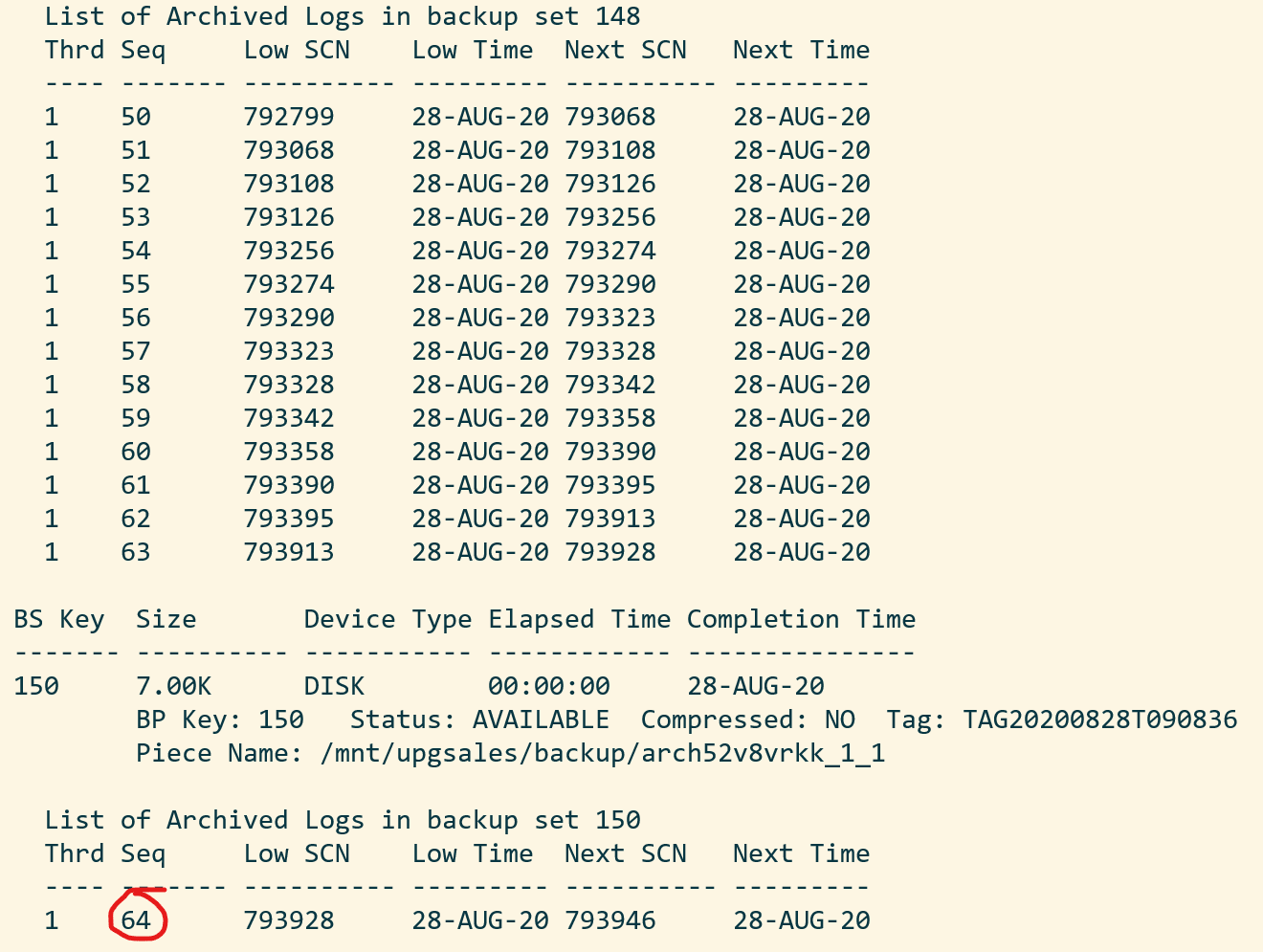
Sample output of RMAN command "list archivelog all" showing which sequence to restore until I take the last available sequence and add one. In my case, I will recover until sequence 65:

RMAN SALES> run {
   SET UNTIL SEQUENCE 65 THREAD 1;
   RECOVER DATABASE;
}

Finally, you can switch to SQLPlus and open the database. You could in theory also do that from RMAN but likely you will hit ORA-04023: Object SYS.STANDARD could not be validated or authorized:

[oracle@tgthost19]$ sqlplus / as sysdba

SALES SQL> ALTER DATABASE OPEN RESETLOGS UPGRADE;

Upgrade Database

I must upload the same version of the preupgrade tool to the target Oracle Home, before I can do the post-upgrade fixups:

[oracle@tgthost19]$ cp preupgrade_19_cbuild_7_lf.zip $ORACLE_HOME/rdbms/admin
[oracle@tgthost19]$ cd $ORACLE_HOME/rdbms/admin
[oracle@tgthost19]$ unzip preupgrade_19_cbuild_7_lf.zip

I can now upgrade the database. Ensure to use the same prompt that has the environment set to the SALES database – the temporary instance:

[oracle@tgthost19]$ mkdir -p /mnt/upgsales/upg_logs_SALES
[oracle@tgthost19]$ dbupgrade -l /mnt/upgsales/upg_logs_SALES

Once the upgrade completes, I will finish with the post-upgrade tasks

SQL> STARTUP

SQL> --Recompile
SQL> @$ORACLE_HOME/rdbms/admin/utlrp
SQL> --Check outcome of upgrade
SQL> @$ORACLE_HOME/rdbms/admin/utlusts.sql
SQL> --Post-upgrade fixups
SQL> @/mnt/upgsales/preupg_logs_$SOURCE_SID/postupgrade_fixups.sql
SQL> --Timezone file upgrade
SQL> SET SERVEROUTPUT ON
SQL> @$ORACLE_HOME/rdbms/admin/utltz_upg_check.sql
SQL> @$ORACLE_HOME/rdbms/admin/utltz_upg_apply.sql

Last, have a look in the report generated by preupgrade.jar to see if there are any post-upgrade tasks that you have to execute:

[oracle@tgthost19]$ more /mnt/upgsales/preupg_logs_SALES/preupgrade.log

Plug In Database

Now that the temporary database is upgraded let’s look at what we need to prepare for the conversion to a PDB. First, I will export the encryption keys:

SALES SQL> ADMINISTER KEY MANAGEMENT EXPORT ENCRYPTION KEYS WITH SECRET "<a-secret-password>" TO '/mnt/upgsales/key_export_SALES' FORCE KEYSTORE IDENTIFIED BY <SALES-keystore-password>;

And then I open the database in READ ONLY mode to create a manifest file. After that, I completely shut down the temporary database and, hopefully, it won’t be needed anymore:

SALES SQL> SHUTDOWN IMMEDIATE
SALES SQL> STARTUP MOUNT
SALES SQL> ALTER DATABASE OPEN READ ONLY;
SALES SQL> EXEC DBMS_PDB.DESCRIBE('/mnt/upgsales/manifest_sales.xml');
SALES SQL> SHUTDOWN IMMEDIATE

Now, I will restart CDB1 which I shut down previously. I will work in CDB1 for the rest of the blog post. Notice, how I am resetting my environment variables to the original values using the source command. You could also open a new SSH session instead. Anyway, just ensure that your environment is now set to work on the original database, CDB1:

[oracle@tgthost19]$ source ~/.bashrc
[oracle@tgthost19]$ env | grep ORA
[oracle@tgthost19]$ $ORACLE_HOME/bin/srvctl start database -db $ORACLE_UNQNAME

I check for plug in compatibility:

CDB1 SQL> SET SERVEROUT ON
CDB1 SQL> BEGIN 
    IF DBMS_PDB.CHECK_PLUG_COMPATIBILITY('/mnt/upgsales/manifest_sales.xml', 'SALES') THEN
        DBMS_OUTPUT.PUT_LINE('SUCCESS');
    ELSE
        DBMS_OUTPUT.PUT_LINE('ERROR');
    END IF;
END;
/

Hopefully, it should read out SUCCESS. If not, you can query PDB_PLUG_IN_VIOLATIONS to find out why:

CDB1 SQL> SELECT type, message, action FROM pdb_plug_in_violations WHERE name='SALES' and status='PENDING';

I can plug in the SALES database as a new PDB – which I also will call SALES. I am using the MOVE keyword to have my data files moved to a directory that matches the naming standard:

CDB1 SQL> CREATE PLUGGABLE DATABASE SALES USING '/mnt/upgsales/manifest_sales.xml' MOVE;
CDB1 SQL> ALTER PLUGGABLE DATABASE SALES OPEN;

I could also use the NOCOPY keyword and just use the data files from where they currently are placed. Later on, I could move the data files to a proper directory that follows the naming standard, and if I were on Enterprise Edition, I could even use online datafile move.

Next, I can switch to the SALES PDB and import my encryption keys from the file I made a little earlier. Note, that I must enter the secret that I used in the export. And now I have to enter the keystore password for CDB1:

CDB1 SQL> ALTER SESSION SET CONTAINER=SALES;
CDB1 SQL> ADMINISTER KEY MANAGEMENT IMPORT ENCRYPTION KEYS WITH SECRET "a-secret-password" FROM '/mnt/upgsales/key_export_SALES' FORCE KEYSTORE IDENTIFIED BY <CDB1-keystore-password> WITH BACKUP;

Be aware, that if your system tablespaces are encrypted, you might have to import the encryption key into CDB$ROOT as well before you can open the database.

Now, it is time to fully convert the database to a PDB:

CDB1 SQL> ALTER SESSION SET CONTAINER=SALES;
CDB1 SQL> @$ORACLE_HOME/rdbms/admin/noncdb_to_pdb.sql
CDB1 SQL> SHUTDOWN IMMEDIATE
CDB1 SQL> STARTUP

Now, check and resolve any plug-in violations:

CDB1 SQL> ALTER SESSION SET CONTAINER=CDB$ROOT;
CDB1 SQL> SELECT type, message, action FROM pdb_plug_in_violations WHERE name='SALES' and status='PENDING';

And finally, ensure that OPEN_MODE=READ WRITE and RESTRICTED=NO. When so, I can save the state of the PDB so it will auto-open whenever the CDB restarts:

CDB1 SQL> ALTER SESSION SET CONTAINER=CDB$ROOT;
CDB1 SQL> SELECT OPEN_MODE, RESTRICTED FROM V$PDBS WHERE NAME='SALES';
CDB1 SQL> ALTER PLUGGABLE DATABASE SALES SAVE STATE;

Verify that my test data exist:

CDB1 SQL> ALTER SESSION SET CONTAINER=SALES;
CDB1 SQL> SELECT * FROM UPG19.ORDERS;

That’s it. The database is now fully upgraded to 19c and converted to a PDB. Be sure to:

  • Start a backup
  • Test your application
  • Adjust your connection strings
  • And what else your procedure mandates

Wrap-Up

Let’s clean up on the target system! I can remove the files and folders that were created to support the temporary instance:

[oracle@tgthost19]$ #audit dest
[oracle@tgthost19]$ rm -rf /u01/app/oracle/admin/SALES/adump
[oracle@tgthost19]$ #diag dest
[oracle@tgthost19]$ rm -rf /u01/app/oracle/diag/rdbms/sales
[oracle@tgthost19]$ #wallet
[oracle@tgthost19]$ rm -rf /opt/oracle/dcs/commonstore/wallets/tde/SALES
[oracle@tgthost19]$ #instance files
[oracle@tgthost19]$ rm $ORACLE_HOME/dbs/initSALES.ora
[oracle@tgthost19]$ rm $ORACLE_HOME/dbs/orapwSALES
[oracle@tgthost19]$ rm $ORACLE_HOME/dbs/spfileSALES.ora
[oracle@tgthost19]$ rm $ORACLE_HOME/dbs/hc_SALES.dat
[oracle@tgthost19]$ rm $ORACLE_HOME/dbs/lkSALES
[oracle@tgthost19]$ #exported master key
[oracle@tgthost19]$ rm /mnt/upgsales/key_export_SALES

Also, since I stored data files in ASM I can delete those as well. Note you have to log on as grid to do that:

[grid@tgthost19]$ asmcmd rm -rf +DATA/SALES
[grid@tgthost19]$ asmcmd rm -rf +RECO/SALES

I can also drop the PDB that gets created automatically when you deploy the new DB System. In my case it is named CDB1_PDB1:

SQL> ALTER PLUGGABLE DATABASE CDB1_PDB1 CLOSE;
SQL> DROP PLUGGABLE DATABASE CDB1_PDB1 INCLUDING DATAFILES;

Also, I can remove the File Storage service that I created. If you want to keep log files from the upgrade (or other files) be sure to copy them somewhere else.

Last, when I am convinced that my upgraded and converted database is doing good, I can terminate the entire source DB system.

Tweaks

If you have a license for any of the Enterprise Edition offerings you might be able to use some of the below features to speed up and backup and recovery. Before using any of them be sure to check the license guide and confirm you have a proper license.

  • Block change tracking – reduces backup time because RMAN doesn’t need to scan the entire database.
  • Parallel backup and recovery – more channels, faster backups and faster restores.
  • Compression – reduces the size of the backups. Since you can apply incremental backups continuously the backup size should be fairly small anyway.

Disclaimer

I am not a backup expert (probably far from). When writing this post I was struggling a lot with missing archive logs. I even had to call an old mentor for advice. But in the end, I decided just to include them in all backups. Possibly, there is a die-hard-RMAN-expert out there that can tell me a better way of doing it. But for sure it doesn’t hurt to include them…

If you come up with a better way, please leave a comment. I would love to learn more.

Conclusion

You can upgrade a 11.2.0.4 database to 19c by moving the database to a new VM DB System. You can reduce downtime by using incremantal backups. You must convert the database to a pluggable database as well because multitenant is the only supported architecture for VM DB Systems on 19c.

References

Other Posts in This Series

Upgrading in the cloud – VM DB Systems – 11.2.0.4 to 19c (simple)

In this blog post I will show you how you can upgrade a database on 11.2.0.4 to 19c. It will also include conversion from the non-CDB architecture into a pluggable database. I have to do this because for VM DB Systems the only supported architecture for 19c is multitenant. Finally, I will use a Standard Edition database to show you something that can be used in any edition.

Overview of DB Systems and databases

My source environment is the red environment. The DB System is called SRCHOST11 and it has an 11.2.0.4 database that is called SALES. Due to the restrictions of the VM DB System I have to move the database to a new DB System in order to upgrade it. I have created a brand-new target environment – the green environment – on the release that I want to target. I have named the DB System TGTHOST19 and it has a multitenant database called CDB1. When I am done, the target environment – CDB1 – will also contain a PDB named SALES. The SALES PDB will be the original 11.2.0.4 database that has been upgraded and converted.

The aim of this blog post is to make it as easy as possible. When I have to move the database from the source DB System to the target DB System, I will just make a full backup that I can restore on the target environment. Obviously, this requires downtime and the amount depends on the size of the database and the transfer speed between the two DB Systems.

My highlevel plan for the task looks like this:

  • Prepare database for upgrade
  • Backup database
  • Restore database
  • Upgrade database
  • Plug in database
  • Wrap-Up

I will elaborate a little on the Restore database part. On VM DB Systems you are not allowed to create your own databases. You can only use the database that gets created when the system is provisioned. However, for a short period of time I need to spin up a second database instance on the target system. This second – or temporary – instance will be a duplicate of the source database (as non-CDB database) and I will upgrade it to the new release. Then I can plug in the database as a PDB in the precreated CDB database, and get rid of the second/temporary instance. You will see how it works later in the blog post.

Prepare Database For Upgrade

I need to exchange files between the source and the target systems and I will use a File Storage service for that. Check out the documentation if you need help creating one – I created one already called upgsales and now I can mount it on my source system:

[opc@srchost11]$ sudo mkdir -p /mnt/upgsales
[opc@srchost11]$ sudo chmod 777 /mnt/upgsales/
[opc@srchost11]$ sudo mount x.x.x.x:/upgsales /mnt/upgsales

In my database I will create some sample data so we can verify the upgrade:

SALES SQL> CREATE USER UPG19 IDENTIFIED BY <secret-password>;
SALES SQL> ALTER USER UPG19 QUOTA UNLIMITED ON USERS;
SALES SQL> CREATE TABLE UPG19.ORDERS(ID NUMBER, CUSTOMER VARCHAR2(50), AMOUNT NUMBER) TABLESPACE USERS;
SALES SQL> INSERT INTO UPG19.ORDERS VALUES(1, 'John', 500);
SALES SQL> COMMIT;

DOWN TIME STARTS NOW – get those users off!

I must prepare my database for upgrade on the source system. When I restore the database on the target system I can only open the database in UPGRADE mode (because the database will be restored using 19c Oracle Home). In UPGRADE mode it is impossible to do the pre-upgrade tasks.

I will use the classic preupgrade.jar tool in this demo, but you could also use the newer AutoUpgrade. Always get the latest preupgrade tool from My Oracle Support. Upload the zip file (named preupgrade_19_cbuild_7_lf.zip in my demo) to the source system, extract to $ORACLE_HOME/rdbms/admin and do the pre-upgrade checks:

[oracle@srchost11]$ cp preupgrade_19_cbuild_7_lf.zip $ORACLE_HOME/rdbms/admin
[oracle@srchost11]$ cd $ORACLE_HOME/rdbms/admin
[oracle@srchost11]$ unzip preupgrade_19_cbuild_7_lf.zip

[oracle@srchost11]$ mkdir -p /mnt/upgsales/preupg_logs_SALES
[oracle@srchost11]$ cd /mnt/upgsales/preupg_logs_SALES
[oracle@srchost11]$ $ORACLE_HOME/jdk/bin/java -jar $ORACLE_HOME/rdbms/admin/preupgrade.jar FILE TEXT DIR .

You must upload the same version of the preupgrade tool to the target system before you can run the post-upgrade fixups. Hence, save the zip file so you don’t have to download it again.

Next, I will review the report generated by the tool:

[oracle@srchost11]$ more /mnt/upgsales/preupg_logs_SALES/preupgrade.log

And I can execute the pre-upgrade fixups:

SALES SQL> SET SERVEROUT ON
SALES SQL> @/mnt/upgsales/preupg_logs_SALES/preupgrade_fixups.sql

Backup Database

The database is now prepared for upgrade. Next, I will get what I need to move the database. First, a PFile:

SALES SQL> CREATE PFILE='/mnt/upgsales/init.ora' FROM SPFILE;

Now I will shut down the database and restart in MOUNT mode. Then I can start a level 0 backup:

SALES SQL> SHUTDOWN IMMEDIATE
SALES SQL> STARTUP MOUNT
SALES SQL> EXIT

[oracle@srchost11]$ rman target /

SALES RMAN> BACKUP DATABASE FORMAT '/mnt/upgsales/db_%U';
SALES RMAN> BACKUP CURRENT CONTROLFILE FORMAT '/mnt/upgsales/cf_%U';

Now we just need the password file and wallet:

[oracle@srchost11]$ cp /opt/oracle/dcs/commonstore/wallets/tde/$ORACLE_UNQNAME/ewallet.p12 /mnt/upgsales/
[oracle@srchost11]$ cp $ORACLE_HOME/dbs/orapw$ORACLE_SID /mnt/upgsales/orapw$ORACLE_SID

If you are really concerned about security you can copy the wallet file directly to the target system – instead of via the File Storage service. The File Storage service itself is secured, but the fewer places you have a copy of the wallet – the better and the safer, I assume. Further, you can also encrypt traffic to and from the File Storage service.

Restore Database

On my target system, I need to access the File Storage service as well:

[opc@tgthost19]$ sudo mkdir -p /mnt/upgsales
[opc@tgthost19]$ sudo chmod 777 /mnt/upgsales/
[opc@tgthost19]$ sudo mount x.x.x.x:/upgsales /mnt/upgsales

Next, I will copy the password file and PFile into the target Oracle Home. I need that in order to start the temporary instance. Note, the name of the temporary instance will be SALES – the same as the source database SID:

[oracle@tgthost19]$ cp /mnt/upgsales/init.ora $ORACLE_HOME/dbs/initSALES.ora
[oracle@tgthost19]$ cp /mnt/upgsales/orapwSALES $ORACLE_HOME/dbs/orapwSALES

I also need to copy the wallet:

[oracle@tgthost19]$ mkdir -p /opt/oracle/dcs/commonstore/wallets/tde/SALES
[oracle@tgthost19]$ cp /mnt/upgsales/ewallet.p12 /opt/oracle/dcs/commonstore/wallets/tde/SALES/

And I need to create a directory for audit_file_dest:

[oracle@tgthost19]$ mkdir -p /u01/app/oracle/admin/SALES/adump

Now, I must edit the PFile:

[oracle@tgthost19]$ vi $ORACLE_HOME/dbs/initSALES.ora

And make the following changes:

  • Remove all the double-underscore parameters that contains the memory settings from last restart. That could for instance be SALES.__db_cache_size.
  • Set audit_file_dest=’/u01/app/oracle/admin/SALES/adump’
  • Set control_files=’+RECO/sales/controlfile/current.256.1048859635′
  • Set SALES.sga_target=6G
  • Set SALES.pga_aggregate_target=2G
  • Set db_unique_name=’SALES’

I don’t have an abundance of memory on this sytem, so I keep the memory settings. Strictly speaking you don’t have to change db_unique_name, but I am doing it so it will be easier to cleanup afterwards.

While I work on the temporary instance I must shut down the other database – the pre-created one that eventually will hold the PDB. Most likely there is not enough memory on the system to support two databases:

[oracle@tgthost19]$ sql / as sysdba

CDB1 SQL> SHUTDOWN IMMEDIATE

Let’s start the temporary instance in NOMOUNT mode. Remember to set the environment:

[oracle@tgthost19]$ export ORACLE_UNQNAME=SALES
[oracle@tgthost19]$ export ORACLE_SID=SALES
[oracle@tgthost19]$ sql / as sysdba

SALES SQL> STARTUP NOMOUNT

And finally, I can start the restore using RMAN. Notice how I am using the NOOPEN keyword which instructs RMAN to keep the database MOUNTED and not try to attempt to open the database. If you try to open the database it will fail because the database must be open in UPGRADE mode. At this point in time, the database itself is on 11.2.0.4 but running on 19c binaries:

[oracle@tgthost19]$ rman auxiliary /

SALES RMAN> DUPLICATE DATABASE TO SALES NOOPEN BACKUP LOCATION '/mnt/upgsales/';

Upgrade Database

RMAN left the database in MOUNTED mode. Before I can open the database I must open the keystore:

SQL> ADMINISTER KEY MANAGEMENT SET KEYSTORE OPEN FORCE KEYSTORE IDENTIFIED BY <source-keystore-password>;

Now, I can open the database and execute the RESETLOGS operation that RMAN didn’t do:

SQL> ALTER DATABASE OPEN RESETLOGS UPGRADE;

I must upload the same version of the preupgrade tool to the target Oracle Home, before I can do the post-upgrade fixups:

[oracle@tgthost19]$ cp preupgrade_19_cbuild_7_lf.zip $ORACLE_HOME/rdbms/admin
[oracle@tgthost19]$ cd $ORACLE_HOME/rdbms/admin
[oracle@tgthost19]$ unzip preupgrade_19_cbuild_7_lf.zip

And I can now upgrade the database:

[oracle@tgthost19]$ mkdir -p /mnt/upgsales/upg_logs_SALES
[oracle@tgthost19]$ dbupgrade -l /mnt/upgsales/upg_logs_SALES

Once the upgrade completes I will finish with the post-upgrade tasks

SQL> STARTUP

SQL> --Recompile
SQL> @$ORACLE_HOME/rdbms/admin/utlrp
SQL> --Check outcome of upgrade
SQL> @$ORACLE_HOME/rdbms/admin/utlusts.sql
SQL> --Post-upgrade fixups
SQL> @/mnt/upgsales/preupg_logs_$SOURCE_SID/postupgrade_fixups.sql
SQL> --Timezone file upgrade
SQL> SET SERVEROUTPUT ON
SQL> @$ORACLE_HOME/rdbms/admin/utltz_upg_check.sql
SQL> @$ORACLE_HOME/rdbms/admin/utltz_upg_apply.sql

Last, have a look in the report generated by preupgrade.jar to see if there are any post-upgrade tasks that you have to execute:

[oracle@tgthost19]$ more /mnt/upgsales/preupg_logs_SALES/preupgrade.log

Plug In Database

Now that the temporary database is upgraded let’s look at what we need to prepare for the conversion to a PDB. First, I will export the encryption keys:

SALES SQL> ADMINISTER KEY MANAGEMENT EXPORT ENCRYPTION KEYS WITH SECRET "<a-secret-password>" TO '/mnt/upgsales/key_export_SALES' FORCE KEYSTORE IDENTIFIED BY <SALES-keystore-password>;

And then I open the database in READ ONLY mode to create a manifest file. After that, I completely shutdown the temporary database and, hopefully, it wont be needed anymore:

SALES SQL> SHUTDOWN IMMEDIATE
SALES SQL> STARTUP MOUNT
SALES SQL> ALTER DATABASE OPEN READ ONLY;
SALES SQL> EXEC DBMS_PDB.DESCRIBE('/mnt/upgsales/manifest_sales.xml');
SALES SQL> SHUTDOWN IMMEDIATE

Now, I will restart CDB1 which I shut down previously. I will work in CDB1 for the rest of the blog post. Notice, how I am resetting my environment variables to the original values using the source command. You could also open a new SSH session instead. Anyway, just ensure that your environment is now set to work on the original database, CDB1:

[oracle@tgthost19]$ source ~/.bashrc
[oracle@tgthost19]$ env | grep ORA
[oracle@tgthost19]$ sql / as sysdba

CDB1 SQL> STARTUP

I check for plug in compability:

CDB1 SQL> SET SERVEROUT ON
CDB1 SQL> BEGIN 
    IF DBMS_PDB.CHECK_PLUG_COMPATIBILITY('/mnt/upgsales/manifest_sales.xml', 'SALES') THEN
        DBMS_OUTPUT.PUT_LINE('SUCCESS');
    ELSE
        DBMS_OUTPUT.PUT_LINE('ERROR');
    END IF;
END;
/

Hopefully, it should read out SUCCESS. If not, you can query PDB_PLUG_IN_VIOLATIONS to find out why:

CDB1 SQL> SELECT type, message, action FROM pdb_plug_in_violations WHERE name='SALES' and status='PENDING';

I can plugin the SALES database as a new PDB – which I also will call SALES. I am using the MOVE keyword to have my data files moved to a directory that matches the naming standard:

CDB1 SQL> CREATE PLUGGABLE DATABASE SALES USING '/mnt/upgsales/manifest_sales.xml' MOVE;
CDB1 SQL> ALTER PLUGGABLE DATABASE SALES OPEN;

I could also use the NOCOPY keyword and just use the data files from where they currently are placed. Later on, I could move the data files to a proper directory that follows the naming standard, and if I were on Enterprise Edition I could even use online datafile move.

Next, I can switch to the SALES PDB and import my encryption keys from the file I made a little earlier. Note, that I must enter the secret that I used in the export. And now I have to enter the keystore password for CDB1:

CDB1 SQL> ALTER SESSION SET CONTAINER=SALES;
CDB1 SQL> ADMINISTER KEY MANAGEMENT IMPORT ENCRYPTION KEYS WITH SECRET "a-secret-password" FROM '/mnt/upgsales/key_export_SALES' FORCE KEYSTORE IDENTIFIED BY <CDB1-keystore-password> WITH BACKUP;

Be aware, that if your system tablespaces are encrypted, you might have to import the encryption key into CDB$ROOT as well before you can open the database.

Now, it is time to fully convert the database into a PDB:

CDB1 SQL> ALTER SESSION SET CONTAINER=SALES;
CDB1 SQL> @$ORACLE_HOME/rdbms/admin/noncdb_to_pdb.sql
CDB1 SQL> SHUTDOWN IMMEDIATE
CDB1 SQL> STARTUP

Now, check and resolve any plug in violations:

CDB1 SQL> ALTER SESSION SET CONTAINER=CDB$ROOT;
CDB1 SQL> SELECT type, message, action FROM pdb_plug_in_violations WHERE name='SALES' and status='PENDING';

And finally, ensure that OPEN_MODE=READ WRITE and RESTRICTED=NO. When so, I can save the state of the PDB so it will auto-open whenever the CDB restarts:

CDB1 SQL> ALTER SESSION SET CONTAINER=CDB$ROOT;
CDB1 SQL> SELECT OPEN_MODE, RESTRICTED FROM V$PDBS WHERE NAME='SALES';
CDB1 SQL> ALTER PLUGGABLE DATABASE SALES SAVE STATE;

That’s it. The database is now fully upgraded to 19c and converted to a PDB. Be sure to:

  • Start a backup
  • Test your application
  • Adjust your connection strings
  • And what else your procedure mandates

Wrap-Up

Let’s clean up on the target system! I can remove the files and folders that were created to support the temporary instance:

[oracle@tgthost19]$ #audit dest
[oracle@tgthost19]$ rm -rf /u01/app/oracle/admin/SALES/adump
[oracle@tgthost19]$ #diag dest
[oracle@tgthost19]$ rm -rf /u01/app/oracle/diag/rdbms/sales
[oracle@tgthost19]$ #wallet
[oracle@tgthost19]$ rm -rf /opt/oracle/dcs/commonstore/wallets/tde/SALES
[oracle@tgthost19]$ #instance files
[oracle@tgthost19]$ rm $ORACLE_HOME/dbs/initSALES.ora
[oracle@tgthost19]$ rm $ORACLE_HOME/dbs/orapwSALES
[oracle@tgthost19]$ rm $ORACLE_HOME/dbs/spfileSALES.ora
[oracle@tgthost19]$ rm $ORACLE_HOME/dbs/hc_SALES.dat
[oracle@tgthost19]$ rm $ORACLE_HOME/dbs/lkSALES
[oracle@tgthost19]$ #exported master key
[oracle@tgthost19]$ rm /mnt/upgsales/key_export_SALES

Also, since I stored data files in ASM I can delete those as well. Note you have to log on as grid to do that:

[grid@tgthost19]$ asmcmd rm -rf +DATA/SALES
[grid@tgthost19]$ asmcmd rm -rf +RECO/SALES

I can also drop the PDB that gets created automatically when you deploy the new DB System. In my case it is named CDB1_PDB1:

SQL> ALTER PLUGGABLE DATABASE CDB1_PDB1 CLOSE;
SQL> DROP PLUGGABLE DATABASE CDB1_PDB1 INCLUDING DATAFILES;

Also, I can remove the File Storage service that I created. If you want to keep log files from the upgrade (or other files) be sure to copy them somewhere else.

Last, when I am convinced that my upgraded and converted database is doing good, I can terminate the entire source DB system.

Tweaks

The transfer speed to the File Storage service is depending on the number of CPUs on your system (more CPUs, more network speed). If the bottleneck is the network, you can try to temporarily add more CPUs.

If you have a license for any of the Enterprise Edition offerings you might be able to use some of the below features to speed up and backup and recovery. Before using any of them be sure to check the license guide and confirm you have a proper license.

  • Parallel backup and recovery – more channels, faster backups and faster restores.
  • Compression – reduces the size of the backups which is beneficial when they are transported over the network.

Conclusion

You can upgrade a 11.2.0.4 database to 19c by moving the database to a new VM DB System. You must convert the database to a pluggable database as well because multitenant is the only supported architecture for VM DB Systems on 19c.

References

Other Posts in This Series