

New Version of AutoUpgrade

Our developers just published a new version of AutoUpgrade. Head over to My Oracle Support and download version 21.1.1.

The version says 21, but it can still upgrade your databases to lower release. So, you should use this new version to upgrade to Oracle Database 19c as well.

The supported target Oracle Database versions that are supported by the new version of AutoUpgrade

What’s New

A total of 48 enhancements and bug fixes made it into the new release. It has been 35 working days since the last release (and that includes Thanksgiving week) which means that the team has put in – on average – close to 1,5 changes into AutoUpgrade every, single working day. I find that quite impressive. And it really supports our message that you should always use the latest version of AutoUpgrade.

In My Oracle Support note 2485457.1 you can find a complete change log. Also, you can also visit the 21c New Feature Guide for additional information.

Unplug/plug Upgrade

The first things that I would like to highlight is unplug/plug upgrade. Instead of upgrading an entire CDB, you can now choose to unplug one or many PDBs, plug them into a higher release CDB, and upgrade the individual PDBs.
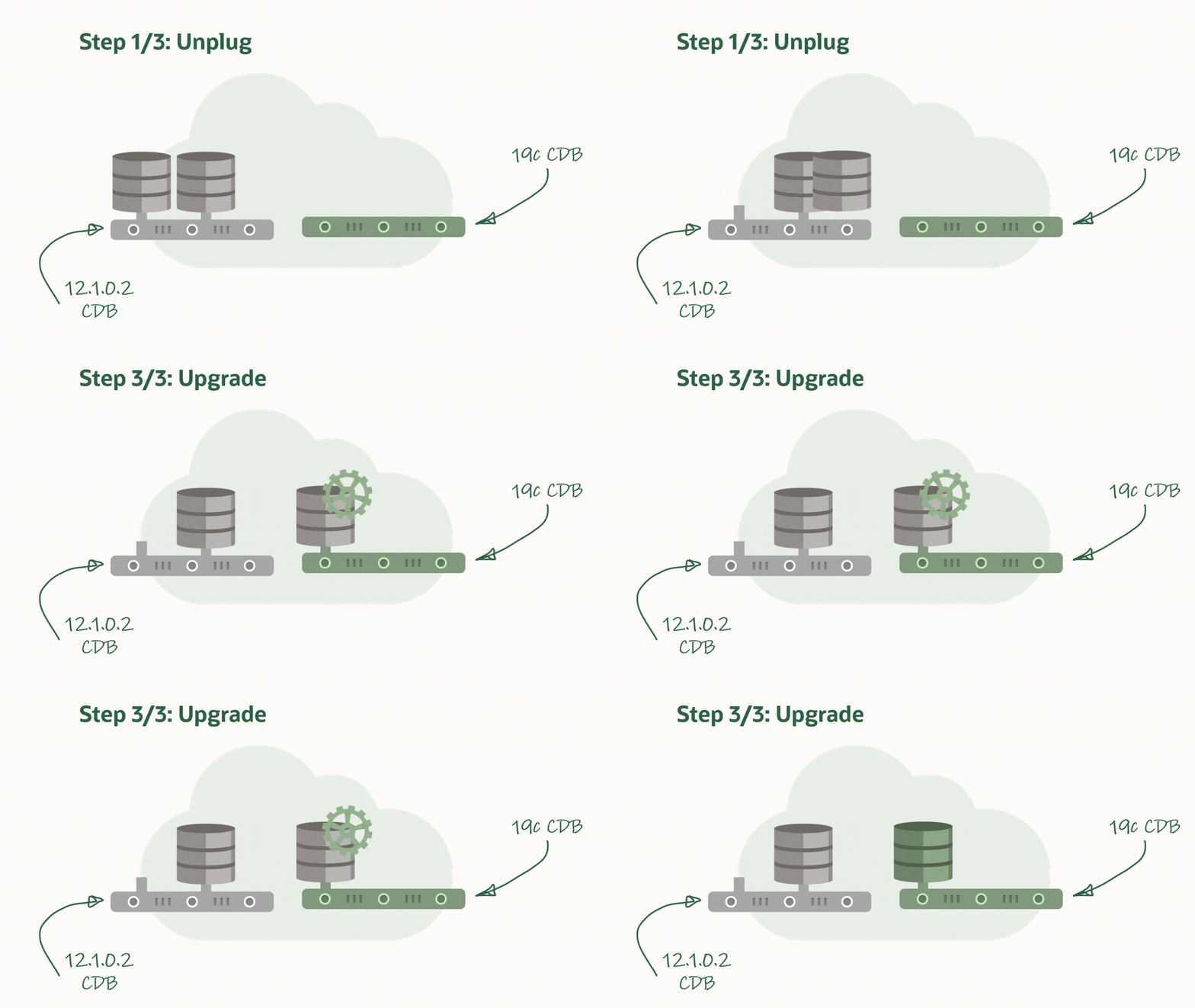
How an unplug/upgrade works of an Oracle Database PDB

How do you specify to upgrade only one PDB? Use target_cdb and pdbs?

upg1.sid=CDB1
upg1.pdbs=PDB3
upg1.source_home=/u01/app/oracle/product/12.2.0.1
upg1.target_home=/u01/app/oracle/product/19
upg1.target_cdb=CDB2

When doing unplug/plug upgrades you must be aware of the COMPATIBLE setting in the higher release CDB. If COMPATIBLE is higher, when the PDB plugs in, COMPATIBLE will silently and automatically be raised by the CDB. This means that you lose the capability of doing downgrades and flashback database.

You can read more about unplug/plug upgrades in the documentation

AutoUpgrade and Oracle Data Guard

In addition, AutoUpgrade now detects that you are upgrading a primary database in a Data Guard setup. In that case, it will automatically defer redo log transport to the standby databases and disable the Data Guard broker. After the upgrade, the broker is automatically restarted, but you need to manually reconfigure the standby databases, and eventually re-enable redo log transport.

You might ask: Why don’t AutoUpgrade handle it all for me? This is to preserve your fallback capabilities. Even after a successful upgrade, you still might want to revert back to the old version. Let’s say your testing finds a critical issue. You might still have a restore point on the primary database, but what if – for some reason – flashing back fails? Then you still have your standby database which was disabled right before the upgrade.

You can read more about AutoUpgrade and Data Guard in the documentation.

More

A few hints for the interested reader to explore. Have a look at the config file option catctl_options. You can use that to control the level of parallelism for a specific upgrade.

Also, if you don’t want AutoUpgrade to handle your network files (e.g. sqlnet.ora, tnsnames.ora) you disable it using manage_network_files.

You can read more about those options in the documentation.

Conclusion

Get the latest version of AutoUpgrade and benefit from the many new features. Keep an eye out for additional blog posts that will dig deeper into the new features.

Is AutoUpgrade resumable?

Short answer: Yes!

Recently, I have been asked a few similar questions:

  • What happens if my SSH session with AutoUpgrade is lost? (see appendix)
  • What happens if AutoUpgrade crashes?
  • What happens if I exit the console by mistake?

First, don’t panic. Second, just restart AutoUpgrade using the same command line. During startup, AutoUpgrade will figure out that it should recover the lost session, and will restart the upgrades.

AutoUpgrade can automatically detect a previous session, and restart from where it left

When AutoUpgrade dies or is terminated, the database upgrades that it started, dies with it. This could happen if you lost your SSH session. The database upgrade stops, but the database is still running, most likely in UPGRADE mode. If you exit AutoUpgrade by mistake (typing exit in the job console), it will first stop the upgrade, and then shutdown the database. In any case, when you afterwards restart AutoUpgrade, it will figure out that a previous AutoUpgrade session was running. It will recover information from the previous session, and if needed restart the database. After that, it will restart the upgrade. If the previous database upgrade was at phase 54, AutoUpgrade will restart from phase 54. This means that all previous work in the upgrade is preserved, and you can resume as if nothing had happened.

Don’t Recover Previous Session

If you for some reason don’t want AutoUpgrade to recover the previous session. Let’s imagine that AutoUpgrade crashed, and you decided to restore the database. Now you want to start all over. In that case, you need to clear the recovery data, otherwise, AutoUpgrade will get confused.

You can read more about the parameters in the documentation.

The Little Hammer (Preferred)

You can clear the recovery for a specific job by adding clear_recovery_data on the command line and use jobs parameter to specific exactly for which jobs recovery data must be cleared.

$ java -jar autoupgrade.jar -config PROD.cfg -mode analyze -clear_recovery_data -jobs 100,101,102

Now, AutoUpgrade will start right from the beginning again but only for the specified jobs.

The Big Hammer

If you don’t specify jobs parameter then AutoUpgrade will clear recovery data for all jobs:

$ java -jar autoupgrade.jar -config PROD.cfg -mode analyze -clear_recovery_data

Be advised, that this will happen for all the upgrades that are specified in the config file. Remember, that one of the big benefits of AutoUpgrade is that one config file can be used to upgrade 10s or 100s of databases.

The Sledgehammer

I would recommend the previous hammers but use this approach as the last solution: Delete all files that are used by AutoUpgrade.

First, delete the directory specified in global.autoupg_log_dir. Next, delete the directory specified in .log_dir. Typically and by default, the second directory is a subdirectory to the first one, so in most cases you just have to delete the first directory. If you have multiple upgrades specified in the same config file you potentially need to delete multiple directories for prefix1.log_dir, prefix2.log_dir and so forth.

Be aware that you are clearing out all information that is used by AutoUpgrade. If you use the same global logging directory for multiple AutoUpgrade sessions (which I would not recommend), then you will be seriously messing things up. But if you are only upgrading this specific database on the server, then you can safely delete the directories to start all over.

Restoring a Test Database – Starting All Over

Very often a test database is upgraded multiple times. Even after a successful upgrade, you might want to retry the upgrade with different settings. If you use AutoUpgrade you must clear the recovery data as specified above. AutoUpgrade doesn’t know that you have restored the database. For all it know, the previous upgrade was successful.

Conclusion

Resuming an AutoUpgrade session is very simple. Just start AutoUpgrade with the same command line. It identifies the previous AutoUpgrade session, and resumes automatically. All the previous work is recovered, and the upgrade will resume from where it was stopped.

Appendix

Lost SSH Session

I heard from several people that they experienced the SSH session timing out because AutoUpgrade didn’t produce any screen output while the upgrade took place. We have put into a our plans to make some sort of regular screen output, so this should be avioded.

Before it is implemented, I would suggest that you look at the keep alive options in SSH:

$ man ssh

Personally, I always start SSH this way, and you can put it into your SSH config:

ssh -o ServerAliveInterval=300

Webinar: Upgrade Your Databases to 19c

Danish Oracle User Group - DOUG

Danish Oracle User Group is hosting a talk tomorrow on Upgrade Your Databases to 19c. I will be presenting and talk about:

Oracle Database 19c is the long term release and this talk is about how to get there. The emphasis is on the AutoUpgrade tool which is the new, recommended way for upgrades. There will be demos that describe how you can get started and the options, you have. In addition, we will cover upgrade best practices and deep insights into the process.

You need to upgrade to Oracle Database 19c and this talk will prepare you.

Time: 25 November 2020 15:00 CET/Copenhagen

The session is open to anyone, so if you are interested simply go their webpage and get the connection details. There is an English version of the text a little down the page. I will give the talk in English.

If you want to have a sneak peek on the slides, there are already published.

I hope to see you tomorrow.

Enabling Local Undo With AutoUpgrade

If you have databases that run in shared undo mode you should switch to local undo mode. Starting from 12.2 this is the default and recommended undo mode, and it offers a lot of cool functionality. Obviously, at the expense of having multiple undo tablespaces. There are already many good blog posts out there that the benefits of local undo and how to enable it.

AutoUpgrade To The Rescue

If you are planning an upgrade with AutoUpgrade, you can also enable local undo during the upgrade. You should simply just configure it in the config file:

upg1.enable_local_undo=YES

And AutoUpgrade will take care of the rest for you. It will even create undo tablespaces in PDB$SEED and all of the PDBs. Once again AutoUpgrade can make your life easier.

What Happens

Before creating the new undo tablespaces, the database will determine the attributes of the tablespace. By default, it will use a ratio of 30% compared to CDB$ROOT:

  • Initial data file size (calculated from current file size)
  • Maximum data files size (MAXBYTES)
  • Grow by (INCREMENT_BY)

Example (default ration 30 %):

Attribute CDB$ROOT PDB
Initial data file size current file size, 500M 150M
Maximum data file size 32G 9.6G
Grow by 5M 1.5M

You can control the ratio using the parameter _seed_root_undo_ratio in CDB$ROOT. To set the percentage to 10% use the following command before the upgrade:

ALTER SYSTEM SET "_seed_root_undo_ratio"=10 SCOPE=SPFILE;

With this knowledge you can now calculate the space you need for all those extra undo tablespaces. Thus, you can avoid to run out of disk space, or have the tablespace set at undesirable size.

After the upgrade, I would advice you to review the undo tablespace size per PDB. Different workload requires different amount of undo. And especially the increment_by attribute can become so low that it will lead to too frequent data file grow operations.

If your database is already in local undo mode then the parameter _seed_root_undo_ratio has no effect at all. The database will not start a grow or shrink operation to meet the ratio defined by the parameter. Once you have switched to local undo mode, you are in full control yourself.

Conclusion

Be sure to enable local undo for all CDBs databases when you upgrade to 12.2 or later releases. If you have many PDBs and you use AutoUpgrade to enable it, be aware of disk space needed for all those tablespaces. And review the settings afterwards.

Mike Dietrich wrote about a similar situation when you create CDBs using DBCA.

Resources