It is now easier to upgrade and convert your encrypted Oracle Database. The latest version of AutoUpgrade adds much better support for Oracle Databases that are encrypted with Transparent Data Encryption (TDE).
You must ensure that you are using the latest version of AutoUpgrade. You can download it from My Oracle Support AutoUpgrade Tool (Doc ID 2485457.1). At the time of writing, the latest version of AutoUpgrade is 22.2:
Dealing with TDE, also means dealing with sensitive information. AutoUpgrade must adequately protect the TDE keystore passwords. To do so, AutoUpgrade can have its own keystore to store sensitive information, i.e., TDE keystore passwords. Whenever a TDE keystore password is needed, e.g., during an unplug-plug upgrade of an encrypted PDB, it can get the password from the AutoUpgrade keystore.
You need to tell AutoUpgrade where it can create the keystore. You do so in the config file:
It is similar to other keystores that Oracle Database use. ewallet.p12 is the keystore, and cwallet.sso is an auto-login keystore used to open the real keystore. You don’t have to create an auto-login keystore.
You should protect the AutoUpgrade keystore files like you protect any other Oracle Database keystore:
Apply restrictive file system permissions.
Audit access.
Back it up.
Using the Keystore
Create your AutoUpgrade config file and specify global.keystore as described above. Start an interactive prompt that allows you to add the necessary passwords:
The first time you use the AutoUpgrade keystore, you must provide a password that protects the AutoUpgrade keystore:
Starting AutoUpgrade Password Loader - Type help for available options
Creating new keystore - Password required
Enter password:
Enter password again:
Keystore was successfully created
In the TDE console, the following commands are available:
add
delete
list
save
help
exit
The SID references the databases. If you want to add a TDE password for the database DB12, use the following command:
TDE> add DB12
Enter your secret/Password:
Re-enter your secret/Password:
TDE> add CDB2
Enter your secret/Password:
Re-enter your secret/Password:
If you want to delete the TDE password for DB12:
TDE> delete DB12

Keystore Password is required prior to operation
Enter wallet password:
When you save the passwords into the AutoUpgrade keystore, you must decide whether you want to have an auto-login keystore:
TDE> save
Convert the keystore to auto-login [YES|NO] ?
I recommend using auto-login keystores. If you do not create an AutoUpgrade auto-login keystore, you will be prompted for the AutoUpgrade keystore password when you start AutoUpgrade.
If you want to use AutoUpgrade in noconsole mode (-noconsole), then an auto-login keystore is required.
I will show how to upgrade and convert encrypted databases in later blog posts.
Loss of AutoUpgrade Keystore
What happens if your AutoUpgrade keystore is lost? This is fairly simple. You can re-create the keystore and load all passwords into it using the load_password command line option as described above.
Preupgrade Checks
We have added new preupgrade checks to the analyze phase in AutoUpgrade. These checks will help you to provide the needed passwords and ensure your TDE configuration meets certain standards:
If you never upgraded a database or it has been a while since you did it, I suggest that you get familiar with AutoUpgrade. Other methods of upgrading still exist, but AutoUpgrade is the only recommended method!
How To
AutoUpgrade is a tool that comes in a single file named autoupgrade.jar. You find it in your Oracle Home in $ORACLE_HOME/rdbms/admin. You should always download the latest version of AutoUpgrade from My Oracle Support and put it into your Oracle Home, thus overwriting the existing file.
AutoUpgrade is fully backward compatible, and a newer version of AutoUpgrade can upgrade databases to a previous version. In this example, AutoUpgrade is version 21.3.211115, but notice the information in build.supported_target_versions:
Version 21 of AutoUpgrade can upgrade your database to Oracle Database 21c and previous releases.
Now, you are ready to analyze your Oracle Database for upgrade readiness and eventually upgrade it. This short YouTube video explains the process.
Finally, you can watch a short demo of a database upgrade.
Try It
But the best way to learn is to do it yourself. You can use our Hands-On Lab for this purpose. You can find an overview of the lab and the lab instructions on Mike Dietrich’s blog.
You can run the lab in two ways.
VirtualBox image
The Hands-On Lab comes as a self-contained VirtualBox image that you download and run on your own computer. It requires around 100 GB of disk space and a fairly modern computer. Nothing fancy, but it doesn’t run smoothly on arcane hardware. Get started here.
Watch this video and learn how to provision a lab in Oracle LiveLabs.
Guided Tour
If you get stuck in the lab or just want to watch and let Mike Dietrich do all the typing, you can watch this recorded session of the complete hands-on lab.
Further Reading
Once done with the lab, you can start on these additional ressources:
Using AutoUpgrade, you can upgrade your encrypted Oracle Database and convert to a pluggable database. The process is not entirely automated, so you must handle the TDE encryption key manually.
A new parameter called skip_tde_key_import is introduced. Here is what the documentation says:
(Optional) The default is NO. You can use this option for non-CDB-to-PDB and unplug/plug operations. When set to YES, the upgrade is run, but import of the source database KeyStore into the target database is skipped, without raising an error. AutoUpgrade will leave the PDB open in upgrade mode, so that you can import the keys manually yourself. After you import the keys, you must then restart the database in normal mode.
In other words, AutoUpgrade does everything except import of the TDE encryption key.
How To
This is what happens:
AutoUpgrade handles the green things – you handle the yellow thing. My environment:
Non-CDB called FTEX running on Oracle Database 11.2.0.4
FTEX is encrypted with TDE and has an auto-login keystore
CDB called CDB2 running on Oracle Database 19c
CDB2 is prepared for TDE and has a keystore defined
First, I ensure that AutoUpgrade is version 21.2 or newer:
java -jar autoupgrade.jar -version
I create a config file for AutoUpgrade. Notice, that I have specified that the database is plugged into CDB2 using the parameter target_cdb. Also, notice that I have specified the new parameter skip_tde_key_import and set it to YES:
After the upgrade and conversion to PDB, I log on to CDB2. I want to check the outcome. Has FTEX been upgraded and converted?
SQL> select name, open_mode, restricted from v$pdbs

NAME      OPEN_MODE    RESTRICTED
PDB$SEED  READ ONLY    NO
FTEX      READ WRITE   YES
Open – but restricted. I check for plug-in violations:
SQL> select cause, type, message, status, action
     from pdb_plug_in_violations
     where name = 'FTEX' AND status not in ('RESOLVED')

CAUSE                TYPE       MESSAGE                                STATUS     ACTION
Wallet Key Needed    ERROR      PDB needs to import keys from source.  PENDING    Import keys from source.
OK. This is expected. AutoUpgrade does not handle the TDE encryption key. See the yellow part of the arrow above. You have to do that.
I start by merging the two keystores – the keystore of the old non-CDB database (FTEX) and the keystore of the CDB (CDB2). I merge the two keystores into the one of CDB2:
CDB$ROOT SQL> administer key management
   merge keystore '/u01/app/oracle/admin/FTEX/wallet' identified by "oracle_4U"
   into existing keystore '/u01/app/oracle/admin/CDB2/wallet/tde' identified by "oracle_4U"
   with backup using 'merge_keystore';
Notice that I have specified the folders of keystores and not the actually file names. I have also specified the keystore password for both the keystores. And, finally, I tell the database to create a backup of the keystore before the merge (as a precaution – and I recommend always doing that).
Now, I switch to the FTEX PDB. I need to configure FTEX to use the TDE encryption key that is merged from the old keystore. Each key in the keystore has a key ID and I tell the PDB to use the right one. I explain later on how to determine the key ID:
CDB$ROOT SQL> alter session set container=FTEX;

FTEX SQL> administer key management
   use key 'Ad8l2SYuf0/dv+6Au9tRmAIAAAAAAAAAAAAAAAAAAAAAAAAAAAAA'
   force keystore identified by "oracle_4U"
   with backup using 'use_key_ftex';
Now, the PDB knows the TDE encryption key and you can actually start to query data from an encrypted tablespace. However, there is still a plug-in violation saying the TDE encryption key has to be imported. The PDB insists that the encryption key is imported – rather than merged into the keystore. So I will export the key from the PDB and import it again:
FTEX SQL> administer key management
   export keys with secret "secret-passphrase"
   to '/etc/oracle/exported-keys-ftex' force keystore identified by "oracle_4U";
FTEX SQL> administer key management
   import keys with secret "secret-passphrase"
   from '/etc/oracle/exported-keys-ftex' force keystore identified by "oracle_4U"
   with backup using 'import_key_ftex';
FTEX SQL> host rm /etc/oracle/exported-keys-ftex
The encryption key is saved in an encrypted file in the OS. The file is encrypted using a passphrase (secret-passphrase), and you should pick a better one than I did. Finally – and important – I remove the file from the OS when I am done. I don’t want my encryption keys lying around in files all over the OS.
I restart the FTEX PDB:
FTEX SQL> alter pluggable database FTEX close immediate;
FTEX SQL> alter pluggable database FTEX open;
And the PDB is now open in READ WRITE mode and unrestricted
SQL> select name, open_mode, restricted from v$pdbs

NAME      OPEN_MODE    RESTRICTED
PDB$SEED  READ ONLY    NO
FTEX      READ WRITE   NO
I check for plug-in violations:
SQL> select cause, type, message, status, action
     from pdb_plug_in_violations
     where name = 'FTEX' AND status not in ('RESOLVED')

No rows selected.
Job done! Encrypted database upgraded and converted to a PDB.
Determine Key ID
Use the orapki utility to determine the key ID of the TDE encryption key. Specify the location of the old non-CDB keystore:
orapki wallet display -wallet /u01/app/oracle/admin/FTEX/wallet

Oracle PKI Tool : Version 11.2.0.4.0 - Production
Copyright (c) 2004, 2013, Oracle and/or its affiliates. All rights reserved.

Requested Certificates:
User Certificates:
Oracle Secret Store entries:
ORACLE.SECURITY.DB.ENCRYPTION.Ad8l2SYuf0/dv+6Au9tRmAIAAAAAAAAAAAAAAAAAAAAAAAAAAAAA
ORACLE.SECURITY.DB.ENCRYPTION.MASTERKEY
ORACLE.SECURITY.TS.ENCRYPTION.BUCsXzQga4wfJ8gNSuptAPMCAwAAAAAAAAAAAAAAAAAAAAAAAAAA
Trusted Certificates:
Subject:        OU=Class 1 Public Primary Certification Authority,O=VeriSign\, Inc.,C=US
Subject:        OU=Class 3 Public Primary Certification Authority,O=VeriSign\, Inc.,C=US
Subject:        OU=Class 2 Public Primary Certification Authority,O=VeriSign\, Inc.,C=US
Subject:        OU=Secure Server Certification Authority,O=RSA Data Security\, Inc.,C=US
Subject:        CN=GTE CyberTrust Global Root,OU=GTE CyberTrust Solutions\, Inc.,O=GTE Corporation,C=US
The TDE encryption key is starting with ORACLE.SECURITY.DB.ENCRYPTION and doesn’t end on MASTERKEY. In the above example the key ID is Ad8l2SYuf0/dv+6Au9tRmAIAAAAAAAAAAAAAAAAAAAAAAAAAAAAA.
If your non-CDB is Oracle Database 12c or later you can also get the key ID using a view:
SQL> select key_id from v$encryption_keys where key_use='TDE';
Why Do I Need to Export and Import?
Above you saw that I had to export and import the encryption keys, even after merging the keystores. You might ask: Why is that even needed? Why is the ADMINISTER KEY MANAGEMENT MERGE KEYSTORE command not enough?
That’s a very good question. I have reached out to our security people to get their take on it. It sounds like a bug to me.
The Future
The above solution makes it easier to handle encrypted databases. But we are not satisfied yet. A future version of AutoUpgrade will have even better support for encrypted databases, and everything will be automated.
The biggest issue for us is to find a safe way to handle the TDE keystore password. We need to have a safe way of getting the password from you and storing it in memory until we actually need it.
We are just about to start testing the very first version of AutoUpgrade with proper TDE support. If you are interested in becoming a beta tester, reach out to me to work something out.
Conclusion
Converting encrypted databases to PDB is now possible in AutoUpgrade. AutoUpgrade mainly handles the process, but you have to manage the TDE encryption keys yourself.
You can upgrade your Oracle Database with less downtime. With the release of AutoUpgrade 21.2 we added the fast deploy option. It allows you to run the preupgrade fixups while the database is still online. Only the actual upgrade will now require downtime.
The Usual Upgrade
When you upgrade the usual way, i.e., using AutoUpgrade in deploy mode, then you:
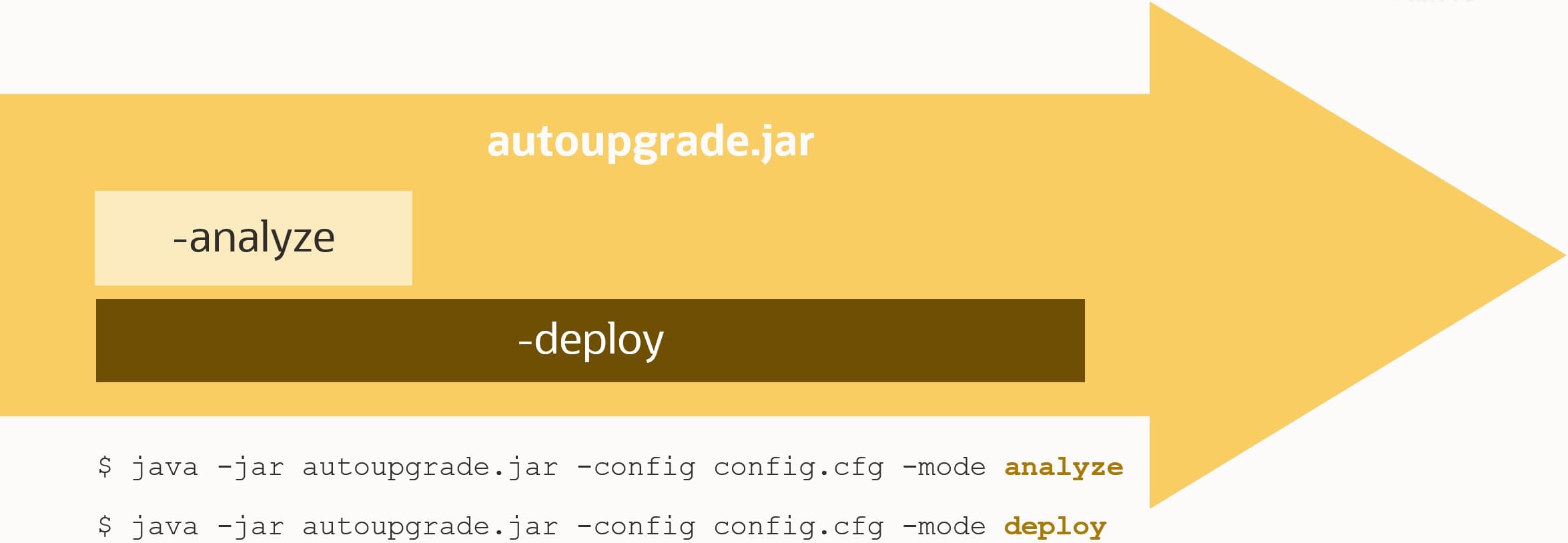
Analyze the database – java -jar autoupgrade.jar -mode analyze
This is non-intrusive and doesn’t change anything on the database. You get a report, and you can fix any issue that AutoUpgrade can’t fix for you.
Upgrade the database – java -jar autoupgrade.jar -mode deploy
The database is analyzed again. Based on the findings of the analysis, a set of preupgrade fixups are executed. Finally, the database upgrade takes place.
During step #2, the database is not available – you have downtime. Even though the database was analyzed previously, it will be re-analyzed to catch any new issues. This is the safest approach. From the first analysis (in step #1) to the second analysis (in step #2), potentially new issues can occur.
We talked to a few of our customers who are really trying to reduce the downtime of an upgrade. For them – every second counts and has a significant impact on their business. They asked us to make the upgrade faster.
Fast Deploy Mode
One customer suggested moving the final analysis and preupgrade fixup outside of the downtime window. Shortly before the downtime would start, they would like to run an analysis and the preupgrade fixups. Next, they would wait until the downtime window starts and do only the upgrade.
I must stress; there is a risk that a new issue pops up between the fixups and the upgrade – but this one customer is willing to take the risk. In exchange, they will get upgrades with less downtime.
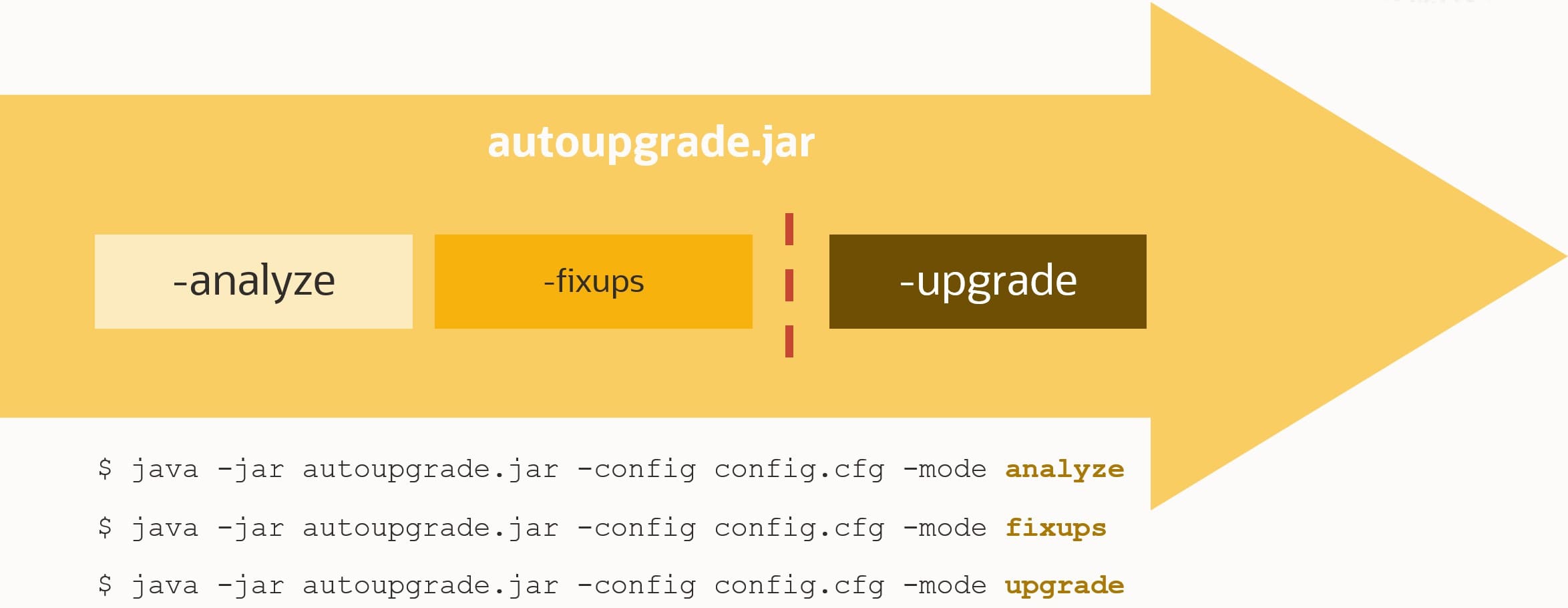
We call this approach fast deploy. The procedure is:
Analyze the database – java -jar autoupgrade.jar -mode analyze
Run the preupgrade fixups – java -jar autoupgrade.jar -mode fixups
Now downtime starts
Upgrade the database – java -jar autoupgrade.jar -mode upgrade
Fast deploy requires AutoUpgrade 21.2 or newer. The target database release can be any of the target releases already supported by AutoUpgrade, meaning 12.2 or higher.
Here are the details of the feature – from the AutoUpgrade change log:
> This feature enables DBA’s to run the prechecks and prefixups while the database is still online and then run deploy to complete the upgrade. Once the fixups have been run on the source database, DBA can then skip the prechecks and prefixup stages and proceed directly to the phases that follow for example:
Database can be online:
java -jar autoupgrade.jar -mode fixups -config yourconfig
Upgrade time:
java -jar autoupgrade.jar -mode upgrade -config yourconfig
The -mode upgrade command proceeds directly to the phases that follow the prechecks and prefixups stages during deploy.
The main goal of this feature is to reduce database downtime by running the fixups when your database is online and open for
business and then skipping the fixups when your database is offline. See Oracle documentation for further details.
Conclusion
If your application is really sensitive to downtime, you can now upgrade with less downtime using fast deploy. It introduces a slight risk that the preupgrade analyze will not detect an issue that will cause troubles later on. You have to choose whether that risk is acceptable to you.
Our recommendation is to use the old approach – AutoUpgrade in deploy mode. Consider only fast deploy if downtime really hurts.
If you are interested in seeing which other things got put into AutoUpgrade 21.2, you can check the change log.
In Oracle Database 19c, use of sqlnet.ora to define the keystore (or wallet) location has been deprecated. Instead you should use the database parameter WALLET_ROOT. If you upgrade to Oracle Database 19c with AutoUpgrade, it has become a lot easier. Let AutoUpgrade do the work for you.
How To
If you instruct AutoUpgrade to use the new encryption parameters it will not only add the parameters to the SPFile but also copy the keystore file to the location defined. This is what you have to do:
Create a text file which contains the definition of WALLET_ROOT and TDE_CONFIGURATION. I call it /tmp/au-pfile-tde. Optionally, change the location of the keystore to fit your organization.
That’s it! AutoUpgrade will detect that you are changing the keystore location, and it will copy the keystore files to the new location at the appropriate time.
Important
When you use WALLET_ROOT the keystore files should always be stored in a subfolder called tde. This means that the keystore files will end up in /etc/oracle/keystores/$ORACLE_SID/tde.
You should not add /tde manually to WALLET_ROOT. The database will do that automatically when it looks up the keystore.
Since you have moved the keystore files to a new location there are some things that you should take care of:
You can remove the sqlnet.ora parameter ENCRYPTION_WALLET_LOCATION. It is not used anymore.
The keystore files that were stored in the old location (that defined by ENCRYPTION_WALLET_LOCATION) can be moved manually to a backup location. I would never recommend that you delete keystore files – NEVER! Instead move the old files to a backup location and keep them there.
The keystore files are to be considered critical and contain sensitive information, so ensure that the new location has the same security measures as the old one – like:
Restricted file permissions
Auditing
Backup
Background
Traditionally, if you have an encrypted database, you need to define the keystore location in sqlnet.ora using the parameter ENCRYPTION_WALLET_LOCATION. You would set it to something like this:
For many reasons, sqlnet.ora was not a good location for this parameter, and especially with the introduction of isolated keystore mode, a new method was needed.
In came WALLET_ROOT and TDE_CONFIGURATION database initialization parameters. The former, WALLET_ROOT, defines the location of the keystore. The latter, TDE_CONFIGURATION, defines which kind of keystore is in use. Typically, it is set to FILE – that’s when you use a software keystore (a file in the OS). But it could also be OKV if you are Oracle Key Vault.
For a software keystore you would set it to something like:
ALTER SYSTEM SET WALLET_ROOT='/etc/oracle/keystores/$ORACLE_SID' SCOPE=SPFILE;
ALTER SYSTEM SET TDE_CONFIGURATION='KEYSTORE_CONFIGURATION=FILE' SCOPE=SPFILE;
SHUTDOWN IMMEDIATE
STARTUP
Now, the database finds the keystore location using the WALLET_ROOT parameter which is much more smooth.
As of Oracle Database 19c, configuration the keystore using sqlnet.ora has been deprecated, and as with any other deprecated functionality, you should move to a fully supported alternative.
Here is a little teaser for our upcoming webinar on Database Upgrade Internals – and so much more on Wednesday 10 February 2021 at 10:00 CET. You can still sign up.
We have a special guest star joining, Frederick Alvarez – one of the masterminds behind AutoUpgrade. In addition, as usual Mike Dietrich will be there, and we have prepared a whole lot of new contents for this webinar. And – if I have to say so myself – it has become quite good and interesting. If you are still not convinced take a look at this!
What Actually Happens During Upgrade
We will go into the upgrade itself, dissect it, and discover what actually happens. Hopefully, it will no longer be a black box to you.
How are the workers processing the upgrade?
How is a container database upgraded?
What goes on in the phases of the upgrade?
I Need More Power, Scotty
We will also cover, how you can make your upgrade faster and show what you can achieve.
What is the benefit of gathering stats before the upgrade?
What Can You Achieve With AutoUpgrade
A deep dive into the checks that are executed by AutoUpgrade.
A list of some of the comprehensive checks that are executed by AutoUpgrade
One page monitoring
The Old Releases
For those of you on very old releases, we will discuss how you can upgrade to Oracle Database 19c.
What to consider when doing upgrades from very old releases
See You
Once the webinar is over we will publish a recording and make the slides available for download.
Under the hood, AutoUpgrade uses the Parallel Upgrade Utility or catctl.pl to do the database upgrade. The Parallel Upgrade Utility has a long list of options that you can configure. The parallel options being the most notable. In your AutoUpgrade config file you can now specify a subset of options to catctl.pl using the parameter catctl_options.
Now, you should not expect a 10x improvement by adding a ton of CPUs to your upgrade. Mike Dietrich posted a really good article that explains what matters to an upgrade when it comes to performance. But f you want to squeeze out the very last resources on your system during upgrade, or want to fine-tune the distribution of CPUs the resource consumption, you can do it with AutoUpgrade.
How
First, you can find a list of catctl parameters in the documentation.
When you have determined the parameters that you want to use, specify them in your config file either globally (for all upgrades):
global.catctl_options=-N 8
or locally for a specific upgrade:
upg1.catctl_options=-N 8
The above examples will run the upgrade of PDBs using eight parallel processes.
You should have a look in the documentation to know the minimum and maximum values for the settings. At least for the parallel settings it is really good to know.
Non-CDB
Support for this parameter and non-CDB databases was added in 21.1.2. To ensure that the upgrade runs with as many parallel processes as possible:
upg1.catctl_options=-n 8
CDB and PDB
When you upgrade a CDB the following happen:
First, CDB$ROOT is upgraded using eight parallel processes.
Next, a number of PDBs are upgraded concurrently, starting with PDB$SEED. The total number of parallel processes to use is controlled by the parameter n.
Each individual PDB is upgraded using a number of SQL processes as well. This is controlled by the parameter N.
This means that the number of PDBs that are upgraded at the same time is: n / N
What is the best value of n?
If you are conservative you set n to CPU_COUNT.
If you are bold, you could probably raise it further, because some of the phases in the upgrade runs serially or doesn’t use the full parallel capacity. Try to set n to CPU_COUNT + 10 % and see how loaded your CPUs get. Keep increasing until you find a suitable level.
In the documentation there are some really good examples and explanations of using N and n together.
On a system with CPU_COUNT=48, put the following in your AutoUpgrade config file to run 6 PDB upgrades concurrently using 8 parallel processes:
upg1.catctl_options=-n 48 -N 8
Note, regardless of what you specify, when it comes to CDB$ROOT AutoUpgrade will always run with the maximum number of parallel processes. CDB$ROOT is special and it must be upgraded before any of the other ones can start. Hence, it makes sense to get it completed as fast as possible.
If you are doing an unplug-plug upgrade of a single PDB it could be a good idea to add more parallel processes to that single upgrade. If you want to use 8 parallel processes:
upg1.catctl_options=-N 8
Conclusion
It can be useful to override the default parallel settings during upgrades. You should not expect a 10x performance improvement, but you might squeeze out the very last resources.
What is the best setting? It depends. You should go with the defaults, or test it using your own databases.
History
12 April 2021: Added information about support of non-CDB databases as of AutoUpgrade 21.1.2.
You can use AutoUpgrade to upgrade a database using only a single command line. No config file is needed!
Whenever we talk about AutoUpgrade, we also mention the config file. The file that contains information about what has to be upgraded. A very simple version of such a config file could look like this:
This is the preferred and recommended way of using AutoUpgrade. But you can actually specify everything on the command line.
Upgrade in One Line
By using the command line option config_values you can now specify the config file entries on the command line. Instead of using the above config file you could execute:
Notice how I used config_values to specify the contents of the config file. The prefix that you have to use in the config file (in this case upg1) is not used here (only for global entries, like global.autoupg_log_dir).
If you have several databases to upgrade, you separate them with as asterisk (*):
Next, AutoUpgrade will create a config file using the information supplied either using config_values or from the environment.
From here on AutoUpgrade behaves as usual.
Conclusion
If needed, you can provide all input to AutoUpgrade in one command line. This is useful if you are using AutoUpgrade in scripts or from Ansible or similar orchestration tools.
I would still recommend the use of a config file. It is easier to read and write the options in a nice formatted text file. Further, you avoid the potential trouble of escaping characters on the command line. And, finally, you avoid having a very long an unreadable command line.
These arguments are, by the way, the same we use when we recommend using a parameter file (.par) for Data Pump.
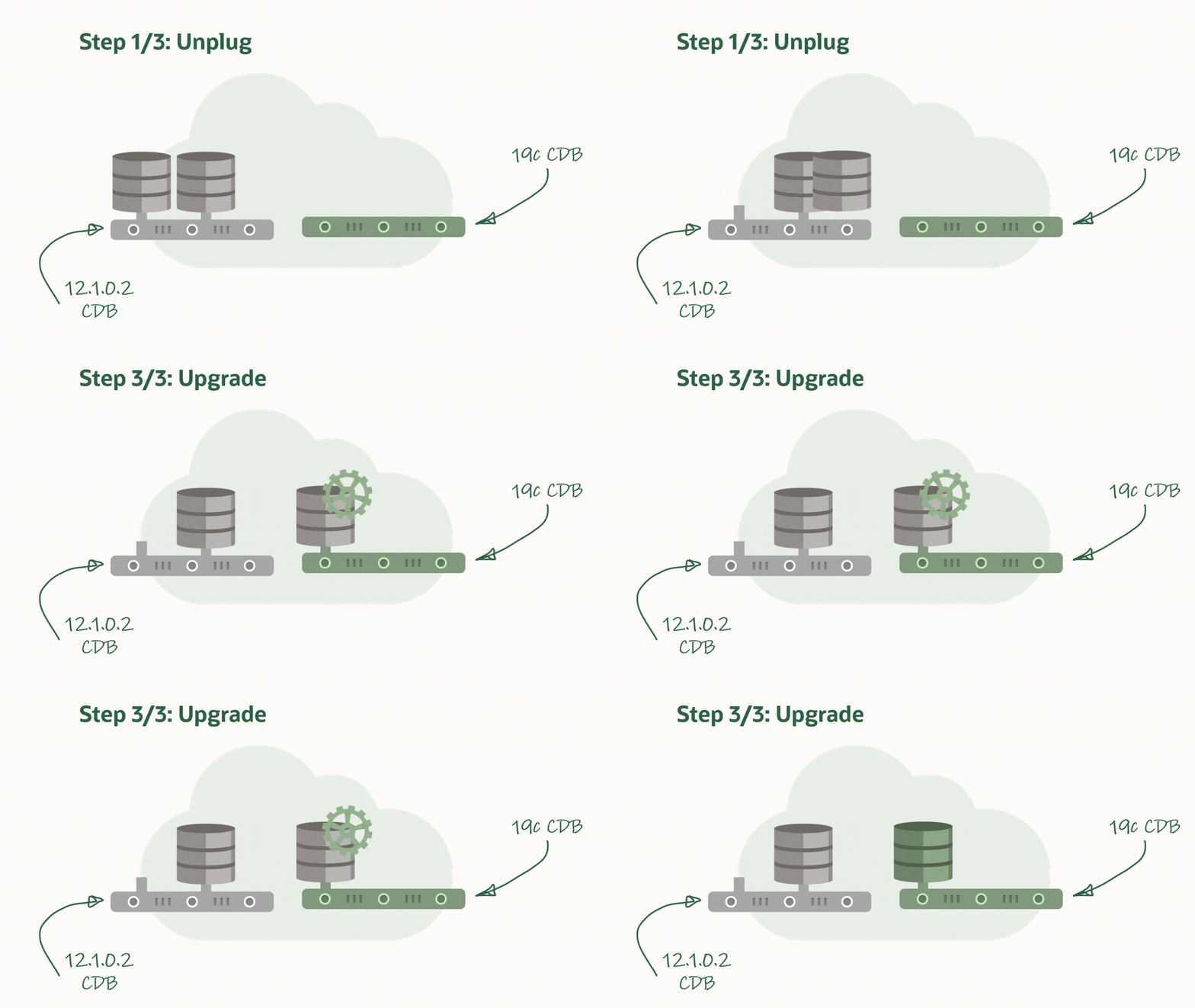
AutoUpgrade now supports unplug-plug upgrades. You unplug a PDB from a lower release CDB and you plug it into a higher release CDB. After plug-in the PDB is upgraded and eventually it can be opened in normal, READ WRITE mode.
When it comes to upgrading in the multitenant world, I am a big fan of unplug-plug upgrades. The concept comes with a number of benefits:
It is much faster to upgrade an individual PDB using unplug-plug compared to a CDB with just one PDB in it. When you do an unplug-plug upgrade, the database just need to upgrade the PDB. Compare that to a CDB which first upgrades CDB$ROOT, and then PDB$SEED and any user PDBs.
You don’t have to arrange downtime for all the PDBs in the CDB. Downtime is just needed for the PDB that you will upgrade.
Combine it with refreshable PDBs and you can still have a really good fallback option. You can check out a previous blog post to see how you can use refreshable PDBs.
AutoUpgrade and Unplug-plug Upgrade
Starting from version 21, AutoUpgrade can now perform unplug-plug upgrades. A newer version of AutoUpgrade can upgrade to older database releases as well, so don’t worry if the AutoUpgrade version doesn’t match the Oracle Database release that you are upgrading to.
There are some requirements that must be met in order to perform unplug-upgrade, so I suggest that you take a look in the documentation.
You have to create the target CDB yourself. It is by design that AutoUpgrade doesn’t do this for you. First, creating a CDB requires a lot of information and it can be done in many different ways (ASM? Which components? RAC?). You would need a very long config file to supply all that information. Also, it takes time to create a CDB and if AutoUpgrade would have to do that inside the maintenance window, it would be prolonged considerably.
During unplug-plug upgrades AutoUpgrade also allows you to change the name of the PDBs and you can decide whether you want to reuse the unplugged data files or take a copy.
AutoUpgrade will unplug PDBs hr and logistics from CDB1 and plug them into CDB2. In addition, it will change the name of hr to people when it is plugged into CDB2. Finally, you must specify the Oracle Home of the two CDBs, so AutoUpgrade can set the environment correctly and connect to the databases.
If you use lsj command to monitor the progress it does actually look like you are only upgrading one of the PDBs:
upg> lsj
+----+-------+---------+---------+-------+--------------+--------+------------------+
|Job#|DB_NAME|    STAGE|OPERATION| STATUS|    START_TIME| UPDATED|           MESSAGE|
+----+-------+---------+---------+-------+--------------+--------+------------------+
| 100|   CDB1|DBUPGRADE|EXECUTING|RUNNING|20/12/22 15:25|15:29:03|13%Upgraded PEOPLE|
+----+-------+---------+---------+-------+--------------+--------+------------------+
Total jobs 1
But if you look into the details with status -job 100 you can see that both PDBs are upgraded in parallel:
upg> status -job 100

... (removed a lot of information)

Details:
[Upgrading] is [0%] completed for [cdb1-people]
                 +---------+-------------+
                 |CONTAINER|   PERCENTAGE|
                 +---------+-------------+
                 |   PEOPLE|UPGRADE [13%]|
                 |LOGISTICS|UPGRADE [13%]|
                 +---------+-------------+
When the upgrade completes, the PDBs are ready to be used. I suggest that you verify that the databases are open in READ WRITE mode and not in restricted mode. Finally, save the state, so the PDBs start automatically together with the CDB:
SQL> select name, open_mode, restricted from v$pdbs where name in ('PEOPLE', 'LOGISTICS');
SQL> --Verify open_mode=read write and restricted=no
SQL> alter pluggable database people save state;
SQL> alter pluggable database logistics save state;
Caution
With unplug-plug upgrades you can’t use Flashback Database as your fallback plan. It doesn’t work across the plug-in operation. You either have to:
Instruct AutoUpgrade to copy the unplugged data files before it plugs into the higher release CDB. That way, you still have the old unplugged data files, and just re-create the PDB in the lower release CDB. But you will have extra downtime because you need to copy the data files.
Use Refreshable PDBs to build a copy of your PDB in the higher release, target CDB. When you want to do the upgrade, perform the last refresh and upgrade the refreshable PDB.
Both of the above options require additional disk space to hold a copy of the database.
Of course, you can also use your regular backups as fallback.
What If
Your Target CDB Has a Standby Database?
For now, don’t use AutoUpgrade to make unplug-plug upgrades, if the target CDB has standby databases. A plug-in operation with a standby database is a tricky maneuvre, at least when you want to re-use the data files. We are still trying to figure out how to implement it in AutoUpgrade.
Having said that, it is absolutely doable. You can read more about in the following MOS notes:
For now, don’t use AutoUpgrade to perform unplug-plug upgrades, if any tablespace in the PDB is encrypted with TDE Tablespace Encryption. We are working on making AutoUpgrade capable of better interacting with the TDE keystore, so keep an eye out for coming versions.
If TDE Tablespace Encryption is enabled in the target CDB, you can still use AutoUpgrade. The PDB will be plugged in as an unencrypted PDB.
Conclusion
Doing unplug-plug upgrades is now supported by AutoUpgrade as of version 21. It includes useful features for renaming PDBs and using copies of unplugged data files.
There is a video on YouTube that shows the procedure. And while you are there, I suggest that you subscribe to our channel.
This is a deprecated blog post. It is kept for reference only. Please visit the updated blog post series.
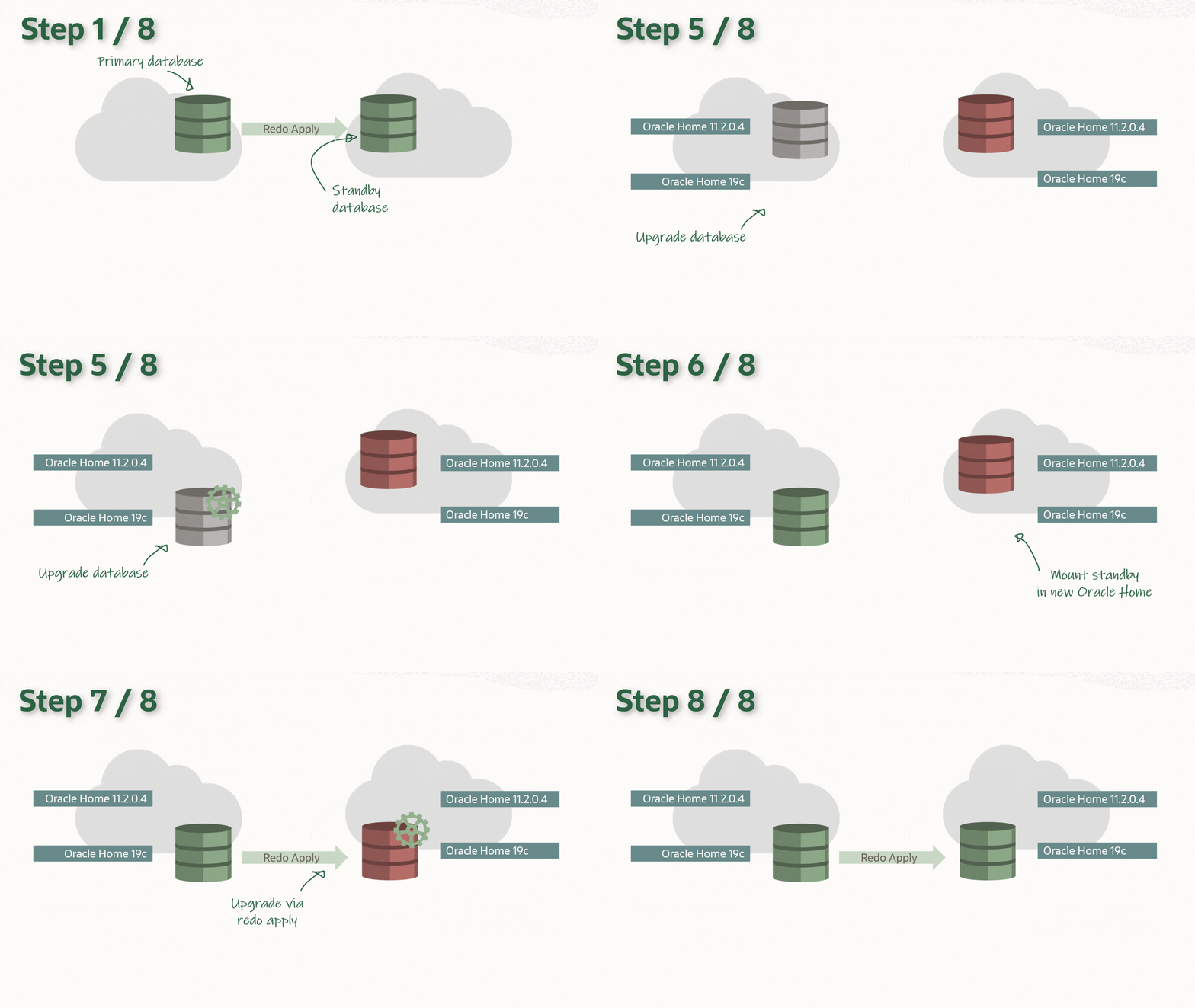
You can upgrade your database to a new release with AutoUpgrade and keep the Data Guard setup intact. The standby database(s) can be upgraded implicitly via the redo from the primary database, and there is no need to rebuild the standby database after upgrade.
The process:
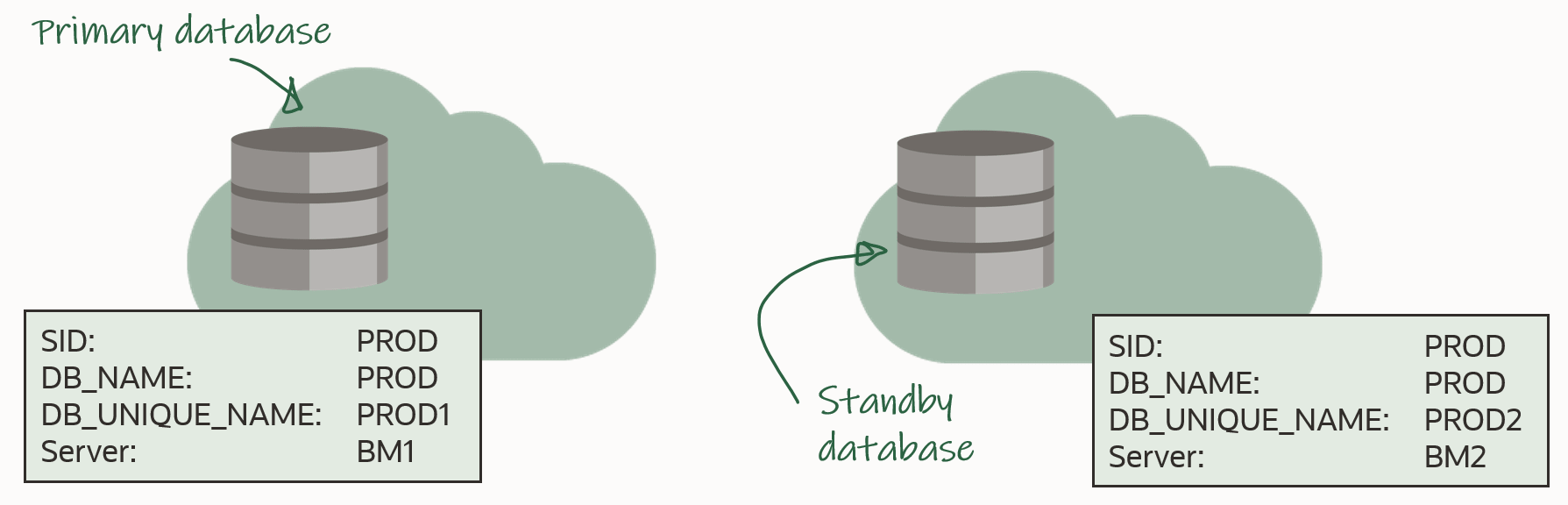
In the following I will be using this setup:
In advance, you should install the new Oracle Home on both primary and standby host. The two Oracle Homes should have the same patches applied, and I recommend that you always apply the latest Release Update.
Before Upgrade
You must use AutoUpgrade version 21.1.1 or newer. A newer version of AutoUpgrade can upgrade to older database releases as well, so don’t worry if the AutoUpgrade version doesn’t match the Oracle Database release that you are upgrading to.
AutoUpgrade can handle a Data Guard environment that is manually configured or via Data Guard Broker.
The procedure starts right before you start AutoUpgrade in DEPLOY mode (or alternatively in FIXUPS mode). Downtime has started and users are no logged connected to the database.
Stop Data Guard
On the standby database, generate commands to copy the Data Guard broker config files. Don’t execute them yet:
PROD2 SQL> select 'cp ' || value || ' /tmp' as cmd from v$parameter where name like 'dg_broker_config_file%';
Shut down the standby database. Disabling the database is strictly speaking not necessary, but a better-safe-than-sorry approach:
Since redo transport has not been deferred yet in the primary database, it will complain about losing connection to the standby database. The alert log will contain an entry similar to this:
2020-12-03T06:30:12.751693+00:00
TT03 (PID:47477): Attempting LAD:2 network reconnect (3113)
TT03 (PID:47477): LAD:2 network reconnect abandoned
2020-12-03T06:30:12.752104+00:00
Errors in file /u01/app/oracle/diag/rdbms/prod1/PROD/trace/PROD_tt03_47477.trc:
ORA-03113: end-of-file on communication channel
TT03 (PID:47477): Error 3113 for LNO:3 to 'prod2'
It can be safely ignored, because it is after all a maintenance window and the database is about to be upgraded. Your monitoring system might detect this and start to complain.
Upgrade
Upgrade the database by starting AutoUpgrade in DEPLOY mode. AutoUpgrade will defer redo transport and stop Data Guard broker (if in use) automatically:
After the upgrade you should perform the necessary tests to validate the new database release. Only when you are convinced to go live on the new release, you should continue.
Remember that the standby database was left behind before we started touching anything, so if all other fails, simply restart the standby database, and connect your users to it.
After Upgrade
Restart Data Guard
Update the listener on the standby host. Be sure to update the Oracle Home information in the listener.ora entry. Note, that your listener.ora might be stored in a non-default location, so use lsnrctl status to get the location. Finally, reload the listener:
[grid@bm2]$ $GRID_HOME/bin/lsnrctl status
[grid@bm2]$ vi $GRID_HOME/network/admin/listener.ora
[grid@bm2]$ $GRID_HOME/bin/lsnrctl reload
For the next commands, I will be using the same prompt, and I will need the following environment variables:
Next, if the standby database is using TNS_ADMIN in the default location ($ORACLE_HOME/network/admin), then be sure to copy the relevant TNS aliases into the new tnsnames.ora. There should be TNS aliases to the primary and standby database. Or, if there are no other databases in the same Oracle Home, you can simply copy the files:
[oracle@bm2]$ #Back up files
[oracle@bm2]$ cp $NEW_HOME/network/admin/sqlnet.ora $NEW_HOME/network/admin/sqlnet.ora.backup
[oracle@bm2]$ cp $NEW_HOME/network/admin/tnsnames.ora $NEW_HOME/network/admin/tnsnames.ora.backup
[oracle@bm2]$ #Copy from old to new home
[oracle@bm2]$ cp $OLD_HOME/network/admin/sqlnet.ora $NEW_HOME/network/admin
[oracle@bm2]$ cp $OLD_HOME/network/admin/tnsnames.ora $NEW_HOME/network/admin
Now, you can edit /etc/oratab and update the information about the Oracle Home to match the new Oracle Home. In my example, the database is managed by GI, so I should not configure auto-start in /etc/oratab. If you are not managing your databases with GI, you probably want to configure the standby database to start automatically (see appendix):
[oracle@bm2]$ #Backup file
[oracle@bm2]$ cp /etc/oratab /tmp/oratab
[oracle@bm2]$ #Use sed to remove the line that starts with ORACLE_SID
[oracle@bm2]$ sed '/^'"$ORACLE_SID"':/d' /tmp/oratab > /etc/oratab
[oracle@bm2]$ #Add new entry
[oracle@bm2]$ echo "$ORACLE_SID:$ORACLE_HOME:N" >> /etc/oratab
Copy SPFile and password file to the new Oracle Home:
Copy the broker config files into the new Oracle Home. If you store your broker config files outside of the Oracle Home this might not be necessary to you:
Upgrade the database in GI, which updates the Oracle Home information, so GI will start the database in the correct Oracle Home. Next, re-enable and start the database:
Or, if you are not using GI, simply start the database in the new Oracle Home:
PROD2 SQL> startup mount
Re-enable Data Guard
To re-enable the Data Guard config use DG CLI:
[oracle@bm1]$ $ORACLE_HOME/bin/dgmgrl sys@PROD1
And re-enable redo transport:
DGMGRL SYS@PROD1> edit database prod1 set state=transport-on;
Now, redo is shipping to the standby database, and it will apply it. When the redo that was generated during the upgrade is applied on the standby database, it is implicitly upgraded. You can monitor the progress of the apply by looking at the Apply Lag information. The Apply Lag will decrease until the standby database eventually catches up and they are fully synchronized:
DGMGRL SYS@PROD1> show database prod2;
Test
Use the broker to ensure everything is fine:
DGMGRL SYS@PROD1> show configuration
DGMGRL SYS@PROD1> show database prod1
DGMGRL SYS@PROD1> show database prod2
You should have SUCCESS listed for both databases
Let’s validate the setup and try to make a switchover. The database will not allow a switchover if there are any problems in the Data Guard setup. It is a good way of checking things are fine:
If you don’t use Data Guard Broker, you use regular SQLs and SQLPlus to verify the Data Guard environment.
Conclusion
It is actually not that complicated to upgrade your database, even if it is part of a Data Guard setup. And with version 21.1.1 of AutoUpgrade is has become easier. A little extra legwork is needed to take care of the standby database. But the good thing is that your Data Guard setup is maintained throughout the process.
I made a video on YouTube that shows the procedure. And while you are there, I suggest that you subscribe to our channel.
Appendix
Config File
For your reference this is the config file, that I used. It contains only the required information. All other parameters have a default value:
When you run un AutoUpgrade in ANALYZE mode and check the preupgrade report, you will find this information message:
[checkname]          SYNC_STANDBY_DB
[stage]              PRECHECKS
[fixup_available]    NO
[runfix]             N/A
[severity]           INFO
[action]             Synchronize your standby databases before database upgrade.
[broken rule]        The standby database is not currently synchronized with its associated primary database.
[rule]               To keep data in the source primary database synchronized with its associated standby databases, all standby databases must be synchronized before database upgrade.  See My Oracle Support Note 2064281.1 for details.
What does it say? Basically, it says that all redo generated on the primary database before the downtime window started, should be sent to and applied on the standby database. This way, your standby database is ready to replace your primary database at any time, if something goes really wrong.
Strictly speaking it is not necessary to ensure that, but it is strongly recommended.
GI-managed Database in /etc/oratab
When the database is managed by GI, you don’t need to have it configured in /etc/oratab. Personally, I like to have it anyway, because then you have a clear overview of what databases are on the server, and you can use /etc/oratab to set your environment, like when you are using oraenv script.
But I know that die-hard GI-folks might roll their eyes when I say it, but I like it this way.










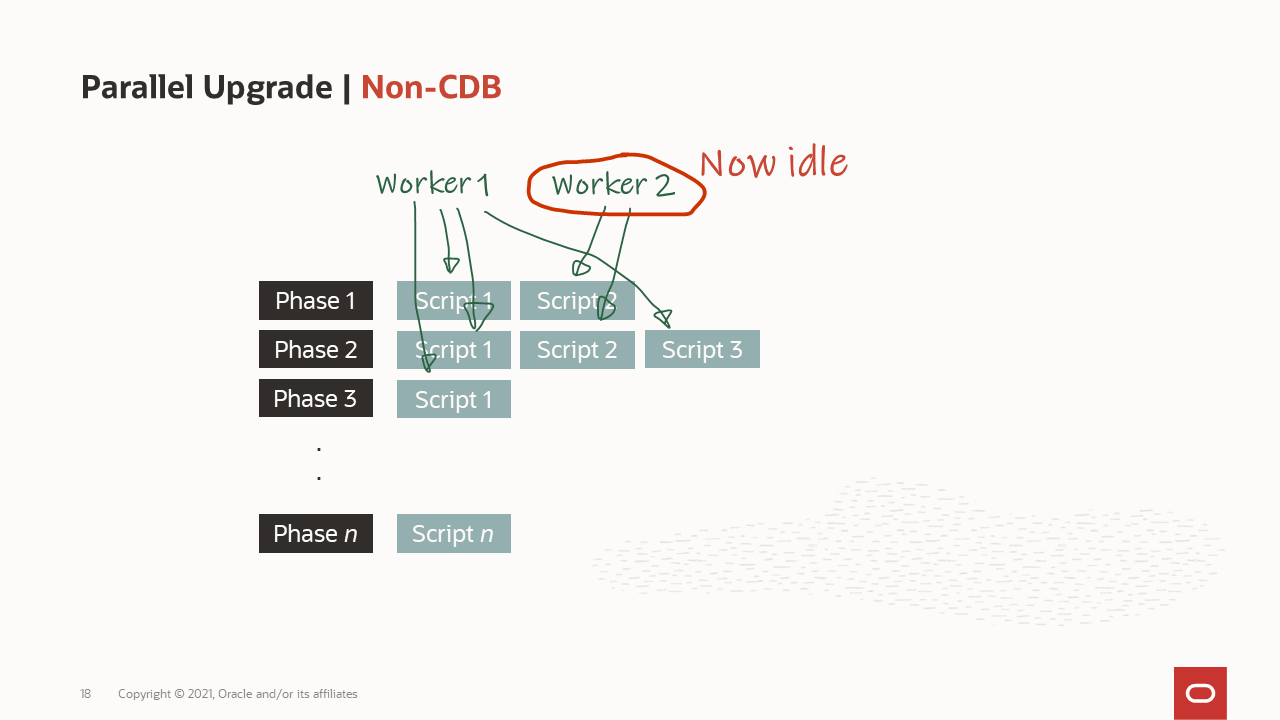 How are the workers processing the upgrade?
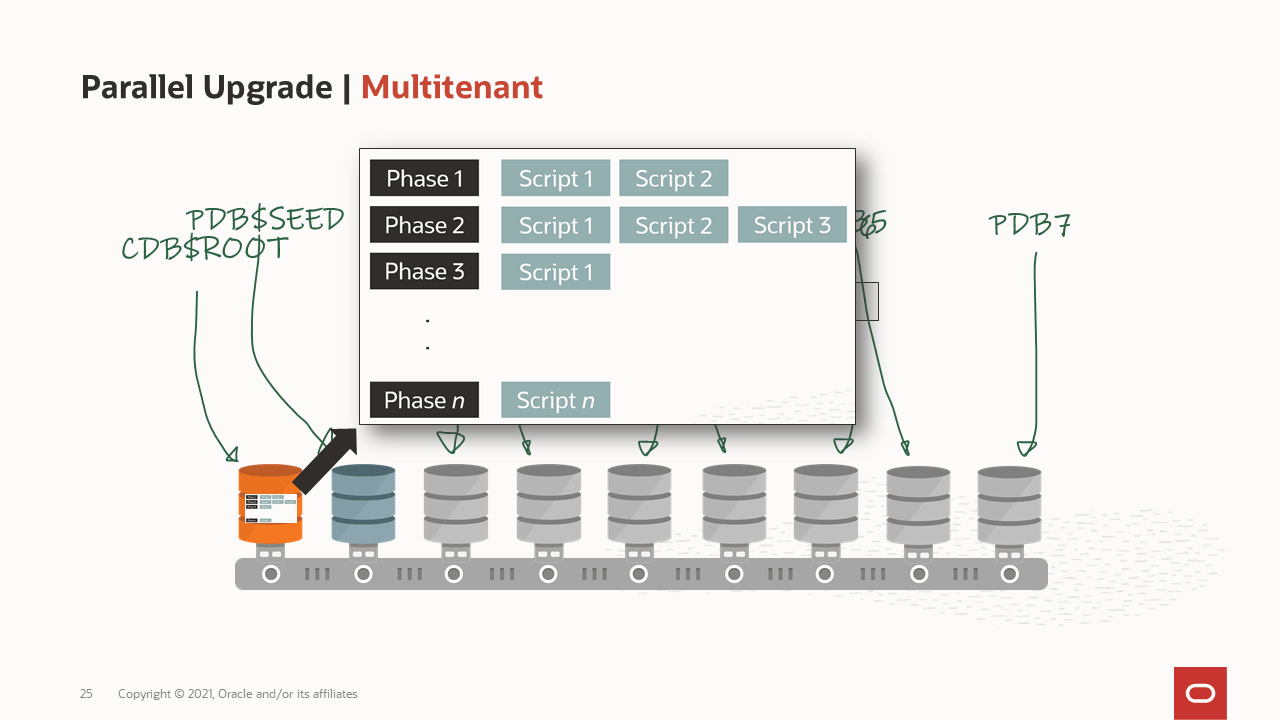 How is a container database upgraded?
 What goes on in the phases of the upgrade?
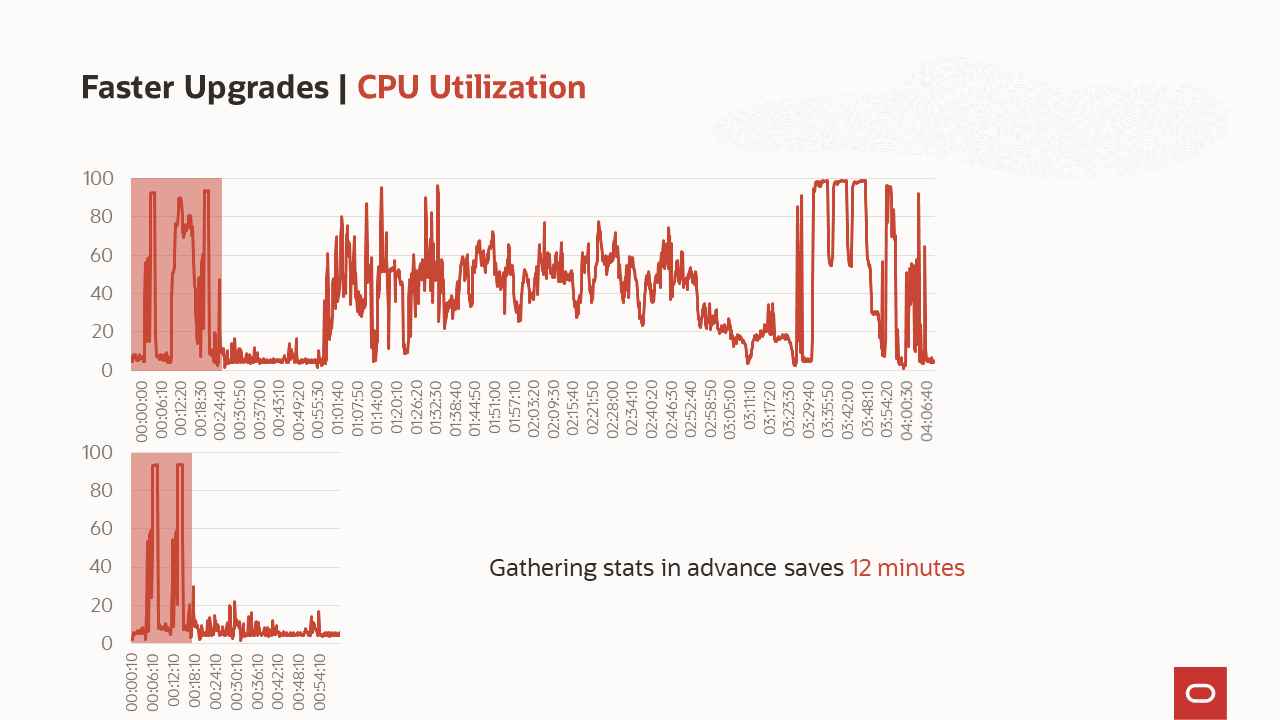 What is the benefit of gathering stats before the upgrade?
 A list of some of the comprehensive checks that are executed by AutoUpgrade
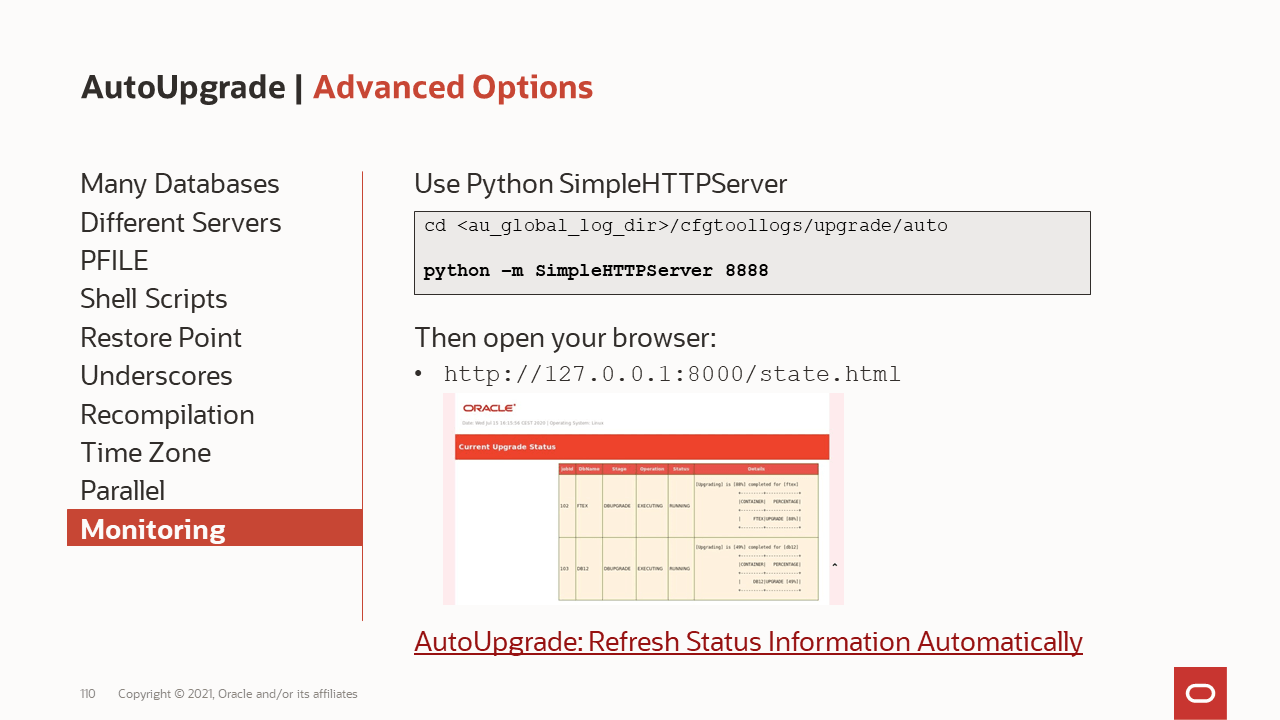 One page monitoring
 What to consider when doing upgrades from very old releases