Using Refreshable Clone PDBs from a Standby Database

The other day, I found myself praising refreshable clone PDBs to a customer (which I often do because it’s a killer feature). They liked the feature too but asked:

> We are concerned about the impact on the source database. When AutoUpgrade connects to the source database and clones the database, can we offload the work to a standby database?

Refreshable clone PDBs can eat up your resources if you don’t constrain the target CDB. So, let’s see what we can do.

Mounted Standby Database

This won’t work, because you must be able to connect to the database via a regular database link. Further, AutoUpgrade and the cloning process must be able to execute queries in the source database, which is not possible on a mounted database.

Open Standby Database / Active Data Guard

What if you stop redo apply and open the standby database? Or if you have Active Data Guard?

In this case, the database would be open in read-only mode, and those queries would work. However, the refreshable clone PDB feature was developed to work in and require a read-write database, so this won’t work either – Not even if you enable automatic redirection of DML operations (ADG_REDIRECT_DML).

Even if this case would work, we wouldn’t recommend it. Because, we recommend that you run analyze and fixups mode on the source database, which wouldn’t be possible on a read-only database. You could run analyze and fixups on the primary database. But is that really an option? If you’re worried about affecting your primary and want to offload to the standby, would running those commands on the primary be an option?

Snapshot Standby Database

What about a snapshot standby? That’s a read-write database. Let’s give it a try.

  1. Convert the source standby to a snapshot standby:
    DGMGRL> convert database '...' to snapshot standby;
    
    • The standby must remain a snapshot standby for the entire duration of the job. If you need to switch over or fail over to the standby, you must restart the entire operation.
  2. Ensure the PDB is open on the source standby.
    alter pluggable database ... open;
    
    • Otherwise, you will run into ORA-03150 when querying the source database over the database link.
  3. In the source standby, create the user used by the database link and grant appropriate permissions:
    create user dblinkuser identified by ...;
    grant create session, create pluggable database, select_catalog_role to dblinkuser;
    grant read on sys.enc$ to dblinkuser;
    
  4. In the target CDB, create a database link that points to the PDB in source standby:
    create database link clonepdb
    connect to dblinkuser identified by ...
    using '';
    
  5. Create an AutoUpgrade config file:
    global.global_log_dir=/home/oracle/autoupgrade/log
    global.keystore=/home/oracle/autoupgrade/keystore
    upg1.source_home=/u01/app/oracle/product/19.0.0.0/dbhome_1
    upg1.target_home=/u01/app/oracle/product/23.0.0/dbhome_1
    upg1.sid=CDB19
    upg1.target_cdb=CDB23
    upg1.pdbs=PDB1
    upg1.source_dblink.PDB1=CLONEPDB 300
    upg1.target_pdb_copy_option.PDB1=file_name_convert=none
    upg1.start_time=+12h
    
  6. Start AutoUpgrade in deploy mode:
    java -jar autoupgrade.jar ... -mode deploy
    
  7. Convert the source standby back to a physical standby:
    DGMGRL> convert database '...' to physical standby;
    

Is It Safe?

Using a standby database for anything else than your DR strategy, is sometimes perceived as risky. But it is not, as I explain in this blog post (section What Happens If I Need to Switch Over or Fail Over?).

Happy upgrading!

Introduction to Patching Oracle Data Guard

Here’s a blog post series about patching Oracle Data Guard in single instance configuration. For simplicity, I am patching with Oracle AutoUpgrade to automate the process as much as possible.

First, a few ground rules:

The Methods

There are three ways of patching Data Guard:

All At Once

  • You patch all databases at the same time.
  • You need an outage until you’ve patched all databases.
  • You need to do more work during the outage.
  • You turn off redo transport while you patch.

Standby-first with restart

  • All the patches you apply must be standby-first installable (see appendix).
  • You need an outage to stop the primary database and restart it in the target Oracle home.
  • During the outage, you have to do less work to do compared to all at once and less work overall compared to standby-first with switchover.
  • The primary database remains the same. It is useful if you have an async configuration with a much more powerful primary database or just prefer to have a primary database at one specific location.

Standby-first with switchover

  • All the patches you apply must be standby-first installable (see appendix).
  • You need an outage to perform a switchover. If your application is well-configured, users will just experience it as a brownout (hanging for a short period while the switchover happens).
  • During the outage, you have little to do, but overall, there are more steps.
  • After the outage, if you switch over to an Active Data Guard, the workload from the read-only workload has pre-warmed the buffer cache and shared pool.

Summary

All at one Standby-first with restart Standby-first with switchover
Works for all patches Works for most patches Works for most patches
Bigger interruption Bigger interruption Smaller interruption
Downtime is a database restart Downtime is a database restart Downtime/brownout is a switchover
Slightly more effort Least effort Slightly more effort
Cold database Cold database Pre-warmed database if ADG

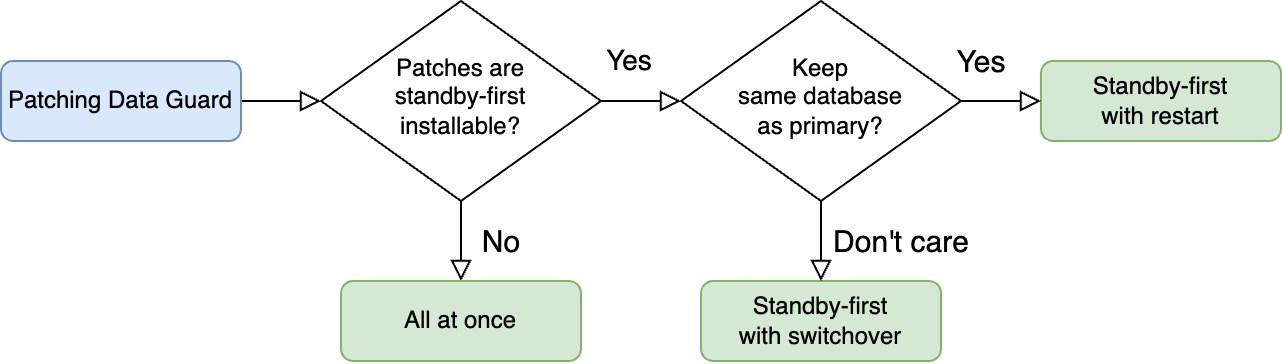
Here’s a decision tree you can use to find the method that suits you.

Decision tree showing which method to choose

What If

RAC

These blog posts focus on single instance configuration.

Conceptually, patching Data Guard with RAC databases is the same; you can’t use the step-by-step guides in this blog post series. Further, AutoUpgrade doesn’t support all methods of patching RAC databases (yet).

I suggest that you take a look at these blog posts instead:

Or even better, use Oracle Fleet Patching and Provisioning.

Oracle Restart

You can use these blog posts if you’re using Oracle Restart. You can even combine patching Oracle Restart and Oracle Database into one operation using standby-first with restart.

We’re Really Sensitive To Downtime?

In these blog posts, I choose the easy way – and that’s using AutoUpgrade. It automates many of the steps for me and has built-in safeguards to ensure things don’t go south.

But this convenience comes at a price: sligthly longer outage. Partly, because AutoUpgrade doesn’t finish a job before all post-upgrade tasks are done (like Datapatch and gathering dictionary stats).

If you’re really concerned about downtime, you might be better off with your own automation, where you can open the database for business as quickly as possible while you run Datapatch and other post-patching activities in the background.

Datapatch

Just a few words about patching Data Guard and Datapatch.

  • You always run Datapatch on the primary.
  • You run Datapatch just once, and the changes to the data dictionary propagates to the standby via redo.
  • You run Datapatch when all databases are running out of the new Oracle home or when redo transport is turned off. The important part is that the standby that applies the Datapatch redo must be on the same patch level as the primary.

Happy patching

Appendix

Standby-First Installable

You can only perform standby-first patch apply if all the patches are marked as standby-first installable.

Standby-first patch apply is when you patch the standby database first, and you don’t disable redo transport/apply.

You can only use standby-first patch apply if all the patches are classified as standby-first installable. For each of the patches, you must:

  • Examine the patch readme file.
  • One of the first lines will tell if this specific patch is standby-first installable. It typically reads: > This patch is Data Guard Standby-First Installable

Release Updates are always standby-first installable, and so are most of the patches for Oracle Database.

In rare cases, you find a non-standby-first installable patch, so you must patch Data Guard using all at once.

Other Blog Posts in the Series

How To Patch Oracle Data Guard Using AutoUpgrade And Standby-First Patch Apply With Switchover

Let me show you how I patch my Oracle Data Guard configuration. I make it as easy as possible using Oracle AutoUpgrade. I reduce the interruption by doing standby-first patch apply with a switchover.

  • My Data Guard configuration consists of two databases:
    • SID: SALES
    • Databases: SALES_COPENHAGEN and SALES_AARHUS
    • Hosts: copenhagen and aarhus
    • Primary database: SALES_COPENHAGEN running on copenhagen

Preparations

You should do these preparations in advance of your maintenance window. They don’t interupt operations on your databases.

  • I download the patches using AutoUpgrade.

    • Create a config file called sales-download.cfg:

      global.global_log_dir=/home/oracle/autoupgrade-patching/download
      global.keystore=/home/oracle/autoupgrade-patching/keystore
      patch1.folder=/home/oracle/autoupgrade-patching/patch
      patch1.patch=RECOMMENDED,MRP
      patch1.target_version=19
      patch1.platform=linux.x64
      
    • Start AutoUpgrade in download mode:

      java -jar autoupgrade.jar -config sales-download.cfg -patch -mode download
      
      • I can download the patches from any computer. It doesn’t have to be one of the database hosts, which typically don’t have internet access.
  • I verify all patches are standby-first installable and my configuration meets the requirements for standby-first patch apply.

  • I create a new Oracle home on all hosts.

    • Create a config file called sales.cfg:
      global.global_log_dir=/home/oracle/autoupgrade-patching/sales
      patch1.source_home=/u01/app/oracle/product/19.3.0.0/dbhome_1
      patch1.target_home=/u01/app/oracle/product/19/dbhome_19_26_0
      patch1.sid=SALES
      patch1.folder=/home/oracle/autoupgrade-patching/patch
      patch1.patch=RECOMMENDED,MRP
      patch1.download=no
      
      • Start AutoUpgrade in create_home mode:
      java -jar autoupgrade.jar -config sales.cfg -patch -mode create_home
      
      • AutoUpgrade also runs root.sh. It requires either:
        • oracle user has sudo privileges
        • Or I’ve stored the root credentials in the AutoUpgrade keystore
        • Else, I must manually execute root.sh.
  • Optionally, but recommended, I run an analysis on the primary database:

    [oracle@copenhagen] java -jar autoupgrade.jar -config sales.cfg -patch -mode analyze
    
    • Check the findings in the summary report.

Patching

Proceed with the following when your maintenance window starts.

  • Update listener.ora on the standby host (see appendix). I change the ORACLE_HOME parameter in the static listener entry (suffixed _DGMGRL) so it matches my target Oracle home.

  • I reload the listener:

    [oracle@aarhus] lsnrctl reload
    
  • Patch the standby database:

    [oracle@aarhus] java -jar autoupgrade.jar -config sales.cfg -mode deploy
    
    • I don’t disable redo transport/apply.
  • Optionally, test the application of patches using a snapshot standby database.

  • interruption starts!

  • Switch over to SALES_AARHUS:

    DGMGRL> switchover to sales_aarhus;
    
    • Perform draining in advance according to your practices.
    • Depending on how your application is configured, the users will experience this interruption as a brown-out or downtime.
  • Update listener.ora on the new standby host (copenhagen). I change the ORACLE_HOME parameter in the static listener entry (suffixed _DGMGRL) so it matches my target Oracle home.

  • I reload the listener:

    [oracle@copenhagen] lsnrctl reload
    
  • Patch the new standby database (see appendix):

    [oracle@copenhagen] java -jar autoupgrade.jar -config sales.cfg -mode deploy
    
  • Verify the Data Guard configuration and ensure the standby database is receiving and applying redo:

    DGMGRL> show database SALES_COPENHAGEN;
    DGMGRL> show database SALES_AARHUS;
    DGMGRL> validate database SALES_COPENHAGEN;
    DGMGRL> validate database SALES_AARHUS;
    

Post-Patching

  • Connect to the new primary database and execute Datapatch. You do that by calling AutoUpgrade in upgrade mode:
    [oracle@aarhus] java -jar autoupgrade.jar -config sales.cfg -mode upgrade
    

Happy Patching!

Appendix

Static Listener Entry

In this blog post, I update the static listener entries required by Data Guard broker (suffixed DGMGRL). My demo environment doesn’t use Oracle Restart or Oracle Grid Infrastructure, so this entry is mandatory.

If you use Oracle Restart or Oracle Grid Infrastructure, such entry is no longer needed.

Further Reading

Other Blog Posts in the Series

Avoid Problems on the Primary Database by Testing on a Snapshot Standby

One of the advantages of standby-first patch apply, is that I can test the patches in a production-like environment (the standby) before applying them to the primary. Should I find any issues with the patches, I can stop the process and avoid impacting the primary database.

Here’s an overview of the process.

For demo purposes, my Data Guard configuration consists of two databases:

  • SID: SALES
  • Databases: SALES_COPENHAGEN and SALES_AARHUS
  • Hosts: copenhagen and aarhus
  • Primary database: SALES_COPENHAGEN running on copenhagen

How To

This procedure starts right after I’ve patched the standby (SALES_AARHUS). It runs out of the target Oracle home, whereas the primary database (SALES_COPENHAGEN) still runs on the source Oracle home.

  • Convert the patched standby to a snapshot standby:

    DGMGRL> convert database SALES_AARHUS to snapshot standby;
    
  • Test the patch apply by running Datapatch on the standby:

    [oracle@aarhus] $ORACLE_HOME/OPatch/datapatch
    
    • One always runs Datapatch on the primary database and the changes made by the patches goes into redo to the standby.
    • But, since I converted to a snapshot standby, it is now opened like a normal database and I can run Datapatch on it.
    • If Datapatch completes without problems on the standby, I can be pretty sure it will do so on the primary as well. The standby is after all an exact copy of the primary database.
  • Optionally, perform additional testing on the standby.

    • I can connect any application and perform additional tests.
    • I can use SQL Performance Analyzer to check for regressing SQL statements.
    • I can make changes to any data in the standby. It is protected by a restore point.
  • When done, convert the snapshot standby back to a physical standby:

    DGMGRL> convert database SALES_AARHUS to physical standby;
    
    • This implicitly shuts down the standby, flashes back to the restore point and re-opens the database as a physical standby.
    • All changes made when it was a snapshot standby, including the Datapatch run, are undone.

Continue the patching procedure on the primary database as described elsewhere.

Is It Safe?

Sometimes, when I suggest using the standby for testing, people are like: Huh! Seriously?

What Happens If I Need to Switch Over or Fail Over?

I can still perform a switchover or a failover. However, they will take a little bit longer.

When I convert to snapshot standby:

  • Redo transport is still active.
  • Redo apply is turned off.

So, the standby receives all redo from the primary but doesn’t apply it. Since you normally test for 10-20 minutes, this would be the maximum apply lag. On a well-oiled standby, it shouldn’t take more than a minute or two to catch up.

When performing a switchover or failover on a snapshot standby, you should expect an increase with the time it takes to:

  • Shut down
  • Flashback
  • Apply redo

I’d be surprised if that would be more than 5 minutes. If your RTO doesn’t allow for a longer period:

  • Get a second standby.
  • Consider the reduction in risk you get when you test on the standby. Perhaps a short increase in RTO could be allowed after all.

What Happens If Datapatch Fails

If Datapatch fails on my snapshot standby, I should be proud of myself. I just prevented the same problem from hitting production.

  • I grab all the diagnostic information I need, so I can work with Oracle Support on the issue.
  • Convert back to physical standby, which will undo the failed Datapatch run.
  • If I expect to solve the issue quickly, leave the standby running in the target Oracle home. Otherwise, put it back into the source Oracle home.

So, yes, it’s safe to use!

Happy testing

Appendix

Other Blog Posts in the Series

How To Patch Oracle Data Guard Using AutoUpgrade For Non-Standby-First Installable Patches

Let me show you how I patch my Oracle Data Guard configuration. I make it easy using Oracle AutoUpgrade. I patch all at once – all databases at the same time – which means a short downtime. I can use this approach for all patches – even those that are not standby-first installable.

I recommend this approach only when you have patches that are not standby-first installable.

  • My Data Guard configuration consists of two databases:
    • SID: SALES
    • Databases: SALES_COPENHAGEN and SALES_AARHUS
    • Hosts: copenhagen and aarhus
    • Primary database: SALES_COPENHAGEN running on copenhagen

Preparations

You should do these preparations in advance of your maintenance window. They don’t interupt operations on your databases.

  • I download the patches using AutoUpgrade.

    • Create a config file called sales-download.cfg:

      global.global_log_dir=/home/oracle/autoupgrade-patching/download
      global.keystore=/home/oracle/autoupgrade-patching/keystore
      patch1.folder=/home/oracle/autoupgrade-patching/patch
      patch1.patch=RECOMMENDED,MRP
      patch1.target_version=19
      patch1.platform=linux.x64
      
    • Start AutoUpgrade in download mode:

      java -jar autoupgrade.jar -config sales-download.cfg -patch -mode download
      
      • I can download the patches from any computer. It doesn’t have to be one of the database hosts, which typically don’t have internet access.
  • I create a new Oracle home on all hosts.

    • Create a config file called sales.cfg:
      global.global_log_dir=/home/oracle/autoupgrade-patching/sales
      patch1.source_home=/u01/app/oracle/product/19.3.0.0/dbhome_1
      patch1.target_home=/u01/app/oracle/product/19/dbhome_19_26_0
      patch1.sid=SALES
      patch1.folder=/home/oracle/autoupgrade-patching/patch
      patch1.patch=RECOMMENDED,MRP
      patch1.download=no
      
      • Start AutoUpgrade in create_home mode:
      java -jar autoupgrade.jar -config sales.cfg -patch -mode create_home
      
      • AutoUpgrade also runs root.sh. It requires either:
        • oracle user has sudo privileges
        • Else, I must manually execute root.sh.
  • Optionally, but recommended, I run an analysis on the primary database:

    [oracle@copenhagen] java -jar autoupgrade.jar -config sales.cfg -patch -mode analyze
    
    • Check the findings in the summary report.

Patching

Proceed with the following when your maintenance window starts.

  • I connect to the primary database using Data Guard broker and disable redo transport from the primary database:

    DGMGRL> edit database sales_copenhagen set state='TRANSPORT-OFF';
    
  • I update listener.ora on both hosts (see appendix). I change the ORACLE_HOME parameter in the static listener entry (suffixed _DGMGRL) so it matches my target Oracle home.

  • I reload the listener on both hosts:

    lsnrctl reload
    
  • Downtime starts!

    • Perform draining in advance according to your practices.
    • Shut down your application.
  • Patch the primary database:

    [oracle@copenhagen] java -jar autoupgrade.jar -config sales.cfg -patch -mode deploy
    
  • Simultaneously, I patch the standby database:

    [oracle@aarhus] java -jar autoupgrade.jar -config sales.cfg -mode deploy
    
  • I update my profile and scripts so they point to the target Oracle home.

  • When patching completes in both hosts, I re-enable redo transport:

    DGMGRL> edit database sales_copenhagen set state='TRANSPORT-ON';
    
  • Verify the Data Guard configuration and ensure the standby database is receiving and applying redo:

    DGMGRL> show database SALES_COPENHAGEN;
    DGMGRL> show database SALES_AARHUS;
    DGMGRL> validate database SALES_COPENHAGEN;
    DGMGRL> validate database SALES_AARHUS;
    

That’s it.

Happy Patching!

Appendix

Static Listener Entry

In this blog post, I update the static listener entries required by Data Guard broker (suffixed DGMGRL). My demo environment doesn’t use Oracle Restart or Oracle Grid Infrastructure, so this entry is mandatory.

If you use Oracle Restart or Oracle Grid Infrastructure, such entry is no longer needed.

Further Reading

Other Blog Posts in the Series

How To Patch Oracle Data Guard Using AutoUpgrade And Standby-First Patch Apply With Restart

Let me show you how I patch my Oracle Data Guard configuration. I make it as easy as possible using Oracle AutoUpgrade. I reduce the interuption by doing standby-first patch apply with a primary database restart.

  • My Data Guard configuration consists of two databases:
    • SID: SALES
    • Databases: SALES_COPENHAGEN and SALES_AARHUS
    • Hosts: copenhagen and aarhus
    • Primary database: SALES_COPENHAGEN running on copenhagen

Preparations

You should do these preparations in advance of your maintenance window. They don’t interupt operations on your databases.

  • I download the patches using AutoUpgrade.

    • Create a config file called sales-download.cfg:

      global.global_log_dir=/home/oracle/autoupgrade-patching/download
      global.keystore=/home/oracle/autoupgrade-patching/keystore
      patch1.folder=/home/oracle/autoupgrade-patching/patch
      patch1.patch=RECOMMENDED,MRP
      patch1.target_version=19
      patch1.platform=linux.x64
      
    • Start AutoUpgrade in download mode:

      java -jar autoupgrade.jar -config sales-download.cfg -patch -mode download
      
      • I can download the patches from any computer. It doesn’t have to be one of the database hosts, which typically don’t have internet access.
  • I verify all patches are standby-first installable and my configuration meets the requirements for standby-first patch apply.

  • I create a new Oracle home on all hosts.

    • Create a config file called sales.cfg:
      global.global_log_dir=/home/oracle/autoupgrade-patching/sales
      patch1.source_home=/u01/app/oracle/product/19.3.0.0/dbhome_1
      patch1.target_home=/u01/app/oracle/product/19/dbhome_19_26_0
      patch1.sid=SALES
      patch1.folder=/home/oracle/autoupgrade-patching/patch
      patch1.patch=RECOMMENDED,MRP
      patch1.download=no
      
      • Start AutoUpgrade in create_home mode:
      java -jar autoupgrade.jar -config sales.cfg -patch -mode create_home
      
      • AutoUpgrade also runs root.sh. It requires either:
        • oracle user has sudo privileges
        • Or I’ve stored the root credentials in the AutoUpgrade keystore
        • Else, I must manually execute root.sh.
  • Optionally, but recommended, I run an analysis on the primary database:

    [oracle@copenhagen] java -jar autoupgrade.jar -config sales.cfg -patch -mode analyze
    
    • Check the findings in the summary report.

Patching

Proceed with the following when your maintenance window starts.

  • Update listener.ora on the standby host (see appendix). I change the ORACLE_HOME parameter in the static listener entry (suffixed _DGMGRL) so it matches my target Oracle home.

  • I reload the listener:

    [oracle@aarhus] lsnrctl reload
    
  • Patch the standby database:

    [oracle@aarhus] java -jar autoupgrade.jar -config sales.cfg -mode deploy
    
    • I don’t disable redo transport/apply.
  • Optionally, test the application of patches using a snapshot standby database.

  • Downtime starts!

    • Perform draining in advance according to your practices.
    • Shut down your application.
  • Update listener.ora on the primary host (see appendix). I change the ORACLE_HOME parameter in the static listener entry (suffixed _DGMGRL) so it matches my target Oracle home.

  • I reload the listener:

    [oracle@copenhagen] lsnrctl reload
    
  • Patch the primary database (see appendix):

    [oracle@copenhagen] java -jar autoupgrade.jar -config sales.cfg -patch -mode deploy
    
    • I use the sales.cfg config file.
    • AutoUpgrade detects it’s running against the primary database, and executes Datapatch and all the post-upgrade tasks.
  • Verify the Data Guard configuration and ensure the standby database is receiving and applying redo:

    DGMGRL> show database SALES_COPENHAGEN;
    DGMGRL> show database SALES_AARHUS;
    DGMGRL> validate database SALES_COPENHAGEN;
    DGMGRL> validate database SALES_AARHUS;
    

That’s it.

Happy Patching!

Appendix

Static Listener Entry

In this blog post, I update the static listener entries required by Data Guard broker (suffixed DGMGRL). My demo environment doesn’t use Oracle Restart or Oracle Grid Infrastructure, so this entry is mandatory.

If you use Oracle Restart or Oracle Grid Infrastructure, such entry is no longer needed.

Further Reading

Other Blog Posts in the Series

How to Perform Standby-first Patch Apply When You Have Different Primary and Standby Databases in the Same Oracle Home

I am a big fan of Oracle Data Guard Standby-First Patch Apply. You can:

  • Reduce downtime to the time it takes to perform a switchover.
  • Test the patching procedure on the standby database.

I received an interesting question the other day:

I have the following two Data Guard configurations. I want to patch all the databases using standby-first patch apply. How do I do that when I have primary and standby databases running out of the same Oracle home on the same machine?

Overview of Data Guard standby-first environment

Requirements

In this case, the databases are on 19.17.0, and the customer wants to patch them to 19.23.0.

To use standby-first patch apply, you must meet a set of requirements, one being:

Data Guard Standby-First Patch Apply is supported between database patch releases that are a maximum of one year (1 year) apart based on the patch release date.

Here are the release dates of the following Release Updates:

  • 19.17.0: October 2022
  • 19.23.0: April 2024

So, in this case, the customer can’t use standby-first patch apply directly. There is a year and a half in between. They need to patch cycles in this case:

  • Patch to 19.21.0 (release October 2023)
  • Patch to 19.23.0 (release April 2024)

In the future, they should apply patches more often to avoid ending up in this situation again.

Patching Oracle Home

The customer has one Oracle home on each server from where both databases run. On any server, there is a primary and a standby database (from two different Data Guard configs).

The customer uses in-place patching. If they patch the entire Oracle home, it means one of the primary databases is now on a higher Oracle home than its standby database, which is not allowed. The standby database is the only one which may run on a higher patch level.

Using the above configuration with primary and standby databases running out of the same Oracle home, you can’t use in-place patching and standby-first patch apply.

The customer must switch to out-of-place patching to achieve this. Then you can patch standby databases first, then the primaries.

Plus, you get all the other benefits of out-of-place patching.

Datapatch

Once all the databases in a Data Guard configuration run in the new Oracle home, you still haven’t completed the patching process:

A patch or patch bundle is not considered fully installed until all of the following actions have occurred:

  • Patch binary installation has been performed to the database home on all standby systems.
  • Patch binary installation has been performed to the database home on the primary system.
  • Patch SQL installation, if required by the patch, has been performed on the primary database and the redo applied to the standby database(s).

You must do the above steps in the specified order, and the last step is to execute Datapatch:

$ $ORACLE_HOME/OPatch/datapatch

Step-by-step

You can use AutoUpgrade to patch Oracle Data Guard.

Happy Patching!

What Happens to Your Oracle Data Guard During Conversion to Multitenant

Oracle Data Guard is an amazing piece of tech. It helps keeping your data safe. When you convert to the multitenant architecture, it is crucial that you don’t jeopardize your Data Guard configuration.

Follow the below steps to bring along your standby database.

What’s The Problem

When you prepare for multitenant conversion, you prepare two things:

  • Data files – you make the data files consistent by opening the non-CDB in read-only mode.
  • Manifest file – you create an XML file which contains information about the non-CDB.

The manifest file contains information about the data files, including the location. However, the manifest file lists only the location on the primary database. There is no information about the standby database.

When you plug in the non-CDB, the plug-in happens without problems on the CDB primary database. It reads the manifest file and finds the data files.

But what about the CDB standby database? Since the manifest file does not list the file location on the standby host, how can the standby database find the corresponding data files?

The Options

There are two options which you control with the standbys clause on the create pluggable database statement:

  • Enabled recovery:
    • You specify standbys=all, or you explicitly list the standby database in the standbys clause.
    • On plug-in, the CDB standby database must find the data files. How the standby database finds the data files depends on the configuration.
    • The new PDB is protected by Data Guard immediately on plug-in.
    • If the standby database fails to find the data files, recovery stops for the entire CDB. All your PDBs are now unprotected unless you use PDB Recovery Isolation (see appendix).
  • Deferred recovery:
    • You specify standbys=none, or you don’t list the standby database in the standbys clause.
    • On plug-in, the CDB standby notes the creation of the PDB but does not attempt to find and recover the data files.
    • The new PDB is not protected by Data Guard until you provide the data files and re-enable recovery as described in Making Use Deferred PDB Recovery and the STANDBYS=NONE Feature with Oracle Multitenant (Doc ID 1916648.1). Typically, this means restoring all data files to the standby system. The other PDBs in the CDB standby are fully protected during the entire process.

Convert with AutoUpgrade

You must convert with deferred recovery on the CDB standby database. AutoUpgrade uses this approach by default:

upg1.manage_standbys_clause=standbys=none

When AutoUpgrade completes, you must follow the process to restore the data files on the CDB standby database and re-enable recovery.

There is no way to plug in with enabled recovery. This includes the alias trick. This requires work on the primary and standby systems. AutoUpgrade is a fully automated process that does not allow you to intervene midway.

If you set manage_standbys_clause to anything but the default to plug in with enabled recovery, you will most likely end up in problems. Either the data files are missing on the standby system or not at the right SCN. This stops the MRP process in the standby database. Since the MRP process is responsible for recovering all the other PDBs as well, you are not only breaking the recently added PDB, but also all other PDBs.

Convert Manually

ASM

You can plug-in with enabled recovery and use the data files on the standby. The standby database searches the OMF location for the data files. ASM does not you manually moving files into an OMF location. Instead, you can create aliases in the OMF location as described in Reusing the Source Standby Database Files When Plugging a non-CDB as a PDB into the Primary Database of a Data Guard Configuration (Doc ID 2273304.1). The standby database follows the plug-in operation.

This option won’t work, if you use the as clone clause on the create pluggable database statement. The clause generates a new GUID and since the GUID is part of the OMF location, you won’t be able to create aliases upfront.

Alternatively, you can plug in with deferred recovery.

OMF in File System

You can plug-in with enabled recovery and use the data files on the standby. The CDB standby database searches the OMF location for the data files. Either:

  • Move the data files into the OMF location.
  • Create soft links in the OMF location for each data file pointing to the current location.

These options won’t work, if you want to use the as clone clause. The clause generates a new GUID and since the GUID is part of the OMF location, you don’t know the OMF location upfront.

If you set standby_pdb_source_file_directory in the CDB standby database, it looks for the data files in that directory. However, it will always copy the data files into the OMF location. Even if you specify create pluggable database ... nocopy. Setting standby_pdb_source_file_directory is, however, compatible with the as clone clause.

Alternatively, you can plug in with deferred recovery.

Regular Files

The database uses regular files when db_create_file_dest is empty.

If you plug in with enabled recovery, the CDB standby database expects to find the data files in the exact same location (path and file name) as on the primary database. The location is either the full path from the manifest file or the location specified by create pluggable database ... source_file_directory='<data_file_location>'.

If the data files are in a different location on the CDB standby database, you either:

  • Set db_file_name_convert in your CDB standby database. This changes the name of each of the data files accordingly.
  • Set standby_pdb_source_file_directory in your CDB standby database. When media recovery looks for a specific file during plug-in, it searches this directory instead of the full path from the manifest file.

You can plug-in using the as clone clause without problems.

Alternatively, you can plug in with deferred recovery.

Refreshable Clone PDBs

When you migrate a non-CDB using refreshable clone PDBs, you are using a clone of the non-CDB database. Thus, there are no existing data files on the standby database that you can use.

You can only create a refreshable clone PDB with deferred recovery (standbys=none). After you transition the refreshable clone PDB into a regular, stand-alone PDB using alter pluggable database ... refresh mode none, you must follow the process to restore the data files and re-enable recovery. If you use AutoUpgrade, you must wait until the entire job completes.

Until you have completed the recovery process, the PDB is not protected by Data Guard.

For further information, including how Oracle Cloud Infrastructure makes it easier for you, have a look at Sinan’s blog post.

Important

Whichever method you choose, you must check your Data Guard configuration before going live.

  1. Check the recovery status on all standby databases:

    select name, recovery_status
    from   v$pdbs;
    
  2. Test the Data Guard configuration by performing a switchover.

Don’t go live without checking your Data Guard configuration!

Appendix

PDB Recovery Isolation

PDB Recovery Isolation is a new feature in Oracle Database 21c.

In an Active Data Guard environment, PDB recovery isolation ensures that media recovery of a CDB on the standby is not impacted when one or more PDBs are not consistent with the rest of the CDB.

Source: About PDB Recovery Isolation

If you plug in a database with standbys=all (via a refreshable clone PDB) and the standby database can’t find the data files, PDB recovery isolation kicks in:

  • The standby database disables recovery of the affected PDB.
  • The standby database restores the data files from the primary database.
  • After restore, the standby database re-enables recovery of the PDB.
  • The affected PDB is unprotected until the process is completed.
  • The other PDBs are unaffected by the situation.

PDB Recovery Isolation reduces risk and automates the resolution of the problem.

At the time of writing, it requires a license for Active Data Guard.

Further Reading

Thank You

A big thank you to my valued colleague, Sinan Petrus Toma, for teaching me about PDB recovery isolation.

How to Apply Patches Out-of-place to Oracle Grid Infrastructure and Oracle Data Guard Using Standby-First

I strongly recommend that you always patch out-of-place. Here’s an example of how to do it on Oracle Grid Infrastructure (GI) and Oracle Data Guard using Standby-First Patch Apply.

Standby-First Patch Apply allows you to minimize downtime to the time it takes to perform a Data Guard switchover. Further, it allows you to test the apply mechanism on the standby database by temporarily converting it into a snapshot standby database.

The scenario:

  • Oracle Grid Infrastructure 19c and Oracle Database 19c
  • Patching from Release Update 19.17.0 to 19.19.0
  • Vertical patching – GI and database at the same time
  • Data Guard setup with two RAC databases
    • Cluster 1: copenhagen1 and copenhagen2
    • Cluster 2: aarhus1 and aarhus2
    • DB_NAME: CDB1
    • DB_UNIQUE_NAME: CDB1_COPENHAGEN and CDB1_AARHUS
  • Using Data Guard broker
  • Patching GI using SwitchGridHome method

Let’s get started!

Step 1: Prepare

I can make the preparations without interrupting the database.

  • I ensure my environment meets the requirements for Standby-First Patch Apply.

  • I deploy new GI homes to all four hosts.

    • I use the SwitchGridHome method.
    • Very important: I only perform step 1 (Prepare a New Grid Home).
    • I apply the Release Update 19.19.0 as part of the deployment using gridSetup.sh ... -applyRU ... -applyOneOffs as described in the blog post.
  • I deploy new database homes to all four hosts.

  • I also recompile invalid objects. This can make it easier for Datapatch later in the process:

    PRIMARY SQL> @?/rdbms/admin/utlrp
    

Step 2: Restart Standby in New Oracle Homes

Now, I can move the standby database to the new GI and database homes.

  • On the standby hosts, aarhus1 and aarhus2, I first move the database configuration files from the old database home to the new one.

  • I change the database configuration in GI. Next time the database restarts, it will be in the new Oracle Home:

    [oracle@aarhus1]$ $OLD_ORACLE_HOME/bin/srvctl modify database \
       -db $ORACLE_UNQNAME \
       -oraclehome $NEW_ORACLE_HOME
    
  • I switch to the new GI on all standby hosts, aarhus1 and aarhus2, by executing step 2 (Switch to the new Grid Home) of the SwitchGridHome method.

    • It involves running gridSetup.sh ... -switchGridHome and root.sh.
    • You can perform the switch in a rolling manner or all at once.
    • The switch restarts the standby database instance. The standby database instance restarts in the new Oracle Home.
    • If the profile of grid (like .bashrc) sets the ORACLE_HOME environment variable, I ensure to update it.
  • If I had multiple standby databases, I would process all standby databases in this step.

Step 3: Test Standby Database

This is an optional step, but I recommend that you do it.

  • I convert the standby database (CDB1_AARHUS) to a snapshot standby database:
    DGMGRL> convert database CDB1_AARHUS to snapshot standby;
    
  • I test Datapatch on the standby database. It is important that I run the command on the standby database:
    [oracle@aarhus1]$ $ORACLE_HOME/OPatch/datapatch -verbose
    
  • I can also test my application on the standby database.
  • At the end of my testing, I revert the standby database to a physical standby database. The database automatically reverts all the changes made during testing:
    DGMGRL> convert database CDB1_AARHUS to physical standby;
    

Step 4: Switchover

I can perform the previous steps without interrupting my users. This step requires a maintenance window because I am doing a Data Guard switchover.

  • I check that my standby database is ready to become primary. Then, I start a Data Guard switchover:
    DGMGRL> connect sys/<password> as sysdba
    DGMGRL> validate database CDB1_AARHUS;
    DGMGRL> switchover to CDB1_AARHUS;
    

A switchover does not have to mean downtime.

If my application is configured properly, the users will experience a brownout; a short hang, while the connections switch to the new primary database.

Step 5: Restart New Standby in New Oracle Homes

Now, the primary database runs on aarhus1 and aarhus2. Next, I can move the new standby hosts, copenhagen1 and copenhagen2, to the new GI and database homes.

  • I repeat step 2 (Restart Standby In New Oracle Homes) but this time for the new standby hosts, copenhagen1 and copenhagen2.

Step 6: Complete Patching

Now, both databases in my Data Guard configuration run out of the new Oracle Homes.

Only proceed with this step once all databases run out of the new Oracle Home.

I need to run this step as fast as possible after I have completed the previous step.

  • I complete the patching by running Datapatch on the primary database (CDB1_AARHUS). I add the recomp_threshold parameter to ensure Datapatch recompiles all objects that the patching invalidated:

    [orale@aarhus1]$ $ORACLE_HOME/OPatch/datapatch \
       -verbose \
       -recomp_threshold 10000
    
    • I only need to run Datapatch one time. On the primary database and only on one of the instances.
  • I can run Datapatch while users are connected to my database.

  • Optionally, I can switch back to the original primary database on copenhagen1 and copenhagen2, if I prefer to run it there.

That’s it. Happy patching!

Appendix

Further Reading

Other Blog Posts in This Series

Patching Oracle Grid Infrastructure 19c – Beginner’s Guide

This is the start of a blog post series on patching Oracle Grid Infrastructure 19c (GI). It is supposed to be easy to follow, so that I may have skipped a detail here and there.

I know my way around database patching. I have done it countless times. When it comes to GI, it’s the other way around. I have never really done it in the real world (i.e., before joining Oracle) and my knowledge was limited. I told my boss, Mike, and he gave me a challenge: Learn about it by writing a blog post series.

Why Do I Need to Patch Oracle Grid Infrastructure

Like any other piece of software, you need to patch GI to get rid of security issues and fix issues.

You should keep the GI and Oracle Database patch level in sync. This means that you need to patch GI and your Oracle Database at the same cadence. Ideally, that cadence is quarterly.

It is supported to run GI and Oracle Database at different patch levels as long as they are on the same release. GI is also certified to run some of the older Oracle Database releases. This is useful in upgrade projects. Check Oracle Clusterware (CRS/GI) – ASM – Database Version Compatibility (Doc ID 337737.1) for details.

A few examples:

GI Database Supported
19.18.0 19.18.0 Yes – recommended
19.16.0 19.18.0 Yes
19.18.0 19.16.0 Yes
19.18.0 11.2.0.4 Yes – used during upgrade, for instance
19.18.0 21.9.0 No

If possible and not too cumbersome, I recommend that you first patch GI and then Oracle Database. Some prefer to patch the two components in two separate operations, while others do it in one operation.

Which Patches Should You Apply to Oracle Grid Infrastructure

You should apply:

Whether you download the bundle patches individually or go with the combo patch is a matter of personal preference. Ultimately, they contain the same.

Some prefer an N-1 approach: When the April Release Update comes, they patch with the previous one from January; Always one quarter behind. For stability reasons, I assume.

What about OJVM patches for GI? The short answer is no.

Which Method Do I Use For Patching

You can patch in two ways:

  • In-place patching
  • Out-of-place patching
In-place Out-of-place
You apply patches to an existing Grid Home. You apply patches to a new Grid Home.
You need disk space for the patches. You need disk space for a brand new Grid Home and the patches.
You patch the existing Grid Home. When you start patching a node, GI drains all connections and moves services to other nodes. The node is down during patching. You create and patch a new Grid Home without downtime. You complete patching by switching to the new Grid Home. The node is down only during switching.
Longer node downtime. Shorter node downtime.
No changes to profile and scripts. Profile, scripts and the like must be updated to reflect the new Grid Home.
My recommended method.

Note: When I write node downtime, it does not mean database downtime. I discuss it shortly.

In other words:

In-place patching replaces the Oracle Clusterware software with the newer version in the same Grid home. Out-of-place upgrade has both versions of the same software present on the nodes at the same time, in different Grid homes, but only one version is active.

Oracle Fleet Patching and Provisioning

When you have more systems to manage, it is time to consider Fleet Patching and Provisioning (FPP).

Oracle Fleet Patching & Provisioning is the recommended solution for performing lifecycle operations (provisioning, patching & upgrades) across entire Oracle Grid Infrastructure and Oracle RAC Database fleets and the default solution used for Oracle Database Cloud services

It will make your life so much easier; more about that in a later blog post.

Zero Downtime Oracle Grid Infrastructure Patching

As of 19.16.0 you can also do Zero Downtime Oracle Grid Infrastructure Patching (ZDOGIP).

Use the zero-downtime Oracle Grid Infrastructure patching method to keep your Oracle RAC database instances running and client connections active during patching.

ZDOGIP is an extension to out-of-place patching. But ZDGIOP will not update the operating system drivers and will not bring down the Oracle stack (database instance, listener etc.). The new GI takes over control of the Oracle stack without users noticing. However, you must update the operating system drivers by taking down the node. But you can postpone it to a later point in time.

More details about ZDGIOP in a later blog post.

What about Oracle Database Downtime

When you patch GI on a node, the node is down. You don’t need to restart the operating system itself, but you do shut down the entire GI stack, including everything GI manages (database, listeners etc.).

What does that mean for Oracle Database?

Single Instance

If you have a single instance database managed by GI, your database is down during patching. Your users will experience downtime. By using out-of-place patching, you can reduce downtime.

Data Guard

If you have a Data Guard configuration, you can hide the outage from the end users.

First, you patch GI on your standby databases, then perform a switchover, and finally patch GI on the former primary database.

The only interruption is the switchover; a brownout period while the database switches roles. In the brownout period, the database appears to hang, but underneath the hood, you wait for the role switch to complete and connect to the new primary database.

If you have configured your application properly, it will not encounter any ORA-errors. Your users experience a short hang and continue as if nothing had happened.

RAC

If you have a RAC database, you can perform the patching in a rolling manner – node by node.

When you take down a node for patching, GI tells connections to drain from the affected instances and connect to other nodes.

If your application is properly configured, it will react to the drain events and connect seamlessly to another instance. The end users will not experience any interruption nor receive any errors.

If you haven’t configured your application properly or your application doesn’t react in due time, the connections will be forcefully terminated. How that will affect your users depend on the application. But it won’t look pretty.

Unless you configure Application Continuity. If so, the database can replay any in-flight transaction. From a user perspective, all looks fine. They won’t even notice that they have connected to a new instance and that the database replayed their transaction.

Happy Patching!

Appendix

Further Reading

Other Blog Posts in This Series