Recreate Database Services After Moving An Oracle Database

Oracle recommends that you connect to the database via custom services. In your connect string, don’t connect:

  • Directly to the SID
  • Or to the database’s default service (the service with the same name as the database).

When you move a database around, in some situations, the database does not retain these services, for instance, when you:

  • Migrate a non-CDB to PDB using refreshable clone PDB
  • Upgrade a PDB using refreshable clone PDB
  • Move a PDB to a different CDB using refreshable clone PDB
  • Migrating a database using Full Transportable Export/Import or transportable tablespaces

The services are important because your application and clients connect to the database through that service. Also, the service might define important properties for things like Application Continuity or set default drain timeout.

Here’s how to recreate such services.

Database Managed Services

A database-managed service is one that you create directly in the database using dbms_service:

begin
   dbms_service.create_service(
      service_name=>'SALESGOLD',
      network_name=>'SALESGOLD');
   dbms_service.start_service('SALESGOLD');   
end;
/

After the migration, you must manually recreate the service in the target database.

dbms_metadata does not support services. So, you must query v$services in the source database to find the service’s defition. Then, construct a call to dbms_service.create_service and dbms_serice.start_service.

Clusterware Managed Services

I recommend defining services in Grid Infrastructure if you are using Oracle RAC or using Oracle Restart to manage your single instance database. Luckily, Grid Infrastructure supports exporting and importing service defitions.

  • You export all the services defined in the source database:

    srvctl config service \
       -db $ORACLE_UNQNAME \
       -exportfile my_services.json \
       -S 2
    
  • You edit the JSON file.

    1. Remove the default services. Keep only your custom services.
    2. Remove the dbunique_name attribute for all services.
    3. If you are renaming the PDB, you must update the pluggable_database attribute.
    4. Update the res_name attribute so it matches the resource name of the target database. Probably you just need to exchange the db_unique_name part of the resource name. You can find the resource name as grid when you execute crsctl stat resource -t.
  • You can now import the services into the target database:

    srvctl add service \
       -db $ORACLE_UNQNAME \
       -importfile my_services.json
    
  • Finally, you start the service(s):

    export ORACLE_SERVICE_NAME=SALESGOLD
    srvctl start service \
       -db $ORACLE_UNQNAME \
       -service $ORACLE_SERVICE_NAME
    

Additional Information

  • The export/import features work from Oracle Database 19c, Release Update 19 and beyond.
  • You can also export/import the definition of:
    • Database: srvctl config database -db $ORACLE_UNQNAME -S 2 -exportfile my_db.json.json
    • PDB: srvctl config pdb -db $ORACLE_UNQNAME -S 2 -exportfile my_pdb.json
    • ACFS filesystem: srvctl config filesystem -S 2 -exportfile /tmp/my_filesystem.json
  • At time of writing, this functionality hasn’t made it into the documentation yet. Consider yourself lucky knowing this little hidden gem.

Final Words

Remember to recreate your custom services after a migration. Your application needs the service to connect in a proper way.

Further Reading

A Few Details about Using Refreshable Clone PDB for Non-CDB to PDB Migration

Our team has been advocating the use of refreshable clone PDB for non-CDB to PDB migrations using AutoUpgrade. It is a great feature and our entire team loves it – so does many of the customers we work with.

However, in a recent non-CDB to PDB migration, we encountered some issues with refreshable clone PDB and AutoUpgrade.

Can My Target Container Database Be a RAC Database?

Yes, this works perfectly fine.

Be aware that CREATE PLUGGABLE DATABASE statement scales out on all nodes in your cluster. By default, the database also uses parallel processes, so potentially, this will put quite a load on the source non-CDB. Consider restricting the use of parallel processes using the AutoUpgrade config file parameter:

upg1.parallel_pdb_creation_clause=4

Since the creation scales out on all nodes, all nodes must be able to resolve the connect identifier to the source non-CDB. If you use an alias from tnsnames.ora, be sure to add that on all nodes. Failure to do so will lead to an error during the CREATE PLUGGABLE DATABASE command:

ERROR at line 1:
ORA-65169: error encountered while attempting to copy file
+DATAC1/SRCDB/DATAFILE/system.262.1178083869
ORA-17627: ORA-12154: TNS:could not resolve the connect identifier specified
ORA-17629: Cannot connect to the remote database server

What Happens If the Source Database Extends a Data File?

If the source database extends a data file – either through AUTOEXTEND ON NEXT or manually by a user – the target database extends the matching data file as well. Here is an extract from the target alert log when it extends a data file:

2024-08-27T07:01:26.671975+00:00
PDB1(4):Media Recovery Log +RECOC1/SRCDB/partial_archivelog/2024_08_27/thread_2_seq_4.276.1178089277
2024-08-27T07:01:32.773191+00:00
PDB1(4):Resize operation completed for file# 26, fname +DATA/TGTCDB_HBZ_FRA/20A568D1FD5DB0A6E0633D01000AC89B/DATAFILE/srctbs02.290.1178089287, old size 10240K, new size 1058816K

It works with smallfile and bigfile tablespaces.

What Happens If I Create a Tablespace on the Source Database?

The target database attempts to create the same tablespace.

For this to work, one of the following must be true:

If either one of the above isn’t true, you’ll receive an error during ALTER PLUGGABLE DATABASE ... REFRESH:

ORA-00283: recovery session canceled due to errors
ORA-01274: cannot add data file that was originally created as
'+DATAC1/SRCDB/DATAFILE/srctbs04.282.1178091655'
You can use PDB_FILE_NAME_CONVERT instead.

It works with smallfile and bigfile tablespaces.

What Happens If I Add a Data File to an Existing Tablespace?

The target database attempts to add a matching data file.

The target database must be able to translate the data file location according to the section above.

2024-08-27T06:51:19.294612+00:00
PDB1(4):Media Recovery Log +RECOC1/SRCDB/partial_archivelog/2024_08_27/thread_2_seq_4.276.1178088679
2024-08-27T06:51:20.268208+00:00
PDB1(4):Successfully added datafile 25 to media recovery
PDB1(4):Datafile #25: '+DATA/TGTCDB_HBZ_FRA/20A568D1FD5DB0A6E0633D01000AC89B/DATAFILE/srctbs01.289.1178088681'

What Happens If I Set a Tablespace Read-Only?

The refreshable clone PDB does not support this. Neither is going the other way: setting a tablespace read-write.

If you do so, the database reports an error:

alter pluggable database pdb2 refresh
*
ERROR at line 1:
ORA-00283: recovery session canceled due to errors
ORA-65339: unsupported operation on the source PDB

From the alert log:

2024-08-28T05:23:02.893946+00:00
PDB2(6):Error! unsupported source PDB operation: 21
2024-08-28T05:23:02.994035+00:00
PDB2(6):Media Recovery failed with error 65339

Operation 21 is setting a tablespace read-only. If you set a tablespace read-write, the database reports operation 20 instead.

PDB2(7):Error! unsupported source PDB operation: 20

You will not be able to refresh the PDB anymore. You must re-create the refreshable clone PDB.

What Happens If I Restart the Source Database?

Refreshable clone PDB does not support restarting the source database.

When you restart the source database, the source database places a special marker in the redo stream. This even happens for a clean shutdown (SHUTDOWN NORMAL). The target CDB does not understand how to recover beyond this marker.

alter pluggable database pdb2 refresh
*
ERROR at line 1:
ORA-00283: recovery session canceled due to errors
ORA-65339: unsupported operation on the source PDB

From the alert log:

2024-08-28T05:27:00.451985+00:00
PDB2(4):Error! unsupported source PDB operation: 3
2024-08-28T05:27:00.710236+00:00
PDB2(4):Media Recovery failed with error 65339

Operation 3 is the source database restart.

You will not be able to refresh the PDB anymore. You must re-create the refreshable clone PDB.

How Do I Drain My Source Database Before Migration?

Right before the migration, when you cut the connection from the source non-CDB to the target PDB, it could be useful to restart the database. But that’s not possible.

I suggest that you:

  • Ensure that the target CDB connects to the source non-CDB using a dedicated service. This applies to the database link that you establish between the two databases.
  • Stop all other services and specify a drain timeout.
  • Shut down the application that connects to the source non-CDB.
  • Kill sessions manually.

Remember that the target database connects to the source database via a database link, so stopping the database listener is not an option. Nor is enabling RESTRICTED SESSION.

Update: Armando managed to perform the migration using restricted session. Check his comment (see below) for details.

What Happens If I Restart the Target Container Database?

You can safely restart the target CDB while you have a refreshable clone PDB. This works fine.

What About NOLOGGING Operations?

You can’t perform NOLOGGING operations on the source database.

Since refreshable clone PDB relies on redo, then a NOLOGGING operation on the source will prevent that data from going to the target. When you try to query the NOLOGGING table on the target database after the migration, you will receive an error:

SQL> select count(*) from t1
       *
ERROR at line 1:
ORA-28304: Oracle encrypted block is corrupt (file # 186, block # 131)
ORA-01110: data file 186:
'+DATA/TGTCDB_HBZ_FRA/20CF181D4A925E06E0633D01000ACB50/DATAFILE/srctbs01.297.117
8266961'
ORA-26040: Data block was loaded using the NOLOGGING option

Thanks to Marcelo for leaving a comment. He suggests that you set the source non-CDB in FORCE LOGGING mode. This is a good idea to avoid this potential nightmare:

alter database force logging;

You can read more about NOLOGGING operations in The Gains and Pains of Nologging Operations (Doc ID 290161.1).

What About Hot Backups?

You can’t perform hot backup operations on the source database.

If you do so, you’ll run into the following error:

2025-11-21T14:31:06.845676+00:00
SALES(4):Error! unsupported source PDB operation: 1
2025-11-21T14:31:07.845923+00:00
SALES(4):Media Recovery failed with error 65339

Please note that I’m not referring to RMAN online backups. I’m talking about the old-school ALTER DATABASE BEGIN BACKUP and ALTER DATABASE END BACKUP commands.

Any restrictions on data types or object types?

No. The refreshable clone is a physical copy of the database, so there are no restrictions on data types or object types.

Services

You must recreate your services after the migration. Neither database managed services nor Clusterware managed services survive the migration.

Further Readin

Summary

Despite these minor restrictions, migration from non-CDB to PDB using refreshable clone PDB and AutoUpgrade is still a very handy method. Knowing the restrictions upfront ensures that you can successfully migrate the database.

Happy migrating!

Does Data Pump Export Advanced Data Optimization Policies and Heat Maps?

During our recent webinar on cross-platform migration, an attendee asked a good question:

Does Data Pump in a Full Transportable Export/Import move ADO policies and heat map information?

Let’s find out.

What Is It?

ADO means Advanced Data Optimization and is a feature that:

… automate the compression and movement of data between different tiers of storage within the database.

ADO uses heat maps that :

… provides data access tracking at the segment-level and data modification tracking at the segment and row level.

In other words,

  • You might have slower and faster storage.
  • You define ADO policies on tables and indexes (including partitions and subpartitions).
  • The policies define in which storage the database stores the rows.
  • The heat maps tell which objects you access.
  • Based on heat maps, a job automatically moves rows between storage depending on the use and/or compress it.

What Happens in Data Pump

There are three pieces of essential information:

  1. ADO policies. Defined on objects and governs how the database should store data.
  2. Heat map information. The database records your usage of the data and stores the information in heat maps. Later on, the database uses the heat maps to determine what to do with your data.
  3. ILM settings. Tells the database how to perform the ILM (Information Lifecycle Management) maintenance. For example, you can define the parallel degree that the database uses during maintenance or the number of concurrent maintenance jobs.

You can find a test case at the end of the blog post. I’m using test data and queries from oracle-base.com.

ADO Policies

Data Pump transfers the ADO policies in all modes:

  • Full transportable
  • Full
  • Schema
  • Tablespace
  • Table

You can verify it:

SELECT   policy_name,
         object_owner,
         object_name,
         object_type,
         inherited_from,
         enabled,
         deleted
FROM     dba_ilmobjects
ORDER BY 1;

Heat Map Information

Data Pump does not transfer any heat map information. I didn’t find any way to move the heat map information to the new database.

ILM Settings

Data Pump does not transfer ILM settings – not even in full modes. You must manually move the settings.

  • You can find the current ILM settings:

    SELECT * FROM DBA_ILMPARAMETERS;
    
  • And change the settings in the target database:

    EXEC DBMS_ILM_ADMIN.CUSTOMIZE_ILM(DBMS_ILM_ADMIN.DEG_PARALLEL , 4);
    
    • You must translate the name of the setting to the corresponding PL/SQL constant. You change the setting DEGREE OF PARALLELISM by using DBMS_ILM_ADMIN.DEG_PARALLEL.
  • The documentation holds a complete list of ILM settings.

Appendix

Further Reading

Test Data

I am using our Hands-On lab that you can use on Oracle LiveLabs. Again, thanks to oracle-base.com for test data and queries.

CONN / AS SYSDBA
--Turn on heat map tracking
ALTER SYSTEM SET HEAT_MAP=ON SCOPE=BOTH;

--Customize ILM settings
BEGIN
  DBMS_ILM_ADMIN.CUSTOMIZE_ILM(DBMS_ILM_ADMIN.RETENTION_TIME, 42);
  DBMS_ILM_ADMIN.CUSTOMIZE_ILM(DBMS_ILM_ADMIN.JOBLIMIT, 42);
  DBMS_ILM_ADMIN.CUSTOMIZE_ILM(DBMS_ILM_ADMIN.ABS_JOBLIMIT, 42);
  DBMS_ILM_ADMIN.CUSTOMIZE_ILM(DBMS_ILM_ADMIN.DEG_PARALLEL , 4);
END;
/
SELECT * FROM DBA_ILMPARAMETERS;

--Create tablespaces for ILM policy
CREATE TABLESPACE FAST_STORAGE_TS DATAFILE SIZE 1M AUTOEXTEND ON NEXT 1M;
CREATE TABLESPACE MEDIUM_STORAGE_TS DATAFILE SIZE 1M AUTOEXTEND ON NEXT 1M;
CREATE TABLESPACE SLOW_STORAGE_TS DATAFILE SIZE 1M AUTOEXTEND ON NEXT 1M;
CREATE USER TEST IDENTIFIED BY TEST QUOTA UNLIMITED ON USERS;
GRANT CREATE SESSION, CREATE TABLE TO TEST;
ALTER USER TEST QUOTA UNLIMITED ON FAST_STORAGE_TS;
ALTER USER TEST QUOTA UNLIMITED ON MEDIUM_STORAGE_TS;
ALTER USER TEST QUOTA UNLIMITED ON SLOW_STORAGE_TS;

CONN TEST/TEST

--Create table where we can track usage
CREATE TABLE t1 (
  id          NUMBER,
  description VARCHAR2(50),
  CONSTRAINT t1_pk PRIMARY KEY (id)
);
INSERT INTO t1
SELECT level,
       'Description for ' || level
FROM   dual
CONNECT BY level <= 10;
COMMIT;

--Generate "usage"
SELECT *
FROM   t1;
SELECT *
FROM   t1
WHERE  id = 1;

--Create table for ILM policy
CREATE TABLE invoices (
  invoice_no    NUMBER NOT NULL,
  invoice_date  DATE   NOT NULL,
  comments      VARCHAR2(500)
)
PARTITION BY RANGE (invoice_date)
(
  PARTITION invoices_2016_q1 VALUES LESS THAN (TO_DATE('01/04/2016', 'DD/MM/YYYY')) TABLESPACE slow_storage_ts,
  PARTITION invoices_2016_q2 VALUES LESS THAN (TO_DATE('01/07/2016', 'DD/MM/YYYY')) TABLESPACE slow_storage_ts,
  PARTITION invoices_2016_q3 VALUES LESS THAN (TO_DATE('01/09/2016', 'DD/MM/YYYY')) TABLESPACE medium_storage_ts
    ILM ADD POLICY TIER TO slow_storage_ts READ ONLY SEGMENT AFTER 6 MONTHS OF NO ACCESS,
  PARTITION invoices_2016_q4 VALUES LESS THAN (TO_DATE('01/01/2017', 'DD/MM/YYYY')) TABLESPACE medium_storage_ts
    ILM ADD POLICY TIER TO slow_storage_ts READ ONLY SEGMENT AFTER 6 MONTHS OF NO ACCESS,
  PARTITION invoices_2017_q1 VALUES LESS THAN (TO_DATE('01/04/2017', 'DD/MM/YYYY')) TABLESPACE fast_storage_ts
    ILM ADD POLICY TIER TO medium_storage_ts READ ONLY SEGMENT AFTER 3 MONTHS OF NO ACCESS,
  PARTITION invoices_2017_q2 VALUES LESS THAN (TO_DATE('01/07/2017', 'DD/MM/YYYY')) TABLESPACE fast_storage_ts
    ILM ADD POLICY TIER TO medium_storage_ts READ ONLY SEGMENT AFTER 3 MONTHS OF NO ACCESS
)
ILM ADD POLICY ROW STORE COMPRESS BASIC SEGMENT AFTER 3 MONTHS OF NO ACCESS;

Test Case

###############
# FULL EXPORT #
###############

export ORAENV_ASK=NO
export ORACLE_SID=UP19
. oraenv
export ORAENV_ASK=YES
rm /tmp/expdat.dmp
sql / as sysdba<<EOF
   create or replace directory expdir as '/tmp';
EOF
expdp system/oracle full=y directory=expdir job_name=fullexp

export ORAENV_ASK=NO
export ORACLE_SID=CDB2
. oraenv
export ORAENV_ASK=YES
sql / as sysdba<<EOF
    startup
    alter pluggable database pdb1 close immediate;
    drop pluggable database pdb1 including datafiles;
    create pluggable database pdb1 admin user admin identified by admin;
    alter pluggable database all open;
    alter session set container=pdb1;
    create tablespace users DATAFILE SIZE 1M AUTOEXTEND ON NEXT 1M;
    CREATE TABLESPACE fast_storage_ts DATAFILE SIZE 1M AUTOEXTEND ON NEXT 1M;
    CREATE TABLESPACE medium_storage_ts DATAFILE SIZE 1M AUTOEXTEND ON NEXT 1M;
    CREATE TABLESPACE slow_storage_ts DATAFILE SIZE 1M AUTOEXTEND ON NEXT 1M;
    create or replace directory expdir as '/tmp';
EOF

impdp system/oracle@pdb1 directory=expdir

sql / as sysdba<<EOF
    alter session set container=pdb1;
    select * from DBA_ILMPARAMETERS;
    SELECT policy_name,
       object_owner,
       object_name,
       object_type,
       inherited_from,
       enabled,
       deleted
    FROM   dba_ilmobjects
    ORDER BY 1;
    SELECT track_time,
        owner,
        object_name,
        segment_write,
        full_scan,
        lookup_scan
    FROM   dba_heat_map_seg_histogram
    ORDER BY 1, 2, 3;
EOF

#################
# SCHEMA EXPORT #
#################

export ORAENV_ASK=NO
export ORACLE_SID=UP19
. oraenv
export ORAENV_ASK=YES
rm /tmp/expdat.dmp
sql / as sysdba<<EOF
   create or replace directory expdir as '/tmp';
EOF
expdp system/oracle schemas=test directory=expdir job_name=schemaexp

export ORAENV_ASK=NO
export ORACLE_SID=CDB2
. oraenv
export ORAENV_ASK=YES
sql / as sysdba<<EOF
    startup
    alter pluggable database pdb1 close immediate;
    drop pluggable database pdb1 including datafiles;
    create pluggable database pdb1 admin user admin identified by admin;
    alter pluggable database all open;
    alter session set container=pdb1;
    create tablespace users DATAFILE SIZE 1M AUTOEXTEND ON NEXT 1M;
    CREATE TABLESPACE fast_storage_ts DATAFILE SIZE 1M AUTOEXTEND ON NEXT 1M;
    CREATE TABLESPACE medium_storage_ts DATAFILE SIZE 1M AUTOEXTEND ON NEXT 1M;
    CREATE TABLESPACE slow_storage_ts DATAFILE SIZE 1M AUTOEXTEND ON NEXT 1M;
    create or replace directory expdir as '/tmp';
EOF

impdp system/oracle@pdb1 directory=expdir

sql / as sysdba<<EOF
    alter session set container=pdb1;
    select * from DBA_ILMPARAMETERS;
    SELECT policy_name,
       object_owner,
       object_name,
       object_type,
       inherited_from,
       enabled,
       deleted
    FROM   dba_ilmobjects
    ORDER BY 1;
    SELECT track_time,
        owner,
        object_name,
        segment_write,
        full_scan,
        lookup_scan
    FROM   dba_heat_map_seg_histogram
    ORDER BY 1, 2, 3;
EOF

################
# TABLE EXPORT #
################

export ORAENV_ASK=NO
export ORACLE_SID=UP19
. oraenv
export ORAENV_ASK=YES
rm /tmp/expdat.dmp
sql / as sysdba<<EOF
   create or replace directory expdir as '/tmp';
EOF
expdp system/oracle tables=test.t1,test.invoices directory=expdir job_name=tabexp

export ORAENV_ASK=NO
export ORACLE_SID=CDB2
. oraenv
export ORAENV_ASK=YES
sql / as sysdba<<EOF
    startup
    alter pluggable database pdb1 close immediate;
    drop pluggable database pdb1 including datafiles;
    create pluggable database pdb1 admin user admin identified by admin;
    alter pluggable database all open;
    alter session set container=pdb1;
    create tablespace users DATAFILE SIZE 1M AUTOEXTEND ON NEXT 1M;
    CREATE TABLESPACE fast_storage_ts DATAFILE SIZE 1M AUTOEXTEND ON NEXT 1M;
    CREATE TABLESPACE medium_storage_ts DATAFILE SIZE 1M AUTOEXTEND ON NEXT 1M;
    CREATE TABLESPACE slow_storage_ts DATAFILE SIZE 1M AUTOEXTEND ON NEXT 1M;
    create or replace directory expdir as '/tmp';
    CREATE USER TEST IDENTIFIED BY TEST QUOTA UNLIMITED ON USERS;
    GRANT CREATE SESSION, CREATE TABLE TO TEST;
    ALTER USER TEST QUOTA UNLIMITED ON FAST_STORAGE_TS;
    ALTER USER TEST QUOTA UNLIMITED ON MEDIUM_STORAGE_TS;
    ALTER USER TEST QUOTA UNLIMITED ON SLOW_STORAGE_TS;
EOF

impdp system/oracle@pdb1 directory=expdir

sql / as sysdba<<EOF
    alter session set container=pdb1;
    select * from DBA_ILMPARAMETERS;
    SELECT policy_name,
       object_owner,
       object_name,
       object_type,
       inherited_from,
       enabled,
       deleted
    FROM   dba_ilmobjects
    ORDER BY 1;
    SELECT track_time,
        owner,
        object_name,
        segment_write,
        full_scan,
        lookup_scan
    FROM   dba_heat_map_seg_histogram
    ORDER BY 1, 2, 3;
EOF

It’s a Wrap – Transportable Tablespaces to the Extreme

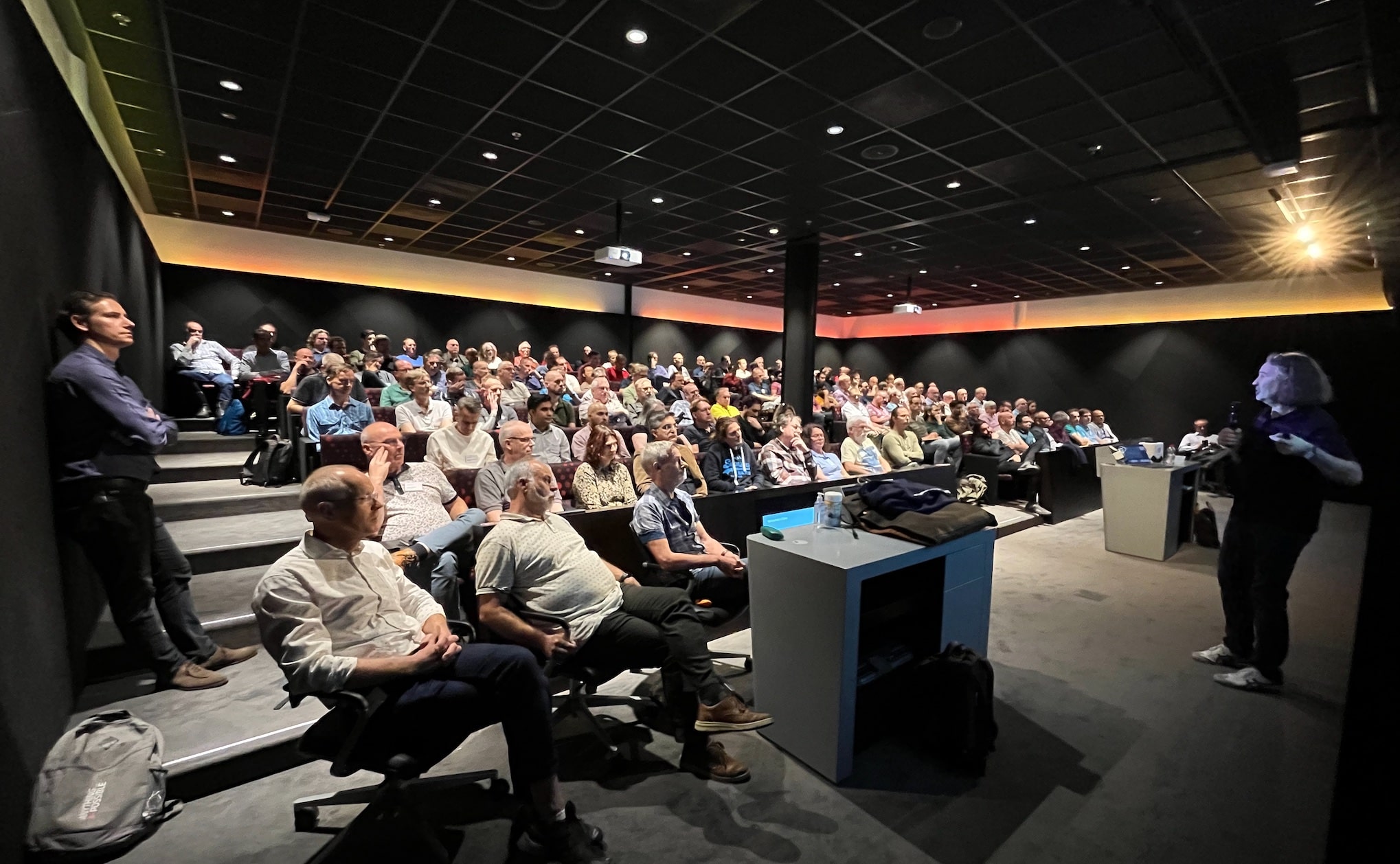
Recently, we hosted our webinar Cross Platform Migration – Transportable Tablespaces to the Extreme. You can now watch the recording on our YouTube channel.

The audience at our webinar was very active and asked many good questions. To know all the details, you can read the Q&A and the slides.

Some of the attendees asked questions we were not able to answer during the webinar. Those questions – and answers – are included in the Q&A.

The New Procedure

For cross-platform and cross-endian migrations, we have a new procedure called M5. It replaces the former XTTS v4 Perl script that has been used for many migrations. We could see the need for changes as Oracle Databases world-wide grows in size and complexity. M5 implements the latest RMAN and Data Pump technology to deliver the fastest possible migrations.

You can download the M5 scripts and read the procedure on My Oracle Support (Doc ID 2999157.1).

Next Webinar

Mark your calendar for our next webinar:

Move to Oracle Database 23c – Everything you need to know about Oracle Multitenant

Oracle Database 23c does only support the CDB architecture. If you haven’t migrated to Oracle Multitenant yet, then you will be with your upgrade to 23c. How do you approach it in the most efficient way? What are the other options? And why is this a migration unless you have PDBs already? All this and way much more about how to work with Multitenant, how AutoUpgrade automates the entire move for you, end-to-end – and best practices and tips and tricks. We’ll guide you, and you will be ready to move to Oracle Database 23c right away

Sign up now and secure your seat.

All tech – no marketing!

Happy Migrating!

The Next-generation Cross-platform Migration for Oracle Database

I am very pleased to share that Oracle has officially launched a new method for cross-platform migrations of Oracle Database.

M5 Cross Endian Platform Migration using Full Transportable Data Pump Export/Import and RMAN Incremental Backups (Doc ID 2999157.1)

The M5 script is the next-generation cross-platform transportable tablespace migration procedure for Oracle Database

You can also use the script for cross-endian migrations, so this is perfect for AIX, HP-UX or SPARC migrations to Exadata Database Machine or any other little endian platform.

Next-generation

Before we launched M5, you would use the XTTS v4 Perl script for such migrations.

Timeline of methods for cross-endian migrations

We launched the latest version of the XTTS v4 Perl script many years ago. Over the last years, as databases grew bigger and bigger, we saw multiple issues with XTTS v4 Perl script, including:

  • No multisection backups for bigfile tablespaces
  • No encrypted tablespaces
  • Inefficient parallelism
  • Incomplete multitenant support

We wanted to solve all those issues with M5 – and we did! M5 uses newer RMAN functionality, and we made the procedure much simpler. It relies entirely on out-of-the-box RMAN functionality. On the source:

BACKUP ... TABLESPACE ... ;

On target we use:

RESTORE ALL FOREIGN DATAFILES ... ;

The latter command was introduced in Oracle Database 18c and enhanced in Oracle Database 19c. This means that the requirements for source and target database are:

Want to Know More?

We have a webinar later today about this new method. If you are interested, we still have open seats.

Cross Platform Migration – Transportable Tablespaces to the Extreme, February 22, 16:00 CET

Next week, we will add the recording to our YouTube channel. Be sure to subscribe so you don’t miss out on anything.

If you want a sneak peek at the slides, go ahead.

I have an elaborate blog post series about cross-platform migrations. I will soon update it with more information about the M5 migration method.

Happy Migrating!

How to Use Oracle Data Pump When You Have Common Objects

One of the benefits of the multitenant architecture in Oracle Database is the concept of common objects. If you want to move data around with Oracle Data Pump, is there anything you must know?

What Are Common Objects

The documentation describes common objects as:

A common phenomenon defined in a root is the same in all containers plugged in to this root. … For example, if you create a common user account while connected to CDB$ROOT, then this user account is common to all PDBs and application roots in the CDB.

A simpler explanation:

The stuff you create as C##.... in the root container (CDB$ROOT).

The principles of commonality are:

  • A common phenomenon is the same in every existing and future container. …
  • Only a common user can alter the existence of common phenomena. More precisely, only a common user logged in to either the CDB root or an application root can create, destroy, or modify attributes of a user, role, or object that is common to the current container.

For illustration purposes, imagine a common profile used by a local user. You would create such as:

alter session set container=CDB$ROOT;
create profile c##commonprofile1 ... ;
alter session set container=pdb1;
create user localuser1 ... profile c##commonprofile1;

With other object types, you can make it even more complex, but the principles remain the same.

What Happens In Oracle Data Pump

On Export

Data Pump

  • Connects to the PDB.
  • Extracts the relevant data and metadata.

Using the above example, Data Pump extracts the user DDL. The user DDL specifies the use of a common profile.

On Import

Data Pump

  • Connects to the PDB.
  • Assumes that you have already created the common objects.
  • Creates the local user localuser1 and specifies the use of the common profile c##commonprofile1.

If the common profile does not exist already, the creation of the user fails:

Processing object type DATABASE_EXPORT/SCHEMA/USER
ORA-39083: Object type USER:"LOCALUSER1" failed to create with error:
ORA-02380: profile C##COMMONPROFILE1 does not exist

Failing sql is:
 CREATE USER "LOCAL1" ... PROFILE "C##COMMONPROFILE1"

Why Don’t Data Pump Create The Common Objects?

  • First, Data Pump connects to the PDB itself to perform the import. Since you must create common objects in the root container, that’s obviously a problem. The importing user might not have access to the root container, so switching containers and creating common objects is impossible.

  • Also, it would break the contract in the multitenant architecture that each PDB is isolated. If one PDB were allowed to create common objects, those objects would also be available in other PDBs, and the isolation would no longer exist.

  • Finally, it would open for all sorts of security issues if a user connected to a PDB could create common objects.

What Can You Do?

A CDB Blueprint

Ideally, you should have some CDB blueprint; A definition of the common objects used in your databases. When you create a new CDB, you have an afterburner that creates those common objects according to your company guidelines.

Examine the Dump File

You can also examine the DDLs in the Data Pump file and create a list of common objects.

  1. Extract the DDL:
    impdp ... sqlfile=import_ddls.sql
    
  2. Search for C## and build a list of common objects needed:
    grep -n -i "C##" import_ddls.sql
    
    This is a crude search, and I imagine awk aficionados can improve it.
  3. Extract the DDL for the common objects from the source CDB:
    l_stmt := dbms_metadata.get_ddl(...);
    dbms_output.put_line(l_stmt);
    l_stmt := dbms_metadata.get_granted_ddl(...);
    dbms_output.put_line(l_stmt);
    
    Use dbms_metadata.get_granted_ddl to extract object and role grants and system privileges.
  4. Create the common objects in the target CDB before import:
    alter session set container=cdb$root;
    create profile c##commonprofile1 ... ;
    

Understand How a Change of Database Time Zone Affects Transportable Tablespaces

In a recent migration using full transportable export/import, I noticed a lot of time spent on the following SQL:

SELECT NVL((SELECT 2
            FROM   sys.ku$_all_tsltz_tables 
            WHERE  owner = :1 AND table_name = :2), 0) 
FROM   sys.dual

The SQL ID was g3qu7py3g0yg0. Each execution of the SQL was a few seconds, but Data Pump executed the statement many times.

Data Pump also wrote in the log file that the database timezone differed:

01-NOV-23 07:43:22.152: W-1 Source time zone is +00:00 and target time zone is -07:00.

The following applies to full transportable export/imports using the following Data Pump parameters:

full=y
transportable=always

What Happens?

In a full transportable import, if the database time zone is different, Data Pump translates any data of type Timestamp with local timezone (TSLTZ) to the new database timezone.

On startup, Data Pump detects the difference in the source and target database timezone. For each table Data Pump checks whether it must convert data. If needed, the data is converted from the source database timezone and stored in the target database timezone.

The check and conversion takes time. This is the price you must pay to change the database timezone on import.

Alternatively, you must import into a database with the same timezone. Then Data Pump completely skips the check and conversion.

In the migration, we could save 22 minutes on import by importing into the same database time zone.

Changing the Database Timezone

You can find the database timezone using:

select dbtimezone from dual;

If you don’t have any tables with TSLTZ columns, you can change the database timezone:

alter database set time_zone='+00:00';
shutdown immediate
startup

The database timezone affects only:

  • TSLTZ columns
  • Function CURRENT_DATE
  • Function CURRENT_TIMESTAMP
  • Function LOCALTIMESTAMP

If you don’t use any of the above, it should be safe to change the database timezone.

Columns of type Timestamp with timezone (TSTZ) and the database timezone file (v$timezone_file) are totally unrelated to the database timezone.

Full Transportable vs. Traditional Transportable

In a traditional transportable import, Data Pump does not import tables with columns of type TIMESTAMP WITH LOCAL TIME ZONE (TSLTZ). You must move such tables using a regular Data Pump import.

As mentioned above, a full transportable export/import Data Pump translates the data to match the new database timezone.

Other Blog Posts in This Series

It’s a Wrap – Real World Database Upgrade and Migration to 19c and 23c

Here is a short post about the workshops I did with Mike Dietrich in Brussels and Utrecht on Real World Oracle Database Upgrade and Migrations 19c and 23c.

The Slides

The slide deck is a goodie bag full of tech content. Even if you didn’t participate, there is something of interest.

Slide deck from Real World Oracle Database Upgrade and Migrations 19c & 23c

Questions

The audiences in our workshops were amazing, and we got many good (and challenging) questions. Here is a follow-up on those we couldn’t answer.

SQL Plan Management on Standby Databases

On an Active Data Guard, SQL Plan Management (SPM) is active and will help the optimizer select only validated execution plans.

However, SPM cannot create new baselines nor perform any form of evolution. SPM stores its information in the SQL Management Base in the SYSAUX tablespace. Since a standby database is open in read-only mode, such features are disabled.

You need to capture and evolve plans on the primary database.

Exporting BasicFile LOBs

I just blogged about a trick that you can use to speed up export of BasicFile LOBs.

Refreshable Clone PDBs

We also explained how to use refreshable clone PDBs to migrate non-CDBs into PDBs. Here is a video which shows a little more details.

Hands-On Labs

Remember, you can try many of the features mentioned in our Hands-On Labs.

  • It’s free
  • It runs in a browser
  • Nothing to install

It’s better to fail in our lab than in production!

Thanks

Thanks to the excellent audience in Brussels and Utrecht. It was a pleasure talking tech with you.

My favorite moment was when someone wanted Mike to sign an original, sealed Oracle7 box. That’s cool.

If you would like a similar workshop in your neighborhood, take hold of your local Oracle office.

Workshop in Brussels and Utrecht Real World Oracle Database Upgrade and Migrations 19c & 23c

How to Migrate from Oracle v5 to Oracle Database 23c

More often than you think, I get mails about migration options from ancient Oracle Database releases. Typically, it is from Oracle 8i or 9i. My high score is an inquiry about Oracle 7.2.

My good colleague, Rodrigo, calls it migrations from Jurassic Park data centers.

At one point, our team got so many questions about it that we decided to create a presentation. It premiered at Oracle DatabaseWorld at CloudWorld 2023. We named it:

Help! My Database Is Still On 8i

Migration Options From Oracle v5 and Newer

In Oracle Database 10g, Oracle introduced Data Pump – replacing the original export and import utilities. If possible, use Data Pump.

In older versions, you must use original export, exp. In recent versions of Oracle Database, Oracle desupported original export, but they still support original import utility, imp, for migrations from really old Oracle Database releases.

Oracle released original export back in Oracle v5. You can export data in Oracle v5 (or newer) and import it directly into an Oracle Database 23c PDB. This is 40 years of backward compatibility. This is rather impressive!

From Oracle 8i Database, you can use same-platform transportable tablespaces. From Oracle Database 10g, you can even do cross-platform transportable tablespaces.

To Which Version Should You Migrate?

If you have such old databases in your environment, I strongly recommend migrating to Oracle Autonomous Database. In Autonomous Database, Oracle will take care of the database for you. Oracle will patch it, maintain it, and upgrade it. You will never end up with a legacy database again. Note that the original import utility does not meet the security standards of Autonomous Database, so it is impossible to import directly into Autonomous Database. In such a situation, you first import into a staging database that supports Data Pump, and then into Autonomous Database.

Otherwise, I recommend going to the latest long-term support release. Also, you should migrate to the multitenant architecture and import directly into a PDB.

Client/Server Interoperability

Before you migrate the database, you must come up with a plan for your clients and applications. Older database clients can’t connect to modern databases.

With each Oracle Database release, the authentication mechanism changes to become more secure and support newer features. This means that clients must be of a certain version to communicate with the database.

If you migrate to Oracle Database 23c, your clients must be on 19c or newer. Check Client / Server Interoperability Support Matrix for Different Oracle Versions (Doc ID 207303.1) for details.

How to Migrate From 8i to Autonomous Database

Here’s a video showing you such a migration step-by-step.

The biggest pitfall in such migration is the loss of characters due to incorrect character set conversion. You must set the NLS_LANG environment variable to the character set of the database. Otherwise, you’ll use the default language setting of your operating system and that might lead to character loss.

Only in specific situations do you set the NLS_LANG to something else.

Appendix

Fun Fact

Here’s a list of Oracle Database releases, including their year of release, marque features, and a mobile phone of the same year.

Year of release Release Feature Mobile phone
1985 Oracle v5 Support for OS/2 Motorola DynaTAC – retail price in today’s prices $12.000
1988 Oracle v6 Oracle Parallel Server OPS) Motorola MicroTAC
1996 Oracle 7.3 Cost based optimizer Motorola StarTAC – popular amongst trekkis because it looks like a communicator
1998 Oracle 8i Database RMAN Nokia 5110 – you could change the cover (XpressOn covers)
2001 Oracle 9i Database Real Application Cluster (RAC) Sony Ericsson T68 – first phone with color screen
2003 Oracle Database 10g Data Pump Nokia 6600 – still one of the most sold units
2007 Oracle Database 11g Exadata iPhone
2013 Oracle Database 12c Multitenant Blackberry Q10
2019 Oracle Database 19c Automatic Indexing Huawai Mate X – foldable screen

Further Reading

How to Migrate to Autonomous Database Using Database Migration Service and OCI CLI

You can migrate your Oracle Database to Autonomous Database using Database Migration Service (DMS). You can use the GUI or one of the many interfaces:

  • REST API
  • OCI CLI
  • PL/SQL
  • SDK for various programming languages (Java, Python, and others)

In this blog post, I use OCI CLI. You can install it on your computer or use the cloud shell.

The Scenario

This is my setup:

  • Source database: Oracle Database 11.2.0.4 running on a Base Database System in OCI.
  • Target database: Autonomous Database (transaction processing).

For simplicity, I will migrate all schemas in the database using Data Pump. You can cherrypick individual schemas or exclude/include specific objects if needed.

I have already created a Vault. DMS needs one to store sensitive information.

How to

I must execute all commands in the same shell. I need to specify a lot of information that I use later on:

#Specify a base name of the migration. All-migration related objects are prefixed with the name
export MIGRNAME=SALES

#Specify the OCID of the compartment where all the resources are running. This procedure assumes all resources are placed in the same compartment
export COMPARTMENTOCID="ocid1.compartment.oc1...."

#Vault details
export VAULTOCID="ocid1.vault.oc1...."
export VAULTKEYOCID="ocid1.key.oc1...."

Next, I specify information about the source database:

#Source database OCID
export SRCDBOCID="ocid1.database.oc1...."

#Network stuff
#Private IP address of the source DB System
export SRCHOSTIP=10.0.1.186
#Subnet OCID that the source DB System uses
export SRCSUBNETOCID="ocid1.subnet.oc1...."
#VCN OCID that the DB System uses
export SRCVCNOCID="ocid1.vcn.oc1...."
#Location of the private key file that can be used to communicate over SSH to the source host
export SRCHOSTKEYFILE=/Users/daniel/Documents/ssh/my-private-key

#Name and path of the database directory object. Remember to create the directory in the file system
export SRCDBDIRNAME=EXPDIR
export SRCDBDIRPATH=/u01/app/oracle/$SRCDBDIRNAME

#Connection details
#Details for non-CDB or PDB
export SRCPDBUSERNAME=SYSTEM
export SRCPDBPASSWORD=*****
export SRCPDBSVCNAME=SALESDB_fra1b4....oraclevcn.com
#If source is a PDB, fill in details for CDB. For non-CDB leave them blank
export SRCCDBUSERNAME=
export SRCCDBPASSWORD=
export SRCCDBSVCNAME=

Finally, I specify information about the target database – the autonomous database:

#Target ADB OCID
export TGTADBOCID="ocid1.autonomousdatabase.oc1...."
#Username and password - typically the ADMIN user
export TGTDBUSERNAME=ADMIN
export TGTDBPASSWORD=*****

Now, let the fun begin. I first create an object storage bucket which DMS uses to store dump files, log files, CPAT output and the like:

export BUCKETNAME=$MIGRNAME
export OSNAMESPACE=$(oci os bucket create \
  --compartment-id $COMPARTMENTOCID \
  --name $BUCKETNAME \
  --query "data.namespace" \
  --raw-output)

Then, I create a connection to the source database (non-CDB or PDB). If the source database is a PDB, I also create a connection to the source CDB:

#Create connection to source PDB/non-CDB
export SRCSUDOLOCATION=/usr/bin/sudo
export SRCSSHUSER=opc
export SRCPDBCONNNAME=$MIGRNAME"-SRC-PDB-CONN"

#The 'ssh-details' parameters include the contents of the private key file as a single-line string. Newlines from the file are converted to \n by the 'awk' command
export SRCPDBCONNOCID=$(oci database-migration connection create \
   --compartment-id $COMPARTMENTOCID \
   --database-type USER_MANAGED_OCI \
   --admin-credentials '{"password":"'$SRCPDBPASSWORD'","username":"'$SRCPDBUSERNAME'"}' \
   --vault-details '{"keyId":"'$VAULTKEYOCID'","vaultId":"'$VAULTOCID'","compartmentId":"'$COMPARTMENTOCID'"}' \
   --database-id $SRCDBOCID \
   --display-name $SRCPDBCONNNAME \
   --connect-descriptor '{"connectString": "'$SRCHOSTIP':1521/'$SRCPDBSVCNAME'"}' \
   --ssh-details '{"host":"'$SRCHOSTIP'","sudoLocation": "'$SRCSUDOLOCATION'","user":"'$SRCSSHUSER'","sshkey":"'"$(awk '{printf "%s\\n", $0}' $SRCHOSTKEYFILE)"'"}' \
   --private-endpoint '{"subnetId":"'$SRCSUBNETOCID'","vcnId":"'$SRCVCNOCID'","compartmentId":"'$COMPARTMENTOCID'"}' \
   --wait-for-state SUCCEEDED \
   --max-wait-seconds 120 \
   --query "data.resources[0].identifier" \
   --raw-output)

#Create connection to source CDB, if needed
if [[ -n $SRCCDBUSERNAME ]];then
	export SRCCDBCONNNAME=$MIGRNAME"-SRC-CDB-CONN"
	export SRCCDBCONNOCID=$(oci database-migration connection create \
	   --compartment-id $COMPARTMENTOCID \
	   --database-type USER_MANAGED_OCI \
	   --admin-credentials '{"password":"'$SRCCDBPASSWORD'","username":"'$SRCCDBUSERNAME'"}' \
	   --vault-details '{"keyId":"'$VAULTKEYOCID'","vaultId":"'$VAULTOCID'","compartmentId":"'$COMPARTMENTOCID'"}' \
	   --database-id $SRCDBOCID \
	   --display-name $SRCCDBCONNNAME \
	   --connect-descriptor '{"connectString":"'$SRCHOSTIP':1521/'$SRCCDBSVCNAME'"}' \
	   --ssh-details '{"host":"'$SRCHOSTIP'","sudoLocation": "'$SRCSUDOLOCATION'","user":"'$SRCSSHUSER'","sshkey":"'"$(awk '{printf "%s\\n", $0}' $SRCHOSTKEYFILE)"'"}' \
	   --private-endpoint '{"subnetId":"'$SRCSUBNETOCID'","vcnId":"'$SRCVCNOCID'","compartmentId":"'$COMPARTMENTOCID'"}' \
	   --wait-for-state SUCCEEDED \
	   --max-wait-seconds 120 \
	   --query "data.resources[0].identifier" \
	   --raw-output)
fi

Next, I create a connection to the target autonomous database:

export TGTCONNNAME=$MIGRNAME"-TGT-CONN"
export TGTCONNOCID=$(oci database-migration connection create \
   --compartment-id $COMPARTMENTOCID \
   --admin-credentials '{"password":"'$TGTDBPASSWORD'","username":"'$TGTDBUSERNAME'"}' \
   --database-type AUTONOMOUS \
   --vault-details '{"keyId":"'$VAULTKEYOCID'","vaultId":"'$VAULTOCID'","compartmentId":"'$COMPARTMENTOCID'"}' \
   --database-id $TGTADBOCID \
   --display-name $TGTCONNNAME \
   --wait-for-state SUCCEEDED \
   --max-wait-seconds 120 \
   --query "data.resources[0].identifier" \
   --raw-output)

Now, I will create a migration object which describes the migration. No changes are made to the database yet:

#Create the migration
export MIGROBJNAME=$MIGRNAME
if [[ -n $SRCCDBCONNOCID ]];then
   export $MIGRSRCCDBPARAM="--source-container-database-connection-id $SRCCDBCONNOCID"
else
   export MIGRSRCCDBPARAM=""
fi
export MIGROBJOCID=$(oci database-migration migration create \
   --compartment-id $COMPARTMENTOCID \
   --vault-details '{"keyId":"'$VAULTKEYOCID'","vaultId":"'$VAULTOCID'","compartmentId":"'$COMPARTMENTOCID'"}' \
   --source-database-connection-id $SRCPDBCONNOCID $MIGRSRCCDBPARAM \
   --target-database-connection-id $TGTCONNOCID \
   --type OFFLINE \
   --display-name $MIGROBJNAME \
   --data-transfer-medium-details '{"databaseLinkDetails": null,"objectStorageDetails": {"namespaceName": "'$OSNAMESPACE'","bucketName": "'$BUCKETNAME'"},"awsS3Details": null}' \
   --datapump-settings '{"exportDirectoryObject": {"name": "'$SRCDBDIRNAME'","path": "'$SRCDBDIRPATH'"}}' \
   --wait-for-state SUCCEEDED \
   --max-wait-seconds 120 \
   --query "data.resources[0].identifier" \
   --raw-output
)

Now, I can perform an evaluation. This is a sanity check which performs a lot of checks upfront. The command runs until the evaluation finishes.

#Evaluate
oci database-migration migration evaluate \
   --migration-id $MIGROBJOCID \
   --wait-for-state SUCCEEDED \
   --wait-for-state FAILED \
   --max-wait-seconds 3600

I can check the evaluation outcome, including the Cloud Premigration Advisor Tool (CPAT) report. You can find this information in the object storage bucket as well. You can run the evaluation as many times as needed:

#Get the last job and the details about it
export MIGRLASTJOBOCID=$(oci database-migration job list \
   --migration-id $MIGROBJOCID \
   --limit 1 \
   --sort-by timeCreated \
   --sort-order desc \
   --query "data.items[0].id" \
   --raw-output
)
oci database-migration job get-job-output-content \
   --job-id $MIGRLASTJOBOCID \
   --file -
#Get the CPAT report  
oci database-migration job get-advisor-report \
   --job-id $MIGRLASTJOBOCID 

Once I have cleared any issues preventing the migration, I can start the actual migration. The command will return control immediately when the migration is started. Optionally, I use the parameters --wait-for-state and --max-wait-seconds to keep it running until the command completes:

#Start the real migration
export MIGRSTARTJOBID=$(oci database-migration migration start \
   --migration-id $MIGROBJOCID \
   --query "data.id" \
   --raw-output
)

I use the below two commands to monitor the migration. The first command gives me an overall status. The second command returns a log file with additional details.

#Get the current status
oci database-migration job get \
   --job-id $MIGRSTARTJOBID 
oci database-migration job get-job-output-content \
   --job-id $MIGRSTARTJOBID \
   --file -

That’s it!

I have migrated my database to an autonomous database.

Appendix

Additional Resources

Using GUI to find REST API calls

Although the OCI CLI commands are documented, it can be hard to figure out exactly which parameters to add and the exact syntax. My colleague, Alex Kotopoulis, gave me rock-star advice.

Switch to the GUI and configure the migration as you want. Turn on "Web developer tools" (might have a different name in your browser) and investigate the network traffic. You can see the REST API calls made by the GUI and easily translate those into OCI CLI parameters.

Thanks Alex!