The database populates a materialized view with data from a master table. To enable fast refresh on a materialized view, you must first create a materialized view log on the master table. The materialized view log captures changes on the master table. Then, the database applies the changes to the materialized view, thus avoiding a complete refresh.
When a user changes data in the master table (SALES), those changes are recorded in the materialized view log (MLOG$_SALES) and then used to refresh the materialized view (SALES_MV).
The master table and the materialized view log must reside in the same database (known as the master database). Hence, they are depicted in bluish colors. The materialized view is often in a different database, and then uses a database link to get the changes.
You only need materialized view logs if the materialized view is a fast refresh type.
A fast refresh materialized view needs to perform a complete refresh the first time, before it can move on with fast refreshes (thanks to my good friend, Klaus, for leaving a comment).
Remote Master Table, Local Materialized View
In this example, you are migrating a database from source to target. This database holds the materialized view, and a remote database acts as the master database, where the master table and materialized view log reside.
The materialized view and the underlying segment are stored in a tablespace in the source database. That segment is used to recreate the materialized view in the target database without any refresh needed.
You must perform the following in the migration downtime window.
In the source database, stop any periodic refresh of the materialized view.
Optionally, perform a fast refresh of the materialized view:
exec dbms_mview.refresh ('sales_mv','f');
Start the migration using transportable tablespaces.
Set the tablespaces read-only.
Perform a final incremental backup.
Data Pump sets the tablespaces read-write in the target database.
Shut down the source database. Otherwise, you might risk it interfering with the target database’s refresh.
In the target database, you can now perform a fast refresh.
Data Pump has already recreated the database link to the remote master database.
Although the materialized view is now in a different database, it can fetch the recent changes from the master database starting with the last refresh in the source database.
In the master database, both materialized views from the source and target database are now registered:
select * from dba_registered_mviews where name='SALES_MV';
Purge materialized view log entries that are related to the materialized view in the source database:
In the target database, re-enable periodic refresh of the materialized view.
Local Master Table, Remote Materialized View
In this example, you are migrating a database from source to target. This database holds the master table and materialized view log, while a remote database contains the materialized view.
The master table and materialized view log are stored in a tablespace in the source database. The migration moves the data to the target database. The materialized view is in the same database, so no remote database or database link is involved.
You must perform the following in the migration downtime window.
In the remote database, stop any periodic refresh of the materialized view.
Optionally, perform a fast refresh of the materialized view:
exec dbms_mview.refresh ('sales_mv','f');
Start the migration using transportable tablespaces.
Set the tablespaces read-only.
Perform a final incremental backup.
Data Pump sets the tablespaces read-write in the target database.
Shut down the source database. Otherwise, you might risk it interfering with the target database’s refresh.
In the remote database, ensure that the database link now points to the new target database.
If the database link uses a TNS alias, you can update it.
Or recreate the database link with a new connect descriptor.
If you hit ORA-04062: timestamp of package "SYS.DBMS_SNAPSHOT_UTL" has been changed, run the refresh again.
Re-enable periodic refresh of the materialized view.
In the target database, ensure that the materialized view log is now empty.
select * from mlog$_sales;
Local Master Table, Local Materialized View
In this example, you are migrating a database from source to target. This database holds the master table, the materialized view log, and the materialized view. There is no remote database involved.
The master table and materialized view log are stored in a tablespace in the source database. The migration moves the data to the target database. The materialized view is in the same database, so there is no remote database or database link involved.
You must perform the following in the migration downtime window.
In the source database, stop any periodic refresh of the materialized view.
Ensure the materialized view log is empty, i.e., all rows have been refreshed into the materialized view.
select count(*) from mlog$_sales;
The query must return 0 rows. If more rows, then perform an additional fast refresh.
If a remote materialized view uses the materialized view log then it is acceptable to move on if you are sure the local materialized view is completely updated.
Start the migration using transportable tablespaces.
Set the tablespaces read-only.
Perform a final incremental backup.
Data Pump sets the tablespaces read-write in the target database.
Shut down the source database. Otherwise, you might risk it interfering with the target database’s refresh.
Re-enable periodic refresh of the materialized view.
Ensure that the materialized view log is now empty.
select * from mlog$_sales;
A word of caution here. The materialized view must be completely up-to-date in the source database before the migration. After the migration, the same materialized view won’t be able to refresh the pre-migration rows. That is why you are checking for rows in mlog$_sales.
Any new changes made in the target database will sync fine.
How much benefit? Let’s find out with a little benchmark.
The Results
Let’s start with the interesting part. How much time can you save using parallel transportable jobs in Data Pump.
The following table lists four different scenarios. Each scenario consists of an export and an import. The total is the time Data Pump needs to finish the migration – the sum of export and import. In a real migration, many other things are in play, but here, we are looking solely at Data Pump performance.
Export
Time
Import
Time
Total
19c, no parallel
2h 2m
19c, no parallel
6h 44m
8h 46m
23ai, parallel 4
1h 48m
23ai, parallel 4
2h 33m
4h 21m
19c, no parallel
2h 2m
23ai, parallel 16
1h 23m
3h 25m
23ai, parallel 16
1h 8m
23ai, parallel 16
1h 23m
2h 31m
The first row is what you can do in Oracle Database 19c, almost 9 hours. Compare that to the last row you can do with parallel 16 in Oracle Database 23ai, almost a 3.5x reduction.
If you migrate from Oracle Database 19c to Oracle Database 23ai (3rd row), you can still benefit from parallel import and gain a significant benefit.
A Data Pump job consists of several object paths that Data Pump must process. An object path could be tables, indexes, or package bodies.
Parallel Export
Each worker takes an object path and starts to process it. The worker works alone on this object path. You get parallelism by multiple workers processing multiple object paths simultaneously.
Parallel Import
During import, Data Pump must process each object path in a certain order. Data Pump can only import constraints once it has imported tables, for example.
Data Pump processes each object path in the designated order, then splits the work in one object path to many workers. You get parallelism by multiple workers processing one object path in parallel.
Data Pump can use parallel only on transportable jobs via a dump file. Network mode is not an option for parallel transportable jobs.
If you export in Oracle Database 19c (which does not support parallel transportable jobs), you can still perform a parallel import into Oracle Database 23ai.
The export parallel degree and import parallel degree do not have to match. You can export with parallel degree 1 and import with parallel degree 16.
When you enable parallel jobs, Data Pump starts more workers. How much extra resources do they use?
I didn’t notice any significant difference in undo or temp tablespace use.
I didn’t notice any extra pressure on the streams pool, either. I had the streams pool set to 256M, and the database didn’t perform any SGA resize operation during my benchmark.
Conclusion
For migrations, parallel transportable jobs in Data Pump are a huge benefit. Every minute of downtime often counts, and this has a massive impact.
In the tablespace, the TEK is stored. When you use transportable tablespace, you copy the data files, and thus, the TEK remains the same. The data in the tablespace continues to be encrypted during the entire migration using the same TEK.
But what about the MEK? It is required to get access to the TEK.
Option 1: Use ENCRYPTION_PASSWORD parameter
During Data Pump transportable tablespace export, you specify an ENCRYPTION_PASSWORD:
A benefit of this option is that the source and target database is encrypted using a different MEK. You can query the database and verify that no new MEK is added to the target database. The target database continues to use its own MEK:
SQL> select * from v$encryption_keys;
According to the documentation, this is the recommended option.
Option 2: Import Master Encryption Key
You start the Data Pump transportable tablespace export.
In the source database, you export the source database MEK:
SQL> administer key management export keys
     with secret "<another_strong_and_secure_password>"
     to '/home/oracle/secure_location/exported-keys'
     force keystore identified by "<source_database_MEK";
You import the source database MEK into the target database:
SQL> administer key management import keys
     with secret "<another_strong_and_secure_password>"
     from '/home/oracle/secure_location/exported-keys'
     force keystore identified by "<target_database_MEK>"
     with backup;
You start the Data Pump transportable tablespace import.
By querying v$encryption_keys, you can see that another key has been added to the database.
You can read more about export and import of MEKs in the documentation.
Option 3: Oracle Key Vault
If you are using Oracle Key Vault, it’s very easy to allow the target database to access the source database master encryption key.
When you perform the Data Pump transportable tablespace import in the target database, it will already have access to the encryption keys that protect the tablespaces. Nothing further is needed.
What About Rekeying?
If you make the source database encryption key available to the target database, consider whether you also want to perform a rekey operation. This applies to options 2 and 3.
ORA-39396
If you use options 2 or 3, you will receive the below warning during Data Pump transportable tablespace export:
ORA-39396: Warning: exporting encrypted data using transportable option without password
This warning points out that in order to successfully import such a transportable tablespace job, the target database wallet must contain a copy of the same database master key used in the source database when performing the export. Using the ENCRYPTION_PASSWORD parameter during the export and import eliminates this requirement.
Cross-endian Migration of TDE Encrypted Tablespaces
If your database is encrypted, you must use the newer M5 migration method. It supports encrypted tablespaces.
The older XTTS v4 doesn’t support encrypted tablespace.
If you have an encrypted tablespace and you want to use transportable tablespace:
Decrypt the tablespace
Migrate the tablespace using transportable tablespace
Transportable Tablespaces is a great way of migrating data from one Oracle Database to another. However, if your database uses object types and those object types have evolved over time, you might hit an error during import:
W-1 Processing object type DATABASE_EXPORT/SCHEMA/TABLE/TABLE
ORA-39083: Object type TABLE:"APPUSER"."CARS" failed to create with error:
ORA-39218: type check on object type "APPUSER"."CAR_TYPE" failed
ORA-39216: object type "APPUSER"."CAR_TYPE" hashcode or version number mismatch

Failing sql is:
BEGIN SYS.DBMS_METADATA.CHECK_TYPE('APPUSER','CAR_TYPE','4','613350A0E37618A6108C500936D0C6162C',''); END;
Typically, there will be a number of dependent objects that fails with ORA-39112.
Let me explain the problem and what you can do about it.
Object Types and Evolution
The term object types refers to database objects that you create using the CREATE TYPE statement.
Object types are also known as user-defined types (UDT) and abstract data types (ADT).
When Oracle Database introduced object types many releases ago, they could not evolve. In simple words, you only had CREATE TYPE available. If you needed to change the type, you had to drop and recreate it. Later on, Oracle Database allowed type evolution, and you could also do ALTER TYPE.
An Example of Evolution
Let me illustrate object types and evolution using an example:
I create a supertype called VEHICLE_TYPE
I create another type called CAR_INFO_TYPE
I create a subtype called CAR_TYPE which inherits VEHICLE_TYPE and includes an attribute based on CAR_INFO_TYPE
I add the three types:
CREATE TYPE "APPUSER"."VEHICLE_TYPE"
   IS OBJECT (
      make VARCHAR2 (40)
) NOT FINAL;
/
CREATE TYPE "APPUSER"."CAR_INFO_TYPE"
   IS OBJECT (
      model VARCHAR2(40)
);
/
CREATE TYPE "APPUSER"."CAR_TYPE"
   UNDER VEHICLE_TYPE (
      car_info CAR_INFO_TYPE
);
/
I query the data dictionary to find the types and verify that their version is 1. I expect this because the types are brand-new.
select o.name, t.version#
from obj$ o, user$ u,type$ t
where o.owner# = u.user# and o.oid$ = t.toid and u.name='APPUSER'
order by o.name, t.version#;

NAME             VERSION#
-------------------------
CAR_INFO_TYPE           1
CAR_TYPE                1
VEHICLE_TYPE            1
Now I want to add two additional attributes to CAR_INFO_TYPE:
horsepower
color
ALTER TYPE "APPUSER"."CAR_INFO_TYPE" ADD ATTRIBUTE horsepower NUMBER CASCADE
/
ALTER TYPE "APPUSER"."CAR_INFO_TYPE" ADD ATTRIBUTE color VARCHAR2(20) CASCADE
/
Now, I check the data dictionary again. CAR_INFO_TYPE has now advanced two versions to version 3. Two ALTER TYPE statements mean two new versions. But notice CAR_TYPE. It advances as well.
select o.name, t.version#
from obj$ o, user$ u,type$ t
where o.owner# = u.user# and o.oid$ = t.toid and u.name='APPUSER'
order by o.name, t.version#;

NAME             VERSION#
-------------------------
CAR_INFO_TYPE           1
CAR_INFO_TYPE           2
CAR_INFO_TYPE           3
CAR_TYPE                1
CAR_TYPE                2
CAR_TYPE                3
VEHICLE_TYPE            1
If you alter a type that another type uses, both types evolve. No ALTER TYPE was issued on CAR_TYPE, yet it still evolve. This becomes a problem later on.
Same Objects but Different Evolution
If I use the example above but change the order of statements, the types will evolve in a different way. They will still be the same objects, but they evolve differently.
Let me illustrate how the types can evolve differently. I execute the ALTER TYPE statements on CAR_INFO_TYPE immediately after its CREATE TYPE statement:
CREATE TYPE "APPUSER"."VEHICLE_TYPE"
   IS OBJECT (
      make VARCHAR2 (40)
) NOT FINAL;
/
CREATE TYPE "APPUSER"."CAR_INFO_TYPE"
   IS OBJECT (
      model VARCHAR2(40)
);
/
ALTER TYPE "APPUSER"."CAR_INFO_TYPE" ADD ATTRIBUTE horsepower NUMBER CASCADE
/
ALTER TYPE "APPUSER"."CAR_INFO_TYPE" ADD ATTRIBUTE color VARCHAR2(20) CASCADE
/
CREATE TYPE "APPUSER"."CAR_TYPE"
   UNDER VEHICLE_TYPE (
      car_info CAR_INFO_TYPE
);
/
Here you can see the two approaches compared to each other
First approach
Second approach
CREATE TYPE "APPUSER"."VEHICLE_TYPE"
CREATE TYPE "APPUSER"."VEHICLE_TYPE"
CREATE TYPE "APPUSER"."CAR_INFO_TYPE"
CREATE TYPE "APPUSER"."CAR_INFO_TYPE"
CREATE TYPE "APPUSER"."CAR_TYPE"
ALTER TYPE "APPUSER"."CAR_INFO_TYPE"
ALTER TYPE "APPUSER"."CAR_INFO_TYPE"
ALTER TYPE "APPUSER"."CAR_INFO_TYPE"
ALTER TYPE "APPUSER"."CAR_INFO_TYPE"
CREATE TYPE "APPUSER"."CAR_TYPE"
When I check the version of the types, I see that CAR_TYPE doesn’t evolve together with CAR_INFO_TYPE:
select o.name, t.version#
from obj$ o, user$ u,type$ t
where o.owner# = u.user# and o.oid$ = t.toid and u.name='APPUSER'
order by o.name, t.version#;

NAME             VERSION#
-------------------------
CAR_INFO_TYPE           1
CAR_INFO_TYPE           2
CAR_INFO_TYPE           3
CAR_TYPE                1
VEHICLE_TYPE            1
In contrast to the previous example, because I changed the order of the statements, CAR_TYPE is now still on version 1 (not 3 as previously).
If you choose to update the corresponding table data, it can take quite some time on a big table.
If you choose to skip the update, the alteration will be fast. However, when you need to read the data, the database needs to use the evolution information to determine how to read the data.
What Data Pump Does
Data Pump can recreate the types during a regular import and transportable tablespaces. But it will handle the types one-by-one:
Create VEHICLE_TYPE (and all alterations if there were any)
Then create CAR_INFO_TYPE and all alterations
Then create CAR_TYPE (and all alterations if there were any)
Now, the definition of the types is correct (it has the correct attributes and stuff). But the evolution of the types does not necessarily match that of the source database. Unless the types in the source database were created in the same order as Data Pump does, then the versions of the types might be different.
What Happens During a Regular Import
During a regular (not transportable) export, Data Pump always use external table as access method when there is an evolved type involved. This access method causes a CREATE TABLE <external table> ... AS SELECT which converts each row’s version of a type to the highest version. All rows in the dump file is now of the highest version of the type.
On import, Data Pump creates the types, and perhaps the versions of the types are different. When Data Pump loads the data into the table, all rows are on the same version because they were converted during export. The data access layer underneath Data Pump is now more lenient. If one type version is found with a matching hash code, then data can be imported safely.
Data Pump then checks for a matching object type using a hash code only. The version does not have to match. Here’s a query to get the hash code:
select o.name, t.version#, t.hashcode
from obj$ o, user$ u, type$ t
where o.owner# = u.user# and o.oid$ = t.toid and u.name='APPUSER'
order by o.name, t.version#;
What Happens During a Transportable Tablespace Import
In transportable tablespace mode, things are different. Data Pump does not load the data into a dump file. Instead, it is kept in the data files. To read the data correctly, you must have the correct type definitions and information on how they evolve.
If the type evolution doesn’t match those of the source database, then Data Pump can’t be sure the data is accurate and will issue an error. Using the above query, the type evolution must match on versionandhash code.
Solution
This is not a bug in Data Pump. Data Pump ensures that your data is not corrupted during import. Due to a restriction in the implementation of type evolution, Data Pump is not able to completely recreate a type’s evolution and this might cause problems.
These are your options:
Option 1: Use Regular Data Pump Import
As described above, during a regular import Data Pump handles the types and dependent objects differently.
Perform transportable tablespace import.
Find types and dependent objects that Data Pump can’t import.
Import the affected types and objects using a regular Data Pump import.
Option 2: Recreate Types and Dependent Objects Without Data
In one case I worked on, a queue table used the evolved type. Before migration, the application team would ensure that the application processed all messages in the queue. Thus, at the time of migration, the queue was empty.
The transportable tablespace import failed to create the queue table due to evolved type.
After import, the DBA recreated the queue using DBMS_AQADMIN.
Also, the DBA granted permissions on the queue.
If a regular table used the evolved type, you would need to recreate the table using CREATE TABLE syntax instead.
Option 3: Recreate Types Without Evolution Before Export
Recreate the types in the source database in the same way as Data Pump will create it on the target database. One type at a time. First, the CREATE TYPE statement and any ALTER TYPE statements on the same type. Then next type, and the next, and the next…
If a dependent table or queue uses the evolved type, it can be quite cumbersome and time consuming to recreate the type in the source database.
Option 4: Create Type in Target Using Same Evolution Before Import
If you know the evolution history of the types in the source database (i.e. in which order the CREATE TYPE and ALTER TYPE statements were issued), then you can create the types manually in the target database and ensure they evolve in the same way. You must creat the types exactly in the same way (including number of attributes, the order they were added and so forth).
In target database, you create and alter types in the correct order. In order to do that you must also create the schema.
You verify that types are of the same version in source and target database. The hash code must be identical as well:
select o.name, t.version#, t.hashcode
from obj$ o, user$ u, type$ t
where o.owner# = u.user# and o.oid$ = t.toid and u.name='APPUSER'
order by o.name, t.version#;
You perform the transportable tablespace import.
Data Pump reports an error for the types that already exist. You ignore those errors. You can also exclude types from the import (previous step) using EXCLUDE=TYPES.
Ensure that dependent objects that use the affected types are valid. It could be other types, tables, or queues.
Conclusion
Evolved types can hit ORA-39218 or ORA-39216 during a transportable tablespace import. Implementation restrictions in object types cause these errors. Data Pump can’t evolve the types in the same way, and issues an error. You must find a different way of moving the types and dependent objects.
export ORAENV_ASK=NO
export ORACLE_SID=UP19
. oraenv
export ORAENV_ASK=YES

CONN / AS SYSDBA

DROP USER APPUSER CASCADE;
DROP TABLESPACE APPS INCLUDING CONTENTS AND DATAFILES;

CREATE TABLESPACE APPS;
CREATE USER APPUSER IDENTIFIED BY APPUSER DEFAULT TABLESPACE APPS;
ALTER USER APPUSER QUOTA UNLIMITED ON APPS;
GRANT CONNECT TO APPUSER;
GRANT CREATE TYPE TO APPUSER;
GRANT CREATE TABLE TO APPUSER;
GRANT AQ_ADMINISTRATOR_ROLE TO APPUSER;

CONN APPUSER/APPUSER

CREATE TYPE "APPUSER"."VEHICLE_TYPE"
   IS OBJECT (
      make VARCHAR2 (40)
) NOT FINAL;
/

CREATE TYPE "APPUSER"."CAR_INFO_TYPE"
   IS OBJECT (
      model VARCHAR2(40)
);
/

CREATE TYPE "APPUSER"."CAR_TYPE"
   UNDER VEHICLE_TYPE (
      car_info CAR_INFO_TYPE
);
/

ALTER TYPE "APPUSER"."CAR_INFO_TYPE" ADD ATTRIBUTE horsepower NUMBER CASCADE
/
ALTER TYPE "APPUSER"."CAR_INFO_TYPE" ADD ATTRIBUTE color VARCHAR2(20) CASCADE
/

CREATE TABLE "APPUSER"."CARS" (
   id number,
   car_info car_type
);

INSERT INTO "APPUSER"."CARS"
VALUES (1, APPUSER.CAR_TYPE('FORD', APPUSER.CAR_INFO_TYPE('FIESTA', 200, 'BLUE')));
COMMIT;

BEGIN
   DBMS_AQADM.CREATE_QUEUE_TABLE (
      queue_table        => 'APPUSER.CAR_QUEUE_TABLE',
      queue_payload_type => 'APPUSER.CAR_TYPE');

   DBMS_AQADM.CREATE_QUEUE (
      queue_name  => 'APPUSER.CAR_QUEUE',
      queue_table => 'APPUSER.CAR_QUEUE_TABLE');

   DBMS_AQADM.START_QUEUE (
      queue_name => 'APPUSER.CAR_QUEUE',
      enqueue    => TRUE);
END;
/

DECLARE
  l_enqueue_options     DBMS_AQ.enqueue_options_t;
  l_message_properties  DBMS_AQ.message_properties_t;
  l_message_handle      RAW(16);
  l_event_msg           APPUSER.CAR_TYPE;
BEGIN
  l_event_msg := APPUSER.CAR_TYPE('VOLVO', APPUSER.CAR_INFO_TYPE('V90', 400, 'GREY'));

  DBMS_AQ.enqueue(queue_name          => 'APPUSER.CAR_QUEUE',
                  enqueue_options     => l_enqueue_options,
                  message_properties  => l_message_properties,
                  payload             => l_event_msg,
                  msgid               => l_message_handle);

  COMMIT;
END;
/

conn / as sysdba
select o.name, o.oid$, t.hashcode, t.version#
from obj$ o, user$ u,type$ t
where o.owner# = u.user# and o.oid$ = t.toid and u.name='APPUSER'
order by o.name, t.version#;
2. Transportable Tablespace Using FTEX
mkdir /tmp/dpdir
rm /tmp/dpdir/*
mkdir /u02/oradata/CDB2/pdb2

sqlplus / as sysdba<<EOF
ALTER TABLESPACE USERS READ ONLY;
ALTER TABLESPACE APPS READ ONLY;
create or replace directory dpdir as '/tmp/dpdir';
grant read, write on directory dpdir to system;
EOF

export ORAENV_ASK=NO
export ORACLE_SID=CDB2
. oraenv
export ORAENV_ASK=YES
sqlplus / as sysdba<<EOF
   startup
   alter pluggable database PDB2 close;
   drop pluggable database PDB2 including datafiles;
   create pluggable database PDB2 admin user adm identified by adm file_name_convert=('pdbseed', 'pdb2');
   alter pluggable database PDB2 open;
   alter pluggable database PDB2 save state;
   alter session set container=PDB2;
   create directory mydir as '/tmp/dpdir';
   grant read, write on directory mydir to system;
   create public database link SOURCEDB connect to system identified by oracle using 'UP19';
EOF

export ORAENV_ASK=NO
export ORACLE_SID=UP19
. oraenv
export ORAENV_ASK=YES
sqlplus / as sysdba<<EOF
set line 300
select 'cp ' || file_name || ' /u02/oradata/CDB2/pdb2/df' || file_id as c1 from dba_data_files where tablespace_name in ('USERS', 'APPS');
EOF

#Copy the files

export ORAENV_ASK=NO
export ORACLE_SID=CDB2
. oraenv
export ORAENV_ASK=YES
impdp system/oracle@pdb2 network_link=sourcedb full=y \
transportable=always metrics=y exclude=statistics directory=mydir \
logfile=pdb2.log \
transport_datafiles='/u02/oradata/CDB2/pdb2/df4' \
transport_datafiles='/u02/oradata/CDB2/pdb2/df5'

sqlplus appuser/APPUSER@PDB2<<EOF
  select * from appuser.cars;
  select * from APPUSER.CAR_QUEUE_TABLE;
EOF
Yesterday a comment was made on a video on our YouTube channel. The question was, what happens when you try to transport a tablespace that is not self-contained. Let’s find out.
The Error
First, some test data:
create tablespace a;
create tablespace b;
create tablespace c;
create user daniel identified by oracle;
grant dba to daniel;
create table daniel.sales (c1 number) tablespace a;
create table daniel.orders (c1 number) tablespace c;
create index daniel.i_orders on daniel.orders (c1) tablespace b;
Then, let’s run the Data Pump command to start the process
alter tablespace a read only;
alter tablespace b read only;

host expdp daniel/oracle transport_tablespaces=a,b
Export: Release 19.0.0.0.0 - Production on Fri Feb 4 12:32:14 2022
Version 19.14.0.0.0

...

Processing object type TRANSPORTABLE_EXPORT/STATISTICS/TABLE_STATISTICS
ORA-39123: Data Pump transportable tablespace job aborted
ORA-39187: The transportable set is not self-contained, violation list is

ORA-39907: Index DANIEL.I_ORDERS in tablespace B points to table DANIEL.ORDERS in tablespace C.
Job "DANIEL"."SYS_EXPORT_TRANSPORTABLE_01" stopped due to fatal error at Fri Feb 4 12:32:33 2022 elapsed 0 00:00:17
The answer is: Data Pump will check the set of tablespaces and ensure they are self-contained, when you perform the export.
Self-Contained
In the documentation it lists the following as one of the tasks for transporting tablespaces:
Pick a self-contained set of tablespaces.
What does that mean exactly? Later on, in the documentation there are some examples of violations:
An index inside the set of tablespaces is for a table outside of the set of tablespaces.
A partitioned table is partially contained in the set of tablespaces.
A referential integrity constraint points to a table across a set boundary.
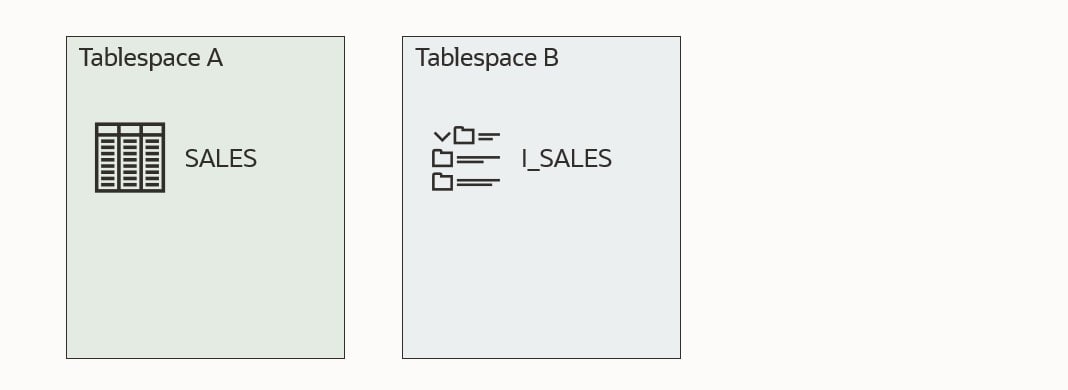
Let me illustrate it. Imagine I want to transport tablespaces A and B.
This first illustration shows a self-contained tablespace set. Table SALES is in tablespace A and a corresponding index I_SALES in tablespace B. Both tablespaces are part of the set that I want to transport. All good!
The next example is no good. Tablespace B now contains an index I_ORDERS, which refers to a table ORDERS which is not placed in the tablespaces that I want to transport. Either I have to drop the index I_ORDERS or move the table ORDERS into one of the tablespaces I am transporting.
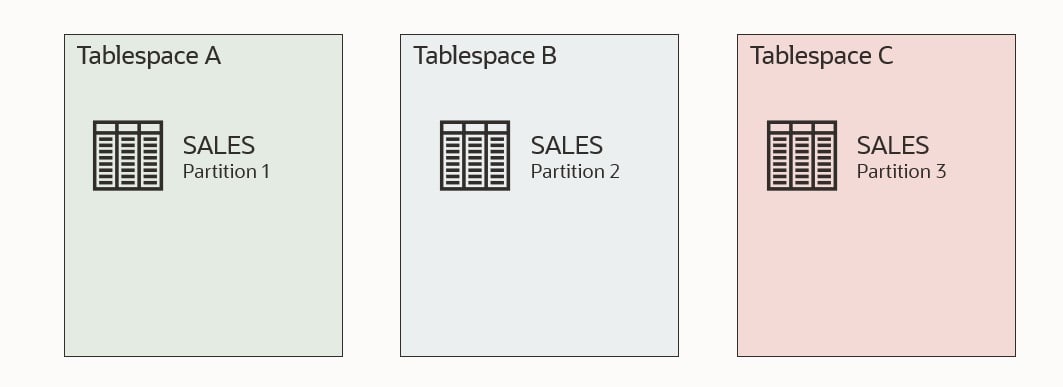
This example is also no good. Table SALES has three partitions. One of the partitions is in a tablespace that I am not transporting. I need to either drop the partition in tablespace C or move it to one of the other tablespaces.
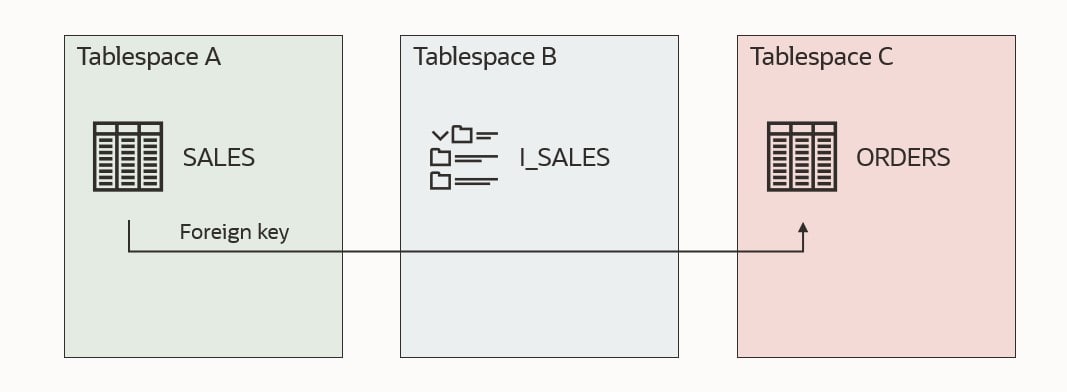
This last example is also no good. Table SALES has a foreign key constraint that refers table ORDERS, but ORDERS is located outside the tablespace set. There is a solution to this which will be discussed shortly.
Checking
You can use DBMS_TTS to check whether a given set of tablespaces are self-contained. Using my previous example. I would run:
execute dbms_tts.transport_set_check('A,B');
Next, I could check the result:
SQL> select * from transport_set_violations;
By default, the procedure transport_set_check doesn’t check for foreign keys that refer to something outside the tablespace set. This means that my last illustration above would not be found by transport_set_check, and you would end up with an error when you try to transport the tablespaces.
If you have foreign key constraints that refer to a table outside of the tablespace set, it is one of the issues which can be ignored. You can instruct Data Pump to exclude constraints, and this issue will be ignored:
When you import the tablespaces into another database, there won’t be any constraints. Even those foreign key constraints that were valid are gone. And even check constaints. All of them!
You should consider whether you want to create them again manually.
Indexes
If you can exclude constraints, can you also exclude indexes? If possible, you could avoid dropping or moving an offending index.
Let’s try! I am using the same test data as the first example.
Check for violations:
execute dbms_tts.transport_set_check('A,B');
select * from transport_set_violations;

VIOLATIONS
-----------------------------------------------------------------
ORA-39907: Index DANIEL.I_ORDERS in tablespace B points to table DANIEL.ORDERS in tablespace C.
As expected, index I_ORDERS is a problem. Let’s try to export and exclude indexes (exclude=index):
alter tablespace a read only;
alter tablespace b read only;
host expdp daniel/oracle transport_tablespaces=a,b exclude=index
Export: Release 19.0.0.0.0 - Production on Fri Feb 4 12:32:14 2022
Version 19.14.0.0.0

Copyright (c) 1982, 2019, Oracle and/or its affiliates.  All rights reserved.

Connected to: Oracle Database 19c Enterprise Edition Release 19.0.0.0.0 - Production
Starting "DANIEL"."SYS_EXPORT_TRANSPORTABLE_01":  daniel/******** transport_tablespaces=a,b exclude=index
Processing object type TRANSPORTABLE_EXPORT/STATISTICS/TABLE_STATISTICS
ORA-39123: Data Pump transportable tablespace job aborted
ORA-39187: The transportable set is not self-contained, violation list is

ORA-39907: Index DANIEL.I_ORDERS in tablespace B points to table DANIEL.ORDERS in tablespace C.
Job "DANIEL"."SYS_EXPORT_TRANSPORTABLE_01" stopped due to fatal error at Fri Feb 4 12:32:33 2022 elapsed 0 00:00:17
It is not possible to exclude indexes in the same way as constraints. However, I think it makes sense. A constraint is just metadata; something that is recorded in the dictionary. We can easily ignore that when doing the Data Pump export.
An index is an object with segments; data in the tablespace. Imagine we could somehow exclude the index. All those blocks belonging to the index would now be zombie blocks belonging to nothing.
Standby Database
If you need to move data out of a running database and your tablespaces are not self-contained, you need to fix the issues. Some of the solutions involve dropping or moving data, but you might not want to do that in a running database.
Imagine the example above where there is an index that refers to a table outside of the tablespace set (I_ORDERS). You probably need that index in your running database, so not a good idea to drop the index.
But you can use your standby database if you have one.
On your snapshot standby, do the required changes to make your tablespace set self-contained.
Still, on the snapshot standby, copy the data files and perform the Data Pump export to generate your transportable tablespace set and corresponding Data Pump dump file.
Revert the snapshot standby back into a physical standby. This will automatically revert all the temporary changes you made and re-sync with the primary database.
If you don’t have a standby database, you could achieve the same with Flashback Database, but that would require an outage on the running database.
Conclusion
If you try to transport tablespaces that are not self-contained, you will get an error. There is no way around the issues except for foreign key constraints.
If you need to make changes to your database to have self-contained tablespaces, you can do it on a snapshot standby database to avoid interfering with a running database.
To get all the details, visit the Upgrade and Utilities part of the new features documentation. There are some good examples of how the features can be used.
I like ROOH, but it takes some time to get used to. For instance, network/admin files (tnsnames, sqlnet) and dbs files (pfile, spfile) are now in a new location.
Remember, 21c is an innovation release, which means a shorter support window than Long Term Releases such as Oracle Database 19c. If you adopt Innovation Releases, you should be prepared to upgrade to the next database release within one year after the next database release ships.
I would not recommend that you upgrade your production systems to Oracle Database 21c due to the limited support period. Not unless you are prepared to upgrade the database soon again – when support runs out. Oracle Database 19c is the current Long Term Support release. I recommend that for production databases.
To learn more about innovation release and our release model, have a look at our slide deck. We discuss it in the first chapter.
New Features
I want to mention a few new features. They haven’t attracted as much attention as the marque features, but they are still cool.
Expression based init.ora parameters make it possible to base database parameters (init.ora) on calculations made on the system’s configuration. For example, setting the database parameter CPU_COUNT to half the number of CPUs (Windows):
alter system set cpu_count='$NUMBER_OF_PROCESSORS/2';
Placeholders in SQL DDL Statements can improve application security because sensitive information, like passwords, doesn’t need to be hardcoded in SQL DDL. Example: You can make this statement:
CREATE USER :!username IDENTIFIED BY :!password ...
And Oracle Call Interface programs can substitute the placeholders into:
CREATE USER "DANIEL" IDENTIFIED BY "MyS3cr3tP!d" ...
This is similar to data binding but occurs in Oracle Client.
These steps will guide you through a migration of a database using Full Transportable Export/Import (FTEX) and incremental backups. I covered the concept in a previous blog post, which you should read to understand the basics. Remember Transportable Tablespaces and Full Transportable Export/Import requires Enterprise Edition.
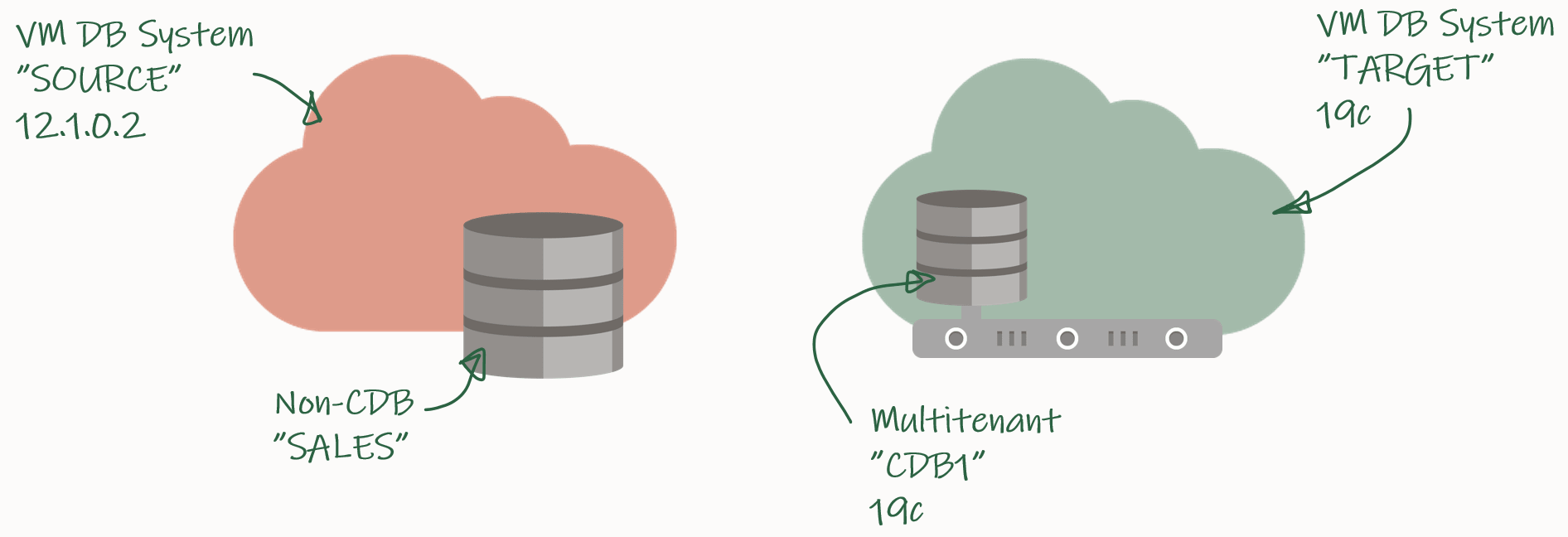
My demo environment looks like this:
I have an 12.1.0.2 database that I want to migrate to a PDB in a new CDB that runs 19c.
Check Prerequisites
Create a new PDB called SALES in the target CDB:
TARGET/CDB1 SQL> create pluggable database sales admin user admin identified by admin;
TARGET/CDB1 SQL> alter pluggable database sales open;
TARGET/CDB1 SQL> alter pluggable database sales save state;
Prepare the database to use TDE Tablespace Encryption:
TARGET/CDB1 SQL> alter session set container=sales;
TARGET/CDB1 SQL> administer key management set key force keystore identified by <keystore-pwd> with backup;
Verify SQL*Net connectivity from source host to target PDB:
Verify database character set and national character set are the same:
SOURCE/SALES SQL> select property_name, property_value from database_properties where property_name in ('NLS_CHARACTERSET', 'NLS_NCHAR_CHARACTERSET');

TARGET/SALES SQL> select property_name, property_value from database_properties where property_name in ('NLS_CHARACTERSET', 'NLS_NCHAR_CHARACTERSET');
Ensure the source database is in ARCHIVELOG mode:
SOURCE/SALES SQL> select log_mode from v$database;
Enable block change tracking on source database. Requires Enterprise Edition (on-prem), DBCS EE-EP (cloud) or Exadata. Although strictly speaking not required, it is strongly recommended:
SOURCE/SALES SQL> select status, filename from v$block_change_tracking;
SOURCE/SALES SQL> alter database enable block change tracking;
Ensure that you can connect from the source to the target host as oracle:
[oracle@source]$ ssh <target ip> date
Identify Tablespaces And External Data
Identify all the tablespaces that you will migrate. With FTEX you should transport all the tablespaces, except those that contain Oracle maintained data, like SYSTEM, SYSAUX, UNDO and so forth:
SOURCE/SALES SQL> select tablespace_name from dba_tablespaces;
Save the list of tablespaces for later. In my demo, I only have the tablespace SALES except the Oracle maintained ones.
Next, on the target database ensure that any of the existing tablespaces doesn’t conflict with the ones you are transporting:
TARGET/SALES SQL> select tablespace_name from dba_tablespaces;
If there is a conflict of names, you have to drop or rename the tablespaces in the target database.
Use DBMS_TDB to easily identify external stuff like directories, external tables and BFILEs. Any files stored in the file system outside the database must be manually transferred to the file system on the target host:
SOURCE/SALES SQL> SET SERVEROUTPUT ON
SOURCE/SALES SQL> DECLARE
      external BOOLEAN;
   BEGIN
      external := DBMS_TDB.CHECK_EXTERNAL;
   END;
/
Download and Configure Perl Scripts
Create a folder to hold the perl scripts, download the scripts from MOS doc ID 2471245.1, and unzip:
[oracle@source]$ rm -rf /home/oracle/xtts
[oracle@source]$ mkdir /home/oracle/xtts
[oracle@source]$ cd /home/oracle/xtts
[oracle@source]$ --Download file from MOS
[oracle@source]$ unzip rman_xttconvert_VER4.3.zip
Create a working directory (aka. scratch location) which will hold the backups. Ensure that you have enough space at this location at both source and target database.
Now, you can start the first initial backup of the database. You take it while the source database is up and running, so it doesn’t matter if the backup/restore cycle take hours or days to complete:
[oracle@source]$ export TMPDIR=/home/oracle/xtts
[oracle@source]$ cd /home/oracle/xtts
[oracle@source]$ $ORACLE_HOME/perl/bin/perl xttdriver.pl --backup
The perl script has been configured in such a way that it automatically transfers the backups to the target system. In addition to that, a small text file must be transferred as well:
Now, on the target system, you can restore the backup that was just taken. If needed, the data files are automatically converted to the proper endian format. If conversion is needed, you need space for a copy of all the data files:
[oracle@target]$ export TMPDIR=/home/oracle/xtts
[oracle@target]$ cd /home/oracle/xtts
[oracle@target]$ $ORACLE_HOME/perl/bin/perl xttdriver.pl --restore
Incremental Backup and Restore
You can – and should – run the incremental backup and restores as many times as possible. The more frequent you run them, the faster they will run because there will be fewer changes.
At least, close to the migration downtime window starts you should run them often, to minimize the time it will take to perform the final backup and restore:
[oracle@source]$ export TMPDIR=/home/oracle/xtts
[oracle@source]$ cd /home/oracle/xtts
[oracle@source]$ $ORACLE_HOME/perl/bin/perl xttdriver.pl --backup
[oracle@target]$ export TMPDIR=/home/oracle/xtts
[oracle@target]$ cd /home/oracle/xtts
[oracle@target]$ $ORACLE_HOME/perl/bin/perl xttdriver.pl --restore
Import Metadata Using FTEX
Create a directory object that points to the xtts folder:
TARGET/SALES SQL> create directory LOGDIR as '/home/oracle/xtts';
Next, create a database link to the source database that can be used to import the metadata. If the source database is already a PDB, ensure that the database link points directly into the PDB:
TARGET/SALES SQL> create public database link SRCLNK connect to system identified by <password> using '//<source_ip>:1521/<service_name>';
Test that it works:
TARGET/SALES SQL> select * from dual@srclnk;
Next, create a par file (sales_imp.par) that you can use for the Data Pump import (see appendix below for explanation):
Start Data Pump and perform the import. newsales is a TNS alias that points into the SALES PDB in the target CDB. If you have encrypted tablespaces, you should use the option encryption_pwd_prompt. It allows you to input the TDE password. It can be omitted if there are no encrypted tablespaces.
Once the import has completed, you should examine the Data Pump log file for any critical errors. Check the appendix (see below) for ignorable errors:
[oracle@target]$ vi /home/oracle/xtts/sales_imp.log
That’s it! Your data has been migrated. Now would be a good time to:
Check data files for corruption using RMAN VALIDATE command
Although not mandatory, it is recommended if time allows. It is a read-only check that you can run while other stuff is happening in the database. See step 6.1 in MOS doc ID 2471245.1.
Gather dictionary statistics
Test your application
Start a backup
Gather statistics – they were excluded from the export
Drop the database link that points to the source database
Cleanup the file system:
/home/oracle/xtts
/u01/app/oracle/xtts_scratch
Conclusion
Even huge, TB-sized, databases can be migrated with very little downtime by using incremental backups. By using the perl script from My Oracle Support and combined with Full Transportable Export/Import it is a simple process. In addition, you can even migrate to a new endian format, to a higher release and into a PDB in one operation. It requires Enterprise Edition and you must have plenty of disk space – potentially twice the size of your database.
There is a video on our YouTube channel that you can watch. It demos the entire process. I suggest that you subscribe to our channel and get notified whenever there are new videos.
Thanks to my good colleague, Robert Pastijn, for supplying a runbook that was used as inspiration.
If Source Database Is in OCI and Automatic Backup Is Enabled
If the source database is running in OCI and you have enabled automatic backup, you must make a few changes.
In xttprep.tmpl around line 319 change:
cp('backup for transport allow inconsistent ' ||
to
cp('set encryption off for all tablespaces;set compression algorithm "basic";backup for transport allow inconsistent ' ||
In xttdriver.pl around line 4268 change:
my $rman_str1 = "set nocfau;";
to
my $rman_str1 = "set nocfau;".
                "set encryption off for all tablespaces ;".
                "set compression algorithm 'basic' ;" ;
ORA-02085
If you get ORA-02085 when querying over the database link:
TARGET/SALES SQL> alter system set global_names=false;
ORA-39032
If you are exporting from 11.2.0.4, you must add the VERSION parameter:
expdp ... version=12
ORA-39187, ORA-39921 And ORA-39922
If the Data Pump job aborts and complain about object named CLI_SWPXXXXXXXX or SYS_ILYYYYYYYYY:
ORA-39123: Data Pump transportable tablespace job aborted
ORA-39187: The transportable set is not self-contained, violation list is
ORA-39921: Default Partition (Table) Tablespace SYSAUX for CLI_SWPXXXXXXXX not contained in transportable set.
ORA-39922: Default Partition (Index) Tablespace SYSAUX for SYS_ILYYYYYYYYY not contained in transportable set.
Job "SYS"."SYS_EXPORT_FULL_01" stopped due to fatal error at Wed Jul 18 13:51:01 2018 elapsed 0 00:05:55
Use network_link to specify the name of the database link that points back to the source database.
full=y and transportable=always instructs Data Pump to perform a full transportable export/import.
exclude=TABLE_STATISTICS,INDEX_STATISTICS exclude statistics from the import. It is better and faster to gather new, fresh statistics on the target database. If you insist on importing your statistics, you should use DBMS_STATS.
exclude=SYS_USER excludes the import of the SYS user. In a PDB that is not even allowed, and most likely you are not interested in importing the definition of the SYS user.
exclude=TABLESPACE:"IN('TEMP')" excludes the temporary tablespace from the import. Most likely there is already a temporary tablespace in the new, target PDB. It is faster to create a TEMP tablespace in advance – and name it the same as in the source database.
A change was made to Spatial in 19c and some Spatial admin users are removed. To avoid errors/noise in the log file you can safely exclude them from the import by specifying exclude=SCHEMA:"IN('SPATIAL_CSW_ADMIN_USR','SPATIAL_WFS_ADMIN_USR')".
transport_datafiles is used to specify the data files that make you the tablespace you are transporting. Specify the parameter multiple times to specify more data files. You can use asmcmd to get the data file paths and names.
Data Pump Ignorable Errors
Multimedia desupported in 19c, but code is still there. You can safely disregard this error:
Processing object type DATABASE_EXPORT/NORMAL_OPTIONS/TABLE
ORA-39342: Internal error - failed to import internal objects tagged with ORDIM due to ORA-00955: name is already used by an existing object.
Processing object type DATABASE_EXPORT/SYSTEM_PROCOBJACT/POST_SYSTEM_ACTIONS/PROCACT_SYSTEM
ORA-39083: Object type PROCACT_SYSTEM failed to create with error:ORA-04042: procedure, function, package, or package body does not exist

Failing sql is:
BEGIN
SYS.DBMS_UTILITY.EXEC_DDL_STATEMENT('GRANT EXECUTE ON DBMS_DEFER_SYS TO "DBA"');COMMIT; END;
If you need to migrate a database to the cloud or anywhere else for that matter, you should consider using cross-platform transportable tablespaces and incremental backup (XTTS). Even for really large databases – 10s or 100s of TB – you can still migrate with minimal downtime. And it works across different endian formats. In fact, for the majority of cross-endian projects this method is used.
In addition to minimal downtime, XTTS has the following benefits:
You can implicitly upgrade the database by migrating directly into a higher release
You can migrate from a non-CDB and into a PDB
You can keep downtime at a minimum by using frequent incremental backups
You can migrate across endianness – e.g. from AIX or Solaris to Oracle Linux
Endian-what?
Endianness is determined by the operating system. Simplified, it determines in which order bytes are stored in memory:
Big endian: stores the most significant byte of a word at the smallest memory address.
Little endian: stores the least-significant byte at the smallest address.
Wikipedia has an article for the interested reader.
Which platform uses which endian format? There is a query for that:
SQL> select platform_name, endian_format from v$transportable_platform;
If your source and target platform does not use the same endian format, then you need a cross-endian migration.
How Does It Work
To concept is explained in this video on our YouTube Channel:
Basically, you need to migrate two things:
Data
Metadata
Data
The data itself is stored in data files and you will be using transportable tablespaces for this. Since the source and target platform are not the same, the data files must be converted to the new format. Only the data files that make up user tablespaces are transported. The system tablespaces, like SYSTEM and SYSAUX, are not transported.
If you have a big database, it will take a lot of time to copy the data files. Often this is a problem because the downtime window is short. To overcome this you can use a combination of RMAN full backups (backup set or image copies) and incremental backups.
There are a few ways to do this which is covered in the following MOS notes:
The first two methods are using version 3 of a Perl script (xttdriver.pl), whereas the last method uses version 4 of the same Perl script. Version 4 offers a much simplified method and I will use that version for this blog post series.
Version 4 of the Perl script has a list of requirements. If your project can’t meet these requirements, check if the previous version 3 can be used.
Metadata
Transferring the data files is just part of the project. Information on what is inside the data files, the metadata, is missing because the system tablespaces were not transferred. The metadata is needed by the target database, otherwise, the data files are useless. The Transportable Tablespace concept as a whole does not work for system tablespaces, but instead we can use Data Pump.
You can use either:
Traditional transportable tablespace
Or, the newer full transportable export/import (FTEX)
For this blog post series, I am only focusing on FTEX. But if you run into problems with FTEX, or if you can’t meet any of the FTEX requirements, you should look into the traditional transportable tablespace method.
Here are a few examples of metadata that Data Pump must transfer:
Users
Privileges
Packages, procedudes and functions
Table and index defintions (the actual rows and index blocks are in the data files)
Temporary tables
Views
Synonyms
Directories
Database links
And so forth
Conclusion
By using a combination of cross-platform transportable tablespaces and incremental backups, you can migrate even huge databases to the cloud. And it even works for cross-endian migrations, like AIX or Solaris to Oracle Linux.
You can watch our YouTube playlist and watch videos on cross-platform transportable tablespaces.













 Databases Are Fun