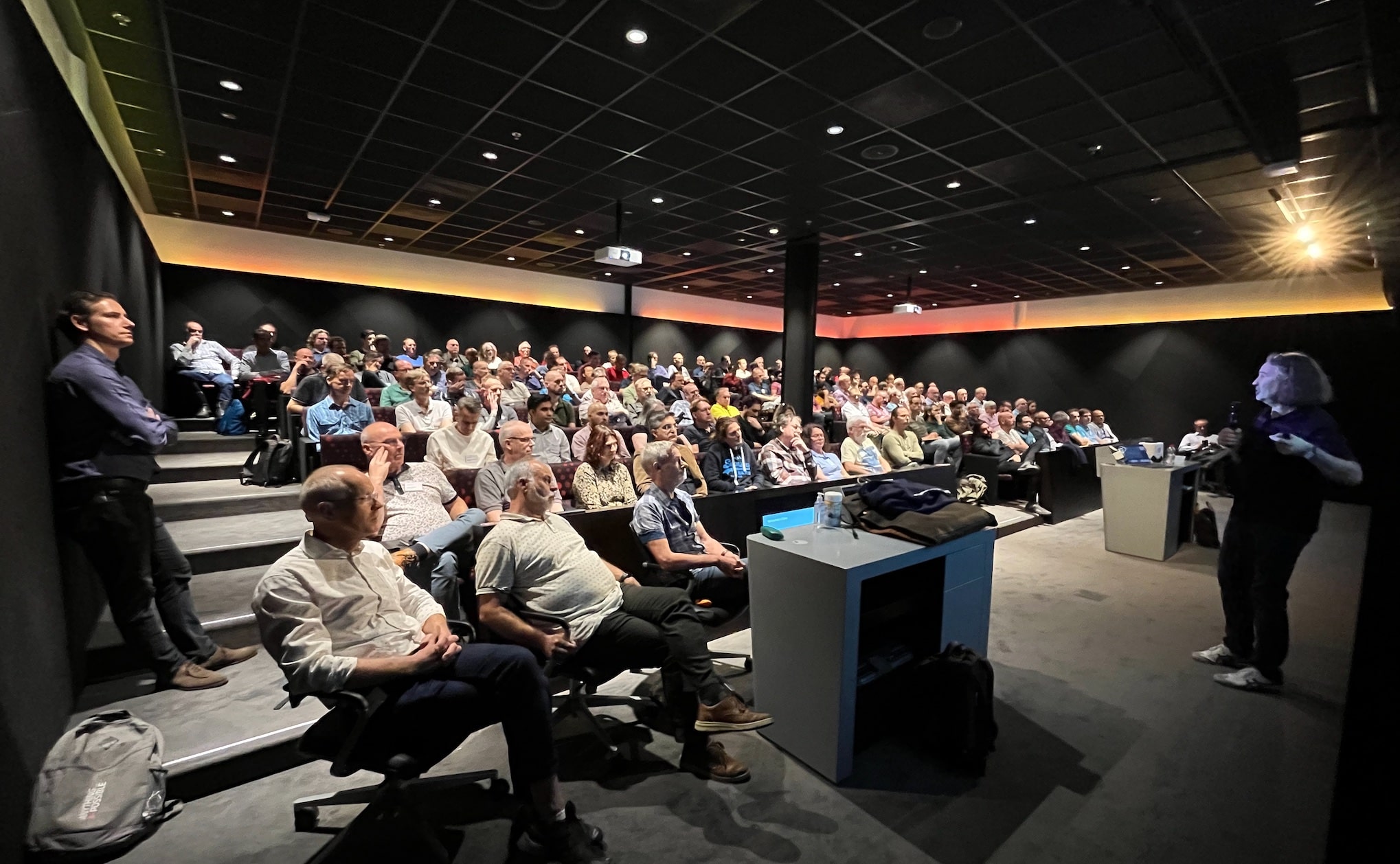
It’s a Wrap – Real World Database Upgrade and Migration to 19c and 23c

Here is a short post about the workshops I did with Mike Dietrich in Brussels and Utrecht on Real World Oracle Database Upgrade and Migrations 19c and 23c.

The Slides

The slide deck is a goodie bag full of tech content. Even if you didn’t participate, there is something of interest.

Slide deck from Real World Oracle Database Upgrade and Migrations 19c & 23c

Questions

The audiences in our workshops were amazing, and we got many good (and challenging) questions. Here is a follow-up on those we couldn’t answer.

SQL Plan Management on Standby Databases

On an Active Data Guard, SQL Plan Management (SPM) is active and will help the optimizer select only validated execution plans.

However, SPM cannot create new baselines nor perform any form of evolution. SPM stores its information in the SQL Management Base in the SYSAUX tablespace. Since a standby database is open in read-only mode, such features are disabled.

You need to capture and evolve plans on the primary database.

Exporting BasicFile LOBs

I just blogged about a trick that you can use to speed up export of BasicFile LOBs.

Refreshable Clone PDBs

We also explained how to use refreshable clone PDBs to migrate non-CDBs into PDBs. Here is a video which shows a little more details.

Hands-On Labs

Remember, you can try many of the features mentioned in our Hands-On Labs.

  • It’s free
  • It runs in a browser
  • Nothing to install

It’s better to fail in our lab than in production!

Thanks

Thanks to the excellent audience in Brussels and Utrecht. It was a pleasure talking tech with you.

My favorite moment was when someone wanted Mike to sign an original, sealed Oracle7 box. That’s cool.

If you would like a similar workshop in your neighborhood, take hold of your local Oracle office.

Workshop in Brussels and Utrecht Real World Oracle Database Upgrade and Migrations 19c & 23c

How to Upgrade to Oracle Database 19c and Migrate to a PDB Using Refreshable Clone PDBs

At the recent Oracle DatabaseWorld at CloudWorld I spoke to several customers that had to upgrade to Oracle Database 19c and convert their non-CDB into the multitenant architecture.

Here is how to do it using Refreshable Clone PDBs.

My source database is:

  • A non-CDB
  • On Oracle Database 12.2 or newer

I want to:

  • Upgrade to Oracle Database 19c
  • Convert the database to a PDB
  • Plug it into an existing CDB

The Problem With PDB Conversion

The conversion to multitenant does not offer the same rollback options as an upgrade. Normally, when you upgrade a database, you rely on Flashback Database as the primary rollback option. However, that does not work for conversion to multitenant.

When you plug your non-CDB into a CDB, the CDB makes changes to the data file headers. Those changes are irreversible and prevents you from ever using those data files in a non-CDB. Not even Flashback Database can revert the changes.

So, what are your rollback options?

  • Restore a backup It might take longer than your organization can accept.
  • Make a copy of the data files before conversion It requires disk space and a longer downtime window to copy the data files.

This is where Refreshable Clone PDBs come into play.

Refreshable Clone PDBs

Here is an overview of what AutoUpgrade does for you:

Overview of the process

  1. AutoUpgrade creates a PDB in the target CDB as a refreshable clone PDB of the source non-CDB.
  2. The target CDB starts to copy the data files from the source non-CDB.
  3. The target CDB refreshes the PDB. In other words, it rolls forward the data files using the redo from the source non-CDB.
  4. Now, downtime starts. AutoUpgrade issues a final refresh to bring over the latest changes.
  5. AutoUpgrade disconnects the refreshable clone PDB from its source. Now, the PDB is a real, stand-alone PDB. AutoUpgrade upgrades the PDB and converts it into a proper PDB.

If something happens during the upgrade or conversion and you want to roll back, simply start the original non-CDB. It is left completely untouched.

You can learn about the concept in detail in our AutoUpgrade 2.0 webinar:

Refreshable clone PDBs does not work for cross-endian migrations (like AIX to Linux), but cross-platform should work fine (like Windows to Linux).

How To

  1. In the source non-CDB, I create a user:
    create user dblinkuser identified by ... ;
    grant create session, 
       create pluggable database, 
       select_catalog_role to dblinkuser;
    grant read on sys.enc$ to dblinkuser;
    
  2. In my target CDB, I create a database link connecting to my source non-CDB:
    create database link clonepdb 
       connect to dblinkuser identified by ...
       using 'source-db-alias';
    
    You can drop the database link after the migration.
  3. I create an AutoUpgrade config file called noncdb1.cfg:
    upg1.source_home=/u01/app/oracle/product/12.2.0.1
    upg1.target_home=/u01/app/oracle/product/19
    upg1.sid=NONCDB1
    upg1.target_cdb=CDB1
    upg1.source_dblink.NONCDB1=CLONEPDB 600
    upg1.target_pdb_name.NONCDB1=PDB1
    upg1.start_time=25/09/2023 06:30:00
    
    • source_home and target_home is the Oracle Home of the source non-CDB and target CDB respectively.
    • sid is the source non-CDB that I want to upgrade and convert.
    • target_cdb is the CDB into which I want to plug in the non-CDB. You must create the CDB in advance or use an existing one.
    • source_dblink has the name of the database link (CLONEPDB) and the rate at which the target CDB brings over redo and rolls forward the copy (600 seconds or 10 minutes).
    • target_pdb_name specifies that I want to rename the non-CDB to PDB1 when I plug it in. You can leave this out if you want to keep the name.
    • start_time specifies when downtime starts. At this point, AutoUpgrade refreshes the PDB for the last time and then moves on with upgrade and PDB conversion.
  4. Start AutoUpgrade in analyze mode on the source system:
    java -jar autoupgrade.jar -mode analyze -config noncdb1.cfg
    
  5. Run AutoUpgrade in fixups mode on the source system:
    java -jar autoupgrade.jar -mode fixups -config noncdb1.cfg
    
    • This runs the fixups identified by AutoUpgrade in analyze mode. You can run this task even after you start AutoUpgrade in deploy mode. Just ensure that the fixups complete before the final refresh (as specified in the start_time paramter).
  6. If there are no errors found in the analysis, I start AutoUpgrade in deploy mode:
    java -jar autoupgrade.jar -mode deploy noncdb1.cfg
    
    • AutoUpgrade copies the data files over the database link.
    • Rolls the copies of the data files forward with redo from the source non-CDB.
    • At one point, issues a final refresh and disconnects the PDB from the source non-CDB.
    • Upgrades and converts the database to a PDB.

Here’s a demo of it:

Words of Caution

Disconnect Users from Source Database

Right before the upgrade and conversion starts, AutoUpgrade executes a final refresh. The last redo from the source non-CDB is applied to ensure no data is lost. You must ensure that no users are connected to the source non-CDB after this time. Otherwise, that data will be lost.

AutoUpgrade starts the final refresh at the start time specified in the config file:

upg1.start_time=25/09/2023 06:30:00

You must be careful about disconnecting users from the source non-CDB. Remember, AutoUpgrade connects to the source non-CDB over a database link as a regular user (not SYS). This means the listener must be available, and you can’t enable restricted session or similar means.

Data Guard

If the target CDB is protected by Data Guard, special attention is needed to handle the standby databases. I explain the details in our AutoUpgrade 2.0 webinar:

Redo

The procedure relies on redo from the source non-CDB. Ensure that redo is kept in the Fast Recovery Area of the source non-CDB until it has been applied on the target PDB. Either postpone your archive backups or change the archive log deletion policy so the archive logs remain on disk.

Final Refresh

Check this blog post if you want to be in control over when the final refresh happens.

Services

You must recreate the services used in your connect strings.

Appendix

Further Reading

What to Do about RMAN Recovery Catalog When You Upgrade Oracle Database

When you upgrade your Oracle Database, you want to ensure your backup strategy is not compromised. The RMAN recovery catalog is a key part of your backup strategy. What do you need to take care of when upgrading Oracle Database? Don’t let the upgrade of your Oracle Database jeopardize your RMAN backup strategy.

First, let’s agree on the terminology:

  • Target Database – The database that you want to backup. There is where your data is stored.
  • Catalog Database – A regular Oracle Database with one or more catalog schemas.
  • Catalog Schema – A schema inside the catalog database which holds the metadata about the RMAN backups. You can register multiple databases in the same catalog schema.
  • Recovery Catalog – The catalog schema and catalog database together form the recovery catalog.

The topology of RMAN catalog and Oracle Database

What’s Required?

RMAN Client

The RMAN client you use for the backup must be the same version as the target database. I find it easiest to always use the RMAN executable from the same Oracle Home as the target database.

Previously, this was not a requirement, but it is in current versions.

Catalog Schema

The catalog schema version must be the same or higher compared to the RMAN client. When you upgrade the target database and start to use a newer RMAN client, you also need to upgrade the catalog schema.

  • Upgrade the target database.
  • Start RMAN using the executable from the target database Oracle Home.
  • Connect to the target database and recovery catalog and perform the upgrade:
    $ $ORACLE_HOME/bin/rman
    
    RMAN> connect target /
    RMAN> connect catalog <catalog_schema>/<catalog_schema_password>@<catalog_database_alias>
    RMAN> upgrade catalog noprompt;
    

If you register multiple databases into the same catalog schema, and you have already upgraded another target database to the same version, then there is no need to upgrade the catalog schema again.

When you upgrade with AutoUpgrade, I find it easiest to allow AutoUpgrade to perform the upgrade for me.

Since the catalog schema is backward compatible, you can downgrade the target database and still use a higher version catalog schema. In case of a target database downgrade, no changes are needed in the catalog schema.

Catalog Database

As long as the catalog database runs on a supported version, you should be home safe. Target databases on Oracle Database 19c support using catalog databases all the way back to 10.2.0.3. Hopefully, you don’t use such old versions anymore. The version of the catalog database does not have to match either the catalog schema or the target database.

You can upgrade the catalog database like any other database. Use AutoUpgrade in deploy mode, and that’s it. A catalog database requires no special attention. But you can always run $ORACLE_HOME/rdbms/admin/dbmsrmansys.sql in the catalog database to ensure all the prerequisites are met (plus dbmsrmanvpc.sql for VPC users).

If your catalog database is on Oracle Database 11g, there are a few details in My Oracle Support Doc ID 1970049.1 to be aware of.

In some situations, building a new catalog database is desirable. Like:

  • Your catalog database is on Standard Edition. Nowadays, a catalog database must be Enterprise Edition.
  • Your catalog database is very old and can’t be directly upgraded.

The IMPORT CATALOG command can move a recovery catalog or selected catalog schemas into a new catalog database.

Example

Given the above requirements, here is an example:

  • You have three target databases running on various releases, let’s say Oracle Database 19c, 12.1.0.2, and 11.2.0.4.
  • Those target databases must use a catalog schema matching their respective release. You have three catalog schemas in total:
    • One catalog schema is on catalog schema version 19
    • One catalog schema is on catalog schema version 12.1.0.2
    • One catalog schema is on catalog schema version 11.2.0.4
  • You have just one catalog database. The catalog database is on Oracle Database 21c.
  • You can store all three catalog schemas in the same catalog database. The catalog schema version and the catalog database release do not have to match.

Now imagine you upgrade the 11.2.0.4 database to 12.2.0.1. Now, you must upgrade the catalog schema version to 12.2.0.1 using the UPGRADE CATALOG command. Also, you must switch to an RMAN client on 12.2.0.1.

What About Zero Data Loss Recovery Appliance?

If you are fortunate to have a (ZDLRA), you must not touch the catalog database yourself. All operations on the catalog database must happen via racli. When you update the appliance software, it will upgrade the catalog database underneath the hood.

You can still upgrade the catalog schema using RMAN and the upgrade catalog command.

My Recommendation

  1. Keep your catalog database on Long-Term Support releases. At the time of writing, it means keeping your catalog database on Oracle Database 19c.
  2. Upgrade your catalog database to the next Long-Term Support release before you upgrade the target databases.
  3. Apply Release Updates regularly.

Thanks

Thanks to my good colleagues, Jony and Andrew, for their help and good pointers. Much appreciated.

Further Reading

New Webinars Coming Up

I am really excited to announce two new webinars:

  • Data Pump Best Practices and Real World Scenarios April 5, 2023, 16:00 CET
  • Release and Patching Strategies for Oracle Database 23c May 10, 2023, 16:00 CET

Oracle Database 19c Upgrade Virtual Classroom

You can sign up here.

The entire team, Roy, Mike, Bill, Rodrigo, and myself, are working hard to polish all the details.

Data Pump Best Practices and Real World Scenarios

In short: It’s all the stuff we couldn’t fit into our last Data Pump webinar.

Here’s the full abstract: > We promised to share more information in our last Data Pump Deep Dive With Development seminar. And here we are back again. Data Pump best practices is the topic we would like to emphasize on today. This will include some common tips and tricks but target especially parallel optimizations and transformation. It is quite common that you restructure objects and types when you use Data Pump for a migration. So we will give a detailed overview on the most common scenarios. This will guide us directly to real world scenarios where we’ll demonstrate several of those best practices used by customers.

Release and Patching Strategies for Oracle Database 23c

This is a revamped version of our very first webinar, Release and Patching Strategy. It’s updated to reflect the latest changes, and we have included even more details and demos.

Last time, the interest for this webinar was huge, and we ended up maxing out of Zoom capacity. A lot of you couldn’t get it. So, you better be ready on time, or you might miss your seat.

The full abstract: > This is a session every Oracle customer needs to attend to. Oracle Database 23c, the next long-term support release will be available sometime this year. Now it is time to refresh your knowledge about the best and most efficient strategies for your future release planning. Are there changes to the release numbering? Are there important changes regarding database patching? We will give you a complete overview on the available patch bundles and recent and future changes. We’ll discuss and showcase why a proper patching strategy is of vital importance – and how you can automate and optimize certain essential tasks.

But I Can’t Make It

Don’t worry. As usual, we will publish the recording on our YouTube channel and share the slides with you. Keep an eye out on my Webinars page.

But it’s better to watch it live. The entire team will be there, and we will answer all your questions. I promise you; we won’t leave until all questions have been answered.

All Tech, No Marketing

Remember, our mantra is: All tech, no marketing.

These webinars are technical. This is the place for you if you want all the gory details and cool demos.

I hope to see you there

Upgrading with Oracle Database Vault – AIOUG Follow-up

Last week I presented to AIOUG. My session was Upgrades and Migrations – What’s Cooking. I managed to answer most of the questions except one. As promised, here’s the answer.

Oracle Database Vault

One question came up on Oracle Database Vault. I couldn’t answer the question live. I knew we had recently made changes in this area, but the details were lost.

What do you need to consider when upgrading an Oracle Database that uses Oracle Database Vault?

First, when AutoUpgrade performs the pre-upgrade analysis, it will detect the presence of Oracle Database Vault. Information is written in the pre-upgrade summary reminding you to take due care.

You have two options when you upgrade to Oracle Database 19c or later:

  • Disable Oracle Database Vault during the upgrade
  • Or, grant the role DV_PATCH_ADMIN to SYS during the upgrade

You can find more information in Requirement for Upgrading Database with Database Vault (Doc ID 2757126.1).

Thanks

Thanks to AIOUG for hosting my webinar. I really enjoy presenting to the community in India. The audience is always really engaging and asks a lot of questions.

Unfortunately, I have yet to have the opportunity to present in person in India. I hope to change that one day.

Upgrade, Data Guard and Downtime

How about downtime when you upgrade your Oracle Database with Data Guard?

Short answer: You should expect slightly more downtime. Unless you head into a rolling upgrade.

How Long Does An Upgrade Take?

If I had a dime for every time someone asked me this question, I would have bought a tractor, retired, and worked full-time at our farm.

What a handsome Ford

My boss, Mike, created a long blog post about it without giving a real answer. If he can’t estimate it, no one can!

But I will give it a try anyway. A ballpark figure is 15-45 minutes for the actual upgrade. Then add all the extra stuff that surrounds the upgrade.

Does Data Guard Change That?

Yes, it does. Extra downtime is needed.

You don’t add any extra time to the actual upgrade of the primary database. During the upgrade, redo transport is on, and the primary database ships redo to the standby database, but it has no significant impact on the duration of the upgrade.

But you do need a little extra time before and after the upgrade.

Primary Standby Added Time
Restart Data Guard in new Oracle Home 5 min
Upgrade primary database
Verify standby has applied all redo 2 min
Optionally, test a switchover 5 min
TOTAL 7-12 min

If you follow the standby offline approach, you need more downtime. In that approach, you keep the standby database offline during the entire upgrade, and it needs time to catch up afterward. I would estimate it adds 5 min of extra downtime, totaling 12-17 min instead.

This is the best you can do with a physical standby database. But …

Rolling Upgrades

If you want to upgrade with almost no downtime at all, you can do rolling upgrades. A rolling upgrade uses DBMS_ROLLING to reduce the downtime for an upgrade to the time it takes to perform a regular switchover.

Under the hood, a rolling upgrade uses Data Guard as well. This blog post series is about upgrading with physical standby databases, but a rolling upgrade requires a logical standby database. It’s out of scope for this blog post series.

Why don’t we all do rolling upgrades?

  • A logical standby database has more restrictions than a physical one.
  • A logical standby database uses SQL apply instead of redo apply. SQL apply is not as efficient as redo apply and can become a performance bottleneck.
  • It’s more complicated.

But rolling upgrades are really cool, as you will see in this demo.

You can find more details in our webinar How Low Can You Go? Zero Downtime Operations. Slides and recording is available on demand.

Other Blog Posts in This Series

Upgrade, Data Guard, and Restore Points

Flashback Database is the best way to protect your Oracle Database during upgrade. It requires that you create restore points before the upgrade. If the upgrade fails, getting back to the starting point is easy and fast.

Enterprise Edition

It requires Enterprise Edition, but so does Data Guard. So it is not an issue here.

Guaranteed Restore Points

The restore points that you create to protect your Oracle Database upgrade should be guaranteed restore points. This ensures that you can always go back to the starting point. If you run out of disk space in your Fast Recovery Area (FRA), the database will halt and thus not jeopardize your fallback plan. The alternative to regular restore points is that the database will overwrite flashback logs to maintain operation, which is not desirable in this situation. You are relying on the restore point as your fallback.

Order of Creation

Always follow this order when creating restore points:

  1. All standby databases
  2. Primary database

The SCN of the restore points on the standby database must be the same or lower than on the primary database.

Imagine this scenario:

SCN Primary Standby
100 Restore point created
105 Restore point created
110 Upgrade starts
200 Upgrade fails

To flashback:

Primary Standby
Flash back standby database to SCN 100
Flash back primary database to SCN 105
Open primary database with resetlogs. Creates a new incarnation as of SCN 105
Roll forward standby database from SCN 101 to 105 and follow new incarnation

If the restore point on the standby database was created at SCN 106, then the primary database is already at a new incarnation (as of SCN 105). The standby database can’t follow and needs to be completely rebuilt.

Primary Database

When you upgrade with AutoUpgrade, it will create a guaranteed restore point for you. It is the default behavior.

The restore point created by AutoUpgrade protects the primary database only.

Standby Database

Always create the restore points on the standby database:

From the docs:

Restore points that are created on a primary database are automatically replicated to the standby database. The restore points created on the standby database are called replicated restore points. Irrespective of whether a restore point on the primary database is a guaranteed restore point or a normal restore point, the corresponding replicated restore point is always a normal restore point.

By design, all replicated restore points are not guaranteed; even if it was guaranteed on the primary database. When you protect a standby database during upgrade, you want the restore point to be guaranteed; thus, you must create them manually.

To create a restore point on the standby database, you must cancel redo apply:

SQL> alter database recover managed standby database cancel;
SQL> create restore point STBY_GRP guarantee flashback database;
SQL> alter database recover managed standby database disconnect from session;

If you forget to cancel redo apply, you run into:

SQL> create restore point STBY_GRP guarantee flashback database;
create restore point STBY_GRP guarantee flashback database
*
ERROR at line 1:
ORA-38784: Cannot create restore point 'STBY_GRP'.
ORA-01153: an incompatible media recovery is active

Remove Restore Points

Don’t forget to remove the restore points after the upgrade. Do so when you have run your tests, and you are sure you won’t go back to the old release:

SQL> drop restore point STBY_GRP;
  • The order of removal is not important
  • It does not require downtime to remove the restore points

If you instruct AutoUpgrade to remove the restore point after upgrade (drop_grp_after_upgrade), it will happen only on the primary database. You must manually remove the restore points from the standby database.

Failure to remove the restore points will eventually fill up the FRA bringing the database to a complete halt.

Other Blog Posts in This Series

How To Upgrade Data Guard – Standby Offline Method

Let me show you how to upgrade your database to Oracle Database 19c when it is protected by Data Guard. I will use AutoUpgrade and follow the Standby Offline method.

This is my demo environment: Overview of the environment that is used for this procedure

  • Grid Infrastructure is managing the database.
  • Data Guard is configured using Data Guard broker.

Overall, the process looks like this: Overview of upgrade with a data guard

This procedure starts right before I start AutoUpgrade in DEPLOY mode. Downtime has begun, and no users are connected to the database.

Before Upgrade

I always use the latest version of AutoUpgrade. Download it and put it into $ORACLE_HOME/rdbms/admin.

A newer version of AutoUpgrade can also upgrade to older database releases, so don’t worry if the AutoUpgrade version doesn’t match the Oracle Database release that you are upgrading to.

Disable Fast-Start Failover (FSFO)

Fast-Start Failover must be disabled during upgrade. I connect to Data Guard CLI (dgmgrl) and disable it:

DGMGRL> disable fast_start failover;

Restore Point

My standby database is protected against errors during the upgrade by keeping it offline. However, to be on the safe side, I also create a guaranteed restore point on the standby database:

STANDBY SQL> alter database recover managed standby database cancel;
STANDBY SQL> create restore point stdby_before_upg guarantee flashback database;
STANDBY SQL> alter database recover managed standby database disconnect from session;

Stop Data Guard

I shut down and disable the standby database. Disabling the database is strictly speaking not necessary, but a better-safe-than-sorry approach:

[oracle@standby]$ $ORACLE_HOME/bin/srvctl stop database -d $ORACLE_UNQNAME -stopoption immediate
[oracle@standby]$ $ORACLE_HOME/bin/srvctl disable database -d $ORACLE_UNQNAME

Upgrade

During the upgrade, I want to defer redo log shipping to the standby database. I use the AutoUpgrade config file parameter defer_standby_log_shipping (see appendix for complete config file):

upg1.defer_standby_log_shipping=yes

Next, I upgrade the primary database by starting AutoUpgrade in DEPLOY mode:

[oracle@primary]$ java -jar autoupgrade.jar -config DB.cfg -mode deploy

As the upgrade progresses, it makes a lot of changes to the database data dictionary. Those changes are written to redo, which will accumulate on the primary database. The database will not send the redo logs to the standby database (yet).

At the end of the upgrade, AutoUpgrade informs me that redo log transport has been deferred and that I must enable it again:

---- Data Guard broker configuration is disabled. Enable it once ready to sync up standby database  ----
Enable Data Guard from DB_BOSTON using the following DGMGRL command: 
EDIT DATABASE DB_BOSTON SET STATE=TRANSPORT-ON;

After the upgrade, you should perform the necessary tests to validate the new database release. You should continue only when you are convinced to go live on the new release.

Remember that the standby database was left behind before we started, so if all other fails, simply restart the standby database and connect your users to it.

After Upgrade

Restart Standby Database In New Oracle Home

  • Ideally, I have stored these files outside the Oracle Home; like ASM. In that case, I don’t need to do anything:

    • SPFile
    • Password file
    • Data Guard broker config files
    • Network files (sqlnet.ora, tnsnames.ora etc.)

    If I stored the files inside the Oracle Home, I must move them to the new Oracle Home (see appendix).

  • I change my profiles and /etc/oratab (see appendix).

  • I upgrade the database in Grid Infrastructure, which updates the Oracle Home information. Grid Infrastructure now starts the database in the new Oracle Home. If you are licensed for Active Data Guard, you can change the startoption from mount to read only:

    [oracle@standby]$ export NEW_ORACLE_HOME=/u01/app/oracle/product/19.0.0.0/dbhome_1
    [oracle@standby]$ export ORACLE_HOME=$NEW_ORACLE_HOME
    [oracle@standby]$ $ORACLE_HOME/bin/srvctl upgrade database -db $ORACLE_UNQNAME -o $ORACLE_HOME
    [oracle@standby]$ $ORACLE_HOME/bin/srvctl modify database -db $ORACLE_UNQNAME -s "mount" -r PHYSICAL_STANDBY
    [oracle@standby]$ $ORACLE_HOME/bin/srvctl enable database -d $ORACLE_UNQNAME
    [oracle@standby]$ $ORACLE_HOME/bin/srvctl start database -d $ORACLE_UNQNAME
    

Set Parameters

Suppose I made any changes to the database initialization parameters as part of the upgrade of the primary database. In that case, I probably also want to make the same changes on the standby database.

I can make changes to database initialization parameters using these AutoUpgrade config file parameters:

  • remove_underscore_parameters
  • add_after_upgrade_pfile
  • add_during_upgrade_pfile
  • del_after_upgrade_pfile
  • del_during_upgrade_pfile

I can also review the Preupgrade Summary Report for suggested changes to the database initialization parameters.

STANDBY SQL> alter system set ... scope=both;

Re-enable Data Guard

To re-enable the Data Guard config, I use Data Guard CLI (dgmgrl) and re-enable redo transport:

DGMGRL> edit database "DB_BOSTON" set state=transport-on;

Now, redo is shipping to the standby database, and it will apply it. When the redo generated during the upgrade is applied on the standby database, it is implicitly upgraded.

Wait For Redo Apply

Ensure the standby database has caught up and applied all the redo generated during the upgrade.

DGMGRL> show database "DB_fra24r"

Database - DB_fra24r

  Role:               PHYSICAL STANDBY
  Intended State:     APPLY-ON
  Transport Lag:      0 seconds (computed 1 second ago)
  Apply Lag:          1 hours 56 seconds (computed 1 second ago)
  Average Apply Rate: 3.38 MByte/s
  Real Time Query:    OFF
  Instance(s):
    DB

  Database Warning(s):
    ORA-16853: apply lag has exceeded specified threshold

Database Status:
WARNING

The database reports a WARNING because there is an apply lag. The standby database has not caught up yet.

Wait a while and repeat the show database command until status changes to SUCCESS and there is no apply lag. Use Data Guard Broker to verify data guard setup after upgrade

If Data Guard broker reports an error the standby database is not applying logs, I can try to enable the configuration again:

DGMGRL> enable configuration;

Validate Data Guard

I validate the setup and ensure both databases are ready for a switchover. The database will not allow a switchover if there are any problems in the Data Guard setup. It is a good way of checking things are fine:

DGMGRL> validate database "DB_BOSTON"
DGMGRL> validate database "DB_fra24r"

After upgrading a primary database (data guard) with autoupgrade you can use validate database to ensure everything is fine

Optionally, I perform a switchover as well:

DGMGRL> switchover to "DB_fra24r"

Re-enable Fast-Start Failover

I can now re-enable FSFO:

DGMGRL> enable fast_start failover;

Remove Restore Points

After the upgrade, I should perform the necessary tests to validate the new database release. I should remove the restore points on both databases when I am convinced to go live on the new release.

Miscellaneous

Check the database registration in listener.ora. I must update the Oracle Home information if there is a static configuration.

What If

  • What if your Oracle Database is not managed by Grid Infrastructure? You can still use the above procedure, but you must change the commands accordingly.

  • What if you don’t use Data Guard broker? Manually configured Data Guard environments are fully supported by AutoUpgrade, but you must change some commands accordingly.

Conclusion

It is not that complicated to upgrade your database, even if it is part of a Data Guard setup. Using AutoUpgrade is fully supported and highly recommended. A little extra legwork is needed to take care of the standby database. But the good thing is that your Data Guard setup is maintained throughout the process. This procedure showed how to use the standby offline approach, which requires slightly more downtime but gives you extra protection.

Other Blog Posts in This Series

Appendix

Broker Config Files

Here is a query to determine the location of the Data Guard broker config files. In this example, the files are stored outside the Oracle Home; in ASM:

SQL> select name, value from v$parameter where name like 'dg_broker_config_file%';

NAME                   VALUES
---------------------- --------------------------------
dg_broker_config_file1 +DATA/DB_FRA2PR/dr1db_fra2pr.dat
dg_broker_config_file2 +DATA/DB_FRA2PR/dr2db_fra2pr.dat

Database Files

Here is a command to see where the SPFile and password file are located. In this example, the SPFile is stored outside the Oracle Home. However, the password file is in the default location inside the Oracle Home. The latter must be moved when you restart a database in the new Oracle Home:

[oracle@standby]$ srvctl config database -d $ORACLE_UNQNAME | grep -E "Spfile|Password"
Spfile: +DATA/<DB_UNIQUE_NAME>/PARAMETERFILE/spfileDB.ora
Password file: 

Updating /etc/oratab

Here is a little snippet to update /etc/oratab to match the new release Oracle Home. Since I am using Grid Infrastructure to manage my database, I don’t set the database to start automatically:

export NEW_ORACLE_HOME=/u01/app/oracle/product/19.0.0.0/dbhome_1
export ORACLE_SID=DB
#Backup file
cp /etc/oratab /tmp/oratab
#Use sed to remove the line that starts with ORACLE_SID
sed '/^'"$ORACLE_SID"':/d' /tmp/oratab > /etc/oratab
#Add new entry
echo "$ORACLE_SID:$NEW_ORACLE_HOME:N" >> /etc/oratab

Updating .bashrc

Here is a little snippet to update .bashrc replacing the old Oracle Home with the new Oracle Home:

export OLD_ORACLE_HOME=/u01/app/oracle/product/12.2.0.1/dbhome_1
export NEW_ORACLE_HOME=/u01/app/oracle/product/19.0.0.0/dbhome_1
cp ~/.bashrc ~/.bashrc-backup
sed 's|'"$OLD_ORACLE_HOME"'|'"$NEW_ORACLE_HOME"'|g' ~/.bashrc-backup > ~/.bashrc

Alert Log Messages

Before the upgrade of the primary database, I stop the standby database. Since I didn’t defer redo transport in the primary database, it will complain about losing connection to the standby database. The primary database alert log will contain an entry similar to this:

2022-08-19T05:21:39.389976+00:00
ARCH: Attempting destination LOG_ARCHIVE_DEST_2 network reconnect (1089)
ARCH: Destination LOG_ARCHIVE_DEST_2 network reconnect abandoned
krsg_gap_ping: Error 1089 when pinging <standby> (Process:TT00) (PID:82492)
2022-08-19T05:21:46.606834+00:00
TT04: Attempting destination LOG_ARCHIVE_DEST_2 network reconnect (3113)
TT04: Destination LOG_ARCHIVE_DEST_2 network reconnect abandoned
2022-08-19T05:21:46.607255+00:00
Errors in file /u01/app/oracle/diag/rdbms/db_boston/DB/trace/DB_tt04_66302.trc:
ORA-03113: end-of-file on communication channel
Error 3113 for archive log file 3 to '<standby>'
2022-08-19T05:21:47.002610+00:00
Errors in file /u01/app/oracle/diag/rdbms/db_boston/DB/trace/DB_tt04_66302.trc:
ORA-03113: end-of-file on communication channel

I can safely ignore it. My monitoring system might detect this and start to complain.

Config File

For your reference, this is the config file I used. It contains only the required information. All other parameters have a default value:

upg1.sid=DB
upg1.source_home=/u01/app/oracle/product/12.2.0.1/dbhome_1
upg1.target_home=/u01/app/oracle/product/19.0.0.0/dbhome_1
upg1.defer_standby_log_shipping=yes

Synchronize Standby Database

When I run AutoUpgrade in ANALYZE mode and check the preupgrade summary report, I find this information message:

Synchronize your standby databases before database upgrade.

The standby database is not currently synchronized with its associated primary database.

To keep data in the source primary database synchronized with its associated standby databases, all standby databases must be synchronized before database upgrade. See My Oracle Support Note 2064281.1 for details.

Don’t worry about it. It tells me to ensure that all redo gets applied.

What does it say? Basically, it says that all redo generated on the primary database before the downtime window started, should be sent to and applied on the standby database. This way, my standby database is ready to replace your primary database at any time, if something goes really wrong. Strictly speaking it is not necessary to ensure that, but it is strongly recommended.

Further Reading

Changing COMPATIBLE Parameter and Data Guard

When you upgrade your Oracle Database, you should also decide how to raise the COMPATIBLE parameter. The considerations are the same when you use Data Guard, but the procedure is different.

Why

The main reason for raising COMPATIBLE is to enable new features.

Some new features are not backward compatible, e.g., blockchain tables. When someone introduces such features, the database:

  • is no longer backward compatible
  • can no longer be downgraded

When you upgrade, COMPATIBLE stays at the old setting. You need to actively raise it and allow the use of these new features. You are in total control.

Here is a video with more details about COMPATIBLE.

When

I recommend that you raise COMPATIBLE one or two weeks after the upgrade.

  • When you have seen that the new release works fine in production.
  • When you are confident that a database downgrade won’t be needed.

Raising COMPATIBLE requires a database restart, i.e., an outage. If such is unacceptable, you must raise COMPATIBLE as part of the upgrade. But be advised, it severely limits your fallback options.

AutoUpgrade does not change COMPATIBLE, unless you explicitly state it in the config file:

upg1.drop_grp_after_upgrade=yes
upg1.raise_compatible=yes

What

I recommend that you always set COMPATIBLE to the default of a database release:

  • 19.0.0
  • 21.0.0

If you only have non-CDBs then it might not matter much. But in a multitenant environment, having a uniform, COMPATIBLE setting is very beneficial. This allows PDBs to move between CDBs without problems.

How

You need to raise COMPATIBLE on all databases in your Data Guard configuration. The order is important:

  • First, standby databases (individual order is not important)
    STANDBY SQL> --Ensure redo apply is running
    STANDBY SQL> alter database recover managed standby database disconnect from session;
    STANDBY SQL> alter system set compatible='19.0.0' scope=spfile sid='*';
    STANDBY SQL> alter database recover managed standby database cancel;
    
    [oracle@standby]$ srvctl stop database -d $ORACLE_UNQNAME
    [oracle@standby]$ srvctl start database -d $ORACLE_UNQNAME -o mount
    
    STANDBY SQL> alter database recover managed standby database disconnect from session;
    
  • Last, primary database
    PRIMARY SQL> alter system set compatible='19.0.0' scope=spfile sid='*';
    
    [oracle@primary]$ srvctl stop database -d $ORACLE_UNQNAME
    [oracle@primary]$ srvctl start database -d $ORACLE_UNQNAME
    

Other Blog Posts in This Series

Further Reading

How To Upgrade Data Guard – MAA Method

Let me show you how to upgrade your database to Oracle Database 19c when it is protected by Data Guard. I will use AutoUpgrade and follow the MAA method.

This is my demo environment: Overview of the environment that is used for this procedure

  • Grid Infrastructure is managing the database.
  • Data Guard is configured using Data Guard broker.

Overall, the process looks like this: Overview of upgrade with a data guard

This procedure starts right before I start AutoUpgrade in DEPLOY mode. Downtime has begun, and no users are connected to the database.

Before Upgrade

I always use the latest version of AutoUpgrade. Download it and put it into $ORACLE_HOME/rdbms/admin.

A newer version of AutoUpgrade can also upgrade to older database releases, so don’t worry if the AutoUpgrade version doesn’t match the Oracle Database release that you are upgrading to.

Disable Fast-Start Failover (FSFO)

Fast-Start Failover must be disabled during upgrade. I connect to Data Guard CLI (dgmgrl) and disable it:

DGMGRL> disable fast_start failover;

Restore Point

I need to protect the standby database against errors during the upgrade. I create a guaranteed restore point on the standby database:

STANDBY SQL> alter database recover managed standby database cancel;
STANDBY SQL> create restore point stdby_before_upg guarantee flashback database;
STANDBY SQL> alter database recover managed standby database disconnect from session;

Set Parameters

If I plan on making changes to the database initialization parameters as part of the upgrade of the primary database, I probably also want to make the same changes on the standby database.

I can make changes to database initialization parameters using these AutoUpgrade config file parameters:

  • remove_underscore_parameters
  • add_after_upgrade_pfile
  • add_during_upgrade_pfile
  • del_after_upgrade_pfile
  • del_during_upgrade_pfile

I can also review the Preupgrade Summary Report for suggested changes to the database initialization parameters.

Save the changes to the SPFile only:

STANDBY SQL> alter system set ... scope=spfile;

Restart Standby Database In New Oracle Home

The standby database must be started in the new Oracle Home; the Oracle Home I upgrade to.

  • First, I stop the standby database:

    [oracle@standby]$ srvctl stop database -d $ORACLE_UNQNAME
    
  • Ideally, I have stored these files outside the Oracle Home; like ASM. In that case, I don’t need to do anything:

    • SPFile
    • Password file
    • Data Guard broker config files
    • Network files (sqlnet.ora, tnsnames.ora etc.)

    If I stored the files inside the Oracle Home, I must move them to the new Oracle Home (see appendix).

  • Next, I restart the database in the new Oracle Home. I must restart in mount mode:

    [oracle@standby]$ #Set environment to new Oracle Home
    [oracle@standby]$ export ORACLE_HOME=/u01/app/oracle/product/19.0.0.0/dbhome_1
    [oracle@standby]$ export PATH=$ORACLE_HOME/bin:$PATH
    [oracle@standby]$ srvctl upgrade database -d $ORACLE_UNQNAME -oraclehome $ORACLE_HOME
    [oracle@standby]$ srvctl start database -d $ORACLE_UNQNAME -o mount
    

    I don’t need to explicitly start redo apply. My Data Guard broker configuration has APPLY-ON for the standby database. Since the broker is still enabled, it will ensure that redo apply is started.

  • Finally, be sure also to change my profiles and /etc/oratab (see appendix).

Upgrade

Upgrade the primary database by starting AutoUpgrade in DEPLOY mode:

[oracle@primary]$ java -jar autoupgrade.jar -config DB.cfg -mode deploy

As the upgrade progresses, it makes a lot of changes to the database data dictionary. Those changes are written to redo, which the standby database will apply. Thus, the upgrade happens implicitly on the standby database via the redo.

After Upgrade

Check Standby Database

Ensure that the standby database has caught up and applied all the redo generated during the upgrade.

I use Data Guard CLI (dgmgrl) to check it. First, the configuration:

DGMGRL> show configuration

Configuration - DB_BOSTON_DB_fra2vp

  Protection Mode: MaxPerformance
  Members:
  DB_BOSTON - Primary database
    DB_fra2vp - Physical standby database 

Fast-Start Failover:  Disabled

Configuration Status:
SUCCESS   (status updated 28 seconds ago)

Status must be SUCCESS.

Next, I check each of the databases:

DGMGRL> show database "DB_BOSTON"
DGMGRL> show database "DB_fra2vp"

Both databases should have status SUCCESS, and the standby database must report no apply lag. Use Data Guard Broker to verify data guard setup after upgrade

If Data Guard broker reports an erroror the standby database is not applying logs, I can try to enable the configuration again:

DGMGRL> enable configuration;

Validate Data Guard

I validate the setup and ensure both databases are ready for a switchover. The database will not allow a switchover if there are any problems in the Data Guard setup. It is a good way of checking things are fine:

DGMGRL> validate database "DB_BOSTON"
DGMGRL> validate database "DB_fra2vp"

After upgrading a primary database (data guard) with autoupgrade you can use validate database to ensure everything is fine

Optionally, I perform a switchover as well:

DGMGRL> switchover to "DB_fra2vp"

Re-enable Fast-Start Failover

I can now re-enable FSFO:

DGMGRL> enable fast_start failover;

Active Data Guard

If the database is licensed to use Active Data Guard, I can now open the standby database in READ ONLY mode.

Remove Restore Points

After the upgrade, I should perform the necessary tests to validate the new database release. Only when I am convinced to go live on the new release, should I remove the restore points on both databases.

Miscellaneous

Check the database registration in listener.ora. I must update the Oracle Home information if there is a static configuration.

What If

  • What if your Oracle Database is not managed by Grid Infrastructure? You can still use the above procedure, but you must change the commands accordingly.

  • What if you don’t use Data Guard broker? Manually configured Data Guard environments are fully supported by AutoUpgrade, but you must change some commands accordingly.

Conclusion

It is not that complicated to upgrade your database, even if it is part of a Data Guard setup. Using AutoUpgrade is fully supported and highly recommended. A little extra legwork is needed to take care of the standby database. But the good thing is that your Data Guard setup is maintained throughout the process.

Here is a cool demo of the entire process:

Other Blog Posts in This Series

Appendix

Broker Config Files

Here is a query to determine the location of the Data Guard broker config files. In this example, the files are stored outside the Oracle Home; in ASM:

SQL> select name, value from v$parameter where name like 'dg_broker_config_file%';

NAME                   VALUES
---------------------- --------------------------------
dg_broker_config_file1 +DATA/DB_FRA2PR/dr1db_fra2pr.dat
dg_broker_config_file2 +DATA/DB_FRA2PR/dr2db_fra2pr.dat

Database Files

Here is a command to see where the SPFile and password file are located. In this example, the SPFile is stored outside the Oracle Home. However, the password file is in the default location inside the Oracle Home. The latter must be moved when you restart a database in the new Oracle Home:

[oracle@standby]$ srvctl config database -d $ORACLE_UNQNAME | grep -E "Spfile|Password"
Spfile: +DATA/<DB_UNIQUE_NAME>/PARAMETERFILE/spfileDB.ora
Password file: 

Updating /etc/oratab

Here is a little snippit to update /etc/oratab to match the new release Oracle Home. Since I am using Grid Infrastructure to manage my database, I don’t set the database to start automatically:

export NEW_ORACLE_HOME=/u01/app/oracle/product/19.0.0.0/dbhome_1
export ORACLE_SID=DB
#Backup file
cp /etc/oratab /tmp/oratab
#Use sed to remove the line that starts with ORACLE_SID
sed '/^'"$ORACLE_SID"':/d' /tmp/oratab > /etc/oratab
#Add new entry
echo "$ORACLE_SID:$NEW_ORACLE_HOME:N" >> /etc/oratab

Updating .bashrc

Here is a little snippit to update .bashrc replacing the old Oracle Home with the new Oracle Home:

export OLD_ORACLE_HOME=/u01/app/oracle/product/12.2.0.1/dbhome_1
export NEW_ORACLE_HOME=/u01/app/oracle/product/19.0.0.0/dbhome_1
cp ~/.bashrc ~/.bashrc-backup
sed 's|'"$OLD_ORACLE_HOME"'|'"$NEW_ORACLE_HOME"'|g' ~/.bashrc-backup > ~/.bashrc

Config File

For your reference, this is the config file I used. It contains only the required information. All other parameters have a default value:

upg1.sid=DB
upg1.source_home=/u01/app/oracle/product/12.2.0.1/dbhome_1
upg1.target_home=/u01/app/oracle/product/19.0.0.0/dbhome_1

Synchronize Standby Database

When I run AutoUpgrade in ANALYZE mode and check the preupgrade summary report, I find this information message:

Synchronize your standby databases before database upgrade.

The standby database is not currently synchronized with its associated primary database.

To keep data in the source primary database synchronized with its associated standby databases, all standby databases must be synchronized before database upgrade. See My Oracle Support Note 2064281.1 for details.

Don’t worry about it. It tells me to ensure that all redo gets applied

What does it say? Basically, it says that all redo generated on the primary database before the downtime window started, should be sent to and applied on the standby database. This way, my standby database is ready to replace your primary database at any time, if something goes really wrong. Strictly speaking it is not necessary to ensure that, but it is strongly recommended.

Further Reading