Faster Data Pump Import of LOBs Over Database Link

A colleague was helping a customer optimize an import using Data Pump via a database link that involved SecureFile LOBs.

Do you see a way to parallelize the direct import to improve performance and thus shorten the time it takes to import? Or is it not possible for LOB data?

Network mode imports are a flexible way of importing your data when you have limited access to the source system. However, it comes with the price of restrictions. One of them being:

  • Network mode import does not use parallel query (PQ) child processes.

In Data Pump, one worker will process a table data object which is either a:

  • Table
  • Table partition
  • Table subpartition

So, for a regular table, this means just one worker is processing the table and it doesn’t use parallel query. That’s bound to be slow for larger data sets, but can you do something?

Starting Point

To illustrate my point, I’ll use a sample data set consisting of:

  • One schema (BLOBLOAD)
  • With one table (TAB1)
  • Containing two columns
    • Number (ID)
    • BLOB (BLOB_DATA)
  • The table has around 16.000 rows
  • Size is 50 GB

Doing a regular Data Pump import over a database link is slow because there’s only one worker and no parallel query:

impdp ... \
   network_link=srclnk \
   schemas=blobload \
   parallel=4

...

21-OCT-24 05:30:36.813: Job "SYSTEM"."SYS_IMPORT_SCHEMA_01" successfully completed at Mon Oct 21 05:30:36 2024 elapsed 0 00:11:50

Almost 12 minutes!

Partitioning

Since we know that multiple workers can process different partitions of the same table, let’s try to partition the source table. I’ll use hash partitioning and ensure my partitions are equally distributed:

alter table tab1 
modify partition by hash (id) 
partitions 32 online;

Repeat the import:

impdp ... \
   network_link=srclnk \
   schemas=blobload \
   parallel=4

...

21-OCT-24 09:08:00.897: Job "SYSTEM"."SYS_IMPORT_SCHEMA_01" successfully completed at Mon Oct 21 09:08:00 2024 elapsed 0 00:04:26

Just 4m 26s – that’s a huge improvement!

In the log, file you’ll see that multiple workers are processing partitions individually. So, even without parallel query, I get parallelism because of multiple workers on the same table – each on different partitions.

But partitioning is a separately licensed option.

Using QUERY Parameter and Multiple Data Pump Imports

I’ve previously blocked about do-it-yourself parallelism for Data Pump exports of BasicFile LOBs. Can I use the same approach here?

The idea is to start multiple Data Pump jobs importing the same table, but each working on a subset of the data.

  • First, import just the metadata
    impdp ... \
       network_link=srclnk \
       schemas=blobload \
       content=metadata_only
    
  • Next, start 4 concurrent imports importing just the rows. Each import works on a subset of the data using thery query parameter:
    impdp ... \
       network_link=srclnk \
       schemas=blobload \
       content=data_only \
       query="where mod(id, 4)=0"
    
    impdp ... \
       network_link=srclnk \
       schemas=blobload \
       content=data_only \
       query="where mod(id, 4)=1"
    
    impdp ... \
       network_link=srclnk \
       schemas=blobload \
       content=data_only \
       query="where mod(id, 4)=2"
    
    impdp ... \
       network_link=srclnk \
       schemas=blobload \
       content=data_only \
       query="where mod(id, 4)=3"
    

No – that’s not possible. During imports, Data Pump acquires a lock on the table being imported using the APPEND hint. This is from a trace of the imports:

INSERT /*+  APPEND  NESTED_TABLE_SET_REFS   PARALLEL(KUT$,1)   */ INTO "BLOBLOAD"."TAB1"  KUT$ ("ID", "BLOB_DATA")
SELECT /*+ NESTED_TABLE_GET_REFS  PARALLEL(KU$,1)  */ "ID", "BLOB_DATA" FROM "BLOBLOAD"."TAB1"@srclnk KU$ WHERE mod(id, 4)=1

If you try to start multiple imports into the same table, you get an error:

ORA-02049: timeout: distributed transaction waiting for lock

So, let’s prevent that by adding data_options=disable_append_hint to each Data Pump import jobs.

Now, multiple Data Pump jobs may work on the same table, but it doesn’t scale lineary.

  • One concurrent job: Around 12 minutes
  • Four concurrent jobs: Around 8 minutes
  • Eight concurrent jobs: Around 7 minutes

It gives a performance benefit, but probably not as much as you’d like.

Two-Step Import

If I can’t import into the same table, how about starting four simultaneous Data Pump jobs using the do-it-yourself approach above, but importing into separate tables and then combining all the tables afterward?

I’ll start by loading 1/4 of the rows (notice the QUERY parameter):

impdp ... \
   network_link=srclnk \
   schemas=blobload \
   query=\(blobload.tab1:\"WHERE mod\(id, 4\)=0\"\)

While that runs, I’ll start three separate Data Pump jobs that each work on a different 1/4 of the data. I’m remapping the table into a new table to avoid the locking issue:

impdp ... \
   network_link=srclnk \
   schemas=blobload \
   include=table \
   remap_table=tab1:tab1_2 \
   query=\(blobload.tab1:\"WHERE mod\(id, 4\)=1\"\)

In the remaining two jobs, I’ll slightly modify the QUERY and REMAP_TABLE parameters:

impdp ... \
   network_link=srclnk \
   schemas=blobload \
   include=table \
   remap_table=tab1:tab1_3 \
   query=\(blobload.tab1:\"WHERE mod\(id, 4\)=2\"\)
impdp ... \
   network_link=srclnk \
   schemas=blobload \
   include=table \
   remap_table=tab1:tab1_4 \
   query=\(blobload.tab1:\"WHERE mod\(id, 4\)=3\"\)

Now, I can load the rows from the three staging tables into the real one:

ALTER SESSION FORCE PARALLEL DML;
INSERT /*+ APPEND PARALLEL(a) */ INTO "BLOBLOAD"."TAB1" a 
SELECT /*+ PARALLEL(b)  */ * FROM "BLOBLOAD"."TAB1_2" b;
commit;

INSERT /*+ APPEND PARALLEL(a) */ INTO "BLOBLOAD"."TAB1" a 
SELECT /*+ PARALLEL(b)  */ * FROM "BLOBLOAD"."TAB1_3" b;
commit;

INSERT /*+ APPEND PARALLEL(a) */ INTO "BLOBLOAD"."TAB1"  a
SELECT /*+ PARALLEL(b)  */ * FROM "BLOBLOAD"."TAB1_4" b;
commit;

This approach took around 7 minutes (3m 30s for the Data Pump jobs, and 3m 30s to load the rows into the real table). Slower than partitioning but still faster than the starting point.

This approach is complicated; the more data you have, the more you need to consider things like transaction size and index maintenance.

Conclusion

Network mode imports have many restrictions, which also affect performance. Partitioning is the easiest and fastest improvement, but it requires the appropriate license option. The final resort is to perform some complicated data juggling.

Alternatively, abandon network mode imports and use dump files. In dump file mode, one worker can use parallel query during export and import, which is also fast.

Thanks

I used an example from oracle-base.com to generate the test data.

Big Patching News Ahead

Over the last months, our team has been working hard to finish the next evolution of AutoUpgrade which will make patching Oracle Database much easier. Evolution is a big word, but I really think this is a giant leap forward.

One-Button Patching – makes life easier for every Oracle DBA

We promise you one-button patching of your Oracle Database (except that there’s no button to push, but rather just one command 😀).

Imagine you want to patch your Oracle Database. You run one command:

java -jar autoupgrade.jar -config mydb.cfg -patch -mode deploy

And AutoUpgrade does everything for you:

  1. Download the recommended patches
  2. Install a new Oracle home
  3. Patch the Oracle Database That sounds interesting, right? You can learn much in our next webinar on Thursday, 24 October, 14:00 CEST. SIGN UP NOW!

Our mission to make Oracle Database patching easier

What If?

I know some of you are already thinking:

What if my database is not connected to the internet?

Don’t worry – we thought about that and a lot more. If you have any questions, I promise that we won’t end the webinar until all questions are answered.

Teaser

If you can’t wait, here’s a little teaser.

See you on Thursday.

VIEWS_AS_TABLES – A Hidden Data Pump Gem

VIEWS_AS_TABLES is a neat feature in Oracle Data Pump that allows you to export the contents of a view and import them as tables.

The idea is to export a view as if it were a table. The dump file contains a table definition:

  • With the same name as the view
  • With the same columns as the view
  • With the same data as the view

Show Me

  1. In the source database, you create a view, or you can use an existing view:
SQL> create view sales as select * from all_objects;
  1. Next, you export that view as a table:
$ expdp ... views_as_tables=sales
  1. In the target database, you import:
$ impdp ...
  1. The view is now a table:
SQL> select object_type from all_objects where object_name='SALES';

OBJECT_TYPE
-----------
TABLE

When To Use It

  • Faster import of data over a database link when using the QUERY parameter. Normally, the predicate in the QUERY parameter is evaluated on the target database, so during a Data Pump import over a database link, all rows are retrieved from the source database. Then, the QUERY parameter is applied to filter the rows. This is inefficient if you select a smaller portion of a larger table. By using VIEWS_AS_TABLES the filtering happens on the source database and might speed up the import dramatically.

  • Customized data export. Another case I worked on involved a system where the user must be able to extract certain data in a format of their choosing. The user could define a view, export it, and import it into their local database for further processing. The view could:

    • Include various columns and the user can decide the ordering and column names.
    • Join tables to create a more complete data set.
    • Translate columns with domain values to text (like 1 being NEW, 2 being IN PROGRESS and so forth).
    • De-normalize data to make it more human-readable.
    • Format dates and numbers according to the user’s NLS settings.
  • Transform tables are part of a migration. I’ve also seen some customers perform powerful transformations to data while the data was migrated. There are a lot of transformations already in Data Pump, but in these cases, the customer had more advanced requirements.

The Details

  • You can use VIEWS_AS_TABLES in all modes: full, tablespace, schema, and table.
  • The table has the same name as the view. But you can also use the REMAP_TABLE option in Data Pump to give it a new name.
  • During export, Data Pump:
    1. Creates an empty table with the same structure as the view (select * from <view> where rownum < 1).
    2. Exports the table metadata
    3. Unloads data from the view
    4. Drops the interim table
  • Data Pump also exports dependent objects, like grants, that are dependent on the view. On import, Data Pump adds those grants to the table.

Conclusion

A powerful feature that might come in handy one day to transform your data or boost the performance of network link imports.

Leave a comment and let me know how you used the feature.

Can I Name My PDB in Lowercase?

A customer asked me:

I’m using AutoUpgrade to convert to a PDB, and I want to name the PDB in lowercase. How do I do that?

First, let’s understand how AutoUpgrade decides on the name for the PDB when you convert a non-CDB.

AutoUpgrade and PDB Name

AutoUpgrade uses the DB_UNIQUE_NAME of the non-CDB as the name of the PDB.

In the beginning, AutoUpgrade used the SID of the database, but that wasn’t smart for a RAC database since the SID is suffixed by the instance ID.

Now, DB_UNIQUE_NAME might not be smart for a Data Guard configuration, but that’s how it is at the moment. We have a better solution on our backlog.

Anyway, you can override the default and choose the PDB name with the target_pdb_name config file parameter:

upg1.source_home=/u01/app/oracle/product/19
upg1.target_home=/u01/app/oracle/product/23
upg1.sid=DB19
upg1.target_cdb=CDB23
upg1.target_pdb_name.DB19=SALES
  • In the above case, AutoUpgrade renames the DB19 to SALES during plug-in.

If you write sales in lowercase, AutoUpgrade converts it to uppercase. If you put quotes around “sales”, AutoUpgrade throws an error.

AutoUpgrade accepts uppercase PDB names only. Why?

PDB Naming Rules

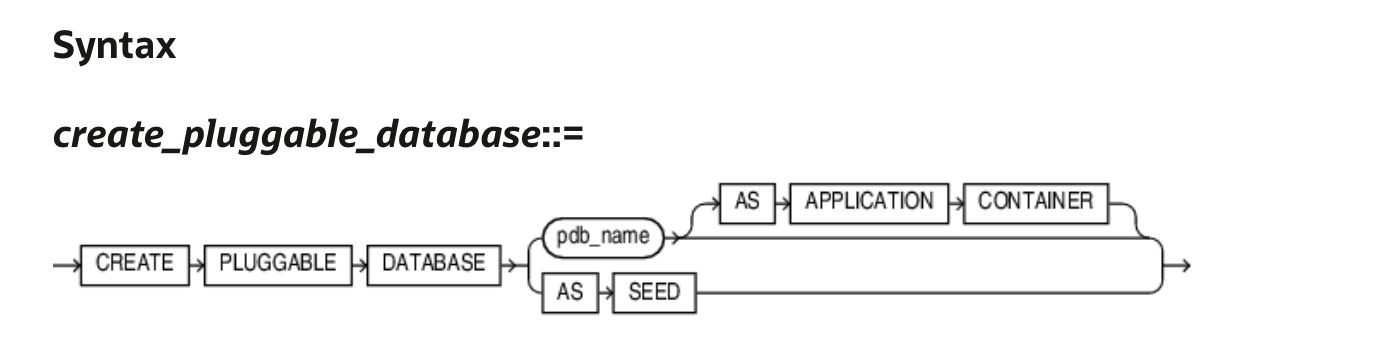
Let’s take a look in the documentation. I’ll find the CREATE PLUGGABLE DATABASE statement.

Syntax diagram for the CREATE PLUGGABLE DATABASE statement

The semantics for pdb_name lists:

The name must satisfy the requirements listed in “Database Object Naming Rules”. The first character of a PDB name must be an alphabet character. The remaining characters can be alphanumeric or the underscore character (_).

Let’s take a look at the Database Object Naming Rules:

… However, database names, global database names, database link names, disk group names, and pluggable database (PDB) names are always case insensitive and are stored as uppercase. If you specify such names as quoted identifiers, then the quotation marks are silently ignored. …

  • Names of disk groups, pluggable databases (PDBs), rollback segments, tablespaces, and tablespace sets are limited to 30 bytes.

So, AutoUpgrade is just playing by the rules.

The Answer

So, the answer is that the database use PDB names in alphanumeric uppercase. AutoUpgrade knows this and automatically converts to uppercase. The customer must accept that PDB names are uppercase.

These are the requirements for the PDB names

  • First character must be an alphabet character.
  • The name must be all uppercase.
  • The name can contain alphanumeric (A-Z) and the underscore (_) characters.
  • No longer than 30 bytes.
  • Don’t try to enquoute the name.
  • Nonquoted identifiers (like PDB names) cannot be Oracle SQL reserved words.
  • The PDB name must be unique in the CDB, and it must be unique within the scope of all the CDBs whose instances are reached through a specific listener.

Daniel’s Recommendation

I recommend that you use globally unique PDB names. In your entire organization, no PDBs have the same name. That way, you can move PDBs around without worrying about name collisions.

I know one customer that generates a unique number and prefix with P:

  • P00001
  • P00002
  • P00003

They have a database with a simple sequence and a function that returns P concatenated with the sequence number. The expose the function in their entire organization through a REST API using ORDS. Simple and yet elegant.

Final Words

I’ve spent more than 20 years working with computers. I have been burnt by naming issues so many times that I’ve defined a law: Daniel’s law for naming in computer science:

  • Use only uppercase alphanumeric characters
  • US characters only (no special Danish characters)
  • Underscores are fine
  • Never use spaces
  • Don’t try to push your luck when it comes to names :-)

How to Speed up Data Pump Imports Using NOVALIDATE Constraints

If you want to save time during a Data Pump import, you can transform constraints to NOT VALIDATED. Regardless of the constraint state in the source database, Data Pump will create the constraint using the novalidate keyword.

This can dramatically reduce the time it takes to import. But be aware of the drawbacks.

The Problem

Here is an example from a big import:

01-JAN-24 08:19:00.257: W-38 Processing object type SCHEMA_EXPORT/TABLE/CONSTRAINT/CONSTRAINT
01-JAN-24 18:39:54.225: W-122      Completed 767 CONSTRAINT objects in 37253 seconds
01-JAN-24 18:39:54.225: W-122      Completed by worker 1 767 CONSTRAINT objects in 37253 seconds

There is only one worker processing constraints, and it took more than 10 hours to add 767 constraints. Ouch!

A Word About Constraints

Luckily, most databases use constraints extensively to enforce data quality. A constraint can be:

  • VALIDATED
    • All data in the table obeys the constraint.
    • The database guarantees that data is good.
  • NOT VALIDATED
    • All data in the table may or may not obey the constraint.
    • The database does not know if the data is good.

When you create a new constraint using the VALIDATE keyword (which is also the default), the database recursively full scans the entire table to ensure existing data is good. If you add more constraints, the database full scans each time. Since full table scans rarely make it into the buffer cache, each new constraint causes a lot of physical reads.

How Does Data Pump Add Constraints

Data Pump adds the constraints in the same state as in the source. As mentioned above, the constraints are most likely VALIDATED.

During import, Data Pump:

  1. Creates an empty table
  2. Loads data
  3. Adds dependent objects, like constraints

It could look like this in a simplified manner:

Example of Data Pump importing a table

For each of the alter table ... add constraint commands will trigger a full table scan because of the validate keyword. For a large database, this really hurts, especially because the full scan does not go parallel.

The Solution

The idea is to add the constraints as NOT VALIDATED but still ENABLED.

  • NOT VALIDATED means the database doesn’t check the existing data
  • ENABLED means the database enforces the constraints for new data

In Data Pump, there is a simple transformation:

impdp ... transform=constraint_novalidate:y

Data Pump adds all constraints using the novalidate keyword regardless of the state in the source database.

Adding constraints using NOVALIDATE keyword

Instead of a full table scan for each new constraint, the alter table ... add constraint command is instant. It’s just a short write to the data dictionary, and that’s it. No full table scan.

This transformation requires Oracle Database 19c, Release Update 23 with the Data Pump Bundle Patch.

Update: A few ran into the following error when using the feature:

ORA-39001: invalid argument value
ORA-39042: invalid transform name CONSTRAINT_NOVALIDATE

Unfortunately, you need to add patch 37280692 as well. It’s included in 19.27.0 Data Pump Bundle Patch.

Is It Safe To Use?

Yes. There is no chance that this feature corrupts your data. Further, you know that data was good in the source, so it will be good in the target database as well.

However, you should take care when you are changing data on import. The alteration might lead to constraints being unable to validate and you won’t know this until you eventually perform the validation. The data is still perfectly fine, however, the constraint would need to be altered to match the new data.

Imagine the following:

  • You are importing into a different character set – from singlebyte to Unicode.
  • One of your constraints checks the length of a text using byte semantics with the function LENGTHB.
  • After import into the Unicode database, some characters may take up two bytes or more.
  • The result of the LENGTHB function would change and you would need to update the constraint definition. Either by allowing more bytes or using LENGTH or LENGTHC.

Let me give you an example:

  • In my singlebyte database (WE8MSWIN1252), I have a table with these two rows:
    • ABC
    • ÆØÅ (these are special Danish characters)
  • In singlebyte all characters take up one byte, so
    • LENGTHB('ABC') = 3
    • LENGTHB('ÆØÅ') = 3
  • I migrate to Unicode and now the special Danish character expand. They take up more space in AL32UTF8:
    • LENGTHB('ABC') = 3
    • LENGTHB('ÆØÅ') = 6
  • If I have a check constraint using the LENGTHB function, I would need to take this into accout. Plus, there are other similar functions that works on bytes instead of chars, like SUBSTRB.

It’s probably rare to see check constraints using byte semantic functions, like LENGTHB and SUBSTRB. But I’ve seen that in some systems that had to integrate with other systems.

You can end up in a similar situation if you:

  • use the remap_data option to change data
  • perform other kinds of data transformation

Since the constraint is still enabled, the database still enforces the constraint for new data after the import.

What’s the Catch?

Validated constraints are very useful to the database because it enables the optimizer to perform query rewrite and potentially improve query performance. Also, index access method might become available instead of full table scans with a validated constraint.

You want to get those constraints validated. But you don’t have to do it during the import. Validating an enabled, not validated constraint does not require a lock on the table. Thus, you can postpone the validation to a later time in your maintenance window, and you can perform other activities at the same time (like backup). Perhaps you can validate constraints while users are testing the database. Or wait until the next maintenance window.

Further, Data Pump always adds validated constraints in these circumstances:

  • On DEFAULT ON NULL columns
  • Used by a reference partitioned table
  • Used by a reference partitioned child table
  • Table with Primary key OID
  • Used as clustering key on a clustered table

What About Rely

After import, you could manually add the rely clause:

alter table ... modify constraint ... rely;

Rely tells the database that you know the data is good. The optimizer still doesn’t trust you until you set the parameter QUERY_REWRITE_INTEGRITY to TRUSTED. Now, the optimizer can now benefit from some query rewrite options, but not all of them.

Nothing beats a truly validated constraint!

Validate Constraints Using Parallel Query

Since you want to validate the constraints, Connor McDonald made a video showing you can do that efficiently using parallel query:

Changing the default parallel degree (as shown in the video) might be dangerous in a running system.

  • All other queries will also run with parallel
  • ALTER TABLE might lead to cursor invalidation

So, here’s a better approach (thanks Connor):

alter session force parallel query;
alter table ... modify constraint ... enable validate;
  • The validation happens:
  • Without table lock
  • In parallel
  • And with no cursor invalidation

Nice!

Final Words

If you’re short on time, consider adding constraints as not validated.

The above case with more than 10 hours spent on adding validated constraints; that could have been just a few seconds with novalidate constraints. That’s a huge difference to a time critical migration.

Don’t forget to validate them at one point, because validated constraints are a benefit to the database.

Check my previous blog post for further details on constraint internals.

Appendix

Autonomous Database

The fix is also available in Autonomous Database, both 19c and 23ai.

Zero Downtime Migration

If you import via Zero Downtime Migration (ZDM) you need to add the following to your ZDM response file:

DATAPUMPSETTINGS_METADATATRANSFORMS-1=name:CONSTR_NOVALIDATE,value:1

You might have to change METADATATRANSFORMS-1 to METADATATRANSFORMS-<n> if you have additional transformations (where <n> is a incrementing number).

Finish 2024 With Great Tech Learning

I am speaking at the DOAG 2024 Conference + Exhibition in Nuremberg, Germany, on November 19-22. The organizers told me that the agenda was now live, so I went to check it out.

DOAG 2024 conference

This is an amazing line-up of world-class speakers, tech geeks, top brass, and everything in between.

Why don’t you finish 2024 by sharpening your knowledge and bringing home a wealth of ideas that can help your business get the most out of Oracle Database?

The Agenda

It is a German conference, and many sessions are in German. However, since there are many international speakers, there are also many sessions in English.

Take a look at the English agenda yourself.

There are many product managers and executives from Oracle and a good amount of Oracle ACEs. The German community also has many notable speakers.

This is your guarantee for top-notch content.

What Else

The ticket gets you:

  • Access to three conference days with keynotes, sessions, and exhibition area.
  • Reception in the exhibition in the evening.
  • Community evening, including food and drinks.
  • Fare Well, including drinks (November 21, 2024).
  • Conference catering on all conference days
  • Usually, they also record many sessions so you can watch them later.

If that’s not enough:

  • The best conference-coffee ever (check the Mercator lounge).
  • They serve top-notch pretzels as a snack (just ensure you get some earlier; they disappear pretty quick).

Pretzels

The Cost

If you’re based in Europe, getting to Nuremberg by train or plane is fairly inexpensive.

  • Conference: 1950 €
  • Hotel: 100 € a night
  • Train/plane: 100-200 €

You don’t have to spend much on food because that’s included in the conference.

Ask your employer to invest 2500 € in you. I will personally guarantee that it is worth the money.

You should probably also throw in a few of your own money and bring home some lebkuchen for your boss and colleagues. They’ll appreciate it.

German lebkuchen

I hope to see you at DOAG 2024 Conference + Exhibition.

How to Solve DCS-12300:Failed to Clone PDB During Remote Clone (DBT-19407)

A customer reached out to me:

I want upgrade a PDB from Oracle Database 19c to 23ai. It’s in a Base Database Service in OCI. I use the Remote clone feature in the OCI console but it fails with DCS-12300 because IMEDIA component is installed.

The task:

  • Clone a PDB using the OCI Console Remote clone feature
  • From a CDB on Oracle Database 19c to another CDB on Oracle Database 23ai
  • Upgrade the PDB to Oracle Database 23ai

Let’s see what happens when you clone a PDB:

Error message from OCI console when remote cloning a PDB to 23ai using cloud tooling

It fails, as explained by the customer.

Let’s dig a little deeper. Connect as root to the target system and check the DCS agent.

$ dbcli list-jobs

ID                                       Description                                                                 Created                             Status
---------------------------------------- --------------------------------------------------------------------------- ----------------------------------- ----------
...
6e1fa60c-8572-4e08-ba30-cafb705c195e     Remote Pluggable Database:SALES from SALES in db:CDB23                      Tuesday, September 24, 2024, 05:04:13 UTC Failure

$ dbcli describe-job -i 6e1fa60c-8572-4e08-ba30-cafb705c195e

Job details
----------------------------------------------------------------
                     ID:  6e1fa60c-8572-4e08-ba30-cafb705c195e
            Description:  Remote Pluggable Database:SALES from SALES in db:CDB23
                 Status:  Failure
                Created:  September 24, 2024 at 5:04:13 AM UTC
               Progress:  35%
                Message:  DCS-12300:Failed to clone PDB SALES from remote PDB SALES. [[FATAL] [DBT-19407] Database option (IMEDIA) is not installed in Local CDB (CDB23).,
 CAUSE: The database options installed on the Remote CDB(CDB19_979_fra.sub02121342350.daniel.oraclevcn.com) m
             Error Code:  DCS-12300
                  Cause:  Error occurred during cloning the remote PDB.
                 Action:  Refer to DCS agent log, DBCA log for more information.

...

What’s Going on?

First, IMEDIA stands for interMedia and is an old name for the Multimedia component. The ID of Multimedia is ORDIM.

Oracle desupported the Multimedia component:

Desupport of Oracle Multimedia Oracle Multimedia is desupported in Oracle Database 19c, and the implementation is removed. … Oracle Multimedia objects and packages remain in the database. However, these objects and packages no longer function, and raise exceptions if there is an attempt made to use them.

In the customer’s and my case, the Multimedia component is installed in the source PDB, but not present in the target CDB. The target CDB is on Oracle Database 23ai where this component is completely removed.

If you plug in a PDB that has more components than the CDB, you get a plug-in violation, and that’s causing the error.

Here’s how you can check whether Multimedia is installed:

select   con_id, status 
from     cdb_registry 
where    comp_id='ORDIM' 
order by 1;

Solution 1: AutoUpgrade

The best solution is to use AutoUpgrade. Here’s a blog post with all the details.

AutoUpgrade detects that multimedia is already present in the preupgrade phase. Here’s an extract from the preupgrade log file:

INFORMATION ONLY
  ================
    7.  Follow the instructions in the Oracle Multimedia README.txt file in <23
      ORACLE_HOME>/ord/im/admin/README.txt, or MOS note 2555923.1 to determine
      if Oracle Multimedia is being used. If Oracle Multimedia is being used,
      refer to MOS note 2347372.1 for suggestions on replacing Oracle
      Multimedia.

      Oracle Multimedia component (ORDIM) is installed.

      Starting in release 19c, Oracle Multimedia is desupported. Object types
      still exist, but methods and procedures will raise an exception. Refer to
      23 Oracle Database Upgrade Guide, the Oracle Multimedia README.txt file
      in <23 ORACLE_HOME>/ord/im/admin/README.txt, or MOS note 2555923.1 for
      more information.

When AutoUpgrade plugs in the PDB with Multimedia, it’ll see the plug-in violation. But AutoUpgrade is smart and knows that Multimedia is special. It knows that during the upgrade, it will execute the Multimedia removal script. So, it disregards the plug-in violation until the situation is resolved.

AutoUpgrade also handles the upgrade, so it’s a done deal. Easy!

Solution 2: Remove Multimedia

You can also manually remove the Multimedia component in the source PDB before cloning.

I grabbed these instructions from Mike Dietrich’s blog. They work for a 19c CDB:

cd $ORACLE_HOME/rdbms/admin
#First, remove ORDIM in all containers, except root
$ORACLE_HOME/perl/bin/perl catcon.pl -n 1 -C 'CDB$ROOT' -e -b imremdo_pdbs -d $ORACLE_HOME/ord/im/admin imremdo.sql
#Recompile
$ORACLE_HOME/perl/bin/perl catcon.pl -n 1 -e -b utlrp -d '''.''' utlrp.sql
#Last, remove ORDIM in root
$ORACLE_HOME/perl/bin/perl catcon.pl -n 1 -c 'CDB$ROOT' -e -b imremdo_cdb -d $ORACLE_HOME/ord/im/admin imremdo.sql
#Recompile
$ORACLE_HOME/perl/bin/perl catcon.pl -n 1 -e -b utlrp -d '''.''' utlrp.sql
#Remove leftover package in all containers
echo "drop package SYS.ORDIMDPCALLOUTS;" > vi dropim.sql
$ $ORACLE_HOME/perl/bin/perl $ORACLE_HOME/rdbms/admin/catcon.pl -n 1 -e -b dropim -d '''.''' dropim.sql

Without the Multimedia component cloning via the cloud tooling works, but you are still left with a PDB that you attend to.

If you’re not using AutoUpgrade, you will use a new feature called replay upgrade. The CDB will see that the PDB is a lower-version and start an automatic upgrade. However, you still have some manual pre- and post-upgrade tasks to do.

One of the reasons I prefer using AutoUpgrade.

Further Reading

For those interested, here are a few links to Mike Dietrich’s blog on components and Multimedia in particular:

How to Trace Oracle Data Pump

If you ever encounter problems with Oracle Data Pump, you can use this recipe to get valuable tracing.

Over the years, I’ve helped many customers with Data Pump issues. The more information you have about a problem, the sooner you can come up with a solution. Here’s my list of things to collect when tracing a Data Pump issue.

Daniel’s Tracing Recipe

1. AWR

  • Be sure you have a proper license to use AWR.

  • Set the snapshot interval to 15 minutes and create a new snapshot:

    exec dbms_workload_repository.modify_snapshot_settings(null, 15);
    exec dbms_workload_repository.create_snapshot;
    
  • If you are on Multitenant, do so in the root container and in the PDB.

2. SQL Trace

  • Depending on the nature of the problem, you can enable SQL trace of the Data Pump processes:

    alter system set events 'sql_trace {process: pname = dw | process: pname = dm} level=8';
    
    • You can change the trace level as required.
    • dm is the Data Pump control process, dw are worker processes.
  • If you already know the SQL ID causing problems, you can enable tracing for just that SQL:

    alter system set events 'sql_trace[SQL: <sql-id>]';
    
    • Replace <sql-id> with the offending SQL ID.

3. Start Data Pump

  • Start the Data Pump job that you want to trace:
    expdp ... metrics=yes logtime=all trace=<trace-setting>
    impdp ... metrics=yes logtime=all trace=<trace-setting>
    

4. AWR

  • Be sure you have a proper license to use AWR.

  • When the Data Pump job completes or after you stopped it, reset the snapshot interval to the original value and create a new AWR snapshot:

    exec dbms_workload_repository.modify_snapshot_settings(null, <original-value>);
    exec dbms_workload_repository.create_snapshot;
    
  • Create an AWR report spanning the entire period:

    @?/rdbms/admin/awrrpt
    
    • If needed, you can later on create AWR reports for a shorter period.
  • If you are on Multitenant, do so in the root container and in the PDB.

Get the Information

Collect the following information:

  1. The Data Pump log file.
  2. AWR reports – on CDB and PDB level
  3. Data Pump trace files
    • Stored in the database trace directory
    • Control process file name: *dm*
    • Worker process file names: *dw*

This should be a great starting point for diagnosing your Data Pump problem.

What Else

  • Remember, you can use the Data Pump Log Analyzer to quickly generate an overview and to dig into the details.

  • Regarding Data Pump parameters metrics=yes and logtime=all. You should always have those in your Data Pump jobs. They add very useful information at no extra cost. In Oracle, we are discussing whether these should be default in a coming version of Data Pump.

Leave a comment and let me know your favorite way of tracing Oracle Data Pump.

Our Real World Database Upgrade and Migration Workshop Is Back on the Road

Now that Oracle CloudWorld 2024 is over, we have time to spare, so it is time to re-ignite our full-day workshop:

Real World Database Upgrade and Migration 19c and 23ai

Next stops on our tour:

Workshops coming to Berlin, Zurich, and Oslo

Click on the city name to sign up – for free! Save your seat before the workshop fills up.

Mike Dietrich, Rodrigo Jorge, and I will present in English. It is an in-person event only.

What Is It?

It is your chance to meet with our product management team for a full day:

  • How to take full advantage of the new features and options in Oracle Database 19c and 23ai
  • The smoothest and fully unattended migration to the CDB architecture
  • Real World Best Practices and Customer Cases
  • Database and Grid Infrastructure Patching Best Practices
  • Performance Stability Prescription and Tips
  • The coolest new features in Oracle Database 23ai for DBAs and Developers

From a previous workshop

I hope to see you there.

All tech, no marketing!

Sure, Let Me Analyze This 200.000-Line Log File

Imagine importing a large database using Oracle Data Pump. In the end, Data Pump tells you success/failure and the number of errors/warnings encountered. You decide to have a look at the log file. How big is it?

$ du -h import.log
 29M   import.log

29 MB! How many lines?

$ wc -l import.log
  189931 import.log

Almost 200.000 lines!

How on earth can you digest that information and determine whether you can safely ignore the errors/warnings recorded by Data Pump?

Data Pump Logfile Analyzer

This is where Data Pump Logfile Analyzer (DPLA) can help you.

DPLA can summarize the log file into a simple report. Summary of a Data Pump job

It can give you an overview of each type of error. Showing the errors reported in a Data Pump log file

It can tell you where Data Pump spent the most time. Showing which Data Pump phases took the longest

It can produce an interactive HTML report. HTML report from Data Pump Log Analyzer

And so much more. It’s a valuable companion when you use Oracle Data Pump.

Tell Me More

DPLA is not an official Oracle tool.

It is a tool created by Marcus Doeringer. Marcus works for Oracle and is one of our migration superstars. He’s been involved in the biggest and most complicated migrations and knows the pain of digesting a 200.000-line log file.

He decided to create a tool to assist in the analysis of Data Pump log files. He made it available for free on his GitHub repo.

Give It a Try

Next time you have a Data Pump log file, try to use the tool. It’s easy, and instructions come with good examples.

If you like it, be sure to star his repo. ⭐

If you can make it better, I’m sure Marcus would appreciate a pull request.

Thanks, Marcus, good job! 💪