What Is a Self-contained Transportable Tablespace Set

Yesterday a comment was made on a video on our YouTube channel. The question was, what happens when you try to transport a tablespace that is not self-contained. Let’s find out.

The Error

First, some test data:

create tablespace a;
create tablespace b;
create tablespace c;
create user daniel identified by oracle;
grant dba to daniel;
create table daniel.sales (c1 number) tablespace a;
create table daniel.orders (c1 number) tablespace c;
create index daniel.i_orders on daniel.orders (c1) tablespace b;

Then, let’s run the Data Pump command to start the process

alter tablespace a read only;
alter tablespace b read only;

host expdp daniel/oracle transport_tablespaces=a,b
Export: Release 19.0.0.0.0 - Production on Fri Feb 4 12:32:14 2022
Version 19.14.0.0.0

...

Processing object type TRANSPORTABLE_EXPORT/STATISTICS/TABLE_STATISTICS
ORA-39123: Data Pump transportable tablespace job aborted
ORA-39187: The transportable set is not self-contained, violation list is

ORA-39907: Index DANIEL.I_ORDERS in tablespace B points to table DANIEL.ORDERS in tablespace C.
Job "DANIEL"."SYS_EXPORT_TRANSPORTABLE_01" stopped due to fatal error at Fri Feb 4 12:32:33 2022 elapsed 0 00:00:17

The answer is: Data Pump will check the set of tablespaces and ensure they are self-contained, when you perform the export.

Self-Contained

In the documentation it lists the following as one of the tasks for transporting tablespaces:

  1. Pick a self-contained set of tablespaces.

What does that mean exactly? Later on, in the documentation there are some examples of violations:

  • An index inside the set of tablespaces is for a table outside of the set of tablespaces.
  • A partitioned table is partially contained in the set of tablespaces.
  • A referential integrity constraint points to a table across a set boundary.

Let me illustrate it. Imagine I want to transport tablespaces A and B.

This first illustration shows a self-contained tablespace set. Table SALES is in tablespace A and a corresponding index I_SALES in tablespace B. Both tablespaces are part of the set that I want to transport. All good!
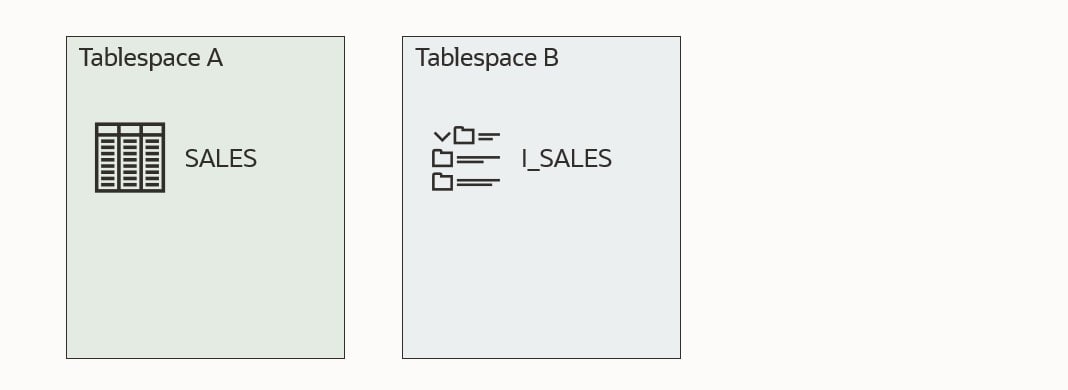
An example of a self-contained tablespace set

The next example is no good. Tablespace B now contains an index I_ORDERS, which refers to a table ORDERS which is not placed in the tablespaces that I want to transport. Either I have to drop the index I_ORDERS or move the table ORDERS into one of the tablespaces I am transporting.

An example of a tablespace set that is not self-contained

This example is also no good. Table SALES has three partitions. One of the partitions is in a tablespace that I am not transporting. I need to either drop the partition in tablespace C or move it to one of the other tablespaces.
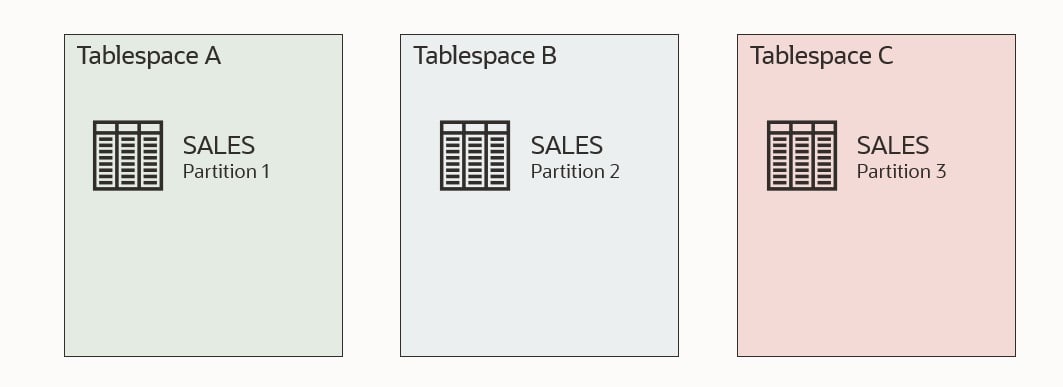
An example of a tablespace set that is not self-contained

This last example is also no good. Table SALES has a foreign key constraint that refers table ORDERS, but ORDERS is located outside the tablespace set. There is a solution to this which will be discussed shortly.
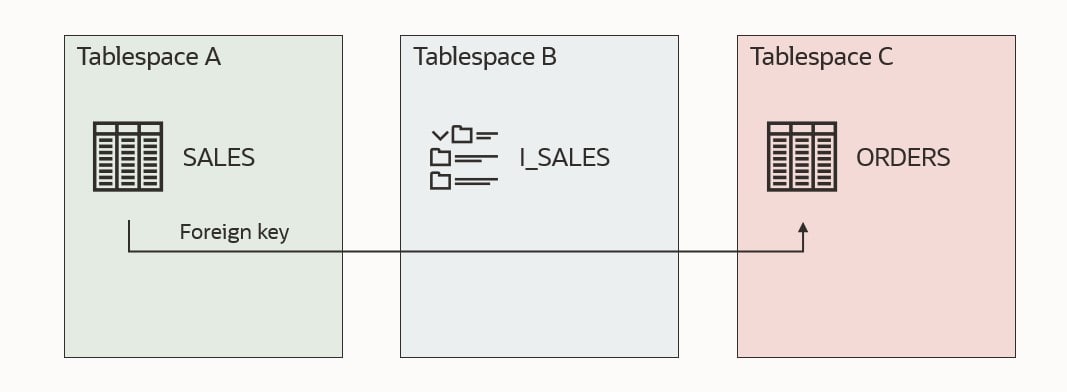
An example of a tablespace set that is not self-contained

Checking

You can use DBMS_TTS to check whether a given set of tablespaces are self-contained. Using my previous example. I would run:

execute dbms_tts.transport_set_check('A,B');

Next, I could check the result:

SQL> select * from transport_set_violations;

By default, the procedure transport_set_check doesn’t check for foreign keys that refer to something outside the tablespace set. This means that my last illustration above would not be found by transport_set_check, and you would end up with an error when you try to transport the tablespaces.

To also check for bad foreign key constraints:

execute dbms_tts.transport_set_check('A,B', true);

Foreign Key Constraints

If you have foreign key constraints that refer to a table outside of the tablespace set, it is one of the issues which can be ignored. You can instruct Data Pump to exclude constraints, and this issue will be ignored:

$ expdp ... transport_tablespaces=A,B exclude=constraint

When you import the tablespaces into another database, there won’t be any constraints. Even those foreign key constraints that were valid are gone. And even check constaints. All of them! You should consider whether you want to create them again manually.

Indexes

If you can exclude constraints, can you also exclude indexes? If possible, you could avoid dropping or moving an offending index. Let’s try! I am using the same test data as the first example.

Check for violations:

execute dbms_tts.transport_set_check('A,B');
select * from transport_set_violations;

VIOLATIONS
-----------------------------------------------------------------
ORA-39907: Index DANIEL.I_ORDERS in tablespace B points to table DANIEL.ORDERS in tablespace C.

As expected, index I_ORDERS is a problem. Let’s try to export and exclude indexes (exclude=index):

alter tablespace a read only;
alter tablespace b read only;
host expdp daniel/oracle transport_tablespaces=a,b exclude=index
Export: Release 19.0.0.0.0 - Production on Fri Feb 4 12:32:14 2022
Version 19.14.0.0.0

Copyright (c) 1982, 2019, Oracle and/or its affiliates.  All rights reserved.

Connected to: Oracle Database 19c Enterprise Edition Release 19.0.0.0.0 - Production
Starting "DANIEL"."SYS_EXPORT_TRANSPORTABLE_01":  daniel/******** transport_tablespaces=a,b exclude=index 
Processing object type TRANSPORTABLE_EXPORT/STATISTICS/TABLE_STATISTICS
ORA-39123: Data Pump transportable tablespace job aborted
ORA-39187: The transportable set is not self-contained, violation list is

ORA-39907: Index DANIEL.I_ORDERS in tablespace B points to table DANIEL.ORDERS in tablespace C.
Job "DANIEL"."SYS_EXPORT_TRANSPORTABLE_01" stopped due to fatal error at Fri Feb 4 12:32:33 2022 elapsed 0 00:00:17

It is not possible to exclude indexes in the same way as constraints. However, I think it makes sense. A constraint is just metadata; something that is recorded in the dictionary. We can easily ignore that when doing the Data Pump export. An index is an object with segments; data in the tablespace. Imagine we could somehow exclude the index. All those blocks belonging to the index would now be zombie blocks belonging to nothing.

Standby Database

If you need to move data out of a running database and your tablespaces are not self-contained, you need to fix the issues. Some of the solutions involve dropping or moving data, but you might not want to do that in a running database.

Imagine the example above where there is an index that refers to a table outside of the tablespace set (I_ORDERS). You probably need that index in your running database, so not a good idea to drop the index.

But you can use your standby database if you have one.

  • Convert your physical standby into a snapshot standby.
  • On your snapshot standby, do the required changes to make your tablespace set self-contained.
  • Still, on the snapshot standby, copy the data files and perform the Data Pump export to generate your transportable tablespace set and corresponding Data Pump dump file.
  • Revert the snapshot standby back into a physical standby. This will automatically revert all the temporary changes you made and re-sync with the primary database.

If you don’t have a standby database, you could achieve the same with Flashback Database, but that would require an outage on the running database.

Conclusion

If you try to transport tablespaces that are not self-contained, you will get an error. There is no way around the issues except for foreign key constraints. If you need to make changes to your database to have self-contained tablespaces, you can do it on a snapshot standby database to avoid interfering with a running database.

Other Blog Posts in This Series

Rolling Upgrades of Oracle Database on Exadata Cloud Service

If you want to minimize the downtime needed to upgrade your Oracle Database 19c on Exadata Cloud Service, one of the options is to use rolling upgrades. Our good friends in the Maximum Availability Architecture (MAA) team recently posted a very good MOS note with step-by-step instructions.

Exadata Cloud Database 19c Rolling Upgrade With DBMS_ROLLING (Doc ID 2832235.1)

What Is Rolling Upgrade?

A rolling upgrade uses a standby database called a logical standby database.

A logical standby database is initially created as an identical copy of the primary database, but it later can be altered to have a different structure. The logical standby database is updated by executing SQL statements. The flexibility of a logical standby database lets you upgrade Oracle Database software (patch sets and new Oracle Database releases) and perform other database maintenance in rolling fashion with almost no downtime.

Logical Standby Databases, Data Guard Concepts and Administration 21c

With almost no downtime means the time it takes to perform a Data Guard switchover. Typically, that is a few minutes. If your application is configured properly, the downtime can be hidden from the end-user. The downtime will appear as a brown-out where the session will be waiting for the database to complete the switchover before continuing.

Rodrigo explains how the process works in this video from our webinar How Low Can You Go? Zero Downtime Operations

Pro tip: The process uses a so-called Transient Logical Standby or TLS, so you can find additional information by searching for that term as well.

Can I use rolling upgrade on my database?

Rolling upgrades using DBMS_ROLLING requires the Active Data Guard Option which is included in your ExaCS license.

In addition, there are requirements to the data types in your database and a few other prerequisites. Check the documentation for details.

In this video, Roy explains how to determine the readiness of your Oracle Database. The video is also from our webinar How Low Can You Go? Zero Downtime Operations.

Other Options for Minimizing Downtime During Upgrades

If your database is not capable of performing rolling upgrades, you can still do something to minimize downtime. You can try to tune the upgrade itself or use Oracle GoldenGate. Both options are described in detail in our webinar How Low Can You Go? Zero Downtime Operations. You can flip through the slides or watch the complete recording.

If you decide to go with Oracle GoldenGate, and since your database is in OCI, you can benefit from the OCI GoldenGate service. Now, you may think: GoldenGate, that sounds expensive! But it is not. The new OCI GoldenGate service comes at a completely new price model, which is very attractive for shorter use cases like upgrades and migrations. You don’t pay a license for the source and target CPUs but instead for usage of CPUs on the GoldenGate hub itself. And you only pay by the hour.

Conclusion

Finally, just a kudos to my colleague Sebastian Alasino for putting together a very good, easy-to-follow MOS note.

Here is a demo of rolling upgrades (not on ExaCS – but a lot is identical)

Happy upgrading!

Get Started with Autoupgrade

If you never upgraded a database or it has been a while since you did it, I suggest that you get familiar with AutoUpgrade. Other methods of upgrading still exist, but AutoUpgrade is the only recommended method!

How To

AutoUpgrade is a tool that comes in a single file named autoupgrade.jar. You find it in your Oracle Home in $ORACLE_HOME/rdbms/admin. You should always download the latest version of AutoUpgrade from My Oracle Support and put it into your Oracle Home, thus overwriting the existing file.

AutoUpgrade is fully backward compatible, and a newer version of AutoUpgrade can upgrade databases to a previous version. In this example, AutoUpgrade is version 21.3.211115, but notice the information in build.supported_target_versions:

$ java -jar autoupgrade.jar -version

build.hash 081e3f7
build.version 21.3.211115
build.date 2021/11/15 11:57:54
build.max_target_version 21
build.supported_target_versions 12.2,18,19,21
build.type production

Version 21 of AutoUpgrade can upgrade your database to Oracle Database 21c and previous releases.

Now, you are ready to analyze your Oracle Database for upgrade readiness and eventually upgrade it. This short YouTube video explains the process.

Finally, you can watch a short demo of a database upgrade.

Try It

But the best way to learn is to do it yourself. You can use our Hands-On Lab for this purpose. You can find an overview of the lab and the lab instructions on Mike Dietrich’s blog.

You can run the lab in two ways.

VirtualBox image

The Hands-On Lab comes as a self-contained VirtualBox image that you download and run on your own computer. It requires around 100 GB of disk space and a fairly modern computer. Nothing fancy, but it doesn’t run smoothly on arcane hardware. Get started here.

LiveLabs

You can run the entire lab in just a browser using Oracle LiveLabs. You can do it in our Cloud Free Tier so that it will be completely free. Our workshop on Oracle LiveLabs is called Hitchhiker’s Guide for Upgrading to Oracle Database 19c.

Watch this video and learn how to provision a lab in Oracle LiveLabs.

Guided Tour

If you get stuck in the lab or just want to watch and let Mike Dietrich do all the typing, you can watch this recorded session of the complete hands-on lab.

Further Reading

Once done with the lab, you can start on these additional ressources:

Good luck!

P.S. Remember – it is better to fail in our lab than in production…

I Never Meet Joel, But I Have Met His Spirit #JoelKallmanDay

I didn’t know Joel Kallman. I heard about his name, and I knew he had something to do with APEX. But we never had to opportunity to meet each other. After his untimely death, I became aware of his huge impact on the Oracle community. So many people shared so many great stories about him and how he influenced the Oracle community. It became apparent to me how much he meant for the Oracle community.

This post is about the Oracle community. When I started working with Oracle, I quickly found out how great the community was. People were happily sharing knowledge – on blogs, at conferences, in videos. I was blown away by the amount of help and guidance I could get. For free – and even with a huge smile on top of that. I was a rookie and all that help made a huge difference. This is what I mean – when I say I believe I have met Joel’s spirit. But still, after many years working with Oracle, I use and value the community.

Since I joined Oracle, it has been on my to-do list to do a rolling upgrade. I never tried that for real. Last week, I had time to try out rolling upgrades with DBMS_ROLLING. Provision a Data Guard environment, open the documentation, get a cup of coffee, and off we go…

At one point, I was stuck. Like in – really stuck! Friday night – even after trying Connor’s gin/tonic debugging – still stuck. Saturday morning – after a good night’s, sleep still stuck. Errors, errors, errors!

Luckily, I attended a talk at UKOUG Tech Talk in April this year about rolling upgrades. Clive and Zahid did a really good presentation on rolling upgrades with a lot of valuable technical knowledge. Flip through the slides, and then – voila – problem solved. Now I could proceed with the upgrade. Thanks Clive, thanks Zahid.

If it hadn’t been for the community – for people happily sharing knowledge and helping each other – for Joel’s spirit, I would probably still be stuck in that rolling upgrade.

Never stop sharing knowledge!

New Webinars Coming Your Way

These days there is an abundance of virtual events. I feel exhausted from it from time to time. So you might ask yourself. Is there really room for virtual events?

The answer is: Yes, there is :-)

We have added more upcoming webinars to our Virtual Classroom Series: Upgrade to Oracle Database 19c. If you enjoyed the previous ones, I am sure that you will love these as well.

Webinar Date Sign Up
10 How Low Can You Go? Zero Downtime Operations October 21, 2021 Link
11 Secure Your Job – Fallback Is Your Insurance November 11, 2021 Link
12 Migrating Very Large Databases December 9, 2021 Link
13 Data Pump Extreme – Deep Dive with Development January 27, 2022 Link

Of course, we still keep our promise to you: All tech – no marketing, no buzzwords

If you miss any of the webinars, head over to the Webinar page and find the recording and the slides. All the previous nine webinars are there as well.

I hope to see you there!

Zero Downtime Migration – Logical Offline Migration How To Minimize Downtime

With Oracle Zero Downtime Migration (ZDM) 21.2, you can now perform logical offline migrations from IBM AIX and Oracle Solaris. Since it is an offline approach, the database is unavailable during the entire migration. Let’s look at how you can minimize downtime.

Before Migration

Statistics

Ensure that dictionary statistics are up-to-date in the source database. Data Pump does a lot of querying in the data dictionary, and accurate statistics are vital for good execution plans. I recommend gathering stats on SYS and SYSTEM:

begin
   dbms_stats.gather_schema_stats('SYS');
   dbms_stats.gather_schema_stats('SYSTEM');
end;
/

You could also use dbms_stats.gather_dictionary_stats. But it gathers statistics on all internal schemas, and most often, only SYS and SYSTEM is sufficient:

begin
   dbms_stats.gather_dictionary_stats;
end;
/

Data

I think it goes without saying, but the less data, the faster the migration complete. If you have any junk data in your database, get rid of it.

Migration

Parallel

Apply a proper degree of parallelism. Rule-of-thumb:

  • On-prem: 2 x number of physical cores
  • OCI: Number of OCPUs

When you are importing in OCI, consider scaling up on CPUs. More CPUs, faster import. Bare Metal and Exadata DB Systems scales online, whereas Virtual Machines need around 10 minutes of downtime.

Import processes running in parallel can read from the same dump file. This means that the number of parallel processes for an import is not limited by the number of dump files (which is the case of an export). To illustrate with an example:

  • Export: parallel=8 – 8 dump files were created. Each parallel worker needs exclusive access to a dump file.
  • Import: parallel=16 – still only 8 dump files. Each parallel worker can read from all dump files, no locks required.

You can control Data Pump parallel in ZDM using these parameters:

Data Pump Mode

Should you go via dump file or directly over a database link? Only your tests can tell the answer, but I am pretty sure that you will find that dump file mode is the quickest.

When you export via a dump file, you also need to figure out how you can transfer it to the target database:

  • Direct Transfer – you can use either scp or rsync. At the risk of starting a religious discussion, I don’t think it makes much of a difference in this use case. If you need rsync on Exadata, you can find guidance in MOS Doc ID 1556257.1.
  • Via Object Store – you can use either curl or OCI CLI. I would expect you can get better performance with OCI CLI. But you need to test it in your environment.

Remember to ensure you have adequate disk space on the source database host to hold the dump file. Use mount points that can deliver good write performance, and ideally, they should be separated from the storage that holds the database data files.

SecureFile LOB

ZDM automatically transforms BasicFile LOBs into SecureFile LOBs – which is very good. Don’t turn it off. Imports run faster when SecureFile LOBs are in play.

After Migration

Statistics

As soon as ZDM has completed the migration, gather dictionary stats in the target database. All those new objects that came in with the import have for sure made the statistics stale.

begin
   dbms_stats.gather_schema_stats('SYS');
   dbms_stats.gather_schema_stats('SYSTEM');
end;
/

Next, you need to figure out how you want to take care of the optimizer statistics. In a previous post, I discussed why this is needed and how to do it. If you decide to import statistics via DBMS_STATS, just ensure that you have gathered dictionary stats before.

Further Reading

I recommend that you also read the following posts:

Conclusion

When migrating from IBM AIX and Oracle Solaris, you use the logical offline approach, which means a lot of downtime. You have a few options to make it run as fast as possible.

Other Blog Posts in This Series

How To Upgrade An Encrypted Oracle Database and Convert to PDB

New functionality superseeds the functionality mentioned in this blog post. Please use the method described in Upgrading an Encrypted Non-CDB and Converting To PDB.

Using AutoUpgrade, you can upgrade your encrypted Oracle Database and convert to a pluggable database. The process is not entirely automated, so you must handle the TDE encryption key manually.

A new parameter called skip_tde_key_import is introduced. Here is what the documentation says:

(Optional) The default is NO. You can use this option for non-CDB-to-PDB and unplug/plug operations. When set to YES, the upgrade is run, but import of the source database KeyStore into the target database is skipped, without raising an error. AutoUpgrade will leave the PDB open in upgrade mode, so that you can import the keys manually yourself. After you import the keys, you must then restart the database in normal mode.

In other words, AutoUpgrade does everything except import of the TDE encryption key.

How To

This is what happens: Overview of upgrading to Oracle Database 19c of database encrypted with TDE and convert to a PDB

AutoUpgrade handles the green things – you handle the yellow thing. My environment:

  1. Non-CDB called FTEX running on Oracle Database 11.2.0.4
  2. FTEX is encrypted with TDE and has an auto-login keystore
  3. CDB called CDB2 running on Oracle Database 19c
  4. CDB2 is prepared for TDE and has a keystore defined

First, I ensure that AutoUpgrade is version 21.2 or newer:

java -jar autoupgrade.jar -version

I create a config file for AutoUpgrade. Notice, that I have specified that the database is plugged into CDB2 using the parameter target_cdb. Also, notice that I have specified the new parameter skip_tde_key_import and set it to YES:

upg1.source_home=/u01/app/oracle/product/11.2.0.4
upg1.target_home=/u01/app/oracle/product/19
upg1.sid=FTEX
upg1.target_cdb=CDB2
upg1.skip_tde_key_import=YES

Then, I analyze my database (FTEX) for any issues:

java -jar autoupgrade.jar -config FTEX.cfg -mode analyze

No issues are detected, so I proceed with the upgrade:

java -jar autoupgrade.jar -config FTEX.cfg -mode deploy

After the upgrade and conversion to PDB, I log on to CDB2. I want to check the outcome. Has FTEX been upgraded and converted?

SQL> select name, open_mode, restricted from v$pdbs

NAME      OPEN_MODE    RESTRICTED
PDB$SEED  READ ONLY    NO        
FTEX      READ WRITE   YES                

Open – but restricted. I check for plug-in violations:

SQL> select cause, type, message, status, action 
     from pdb_plug_in_violations 
     where name = 'FTEX' AND status not in ('RESOLVED')

CAUSE                TYPE       MESSAGE                                STATUS     ACTION
Wallet Key Needed    ERROR      PDB needs to import keys from source.  PENDING    Import keys from source.    

OK. This is expected. AutoUpgrade does not handle the TDE encryption key. See the yellow part of the arrow above. You have to do that.

I start by merging the two keystores – the keystore of the old non-CDB database (FTEX) and the keystore of the CDB (CDB2). I merge the two keystores into the one of CDB2:

CDB$ROOT SQL> administer key management 
   merge keystore '/u01/app/oracle/admin/FTEX/wallet' identified by "oracle_4U" 
   into existing keystore '/u01/app/oracle/admin/CDB2/wallet/tde' identified by "oracle_4U" 
   with backup using 'merge_keystore';

Notice that I have specified the folders of keystores and not the actually file names. I have also specified the keystore password for both the keystores. And, finally, I tell the database to create a backup of the keystore before the merge (as a precaution – and I recommend always doing that).

Now, I switch to the FTEX PDB. I need to configure FTEX to use the TDE encryption key that is merged from the old keystore. Each key in the keystore has a key ID and I tell the PDB to use the right one. I explain later on how to determine the key ID:

CDB$ROOT SQL> alter session set container=FTEX;

FTEX SQL> administer key management 
   use key 'Ad8l2SYuf0/dv+6Au9tRmAIAAAAAAAAAAAAAAAAAAAAAAAAAAAAA' 
   force keystore identified by "oracle_4U" 
   with backup using 'use_key_ftex';

Now, the PDB knows the TDE encryption key and you can actually start to query data from an encrypted tablespace. However, there is still a plug-in violation saying the TDE encryption key has to be imported. The PDB insists that the encryption key is imported – rather than merged into the keystore. So I will export the key from the PDB and import it again:

FTEX SQL> administer key management 
   export keys with secret "secret-passphrase" 
   to '/etc/oracle/exported-keys-ftex' force keystore identified by "oracle_4U";
FTEX SQL> administer key management 
   import keys with secret "secret-passphrase" 
   from '/etc/oracle/exported-keys-ftex' force keystore identified by "oracle_4U" 
   with backup using 'import_key_ftex';
FTEX SQL> host rm /etc/oracle/exported-keys-ftex

The encryption key is saved in an encrypted file in the OS. The file is encrypted using a passphrase (secret-passphrase), and you should pick a better one than I did. Finally – and important – I remove the file from the OS when I am done. I don’t want my encryption keys lying around in files all over the OS.

I restart the FTEX PDB:

FTEX SQL> alter pluggable database FTEX close immediate;
FTEX SQL> alter pluggable database FTEX open;

And the PDB is now open in READ WRITE mode and unrestricted

SQL> select name, open_mode, restricted from v$pdbs

NAME      OPEN_MODE    RESTRICTED
PDB$SEED  READ ONLY    NO        
FTEX      READ WRITE   NO

I check for plug-in violations:

SQL> select cause, type, message, status, action 
     from pdb_plug_in_violations 
     where name = 'FTEX' AND status not in ('RESOLVED')

No rows selected.

Job done! Encrypted database upgraded and converted to a PDB.

Determine Key ID

Use the orapki utility to determine the key ID of the TDE encryption key. Specify the location of the old non-CDB keystore:

orapki wallet display -wallet /u01/app/oracle/admin/FTEX/wallet

Oracle PKI Tool : Version 11.2.0.4.0 - Production
Copyright (c) 2004, 2013, Oracle and/or its affiliates. All rights reserved.

Requested Certificates: 
User Certificates:
Oracle Secret Store entries: 
ORACLE.SECURITY.DB.ENCRYPTION.Ad8l2SYuf0/dv+6Au9tRmAIAAAAAAAAAAAAAAAAAAAAAAAAAAAAA
ORACLE.SECURITY.DB.ENCRYPTION.MASTERKEY
ORACLE.SECURITY.TS.ENCRYPTION.BUCsXzQga4wfJ8gNSuptAPMCAwAAAAAAAAAAAAAAAAAAAAAAAAAA
Trusted Certificates: 
Subject:        OU=Class 1 Public Primary Certification Authority,O=VeriSign\, Inc.,C=US
Subject:        OU=Class 3 Public Primary Certification Authority,O=VeriSign\, Inc.,C=US
Subject:        OU=Class 2 Public Primary Certification Authority,O=VeriSign\, Inc.,C=US
Subject:        OU=Secure Server Certification Authority,O=RSA Data Security\, Inc.,C=US
Subject:        CN=GTE CyberTrust Global Root,OU=GTE CyberTrust Solutions\, Inc.,O=GTE Corporation,C=US

The TDE encryption key is starting with ORACLE.SECURITY.DB.ENCRYPTION and doesn’t end on MASTERKEY. In the above example the key ID is Ad8l2SYuf0/dv+6Au9tRmAIAAAAAAAAAAAAAAAAAAAAAAAAAAAAA.

If your non-CDB is Oracle Database 12c or later you can also get the key ID using a view:

SQL> select key_id from v$encryption_keys where key_use='TDE';

Why Do I Need to Export and Import?

Above you saw that I had to export and import the encryption keys, even after merging the keystores. You might ask: Why is that even needed? Why is the ADMINISTER KEY MANAGEMENT MERGE KEYSTORE command not enough? That’s a very good question. I have reached out to our security people to get their take on it. It sounds like a bug to me.

The Future

The above solution makes it easier to handle encrypted databases. But we are not satisfied yet. A future version of AutoUpgrade will have even better support for encrypted databases, and everything will be automated.

The biggest issue for us is to find a safe way to handle the TDE keystore password. We need to have a safe way of getting the password from you and storing it in memory until we actually need it.

We are just about to start testing the very first version of AutoUpgrade with proper TDE support. If you are interested in becoming a beta tester, reach out to me to work something out.

Conclusion

Converting encrypted databases to PDB is now possible in AutoUpgrade. AutoUpgrade mainly handles the process, but you have to manage the TDE encryption keys yourself.

New functionality superseeds the functionality mentioned in this blog post. Please use the method described in Upgrading an Encrypted Non-CDB and Converting To PDB.

Oracle Database 21c Is Here

Last week Oracle released Oracle Database 21c for additional platforms: Linux and Exadata. Other platforms will follow. You should keep an eye out for Release Schedule of Current Database Releases (Doc ID 742060.1) for further information.

Things to Notice

In my part of the Oracle Database, there are things to notice. I want to highlight:

To get all the details, visit the Upgrade and Utilities part of the new features documentation. There are some good examples of how the features can be used.

Behaviour Changes

Read-Only Oracle Home (ROOH) is now the default. Be sure to set the following environment variables to control the location of these directories:

  • ORACLE_BASE_HOME
  • ORACLE_BASE_CONFIG

I like ROOH, but it takes some time to get used to. For instance, network/admin files (tnsnames, sqlnet) and dbs files (pfile, spfile) are now in a new location.

The Pre-Upgrade Information Tool or preupgrade.jar is removed and replaced by AutoUpgrade. A few new parameters have been introduced to make the transition easier.

Innovation Release

Remember, 21c is an innovation release, which means a shorter support window than Long Term Releases such as Oracle Database 19c. If you adopt Innovation Releases, you should be prepared to upgrade to the next database release within one year after the next database release ships.

I would not recommend that you upgrade your production systems to Oracle Database 21c due to the limited support period. Not unless you are prepared to upgrade the database soon again – when support runs out. Oracle Database 19c is the current Long Term Support release. I recommend that for production databases.

Different release types for Oracle Database - innovation vs long term support

To learn more about innovation release and our release model, have a look at our slide deck. We discuss it in the first chapter.

New Features

I want to mention a few new features. They haven’t attracted as much attention as the marque features, but they are still cool.

Expression based init.ora parameters make it possible to base database parameters (init.ora) on calculations made on the system’s configuration. For example, setting the database parameter CPU_COUNT to half the number of CPUs (Windows):

alter system set cpu_count='$NUMBER_OF_PROCESSORS/2';

For more details, check out my video on YouTube.

Placeholders in SQL DDL Statements can improve application security because sensitive information, like passwords, doesn’t need to be hardcoded in SQL DDL. Example: You can make this statement:

CREATE USER :!username IDENTIFIED BY :!password ...

And Oracle Call Interface programs can substitute the placeholders into:

CREATE USER "DANIEL" IDENTIFIED BY "MyS3cr3tP!d" ...

This is similar to data binding but occurs in Oracle Client.

Conclusion

The complete 21c documentation is online, so I suggest that you head on over there and have a look. In the upgrade guide, you can find the list of behavior changes and also deprecated and desupported functionality. And finally, but most interesting perhaps, is Learning Database New Features.

Try it out in Always Free ADB or explore the Oracle LiveLabs.

Upgrade with Less Downtime

You can upgrade your Oracle Database with less downtime. With the release of AutoUpgrade 21.2 we added the fast deploy option. It allows you to run the preupgrade fixups while the database is still online. Only the actual upgrade will now require downtime.

The Usual Upgrade

When you upgrade the usual way, i.e., using AutoUpgrade in deploy mode, then you:

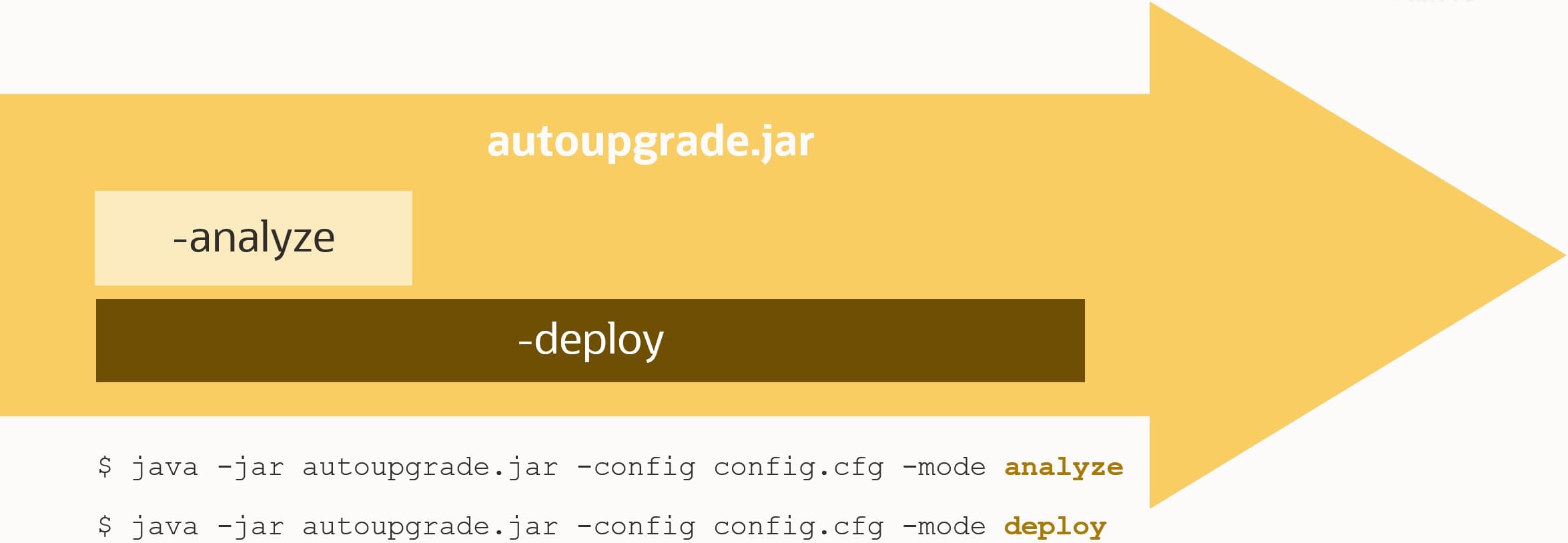
  1. Analyze the database – java -jar autoupgrade.jar -mode analyze This is non-intrusive and doesn’t change anything on the database. You get a report, and you can fix any issue that AutoUpgrade can’t fix for you.
  2. Upgrade the database – java -jar autoupgrade.jar -mode deploy The database is analyzed again. Based on the findings of the analysis, a set of preupgrade fixups are executed. Finally, the database upgrade takes place.

Best practice is to use AutoUpgrade in deploy mode

During step #2, the database is not available – you have downtime. Even though the database was analyzed previously, it will be re-analyzed to catch any new issues. This is the safest approach. From the first analysis (in step #1) to the second analysis (in step #2), potentially new issues can occur.

We talked to a few of our customers who are really trying to reduce the downtime of an upgrade. For them – every second counts and has a significant impact on their business. They asked us to make the upgrade faster.

Fast Deploy Mode

One customer suggested moving the final analysis and preupgrade fixup outside of the downtime window. Shortly before the downtime would start, they would like to run an analysis and the preupgrade fixups. Next, they would wait until the downtime window starts and do only the upgrade.

I must stress; there is a risk that a new issue pops up between the fixups and the upgrade – but this one customer is willing to take the risk. In exchange, they will get upgrades with less downtime.

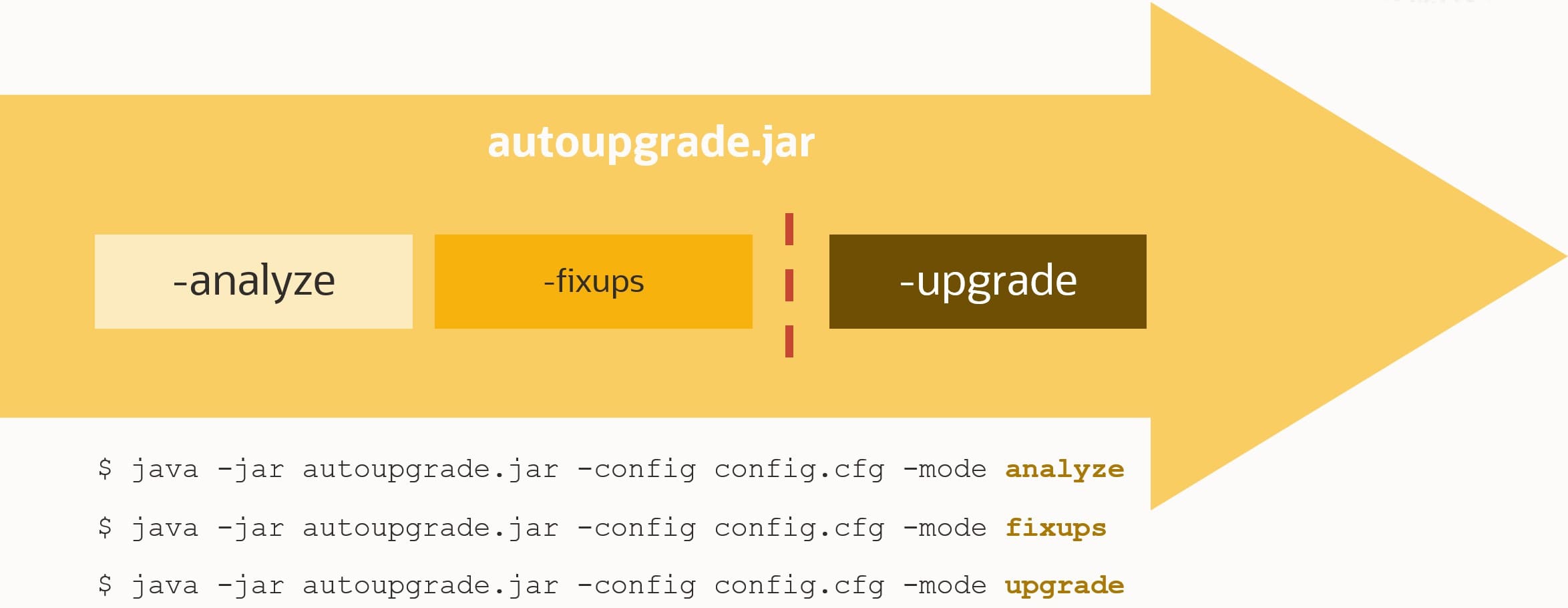
We call this approach fast deploy. The procedure is:

  1. Analyze the database – java -jar autoupgrade.jar -mode analyze
  2. Run the preupgrade fixups – java -jar autoupgrade.jar -mode fixups
  3. Now downtime starts
  4. Upgrade the database – java -jar autoupgrade.jar -mode upgrade

To reduce downtime use the new fast deploy mode - with increased risk

Fast deploy requires AutoUpgrade 21.2 or newer. The target database release can be any of the target releases already supported by AutoUpgrade, meaning 12.2 or higher.

Here are the details of the feature – from the AutoUpgrade change log:

> This feature enables DBA’s to run the prechecks and prefixups while the database is still online and then run deploy to complete the upgrade. Once the fixups have been run on the source database, DBA can then skip the prechecks and prefixup stages and proceed directly to the phases that follow for example: Database can be online: java -jar autoupgrade.jar -mode fixups -config yourconfig Upgrade time: java -jar autoupgrade.jar -mode upgrade -config yourconfig The -mode upgrade command proceeds directly to the phases that follow the prechecks and prefixups stages during deploy. The main goal of this feature is to reduce database downtime by running the fixups when your database is online and open for business and then skipping the fixups when your database is offline. See Oracle documentation for further details.

Conclusion

If your application is really sensitive to downtime, you can now upgrade with less downtime using fast deploy. It introduces a slight risk that the preupgrade analyze will not detect an issue that will cause troubles later on. You have to choose whether that risk is acceptable to you.

Our recommendation is to use the old approach – AutoUpgrade in deploy mode. Consider only fast deploy if downtime really hurts.

If you are interested in seeing which other things got put into AutoUpgrade 21.2, you can check the change log.

Zero Downtime Migration – Logical Migration and Statistics

If you decided to do a logical migration of your Oracle Database with Zero Downtime Migration (ZDM), here is something important about optimizer statistics. You must manually take care of the optimizer statistics on the target database after the Data Pump import. Either by recreating the statistics or transporting the statistics from the source database.

Background

Whenever I talk about migration of Oracle Database with Data Pump, I always mention that it is best practice to exclude optimizer statistics from the Data Pump export. Here is how you do it:

$ expdp ... exclude=statistics

Why is that recommended? Data Pump is not very good at extracting the optimizer statistics. There is nothing wrong with the statistics when they are imported. But it can take a very long time to do the export of statistics.

ZDM and Data Pump

The development team behind ZDM wanted the tool to be easy to use. Also, they wanted ZDM to use all the best practices that come with the various other tools that ZDM uses. When they talked to us about Data Pump, we told them to exclude statistics.

BUT – this also leaves you in a situation where you have a database completely without optimizer statistics. It goes without saying that it is a disaster waiting to happen. You must ensure that optimizer statistics are present on the target database before allowing the users to connect to it.

Regather

One option is to regather optimizer statistics on the target database after the Data Pump import. When the Data Pump import completes, and before you proceed with the switchover, it is time to regather the statistics. Typically, you would start ZDM something like this:

$ zdmcli migrate database .... -pauseafter ZDM_MONITOR_GG_LAG

It will start by performing the initial load of the database with Data Pump. Then it will configure GoldenGate before it pauses – waiting for your signal to complete the migration. At this time, use DBMS_STATS to gather statistics:

SQL> exec dbms_stats.gather_database_stats;

This has some drawbacks:

  • It requires time and resources – which might not be the biggest problem. The source database is still open for business. We haven’t performed the switchover yet.
  • Column usage information (table COL_USAGE$) is not populated, so in some cases, no histograms will be created. This will happen if the database is supposed to automatically determine whether histograms are needed (method_opt includes size auto). In that case, you can merge the column usage information from another database via a database link, which can be a good idea if your application is depending on histograms.
  • The table, schema, or database statistics preferences are not present. It could be degree, method_opt, stale_pct or any other preferences that you can set with DBMS_STATS.SET_TABLE_PREFS (or schema or database-wide preferences). These preferences can be transferred to the new system, which is what I will talk about next.

Transferring Statistics

Another option is to transfer the statistics using DBMS_STATS. We have covered this in detail in a webinar, so I suggest you watch Performance Stability, Tips and Tricks and Underscores for all the details.

In short,

  1. The optimizer statistics in the source database are extracted from the data dictionary and stored in a transportable format in a regular heap table (referred to as a staging table).
  2. Using Data Pump, you move that table to the target database.
  3. Then you put the statistics into the data dictionary of the target database so that optimizer can use them.

Pro tip: You should perform step #1 before you start ZDM and store the staging table in one of the schemas that you are migrating with ZDM. That way, you don’t have to move the table manually. It is moved by ZDM together with the real data.

One thing to be aware of is that the table, schema or database statistics preferences are not transferred when you use e.g. DBMS_STATS.EXPORT_TABLE_STATS. There are dedicated procedures for transferring the statistics preferences:

Conclusion

You must figure out how to move the optimizer statistics into your target database when you use ZDM to perform logical migrations. If not, your target database will be without optimizer statistics which is a disaster waiting to happen.

Appendix

You might now ask. If Data Pump is bad at exporting statistics, but there are already better ways available in the database, why don’t we change the Data Pump code? And you are right – but so far, other things have been prioritized. I would love to see this one day fully embedded in Data Pump.

Other Blog Posts in This Series