Zero Downtime Migration – Logical Migration and the Final Touches

Logical migration has many benefits but there is also a catch. It does not transfer some of that nice meta data that make your life easier – such as:

  • AWR
  • SQL Plan Baselines
  • SQL Profiles

Further, we can make a few tweaks to avoid having performance problems after the migration. This post applies to migrations into any database – except Autonomous Databases. In an Autonomous Database you don’t need to worry about such things. The database will fix the issues for you.

AWR

If you are licensed to use AWR in your source database, you can transport the AWR data into your target database.

  1. In your source database, execute the script $ORACLE_HOME/rdbms/admin/awrextr.sql. It extracts the AWR data and load them into a Data Pump dump file.
  2. Transfer the dump file to your target database.
  3. In your target database, import the AWR data using the script $ORACLE_HOME/rdbms/admin/awrload.sql.

When you look at the old AWR data in your target database, use it with caution. The AWR data was collected on a completely different system (CPU, memory, settings, database release, initialization parameters etc). Your new system is very different. Keep that in mind when you compare data from before and after the migration.

SQL Plan Baselines

If you are using SQL Plan Management to ensure plan stability, you want to transport your baselines as well.

First, in my source database create a staging table. It is used to transport the baselines. Create the staging table in a schema that you will be migrating.

begin
   dbms_spm.create_stgtab_baseline (
      table_name   => 'MIGR_SPB_1',
      table_owner  => 'SH');
   end;
/

Next, I will extract all the baselines including the fixed or accepted plans. It is now stored in the staging table and will be migrated together with my data:

declare
   l_count number;
begin
   l_count := dbms_spm.pack_stgtab_baseline (
      table_name   => 'MIGR_SPB_1',
      table_owner  => 'SH',
      enabled      => 'YES',
      fixed        => 'YES');
   end;
/

After the migration, in my target database, I can now extract the baselines into the SQL Management Base:

declare
   l_count number;
begin
   l_count := dbms_spm.unpack_stgtab_baseline (
      table_name   => 'MIGR_SPB_1',
      table_owner  => 'SH');
   end;
/

That’s it. Now SQL Plan Management will ensure that the same plans are used for the statements that are in the baselines.

If you are not using SQL Plan Management, you should look into it. In my opinion it is one of the most underrated features in the Oracle Database. Many issues are caused by plan changes which is exactly what you can avoid with SQL Plan Management.

SQL Profiles

If you have SQL Profiles you can transport them in a way very similar to transporting SQL Plan Baselines.

First, in the source database, create a staging table in a schema that you will be migrating:

begin
   dbms_sqltune.create_stgtab_sqlprof (
      table_name   => 'MIGR_SQLP_1',
      table_owner  => 'SH');
end;
/

Next, put the SQL Profiles into the staging table. This example will load all profiles from the DEFAULT category, but there are options to cherry-pick those of interest:

begin
   dbms_sqltune.pack_stgtab_sqlprof (
      staging_table_name   => 'MIGR_SQLP_1',
      staging_schema_owner => 'SH');
end;
/

Finally, in my target database, I can unpack the profiles from the staging table and into the data dictionary:

begin
   dbms_sqltune.unpack_stgtab_sqlprof (
      staging_table_name   => 'MIGR_SQLP_1',
      staging_schema_owner => 'SH',
      replace              => TRUE);
   end;
/

Statistics

Should you do anything about object statistics?

  • If you have migrated into the same release, the answer is no.
  • If you have migrated into a higher release, the answer is it depends. It is not required, but if you come from a very old release, you might consider it.

Imagine a migration from 11.2.0.4 to 19c. Significant changes have been made to histograms in that period. If you want to benefit from the new, improved histogram types, you should re-gather statistics. If you don’t do it, the histograms will gradually change over time when the statistics become stale. Some people prefer taking such a change immediately because they don’t like the idea of things happening over the course of time.

If you want to refresh statistics:

exec dbms_stats.delete_database_stats;
exec dbms_stats.gather_database_stats;

To make it a little faster:

exec dbms_stats.set_global_prefs('CONCURRENT','AUTOMATIC');

To make it even faster – requires CPU:

exec dbms_stats.set_global_prefs('DEGREE', DBMS_STATS.AUTO_DEGREE);

To make it as fast as possible – requires a lot of CPU:

exec dbms_stats.set_global_prefs('CONCURRENT','AUTOMATIC');
exec dbms_stats.set_global_prefs('DEGREE', DBMS_STATS.AUTO_DEGREE);

Be sure to set the preferences back to the original value when you are done gathering statistics. Nigel Bayliss has an interesting blog post on How to gather optimizer statistics fast.

Dictionary Statistics

After the migration, the target database has many more tables, indexes, views and so on. This is represented in the data dictionary as additional rows in e.g. OBJ$. All that extra data probably means that the dictionary statistics are stale. Stale dictionary statistics can lead to all sorts of troubles.

Immediately after the migration is completed you should re-gather dictionary statistics to avoid problems caused by stale statistics. Do this right after ZDM has completed the migration:

exec dbms_stats.gather_dictionary_stats;

Or even better:

begin
   dbms_stats.gather_schema_stats('SYS');
   dbms_stats.gather_schema_stats('SYSTEM');
end;
/

I prefer gathering statistics on SYS and SYSTEM independently. My colleagues and I have seen issues from time to time with dbms_stats.gather_dictionary_stats.

Fixed Object Statistics

After migration and once the system has been properly warmed up, you should re-gather fixed objects statistics. It is important that you don’t gather fixed objects statistics right after migration. You must until you have run a representative workload. If you wait a few days or until the next weekend, then you are most likely on the safe side:

exec dbms_stats.gather_fixed_objects_stats;

This recommendation is similar to the one we give about after upgrade. Read the blog post to read more about fixed objects statistics in general. Also, you can find a very useful piece of code that gathers fixed objects statistics in seven days via a scheduler job.

SQL Tuning Sets

This is something that you should do before you start the migration. Capture your workload from the source database into SQL Tuning Sets.

What is a SQL Tuning Set? It is an object that contains information about a number of SQLs. For each SQL the following is collected:

  • SQL Statement – the SQL text itself
  • Context – executing schema, binds, and environment (like NLS settings)
  • Statistics – execution statistics like elapsed time, CPU time, buffer gets, rows processed
  • Plan – last, but not least, the actual execution plan

You can then transport the SQL Tuning Set into the target database. If an SQL is now running slow, you can use the information from the SQL Tuning Set to identify why. For an SQL you can see the old and new plan, compare amount of buffer gets and CPU time and so forth. You can also bring back the old plan, if the new plan is less effective.

First, in the source you create a SQL Tuning Set:

exec dbms_sqlset.create_sqlset (sqlset_name => 'MIGR_STS_1', description => 'For migration - from source');

Next, capture statements from AWR. This will take the top 5000 statements from your entire AWR ordered by elapsed time:

declare
   begin_id number;
   end_id number;
   cur sys_refcursor;
begin
   select min(snap_id), max(snap_id) int begin_id, end_id
   from dba_hist_snapshot;

open cur for
  select value(p) from table(dbms_sqltune.select_workload_repository(
       begin_snap       => begin_id,
       end_snap         => end_id,
       basic_filter     => 'parsing_schema_name not in (''SYS'')',
       ranking_measure1 => 'elapsed_time',
       result_limit     => 5000,
       attribute_list   => 'ALL')) p;

  dbms_sqltune.load_sqlset('MIGR_STS_1', cur);
  
close cur;

end;
/

You can also sample directly from cursor cache. Start the sampling and then run your workload. This example will sample every minute for 15 minutes:

begin
   dbms_sqlset.capture_cursor_cache_sqlset(
      sqlset_name     => 'MIGR_STS_1',
      time_limit      => 900,
      repeat_interval => 60,
      capture_option  => 'MERGE',
      capture_mode    => DBMS_SQLTUNE.MODE_ACCUMULATE_STATS,
      basic_filter    => 'parsing_schema_name not in (''SYS'')',
      sqlset_owner    => NULL,
      recursive_sql   => 'HAS_RECURSIVE_SQL');
end;
/

Finally, put all that information into a staging table, so it can be transported to the target database. Put the staging table into a schema that you plan on migrate. This way you ensure that the SQL Tuning Set is migrated together with your data. In my example it is the schema SH:

begin
   dbms_sqltune.create_stgtab_sqlset ( 
      schema               => 'SH',
      table_name           => 'MIGR_STGTAB_1');
   dbms_sqltune.pack_stgtab_sqlset (      
      sqlset_name          => 'MIGR_STS_1',
	  staging_schema_owner => 'SH',
      staging_table_name   => 'MIGR_STGTAB_1');
end;
/

After the migration, in my target database I can now extract the SQL Tuning Set from the staging table and into the data dictionary:

begin
   dbms_sqltune.unpack_stgtab_sqlset (
      sqlset_name          => '%',
      replace              => true,
	  staging_schema_owner => 'SH',
      staging_table_name   => 'MIGR_STGTAB_1'
   );
end;
/

Now – if you get into trouble with a misbehaving SQL – you can use the information in the SQL Tuning Set to investigate the problem.

Conclusion

When you perform a logical migration, there are some additional tasks that you should consider at least for your mission-critical databases. These steps will help you avoid performance issues after the migration.

In addition to the topics discussed here, I recommend that you also watch our webinar Performance Stability, Tips and Tricks and Underscores (slides). It has the complete prescription to avoid performance problems after upgrade and migration.

Other Blog Posts in This Series

Zero Downtime Migration – Logical Online Migration to DBCS

Let me show you how you can migrate an Oracle Database into OCI. My source database is a PDB running on 12.1.0.2. I want to migrate it directly into a 19c CDB. I will show you:

  • import via dump file and object storage
  • import via database link

This procedure can be used to migrate to:

  • VM DB Systems
  • Bare Metal DB Systems
  • Exadata DB System (ExaCS)

Prerequisites

  1. I need a ZDM service host. I already blogged about how to create such. The computer is called zdmhost and the user is called zdmuser.
  2. My source database is a PDB called srcpdb, the CDB is called srccdb, and the host is named srchost. All my data is in the schema SH.
  3. I have already created a GoldenGate hub as described in this blog post. It is called ogg19cora.
  4. I want to migrate to a VM DB System, and it is already created. I name it tgthost, the CDB is named tgtcdb and the PDB is named tgtpdb. You can name it whatever you want. Be sure to use ASM as your storage management software.

Overview of the components in this demo

Prepare Source

My source database is a PDB. I need to prepare the PDB and CDB$ROOT. If you have a non-CDB perform all the steps in your non-CDB unless otherwise written.

First, I prepare the database for GoldenGate replication:

alter session set container=CDB$ROOT;
alter database force logging;
alter database add supplemental log data;
alter system set enable_goldengate_replication=true scope=both;
--At least 2GB
alter system set streams_pool_size=2g scope=both;
alter system set global_names=false;

Create a common user for GoldenGate in CDB$ROOT. Skip this step for non-CDBs:

alter session set container=CDB$ROOT;
create user c##ggadmin identified by <my_secret_pwd> default tablespace users temporary tablespace temp;
grant connect, resource to c##ggadmin;
grant unlimited tablespace to c##ggadmin;
grant select any dictionary to c##ggadmin;
grant create view to c##ggadmin;
grant execute on dbms_lock to c##ggadmin;
exec dbms_goldengate_auth.grant_admin_privilege('c##ggadmin',container=>' all');

Create a user for GoldenGate:

alter session set container=SRCPDB;
create user ggadmin identified by <my_secret_pwd> default tablespace users temporary tablespace temp;
grant connect, resource to ggadmin;
grant unlimited tablespace to ggadmin;
grant select any dictionary to ggadmin;
grant create view to ggadmin;
grant execute on dbms_lock to ggadmin;
exec dbms_goldengate_auth.grant_admin_privilege('ggadmin');

Generate a list of tablespaces that must exist in the target database. Add all schemas to the in-list:

alter session set container=SRCPDB;
select distinct tablespace_name
from (
      select distinct tablespace_name from dba_segments where owner in ('SH')
      union
      select distinct default_tablespace from dba_users where username in ('SH')
      union
      select distinct tablespace_name from dba_ts_quotas where dropped = 'NO' and username in ('SH')
      );

Optional. The best starting point for Data Pump is good and accurate dictionary statistics. This helps Data Pump extract the information as fast as possible:

exec dbms_stats.gather_dictionary_stats;

Via Dump File

I need to create a directory that can be used by Data Pump:

[oracle@srchost]$ mkdir -p /u01/app/oracle/datapump/mydirsrc

Prepare Target

The target database must use a timezone file version that is equal to or higher than the source:

alter session set container=tgtpdb;
select * from v$timezone_file;

Prepare the database for GoldenGate replication:

alter session set container=CDB$ROOT;
alter system set enable_goldengate_replication=true scope=both;

Create a user for GoldenGate:

alter session set container=tgtpdb;
create user ggadmin identified by <my_secret_pwd> default tablespace users temporary tablespace temp;
grant connect, resource to ggadmin;
grant unlimited tablespace to ggadmin;
grant select any dictionary to ggadmin;
grant create view to ggadmin;
grant execute on dbms_lock to ggadmin;
exec dbms_goldengate_auth.grant_admin_privilege('ggadmin');

Allow the GoldenGate user to perform DML (see appendix A):

alter session set container=tgtpdb;
grant insert any table to ggadmin;
grant update any table to ggadmin;
grant delete any table to ggadmin;

I ensure that the list of tablespaces I found in the source database, exist in the target database. If some are missing, I create them. Also, I will extend the data files in advance, so the size is pretty close to the expected end size. For new tablespaces I set the initial size of the data files. If the data files are too small, I will waste a lot of time during import to auto-extend. If I make them too big, I potentially waste space:

alter database datafile '...' resize 100G;
create tablespace ... size 100G ...;

Via Dump File

I need to create a directory that can be used by Data Pump. It will hold the Data Pump dump files and logs:

[oracle@tgthost]$ mkdir -p /u01/app/oracle/datapump/mydirtgt

Via DB Link

When I use a DB link, ZDM insists on using the built-in directory called DATA_PUMP_DIR. I ensure that the database directory exist. Also, I verify that the directory exist in the file system:

select directory_path from dba_directories where directory_name='DATA_PUMP_DIR';

I will do the import directly over a database link. In that case, the target host must be able to resolve the host name of my source database host:

[root@tgthost]$ echo "<source IP address> srchost" >> /etc/hosts

Prepare ZDM

The ZDM service host must be able to resolve the host names of the source and target database host and the GoldenGate hub:

[root@zdmhost]$ echo "<source IP address> srchost" >> /etc/hosts
[root@zdmhost]$ echo "<target IP address> tgthost" >> /etc/hosts
[root@zdmhost]$ echo "<GoldenGate IP address> ogg19cora" >> /etc/hosts

I put my private SSH keys to the source and target database host into ~/.ssh directory. Ensure permissions are set properly:

[zdmuser@zdmhost]$ cp srchost_key_file ~/.ssh
[zdmuser@zdmhost]$ chmod 400 ~/.ssh/srchost_key_file 
[zdmuser@zdmhost]$ cp tgthost_key_file ~/.ssh
[zdmuser@zdmhost]$ chmod 400 ~/.ssh/tgthost_key_file 

Test the connection. I connect as opc, but you might have a different user. Read more about access to the database host in the documentation:

[zdmuser@zdmhost]$ ssh -i ~/.ssh/srchost_key_file opc@srchost date
[zdmuser@zdmhost]$ ssh -i ~/.ssh/tgthost_key_file opc@tgthost date

If you have configured a proper certificate on your GoldenGate hub, you can jump to the next chapter. If not, read on.

When deployed the GoldenGate hub comes with a self-signed certificate. ZDM will complain about it, because it is considered insecure. For migrations that involve real data, you should use a proper certificate on your GoldenGate hub to ensure your migration is secure. But for tests and demos you might want to disregard the security warning. If so, you can add the self-signed certificate as a trusted one to the Java JDK’s certificate store ($ZDM_HOME/jdk/jre/lib/security/cacerts). You find instructions on how to do so in the MOS support note Zero Downtime Migration – GoldenGate Hub Certificate Known Issues (Doc ID 2768483.1). Use the same host that you added to /etc/hosts.

For your reference, this is the error that ZDM will throw if the certificate is not trusted:

Verifying status of Oracle GoldenGate Microservices at URL "https://..."
PRGZ-1136 : failed to verify configuration and status of Oracle GoldenGate Microservices at URL "https://..."
PRGG-1008 : failed to retrieve detailed information for the health of the Service Manager on Oracle GoldenGate hub "https://..."
PRGG-1001 : HTTP GET request "https://.../services/v2/config/health" failed.
javax.net.ssl.SSLHandshakeException: sun.security.validator.ValidatorException: PKIX path building failed: sun.security.provider.certpath.SunCertPathBuilderException: unable to find valid certification path to requested target
sun.security.validator.ValidatorException: PKIX path building failed: sun.security.provider.certpath.SunCertPathBuilderException: unable to find valid certification path to requested target
PKIX path building failed: sun.security.provider.certpath.SunCertPathBuilderException: unable to find valid certification path to requested target
unable to find valid certification path to requested target

Prepare Response File

I will use a template response file as the basis for my response file:

[zdmuser@zdmhost]$ cp $ZDM_HOME/rhp/zdm/template/zdm_logical_template.rsp ~/logical_online.rsp
[zdmuser@zdmhost]$ cmod 700 ~/logical_online.rsp

Via Dump Files

This is the response file that I end up with (see appendix E for an explanation):

MIGRATION_METHOD=ONLINE_LOGICAL
DATA_TRANSFER_MEDIUM=OSS

SOURCEDATABASE_ADMINUSERNAME=SYSTEM
SOURCEDATABASE_GGADMINUSERNAME=GGADMIN
SOURCEDATABASE_CONNECTIONDETAILS_HOST=srchost
SOURCEDATABASE_CONNECTIONDETAILS_PORT=1521
SOURCEDATABASE_CONNECTIONDETAILS_SERVICENAME=srcpdb....oraclevcn.com
SOURCECONTAINERDATABASE_ADMINUSERNAME=SYSTEM
SOURCECONTAINERDATABASE_GGADMINUSERNAME=C##GGADMIN
SOURCECONTAINERDATABASE_CONNECTIONDETAILS_HOST=srchost
SOURCECONTAINERDATABASE_CONNECTIONDETAILS_PORT=1521
SOURCECONTAINERDATABASE_CONNECTIONDETAILS_SERVICENAME=SRCCDB_fra3dd....oraclevcn.com

TARGETDATABASE_OCID=ocid1.database.oc1.eu-frankfurt-1....
TARGETDATABASE_ADMINUSERNAME=SYSTEM
TARGETDATABASE_GGADMINUSERNAME=GGADMIN
TARGETDATABASE_CONNECTIONDETAILS_HOST=tgthost
TARGETDATABASE_CONNECTIONDETAILS_PORT=1521
TARGETDATABASE_CONNECTIONDETAILS_SERVICENAME=tgtpdb....oraclevcn.com

OCIAUTHENTICATIONDETAILS_USERPRINCIPAL_TENANTID=ocid1.tenancy.oc1....
OCIAUTHENTICATIONDETAILS_USERPRINCIPAL_USERID=ocid1.user.oc1....
OCIAUTHENTICATIONDETAILS_USERPRINCIPAL_FINGERPRINT=58:b9:...
OCIAUTHENTICATIONDETAILS_USERPRINCIPAL_PRIVATEKEYFILE=/home/zdmuser/.oci/oci_api_key.pem
OCIAUTHENTICATIONDETAILS_REGIONID=eu-frankfurt-1

GOLDENGATEHUB_ADMINUSERNAME=oggadmin
GOLDENGATEHUB_URL=https://ogg19cora....oraclevcn.com
GOLDENGATEHUB_SOURCEDEPLOYMENTNAME=Source
GOLDENGATEHUB_TARGETDEPLOYMENTNAME=Target
GOLDENGATEHUB_COMPUTEID=ocid1.instance.oc1.eu-frankfurt-1....

DATAPUMPSETTINGS_JOBMODE=SCHEMA
DATAPUMPSETTINGS_DATAPUMPPARAMETERS_IMPORTPARALLELISMDEGREE=2
DATAPUMPSETTINGS_DATAPUMPPARAMETERS_EXPORTPARALLELISMDEGREE=2
DATAPUMPSETTINGS_IMPORTDIRECTORYOBJECT_NAME=MYDIRTGT
DATAPUMPSETTINGS_IMPORTDIRECTORYOBJECT_PATH=/u01/app/oracle/datapump/mydirtgt
DATAPUMPSETTINGS_EXPORTDIRECTORYOBJECT_NAME=MYDIRSRC
DATAPUMPSETTINGS_EXPORTDIRECTORYOBJECT_PATH=/u01/app/oracle/datapump/mydirsrc
DATAPUMPSETTINGS_DATABUCKET_BUCKETNAME=zdm-staging
DATAPUMPSETTINGS_DATABUCKET_NAMESPACENAME=oradbclouducm
INCLUDEOBJECTS-1=owner:SH

Via DB Link

This is the response file that I end up with (see appendix E for an explanation):

MIGRATION_METHOD=ONLINE_LOGICAL
DATA_TRANSFER_MEDIUM=DBLINK

SOURCEDATABASE_ADMINUSERNAME=SYSTEM
SOURCEDATABASE_GGADMINUSERNAME=GGADMIN
SOURCEDATABASE_CONNECTIONDETAILS_HOST=srchost
SOURCEDATABASE_CONNECTIONDETAILS_PORT=1521
SOURCEDATABASE_CONNECTIONDETAILS_SERVICENAME=srcpdb....oraclevcn.com
SOURCECONTAINERDATABASE_ADMINUSERNAME=SYSTEM
SOURCECONTAINERDATABASE_GGADMINUSERNAME=C##GGADMIN
SOURCECONTAINERDATABASE_CONNECTIONDETAILS_HOST=srchost
SOURCECONTAINERDATABASE_CONNECTIONDETAILS_PORT=1521
SOURCECONTAINERDATABASE_CONNECTIONDETAILS_SERVICENAME=SRCCDB_fra3dd....oraclevcn.com

TARGETDATABASE_OCID=ocid1.database.oc1.eu-frankfurt-1....
TARGETDATABASE_ADMINUSERNAME=SYSTEM
TARGETDATABASE_GGADMINUSERNAME=GGADMIN
TARGETDATABASE_CONNECTIONDETAILS_HOST=tgthost
TARGETDATABASE_CONNECTIONDETAILS_PORT=1521
TARGETDATABASE_CONNECTIONDETAILS_SERVICENAME=tgtpdb....oraclevcn.com

OCIAUTHENTICATIONDETAILS_USERPRINCIPAL_TENANTID=ocid1.tenancy.oc1....
OCIAUTHENTICATIONDETAILS_USERPRINCIPAL_USERID=ocid1.user.oc1....
OCIAUTHENTICATIONDETAILS_USERPRINCIPAL_FINGERPRINT=58:b9:...
OCIAUTHENTICATIONDETAILS_USERPRINCIPAL_PRIVATEKEYFILE=/home/zdmuser/.oci/oci_api_key.pem
OCIAUTHENTICATIONDETAILS_REGIONID=eu-frankfurt-1

GOLDENGATEHUB_ADMINUSERNAME=oggadmin
GOLDENGATEHUB_URL=https://ogg19cora....oraclevcn.com
GOLDENGATEHUB_SOURCEDEPLOYMENTNAME=Source
GOLDENGATEHUB_TARGETDEPLOYMENTNAME=Target
GOLDENGATEHUB_COMPUTEID=ocid1.instance.oc1.eu-frankfurt-1....

DATAPUMPSETTINGS_JOBMODE=SCHEMA
DATAPUMPSETTINGS_DATAPUMPPARAMETERS_IMPORTPARALLELISMDEGREE=2
INCLUDEOBJECTS-1=owner:SH

Perform Evaluation

I am now ready to perform a migration evaluation. It is a dry run of the migration and performs various sanity checks. Nothing is changed during the evaluation:

[zdmuser@zdmhost]$ $ZDM_HOME/bin/zdmcli migrate database \
   -rsp /home/zdmuser/logical_online.rsp \
   -sourcenode srchost \
   -sourcedb SRCCDB_fra3dd \
   -srcauth zdmauth \
   -srcarg1 user:opc \
   -srcarg2 identity_file:/home/zdmuser/.ssh/srchost_key_file \
   -srcarg3 sudo_location:/usr/bin/sudo \
   -targetnode tgthost \
   -tgtauth zdmauth \
   -tgtarg1 user:opc \
   -tgtarg2 identity_file:/home/zdmuser/.ssh/tgthost_key_file \
   -tgtarg3 sudo_location:/usr/bin/sudo \
   -eval

A few comments:

  • sourcenode and targetnode are the host names of the source and target database host. Those names must be resolvable which I why I put them into /etc/hosts already.
  • sourcedb is the DB_UNIQUE_NAME of the source database.
  • srcarg1 is the name of the user that I connect as to the source database host. You might need to change that.
  • srcarg2 and tgtarg2 is the location of the private key file that I use to connect via SSH.

Next, I am prompted for various passwords and I also get a job ID. When submitting a migration job you are prompted for various passwords

The migration evaluation is then started, and I can use the job ID to monitor it:

[zdmuser@zdmhost]$ $ZDM_HOME/bin/zdmcli query job -jobid <job ID>

Output from zdmcli query job command

My colleague Sinan Petrus Toma showed how to loop:

[zdmuser@zdmhost]$ while :; do $ZDM_HOME/bin/zdmcli query job -jobid <job ID>; sleep 10; done

However, I prefer to get more details, so I tail the ZDM log file instead. This little one-liner finds the newest file and tails it:

[zdmuser@zdmhost]$ tail -n 50 -f "`ls -td /u01/app/oracle/chkbase/scheduled/*log | head -1`"

And I get this level of detail:

zdmhost: 2021-05-28T06:25:25.518Z : Executing phase ZDM_PRE_MIGRATION_ADVISOR
zdmhost: 2021-05-28T06:25:31.883Z : Source PDB name : SRCPDB
zdmhost: 2021-05-28T06:25:32.410Z : Running CPAT (Cloud Premigration Advisor Tool) on the source node srchost ...
zdmhost: 2021-05-28T06:25:38.533Z : Premigration advisor output:
Cloud Premigration Advisor Tool Version 21.0.0
Cloud Premigration Advisor Tool completed with overall result: WARNING
Cloud Premigration Advisor Tool generated report location: /u01/app/oracle/zdm/zdm_SRCCDB_fra3dd_6/out/premigration_advisor_report.json

Start Migration

When the evaluation passes, I can start the real migration. I am re-using the same command line, but I have removed the -eval option. Instead – and this is important – I am using -pauseafter to tell ZDM to pause the migration, just before the switchover takes place. Downtime has not started yet. The database is still open for business, but ZDM will copy the data and start the GoldenGate replication:

[zdmuser@zdmhost]$ $ZDM_HOME/bin/zdmcli migrate database \
   -rsp /home/zdmuser/logical_online.rsp \
   -sourcenode srchost \
   -sourcedb SRCCDB_fra3dd \
   -srcauth zdmauth \
   -srcarg1 user:opc \
   -srcarg2 identity_file:/home/zdmuser/.ssh/srchost_key_file \
   -srcarg3 sudo_location:/usr/bin/sudo \
   -targetnode tgthost \
   -tgtauth zdmauth \
   -tgtarg1 user:opc \
   -tgtarg2 identity_file:/home/zdmuser/.ssh/tgthost_key_file \
   -tgtarg3 sudo_location:/usr/bin/sudo \
   -pauseafter ZDM_MONITOR_GG_LAG

Again, I have to input the passwords as in eval mode. Use the job ID to monitor the progress or tail the log file. Note down the job ID. I need it later on to resume the migration.

When ZDM completes the phase ZDM_MONITOR_GG_LAG it will pause and wait. I can verify it with zdmcli query job: ZDM is currently paused

My data has been imported to the target database in OCI, GoldenGate has been configured, and my changes are being replicated. I can monitor the replication by logging on to the GoldenGate hub.

Important: Now, I strongly recommend that you take care of the statistics in your target database:

  1. Gather dictionary statistics (DBMS_STATS.GATHER_DICTIONARY_STATS). After the import the data dictionary is now full of a lot of new data – the metadata about your tables and other objects. To ensure a smooth running database, gather dictionary statistics.
  2. Decide on what to do about statistics on user objects as described in this blog post.

Complete Migration

Now it is time to finalize the migration and switch over to the OCI target database. All I need to do, is to resume the paused ZDM job. I use the job ID that was created when I started the migration:

[zdmuser@zdmhost]$ $ZDM_HOME/bin/zdmcli resume job -jobid <job ID>

ZDM will now ensure that all changes are replicated before switching over to the OCI target database. Again, I use the zdmcli query job command to monitor the progress and I can tail the log file. After a short while the migration completes. ZDM migration completed

That’s it. I have now migrated into OCI! And my new database is running Oracle Database 19c in addition.

I have a few post-migration tasks to carry out:

  • I prefer to shut down the source database to ensure that use it anymore.
  • ZDM will remove the GoldenGate configuration, but I need to disable the replication in the database: alter system set enable_goldengate_replication=false scope=both;.

Finally, I would recommend that you take a look at Logical Migration and the Final Touches. A few pointers that can make your migration even more successful.

Other Blog Posts in This Series

Appendix

A – GoldenGate user privileges

When GoldenGate is replicating changes into the target database, it does so as a regular database user. Thus, it must have privileges to perform DML and DDL on the appropriate schemas. There is a number of ways to do that.

I granted INSERT ANY, UPDATE ANY, and DELETE ANY which will allow me to perform DML in any schema. But that does not cover DDL. If I want to cover that as well there is a number of similar ANY privileges that I would need to grant, like CREATE ANY TABLE, CREATE ANY INDEX and so forth.

But it is discouraged to perform DDL statements during the replication. By default, ZDM does not configure DDL replication. If you want to replicate DDL you need to use the response file parameter GOLDENGATESETTINGS_REPLICATEDDL=true.

Other customers prefer an easier solution and grant PDB_DBA role (or DBA in a non-CDB). Connor McDonald also blogged about a procedure to perform schema grant. If you need inspiration you can have a look at the GGADMIN user in an Autonomous Database. It has PDB_DBA role amongst others.

In the end it comes down to preferences and security regulations in your organization.

B – Update Cloud Premigration Advisor Tool

As part of the migration ZDM will use the Cloud Premigration Advisor Tool (CPAT) to check your source database. The version of CPAT that ships with ZDM is not the latest one. So, you might be missing out on bug fixes and new recommendations. If you want to get the latest and greatest recommendations, I suggest that you manually update the CPAT tool in your ZDM home. You can find instructions in the MOS note Cloud Premigration Advisor Tool (CPAT) Analyzes Databases for Suitability of Cloud Migration (Doc ID 2758371.1)

C – Ignore Certain Data Pump Errors

If there is an error in either your Data Pump export or import, then ZDM will error out. But by default, ZDM will ignore the following errors:

  • ORA-31684: Object type string already exists
  • ORA-39111: Dependent object type string skipped, base object type string already exists
  • ORA-39082 Object type string created with compilation warnings

If you know that your data exports or imports with a specific error and you want to ignore it then you can add your own errors. Please get in touch with My Oracle Support for details.

D – RAC Databases

If your source or target database is a RAC database, then you only need access to one of the nodes. Select the node that you want to use and use the host name and SSH keys to that host.

E – Response File

Allow me to put some comments on the values:

Setting Comment
DATAPUMPSETTINGS_DATABUCKET_BUCKETNAME Name of the bucket in OCI Object Storage that will be used as a staging area. I recommend using a separate and dedicated bucket for each migration
DATAPUMPSETTINGS_DATABUCKET_NAMESPACENAME This is your Object Storage Namespace. You find it in the OCI Console, Administration > Tenancy Details
DATAPUMPSETTINGS_DATAPUMPPARAMETERS_EXPORTPARALLELISMDEGREE For on-prem databases set to number of physical cores x 2. For OCI databases set to number of OCPUs. Standard Edition does not allow parallel, so set to 1
DATAPUMPSETTINGS_DATAPUMPPARAMETERS_IMPORTPARALLELISMDEGREE Set to the number of OCPUs. Standard Edition does not allow parallel, so set to 1
DATAPUMPSETTINGS_JOBMODE I recommend using SCHEMA. Each schema to import is specified in a separate parameter, INCLUDEOBJECTS-n
GOLDENGATEHUB_ADMINUSERNAME Remember the usernames in GoldenGate are case sensitive
GOLDENGATEHUB_SOURCEDEPLOYMENTNAME The name of the source deployment in GoldenGate hub. If you went with the default value, it should be Source
GOLDENGATEHUB_TARGETDEPLOYMENTNAME The name of the target deployment in GoldenGate hub. If you went with the default value, it should be Target
GOLDENGATEHUB_URL Construct the URL by using the Fully Qualified Domain Name (FQDN), e.g. https://ogg19cora.subx.oraclevcn.com
INCLUDEOBJECTS-n Specify each schema in a separate parameter, example: INCLUDEOBJECTS-1=owner:SH and INCLUDEOBJECTS-2=owner:OE
OCIAUTHENTICATIONDETAILS_USERPRINCIPAL_FINGERPRINT This is the fingerprint of the API keys that you used to configure OCI CLI on the ZDM service host. You can find the fingerprint in the OCI Console. Go to Identify > Users > User Details > API Keys
OCIAUTHENTICATIONDETAILS_USERPRINCIPAL_PRIVATEKEYFILE This is the private key file that you used when you configured OCI CLI on the ZDM service host
SOURCECONTAINERDATABASE_CONNECTIONDETAILS_SERVICENAME This is a service that connects directly into CDB$ROOT. I normally use lsnrctl status to find the name of the service
SOURCECONTAINERDATABASE_ The settings apply to my source CDB. If you have a non-CDB simply remove these settings
SOURCEDATABASE_CONNECTIONDETAILS_SERVICENAME This is a service that connects directly into the source PDB (or non-CDB). I normally use lsnrctl status to find the name of the service
SOURCEDATABASE_ These settings apply to my source PDB. Or, to your non-CDB
TARGETDATABASE_CONNECTIONDETAILS_SERVICENAME This is a service that connects directly into the target PDB. I normally use lsnrctl status to find the name of the service

F – Troubleshooting

If you forget to set global_names=false you might run into this error:

PRGD-1019 : creation of Data Pump job "..." with operation tyoe "IMPORT_ONLINE" failed
PRGD-1016 : stored procedure "DBMS_DATABASE.OPEN" execution as user ...
ORA-20000: Datapump: Unexpected error
ORA-06512: at line 1
ORA-39006: internal error
ORA-06512: at "SYS.DBMS_SYS_ERROR", line 79
ORA-06512: at "SYS.DBMS_DATAPUMP", line 4932
ORA-06512: at "SYS.DBMS_DATAPUMP", line 6844
ORA-06512: at line 1

Zero Downtime Migration – Logical Offline Migration to Autonomous Database

Let me show you how you can migrate an Oracle Database into an Autonomous Database. My source database is a PDB running on 12.1.0.2. I want to migrate it directly into an Oracle Autonomous Transaction Processing (ATP) database. I will do an offline migration using just Oracle Data Pump.

Prerequisites

  1. I need a Zero Downtime Migration (ZDM) service host. I already blogged about how to create such. The computer is called zdmhost and the user is called zdmuser.
  2. My source database is a PDB called srcpdb, the CDB is called srccdb, and the host is named srchost. All my data is in the schema SH.
  3. I have created an ATP database. I name it tgtadb.

Overview of the components in this demo

Prepare Source

My source database is a PDB. If you have a non-CDB perform all the steps in your non-CDB.

First, set streams pool to a reasonable size (needed by Data Pump):

alter session set container=CDB$ROOT;
--At least 256M
alter system set streams_pool_size=256M scope=both;

Generate a list of tablespaces. In ADB there is only one tablespace named DATA (unless you have more than 32 TB of data, then you get DATA_2, DATA_3 and so forth). All tablespaces must be re-mapped to that. Add all schemas to the in-list:

alter session set container=SRCPDB;
select distinct tablespace_name
from (
      select distinct tablespace_name from dba_segments where owner in ('SH')
      union
      select distinct default_tablespace from dba_users where username in ('SH')
      union
      select distinct tablespace_name from dba_ts_quotas where dropped = 'NO' and username in ('SH')
      );

I need to create a directory that can be used by Data Pump:

[oracle@srchost]$ mkdir -p /u01/app/oracle/datapump/mydirsrc

Optional. The best starting point for Data Pump is good and accurate dictionary statistics. This helps Data Pump extract the information as fast as possible:

exec dbms_stats.gather_dictionary_stats;

Prepare ZDM

The ZDM service host must be able to resolve the host name of the source database host:

[root@zdmhost]$ echo "<source IP address> srchost" >> /etc/hosts

I put my private SSH key to the source database host into ~/.ssh directory. Ensure permissions are set properly:

[zdmuser@zdmhost]$ cp srchost_key_file ~/.ssh
[zdmuser@zdmhost]$ chmod 400 ~/.ssh/srchost_key_file 

Test the connection. I connect as opc, but you might have a different user. Read more about access to the database host in the documentation:

[zdmuser@zdmhost]$ ssh -i ~/.ssh/srchost_key_file opc@srchost date

Prepare Response File

I will use a template response file as the basis for my response file:

[zdmuser@zdmhost]$ cp $ZDM_HOME/rhp/zdm/template/zdm_logical_template.rsp ~/logical_offline.rsp
[zdmuser@zdmhost]$ chmod 700 ~/logical_offline.rsp

This is the response file that I end up with (see appendix D for an explanation):

MIGRATION_METHOD=OFFLINE_LOGICAL
DATA_TRANSFER_MEDIUM=OSS

SOURCEDATABASE_ADMINUSERNAME=SYSTEM
SOURCEDATABASE_CONNECTIONDETAILS_HOST=srchost
SOURCEDATABASE_CONNECTIONDETAILS_PORT=1521
SOURCEDATABASE_CONNECTIONDETAILS_SERVICENAME=srcpdb....com

TARGETDATABASE_OCID=ocid1.autonomousdatabase.oc1.eu-frankfurt-1....
TARGETDATABASE_ADMINUSERNAME=ADMIN

OCIAUTHENTICATIONDETAILS_USERPRINCIPAL_TENANTID=ocid1.tenancy.oc1....
OCIAUTHENTICATIONDETAILS_USERPRINCIPAL_USERID=ocid1.user.oc1....
OCIAUTHENTICATIONDETAILS_USERPRINCIPAL_FINGERPRINT=58:b9:...
OCIAUTHENTICATIONDETAILS_USERPRINCIPAL_PRIVATEKEYFILE=/home/zdmuser/.oci/oci_api_key.pem
OCIAUTHENTICATIONDETAILS_REGIONID=eu-frankfurt-1

DATAPUMPSETTINGS_JOBMODE=SCHEMA
DATAPUMPSETTINGS_DATAPUMPPARAMETERS_IMPORTPARALLELISMDEGREE=2
DATAPUMPSETTINGS_DATAPUMPPARAMETERS_EXPORTPARALLELISMDEGREE=2
DATAPUMPSETTINGS_DATABUCKET_NAMESPACENAME=oradbclouducm
DATAPUMPSETTINGS_DATABUCKET_BUCKETNAME=zdm-staging
DATAPUMPSETTINGS_EXPORTDIRECTORYOBJECT_NAME=MYDIRSRC
DATAPUMPSETTINGS_EXPORTDIRECTORYOBJECT_PATH=/u01/app/oracle/datapump/mydirsrc
DATAPUMPSETTINGS_CREATEAUTHTOKEN=FALSE
DATAPUMPSETTINGS_METADATAREMAPS-1=type:REMAP_SCHEMA,oldValue:SH,newValue:SH2
DATAPUMPSETTINGS_METADATAREMAPS-2=type:REMAP_TABLESPACE,oldValue:USERS,newValue:DATA
DATAPUMPSETTINGS_METADATAREMAPS-3=type:REMAP_TABLESPACE,oldValue:TEST,newValue:DATA
INCLUDEOBJECTS-1=owner:SH

A few comments:

  • I am remapping SH to SH2 because SH already exist in ADB as a common user. I want to import into a new user.
  • Check the appendix for recommendations on setting parallel degree. Remember scaling up on CPUs in ADB happens fast and online. If you have a lot of data, you can really benefit from scaling up during import.
  • The list of tablespaces that I created earlier is used to generate the list of tablespace remaps.

Perform Evaluation

I am now ready to perform a migration evaluation. It is a dry run of the migration and performs various sanity checks. Nothing is changed during the evaluation:

[zdmuser@zdmhost]$ $ZDM_HOME/bin/zdmcli migrate database \
   -rsp /home/zdmuser/logical_offline.rsp \
   -sourcenode srchost \
   -sourcedb SRCCDB_fra3dd \
   -srcauth zdmauth \
   -srcarg1 user:opc \
   -srcarg2 identity_file:/home/zdmuser/.ssh/srchost_key_file \
   -srcarg3 sudo_location:/usr/bin/sudo \
   -eval

A few comments:

  • sourcenode is the host name of the source database host. The name must be resolvable which I why I put it into /etc/hosts already.
  • sourcedb is the DB_UNIQUE_NAME of the source database.
  • srcarg1 is the name of the user that I connect as to the source database host. You might need to change that.
  • srcarg2 is the location of the private key file that I use to connect via SSH.

Next, I am prompted for passwords and my auth token. It also prompts for an encryption password. This is used to encrypt and decrypt the Data Pump dump file. Generate a secure password. I also get a job ID. When submitting a migration job you are prompted for various passwords

The migration evaluation is then started, and I can use the job ID to monitor it:

[zdmuser@zdmhost]$ $ZDM_HOME/bin/zdmcli query job -jobid <job ID>

Output from zdmcli query job command

However, I prefer to get more details, so I tail the ZDM log file instead. This little one-liner finds the newest file and tails it:

[zdmuser@zdmhost]$ tail -n 50 -f "`ls -td /u01/app/oracle/chkbase/scheduled/*log | head -1`"

And I get this level of detail:

zdmhost: 2021-05-28T06:25:25.518Z : Executing phase ZDM_PRE_MIGRATION_ADVISOR
zdmhost: 2021-05-28T06:25:31.883Z : Source PDB name : SRCPDB
zdmhost: 2021-05-28T06:25:32.410Z : Running CPAT (Cloud Premigration Advisor Tool) on the source node srchost ...
zdmhost: 2021-05-28T06:25:38.533Z : Premigration advisor output:
Cloud Premigration Advisor Tool Version 21.0.0
Cloud Premigration Advisor Tool completed with overall result: WARNING
Cloud Premigration Advisor Tool generated report location: /u01/app/oracle/zdm/zdm_SRCCDB_fra3dd_6/out/premigration_advisor_report.json

Start Migration

When the evaluation passes, I can start the real migration. This is an offline migration, so I need to drain the database before I start. Kick off the users and ensure that they don’t reconnect.

I am re-using the same command line, but I have removed the -eval option:

[zdmuser@zdmhost]$ $ZDM_HOME/bin/zdmcli migrate database \
   -rsp /home/zdmuser/logical_offline.rsp \
   -sourcenode srchost \
   -sourcedb SRCCDB_fra3dd \
   -srcauth zdmauth \
   -srcarg1 user:opc \
   -srcarg2 identity_file:/home/zdmuser/.ssh/srchost_key_file \
   -srcarg3 sudo_location:/usr/bin/sudo

Again, I have to input the passwords as in eval mode. Use the job ID to monitor the progress or tail the log file.

When the migration completes, status changes to succeeded

That’s it. I have now migrated into an Autonomous Database in OCI!

I have a few post-migration tasks to carry out:

  • I prefer to shut down the source database to ensure that use it anymore.
  • Take care of the optimizer statistics as described in this blog post. Since your target is an Autonomous Database I would recommend to not move your statistics preferences, and in addition, simply regather statistics using DBMS_STATS.GATHER_DATABASE_STATS.
  • Gather dictionary statistics (DBMS_STATS.GATHER_DICTIONARY_STATS). After the import the data dictionary is now full of a lot of new data – the metadata about your tables and other objects. To ensure a smooth running database, gather dictionary statistics.
  • Figure out what to do with the Data Pump dump and log files that are stored in my object storage bucket.

I showed the simple, offline method. However, if you want to use the online method without downtime, have a look at my colleague Sinan’s blog post.

Other Blog Posts in This Series

Appendix

A – Update Cloud Premigration Advisor Tool

As part of the migration ZDM will use the Cloud Premigration Advisor Tool (CPAT) to check your source database. The version of CPAT that ships with ZDM is not the latest one. So, you might be missing out on bug fixes and new recommendations. If you want to get the latest and greatest recommendations, I suggest that you manually update the CPAT tool in your ZDM home. You can find instructions in the MOS note Cloud Premigration Advisor Tool (CPAT) Analyzes Databases for Suitability of Cloud Migration (Doc ID 2758371.1)

B – Ignore Certain Data Pump Errors

If there is an error in either your Data Pump export or import, then ZDM will error out. But by default, ZDM will ignore the following errors:

  • ORA-31684: Object type string already exists
  • ORA-39111: Dependent object type string skipped, base object type string already exists
  • ORA-39082 Object type string created with compilation warnings

If you know that your data exports or imports with a specific error and you want to ignore it then you can add your own errors. The list of ignorable errors is maintained by the ZDM service host and it applies to all migrations. So, if you add another error for one migration, that error is also ignored in a second migration. Read more about it in the documentation.

C – RAC Databases

If your source database is a RAC database, then you only need access to one of the nodes. Select the node that you want to use and use the host name and SSH key to that host.

D – Response File

Allow me to put some comments on the values:

Setting Comment
DATAPUMPSETTINGS_CREATEAUTHTOKEN I set this to false to re-use an existing auth token. I will be prompted to import the auto token when the migration starts
DATAPUMPSETTINGS_DATABUCKET_BUCKETNAME Name of the bucket in OCI Object Storage that will be used as a staging area. I recommend using a separate and dedicated bucket for each migration
DATAPUMPSETTINGS_DATABUCKET_NAMESPACENAME This is your Object Storage Namespace. You find it in the OCI Console, Administration > Tenancy Details
DATAPUMPSETTINGS_DATAPUMPPARAMETERS_EXPORTPARALLELISMDEGREE For on-prem databases set to number of physical cores x 2. For OCI databases set to number of OCPUs. Standard Edition does not allow parallel, so set to 1
DATAPUMPSETTINGS_DATAPUMPPARAMETERS_IMPORTPARALLELISMDEGREE Set to the number of OCPUs
DATAPUMPSETTINGS_JOBMODE I recommend using SCHEMA. Each schema to import is specified in a separate parameter, INCLUDEOBJECTS-n
DATAPUMPSETTINGS_METADATAREMAPS-n You should remap any tablespace into DATA which is the only that exist in ADB. If you have a lot of data you will have DATA_2, DATA_3 and so forth. In addition, I am remapping SH into SH2. SH is already created as a common user in ADB, and I want to import into an empty schema. If you need to specify multiple remaps, increment the number and specify only one remap per parameter
INCLUDEOBJECTS-n Specify each schema in a separate parameter, example: INCLUDEOBJECTS-1=owner:SH and INCLUDEOBJECTS-2=owner:OE
OCIAUTHENTICATIONDETAILS_USERPRINCIPAL_FINGERPRINT This is the fingerprint of the API keys that you used to configure OCI CLI on the ZDM service host. You can find the fingerprint in the OCI Console. Go to Identify > Users > User Details > API Keys
OCIAUTHENTICATIONDETAILS_USERPRINCIPAL_PRIVATEKEYFILE This is the private key file that you used when you configured OCI CLI on the ZDM service host
SOURCEDATABASE_CONNECTIONDETAILS_SERVICENAME This is a service that connects directly into the source PDB (or non-CDB). I normally use lsnrctl status to find the name of the service
SOURCEDATABASE_ These settings apply to my source PDB. Or, to your non-CDB

E – Data Pump Logfile

Check out my Pro Tips for information on how to retrieve the Data Pump log file.

Zero Downtime Migration – Monitor GoldenGate Replication

When you are migrating your Oracle Database with Zero Downtime Migration (ZDM) and the Logical Online method, you are using Oracle GoldenGate to handle the replication. The replication keeps the OCI target database in sync until you can perform the switchover. Thus, it is a vital part of the process. Let’s see how you can monitor the replication.

I have already started a migration which is currently paused at the phase ZDM_MONITOR_GG_LAG.

Monitor Services

Log on to the Oracle GoldenGate Hub via HTTPS. Use the host name, private or public IP address or whatever your network allows.

You are prompted for credentials. Log on as oggadmin – in lowercase. The password you can find in the file ogg-credentials.json which you find on GoldenGate Hub. The log in prompt of Oracle GoldenGate

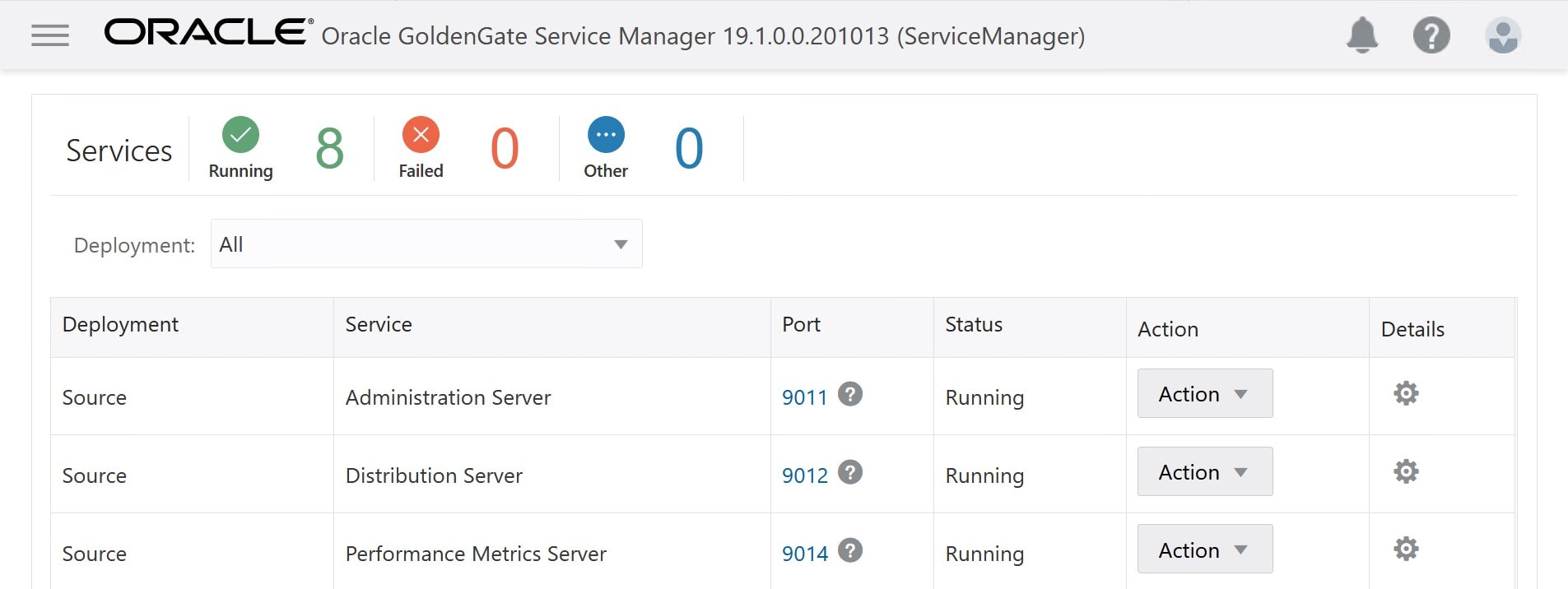
Once logged in you can ensure that all the services are up and running. Most important are the Administration Server services – on source and target. They are handling the replication. Ensure all services are running You can start and stop the services from the Action drop-down menu.

By clicking on the Port number of each of the services, you can go to the specific console for each of the services. Again, the Administration Server are the ones of interest. Click on the port number to go to the specific console

Monitor Extract

If you followed the link to the Source Administration Server (by clicking on the port number) you end up here: Administration Server overview

Ensure that the extract is running. Further down the page you see a list of events. From the Action drop-down menu, you can start and stop the extract. And you get into the Details as well: Follow the Details link

You can get a lot of details, like extract statistics. Here you can see that extract has caught one insert into the table locations: Extract statistics

Monitor Replicat

Now you have monitored the extract, and you should also monitor the replication, which is handled by the replicat process. Basically, you do the same as with extract but use the link on the target administration server: Follow the link to the target administration server to monitor the replicat process

Here you should look at the replicat process and ensure that it is running: Ensure replicat process is running

You start and stop the services and get into the details like described above.

Troubleshooting

Here is an example of an error. I have created a table in my source database that does not exist in the target. This break the replication. I can use the list of critical events to figure out what went wrong: Replicat failed

Also, if you go into the details of the replicat process, and switch to the report tab, you can find even more details:

You can also find more logs on the GoldenGate host in the directories:

  • /u02/deployments/Source/etc/conf/ogg/
  • /u02/deployments/Target/etc/conf/ogg/

Conclusion

With Oracle GoldenGate Microservices Architecture it is easy to get an overview of the replication process. There are nice graphical overviews and you can even get detailed information and statistics.

Other Blog Posts in This Series

Zero Downtime Migration – Logical Online Migration

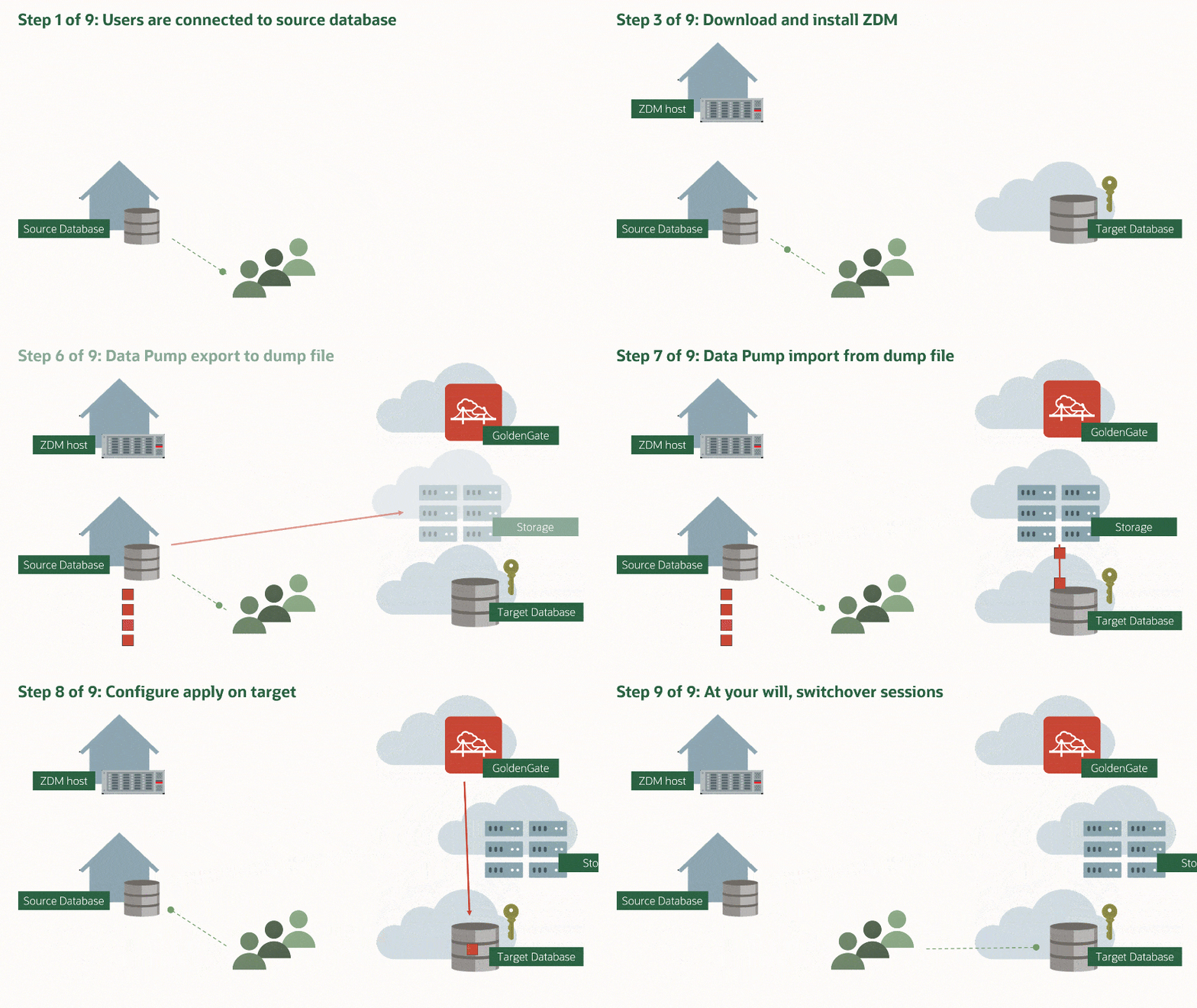
You can migrate a database with Zero Downtime Migration (ZDM) using the Logical Online method. The migration will happen with a combination of Data Pump and Oracle GoldenGate. This way even very large databases can be migrated with very little downtime.

In the introduction blog post I covered the basic characteristics of this approach and explained that Oracle GoldenGate can be used at no extra license cost and it is really simple to use.

Migrate your Oracle Database with Zero Downtime Migration ZDM using Data Pump and GoldenGate

With the Logical Online method, you can even target Autonomous Databases. Both Oracle Autonomous Transaction Processing (ATP) and Oracle Autonomous Data Warehouse (ADW) and also shared and dedicated. When you target an Autonomous Database, you don’t have access to the underlying database host, so instead of SSH access, ZDM will require SQL*Net connectivity.

Benefits

  • First and most important, you don’t need a license for Oracle GoldenGate to use this approach. Yes, that’s right! You are allowed to use a marketplace edition of Oracle GoldenGate 19c for 183 days to migrate your database with ZDM.

Oracle GoldenGate for Oracle – Database Migrations can be used for 183 days to perform migrations into Oracle databases located in Oracle Cloud Infrastructure using the following tools: Oracle Zero Downtime Migration and Oracle Cloud Infrastructure Database Migration

  • Even if you don’t have any GoldenGate experience, you can still use this approach. For example, you don’t need to install and configure GoldenGate yourself. The marketplace image creates the GoldenGate installation for you. Afterwards, ZDM configures GoldenGate and will eventually clean up as well.
  • You can migrate directly into a higher release. For example, if your source database is 12.1.0.2, you can migrate into 19c directly. This avoids the extra downtime normally needed to perform an upgrade.
  • You can migrate directly into a PDB. For example, if you source database is a non-CDB, you can migrate directly into a PDB. This avoids the extra downtime normally needed to convert the database into a PDB using the script noncdb_to_pdb.sql.
  • You can use the full power of Data Pump and GoldenGate to transform your data. By default, ZDM will convert any old BasicFile LOBs into SecureFile LOBs during import. But you can apply other transformations as well. You can partition the table in the target database, you can change the tablespace layout, you can apply compression and anything else that is possible with Data Pump.
  • You can migrate into a different character set (Data Pump and GoldenGate restrictions apply).
  • Your Data Pump export is automatically compressed if the source database is Enterprise Edition. Normally, Data Pump compression would require a license for the Advanced Compression Option. But when you migrate with ZDM to OCI, Oracle allows you to use Data Pump compression without having the Advanced Compression Option.
  • Your Data Pump export is automatically encrypted if the source database is Enterprise Edition. Normally, Data Pump encryption would require a license for the Advanced Security Option. But when you migrate with ZDM to OCI, Oracle allows you to use Data Pump encryption without having the Advanced Security Option.
  • You get recommendations on the migration before it is actually started. ZDM includes the Cloud Premigration Advisor Tool (CPAT) which analyzes your database and give you specific recommendations that matches the target database. For example, if you target an Autonomous Database, CPAT will warn if you have unsupported objects.
  • You can migrate a SE2 database into OCI using this approach as well.
  • You can build your target database in advance and configure backup upfront as well. You can test your backup/recovery strategy before you complete the migration.
  • You can build a standby database in advance as well. Your new OCI target database can be protected by Data Guard from the very second you perform the switch-over. I would recommend doing the initial Data Pump load first, and then build the standby database. This ensures that a minimum of changes has to be applied via redo.

Considerations

  • The time zone file in the OCI target database must be higher than that in the source database. Typically, this is not a problem if you provision a brand-new DB System. But if you plan to use an existing CDB in OCI do check the time zone file upfront:
SQL> select * from v$timezone_file;
  • In My Oracle Support you can find a list of recommended patches to apply on the source database when using Oracle GoldenGate. There is one for 11g and one for 12c and newer. You don’t have to apply those patches, but it is a recommendation. However, if you run into issues, you potentially have to patch your source database.
  • Most databases can be migrated with Oracle GoldenGate. Only very exotic data types are not supported. Be sure to check the documentation.
  • When you use Data Pump to migrate you will lose a lot of the information that is stored in the data dictionary, like
    • AWR
    • SQL Plan Baselines
    • SQL Profiles
    • SQL Patches
  • You can still transfer that information, but you need to use other tools. If this is relevant to you, I suggest that you watch our webinar Performance Stability, Tips and Tricks and Underscores where it is covered in detail.
  • Depending on whether you use a full or schema mode export you need to take care of your public objects afterwards. It could be synonyms or database links.
  • For a huge database you should be prepared for the time it takes to perform the Data Pump export and import. No need to worry too much because GoldenGate will keep track of the changes. But for a 100 TB database you should not start the job the day before the switchover is supposed to take place.
  • It is not recommended to execute DDL statements when GoldenGate is replicating changes. The extract and replicat processes that are created by GoldenGate does not replicate DDL statements. If you for example add a table after the initial Data Pump load, it will not get replicated by GoldenGate. However, GoldeGate is a very powerful tool and you can configure it to replicate DDL as well. But you will need to adjust the GoldenGate user privileges and change the parameter files. In the documentation you can read more about the possibilities of DDL replication and how to configure it.

Fallback

Using this approach there is no straight forward way of falling back to the source on-prem database. You could use GoldenGate to reverse the replication when you switch over to the OCI target database. However, it is not configured automatically by ZDM. So, this is very you would need to know GoldenGate and do the required configuration.

Conclusion

You get a lot more options when you use the Logical Online method to migrate your database. Especially, the possibility of migrating directly into a higher release or into a PDB is very attractive. Plus, you can use GoldenGate during the migration at no extra license cost.

However, the flexibility comes at a cost. There is a little more configuration and it is not as straight-forward as the Physical Online method. But it is not complicated.

Want to Know More

If you want to know more about using Data Pump and GoldenGate for database migrations, I suggest that you take a look at our webinar Migration Strategies – Insights, Tips and Secrets

In addition, these links contain additional useful information:

Other Blog Posts in This Series

Zero Downtime Migration – Create GoldenGate Hub

The Logical Online migration method in Zero Downtime Migration (ZDM) uses Oracle GoldenGate to keep the Oracle Database in OCI in sync until you perform the switchover. You need an Oracle GoldenGate Hub to do that and you should use the deployment from the OCI Marketplace. Let’s do it!

  1. First, go to the OCI Marketplace and search for goldengate for oracle. You should use the image called Oracle GoldenGate for Oracle – Database Migrations. Use the OCI Marketplace to find the Oracle GoldenGate application

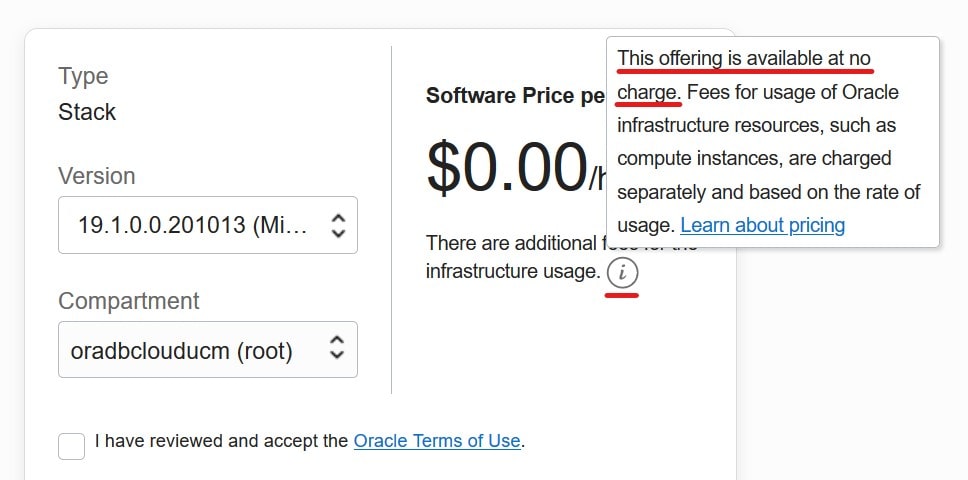
  2. On the application page you can verify that the software is free but you still have to pay for the underlying infrastructure, like the compute instance. In addition, certain terms apply:

Oracle GoldenGate for Oracle – Database Migrations can be used for 183 days to perform migrations into Oracle databases located in Oracle Cloud Infrastructure using the following tools: Oracle Zero Downtime Migration and Oracle Cloud Infrastructure Database Migration

  1. When you hit Get App button you need to log in to OCI. Be sure to select the right region and compartment. Again, you can verify that the software is free – but you pay for the compute instance. Hit Launch Stack. Launching an Oracle GoldenGate stack using OCI Marketplace This version of Oracle GoldenGate is available for free but you have to pay for the underlying infrastructure

  2. On the next page Create Stack – Stack Information simply give it a name. I call it OGG4DEMO.

  3. On the next page Create Stack – Configure Variables you fill in additional information like network, your SSH public key etc. But most important – you also need to specify the Oracle Database version of the source and target database – and whether the target database is an Autonomous Database. Don’t worry about the deployment names they are good as they are. Even if the target attributes are listed as optional – fill them out. Pick the right database versions for the source and target database

  4. Review the settings and hit Create. The stack is now being deployed. The stack is deploying and very soon it will be ready

  5. Now, head on over to Compute and Instances to find the newly created compute instance with Oracle GoldenGate already installed. Depending on your network settings use either the public or private IP address or the computer name (DNS). When the stack has been created, you can find it in Compute > Instances

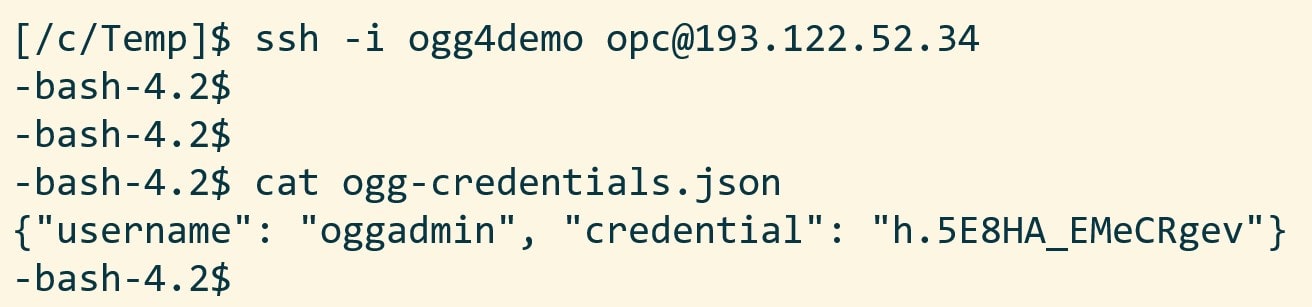
  6. Use the IP address (or computer name) and your SSH key to connect to the server as opc. There is a file called ogg-credentials.json which contains the username and password that is needed to connect to the Oracle GoldenGate Hub In ogg-credentials.json you find the username and password required to connect to the Oracle GoldenGate Hub

  7. Now you can connect via HTTPS (https://193.122.52.34) to the Oracle GoldenGate Hub. Use the credentials from ogg-credentials.json and log in. That’s it – your very own Oracle GoldenGate deployment. The landing page when you log in to the Oracle GoldenGate Hub

Other Blog Posts in This Series

Appendix

A. The very last thing is to apply the latest patches to Oracle GoldenGate. But that will be a topic for a future post.

B. When you connect to Oracle GoldenGate via HTTPS, you will probably get a security warning in your browser. The initial deployment comes with a self-signed certificate which alerts many browsers. Follow the procedures in your organization to deploy a proper certificate. Read more about Securing the Microservices Architecture.

C. The credentials for Oracle GoldenGate are case sensitive. It applies to the password but also the username (oggadmin, not OGGADMIN).

Performance Stability after Upgrade and Migration

Yesterday I gave a talk to the Danish Oracle User Group. The topic was Performance stability after upgrade and migration and included something about statistics, a lot about SQL Plan Management and a few recommendations for parameters in Oracle Database 19c.

Danish Oracle User Group

If you are interested you can download the slides and have a look yourself. The talk itself was not recorded.

You Want More?

The content I presented is part of a revamped webinar that Roy, Mike and I are giving on Thursday, 4 March 2021 at 19:00 CET. We call it

Performance Stability, Tips, Tricks & Underscores

> The third webinar the series addresses performance stability, tips, tricks and underscores. Participants learn how to perform proactive testing before upgrading to Oracle Database19c. > >Topics that will be covered during this session: > >* Testing Principles >* Ensure Performance Stability >* SQL Plan Management >* Real Application Testing >* Tips, Tricks & Underscores to get the best out of Oracle Database 19c

It is all tech – no buzzwords and marketing. We have to keep it within two hours, but I think that we already have way too much content. I assure you it will be action packed.

If that sounds interesting, sign up and I will see you next Thursday. It will be so much fun.

Otherwise, you can find the recording a few days after. In addition, most of the content will also be cut into bite-size pieces and uploaded to our YouTube channel – why not subscribe?

Links

XTTS: How to Migrate a Database Using Full Transportable Export Import and Incremental Backups

These steps will guide you through a migration of a database using Full Transportable Export/Import (FTEX) and incremental backups. I covered the concept in a previous blog post, which you should read to understand the basics. Remember Transportable Tablespaces and Full Transportable Export/Import requires Enterprise Edition.

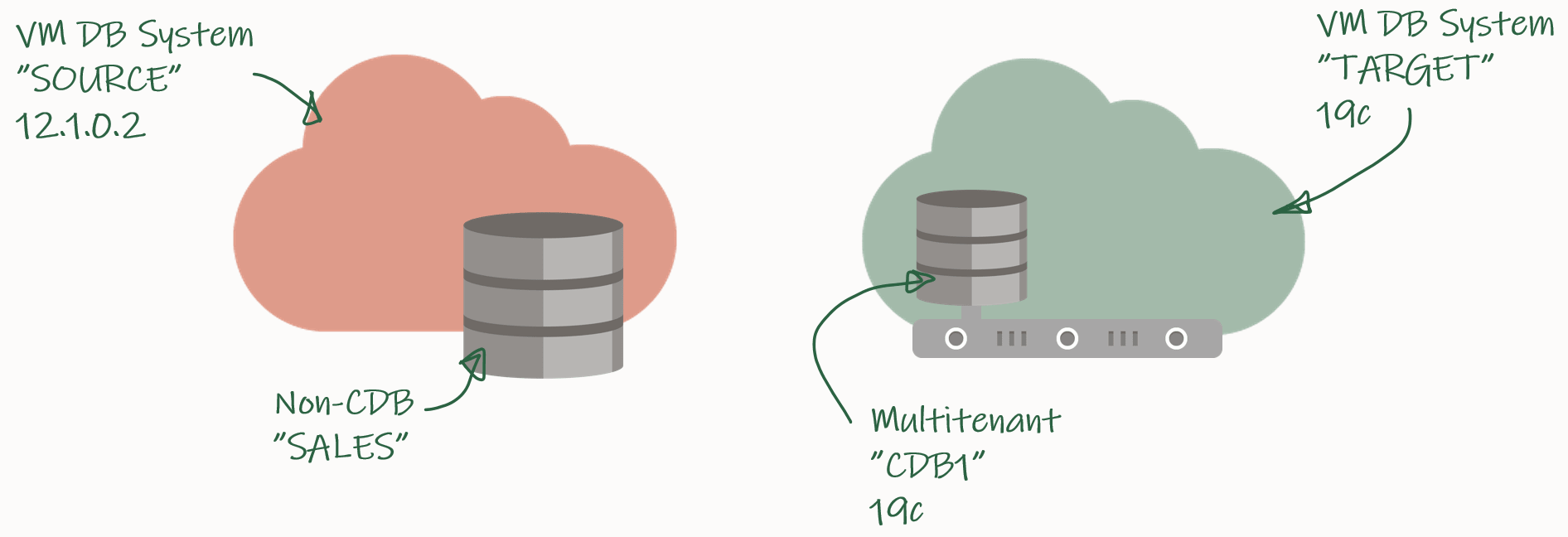
My demo environment looks like this: Overview of demo environment for migrating using FTEX and incremental backups

I have an 12.1.0.2 database that I want to migrate to a PDB in a new CDB that runs 19c.

Check Prerequisites

Create a new PDB called SALES in the target CDB:

TARGET/CDB1 SQL> create pluggable database sales admin user admin identified by admin;
TARGET/CDB1 SQL> alter pluggable database sales open;
TARGET/CDB1 SQL> alter pluggable database sales save state;

Prepare the database to use TDE Tablespace Encryption:

TARGET/CDB1 SQL> alter session set container=sales;
TARGET/CDB1 SQL> administer key management set key force keystore identified by <keystore-pwd> with backup;

Verify SQL*Net connectivity from source host to target PDB:

[oracle@source]$ sqlplus system@<target ip>/<pdb-service-name>

Verify database character set and national character set are the same:

SOURCE/SALES SQL> select property_name, property_value from database_properties where property_name in ('NLS_CHARACTERSET', 'NLS_NCHAR_CHARACTERSET');

TARGET/SALES SQL> select property_name, property_value from database_properties where property_name in ('NLS_CHARACTERSET', 'NLS_NCHAR_CHARACTERSET');

Ensure the source database is in ARCHIVELOG mode:

SOURCE/SALES SQL> select log_mode from v$database;

Enable block change tracking on source database. Requires Enterprise Edition (on-prem), DBCS EE-EP (cloud) or Exadata. Although strictly speaking not required, it is strongly recommended:

SOURCE/SALES SQL> select status, filename from v$block_change_tracking;
SOURCE/SALES SQL> alter database enable block change tracking;

Ensure that you can connect from the source to the target host as oracle:

[oracle@source]$ ssh <target ip> date

Identify Tablespaces And External Data

Identify all the tablespaces that you will migrate. With FTEX you should transport all the tablespaces, except those that contain Oracle maintained data, like SYSTEM, SYSAUX, UNDO and so forth:

SOURCE/SALES SQL> select tablespace_name from dba_tablespaces;

Save the list of tablespaces for later. In my demo, I only have the tablespace SALES except the Oracle maintained ones.

Next, on the target database ensure that any of the existing tablespaces doesn’t conflict with the ones you are transporting:

TARGET/SALES SQL> select tablespace_name from dba_tablespaces;

If there is a conflict of names, you have to drop or rename the tablespaces in the target database.

Use DBMS_TDB to easily identify external stuff like directories, external tables and BFILEs. Any files stored in the file system outside the database must be manually transferred to the file system on the target host:

SOURCE/SALES SQL> SET SERVEROUTPUT ON
SOURCE/SALES SQL> DECLARE
      external BOOLEAN;
   BEGIN
      external := DBMS_TDB.CHECK_EXTERNAL;
   END;
/

Download and Configure Perl Scripts

Create a folder to hold the perl scripts, download the scripts from MOS doc ID 2471245.1, and unzip:

[oracle@source]$ rm -rf /home/oracle/xtts
[oracle@source]$ mkdir /home/oracle/xtts
[oracle@source]$ cd /home/oracle/xtts
[oracle@source]$ --Download file from MOS
[oracle@source]$ unzip rman_xttconvert_VER4.3.zip

Create a working directory (aka. scratch location) which will hold the backups. Ensure that you have enough space at this location at both source and target database.

[oracle@source]$ rm -rf /u01/app/oracle/xtts_scratch
[oracle@source]$ mkdir -p /u01/app/oracle/xtts_scratch

Create the same location on the target host:

[oracle@target]$ rm -rf /u01/app/oracle/xtts_scratch
[oracle@target]$ mkdir -p /u01/app/oracle/xtts_scratch

Configure your migration in xtt.properties. In this demo the file looks like this:

tablespaces=SALES
platformid=13
src_scratch_location=/u01/app/oracle/xtts_scratch
dest_scratch_location=/u01/app/oracle/xtts_scratch
dest_datafile_location=+DATA
asm_home=/u01/app/19.0.0.0/grid
asm_sid=+ASM1
parallel=4
rollparallel=4
getfileparallel=4
metatransfer=1
dest_user=oracle
dest_host=<target_ip>
desttmpdir=/u01/app/oracle/xtts_scratch
srcconnstr=sys/<password>@sales
destconnstr=sys/<password>@newsales
usermantransport=1

A little explanation:

  • platformid is set to 13 because this is a Linux migration. You can get the number by querying v$transportable_platform.
  • Adjust the parallel options according to the capabilities of the source and target system.
  • When you are using ASM disk group in dest_datafile_location you must also set asm_home and asm_sid.

Finally, copy the scripts (and the configuration) to your target system:

[oracle@source]$ scp -r /home/oracle/xtts/ <target_ip>:/home/oracle/

Initial Backup and Restore

Now, you can start the first initial backup of the database. You take it while the source database is up and running, so it doesn’t matter if the backup/restore cycle take hours or days to complete:

[oracle@source]$ export TMPDIR=/home/oracle/xtts
[oracle@source]$ cd /home/oracle/xtts
[oracle@source]$ $ORACLE_HOME/perl/bin/perl xttdriver.pl --backup

The perl script has been configured in such a way that it automatically transfers the backups to the target system. In addition to that, a small text file must be transferred as well:

[oracle@source]$ scp res.txt oracle@<target_ip>:/home/oracle/xtts

Now, on the target system, you can restore the backup that was just taken. If needed, the data files are automatically converted to the proper endian format. If conversion is needed, you need space for a copy of all the data files:

[oracle@target]$ export TMPDIR=/home/oracle/xtts
[oracle@target]$ cd /home/oracle/xtts
[oracle@target]$ $ORACLE_HOME/perl/bin/perl xttdriver.pl --restore

Incremental Backup and Restore

You can – and should – run the incremental backup and restores as many times as possible. The more frequent you run them, the faster they will run because there will be fewer changes. At least, close to the migration downtime window starts you should run them often, to minimize the time it will take to perform the final backup and restore:

[oracle@source]$ export TMPDIR=/home/oracle/xtts
[oracle@source]$ cd /home/oracle/xtts
[oracle@source]$ $ORACLE_HOME/perl/bin/perl xttdriver.pl --backup

Transfer res.txt:

[oracle@source]$ scp res.txt oracle@<target_ip>:/home/oracle/xtts

And restore on the target system:

[oracle@target]$ export TMPDIR=/home/oracle/xtts
[oracle@target]$ cd /home/oracle/xtts
[oracle@target]$ $ORACLE_HOME/perl/bin/perl xttdriver.pl --restore

Final Incremental Backup and Restore

Gather dictionary statistics to ensure the Data Pump export runs as fast as possible:

SOURCE/SALES SQL> exec dbms_stats.gather_dictionary_stats;

Now downtime starts! Set the tablespaces read-only:

SOURCE/SALES SQL> alter tablespace SALES read only;

Perform the final incremental backup:

[oracle@source]$ export TMPDIR=/home/oracle/xtts
[oracle@source]$ cd /home/oracle/xtts
[oracle@source]$ $ORACLE_HOME/perl/bin/perl xttdriver.pl --backup

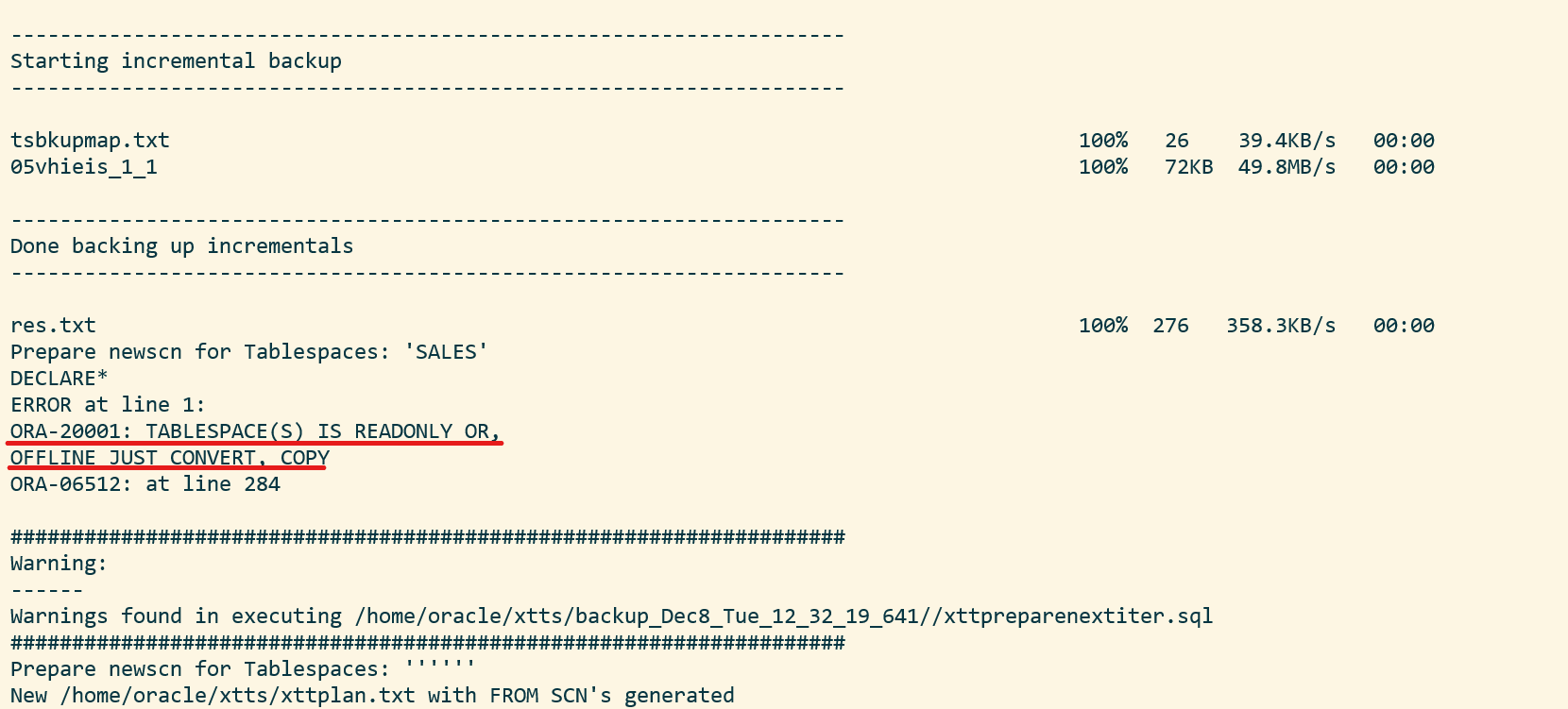
You will receive an error because the tablespace is read-only. This is ignorable: This error is ignorable because the tablespace was set read-only on purpose

Transfer res.txt:

[oracle@source]$ scp res.txt oracle@<target_ip>:/home/oracle/xtts

And restore on the target system:

[oracle@target]$ export TMPDIR=/home/oracle/xtts
[oracle@target]$ cd /home/oracle/xtts
[oracle@target]$ $ORACLE_HOME/perl/bin/perl xttdriver.pl --restore

Import Metadata Using FTEX

Create a directory object that points to the xtts folder:

TARGET/SALES SQL> create directory LOGDIR as '/home/oracle/xtts';

Next, create a database link to the source database that can be used to import the metadata. If the source database is already a PDB, ensure that the database link points directly into the PDB:

TARGET/SALES SQL> create public database link SRCLNK connect to system identified by <password> using '//<source_ip>:1521/<service_name>';

Test that it works:

TARGET/SALES SQL> select * from dual@srclnk;

Next, create a par file (sales_imp.par) that you can use for the Data Pump import (see appendix below for explanation):

network_link=SRCLNK
full=y
transportable=always
metrics=y
logtime=all
exclude=TABLE_STATISTICS,INDEX_STATISTICS
exclude=SYS_USER
exclude=TABLESPACE:"IN('TEMP')"
exclude=SCHEMA:"IN('SPATIAL_CSW_ADMIN_USR','SPATIAL_WFS_ADMIN_USR')"
directory=logdir
logfile=sales_imp.log
transport_datafiles='+DATA/CDB1_FRA2VD/B2D617FCB79B0684E053AF01000A6DCE/DATAFILE/SALES.281.105552609'

Start Data Pump and perform the import. newsales is a TNS alias that points into the SALES PDB in the target CDB. If you have encrypted tablespaces, you should use the option encryption_pwd_prompt. It allows you to input the TDE password. It can be omitted if there are no encrypted tablespaces.

$ impdp system@newsales parfile=sales_imp.par encryption_pwd_prompt=yes

Once the import has completed, you should examine the Data Pump log file for any critical errors. Check the appendix (see below) for ignorable errors:

[oracle@target]$ vi /home/oracle/xtts/sales_imp.log

That’s it! Your data has been migrated. Now would be a good time to:

  • Check data files for corruption using RMAN VALIDATE command

    Although not mandatory, it is recommended if time allows. It is a read-only check that you can run while other stuff is happening in the database. See step 6.1 in MOS doc ID 2471245.1.

  • Gather dictionary statistics

  • Test your application

  • Start a backup

  • Gather statistics – they were excluded from the export

  • Drop the database link that points to the source database

  • Cleanup the file system:

    • /home/oracle/xtts
    • /u01/app/oracle/xtts_scratch

Conclusion

Even huge, TB-sized, databases can be migrated with very little downtime by using incremental backups. By using the perl script from My Oracle Support and combined with Full Transportable Export/Import it is a simple process. In addition, you can even migrate to a new endian format, to a higher release and into a PDB in one operation. It requires Enterprise Edition and you must have plenty of disk space – potentially twice the size of your database.

There is a video on our YouTube channel that you can watch. It demos the entire process. I suggest that you subscribe to our channel and get notified whenever there are new videos.

Thanks to my good colleague, Robert Pastijn, for supplying a runbook that was used as inspiration.

Further Reading

Other Blog Posts in This Series

Appendix

If Source Database Is in OCI and Automatic Backup Is Enabled

If the source database is running in OCI and you have enabled automatic backup, you must make a few changes.

In xttprep.tmpl around line 319 change:

cp('backup for transport allow inconsistent ' ||

to

cp('set encryption off for all tablespaces;set compression algorithm "basic";backup for transport allow inconsistent ' ||

In xttdriver.pl around line 4268 change:

my $rman_str1 = "set nocfau;";

to

my $rman_str1 = "set nocfau;".
                "set encryption off for all tablespaces ;".
                "set compression algorithm 'basic' ;" ;

ORA-02085

If you get ORA-02085 when querying over the database link:

TARGET/SALES SQL> alter system set global_names=false;

ORA-39032

If you are exporting from 11.2.0.4, you must add the VERSION parameter:

expdp ... version=12

ORA-39187, ORA-39921 And ORA-39922

If the Data Pump job aborts and complain about object named CLI_SWPXXXXXXXX or SYS_ILYYYYYYYYY:

ORA-39123: Data Pump transportable tablespace job aborted
ORA-39187: The transportable set is not self-contained, violation list is
ORA-39921: Default Partition (Table) Tablespace SYSAUX for CLI_SWPXXXXXXXX not contained in transportable set.
ORA-39922: Default Partition (Index) Tablespace SYSAUX for SYS_ILYYYYYYYYY not contained in transportable set.
Job "SYS"."SYS_EXPORT_FULL_01" stopped due to fatal error at Wed Jul 18 13:51:01 2018 elapsed 0 00:05:55

You should have a look at MOS note ORA-39187 & ORA-39921 for CLI_SWP$ tables while performing Full Transportable Tablespace export (Doc ID 2426177.1). The objects are related to Unified Auditing.

Data Pump Parameters

Use network_link to specify the name of the database link that points back to the source database.

full=y and transportable=always instructs Data Pump to perform a full transportable export/import.

exclude=TABLE_STATISTICS,INDEX_STATISTICS exclude statistics from the import. It is better and faster to gather new, fresh statistics on the target database. If you insist on importing your statistics, you should use DBMS_STATS.

exclude=SYS_USER excludes the import of the SYS user. In a PDB that is not even allowed, and most likely you are not interested in importing the definition of the SYS user.

exclude=TABLESPACE:"IN('TEMP')" excludes the temporary tablespace from the import. Most likely there is already a temporary tablespace in the new, target PDB. It is faster to create a TEMP tablespace in advance – and name it the same as in the source database.

A change was made to Spatial in 19c and some Spatial admin users are removed. To avoid errors/noise in the log file you can safely exclude them from the import by specifying exclude=SCHEMA:"IN('SPATIAL_CSW_ADMIN_USR','SPATIAL_WFS_ADMIN_USR')".

transport_datafiles is used to specify the data files that make you the tablespace you are transporting. Specify the parameter multiple times to specify more data files. You can use asmcmd to get the data file paths and names.

Data Pump Ignorable Errors

Multimedia desupported in 19c, but code is still there. You can safely disregard this error:

Processing object type DATABASE_EXPORT/NORMAL_OPTIONS/TABLE
ORA-39342: Internal error - failed to import internal objects tagged with ORDIM due to ORA-00955: name is already used by an existing object.

Package is removed in 12.2. See ORA-39083 And ORA-04042 Errors On DBMS_DEFER_SYS When Importing Into 12.2 Database (Doc ID 2335846.1):

Processing object type DATABASE_EXPORT/SYSTEM_PROCOBJACT/POST_SYSTEM_ACTIONS/PROCACT_SYSTEM
ORA-39083: Object type PROCACT_SYSTEM failed to create with error:ORA-04042: procedure, function, package, or package body does not exist

Failing sql is:
BEGIN
SYS.DBMS_UTILITY.EXEC_DDL_STATEMENT('GRANT EXECUTE ON DBMS_DEFER_SYS TO "DBA"');COMMIT; END;

Move to the Cloud – Webinar

Yesterday, Mike Dietrich and I gave the final webinar in the Oracle Database 19c Upgrade Virtual Classroom series. It was about Move to the Cloud – not only for techies. Now, I say final – but we all know you should never, say never. And in this case, it applies to final as well. We are already talking about subjects for a seventh webinar. If you have any interesting topic, that you think we should cover, get in touch with me.

Oracle Database 19c Upgrade Virtual Classroom

Unfortunately, due to a technical glitch we skipped the part about migrating using transportable tablespaces and full transportable export/import. We uploaded the missing part to YouTube, so you can watch it.

For those interested, you can now download the slides. We had really much information to share, so browse through the deck to find a lot of hidden slides. Typically, there are references and links to more information about a specific topic.

Within a week it should be possible to watch a recording of the webinar.

The Demos and Videos

This presentation we gave, was a brand new one. We used as many demos and videos as we could – or rather had time to prepare. We will post them on our YouTube channel as soon as possible. I suggest that you subscribe to it, so you can receive word as soon as new contents arrives. Further, we want to enhance the presentation even more, so we will be putting in more videos and demos. Let me know, if there was a topic, that could improve with a video or demo.

Thank You

Thanks to everyone that participated yesterday. Happy migrating!

Migration Strategies

Mike Dietrich and I gave a presentation on Migration Strategies – Tips and Tricks and Insights and Secrets today. The webinar is part of the Oracle Database 19c Upgrade Virtual Classroom series.

Oracle Database 19c Upgrade Virtual Classroom

The slide deck contains more information than we presented at the webinar. We had hidden a lot of slides that contain additional information and useful links. The slide deck is ready to download.

Soon you will be able to watch a recording as well.

Move to the Cloud (for techies)

If you want to know even more about migrations, you should register for the next webinar. It’s all about cloud migrations.

Date: Thursday 15 October 2020
Start Time: 13:00 GST – 12:00 EEST – 11:00 CEST – 10:00 BST
Duration: 120 mins

Whether you have databases in a cloud environment, or you plan to lift databases soon, this webinar is for you. We won’t cover cloud solution benefits but will show you how you can migrate your database(s) into the Oracle Cloud. We’ll start with Autonomous and also cover migration into VMs, Bare Metal, OCI, ExaCS and ExaCC. And we’ll look at minimizing downtime strategy, where ZDM can help. This two-hour webinar is not strictly for technical geeks ‒ but our focus will be on practical migration approaches.

Thank You

Thanks to everyone that participated today. We had a lot of fun and look forward to seeing you on Thursday. Happy migrating!