Can I Name My PDB in Lowercase?

A customer asked me:

I’m using AutoUpgrade to convert to a PDB, and I want to name the PDB in lowercase. How do I do that?

First, let’s understand how AutoUpgrade decides on the name for the PDB when you convert a non-CDB.

AutoUpgrade and PDB Name

AutoUpgrade uses the DB_UNIQUE_NAME of the non-CDB as the name of the PDB.

In the beginning, AutoUpgrade used the SID of the database, but that wasn’t smart for a RAC database since the SID is suffixed by the instance ID.

Now, DB_UNIQUE_NAME might not be smart for a Data Guard configuration, but that’s how it is at the moment. We have a better solution on our backlog.

Anyway, you can override the default and choose the PDB name with the target_pdb_name config file parameter:

upg1.source_home=/u01/app/oracle/product/19
upg1.target_home=/u01/app/oracle/product/23
upg1.sid=DB19
upg1.target_cdb=CDB23
upg1.target_pdb_name.DB19=SALES
  • In the above case, AutoUpgrade renames the DB19 to SALES during plug-in.

If you write sales in lowercase, AutoUpgrade converts it to uppercase. If you put quotes around “sales”, AutoUpgrade throws an error.

AutoUpgrade accepts uppercase PDB names only. Why?

PDB Naming Rules

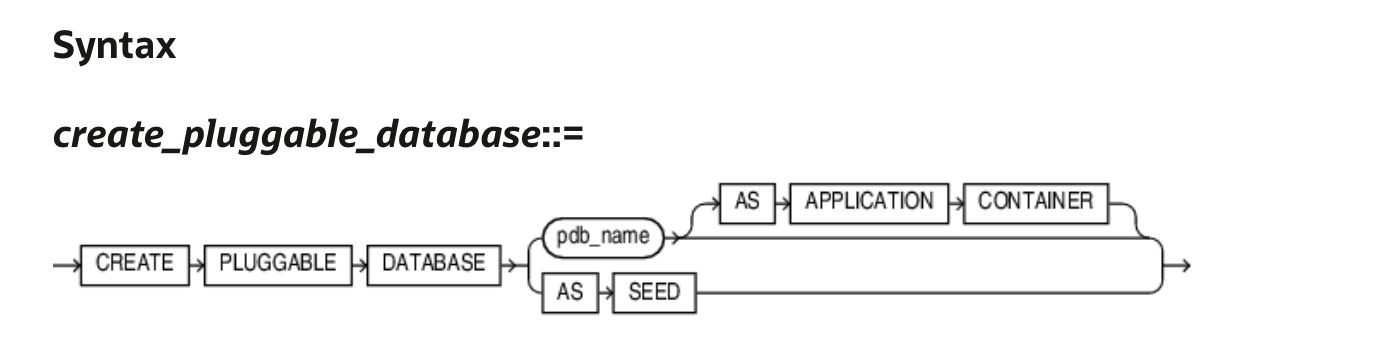
Let’s take a look in the documentation. I’ll find the CREATE PLUGGABLE DATABASE statement.

Syntax diagram for the CREATE PLUGGABLE DATABASE statement

The semantics for pdb_name lists:

The name must satisfy the requirements listed in “Database Object Naming Rules”. The first character of a PDB name must be an alphabet character. The remaining characters can be alphanumeric or the underscore character (_).

Let’s take a look at the Database Object Naming Rules:

… However, database names, global database names, database link names, disk group names, and pluggable database (PDB) names are always case insensitive and are stored as uppercase. If you specify such names as quoted identifiers, then the quotation marks are silently ignored. …

  • Names of disk groups, pluggable databases (PDBs), rollback segments, tablespaces, and tablespace sets are limited to 30 bytes.

So, AutoUpgrade is just playing by the rules.

The Answer

So, the answer is that the database use PDB names in alphanumeric uppercase. AutoUpgrade knows this and automatically converts to uppercase. The customer must accept that PDB names are uppercase.

These are the requirements for the PDB names

  • First character must be an alphabet character.
  • The name must be all uppercase.
  • The name can contain alphanumeric (A-Z) and the underscore (_) characters.
  • No longer than 30 bytes.
  • Don’t try to enquoute the name.
  • Nonquoted identifiers (like PDB names) cannot be Oracle SQL reserved words.
  • The PDB name must be unique in the CDB, and it must be unique within the scope of all the CDBs whose instances are reached through a specific listener.

Daniel’s Recommendation

I recommend that you use globally unique PDB names. In your entire organization, no PDBs have the same name. That way, you can move PDBs around without worrying about name collisions.

I know one customer that generates a unique number and prefix with P:

  • P00001
  • P00002
  • P00003

They have a database with a simple sequence and a function that returns P concatenated with the sequence number. The expose the function in their entire organization through a REST API using ORDS. Simple and yet elegant.

Final Words

I’ve spent more than 20 years working with computers. I have been burnt by naming issues so many times that I’ve defined a law: Daniel’s law for naming in computer science:

  • Use only uppercase alphanumeric characters
  • US characters only (no special Danish characters)
  • Underscores are fine
  • Never use spaces
  • Don’t try to push your luck when it comes to names :-)

How to Solve DCS-12300:Failed to Clone PDB During Remote Clone (DBT-19407)

A customer reached out to me:

I want upgrade a PDB from Oracle Database 19c to 23ai. It’s in a Base Database Service in OCI. I use the Remote clone feature in the OCI console but it fails with DCS-12300 because IMEDIA component is installed.

The task:

  • Clone a PDB using the OCI Console Remote clone feature
  • From a CDB on Oracle Database 19c to another CDB on Oracle Database 23ai
  • Upgrade the PDB to Oracle Database 23ai

Let’s see what happens when you clone a PDB:

Error message from OCI console when remote cloning a PDB to 23ai using cloud tooling

It fails, as explained by the customer.

Let’s dig a little deeper. Connect as root to the target system and check the DCS agent.

$ dbcli list-jobs

ID                                       Description                                                                 Created                             Status
---------------------------------------- --------------------------------------------------------------------------- ----------------------------------- ----------
...
6e1fa60c-8572-4e08-ba30-cafb705c195e     Remote Pluggable Database:SALES from SALES in db:CDB23                      Tuesday, September 24, 2024, 05:04:13 UTC Failure

$ dbcli describe-job -i 6e1fa60c-8572-4e08-ba30-cafb705c195e

Job details
----------------------------------------------------------------
                     ID:  6e1fa60c-8572-4e08-ba30-cafb705c195e
            Description:  Remote Pluggable Database:SALES from SALES in db:CDB23
                 Status:  Failure
                Created:  September 24, 2024 at 5:04:13 AM UTC
               Progress:  35%
                Message:  DCS-12300:Failed to clone PDB SALES from remote PDB SALES. [[FATAL] [DBT-19407] Database option (IMEDIA) is not installed in Local CDB (CDB23).,
 CAUSE: The database options installed on the Remote CDB(CDB19_979_fra.sub02121342350.daniel.oraclevcn.com) m
             Error Code:  DCS-12300
                  Cause:  Error occurred during cloning the remote PDB.
                 Action:  Refer to DCS agent log, DBCA log for more information.

...

What’s Going on?

First, IMEDIA stands for interMedia and is an old name for the Multimedia component. The ID of Multimedia is ORDIM.

Oracle desupported the Multimedia component:

Desupport of Oracle Multimedia Oracle Multimedia is desupported in Oracle Database 19c, and the implementation is removed. … Oracle Multimedia objects and packages remain in the database. However, these objects and packages no longer function, and raise exceptions if there is an attempt made to use them.

In the customer’s and my case, the Multimedia component is installed in the source PDB, but not present in the target CDB. The target CDB is on Oracle Database 23ai where this component is completely removed.

If you plug in a PDB that has more components than the CDB, you get a plug-in violation, and that’s causing the error.

Here’s how you can check whether Multimedia is installed:

select   con_id, status 
from     cdb_registry 
where    comp_id='ORDIM' 
order by 1;

Solution 1: AutoUpgrade

The best solution is to use AutoUpgrade. Here’s a blog post with all the details.

AutoUpgrade detects that multimedia is already present in the preupgrade phase. Here’s an extract from the preupgrade log file:

INFORMATION ONLY
  ================
    7.  Follow the instructions in the Oracle Multimedia README.txt file in <23
      ORACLE_HOME>/ord/im/admin/README.txt, or MOS note 2555923.1 to determine
      if Oracle Multimedia is being used. If Oracle Multimedia is being used,
      refer to MOS note 2347372.1 for suggestions on replacing Oracle
      Multimedia.

      Oracle Multimedia component (ORDIM) is installed.

      Starting in release 19c, Oracle Multimedia is desupported. Object types
      still exist, but methods and procedures will raise an exception. Refer to
      23 Oracle Database Upgrade Guide, the Oracle Multimedia README.txt file
      in <23 ORACLE_HOME>/ord/im/admin/README.txt, or MOS note 2555923.1 for
      more information.

When AutoUpgrade plugs in the PDB with Multimedia, it’ll see the plug-in violation. But AutoUpgrade is smart and knows that Multimedia is special. It knows that during the upgrade, it will execute the Multimedia removal script. So, it disregards the plug-in violation until the situation is resolved.

AutoUpgrade also handles the upgrade, so it’s a done deal. Easy!

Solution 2: Remove Multimedia

You can also manually remove the Multimedia component in the source PDB before cloning.

I grabbed these instructions from Mike Dietrich’s blog. They work for a 19c CDB:

cd $ORACLE_HOME/rdbms/admin
#First, remove ORDIM in all containers, except root
$ORACLE_HOME/perl/bin/perl catcon.pl -n 1 -C 'CDB$ROOT' -e -b imremdo_pdbs -d $ORACLE_HOME/ord/im/admin imremdo.sql
#Recompile
$ORACLE_HOME/perl/bin/perl catcon.pl -n 1 -e -b utlrp -d '''.''' utlrp.sql
#Last, remove ORDIM in root
$ORACLE_HOME/perl/bin/perl catcon.pl -n 1 -c 'CDB$ROOT' -e -b imremdo_cdb -d $ORACLE_HOME/ord/im/admin imremdo.sql
#Recompile
$ORACLE_HOME/perl/bin/perl catcon.pl -n 1 -e -b utlrp -d '''.''' utlrp.sql
#Remove leftover package in all containers
echo "drop package SYS.ORDIMDPCALLOUTS;" > vi dropim.sql
$ $ORACLE_HOME/perl/bin/perl $ORACLE_HOME/rdbms/admin/catcon.pl -n 1 -e -b dropim -d '''.''' dropim.sql

Without the Multimedia component cloning via the cloud tooling works, but you are still left with a PDB that you attend to.

If you’re not using AutoUpgrade, you will use a new feature called replay upgrade. The CDB will see that the PDB is a lower-version and start an automatic upgrade. However, you still have some manual pre- and post-upgrade tasks to do.

One of the reasons I prefer using AutoUpgrade.

Further Reading

For those interested, here are a few links to Mike Dietrich’s blog on components and Multimedia in particular:

AutoUpgrade and Secure External Password Store Enables Complete Automation

Many commands that involve Transparent Data Encryption (TDE) require inputting the TDE keystore password. Also, when you use AutoUpgrade. on an encrypted Oracle Database you probably need to store the TDE keystore password using the -load_password option.

Manually inputting passwords is unsuitable for an environment with a high degree of automation. In Oracle Database it is solved by Secure External Password Store (SEPS) (as of Oracle Database 12.2). In a previous blog post, I showed how you could use it to your advantage.

This blog post is about how to use AutoUpgrade together with SEPS.

Good News

As of version 22.2 AutoUpgrade fully supports Oracle Database with a Secure External Password Store. If SEPS contains the TDE keystore password, you don’t have to input the password using the -load_password option.

If you are using AutoUpgrade in some sort of automation (like Ansible), you should look into SEPS. AutoUpgrade can use SEPS when the TDE keystore password is needed, and you can upgrade and convert completely unattended.

How To

The Oracle Database DB12 is encrypted and on Oracle Database 12.2. I want to upgrade, convert, and plug it into CDB2 on Oracle Database 19c.

  1. Ensure that your Oracle Databases DB12 and CDB2 are properly configured with a Secure External Password Store and it contains the TDE keystore password.
  2. Ensure that AutoUpgrade is version 22.2 or higher:
    $ java -jar autoupgrade.jar -version
    
  3. Create your AutoUpgrade config file and set global.keystore as specified in a previous blog post:
    global.autoupg_log_dir=/u01/app/oracle/cfgtoollogs/autoupgrade
    global.keystore=/u01/app/oracle/admin/autoupgrade/keystore
    	
    upg1.log_dir=/u01/app/oracle/cfgtoollogs/autoupgrade/DB12
    upg1.source_home=/u01/app/oracle/product/12.2.0.1
    upg1.target_home=/u01/app/oracle/product/19
    upg1.sid=DB12
    upg1.target_cdb=CDB2
    
  4. Analyze:
    $ java -jar autoupgrade.jar -config DB12.cfg -mode analyze
    
  5. The summary report tells me everything is fine; just go ahead. I don’t need to input the TDE keystore passwords:
    [Stage Name]    PRECHECKS
    [Status]        SUCCESS
    [Start Time]    2022-03-30 10:28:38
    [Duration]       
    [Log Directory] /u01/app/oracle/cfgtoollogs/autoupgrade/DB12/DB12/100/prechecks
    [Detail]        /u01/app/oracle/cfgtoollogs/autoupgrade/DB12/DB12/100/prechecks/db12_preupgrade.log
    				Check passed and no manual intervention needed
    
  6. Optionally, I can use the -load_password prompt to check the TDE configuration:
    $ java -jar autoupgrade.jar -config DB12.cfg -load_password
    	
    TDE> list
    +----------+---------------+------------------+-----------+------------------+
    |ORACLE_SID|Action Required|      TDE Password|SEPS Status|Active Wallet Type|
    +----------+---------------+------------------+-----------+------------------+
    |      CDB2|               |No password loaded|   Verified|               Any|
    |      DB12|               |No password loaded|    Unknown|        Auto-login|
    +----------+---------------+------------------+-----------+------------------+
    
    Action Required is empty and verifies that I don’t need to input the TDE keystore passwords. AutoUpgrade checked SEPS in CDB2 and found that it works. It is impossible to check SEPS in DB12 because it is on Oracle Database 12.2. The functionality was added in Oracle Database 19c.
  7. Start the upgrade and conversion:
    $ java -jar autoupgrade.jar -config DB12.cfg -mode deploy
    
  8. That’s it!

What Happens

  • You must configure an AutoUpgrade keystore. Even though you are not loading any TDE keystore passwords, it is still required. Some commands require a passphrase (or transport secret) and AutoUpgrade must store them in its keystore.
  • Whenever a database is using SEPS, and a TDE keystore password is required, AutoUpgrade will use the IDENTIFIED BY EXTERNAL STORE clause.

What Else

You can mix and match. If only one database uses SEPS, you can input the other TDE keystore password manually using the -load_password option. AutoUpgrade will check your database configuration and ask only for the needed TDE keystore passwords.

Other Blog Posts in This Series

Upgrading an Encrypted Non-CDB and Converting To PDB

Converting an encrypted non-CDB to a PDB requires the keystore passwords of the non-CDB and the target CDB. You can do it with AutoUpgrade, and you can upgrade in the same operation.

How To

The Oracle Database DB12 is encrypted and on Oracle Database 12.2. I want to upgrade, convert, and plug it into CDB2 on Oracle Database 19c.

  1. Ensure that AutoUpgrade is version 22.2 or higher:
    $ java -jar autoupgrade.jar -version
    
  2. Create your AutoUpgrade config file and set global.keystore as specified in a previous blog post:
    global.autoupg_log_dir=/u01/app/oracle/cfgtoollogs/autoupgrade
    global.keystore=/u01/app/oracle/admin/autoupgrade/keystore
    	
    upg1.log_dir=/u01/app/oracle/cfgtoollogs/autoupgrade/DB12
    upg1.source_home=/u01/app/oracle/product/12.2.0.1
    upg1.target_home=/u01/app/oracle/product/19
    upg1.sid=DB12
    upg1.target_cdb=CDB2
    
  3. Analyze:
    $ java -jar autoupgrade.jar -config DB12.cfg -mode analyze
    
  4. The summary report warns me that TDE keystore passwords are needed:
    [Stage Name]    PRECHECKS
    [Status]        FAILURE
    [Start Time]    2022-03-29 12:42:32
    [Duration]       
    [Log Directory] /u01/app/oracle/cfgtoollogs/autoupgrade/DB12/DB12/100/prechecks
    [Detail]        /u01/app/oracle/cfgtoollogs/autoupgrade/DB12/DB12/100/prechecks/db12_preupgrade.log
                Check failed for DB12, manual intervention needed for the below checks
                [TDE_PASSWORDS_REQUIRED]
    
    There are more details in the preupgrade log file:
    ==============
    BEFORE UPGRADE
    ==============
    
    	REQUIRED ACTIONS
    	================
    		1.  Perform the specified action ...
    		ORACLE_SID                      Action Required
    		------------------------------  ------------------------
    		CDB2                            Add TDE password
    		DB12                            Add TDE password
    
  5. Add the TDE keystore passwords into the AutoUpgrade keystore:
    $ java -jar autoupgrade.jar -config DB12.cfg -load_password
    
    TDE> add DB12
    Enter your secret/Password:    
    Re-enter your secret/Password: 
    TDE> add CDB2
    Enter your secret/Password:    
    Re-enter your secret/Password: 
    
  6. Save the passwords into the AutoUpgrade keystore. I choose to create an auto-login keystore:
    TDE> save
    Convert the keystore to auto-login [YES|NO] ? YES
    TDE> exit
    
  7. Re-analyze the database:
    $ java -jar autoupgrade.jar -config DB12.cfg -mode analyze
    
  8. If AutoUpgrade does not report any other problems, start the upgrade and conversion. Since I chose to create an AutoUpgrade auto-login keystore, I don’t have to provide the password when AutoUpgrade starts:
    $ java -jar autoupgrade.jar -config DB12.cfg -mode deploy
    
  9. That’s it!

What Happens

  • First, AutoUpgrade upgrades the database to Oracle Database 19c. This is a regular non-CDB database upgrade. It requires an auto-login keystore.
  • After the upgrade, AutoUpgrade exports the encryption keys into a file. To avoid writing the encryption keys in clear text in the export file, the database needs a passphrase (transport secret) to encrypt the encryption key. AutoUpgrade generates a passphrase and stores it in the AutoUpgrade keystore. In addition, the database needs the keystore password. This is the WITH SECRET and IDENTIFIED BY clauses of the ADMINISTER KEY MANAGEMENT EXPORT KEYS statement.
  • The encryption keys is imported into CDB$ROOT of the target CDB. To load the encryption keys from the export file, the database needs the passphrase and keystore password (of the target CDB). AutoUpgrade gets both password from the AutoUpgrade keystore. This is the WITH SECRET and IDENTIFIED BY clauses of the ADMINISTER KEY MANAGEMENT IMPORT KEYS statement.
  • The pluggable database is created from the manifest file using CREATE PLUGGABLE DATABASE statement.
  • AutoUpgrade executes the ADMINISTER KEY MANAGEMENT IMPORT KEYS statement again – this time while connected to the PDB itself.
  • Finally, AutoUpgrade completes the PDB conversion by running noncdb_to_pdb.sql.

The encryption keys are imported two times – first in CDB$ROOT and then in the PDB itself. AutoUpgrade must import into CDB$ROOT if the PDB has any of the system tablespaces (SYSTEM or SYSAUX) or the undo tablespace encrypted.

Fallback

AutoUpgrade fallback functionality also works for an upgrade and PDB conversion. But there are a few requirements:

  • A target_pdb_copy_option must be specified.
  • The database must be Enterprise Edition.
  • A guaranteed restore point must be created (default behavior).

It is not possible to revert the PDB conversion. To fall back the data files must be copied as part of the PDB conversion. You specify that the data files are copied by using the config file parameter target_pdb_copy_option. As an example, if I want to copy the data files during plug-in and generate OMF names, I use this parameter:

upg1.target_pdb_copy_option=file_name_convert=NONE

AutoUpgrade automatically creates a guaranteed restore point in the beginning of an upgrade. AutoUpgrade will issue a FLASHBACK DATABASE statement to revert the upgrade. The parameter restoration governs the creation of the restore point. The default value is YES, meaning AutoUpgrade creates a guaranteed restore point, and fallback is possible.

If all prerequisites are met, I can revert the entire operation and return the database to the original state (from 19c PDB back into a 12.2 non-CDB). 103 is the job id of the upgrade/PDB conversion:

$ java -jar autoupgrade.jar -config PDB1.cfg -restore -jobs 103

Other Blog Posts in This Series

Upgrading an Encrypted PDB

An unplug-plug upgrade of an encrypted PDB requires the keystore password of the source and target CDB, and you can do it with AutoUpgrade.

How To

The pluggable database PDB1 is encrypted and is plugged into CDB1, which is Oracle Database 12.2. I want to upgrade the PDB to Oracle Database 19c by plugging it into CDB2.

  1. Ensure that AutoUpgrade is version 22.2 or higher:
    $ java -jar autoupgrade.jar -version
    
  2. Create your AutoUpgrade config file and set global.keystore as specified in a previous blog post:
    global.autoupg_log_dir=/u01/app/oracle/cfgtoollogs/autoupgrade
    global.keystore=/u01/app/oracle/admin/autoupgrade/keystore
    
    upg1.log_dir=/u01/app/oracle/cfgtoollogs/autoupgrade/PDB1
    upg1.source_home=/u01/app/oracle/product/12.2.0.1
    upg1.target_home=/u01/app/oracle/product/19
    upg1.sid=CDB1
    upg1.target_cdb=CDB2
    upg1.pdbs=PDB1
    
  3. Analyze:
    $ java -jar autoupgrade.jar -config PDB1.cfg -mode analyze
    
  4. The summary report warns me that TDE keystore passwords are needed:
    [Stage Name]    PRECHECKS
    [Status]        FAILURE
    [Start Time]    2022-03-29 07:58:52
    [Duration]       
    [Log Directory] /u01/app/oracle/cfgtoollogs/autoupgrade/PDB1/CDB1/100/prechecks
    [Detail]        /u01/app/oracle/cfgtoollogs/autoupgrade/PDB1/CDB1/100/prechecks/cdb1_preupgrade.log
    		Check failed for PDB1, manual intervention needed for the below checks
    		[TDE_PASSWORDS_REQUIRED]
    
    There are more details in the preupgrade log file:
    ==============
    BEFORE UPGRADE
    ==============
    
    	REQUIRED ACTIONS
    	================
    		1.  Perform the specified action ...
    		ORACLE_SID                      Action Required
    		------------------------------  ------------------------
    		CDB1                            Add TDE password
    		CDB2                            Add TDE password
    
  5. Add the TDE keystore passwords into the AutoUpgrade keystore:
    $ java -jar autoupgrade.jar -config PDB1.cfg -load_password
    
    TDE> add CDB1
    Enter your secret/Password:    
    Re-enter your secret/Password: 
    TDE> add CDB2
    Enter your secret/Password:    
    Re-enter your secret/Password: 
    
  6. Save the passwords into the AutoUpgrade keystore. I choose to create an auto-login keystore:
    TDE> save
    Convert the keystore to auto-login [YES|NO] ? YES
    TDE> exit
    
  7. Re-analyze the PDB:
    $ java -jar autoupgrade.jar -config PDB1.cfg -mode analyze
    
  8. If AutoUpgrade does not report any other problems, start the unplug-plug upgrade. Since I chose to create an AutoUpgrade auto-login keystore, I don’t have to provide the password when AutoUpgrade starts:
    $ java -jar autoupgrade.jar -config PDB1.cfg -mode deploy
    
  9. That’s it!

What Happens

  • When AutoUpgrade needs to unplug the encrypted PDB into a manifest file, the source CDB will need the TDE keystore password. AutoUpgrade can get it from its keystore. This is the IDENTIFIED BY clause of the ALTER PLUGGABLE DATABASE ... UNPLUG INTO statement.
  • The encryption keys of the PDB go into the manifest file. The database doesn’t want to write the encryption keys in clear text in the manifest file and asks for a passphrase that can encrypt the encryption keys. AutoUpgrade generates a passphrase and stores the passphrase in the AutoUpgrade keystore. This is the ENCRYPT USING clause of the ALTER PLUGGABLE DATABASE ... UNPLUG INTO statement.
  • When the PDB plugs into the target CDB, the target CDB will need the TDE keystore password. This is the IDENTIFIED BY clause of the CREATE PLUGGABLE DATABASE ... USING statement.
  • The database must get the encryption keys of the PDB from the manifest files. The encryption keys are encrypted using a passphrase. The database asks AutoUpgrade about the passphrase which is stored in the AutoUpgrade keystore. This is the DECRYPT USING clause of the CREATE PLUGGABLE DATABASE ... USING statement.

Fallback

AutoUpgrade fallback functionality also works on an encrypted PDB. When it comes to unplug-plug upgrades and fallback capability, it is a requirement that the data files were copied as part of the upgrade process.

In the above example, a fallback using AutoUpgrade would not be possible. Since I did not specify a target_pdb_copy_option the data files were re-used. Other means of falling back to the original state is needed.

Had I specified a target_pdb_copy_option in my config file, a fallback would be possible. In the below example, I am specifying a copy option. file_name_convert=none means that the data files are copied and new OMF names are generated:

upg1.target_pdb_copy_option=file_name_convert=NONE

In this case, I can revert the unplug-plug upgrade and return to the original state using AutoUpgrade. 103 is the job id of the upgrade:

$ java -jar autoupgrade.jar -config PDB1.cfg -restore -jobs 103

Isolated Keystore Mode

In CDBs the default way of storing TDE encryption keys is in a united keystore. The CDB has one keystore and all PDBs store their encryption keys in that one keystore.

With Oracle Database 19.14 a new option became possible: isolated keystore. The CDB still has a keystore that PDBs can use. But you can also configure each individual PDB to use its own keystore.

Currently, AutoUpgrade does not support isolated keystore mode. But we are working on it.

Other Blog Posts in This Series

How To Upgrade An Encrypted Oracle Database and Convert to PDB

New functionality superseeds the functionality mentioned in this blog post. Please use the method described in Upgrading an Encrypted Non-CDB and Converting To PDB.

Using AutoUpgrade, you can upgrade your encrypted Oracle Database and convert to a pluggable database. The process is not entirely automated, so you must handle the TDE encryption key manually.

A new parameter called skip_tde_key_import is introduced. Here is what the documentation says:

(Optional) The default is NO. You can use this option for non-CDB-to-PDB and unplug/plug operations. When set to YES, the upgrade is run, but import of the source database KeyStore into the target database is skipped, without raising an error. AutoUpgrade will leave the PDB open in upgrade mode, so that you can import the keys manually yourself. After you import the keys, you must then restart the database in normal mode.

In other words, AutoUpgrade does everything except import of the TDE encryption key.

How To

This is what happens: Overview of upgrading to Oracle Database 19c of database encrypted with TDE and convert to a PDB

AutoUpgrade handles the green things – you handle the yellow thing. My environment:

  1. Non-CDB called FTEX running on Oracle Database 11.2.0.4
  2. FTEX is encrypted with TDE and has an auto-login keystore
  3. CDB called CDB2 running on Oracle Database 19c
  4. CDB2 is prepared for TDE and has a keystore defined

First, I ensure that AutoUpgrade is version 21.2 or newer:

java -jar autoupgrade.jar -version

I create a config file for AutoUpgrade. Notice, that I have specified that the database is plugged into CDB2 using the parameter target_cdb. Also, notice that I have specified the new parameter skip_tde_key_import and set it to YES:

upg1.source_home=/u01/app/oracle/product/11.2.0.4
upg1.target_home=/u01/app/oracle/product/19
upg1.sid=FTEX
upg1.target_cdb=CDB2
upg1.skip_tde_key_import=YES

Then, I analyze my database (FTEX) for any issues:

java -jar autoupgrade.jar -config FTEX.cfg -mode analyze

No issues are detected, so I proceed with the upgrade:

java -jar autoupgrade.jar -config FTEX.cfg -mode deploy

After the upgrade and conversion to PDB, I log on to CDB2. I want to check the outcome. Has FTEX been upgraded and converted?

SQL> select name, open_mode, restricted from v$pdbs

NAME      OPEN_MODE    RESTRICTED
PDB$SEED  READ ONLY    NO        
FTEX      READ WRITE   YES                

Open – but restricted. I check for plug-in violations:

SQL> select cause, type, message, status, action 
     from pdb_plug_in_violations 
     where name = 'FTEX' AND status not in ('RESOLVED')

CAUSE                TYPE       MESSAGE                                STATUS     ACTION
Wallet Key Needed    ERROR      PDB needs to import keys from source.  PENDING    Import keys from source.    

OK. This is expected. AutoUpgrade does not handle the TDE encryption key. See the yellow part of the arrow above. You have to do that.

I start by merging the two keystores – the keystore of the old non-CDB database (FTEX) and the keystore of the CDB (CDB2). I merge the two keystores into the one of CDB2:

CDB$ROOT SQL> administer key management 
   merge keystore '/u01/app/oracle/admin/FTEX/wallet' identified by "oracle_4U" 
   into existing keystore '/u01/app/oracle/admin/CDB2/wallet/tde' identified by "oracle_4U" 
   with backup using 'merge_keystore';

Notice that I have specified the folders of keystores and not the actually file names. I have also specified the keystore password for both the keystores. And, finally, I tell the database to create a backup of the keystore before the merge (as a precaution – and I recommend always doing that).

Now, I switch to the FTEX PDB. I need to configure FTEX to use the TDE encryption key that is merged from the old keystore. Each key in the keystore has a key ID and I tell the PDB to use the right one. I explain later on how to determine the key ID:

CDB$ROOT SQL> alter session set container=FTEX;

FTEX SQL> administer key management 
   use key 'Ad8l2SYuf0/dv+6Au9tRmAIAAAAAAAAAAAAAAAAAAAAAAAAAAAAA' 
   force keystore identified by "oracle_4U" 
   with backup using 'use_key_ftex';

Now, the PDB knows the TDE encryption key and you can actually start to query data from an encrypted tablespace. However, there is still a plug-in violation saying the TDE encryption key has to be imported. The PDB insists that the encryption key is imported – rather than merged into the keystore. So I will export the key from the PDB and import it again:

FTEX SQL> administer key management 
   export keys with secret "secret-passphrase" 
   to '/etc/oracle/exported-keys-ftex' force keystore identified by "oracle_4U";
FTEX SQL> administer key management 
   import keys with secret "secret-passphrase" 
   from '/etc/oracle/exported-keys-ftex' force keystore identified by "oracle_4U" 
   with backup using 'import_key_ftex';
FTEX SQL> host rm /etc/oracle/exported-keys-ftex

The encryption key is saved in an encrypted file in the OS. The file is encrypted using a passphrase (secret-passphrase), and you should pick a better one than I did. Finally – and important – I remove the file from the OS when I am done. I don’t want my encryption keys lying around in files all over the OS.

I restart the FTEX PDB:

FTEX SQL> alter pluggable database FTEX close immediate;
FTEX SQL> alter pluggable database FTEX open;

And the PDB is now open in READ WRITE mode and unrestricted

SQL> select name, open_mode, restricted from v$pdbs

NAME      OPEN_MODE    RESTRICTED
PDB$SEED  READ ONLY    NO        
FTEX      READ WRITE   NO

I check for plug-in violations:

SQL> select cause, type, message, status, action 
     from pdb_plug_in_violations 
     where name = 'FTEX' AND status not in ('RESOLVED')

No rows selected.

Job done! Encrypted database upgraded and converted to a PDB.

Determine Key ID

Use the orapki utility to determine the key ID of the TDE encryption key. Specify the location of the old non-CDB keystore:

orapki wallet display -wallet /u01/app/oracle/admin/FTEX/wallet

Oracle PKI Tool : Version 11.2.0.4.0 - Production
Copyright (c) 2004, 2013, Oracle and/or its affiliates. All rights reserved.

Requested Certificates: 
User Certificates:
Oracle Secret Store entries: 
ORACLE.SECURITY.DB.ENCRYPTION.Ad8l2SYuf0/dv+6Au9tRmAIAAAAAAAAAAAAAAAAAAAAAAAAAAAAA
ORACLE.SECURITY.DB.ENCRYPTION.MASTERKEY
ORACLE.SECURITY.TS.ENCRYPTION.BUCsXzQga4wfJ8gNSuptAPMCAwAAAAAAAAAAAAAAAAAAAAAAAAAA
Trusted Certificates: 
Subject:        OU=Class 1 Public Primary Certification Authority,O=VeriSign\, Inc.,C=US
Subject:        OU=Class 3 Public Primary Certification Authority,O=VeriSign\, Inc.,C=US
Subject:        OU=Class 2 Public Primary Certification Authority,O=VeriSign\, Inc.,C=US
Subject:        OU=Secure Server Certification Authority,O=RSA Data Security\, Inc.,C=US
Subject:        CN=GTE CyberTrust Global Root,OU=GTE CyberTrust Solutions\, Inc.,O=GTE Corporation,C=US

The TDE encryption key is starting with ORACLE.SECURITY.DB.ENCRYPTION and doesn’t end on MASTERKEY. In the above example the key ID is Ad8l2SYuf0/dv+6Au9tRmAIAAAAAAAAAAAAAAAAAAAAAAAAAAAAA.

If your non-CDB is Oracle Database 12c or later you can also get the key ID using a view:

SQL> select key_id from v$encryption_keys where key_use='TDE';

Why Do I Need to Export and Import?

Above you saw that I had to export and import the encryption keys, even after merging the keystores. You might ask: Why is that even needed? Why is the ADMINISTER KEY MANAGEMENT MERGE KEYSTORE command not enough? That’s a very good question. I have reached out to our security people to get their take on it. It sounds like a bug to me.

The Future

The above solution makes it easier to handle encrypted databases. But we are not satisfied yet. A future version of AutoUpgrade will have even better support for encrypted databases, and everything will be automated.

The biggest issue for us is to find a safe way to handle the TDE keystore password. We need to have a safe way of getting the password from you and storing it in memory until we actually need it.

We are just about to start testing the very first version of AutoUpgrade with proper TDE support. If you are interested in becoming a beta tester, reach out to me to work something out.

Conclusion

Converting encrypted databases to PDB is now possible in AutoUpgrade. AutoUpgrade mainly handles the process, but you have to manage the TDE encryption keys yourself.

New functionality superseeds the functionality mentioned in this blog post. Please use the method described in Upgrading an Encrypted Non-CDB and Converting To PDB.

How to Upgrade a Single PDB

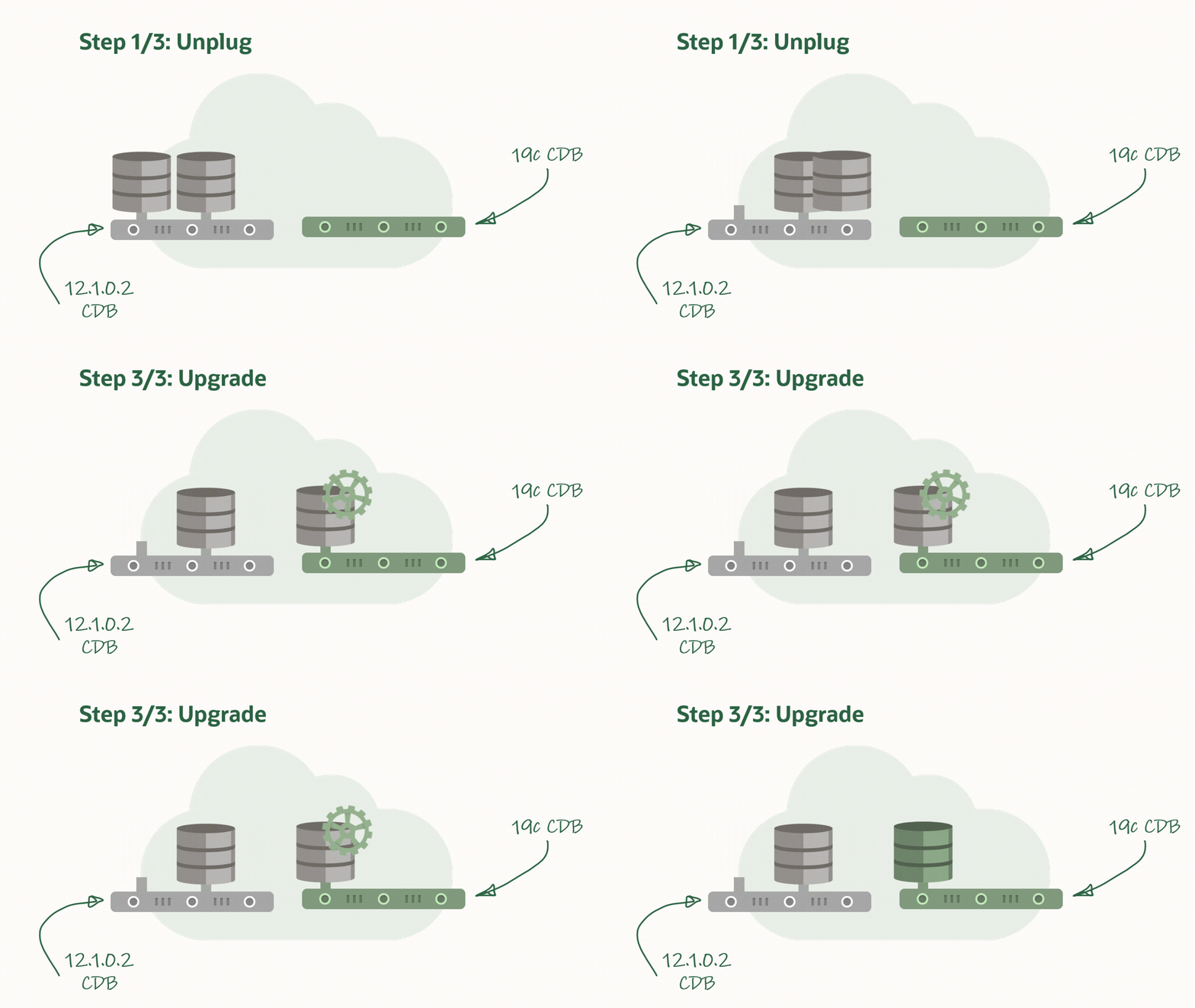
AutoUpgrade now supports unplug-plug upgrades. You unplug a PDB from a lower release CDB and you plug it into a higher release CDB. After plug-in the PDB is upgraded and eventually it can be opened in normal, READ WRITE mode.

Concept of unplug-plug upgrades which are supported with AutoUpgrade version 21.1.1

When it comes to upgrading in the multitenant world, I am a big fan of unplug-plug upgrades. The concept comes with a number of benefits:

  • It is much faster to upgrade an individual PDB using unplug-plug compared to a CDB with just one PDB in it. When you do an unplug-plug upgrade, the database just need to upgrade the PDB. Compare that to a CDB which first upgrades CDB$ROOT, and then PDB$SEED and any user PDBs.
  • You don’t have to arrange downtime for all the PDBs in the CDB. Downtime is just needed for the PDB that you will upgrade.
  • Combine it with refreshable PDBs and you can still have a really good fallback option. You can check out a previous blog post to see how you can use refreshable PDBs.

AutoUpgrade and Unplug-plug Upgrade

Starting from version 21, AutoUpgrade can now perform unplug-plug upgrades. A newer version of AutoUpgrade can upgrade to older database releases as well, so don’t worry if the AutoUpgrade version doesn’t match the Oracle Database release that you are upgrading to.

There are some requirements that must be met in order to perform unplug-upgrade, so I suggest that you take a look in the documentation.

You have to create the target CDB yourself. It is by design that AutoUpgrade doesn’t do this for you. First, creating a CDB requires a lot of information and it can be done in many different ways (ASM? Which components? RAC?). You would need a very long config file to supply all that information. Also, it takes time to create a CDB and if AutoUpgrade would have to do that inside the maintenance window, it would be prolonged considerably.

During unplug-plug upgrades AutoUpgrade also allows you to change the name of the PDBs and you can decide whether you want to reuse the unplugged data files or take a copy.

How to

Imagine the following AutoUpgrade config file:

upg1.sid=CDB1
upg1.target_cdb=CDB2
upg1.pdbs=hr,logistics
upg1.source_home=/u01/app/oracle/product/12.2.0.1
upg1.target_home=/u01/app/oracle/product/19
upg1.target_pdb_name.hr=people

AutoUpgrade will unplug PDBs hr and logistics from CDB1 and plug them into CDB2. In addition, it will change the name of hr to people when it is plugged into CDB2. Finally, you must specify the Oracle Home of the two CDBs, so AutoUpgrade can set the environment correctly and connect to the databases.

If you use lsj command to monitor the progress it does actually look like you are only upgrading one of the PDBs:

upg> lsj
+----+-------+---------+---------+-------+--------------+--------+------------------+
|Job#|DB_NAME|    STAGE|OPERATION| STATUS|    START_TIME| UPDATED|           MESSAGE|
+----+-------+---------+---------+-------+--------------+--------+------------------+
| 100|   CDB1|DBUPGRADE|EXECUTING|RUNNING|20/12/22 15:25|15:29:03|13%Upgraded PEOPLE|
+----+-------+---------+---------+-------+--------------+--------+------------------+
Total jobs 1

But if you look into the details with status -job 100 you can see that both PDBs are upgraded in parallel:

upg> status -job 100

... (removed a lot of information)

Details:
[Upgrading] is [0%] completed for [cdb1-people] 
                 +---------+-------------+
                 |CONTAINER|   PERCENTAGE|
                 +---------+-------------+
                 |   PEOPLE|UPGRADE [13%]|
                 |LOGISTICS|UPGRADE [13%]|
                 +---------+-------------+

When the upgrade completes, the PDBs are ready to be used. I suggest that you verify that the databases are open in READ WRITE mode and not in restricted mode. Finally, save the state, so the PDBs start automatically together with the CDB:

SQL> select name, open_mode, restricted from v$pdbs where name in ('PEOPLE', 'LOGISTICS');
SQL> --Verify open_mode=read write and restricted=no
SQL> alter pluggable database people save state;
SQL> alter pluggable database logistics save state;

Caution

With unplug-plug upgrades you can’t use Flashback Database as your fallback plan. It doesn’t work across the plug-in operation. You either have to:

  • Instruct AutoUpgrade to copy the unplugged data files before it plugs into the higher release CDB. That way, you still have the old unplugged data files, and just re-create the PDB in the lower release CDB. But you will have extra downtime because you need to copy the data files.
  • Use Refreshable PDBs to build a copy of your PDB in the higher release, target CDB. When you want to do the upgrade, perform the last refresh and upgrade the refreshable PDB.

Both of the above options require additional disk space to hold a copy of the database.

Of course, you can also use your regular backups as fallback.

What If

Your Target CDB Has a Standby Database?

For now, don’t use AutoUpgrade to make unplug-plug upgrades, if the target CDB has standby databases. A plug-in operation with a standby database is a tricky maneuvre, at least when you want to re-use the data files. We are still trying to figure out how to implement it in AutoUpgrade.

Having said that, it is absolutely doable. You can read more about in the following MOS notes:

You Are Using TDE Tablespace Encryption?

For now, don’t use AutoUpgrade to perform unplug-plug upgrades, if any tablespace in the PDB is encrypted with TDE Tablespace Encryption. We are working on making AutoUpgrade capable of better interacting with the TDE keystore, so keep an eye out for coming versions.

If TDE Tablespace Encryption is enabled in the target CDB, you can still use AutoUpgrade. The PDB will be plugged in as an unencrypted PDB.

Conclusion

Doing unplug-plug upgrades is now supported by AutoUpgrade as of version 21. It includes useful features for renaming PDBs and using copies of unplugged data files.

There is a video on YouTube that shows the procedure. And while you are there, I suggest that you subscribe to our channel.

Further Reading

New Version of AutoUpgrade

Our developers just published a new version of AutoUpgrade. Head over to My Oracle Support and download version 21.1.1.

The version says 21, but it can still upgrade your databases to lower release. So, you should use this new version to upgrade to Oracle Database 19c as well.

The supported target Oracle Database versions that are supported by the new version of AutoUpgrade

What’s New

A total of 48 enhancements and bug fixes made it into the new release. It has been 35 working days since the last release (and that includes Thanksgiving week) which means that the team has put in – on average – close to 1,5 changes into AutoUpgrade every, single working day. I find that quite impressive. And it really supports our message that you should always use the latest version of AutoUpgrade.

In My Oracle Support note 2485457.1 you can find a complete change log. Also, you can also visit the 21c New Feature Guide for additional information.

Unplug/plug Upgrade

The first things that I would like to highlight is unplug/plug upgrade. Instead of upgrading an entire CDB, you can now choose to unplug one or many PDBs, plug them into a higher release CDB, and upgrade the individual PDBs.

How an unplug/upgrade works of an Oracle Database PDB

How do you specify to upgrade only one PDB? Use target_cdb and pdbs?

upg1.sid=CDB1
upg1.pdbs=PDB3
upg1.source_home=/u01/app/oracle/product/12.2.0.1
upg1.target_home=/u01/app/oracle/product/19
upg1.target_cdb=CDB2

When doing unplug/plug upgrades you must be aware of the COMPATIBLE setting in the higher release CDB. If COMPATIBLE is higher, when the PDB plugs in, COMPATIBLE will silently and automatically be raised by the CDB. This means that you lose the capability of doing downgrades and flashback database.

You can read more about unplug/plug upgrades in the documentation

AutoUpgrade and Oracle Data Guard

In addition, AutoUpgrade now detects that you are upgrading a primary database in a Data Guard setup. In that case, it will automatically defer redo log transport to the standby databases and disable the Data Guard broker. After the upgrade, the broker is automatically restarted, but you need to manually reconfigure the standby databases, and eventually re-enable redo log transport.

You might ask: Why don’t AutoUpgrade handle it all for me? This is to preserve your fallback capabilities. Even after a successful upgrade, you still might want to revert back to the old version. Let’s say your testing finds a critical issue. You might still have a restore point on the primary database, but what if – for some reason – flashing back fails? Then you still have your standby database which was disabled right before the upgrade.

You can read more about AutoUpgrade and Data Guard in the documentation.

More

A few hints for the interested reader to explore. Have a look at the config file option catctl_options. You can use that to control the level of parallelism for a specific upgrade.

Also, if you don’t want AutoUpgrade to handle your network files (e.g. sqlnet.ora, tnsnames.ora) you disable it using manage_network_files.

You can read more about those options in the documentation.

Conclusion

Get the latest version of AutoUpgrade and benefit from the many new features. Keep an eye out for additional blog posts that will dig deeper into the new features.

Upgrade & Plug In: With ASM, Data Guard, TDE and no Keystore Password

I was helping a customer the other day together with Mike. They were upgrading from 18c to 19c and had to convert the database to a PDB as well. At first glance, it seemed pretty straightforward, but things got complicated because:

  • They have standby databases and want the Data Guard setup to survive the plug-in operation.
  • They are using ASM.
  • They are using TDE Tablespace Encryption and have also encrypted their SYSTEM and SYSAUX tablespace.
  • The DBA that will carry out the upgrade and plug-in is not allowed to have the TDE Keystore password. They have separation of duties, so only the security admins have the keystore password.

Can you do that? Yes, you can! Let me tell you how.

Upgrade

First, upgrade the database. You can easily maintain the Data Guard setup during an upgrade. I wrote a blog post about a little while ago. In addition, to upgrade a database with encrypted tablespaces you don’t need the keystore password. You must configure the database to use an auto login keystore, and that’s it. If you are concerned about the use of an auto-login keystore, you can simply remove it again after the upgrade.

External Store for a Keystore Password

The plug-in operation will require the keystore password. But the DBA doesn’t know it – so we need to find a solution for that. The solution is to store the keystore password in an external store. I also wrote a blog post about that a while ago. When you have it configured you can exchange the commands that require a keystore password, like:

SQL> ADMINISTER KEY MANAGEMENT ... KEYSTORE IDENTIFIED BY "S3c3tPassw0rd";

With this:

SQL> ADMINISTER KEY MANAGEMENT ... KEYSTORE IDENTIFIED BY EXTERNAL STORE;

The database will get the keystore password from an external store, which is basically a file in the file system which is encrypted with a password that only the database know.

The security admins would need to do this in the CDB that will receive the non-CDB database. They can do it in advance, so they can relax while the DBA carries out the operation in a maintenance window. If the TDE keystore is already configured using the WALLET_ROOT parameter, you can use the feature right away. Otherwise, you need a database restart to configure it.

Like with the auto-login keystore, if you are concerned about the security, you can simply disable it again after the operation.

Plug In

Now things get complicated. When you plug in your non-CDB database the manifest file contains information on where the data files are located – but only on the primary database. This is an extract of a manifest file (the one you create with DBMS_PDB.DESCRIBE):

<PDB>
  ...
  <tablespace>
    <name>SYSTEM</name>
    ...
	<file>
      <path>+DATA/SALES1/DATAFILE/system.311.1058127529</path>

After plug-in, the CDB can start to use the data files right away. It reads from the manifest files where the data files are located. But there is no information on where files are located on the standby database. To overcome this you must create aliases in the ASM instance on the standby host. The aliases will point back to the original data files (used by the standby database). So, when the plug-in happens and redo start to flow to the standby database, it will know which data files to recover. If you are storing data files in a regular file system, you could use soft links to serve the same purpose.

The procedure is already very well described:

I won’t repeat the procedure as the above articles are really good. But these articles don’t consider the situation where your SYSTEM and/or SYSAUX tablespace is encrypted.

If that is the case, you must import your encryption keys into CDB$ROOT before you execute the CREATE PLUGGABLE DATABASE command. In Reusing the Source Standby Database Files When Plugging a non-CDB as a PDB into the Primary Database of a Data Guard Configuration (Doc ID 2273304.1) it should happen right before step 17.2.2:

SQL> alter session set container=CDB$ROOT;
SQL> administer key management import keys ... keystore identified by external store ... ;
SQL> --Continue with step 17.2.2
SQL> create pluggable database .... ;

Dots and Underscores

When you follow the MOS notes you might wonder why the dots in the ASM aliases are replaced with underscores. At first glance, I had no idea, but it worked. I later learned the following:

The format for an ASM filename is [filetype|tablespacename].[ASM file number].[file incarnation], but basically it is three pieces of name separated by periods. We can’t create any filename or alias that mimics that format. So the scripts change those periods to underscores (‘_’). That is allowed.

ORA-15032 and ORA-15046

Most likely you get this error because there are already existing aliases on the ASM file. Only one alias is allowed per file.

  1. You can verify that by using the ls command in ASMCMD. If it is an alias the Name column will look similar to this alias1 => +DATA/......
  2. Ensure the database is not using the alias. If it does, rename the file in the database.
  3. Remove the alias from ASM. It is strongly recommended to use rmalias. Although also possible with rm I consider it much safer to use rmalias.

Conclusion

You can upgrade and convert your database to a PDB without comprising your standby database. In addition to that, you can configure your database in such a way that you don’t even need to type in the TDE keystore password.

Upgrading in the cloud – VM DB Systems – 11.2.0.4 to 19c (minimal downtime)

This blog post is a follow-up blog post to a previous post. The procedure I described earlier was a simple approach that required downtime while the entire database is moved from one VM DB System to another. If you have strict requirements to downtime you might not be able to use that approach. In this blog post I will come up with an alternative. I will describe how you can use incremental backups to significantly lower the downtime required. Instead of doing a full backup when the database is down my idea is to:

  • Take a level 0 backup while the source database is up and running
  • Restore the database on target system
  • These two steps take time – but I don’t care because the source database is still up
  • Take incremental backup on source database
  • Recover target database using incremental backup
  • Perform final incremental backup/recover after downtime has started

Overview of DB Systems and databases

My source environment is the red environment. The DB System is called SRCHOST11 and it has an 11.2.0.4 database that is called SALES. Due to the restrictions of the VM DB System I have to move the database to a new DB System in order to upgrade it. I have created a brand-new target environment – the green environment – on the release that I want to target. I have named the DB System TGTHOST19 and it has a multitenant database called CDB1. When I am done, the target environment – CDB1 – will also contain a PDB named SALES. The SALES PDB will be the original 11.2.0.4 database that has been upgraded and converted.

For a short period of time I need to spin up a second database instance on the target system. This second – or temporary – instance will be a duplicate of the source database (as non-CDB database) and I will upgrade it to the new release. Then I can plug in the database as a PDB in the precreated CDB database and get rid of the second/temporary instance. You will see how it works later in the blog post.

Backup Database

I need to exchange files between the source and the target systems, and I will use a File Storage service for that. Check out the documentation if you need help creating one – I created one already called upgsales and now I can mount it on my source system:

[opc@srchost11]$ sudo mkdir -p /mnt/upgsales
[opc@srchost11]$ sudo chmod 777 /mnt/upgsales/
[opc@srchost11]$ sudo mount x.x.x.x:/upgsales /mnt/upgsales

While the source database is still open and in use, I will start preparing the backup. First, the password file and wallet:

[oracle@srchost11]$ mkdir -p /mnt/upgsales/backup
[oracle@srchost11]$ cp /opt/oracle/dcs/commonstore/wallets/tde/$ORACLE_UNQNAME/ewallet.p12 /mnt/upgsales/
[oracle@srchost11]$ cp $ORACLE_HOME/dbs/orapw$ORACLE_SID /mnt/upgsales/orapw$ORACLE_SID

If you are really concerned about security, you can copy the wallet file directly to the target system – instead of via the File Storage service. The File Storage service itself is secured, but the fewer places you have a copy of the wallet – the better and the safer, I assume. Further, you can also encrypt traffic to and from the File Storage service.

Next, a PFile:

SALES SQL> CREATE PFILE='/mnt/upgsales/init.ora' FROM SPFILE;

And now I start a level 0 backup:

SALES RMAN> BACKUP INCREMENTAL LEVEL 0 DATABASE FORMAT '/mnt/upgsales/backup/lvl0%U' PLUS ARCHIVELOG FORMAT '/mnt/upgsales/backup/arch%U' ;
SALES RMAN> BACKUP CURRENT CONTROLFILE FORMAT '/mnt/upgsales/backup/controlfile';

Restore Database

On my target system, I need to access the File Storage service as well:

[opc@tgthost19]$ sudo mkdir -p /mnt/upgsales
[opc@tgthost19]$ sudo chmod 777 /mnt/upgsales/
[opc@tgthost19]$ sudo mount x.x.x.x:/upgsales /mnt/upgsales

Next, I will copy the password file and PFile into the target Oracle Home. I need that in order to start the temporary instance. Note, the name of the temporary instance will be SALES – the same as the source database SID:

[oracle@tgthost19]$ cp /mnt/upgsales/init.ora $ORACLE_HOME/dbs/initSALES.ora
[oracle@tgthost19]$ cp /mnt/upgsales/orapwSALES $ORACLE_HOME/dbs/orapwSALES

I also need to copy the wallet:

[oracle@tgthost19]$ mkdir -p /opt/oracle/dcs/commonstore/wallets/tde/SALES
[oracle@tgthost19]$ cp /mnt/upgsales/ewallet.p12 /opt/oracle/dcs/commonstore/wallets/tde/SALES/

And I need to create a directory for audit_file_dest:

[oracle@tgthost19]$ mkdir -p /u01/app/oracle/admin/SALES/adump

Now, I must edit the PFile:

[oracle@tgthost19]$ vi $ORACLE_HOME/dbs/initSALES.ora

And make the following changes:

  • Remove all the double-underscore parameters that contains the memory settings from last restart. That could for instance be SALES.__db_cache_size.
  • Set audit_file_dest=’/u01/app/oracle/admin/SALES/adump’
  • Set control_files=’+RECO/sales/controlfile/current.256.1048859635′
  • Set SALES.sga_target=6G
  • Set SALES.pga_aggregate_target=2G
  • Set db_unique_name=’SALES’

I don’t have an abundance of memory on this system, so I keep the memory settings. Strictly speaking you don’t have to change db_unique_name, but I am doing it so it will be easier to cleanup afterwards.

While I work on the temporary instance, I must shut down the other database – the pre-created one that eventually will hold the PDB. Most likely there is not enough memory on the system to support two databases:

[oracle@tgthost19]$ $ORACLE_HOME/bin/srvctl stop database -db $ORACLE_UNQNAME

Let’s start the temporary instance in NOMOUNT mode. Remember to set the environment:

[oracle@tgthost19]$ export ORACLE_UNQNAME=SALES
[oracle@tgthost19]$ export ORACLE_SID=SALES
[oracle@tgthost19]$ sql / as sysdba

SALES SQL> STARTUP NOMOUNT

And finally, I can start the restore using RMAN. Once the database is mounted I must open the keystore, otherwise, the database can’t perform recovery. Then, I can use the catalog command to find the backup pieces in my staging area. And finally, do the restore:

[oracle@tgthost19]$ rman target /

SALES RMAN> RESTORE CONTROLFILE FROM '/mnt/upgsales/backup/controlfile';
SALES RMAN> ALTER DATABASE MOUNT;
SALES RMAN> sql 'ADMINISTER KEY MANAGEMENT SET KEYSTORE OPEN FORCE KEYSTORE IDENTIFIED BY <SALES-keystore-password>';
SALES RMAN> sql "ADMINISTER KEY MANAGEMENT CREATE LOCAL AUTO_LOGIN KEYSTORE FROM KEYSTORE ''/opt/oracle/dcs/commonstore/wallets/tde/$ORACLE_UNQNAME/'' IDENTIFIED BY <SALES-keystore-password>";
SALES RMAN> CATALOG START WITH '/mnt/upgsales/backup' NOPROMPT;
SALES RMAN> RESTORE DATABASE;

The SALES database is now restored on my target system. I will leave it there – unrecovered and in MOUNT mode so I can apply incremental backups later on.

Incremental Backup/Recover

I can do as many incremental backup/recover cycles as I want. But what matters is that I make one and restore it – as close to the start of the downtime window as possible. This will significantly reduce the time it takes to make the final incremental backup/restore later on.

On my source database, start an incremental backup:

[oracle@srchost11]$ rman target /

SALES RMAN> BACKUP INCREMENTAL LEVEL 1 DATABASE FORMAT '/mnt/upgsales/backup/lvl1%U' PLUS ARCHIVELOG FORMAT '/mnt/upgsales/backup/arch%U';

Now, switch to the target system and recover using that backup. I use the CATALOG command to instruct RMAN to find new backups at the shared file storage.

[oracle@tgthost19]$ rman target /

RMAN SALES> CATALOG START WITH '/mnt/upgsales/backup' NOPROMPT;
RMAN SALES> RECOVER DATABASE;

RMAN will complain about a missing log file. But worry – this is expected and will be fixed later on:

RMAN-00571: ===========================================================
RMAN-00569: =============== ERROR MESSAGE STACK FOLLOWS ===============
RMAN-00571: ===========================================================
RMAN-03002: failure of recover command at 08/28/2020 09:06:51
RMAN-06054: media recovery requesting unknown archived log for thread 1 with sequence 60 and starting SCN of 793358

Down Time Starts

Now it is time to kick users off the database. Your precious downtime starts now.

Prepare Database For Upgrade

In my database I will create some sample data so I can verify the upgrade:

SALES SQL> CREATE USER UPG19 IDENTIFIED BY <secret-password>;
SALES SQL> ALTER USER UPG19 QUOTA UNLIMITED ON USERS;
SALES SQL> CREATE TABLE UPG19.ORDERS(ID NUMBER, CUSTOMER VARCHAR2(50), AMOUNT NUMBER) TABLESPACE USERS;
SALES SQL> INSERT INTO UPG19.ORDERS VALUES(1, 'John', 500);
SALES SQL> COMMIT;

I must prepare my database for upgrade on the source system. When I open the database on the target system, I can only do that in UPGRADE mode (because the database will be restored using 19c Oracle Home). In UPGRADE mode it is impossible to do the pre-upgrade tasks.

I will use the classic preupgrade.jar tool in this demo, but you could also use the newer AutoUpgrade. Always get the latest preupgrade tool from My Oracle Support. Upload the zip file (named preupgrade_19_cbuild_7_lf.zip in my demo) to the source system, extract to $ORACLE_HOME/rdbms/admin and do the pre-upgrade checks:

[oracle@srchost11]$ cp preupgrade_19_cbuild_7_lf.zip $ORACLE_HOME/rdbms/admin
[oracle@srchost11]$ cd $ORACLE_HOME/rdbms/admin
[oracle@srchost11]$ unzip preupgrade_19_cbuild_7_lf.zip

[oracle@srchost11]$ mkdir -p /mnt/upgsales/preupg_logs_SALES
[oracle@srchost11]$ cd /mnt/upgsales/preupg_logs_SALES
[oracle@srchost11]$ $ORACLE_HOME/jdk/bin/java -jar $ORACLE_HOME/rdbms/admin/preupgrade.jar FILE TEXT DIR .

You must upload the same version of the preupgrade tool to the target system before you can run the post-upgrade fixups. Hence, save the zip file so you don’t have to download it again.

Next, I will review the report generated by the tool:

[oracle@srchost11]$ more /mnt/upgsales/preupg_logs_SALES/preupgrade.log

And I can execute the pre-upgrade fixups:

SALES SQL> SET SERVEROUT ON
SALES SQL> @/mnt/upgsales/preupg_logs_SALES/preupgrade_fixups.sql

Final Incremental Backup/Recover

I can now make the last incremental backup on my source system. To be absolutely sure nothing else gets into the source database from now on, I restart the database in restricted mode:

[oracle@srchost11]$ sqlplus / as sysdba

SALES SQL> SHUTDOWN IMMEDIATE
SALES SQL> STARTUP RESTRICT

Then I use RMAN to archive the current log file and start the last backup:

[oracle@srchost11]$ rman target /

SALES RMAN> sql 'ALTER SYSTEM ARCHIVE LOG CURRENT';
SALES RMAN> BACKUP INCREMENTAL LEVEL 1 DATABASE FORMAT '/mnt/upgsales/backup/lvl1%U' PLUS ARCHIVELOG FORMAT '/mnt/upgsales/backup/arch%U';

Now, switch to the target system, catalog the new backups:

[oracle@tgthost19]$ rman target /

RMAN SALES> CATALOG START WITH '/mnt/upgsales/backup' NOPROMPT;

By default, RMAN will try to perform complete recovery. But I can’t do that because I don’t have the online redo logs. I must perform incomplete recovery. That sounds dangerous, but it is not. I archived the current log file after I had ensured that no one was using the system (I started in restricted mode, remember). To perform incomplete recovery, I must know at which sequence to stop. I will use the LIST command in RMAN to do that:

RMAN SALES> LIST BACKUP OF ARCHIVELOG ALL;

Sample output of RMAN command "list archivelog all" showing which sequence to restore until I take the last available sequence and add one. In my case, I will recover until sequence 65:

RMAN SALES> run {
   SET UNTIL SEQUENCE 65 THREAD 1;
   RECOVER DATABASE;
}

Finally, you can switch to SQLPlus and open the database. You could in theory also do that from RMAN but likely you will hit ORA-04023: Object SYS.STANDARD could not be validated or authorized:

[oracle@tgthost19]$ sqlplus / as sysdba

SALES SQL> ALTER DATABASE OPEN RESETLOGS UPGRADE;

Upgrade Database

I must upload the same version of the preupgrade tool to the target Oracle Home, before I can do the post-upgrade fixups:

[oracle@tgthost19]$ cp preupgrade_19_cbuild_7_lf.zip $ORACLE_HOME/rdbms/admin
[oracle@tgthost19]$ cd $ORACLE_HOME/rdbms/admin
[oracle@tgthost19]$ unzip preupgrade_19_cbuild_7_lf.zip

I can now upgrade the database. Ensure to use the same prompt that has the environment set to the SALES database – the temporary instance:

[oracle@tgthost19]$ mkdir -p /mnt/upgsales/upg_logs_SALES
[oracle@tgthost19]$ dbupgrade -l /mnt/upgsales/upg_logs_SALES

Once the upgrade completes, I will finish with the post-upgrade tasks

SQL> STARTUP

SQL> --Recompile
SQL> @$ORACLE_HOME/rdbms/admin/utlrp
SQL> --Check outcome of upgrade
SQL> @$ORACLE_HOME/rdbms/admin/utlusts.sql
SQL> --Post-upgrade fixups
SQL> @/mnt/upgsales/preupg_logs_$SOURCE_SID/postupgrade_fixups.sql
SQL> --Timezone file upgrade
SQL> SET SERVEROUTPUT ON
SQL> @$ORACLE_HOME/rdbms/admin/utltz_upg_check.sql
SQL> @$ORACLE_HOME/rdbms/admin/utltz_upg_apply.sql

Last, have a look in the report generated by preupgrade.jar to see if there are any post-upgrade tasks that you have to execute:

[oracle@tgthost19]$ more /mnt/upgsales/preupg_logs_SALES/preupgrade.log

Plug In Database

Now that the temporary database is upgraded let’s look at what we need to prepare for the conversion to a PDB. First, I will export the encryption keys:

SALES SQL> ADMINISTER KEY MANAGEMENT EXPORT ENCRYPTION KEYS WITH SECRET "<a-secret-password>" TO '/mnt/upgsales/key_export_SALES' FORCE KEYSTORE IDENTIFIED BY <SALES-keystore-password>;

And then I open the database in READ ONLY mode to create a manifest file. After that, I completely shut down the temporary database and, hopefully, it won’t be needed anymore:

SALES SQL> SHUTDOWN IMMEDIATE
SALES SQL> STARTUP MOUNT
SALES SQL> ALTER DATABASE OPEN READ ONLY;
SALES SQL> EXEC DBMS_PDB.DESCRIBE('/mnt/upgsales/manifest_sales.xml');
SALES SQL> SHUTDOWN IMMEDIATE

Now, I will restart CDB1 which I shut down previously. I will work in CDB1 for the rest of the blog post. Notice, how I am resetting my environment variables to the original values using the source command. You could also open a new SSH session instead. Anyway, just ensure that your environment is now set to work on the original database, CDB1:

[oracle@tgthost19]$ source ~/.bashrc
[oracle@tgthost19]$ env | grep ORA
[oracle@tgthost19]$ $ORACLE_HOME/bin/srvctl start database -db $ORACLE_UNQNAME

I check for plug in compatibility:

CDB1 SQL> SET SERVEROUT ON
CDB1 SQL> BEGIN 
    IF DBMS_PDB.CHECK_PLUG_COMPATIBILITY('/mnt/upgsales/manifest_sales.xml', 'SALES') THEN
        DBMS_OUTPUT.PUT_LINE('SUCCESS');
    ELSE
        DBMS_OUTPUT.PUT_LINE('ERROR');
    END IF;
END;
/

Hopefully, it should read out SUCCESS. If not, you can query PDB_PLUG_IN_VIOLATIONS to find out why:

CDB1 SQL> SELECT type, message, action FROM pdb_plug_in_violations WHERE name='SALES' and status='PENDING';

I can plug in the SALES database as a new PDB – which I also will call SALES. I am using the MOVE keyword to have my data files moved to a directory that matches the naming standard:

CDB1 SQL> CREATE PLUGGABLE DATABASE SALES USING '/mnt/upgsales/manifest_sales.xml' MOVE;
CDB1 SQL> ALTER PLUGGABLE DATABASE SALES OPEN;

I could also use the NOCOPY keyword and just use the data files from where they currently are placed. Later on, I could move the data files to a proper directory that follows the naming standard, and if I were on Enterprise Edition, I could even use online datafile move.

Next, I can switch to the SALES PDB and import my encryption keys from the file I made a little earlier. Note, that I must enter the secret that I used in the export. And now I have to enter the keystore password for CDB1:

CDB1 SQL> ALTER SESSION SET CONTAINER=SALES;
CDB1 SQL> ADMINISTER KEY MANAGEMENT IMPORT ENCRYPTION KEYS WITH SECRET "a-secret-password" FROM '/mnt/upgsales/key_export_SALES' FORCE KEYSTORE IDENTIFIED BY <CDB1-keystore-password> WITH BACKUP;

Be aware, that if your system tablespaces are encrypted, you might have to import the encryption key into CDB$ROOT as well before you can open the database.

Now, it is time to fully convert the database to a PDB:

CDB1 SQL> ALTER SESSION SET CONTAINER=SALES;
CDB1 SQL> @$ORACLE_HOME/rdbms/admin/noncdb_to_pdb.sql
CDB1 SQL> SHUTDOWN IMMEDIATE
CDB1 SQL> STARTUP

Now, check and resolve any plug-in violations:

CDB1 SQL> ALTER SESSION SET CONTAINER=CDB$ROOT;
CDB1 SQL> SELECT type, message, action FROM pdb_plug_in_violations WHERE name='SALES' and status='PENDING';

And finally, ensure that OPEN_MODE=READ WRITE and RESTRICTED=NO. When so, I can save the state of the PDB so it will auto-open whenever the CDB restarts:

CDB1 SQL> ALTER SESSION SET CONTAINER=CDB$ROOT;
CDB1 SQL> SELECT OPEN_MODE, RESTRICTED FROM V$PDBS WHERE NAME='SALES';
CDB1 SQL> ALTER PLUGGABLE DATABASE SALES SAVE STATE;

Verify that my test data exist:

CDB1 SQL> ALTER SESSION SET CONTAINER=SALES;
CDB1 SQL> SELECT * FROM UPG19.ORDERS;

That’s it. The database is now fully upgraded to 19c and converted to a PDB. Be sure to:

  • Start a backup
  • Test your application
  • Adjust your connection strings
  • And what else your procedure mandates

Wrap-Up

Let’s clean up on the target system! I can remove the files and folders that were created to support the temporary instance:

[oracle@tgthost19]$ #audit dest
[oracle@tgthost19]$ rm -rf /u01/app/oracle/admin/SALES/adump
[oracle@tgthost19]$ #diag dest
[oracle@tgthost19]$ rm -rf /u01/app/oracle/diag/rdbms/sales
[oracle@tgthost19]$ #wallet
[oracle@tgthost19]$ rm -rf /opt/oracle/dcs/commonstore/wallets/tde/SALES
[oracle@tgthost19]$ #instance files
[oracle@tgthost19]$ rm $ORACLE_HOME/dbs/initSALES.ora
[oracle@tgthost19]$ rm $ORACLE_HOME/dbs/orapwSALES
[oracle@tgthost19]$ rm $ORACLE_HOME/dbs/spfileSALES.ora
[oracle@tgthost19]$ rm $ORACLE_HOME/dbs/hc_SALES.dat
[oracle@tgthost19]$ rm $ORACLE_HOME/dbs/lkSALES
[oracle@tgthost19]$ #exported master key
[oracle@tgthost19]$ rm /mnt/upgsales/key_export_SALES

Also, since I stored data files in ASM I can delete those as well. Note you have to log on as grid to do that:

[grid@tgthost19]$ asmcmd rm -rf +DATA/SALES
[grid@tgthost19]$ asmcmd rm -rf +RECO/SALES

I can also drop the PDB that gets created automatically when you deploy the new DB System. In my case it is named CDB1_PDB1:

SQL> ALTER PLUGGABLE DATABASE CDB1_PDB1 CLOSE;
SQL> DROP PLUGGABLE DATABASE CDB1_PDB1 INCLUDING DATAFILES;

Also, I can remove the File Storage service that I created. If you want to keep log files from the upgrade (or other files) be sure to copy them somewhere else.

Last, when I am convinced that my upgraded and converted database is doing good, I can terminate the entire source DB system.

Tweaks

If you have a license for any of the Enterprise Edition offerings you might be able to use some of the below features to speed up and backup and recovery. Before using any of them be sure to check the license guide and confirm you have a proper license.

  • Block change tracking – reduces backup time because RMAN doesn’t need to scan the entire database.
  • Parallel backup and recovery – more channels, faster backups and faster restores.
  • Compression – reduces the size of the backups. Since you can apply incremental backups continuously the backup size should be fairly small anyway.

Disclaimer

I am not a backup expert (probably far from). When writing this post I was struggling a lot with missing archive logs. I even had to call an old mentor for advice. But in the end, I decided just to include them in all backups. Possibly, there is a die-hard-RMAN-expert out there that can tell me a better way of doing it. But for sure it doesn’t hurt to include them…

If you come up with a better way, please leave a comment. I would love to learn more.

Conclusion

You can upgrade a 11.2.0.4 database to 19c by moving the database to a new VM DB System. You can reduce downtime by using incremantal backups. You must convert the database to a pluggable database as well because multitenant is the only supported architecture for VM DB Systems on 19c.

References

Other Posts in This Series