Zero Downtime Migration – Physical Online Migration to ExaCS

This will be an easy blog post. To migrate your Oracle Database to Exadata DB System (ExaCS), just follow this procedure from the DBCS blog post. Plus, execute these two commands on the target after the migration:

[root@tgthost]$ dbaascli registerdb prereqs --dbname [db_name] --db_unique_name [db_unique_name]
[root@tgthost]$ dbaascli registerdb begin --dbname [db_name] --db_unique_name [db_unique_name]

More Details, Please

Granted – the above statement is bold and it is almost true. There are a few important details to share. First, have a look at Additional Information for Migrating to Exadata Cloud Service which you find the Release Notes

Target Environment

To get the full benefits of Exadata you should be running RAC databases. Exadata and RAC is a perfect match but it is up to you to decide. If your source database is already a RAC database (or RAC One Node) you must migrate to a RAC database. However, if your source database is a single instance you have to option to either stay single instance or go RAC. If you go RAC, just create the target placeholder database as a RAC database, and everything else will happen automatically.

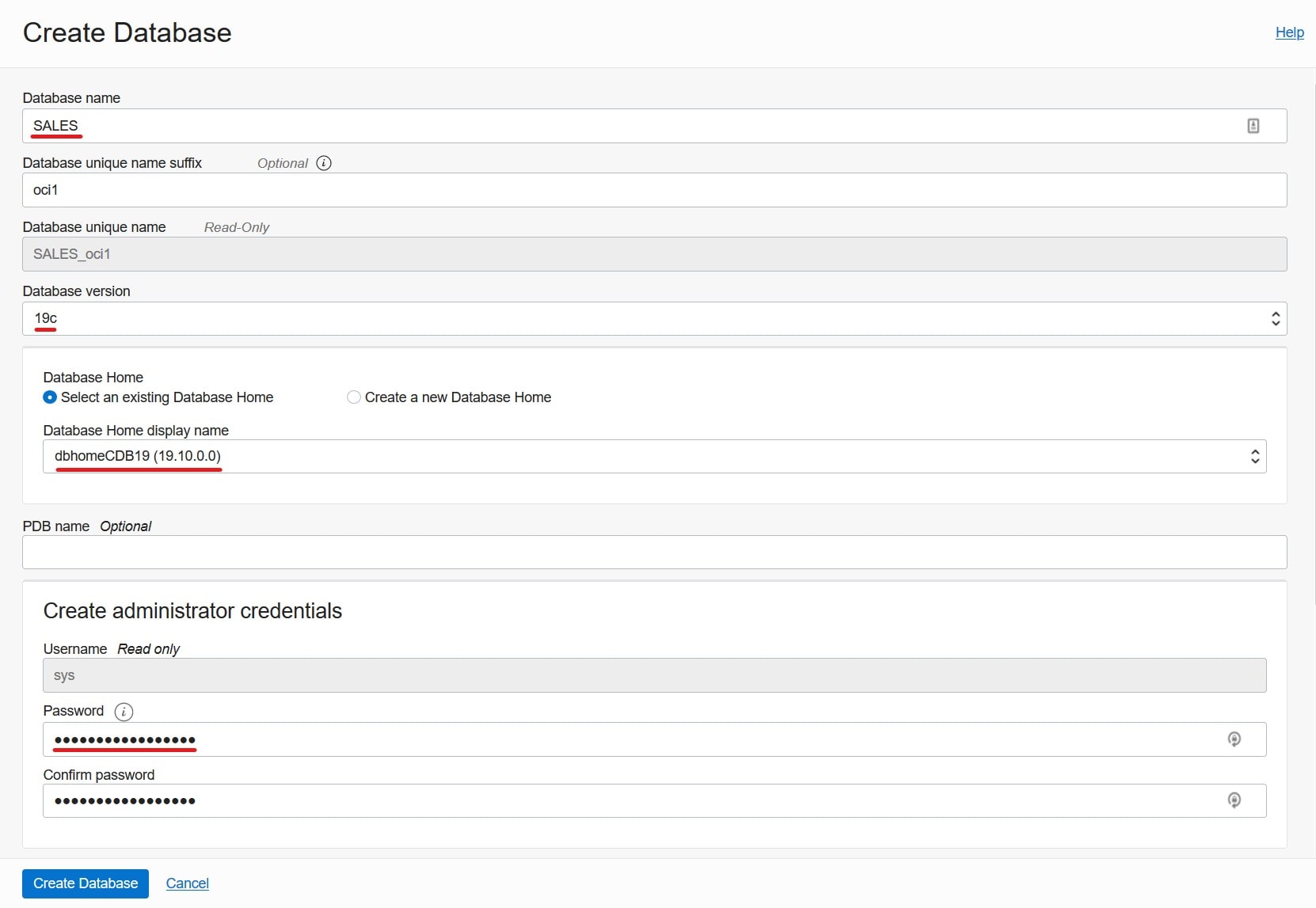
You must create a placeholder database on the target system. The placeholder database gets overwritten ZDM during the migration but it is initially used by ZDM to get information on how you want to configure your target database in OCI. For example, the migrated database will be placed in the same Oracle Home as the target placeholder database. Also, the architecture is determined this way. In other words, if you create the target placeholder database as a RAC database; then your source database is automatically converted to a RAC database during migration. If you create a single instance placeholder database; you get a single instance database.

Just like any other migration, when creating the placeholder database there are some things you should be aware of. On the OCI webpage you have to:

  • Set Database name to the DB_NAME of the source database.
  • Set Database version to the same as the source database.
  • Ensure the patch level of the Oracle Home match that of the source system – or be higher.
  • Ensure that the Password matches the SYS password of the source database.

When using Zero Downtime Migration (ZDM) to migrate to Exadata DB System (ExaCS) be sure to create the target placeholder database in the correct manner.

You can choose your own DB_UNIQUE_NAME – it should differ from the source database. Select an Oracle Home that has the same or higher patch level than your source database. I recommend to always migrate to the latest Release Update. If necessary, ZDM will automatically invoke datapatch after the switchover. The other parameters don’t matter – the database gets overwritten anyway by ZDM. Also, be aware when using the OCI webpage you get a RAC database. There is no option to change it. But it is after all the perfect match for Exadata anyway.

Now, if you want more advanced options – like creating a single instance database, you can’t use the OCI webpage. You will have to use either dbaaspi or dbaascli. That gives you full control over the options – but they are not as easy to use as the webpage.

It’s A Wrap

I have created a video on YouTube that demos a migration to Exadata DB System.

Speaking of YouTube, I suggest that you subscribe to the Oracle Database Upgrades and Migrations YouTube channel so you never miss anything.

The Exadata Cloud Service is an awesome platform and it is really easy to migrate to it using Zero Downtime Migration. And converting to RAC is even easier.

Other Blog Posts in This Series

Zero Downtime Migration – Physical Online Migration to DBCS

Let me show you how you can migrate an Oracle Database into OCI. My source database is a CDB running on 12.1.0.2. I want to migrate to the same version using the Physical Online method which uses Data Guard.

This procedure can be used to migrate to:

  • VM DB Systems
  • Bare Metal DB Systems
  • Exadata DB System (ExaCS)

If you want to migrate to Exadata Cloud at Customer and Exadata on-prem, you can use a lot from this post, but there are some differences which I will not cover.

Prerequisites

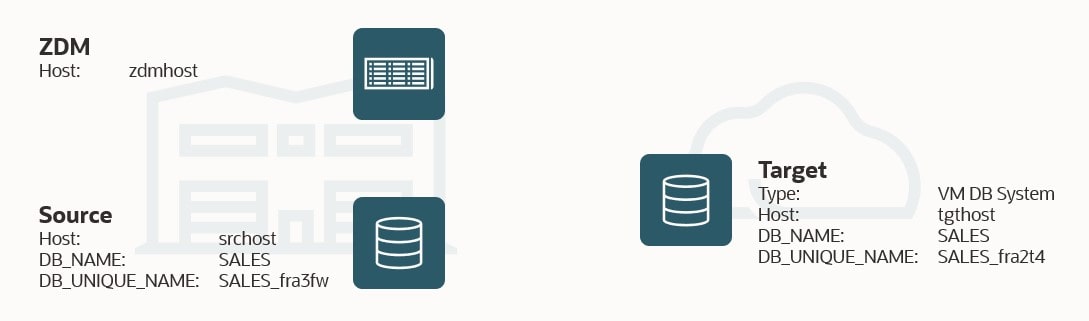
  1. I need a ZDM service host. It is called zdmhost and the user is called zdmuser.
  2. My source database is a CDB called SALES (DB_NAME), and the host is named srchost.
  3. I want to migrate to a VM DB System, and it is already created. I name it tgthost. I use the same name for the database, SALES. I must use ASM as storage management software.

Overview of the components in this demo

Prepare Source

Ensure the database is in ARCHIVELOG mode:

select log_mode from v$database;

If database version is 12.2 or higher, a TDE keystore must be present – even if the database is not encrypted. A license is not needed to create a TDE keystore – not until data is getting encrypted. The keystore must be OPEN and the type is either AUTOLOGIN, LOCAL_AUTOLOGIN or PASSWORD. In a CDB, this applies to CDB$ROOT and all PDBs:

SELECT con_id, status, wallet_type FROM v$encryption_wallet;

If status is OPEN_NO_MASTER_KEY it means that no TDE master encryption key has been created and I will need to create one. Instructions are also in the documentation.

Ensure that the source host can resolve the network name of the target host. It is important to add two entries – one with the host name and one with the SCAN name (they should both point to the target host):

[root@srchost]$ echo -e "[ip address] tgthost" >> /etc/hosts
[root@srchost]$ echo -e "[ip address] tgthost-scan" >> /etc/hosts

Test connection over SQL*NET to the target:

[oracle@srchost]$ sqlplus system@tgthost-scan/[target-cdb-service-name]

Prepare Target

I need a target placeholder database. The placeholder target database is overwritten during migration, but it retains the overall configuration.

  • VM DB System: When I create a new system, a database is automatically created. This database is my target placeholder database.
  • Bare Metal and Exadata DB Systems: Create a new database on an existing system.

In any case:

  • DB_NAME must exactly match that of the source database – also in the same case.
  • DB_UNIQUE_NAME must be different.
  • Use the same SYS password as the source database.
  • Any database parameters for the target database, including SGA parameters, are maintained during the migration, and the migrated database runs with this same configuration.
  • Do not enable automatic backup (until after the migration has completed).
  • The architecture (single instance or RAC) of the target placeholder database determine the architecture of the OCI database. If I want my OCI database to be a RAC database, simply create the target placeholder database as a RAC database, and the end result will be a RAC database.
  • COMPATIBLE must match that of the source database.
  • The patch level of the target database must be equal to or higher than the source database. If they differ, ZDM will automatically execute datapatch as part of the migration. Use $ORACLE_HOME/OPatch/opatch lsinventory.
  • The source and target database must use the same time zone file version. If they don’t match, I must upgrade the time zone file in the source database. If I have a lot of data of type TIMESTAMP WITH TIMEZONE and I can’t afford the downtime it takes to do the upgrade, then consider using the logical online method: select * from v$timezone_file;

There are a few other requirements listed in the document, but these are the most important ones.

Like the source host, the target host must be able to resolve the network name of its counterpart:

[root@tgthost]$ echo -e "[ip address] srchost" >> /etc/hosts
[root@tgthost]$ echo -e "[ip address] srchost-scan" >> /etc/hosts

And I test the connection:

[oracle@tgthost]$ sqlplus system@srchost-scan/[source-cdb-service-name]

Prepare ZDM

The ZDM service host must be able to resolve the host names of the source and target database host:

[root@zdmhost]$ echo "<source IP address> srchost" >> /etc/hosts
[root@zdmhost]$ echo "<target IP address> tgthost" >> /etc/hosts

I put my private SSH keys to the source and target database host into ~/.ssh directory. Ensure permissions are set properly:

[zdmuser@zdmhost]$ cp srchost_key_file ~/.ssh
[zdmuser@zdmhost]$ chmod 400 ~/.ssh/srchost_key_file 
[zdmuser@zdmhost]$ cp tgthost_key_file ~/.ssh
[zdmuser@zdmhost]$ chmod 400 ~/.ssh/tgthost_key_file 

Test the connection. I connect as opc, but you might have a different user. Read more about access to the database host in the documentation:

[zdmuser@zdmhost]$ ssh -i ~/.ssh/srchost_key_file opc@srchost date
[zdmuser@zdmhost]$ ssh -i ~/.ssh/tgthost_key_file opc@tgthost date

Prepare Response File

I will use a template response file as the basis for my response file:

[zdmuser@zdmhost]$ cp $ZDM_HOME/rhp/zdm/template/zdm_template.rsp ~/physical_online.rsp
[zdmuser@zdmhost]$ chmod 700 ~/physical_online.rsp

This is the response file that I end up with (see appendix B for an explanation):

TGT_DB_UNIQUE_NAME=SALES_fra2t4
MIGRATION_METHOD=ONLINE_PHYSICAL
DATA_TRANSFER_MEDIUM=OSS
PLATFORM_TYPE=VMDB
HOST=https://swiftobjectstorage.[region].oraclecloud.com/v1/[my-tenancy-object-storage-namespace]
OPC_CONTAINER=zdm-staging
SKIP_FALLBACK=TRUE
SHUTDOWN_SRC=TRUE

If your database is Oracle Database 11.2.0.4 be sure to set these response file parameters:

ZDM_RMAN_DIRECT_METHOD=ACTIVE_DUPLICATE
ZDM_USE_DG_BROKER=FALSE

Perform Evaluation

I am now ready to perform a migration evaluation. It is a dry run of the migration and performs various sanity checks. Nothing is changed during the evaluation:

[zdmuser@zdmhost]$ $ZDM_HOME/bin/zdmcli migrate database \
   -rsp /home/zdmuser/physical_online.rsp \
   -sourcenode srchost \
   -sourcedb SALES_fra3fw \
   -srcauth zdmauth \
   -srcarg1 user:opc \
   -srcarg2 identity_file:/home/zdmuser/.ssh/srchost_key_file \
   -srcarg3 sudo_location:/usr/bin/sudo \
   -targetnode tgthost \
   -tgtauth zdmauth \
   -tgtarg1 user:opc \
   -tgtarg2 identity_file:/home/zdmuser/.ssh/tgthost_key_file \
   -tgtarg3 sudo_location:/usr/bin/sudo \
   -targethome /u01/app/oracle/product/12.1.0.2/dbhome_1 \
   -backupuser "daniel.overby.hansen@oracle.com" \
   -eval

A few comments:

  • sourcenode and targetnode are the host names of the source and target database host. Those names must be resolvable which I why I put them into /etc/hosts already.
  • sourcedb is the DB_UNIQUE_NAME of the source database. My database is on ASM. If I didn’t use ASM I should use sourcesid instead and specify the database SID.
  • srcarg1 is the name of the user that I connect as to the source database host. You might need to change that.
  • srcarg2 and tgtarg2 is the location of the private key files to the source and target database host respectively. The private key file must be usable by the user that is specified in srcarg1 and tgtarg1 which in this case is opc.

I am prompted for the SYS password to the source database and also the password for the backupuser (which is my OCI user). For the latter, please note that this password is not my user password, however, it is an auth token. I also get a job ID: When using OCI oject storage this is NOT your user password, but an auth token

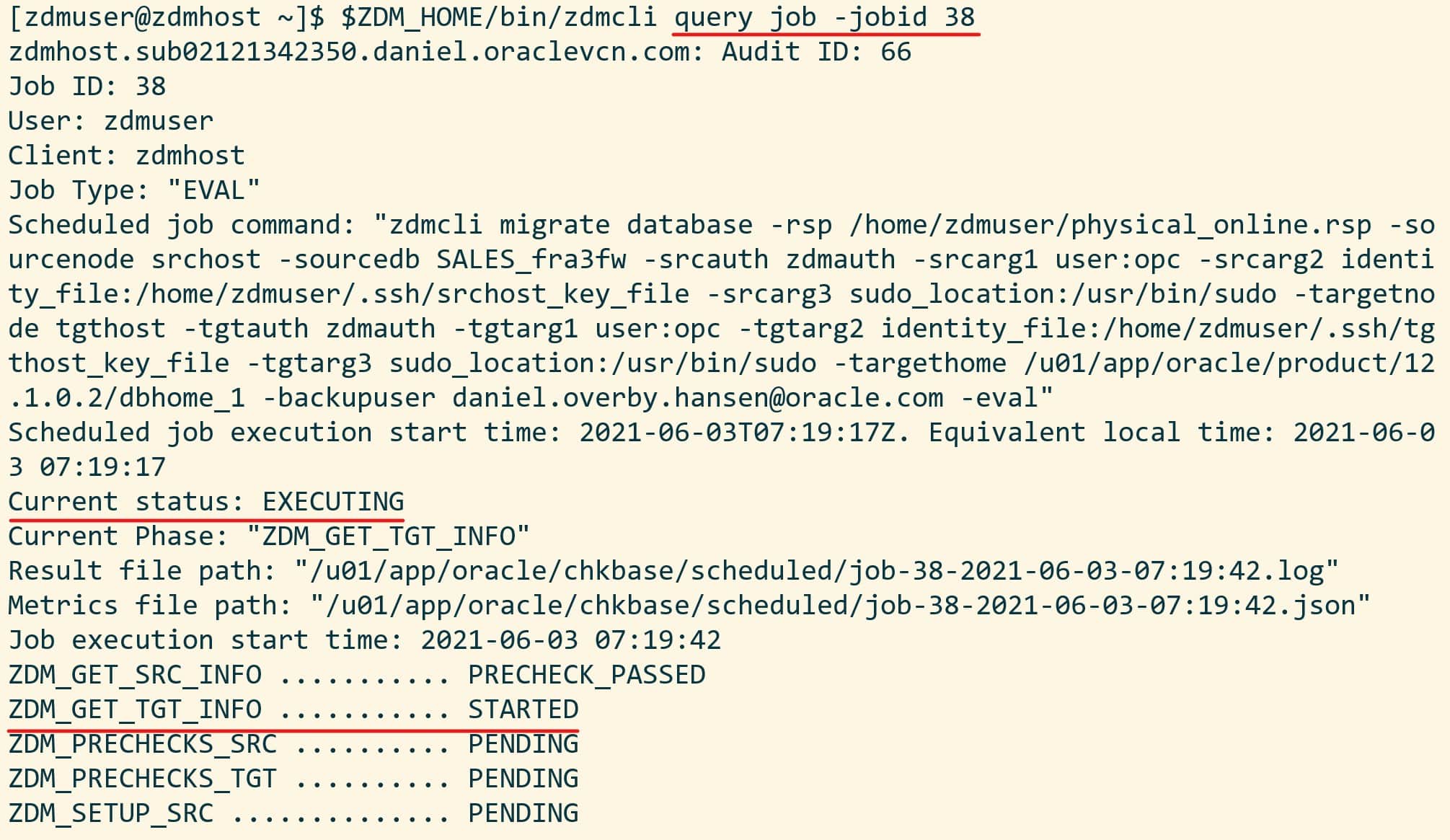
The migration evaluation is then started, and I can use the job ID to monitor it:

[zdmuser@zdmhost]$ $ZDM_HOME/bin/zdmcli query job -jobid <job ID>

Output from zdmcli query job command

My colleague Sinan Petrus Toma showed how to loop:

[zdmuser@zdmhost]$ while :; do $ZDM_HOME/bin/zdmcli query job -jobid <job ID>; sleep 10; done

However, I prefer to get more details, so I tail the ZDM log file instead. This little one-liner finds the newest file and tails it:

[zdmuser@zdmhost]$ tail -n 50 -f "`ls -td /u01/app/oracle/chkbase/scheduled/*log | head -1`"

And I get this level of detail:

zdmhost: 2021-06-03T07:19:50.317Z : Starting zero downtime migrate operation ...
zdmhost: 2021-06-03T07:19:53.445Z : Executing phase ZDM_GET_SRC_INFO
zdmhost: 2021-06-03T07:19:53.446Z : Retrieving information from source node "srchost" ...
zdmhost: 2021-06-03T07:19:53.447Z : retrieving information about database "SALES_fra3fw" ...
zdmhost: 2021-06-03T07:20:02.743Z : Execution of phase ZDM_GET_SRC_INFO completed
zdmhost: 2021-06-03T07:20:02.826Z : Executing phase ZDM_GET_TGT_INFO
zdmhost: 2021-06-03T07:20:02.827Z : Retrieving information from target node "tgthost" ...
zdmhost: 2021-06-03T07:20:12.197Z : Determined value for parameter TGT_DATADG is '+DATA'
zdmhost: 2021-06-03T07:20:12.198Z : Determined value for parameter TGT_REDODG is '+RECO'
zdmhost: 2021-06-03T07:20:12.198Z : Determined value for parameter TGT_RECODG is '+RECO'
zdmhost: 2021-06-03T07:20:12.203Z : Execution of phase ZDM_GET_TGT_INFO completed

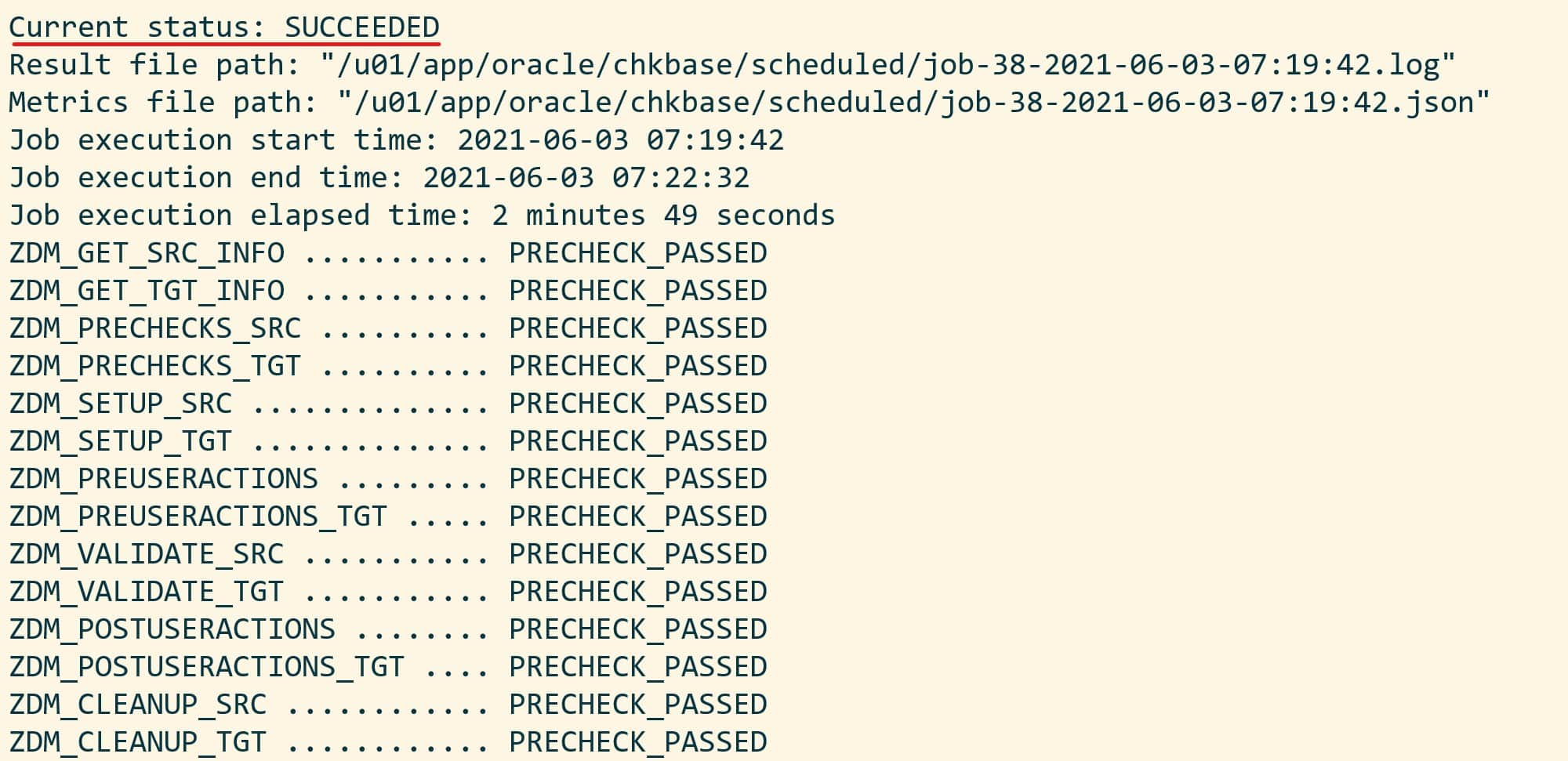
Eventually, I end up with a successful evaluation: When status of an evaluation is SUCCEEDED

Start Migration

When the evaluation passes, I can start the real migration. I am re-using the same command line, but I have removed the -eval option. Instead – and this is important – I am using -pauseafter to tell ZDM to pause the migration, just before the switchover takes place. Downtime has not started yet. The database is still open for business, but ZDM will copy the data and configure Data Guard:

[zdmuser@zdmhost]$ $ZDM_HOME/bin/zdmcli migrate database \
   -rsp /home/zdmuser/physical_online.rsp \
   -sourcenode srchost \
   -sourcedb SALES_fra3fw \
   -srcauth zdmauth \
   -srcarg1 user:opc \
   -srcarg2 identity_file:/home/zdmuser/.ssh/srchost_key_file \
   -srcarg3 sudo_location:/usr/bin/sudo \
   -targetnode tgthost \
   -tgtauth zdmauth \
   -tgtarg1 user:opc \
   -tgtarg2 identity_file:/home/zdmuser/.ssh/tgthost_key_file \
   -tgtarg3 sudo_location:/usr/bin/sudo \
   -targethome /u01/app/oracle/product/12.1.0.2/dbhome_1 \
   -backupuser "daniel.overby.hansen@oracle.com" \
   -pauseafter ZDM_CONFIGURE_DG_SRC

Again, I have to input the passwords as in eval mode. Use the job ID to monitor the progress or tail the log file. Note down the job ID. I need it later on to resume the migration.

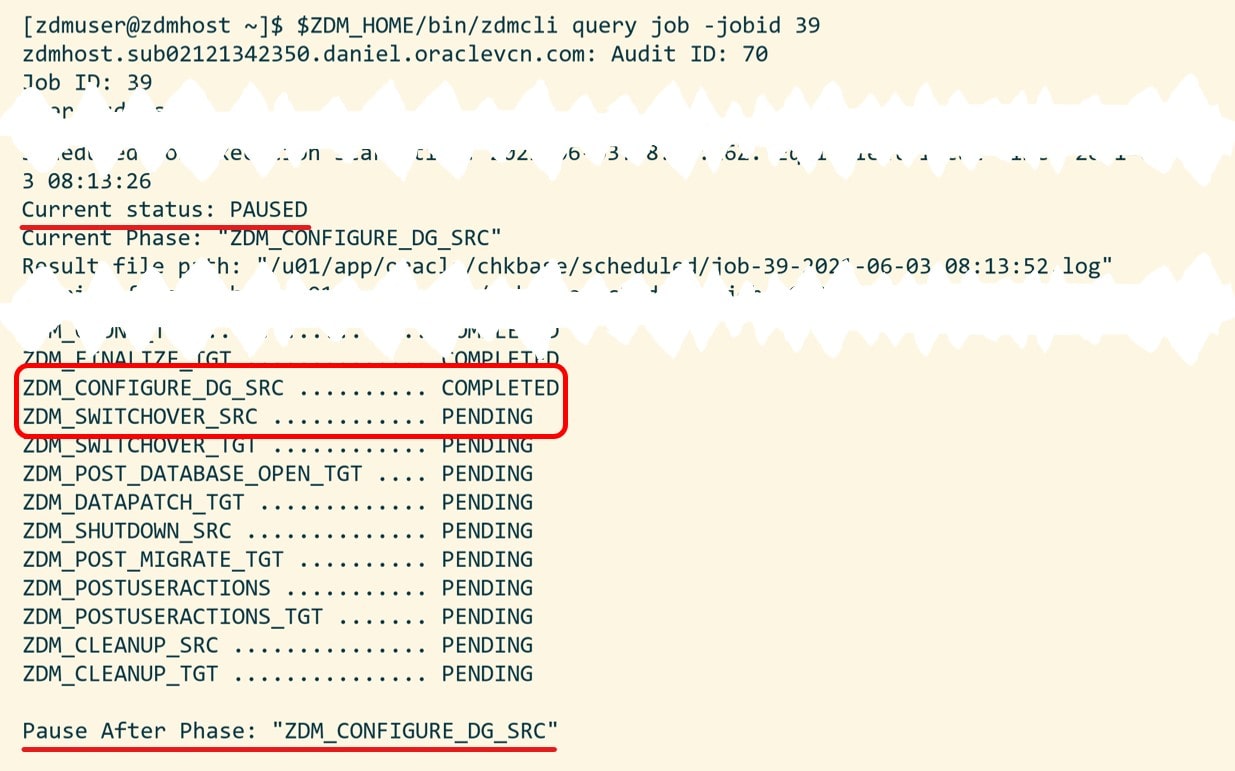
When ZDM completes the phase ZDM_CONFIGURE_DG_SRC it will pause and wait. I can verify it with zdmcli query job: ZDM is currently paused

Now the standby database has been built in OCI. Redo gets transferred from my source database to the target database in OCI and is applied (see appendix D for monitoring queries). Also, this is a good time to test your new database.

Complete Migration

Now it is time to finalize the migration and switch over to the OCI target database. All I need to do, is to resume the paused ZDM job. I use the job ID that was created when I started the migration:

[zdmuser@zdmhost]$ $ZDM_HOME/bin/zdmcli resume job -jobid <job ID>

ZDM will now ensure that all redo is sent and applied before switching over to the OCI target database. Again, I use the zdmcli query job command to monitor the progress and I can tail the log file. After a short while the migration completes. ZDM migration completed

That’s it. I have now migrated into OCI!

I have a few post-migration tasks to carry out:

  • Configure automatic backup
  • Protect my new OCI database with a Data Guard in OCI
  • Take a peek at the alert log (just be sure)

Other Blog Posts in This Series

Appendix

A – RAC Databases

If your source or target database is a RAC database, then you only need access to one of the nodes. Select the node that you want to use and use the host name and SSH keys to that host. Also, ensure that the IP address you are using is not the floating one (VIP). In OCI that is referred to as the private IP.

B – Response File

Allow me to put some comments on the values:

Setting Comment
DATA_TRANSFER_MEDIUM When migrating to a DB System in OCI OSS is the only option. It is also the default value, so I could omit the parameter. The other options are applicable for Exadata Cloud at Customer and Exadata on-prem.
                                                                                                                                                                     HOST                                                                                                                                                                      Getting the right URL for the HOST parameter might be a little tricky, but check the documentation. In my demo I use the Frankfurt data center, and, thus, the region is set to eu-frankfurt-1. Visit the API documentation for a list of regions. Use OCI CLI and oci os ns get to find the tenancy object storage namespace. Alternatively, in the OCI Console (the web page) open the Profile menu and click Tenancy: <your tenancy name>. The namespace string is listed under Object Storage Settings. To read more about have a look at the OCI documentation. Thanks to Bartlomiej Sowa for putting in a comment with this information – much appreciated!
OPC_CONTAINER The OCI Object Storage bucket that will be used as a staging area for the backup of the source database. I recommend using a separate bucket for each migration. It makes it a lot easier to clean up afterwards.
PLATFORM_TYPE VMDB covers Virtual Machine and Bare Metal DB Services. It is also the default value, so I could omit the parameter.
SHUTDOWN_SRC I choose to shut down the source database to ensure no one uses it unintentionally after the migration.
SKIP_FALLBACK To make my demo simple I choose not to configure fallback. Remember falling back to the source database requires a license for Advanced Security Option or setting the paramete TABLESPACE_ENCRYPTION correctly.
TGT_DB_UNIQUE_NAME The DB_UNIQUE_NAME of the target placeholder database. It must be different than that of the source database.

C – Backup Strategy

During a migration with ZDM, you should keep your regular backup strategy. Keep doing the same backups as you did before. But avoid having ZDM backups and regular backups run at the same time. Also, if you are dealing with a RAC database be sure to put the snapshot control file on shared storage. Otherwise, you might get ORA-00245 errors during backups.

D – Monitoring

Use these queries to monitor the redo apply. On source/primary database:

SELECT 
   host_name, instance_name, db_unique_name, status, database_role, open_mode 
FROM 
   v$database, v$instance;
SELECT thread#, max(sequence#) FROM v$archived_log GROUP BY thread#;

Target/standby database:

SELECT 
   host_name, instance_name, db_unique_name, status, database_role, open_mode 
FROM 
   v$database, v$instance;
SELECT thread#, max(sequence#) FROM v$archived_log WHERE applied='YES' GROUP BY thread#;
--MRP process should be 'APPLYING_LOG'
SELECT process, status, sequence# FROM v$managed_standby;
SELECT * FROM v$archive_gap;

E – Troubleshooting

PRCZ-4001

If you run into this error:

PRCZ-4001 : failed to execute command "/bin/uname" using the privileged execution plugin "zdmauth" on nodes "doverbyh-zdm-tgt" within 120 seconds
PRCZ-2006 : Unable to establish SSH connection to node "doverbyh-zdm-tgt" to execute command "/bin/uname"
No more authentication methods available

Check your key files. They must be in RSA/PEM format (the private key must start with -----BEGIN RSA PRIVATE KEY-----).

ZDM_OBC_INSTALL_CREDENTIALS_INVALID

If you run into this error:

srchost: 07:08:00.000: Validating object store credentials..
srchost: <ERR_FILE><Facility>PRGO</Facility><ID>ZDM_OBC_INSTALL_CREDENTIALS_INVALID</ID></ERR_FILE>

Check your credentials to OCI. Remember when prompted for the password of your OCI account it is an auth token, not your password (even though the prompt text is misleading).

ZDM_GET_SRC_INFO

If the phase ends in PRECHECK_FAILED and there is no real clue about the error, ensure that the source database host is added to the known_hosts file on the ZDM service host. Also, you can verify connectivity by trying to log on via SSH:

[zdmuser@zdm]$ ssh -i <specified-key-file> opc@<name-of-source-host>

ZDM_GET_TGT_INFO

If the phase ends in PRECHECK_FAILED and there is no real clue about the error, ensure that the target database host is added to the known_hosts file on the ZDM service host.

[zdmuser@zdm]$ ssh -i <specified-key-file> opc@<name-of-target-host>

ZDM_SWITCHOVER_SRC

If the migration is stuck at the phase ZDM_SWITCHOVER_SRC and you see the following in the ZDM log file:

zdmhost213: 2022-05-10T18:01:22.565Z : Executing phase ZDM_SWITCHOVER_SRC
zdmhost213: 2022-05-10T18:01:22.566Z : Switching database SALES2_fra3cx on the source node srchost to standby role ...
zdmhost213: 2022-05-10T18:01:22.566Z : checking if source database is ready for switching role...
srchost: 2022-05-10T18:01:35.340Z : Validating database SALES2_fra3cx role is PRIMARY...
srchost: 2022-05-10T18:01:35.742Z : Validating database SALES2_fra3cx is in open mode...
srchost: 2022-05-10T18:01:36.144Z : Waiting for SALES2_fra3cx to catch up, this could take a few minutes...

Then proceed to primary and standby database and investigate whether there are any log shipping or log apply problems. The root cause can be many different things, for instance conflicts when negotiating network security options.

PRGZ-3420 / ZDM_MANIFEST_TO_CLOUD

Check the ZDM log file stored on the ZDM service host in $ZDM_BASE/chkbase/scheduled. If you find this error:

zdmhost213: 2022-05-10T18:20:34.330Z : Executing phase ZDM_MANIFEST_TO_CLOUD
zdmhost213: 2022-05-10T18:20:34.331Z : registering database "SALES2_OCI" to Oracle Cloud
tgthost: 2022-05-10T18:20:50.895Z : Updating DBAAS wallet keys ...
####################################################################
PRGZ-3420 : failed to modify keystore entry "oracle.security.client.password1" in wallet "/var/opt/oracle/dbaas_acfs/sales2/db_wallet".

The proceed to the target host and find the log file from that phase. It is located in $ORACLE_BASE/zdm/zdm_<target_db_unique_name>_<zdm_job_id>/zdm/log. Do a grep:

cd /u02/app/oracle/zdm/zdm_SALES2_OCI_12/zdm/log
grep "cloud registry" zdm_manifest_to_cloud_*.log

If you find the following lines in the log file:

grep "Error: Missing cloud registry" zdm_manifest_to_cloud_*.log
zdm_manifest_to_cloud_337115.log:Error: Missing cloud registry file SALES2.ini

You have most likely used the wrong case of DB_NAME on the target database. You choose that in the OCI console in the field Database name. In this case, DB_NAME in source database is SALES2, but I had incorrectly used sales2 (lowercase) for the target database. Normally, DB_NAME is case insensitive, and it is to the database itself. But the OCI cloud tooling is not case insensitive. Looking in /var/opt/oracle/creg on the target database, I can find a file called sales2.ini but ZDM is looking for SALES2.ini. How do you solve this? If this is a test database, then scratch everything and start all over. But bear in mind that the switchover has already taken place, and the OCI database is now the primary database. For a production database this is tricky. First, the database has been migrated to OCI. It works. All your data is fine on the target database. But the OCI cloud tooling does not work properly. You need to open a SR and get assistance from support.

PRGO-4086 : failed to query the "VALUE" details from the view "V$ARCHIVE_GAP" for database "target_db_name"

If the switchover fails during this query:

select count(*) from v$archive_gap

And your target database is 11.2.0.4 or 12.1.0.2, you have hit bug 18411339 (Low performance or ORA-1220 for query on V$ARCHIVE_GAP on 11.2.0.4 or later release). Apply the patch on the target database and retry the ZDM migration. You can also open the target database before you start the switchover process (requires Active Data Guard because redo apply must be on). The above query fails only when the standby database (the target database) is mounted. It works fine on an open database.

Zero Downtime Migration – Physical Online Migration

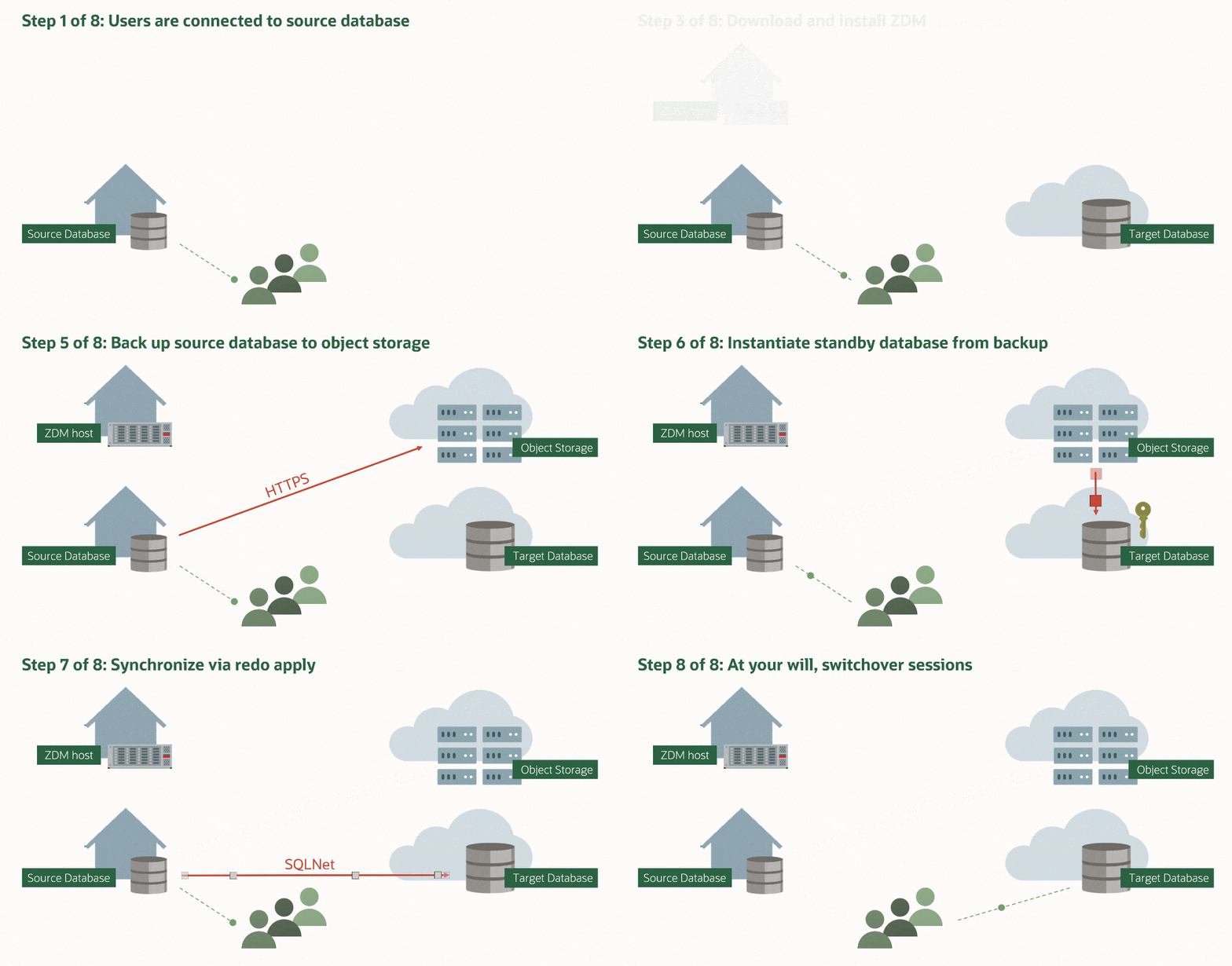
You can migrate a database with Zero Downtime Migration (ZDM) using the Physical Online method. A standby database is built in OCI and kept in sync via redo apply. At your will, a switchover is all it takes to complete the migration. This way even very large databases can be migrated with no or very little downtime.

Concept of physical online migration

With the Physical Online method, you can target:

  • Virtual Machine DB System
  • Bare Metal DB System
  • Exadata DB System (ExaCS)
  • Exadata Cloud at Customer (ExaCC)
  • Exadata (on-prem)

Since the method uses Data Guard as the migration vehicle, this can only be only with Enterprise Edition databases.

Benefits

  • Personally, I like this approach because it builds on technology that most of us know already. Data Guard is heavily in use in most organizations. Although ZDM does all the heavy lifting, it is nice to know what happens underneath the hood.

  • To complete the migration all you need is a regular Data Guard switchover (which ZDM also takes care of). A switchover operation ensures that there will be no data loss at all. In addition, if you have a properly configured application, it won’t experience downtime. Just a brown-out while the switchover takes place.

  • This method has an excellent fallback possibility. When you switch over to the OCI database, the redo flow is reversed. Now, the on-prem database is a standby database, and it is kept in sync via redo from the OCI database. For those with Advanced Security Option special attention is needed. Read more about it later on.

  • You migrate the entire database. All the internals are brought to the cloud as well. This includes:

    • AWR
    • SQL Plan Baseline
    • SQL Profiles
    • Public objects
    • Etc.
  • The initial backup of the source, on-prem database will use RMAN Compression. It will drastically reduce the size of the backup, and thus the amount of data that you must transport to the cloud. And the really good thing: ZDM can use RMAN Compression even if you don’t have a license for the Advanced Compression Option. Check the documentation for details on the restricted use license.

  • You can customize the RMAN backup. You know your system best, so it is possible to tweak the number of RMAN channels used and the compression algorithm applied. Default is 10 and medium.

  • When ZDM takes the full backup of your source database (Exadata on-prem and ExaCC excluded), it uses Oracle Database Cloud Backup Module for OCI to allocate a special sbt channel. The backup is sent directly to OCI Object Storage. Thus, you don’t need any additional disk space on your source system to hold the backup. The same applies on the target system.

  • When migrating to ExaCC or Exadata on-prem you can use an existing backup. Use the response file option DATA_TRANSFER_MEDIUM=EXTBACKUP. Also, if you have a Zero Data Loss Recovery Appliance (ZDLRA) you can restore directly from it, without taking a full backup first. If you are migrating to any other platform, ZDM will need to take a full backup as part of the workflow.

  • The standby database is kept in sync via redo apply. This means that there are no restrictions in supported data types. Further, DDL in any form is supported and even with a heavy workload on the primary database, your standby database should be able to keep up.

  • You can migrate to a higher patch level. ZDM will automatically invoke datapatch for you on the OCI database. But you must handle the on-prem database yourself. After switching over to the OCI database and datapatch has been executed, you should patch the on-prem Oracle Home to the same patch level.

Considerations

  • You can migrate to the same version only. This is a restriction of Data Guard. If you also need to upgrade the database, then you must do that after the migration. But it will incur additional downtime.
  • The same applies to PDB conversion. ZDM can run the noncdb_to_pdb.sql script for you. But that will incur downtime as well. If you decide to convert to PDB, you need to develop an alternate fallback plan (which is Data Pump or Transportable Tablespaces). The PDB conversion is irreversible, and your on-prem database will be useless as a fallback option.
  • It is not possible to migrate between editions.
  • The entire database is migrated. I listed this as a benefit as well, but it has a flipside as well. It is not possible to perform any transformation during the migration, e.g. converting any old BasicFile LOBs to SecureFile LOBs. Also, you bring over any old baggage in your database. Sometimes it is nice to start from scratch because garbage tends to accumulate in a database over time.
  • If you have a Standard Edition database, you can’t use Physical Online method. Only the Physical Offline is supported.
  • You can’t configure Automatic backup on your target database until after the migration has been completed.
  • If you need to protect your OCI database with Data Guard, then you must build the standby database after the migration has been completed. Normally, you would use a cascading standby database to keep the target database protected by Data Guard even after the migration has been completed. But currently the OCI tooling does not support that option.
  • If your source database is not encrypted, you must create a keystore that can be used later on for TDE Tablespace Encryption. The keystore is created in the source database with no downtime, and you don’t need a separate license just for creating a keystore. You do not have to actually encrypt your source database until it reaches the cloud.

Fallback

Using this approach, you have a great fallback option. When you switch over to the OCI database, then the redo flow is reversed and the source, on-prem database is now the standby database. If you need to fallback, simply issue another switchover (you could call that a switchback) and start to use the on-prem database again – with no data loss. See step 5 in MAA Practices for Cloud Migration Using ZDM (Doc ID 2562063.1).

There is a catch, however. The OCI database is encrypted using TDE Tablespace Encryption. Any redo generated for an encrypted tablespace is also encrypted. This means that the on-prem database must be able to decrypt the redo before it can be applied. This can happen in two ways:

  • You have a license the Advanced Security Option.
  • You tell the on-prem database to decrypt the redo and apply it to unencrypted tablespaces.
    • On-prem database:
    SQL> alter system set tablespace_encryption=decrypt_only;
    
    • OCI database:
    SQL> alter system set tablespace_encryption=auto_enable;
    

Conclusion

Using the Physical Online method in ZDM is a straight-forward way of migrating your database to OCI. It uses Data Guard which is very familiar to most of us. The method does, however, have some limitations, and you can’t target Autonomous Databases.

Want to Know More

If you want to know more about migrations in general, I suggest that you take a look at our webinar Migration Strategies – Insights, Tips and Secrets

In addition, these links contain additional useful information:

Other Blog Posts in This Series

Zero Downtime Migration – Logical Migration and the Final Touches

Logical migration has many benefits but there is also a catch. It does not transfer some of that nice meta data that make your life easier – such as:

  • AWR
  • SQL Plan Baselines
  • SQL Profiles

Further, we can make a few tweaks to avoid having performance problems after the migration. This post applies to migrations into any database – except Autonomous Databases. In an Autonomous Database you don’t need to worry about such things. The database will fix the issues for you.

AWR

If you are licensed to use AWR in your source database, you can transport the AWR data into your target database.

  1. In your source database, execute the script $ORACLE_HOME/rdbms/admin/awrextr.sql. It extracts the AWR data and load them into a Data Pump dump file.
  2. Transfer the dump file to your target database.
  3. In your target database, import the AWR data using the script $ORACLE_HOME/rdbms/admin/awrload.sql.

When you look at the old AWR data in your target database, use it with caution. The AWR data was collected on a completely different system (CPU, memory, settings, database release, initialization parameters etc). Your new system is very different. Keep that in mind when you compare data from before and after the migration.

SQL Plan Baselines

If you are using SQL Plan Management to ensure plan stability, you want to transport your baselines as well.

First, in my source database create a staging table. It is used to transport the baselines. Create the staging table in a schema that you will be migrating.

begin
   dbms_spm.create_stgtab_baseline (
      table_name   => 'MIGR_SPB_1',
      table_owner  => 'SH');
   end;
/

Next, I will extract all the baselines including the fixed or accepted plans. It is now stored in the staging table and will be migrated together with my data:

declare
   l_count number;
begin
   l_count := dbms_spm.pack_stgtab_baseline (
      table_name   => 'MIGR_SPB_1',
      table_owner  => 'SH',
      enabled      => 'YES',
      fixed        => 'YES');
   end;
/

After the migration, in my target database, I can now extract the baselines into the SQL Management Base:

declare
   l_count number;
begin
   l_count := dbms_spm.unpack_stgtab_baseline (
      table_name   => 'MIGR_SPB_1',
      table_owner  => 'SH');
   end;
/

That’s it. Now SQL Plan Management will ensure that the same plans are used for the statements that are in the baselines.

If you are not using SQL Plan Management, you should look into it. In my opinion it is one of the most underrated features in the Oracle Database. Many issues are caused by plan changes which is exactly what you can avoid with SQL Plan Management.

SQL Profiles

If you have SQL Profiles you can transport them in a way very similar to transporting SQL Plan Baselines.

First, in the source database, create a staging table in a schema that you will be migrating:

begin
   dbms_sqltune.create_stgtab_sqlprof (
      table_name   => 'MIGR_SQLP_1',
      table_owner  => 'SH');
end;
/

Next, put the SQL Profiles into the staging table. This example will load all profiles from the DEFAULT category, but there are options to cherry-pick those of interest:

begin
   dbms_sqltune.pack_stgtab_sqlprof (
      staging_table_name   => 'MIGR_SQLP_1',
      staging_schema_owner => 'SH');
end;
/

Finally, in my target database, I can unpack the profiles from the staging table and into the data dictionary:

begin
   dbms_sqltune.unpack_stgtab_sqlprof (
      staging_table_name   => 'MIGR_SQLP_1',
      staging_schema_owner => 'SH',
      replace              => TRUE);
   end;
/

Statistics

Should you do anything about object statistics?

  • If you have migrated into the same release, the answer is no.
  • If you have migrated into a higher release, the answer is it depends. It is not required, but if you come from a very old release, you might consider it.

Imagine a migration from 11.2.0.4 to 19c. Significant changes have been made to histograms in that period. If you want to benefit from the new, improved histogram types, you should re-gather statistics. If you don’t do it, the histograms will gradually change over time when the statistics become stale. Some people prefer taking such a change immediately because they don’t like the idea of things happening over the course of time.

If you want to refresh statistics:

exec dbms_stats.delete_database_stats;
exec dbms_stats.gather_database_stats;

To make it a little faster:

exec dbms_stats.set_global_prefs('CONCURRENT','AUTOMATIC');

To make it even faster – requires CPU:

exec dbms_stats.set_global_prefs('DEGREE', DBMS_STATS.AUTO_DEGREE);

To make it as fast as possible – requires a lot of CPU:

exec dbms_stats.set_global_prefs('CONCURRENT','AUTOMATIC');
exec dbms_stats.set_global_prefs('DEGREE', DBMS_STATS.AUTO_DEGREE);

Be sure to set the preferences back to the original value when you are done gathering statistics. Nigel Bayliss has an interesting blog post on How to gather optimizer statistics fast.

Dictionary Statistics

After the migration, the target database has many more tables, indexes, views and so on. This is represented in the data dictionary as additional rows in e.g. OBJ$. All that extra data probably means that the dictionary statistics are stale. Stale dictionary statistics can lead to all sorts of troubles.

Immediately after the migration is completed you should re-gather dictionary statistics to avoid problems caused by stale statistics. Do this right after ZDM has completed the migration:

exec dbms_stats.gather_dictionary_stats;

Or even better:

begin
   dbms_stats.gather_schema_stats('SYS');
   dbms_stats.gather_schema_stats('SYSTEM');
end;
/

I prefer gathering statistics on SYS and SYSTEM independently. My colleagues and I have seen issues from time to time with dbms_stats.gather_dictionary_stats.

Fixed Object Statistics

After migration and once the system has been properly warmed up, you should re-gather fixed objects statistics. It is important that you don’t gather fixed objects statistics right after migration. You must until you have run a representative workload. If you wait a few days or until the next weekend, then you are most likely on the safe side:

exec dbms_stats.gather_fixed_objects_stats;

This recommendation is similar to the one we give about after upgrade. Read the blog post to read more about fixed objects statistics in general. Also, you can find a very useful piece of code that gathers fixed objects statistics in seven days via a scheduler job.

SQL Tuning Sets

This is something that you should do before you start the migration. Capture your workload from the source database into SQL Tuning Sets.

What is a SQL Tuning Set? It is an object that contains information about a number of SQLs. For each SQL the following is collected:

  • SQL Statement – the SQL text itself
  • Context – executing schema, binds, and environment (like NLS settings)
  • Statistics – execution statistics like elapsed time, CPU time, buffer gets, rows processed
  • Plan – last, but not least, the actual execution plan

You can then transport the SQL Tuning Set into the target database. If an SQL is now running slow, you can use the information from the SQL Tuning Set to identify why. For an SQL you can see the old and new plan, compare amount of buffer gets and CPU time and so forth. You can also bring back the old plan, if the new plan is less effective.

First, in the source you create a SQL Tuning Set:

exec dbms_sqlset.create_sqlset (sqlset_name => 'MIGR_STS_1', description => 'For migration - from source');

Next, capture statements from AWR. This will take the top 5000 statements from your entire AWR ordered by elapsed time:

declare
   begin_id number;
   end_id number;
   cur sys_refcursor;
begin
   select min(snap_id), max(snap_id) int begin_id, end_id
   from dba_hist_snapshot;

open cur for
  select value(p) from table(dbms_sqltune.select_workload_repository(
       begin_snap       => begin_id,
       end_snap         => end_id,
       basic_filter     => 'parsing_schema_name not in (''SYS'')',
       ranking_measure1 => 'elapsed_time',
       result_limit     => 5000,
       attribute_list   => 'ALL')) p;

  dbms_sqltune.load_sqlset('MIGR_STS_1', cur);
  
close cur;

end;
/

You can also sample directly from cursor cache. Start the sampling and then run your workload. This example will sample every minute for 15 minutes:

begin
   dbms_sqlset.capture_cursor_cache_sqlset(
      sqlset_name     => 'MIGR_STS_1',
      time_limit      => 900,
      repeat_interval => 60,
      capture_option  => 'MERGE',
      capture_mode    => DBMS_SQLTUNE.MODE_ACCUMULATE_STATS,
      basic_filter    => 'parsing_schema_name not in (''SYS'')',
      sqlset_owner    => NULL,
      recursive_sql   => 'HAS_RECURSIVE_SQL');
end;
/

Finally, put all that information into a staging table, so it can be transported to the target database. Put the staging table into a schema that you plan on migrate. This way you ensure that the SQL Tuning Set is migrated together with your data. In my example it is the schema SH:

begin
   dbms_sqltune.create_stgtab_sqlset ( 
      schema               => 'SH',
      table_name           => 'MIGR_STGTAB_1');
   dbms_sqltune.pack_stgtab_sqlset (      
      sqlset_name          => 'MIGR_STS_1',
	  staging_schema_owner => 'SH',
      staging_table_name   => 'MIGR_STGTAB_1');
end;
/

After the migration, in my target database I can now extract the SQL Tuning Set from the staging table and into the data dictionary:

begin
   dbms_sqltune.unpack_stgtab_sqlset (
      sqlset_name          => '%',
      replace              => true,
	  staging_schema_owner => 'SH',
      staging_table_name   => 'MIGR_STGTAB_1'
   );
end;
/

Now – if you get into trouble with a misbehaving SQL – you can use the information in the SQL Tuning Set to investigate the problem.

Conclusion

When you perform a logical migration, there are some additional tasks that you should consider at least for your mission-critical databases. These steps will help you avoid performance issues after the migration.

In addition to the topics discussed here, I recommend that you also watch our webinar Performance Stability, Tips and Tricks and Underscores (slides). It has the complete prescription to avoid performance problems after upgrade and migration.

Other Blog Posts in This Series

Zero Downtime Migration – Logical Online Migration to DBCS

Let me show you how you can migrate an Oracle Database into OCI. My source database is a PDB running on 12.1.0.2. I want to migrate it directly into a 19c CDB. I will show you:

  • import via dump file and object storage
  • import via database link

This procedure can be used to migrate to:

  • VM DB Systems
  • Bare Metal DB Systems
  • Exadata DB System (ExaCS)

Prerequisites

  1. I need a ZDM service host. I already blogged about how to create such. The computer is called zdmhost and the user is called zdmuser.
  2. My source database is a PDB called srcpdb, the CDB is called srccdb, and the host is named srchost. All my data is in the schema SH.
  3. I have already created a GoldenGate hub as described in this blog post. It is called ogg19cora.
  4. I want to migrate to a VM DB System, and it is already created. I name it tgthost, the CDB is named tgtcdb and the PDB is named tgtpdb. You can name it whatever you want. Be sure to use ASM as your storage management software.

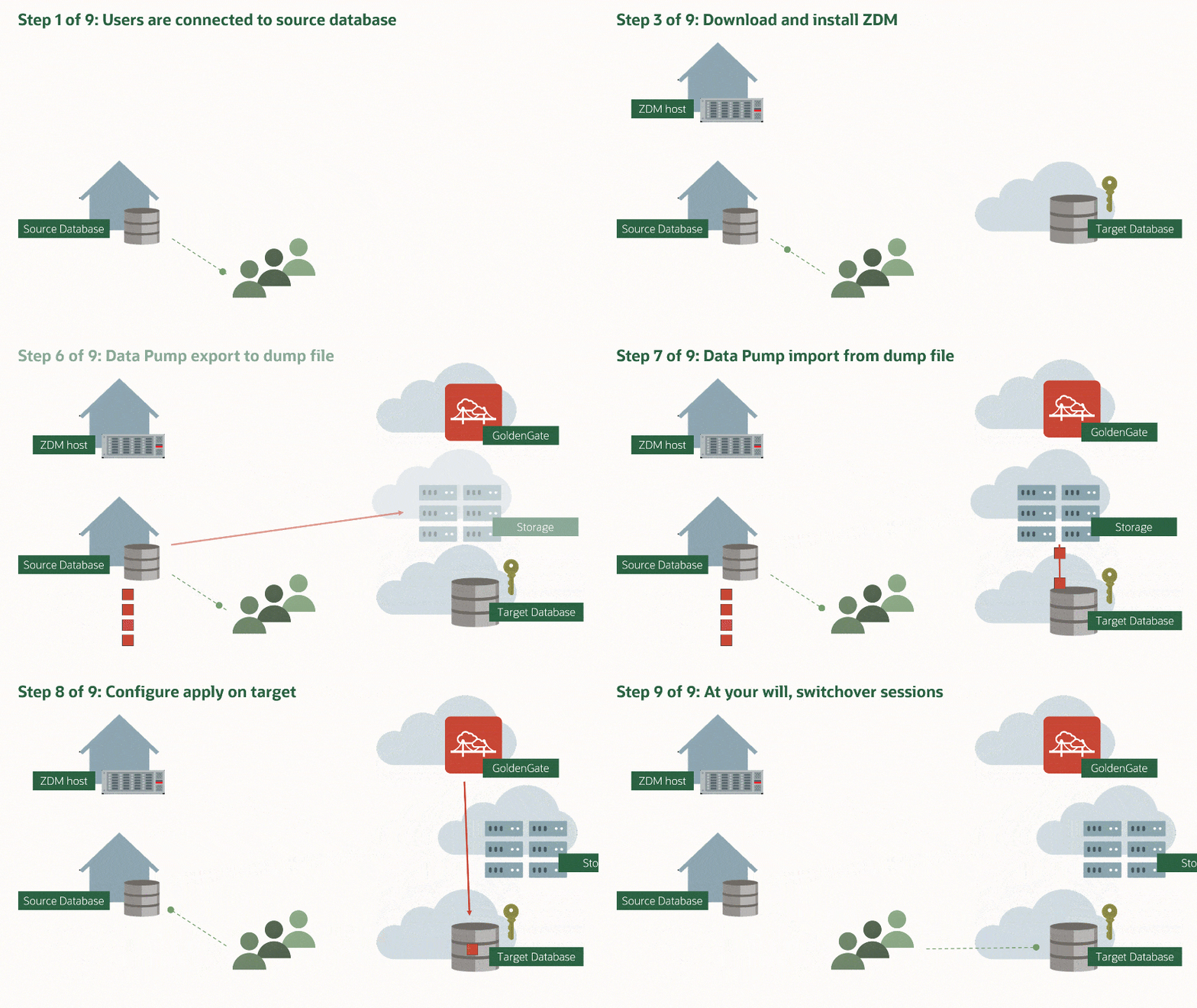
Overview of the components in this demo

Prepare Source

My source database is a PDB. I need to prepare the PDB and CDB$ROOT. If you have a non-CDB perform all the steps in your non-CDB unless otherwise written.

First, I prepare the database for GoldenGate replication:

alter session set container=CDB$ROOT;
alter database force logging;
alter database add supplemental log data;
alter system set enable_goldengate_replication=true scope=both;
--At least 2GB
alter system set streams_pool_size=2g scope=both;
alter system set global_names=false;

Create a common user for GoldenGate in CDB$ROOT. Skip this step for non-CDBs:

alter session set container=CDB$ROOT;
create user c##ggadmin identified by <my_secret_pwd> default tablespace users temporary tablespace temp;
grant connect, resource to c##ggadmin;
grant unlimited tablespace to c##ggadmin;
grant select any dictionary to c##ggadmin;
grant create view to c##ggadmin;
grant execute on dbms_lock to c##ggadmin;
exec dbms_goldengate_auth.grant_admin_privilege('c##ggadmin',container=>' all');

Create a user for GoldenGate:

alter session set container=SRCPDB;
create user ggadmin identified by <my_secret_pwd> default tablespace users temporary tablespace temp;
grant connect, resource to ggadmin;
grant unlimited tablespace to ggadmin;
grant select any dictionary to ggadmin;
grant create view to ggadmin;
grant execute on dbms_lock to ggadmin;
exec dbms_goldengate_auth.grant_admin_privilege('ggadmin');

Generate a list of tablespaces that must exist in the target database. Add all schemas to the in-list:

alter session set container=SRCPDB;
select distinct tablespace_name
from (
      select distinct tablespace_name from dba_segments where owner in ('SH')
      union
      select distinct default_tablespace from dba_users where username in ('SH')
      union
      select distinct tablespace_name from dba_ts_quotas where dropped = 'NO' and username in ('SH')
      );

Optional. The best starting point for Data Pump is good and accurate dictionary statistics. This helps Data Pump extract the information as fast as possible:

exec dbms_stats.gather_dictionary_stats;

Via Dump File

I need to create a directory that can be used by Data Pump:

[oracle@srchost]$ mkdir -p /u01/app/oracle/datapump/mydirsrc

Prepare Target

The target database must use a timezone file version that is equal to or higher than the source:

alter session set container=tgtpdb;
select * from v$timezone_file;

Prepare the database for GoldenGate replication:

alter session set container=CDB$ROOT;
alter system set enable_goldengate_replication=true scope=both;

Create a user for GoldenGate:

alter session set container=tgtpdb;
create user ggadmin identified by <my_secret_pwd> default tablespace users temporary tablespace temp;
grant connect, resource to ggadmin;
grant unlimited tablespace to ggadmin;
grant select any dictionary to ggadmin;
grant create view to ggadmin;
grant execute on dbms_lock to ggadmin;
exec dbms_goldengate_auth.grant_admin_privilege('ggadmin');

Allow the GoldenGate user to perform DML (see appendix A):

alter session set container=tgtpdb;
grant insert any table to ggadmin;
grant update any table to ggadmin;
grant delete any table to ggadmin;

I ensure that the list of tablespaces I found in the source database, exist in the target database. If some are missing, I create them. Also, I will extend the data files in advance, so the size is pretty close to the expected end size. For new tablespaces I set the initial size of the data files. If the data files are too small, I will waste a lot of time during import to auto-extend. If I make them too big, I potentially waste space:

alter database datafile '...' resize 100G;
create tablespace ... size 100G ...;

Via Dump File

I need to create a directory that can be used by Data Pump. It will hold the Data Pump dump files and logs:

[oracle@tgthost]$ mkdir -p /u01/app/oracle/datapump/mydirtgt

Via DB Link

When I use a DB link, ZDM insists on using the built-in directory called DATA_PUMP_DIR. I ensure that the database directory exist. Also, I verify that the directory exist in the file system:

select directory_path from dba_directories where directory_name='DATA_PUMP_DIR';

I will do the import directly over a database link. In that case, the target host must be able to resolve the host name of my source database host:

[root@tgthost]$ echo "<source IP address> srchost" >> /etc/hosts

Prepare ZDM

The ZDM service host must be able to resolve the host names of the source and target database host and the GoldenGate hub:

[root@zdmhost]$ echo "<source IP address> srchost" >> /etc/hosts
[root@zdmhost]$ echo "<target IP address> tgthost" >> /etc/hosts
[root@zdmhost]$ echo "<GoldenGate IP address> ogg19cora" >> /etc/hosts

I put my private SSH keys to the source and target database host into ~/.ssh directory. Ensure permissions are set properly:

[zdmuser@zdmhost]$ cp srchost_key_file ~/.ssh
[zdmuser@zdmhost]$ chmod 400 ~/.ssh/srchost_key_file 
[zdmuser@zdmhost]$ cp tgthost_key_file ~/.ssh
[zdmuser@zdmhost]$ chmod 400 ~/.ssh/tgthost_key_file 

Test the connection. I connect as opc, but you might have a different user. Read more about access to the database host in the documentation:

[zdmuser@zdmhost]$ ssh -i ~/.ssh/srchost_key_file opc@srchost date
[zdmuser@zdmhost]$ ssh -i ~/.ssh/tgthost_key_file opc@tgthost date

If you have configured a proper certificate on your GoldenGate hub, you can jump to the next chapter. If not, read on.

When deployed the GoldenGate hub comes with a self-signed certificate. ZDM will complain about it, because it is considered insecure. For migrations that involve real data, you should use a proper certificate on your GoldenGate hub to ensure your migration is secure. But for tests and demos you might want to disregard the security warning. If so, you can add the self-signed certificate as a trusted one to the Java JDK’s certificate store ($ZDM_HOME/jdk/jre/lib/security/cacerts). You find instructions on how to do so in the MOS support note Zero Downtime Migration – GoldenGate Hub Certificate Known Issues (Doc ID 2768483.1). Use the same host that you added to /etc/hosts.

For your reference, this is the error that ZDM will throw if the certificate is not trusted:

Verifying status of Oracle GoldenGate Microservices at URL "https://..."
PRGZ-1136 : failed to verify configuration and status of Oracle GoldenGate Microservices at URL "https://..."
PRGG-1008 : failed to retrieve detailed information for the health of the Service Manager on Oracle GoldenGate hub "https://..."
PRGG-1001 : HTTP GET request "https://.../services/v2/config/health" failed.
javax.net.ssl.SSLHandshakeException: sun.security.validator.ValidatorException: PKIX path building failed: sun.security.provider.certpath.SunCertPathBuilderException: unable to find valid certification path to requested target
sun.security.validator.ValidatorException: PKIX path building failed: sun.security.provider.certpath.SunCertPathBuilderException: unable to find valid certification path to requested target
PKIX path building failed: sun.security.provider.certpath.SunCertPathBuilderException: unable to find valid certification path to requested target
unable to find valid certification path to requested target

Prepare Response File

I will use a template response file as the basis for my response file:

[zdmuser@zdmhost]$ cp $ZDM_HOME/rhp/zdm/template/zdm_logical_template.rsp ~/logical_online.rsp
[zdmuser@zdmhost]$ cmod 700 ~/logical_online.rsp

Via Dump Files

This is the response file that I end up with (see appendix E for an explanation):

MIGRATION_METHOD=ONLINE_LOGICAL
DATA_TRANSFER_MEDIUM=OSS

SOURCEDATABASE_ADMINUSERNAME=SYSTEM
SOURCEDATABASE_GGADMINUSERNAME=GGADMIN
SOURCEDATABASE_CONNECTIONDETAILS_HOST=srchost
SOURCEDATABASE_CONNECTIONDETAILS_PORT=1521
SOURCEDATABASE_CONNECTIONDETAILS_SERVICENAME=srcpdb....oraclevcn.com
SOURCECONTAINERDATABASE_ADMINUSERNAME=SYSTEM
SOURCECONTAINERDATABASE_GGADMINUSERNAME=C##GGADMIN
SOURCECONTAINERDATABASE_CONNECTIONDETAILS_HOST=srchost
SOURCECONTAINERDATABASE_CONNECTIONDETAILS_PORT=1521
SOURCECONTAINERDATABASE_CONNECTIONDETAILS_SERVICENAME=SRCCDB_fra3dd....oraclevcn.com

TARGETDATABASE_OCID=ocid1.database.oc1.eu-frankfurt-1....
TARGETDATABASE_ADMINUSERNAME=SYSTEM
TARGETDATABASE_GGADMINUSERNAME=GGADMIN
TARGETDATABASE_CONNECTIONDETAILS_HOST=tgthost
TARGETDATABASE_CONNECTIONDETAILS_PORT=1521
TARGETDATABASE_CONNECTIONDETAILS_SERVICENAME=tgtpdb....oraclevcn.com

OCIAUTHENTICATIONDETAILS_USERPRINCIPAL_TENANTID=ocid1.tenancy.oc1....
OCIAUTHENTICATIONDETAILS_USERPRINCIPAL_USERID=ocid1.user.oc1....
OCIAUTHENTICATIONDETAILS_USERPRINCIPAL_FINGERPRINT=58:b9:...
OCIAUTHENTICATIONDETAILS_USERPRINCIPAL_PRIVATEKEYFILE=/home/zdmuser/.oci/oci_api_key.pem
OCIAUTHENTICATIONDETAILS_REGIONID=eu-frankfurt-1

GOLDENGATEHUB_ADMINUSERNAME=oggadmin
GOLDENGATEHUB_URL=https://ogg19cora....oraclevcn.com
GOLDENGATEHUB_SOURCEDEPLOYMENTNAME=Source
GOLDENGATEHUB_TARGETDEPLOYMENTNAME=Target
GOLDENGATEHUB_COMPUTEID=ocid1.instance.oc1.eu-frankfurt-1....

DATAPUMPSETTINGS_JOBMODE=SCHEMA
DATAPUMPSETTINGS_DATAPUMPPARAMETERS_IMPORTPARALLELISMDEGREE=2
DATAPUMPSETTINGS_DATAPUMPPARAMETERS_EXPORTPARALLELISMDEGREE=2
DATAPUMPSETTINGS_IMPORTDIRECTORYOBJECT_NAME=MYDIRTGT
DATAPUMPSETTINGS_IMPORTDIRECTORYOBJECT_PATH=/u01/app/oracle/datapump/mydirtgt
DATAPUMPSETTINGS_EXPORTDIRECTORYOBJECT_NAME=MYDIRSRC
DATAPUMPSETTINGS_EXPORTDIRECTORYOBJECT_PATH=/u01/app/oracle/datapump/mydirsrc
DATAPUMPSETTINGS_DATABUCKET_BUCKETNAME=zdm-staging
DATAPUMPSETTINGS_DATABUCKET_NAMESPACENAME=oradbclouducm
INCLUDEOBJECTS-1=owner:SH

Via DB Link

This is the response file that I end up with (see appendix E for an explanation):

MIGRATION_METHOD=ONLINE_LOGICAL
DATA_TRANSFER_MEDIUM=DBLINK

SOURCEDATABASE_ADMINUSERNAME=SYSTEM
SOURCEDATABASE_GGADMINUSERNAME=GGADMIN
SOURCEDATABASE_CONNECTIONDETAILS_HOST=srchost
SOURCEDATABASE_CONNECTIONDETAILS_PORT=1521
SOURCEDATABASE_CONNECTIONDETAILS_SERVICENAME=srcpdb....oraclevcn.com
SOURCECONTAINERDATABASE_ADMINUSERNAME=SYSTEM
SOURCECONTAINERDATABASE_GGADMINUSERNAME=C##GGADMIN
SOURCECONTAINERDATABASE_CONNECTIONDETAILS_HOST=srchost
SOURCECONTAINERDATABASE_CONNECTIONDETAILS_PORT=1521
SOURCECONTAINERDATABASE_CONNECTIONDETAILS_SERVICENAME=SRCCDB_fra3dd....oraclevcn.com

TARGETDATABASE_OCID=ocid1.database.oc1.eu-frankfurt-1....
TARGETDATABASE_ADMINUSERNAME=SYSTEM
TARGETDATABASE_GGADMINUSERNAME=GGADMIN
TARGETDATABASE_CONNECTIONDETAILS_HOST=tgthost
TARGETDATABASE_CONNECTIONDETAILS_PORT=1521
TARGETDATABASE_CONNECTIONDETAILS_SERVICENAME=tgtpdb....oraclevcn.com

OCIAUTHENTICATIONDETAILS_USERPRINCIPAL_TENANTID=ocid1.tenancy.oc1....
OCIAUTHENTICATIONDETAILS_USERPRINCIPAL_USERID=ocid1.user.oc1....
OCIAUTHENTICATIONDETAILS_USERPRINCIPAL_FINGERPRINT=58:b9:...
OCIAUTHENTICATIONDETAILS_USERPRINCIPAL_PRIVATEKEYFILE=/home/zdmuser/.oci/oci_api_key.pem
OCIAUTHENTICATIONDETAILS_REGIONID=eu-frankfurt-1

GOLDENGATEHUB_ADMINUSERNAME=oggadmin
GOLDENGATEHUB_URL=https://ogg19cora....oraclevcn.com
GOLDENGATEHUB_SOURCEDEPLOYMENTNAME=Source
GOLDENGATEHUB_TARGETDEPLOYMENTNAME=Target
GOLDENGATEHUB_COMPUTEID=ocid1.instance.oc1.eu-frankfurt-1....

DATAPUMPSETTINGS_JOBMODE=SCHEMA
DATAPUMPSETTINGS_DATAPUMPPARAMETERS_IMPORTPARALLELISMDEGREE=2
INCLUDEOBJECTS-1=owner:SH

Perform Evaluation

I am now ready to perform a migration evaluation. It is a dry run of the migration and performs various sanity checks. Nothing is changed during the evaluation:

[zdmuser@zdmhost]$ $ZDM_HOME/bin/zdmcli migrate database \
   -rsp /home/zdmuser/logical_online.rsp \
   -sourcenode srchost \
   -sourcedb SRCCDB_fra3dd \
   -srcauth zdmauth \
   -srcarg1 user:opc \
   -srcarg2 identity_file:/home/zdmuser/.ssh/srchost_key_file \
   -srcarg3 sudo_location:/usr/bin/sudo \
   -targetnode tgthost \
   -tgtauth zdmauth \
   -tgtarg1 user:opc \
   -tgtarg2 identity_file:/home/zdmuser/.ssh/tgthost_key_file \
   -tgtarg3 sudo_location:/usr/bin/sudo \
   -eval

A few comments:

  • sourcenode and targetnode are the host names of the source and target database host. Those names must be resolvable which I why I put them into /etc/hosts already.
  • sourcedb is the DB_UNIQUE_NAME of the source database.
  • srcarg1 is the name of the user that I connect as to the source database host. You might need to change that.
  • srcarg2 and tgtarg2 is the location of the private key file that I use to connect via SSH.

Next, I am prompted for various passwords and I also get a job ID. When submitting a migration job you are prompted for various passwords

The migration evaluation is then started, and I can use the job ID to monitor it:

[zdmuser@zdmhost]$ $ZDM_HOME/bin/zdmcli query job -jobid <job ID>

Output from zdmcli query job command

My colleague Sinan Petrus Toma showed how to loop:

[zdmuser@zdmhost]$ while :; do $ZDM_HOME/bin/zdmcli query job -jobid <job ID>; sleep 10; done

However, I prefer to get more details, so I tail the ZDM log file instead. This little one-liner finds the newest file and tails it:

[zdmuser@zdmhost]$ tail -n 50 -f "`ls -td /u01/app/oracle/chkbase/scheduled/*log | head -1`"

And I get this level of detail:

zdmhost: 2021-05-28T06:25:25.518Z : Executing phase ZDM_PRE_MIGRATION_ADVISOR
zdmhost: 2021-05-28T06:25:31.883Z : Source PDB name : SRCPDB
zdmhost: 2021-05-28T06:25:32.410Z : Running CPAT (Cloud Premigration Advisor Tool) on the source node srchost ...
zdmhost: 2021-05-28T06:25:38.533Z : Premigration advisor output:
Cloud Premigration Advisor Tool Version 21.0.0
Cloud Premigration Advisor Tool completed with overall result: WARNING
Cloud Premigration Advisor Tool generated report location: /u01/app/oracle/zdm/zdm_SRCCDB_fra3dd_6/out/premigration_advisor_report.json

Start Migration

When the evaluation passes, I can start the real migration. I am re-using the same command line, but I have removed the -eval option. Instead – and this is important – I am using -pauseafter to tell ZDM to pause the migration, just before the switchover takes place. Downtime has not started yet. The database is still open for business, but ZDM will copy the data and start the GoldenGate replication:

[zdmuser@zdmhost]$ $ZDM_HOME/bin/zdmcli migrate database \
   -rsp /home/zdmuser/logical_online.rsp \
   -sourcenode srchost \
   -sourcedb SRCCDB_fra3dd \
   -srcauth zdmauth \
   -srcarg1 user:opc \
   -srcarg2 identity_file:/home/zdmuser/.ssh/srchost_key_file \
   -srcarg3 sudo_location:/usr/bin/sudo \
   -targetnode tgthost \
   -tgtauth zdmauth \
   -tgtarg1 user:opc \
   -tgtarg2 identity_file:/home/zdmuser/.ssh/tgthost_key_file \
   -tgtarg3 sudo_location:/usr/bin/sudo \
   -pauseafter ZDM_MONITOR_GG_LAG

Again, I have to input the passwords as in eval mode. Use the job ID to monitor the progress or tail the log file. Note down the job ID. I need it later on to resume the migration.

When ZDM completes the phase ZDM_MONITOR_GG_LAG it will pause and wait. I can verify it with zdmcli query job: ZDM is currently paused

My data has been imported to the target database in OCI, GoldenGate has been configured, and my changes are being replicated. I can monitor the replication by logging on to the GoldenGate hub.

Important: Now, I strongly recommend that you take care of the statistics in your target database:

  1. Gather dictionary statistics (DBMS_STATS.GATHER_DICTIONARY_STATS). After the import the data dictionary is now full of a lot of new data – the metadata about your tables and other objects. To ensure a smooth running database, gather dictionary statistics.
  2. Decide on what to do about statistics on user objects as described in this blog post.

Complete Migration

Now it is time to finalize the migration and switch over to the OCI target database. All I need to do, is to resume the paused ZDM job. I use the job ID that was created when I started the migration:

[zdmuser@zdmhost]$ $ZDM_HOME/bin/zdmcli resume job -jobid <job ID>

ZDM will now ensure that all changes are replicated before switching over to the OCI target database. Again, I use the zdmcli query job command to monitor the progress and I can tail the log file. After a short while the migration completes. ZDM migration completed

That’s it. I have now migrated into OCI! And my new database is running Oracle Database 19c in addition.

I have a few post-migration tasks to carry out:

  • I prefer to shut down the source database to ensure that use it anymore.
  • ZDM will remove the GoldenGate configuration, but I need to disable the replication in the database: alter system set enable_goldengate_replication=false scope=both;.

Finally, I would recommend that you take a look at Logical Migration and the Final Touches. A few pointers that can make your migration even more successful.

Other Blog Posts in This Series

Appendix

A – GoldenGate user privileges

When GoldenGate is replicating changes into the target database, it does so as a regular database user. Thus, it must have privileges to perform DML and DDL on the appropriate schemas. There is a number of ways to do that.

I granted INSERT ANY, UPDATE ANY, and DELETE ANY which will allow me to perform DML in any schema. But that does not cover DDL. If I want to cover that as well there is a number of similar ANY privileges that I would need to grant, like CREATE ANY TABLE, CREATE ANY INDEX and so forth.

But it is discouraged to perform DDL statements during the replication. By default, ZDM does not configure DDL replication. If you want to replicate DDL you need to use the response file parameter GOLDENGATESETTINGS_REPLICATEDDL=true.

Other customers prefer an easier solution and grant PDB_DBA role (or DBA in a non-CDB). Connor McDonald also blogged about a procedure to perform schema grant. If you need inspiration you can have a look at the GGADMIN user in an Autonomous Database. It has PDB_DBA role amongst others.

In the end it comes down to preferences and security regulations in your organization.

B – Update Cloud Premigration Advisor Tool

As part of the migration ZDM will use the Cloud Premigration Advisor Tool (CPAT) to check your source database. The version of CPAT that ships with ZDM is not the latest one. So, you might be missing out on bug fixes and new recommendations. If you want to get the latest and greatest recommendations, I suggest that you manually update the CPAT tool in your ZDM home. You can find instructions in the MOS note Cloud Premigration Advisor Tool (CPAT) Analyzes Databases for Suitability of Cloud Migration (Doc ID 2758371.1)

C – Ignore Certain Data Pump Errors

If there is an error in either your Data Pump export or import, then ZDM will error out. But by default, ZDM will ignore the following errors:

  • ORA-31684: Object type string already exists
  • ORA-39111: Dependent object type string skipped, base object type string already exists
  • ORA-39082 Object type string created with compilation warnings

If you know that your data exports or imports with a specific error and you want to ignore it then you can add your own errors. Please get in touch with My Oracle Support for details.

D – RAC Databases

If your source or target database is a RAC database, then you only need access to one of the nodes. Select the node that you want to use and use the host name and SSH keys to that host.

E – Response File

Allow me to put some comments on the values:

Setting Comment
DATAPUMPSETTINGS_DATABUCKET_BUCKETNAME Name of the bucket in OCI Object Storage that will be used as a staging area. I recommend using a separate and dedicated bucket for each migration
DATAPUMPSETTINGS_DATABUCKET_NAMESPACENAME This is your Object Storage Namespace. You find it in the OCI Console, Administration > Tenancy Details
DATAPUMPSETTINGS_DATAPUMPPARAMETERS_EXPORTPARALLELISMDEGREE For on-prem databases set to number of physical cores x 2. For OCI databases set to number of OCPUs. Standard Edition does not allow parallel, so set to 1
DATAPUMPSETTINGS_DATAPUMPPARAMETERS_IMPORTPARALLELISMDEGREE Set to the number of OCPUs. Standard Edition does not allow parallel, so set to 1
DATAPUMPSETTINGS_JOBMODE I recommend using SCHEMA. Each schema to import is specified in a separate parameter, INCLUDEOBJECTS-n
GOLDENGATEHUB_ADMINUSERNAME Remember the usernames in GoldenGate are case sensitive
GOLDENGATEHUB_SOURCEDEPLOYMENTNAME The name of the source deployment in GoldenGate hub. If you went with the default value, it should be Source
GOLDENGATEHUB_TARGETDEPLOYMENTNAME The name of the target deployment in GoldenGate hub. If you went with the default value, it should be Target
GOLDENGATEHUB_URL Construct the URL by using the Fully Qualified Domain Name (FQDN), e.g. https://ogg19cora.subx.oraclevcn.com
INCLUDEOBJECTS-n Specify each schema in a separate parameter, example: INCLUDEOBJECTS-1=owner:SH and INCLUDEOBJECTS-2=owner:OE
OCIAUTHENTICATIONDETAILS_USERPRINCIPAL_FINGERPRINT This is the fingerprint of the API keys that you used to configure OCI CLI on the ZDM service host. You can find the fingerprint in the OCI Console. Go to Identify > Users > User Details > API Keys
OCIAUTHENTICATIONDETAILS_USERPRINCIPAL_PRIVATEKEYFILE This is the private key file that you used when you configured OCI CLI on the ZDM service host
SOURCECONTAINERDATABASE_CONNECTIONDETAILS_SERVICENAME This is a service that connects directly into CDB$ROOT. I normally use lsnrctl status to find the name of the service
SOURCECONTAINERDATABASE_ The settings apply to my source CDB. If you have a non-CDB simply remove these settings
SOURCEDATABASE_CONNECTIONDETAILS_SERVICENAME This is a service that connects directly into the source PDB (or non-CDB). I normally use lsnrctl status to find the name of the service
SOURCEDATABASE_ These settings apply to my source PDB. Or, to your non-CDB
TARGETDATABASE_CONNECTIONDETAILS_SERVICENAME This is a service that connects directly into the target PDB. I normally use lsnrctl status to find the name of the service

F – Troubleshooting

If you forget to set global_names=false you might run into this error:

PRGD-1019 : creation of Data Pump job "..." with operation tyoe "IMPORT_ONLINE" failed
PRGD-1016 : stored procedure "DBMS_DATABASE.OPEN" execution as user ...
ORA-20000: Datapump: Unexpected error
ORA-06512: at line 1
ORA-39006: internal error
ORA-06512: at "SYS.DBMS_SYS_ERROR", line 79
ORA-06512: at "SYS.DBMS_DATAPUMP", line 4932
ORA-06512: at "SYS.DBMS_DATAPUMP", line 6844
ORA-06512: at line 1


Zero Downtime Migration – Logical Offline Migration to Autonomous Database

Let me show you how you can migrate an Oracle Database into an Autonomous Database. My source database is a PDB running on 12.1.0.2. I want to migrate it directly into an Oracle Autonomous Transaction Processing (ATP) database. I will do an offline migration using just Oracle Data Pump.

Prerequisites

  1. I need a Zero Downtime Migration (ZDM) service host. I already blogged about how to create such. The computer is called zdmhost and the user is called zdmuser.
  2. My source database is a PDB called srcpdb, the CDB is called srccdb, and the host is named srchost. All my data is in the schema SH.
  3. I have created an ATP database. I name it tgtadb.

Overview of the components in this demo

Prepare Source

My source database is a PDB. If you have a non-CDB perform all the steps in your non-CDB.

First, set streams pool to a reasonable size (needed by Data Pump):

alter session set container=CDB$ROOT;
--At least 256M
alter system set streams_pool_size=256M scope=both;

Generate a list of tablespaces. In ADB there is only one tablespace named DATA (unless you have more than 32 TB of data, then you get DATA_2, DATA_3 and so forth). All tablespaces must be re-mapped to that. Add all schemas to the in-list:

alter session set container=SRCPDB;
select distinct tablespace_name
from (
      select distinct tablespace_name from dba_segments where owner in ('SH')
      union
      select distinct default_tablespace from dba_users where username in ('SH')
      union
      select distinct tablespace_name from dba_ts_quotas where dropped = 'NO' and username in ('SH')
      );

I need to create a directory that can be used by Data Pump:

[oracle@srchost]$ mkdir -p /u01/app/oracle/datapump/mydirsrc

Optional. The best starting point for Data Pump is good and accurate dictionary statistics. This helps Data Pump extract the information as fast as possible:

exec dbms_stats.gather_dictionary_stats;

Prepare ZDM

The ZDM service host must be able to resolve the host name of the source database host:

[root@zdmhost]$ echo "<source IP address> srchost" >> /etc/hosts

I put my private SSH key to the source database host into ~/.ssh directory. Ensure permissions are set properly:

[zdmuser@zdmhost]$ cp srchost_key_file ~/.ssh
[zdmuser@zdmhost]$ chmod 400 ~/.ssh/srchost_key_file 

Test the connection. I connect as opc, but you might have a different user. Read more about access to the database host in the documentation:

[zdmuser@zdmhost]$ ssh -i ~/.ssh/srchost_key_file opc@srchost date

Prepare Response File

I will use a template response file as the basis for my response file:

[zdmuser@zdmhost]$ cp $ZDM_HOME/rhp/zdm/template/zdm_logical_template.rsp ~/logical_offline.rsp
[zdmuser@zdmhost]$ chmod 700 ~/logical_offline.rsp

This is the response file that I end up with (see appendix D for an explanation):

MIGRATION_METHOD=OFFLINE_LOGICAL
DATA_TRANSFER_MEDIUM=OSS

SOURCEDATABASE_ADMINUSERNAME=SYSTEM
SOURCEDATABASE_CONNECTIONDETAILS_HOST=srchost
SOURCEDATABASE_CONNECTIONDETAILS_PORT=1521
SOURCEDATABASE_CONNECTIONDETAILS_SERVICENAME=srcpdb....com

TARGETDATABASE_OCID=ocid1.autonomousdatabase.oc1.eu-frankfurt-1....
TARGETDATABASE_ADMINUSERNAME=ADMIN

OCIAUTHENTICATIONDETAILS_USERPRINCIPAL_TENANTID=ocid1.tenancy.oc1....
OCIAUTHENTICATIONDETAILS_USERPRINCIPAL_USERID=ocid1.user.oc1....
OCIAUTHENTICATIONDETAILS_USERPRINCIPAL_FINGERPRINT=58:b9:...
OCIAUTHENTICATIONDETAILS_USERPRINCIPAL_PRIVATEKEYFILE=/home/zdmuser/.oci/oci_api_key.pem
OCIAUTHENTICATIONDETAILS_REGIONID=eu-frankfurt-1

DATAPUMPSETTINGS_JOBMODE=SCHEMA
DATAPUMPSETTINGS_DATAPUMPPARAMETERS_IMPORTPARALLELISMDEGREE=2
DATAPUMPSETTINGS_DATAPUMPPARAMETERS_EXPORTPARALLELISMDEGREE=2
DATAPUMPSETTINGS_DATABUCKET_NAMESPACENAME=oradbclouducm
DATAPUMPSETTINGS_DATABUCKET_BUCKETNAME=zdm-staging
DATAPUMPSETTINGS_EXPORTDIRECTORYOBJECT_NAME=MYDIRSRC
DATAPUMPSETTINGS_EXPORTDIRECTORYOBJECT_PATH=/u01/app/oracle/datapump/mydirsrc
DATAPUMPSETTINGS_CREATEAUTHTOKEN=FALSE
DATAPUMPSETTINGS_METADATAREMAPS-1=type:REMAP_SCHEMA,oldValue:SH,newValue:SH2
DATAPUMPSETTINGS_METADATAREMAPS-2=type:REMAP_TABLESPACE,oldValue:USERS,newValue:DATA
DATAPUMPSETTINGS_METADATAREMAPS-3=type:REMAP_TABLESPACE,oldValue:TEST,newValue:DATA
INCLUDEOBJECTS-1=owner:SH

A few comments:

  • I am remapping SH to SH2 because SH already exist in ADB as a common user. I want to import into a new user.
  • Check the appendix for recommendations on setting parallel degree. Remember scaling up on CPUs in ADB happens fast and online. If you have a lot of data, you can really benefit from scaling up during import.
  • The list of tablespaces that I created earlier is used to generate the list of tablespace remaps.

Perform Evaluation

I am now ready to perform a migration evaluation. It is a dry run of the migration and performs various sanity checks. Nothing is changed during the evaluation:

[zdmuser@zdmhost]$ $ZDM_HOME/bin/zdmcli migrate database \
   -rsp /home/zdmuser/logical_offline.rsp \
   -sourcenode srchost \
   -sourcedb SRCCDB_fra3dd \
   -srcauth zdmauth \
   -srcarg1 user:opc \
   -srcarg2 identity_file:/home/zdmuser/.ssh/srchost_key_file \
   -srcarg3 sudo_location:/usr/bin/sudo \
   -eval

A few comments:

  • sourcenode is the host name of the source database host. The name must be resolvable which I why I put it into /etc/hosts already.
  • sourcedb is the DB_UNIQUE_NAME of the source database.
  • srcarg1 is the name of the user that I connect as to the source database host. You might need to change that.
  • srcarg2 is the location of the private key file that I use to connect via SSH.

Next, I am prompted for passwords and my auth token. It also prompts for an encryption password. This is used to encrypt and decrypt the Data Pump dump file. Generate a secure password. I also get a job ID. When submitting a migration job you are prompted for various passwords

The migration evaluation is then started, and I can use the job ID to monitor it:

[zdmuser@zdmhost]$ $ZDM_HOME/bin/zdmcli query job -jobid <job ID>

Output from zdmcli query job command

However, I prefer to get more details, so I tail the ZDM log file instead. This little one-liner finds the newest file and tails it:

[zdmuser@zdmhost]$ tail -n 50 -f "`ls -td /u01/app/oracle/chkbase/scheduled/*log | head -1`"

And I get this level of detail:

zdmhost: 2021-05-28T06:25:25.518Z : Executing phase ZDM_PRE_MIGRATION_ADVISOR
zdmhost: 2021-05-28T06:25:31.883Z : Source PDB name : SRCPDB
zdmhost: 2021-05-28T06:25:32.410Z : Running CPAT (Cloud Premigration Advisor Tool) on the source node srchost ...
zdmhost: 2021-05-28T06:25:38.533Z : Premigration advisor output:
Cloud Premigration Advisor Tool Version 21.0.0
Cloud Premigration Advisor Tool completed with overall result: WARNING
Cloud Premigration Advisor Tool generated report location: /u01/app/oracle/zdm/zdm_SRCCDB_fra3dd_6/out/premigration_advisor_report.json

Start Migration

When the evaluation passes, I can start the real migration. This is an offline migration, so I need to drain the database before I start. Kick off the users and ensure that they don’t reconnect.

I am re-using the same command line, but I have removed the -eval option:

[zdmuser@zdmhost]$ $ZDM_HOME/bin/zdmcli migrate database \
   -rsp /home/zdmuser/logical_offline.rsp \
   -sourcenode srchost \
   -sourcedb SRCCDB_fra3dd \
   -srcauth zdmauth \
   -srcarg1 user:opc \
   -srcarg2 identity_file:/home/zdmuser/.ssh/srchost_key_file \
   -srcarg3 sudo_location:/usr/bin/sudo

Again, I have to input the passwords as in eval mode. Use the job ID to monitor the progress or tail the log file.

When the migration completes, status changes to succeeded

That’s it. I have now migrated into an Autonomous Database in OCI!

I have a few post-migration tasks to carry out:

  • I prefer to shut down the source database to ensure that use it anymore.
  • Take care of the optimizer statistics as described in this blog post. Since your target is an Autonomous Database I would recommend to not move your statistics preferences, and in addition, simply regather statistics using DBMS_STATS.GATHER_DATABASE_STATS.
  • Gather dictionary statistics (DBMS_STATS.GATHER_DICTIONARY_STATS). After the import the data dictionary is now full of a lot of new data – the metadata about your tables and other objects. To ensure a smooth running database, gather dictionary statistics.
  • Figure out what to do with the Data Pump dump and log files that are stored in my object storage bucket.

I showed the simple, offline method. However, if you want to use the online method without downtime, have a look at my colleague Sinan’s blog post.

Other Blog Posts in This Series

Appendix

A – Update Cloud Premigration Advisor Tool

As part of the migration ZDM will use the Cloud Premigration Advisor Tool (CPAT) to check your source database. The version of CPAT that ships with ZDM is not the latest one. So, you might be missing out on bug fixes and new recommendations. If you want to get the latest and greatest recommendations, I suggest that you manually update the CPAT tool in your ZDM home. You can find instructions in the MOS note Cloud Premigration Advisor Tool (CPAT) Analyzes Databases for Suitability of Cloud Migration (Doc ID 2758371.1)

B – Ignore Certain Data Pump Errors

If there is an error in either your Data Pump export or import, then ZDM will error out. But by default, ZDM will ignore the following errors:

  • ORA-31684: Object type string already exists
  • ORA-39111: Dependent object type string skipped, base object type string already exists
  • ORA-39082 Object type string created with compilation warnings

If you know that your data exports or imports with a specific error and you want to ignore it then you can add your own errors. The list of ignorable errors is maintained by the ZDM service host and it applies to all migrations. So, if you add another error for one migration, that error is also ignored in a second migration. Read more about it in the documentation.

C – RAC Databases

If your source database is a RAC database, then you only need access to one of the nodes. Select the node that you want to use and use the host name and SSH key to that host.

D – Response File

Allow me to put some comments on the values:

Setting Comment
DATAPUMPSETTINGS_CREATEAUTHTOKEN I set this to false to re-use an existing auth token. I will be prompted to import the auto token when the migration starts
DATAPUMPSETTINGS_DATABUCKET_BUCKETNAME Name of the bucket in OCI Object Storage that will be used as a staging area. I recommend using a separate and dedicated bucket for each migration
DATAPUMPSETTINGS_DATABUCKET_NAMESPACENAME This is your Object Storage Namespace. You find it in the OCI Console, Administration > Tenancy Details
DATAPUMPSETTINGS_DATAPUMPPARAMETERS_EXPORTPARALLELISMDEGREE For on-prem databases set to number of physical cores x 2. For OCI databases set to number of OCPUs. Standard Edition does not allow parallel, so set to 1
DATAPUMPSETTINGS_DATAPUMPPARAMETERS_IMPORTPARALLELISMDEGREE Set to the number of OCPUs
DATAPUMPSETTINGS_JOBMODE I recommend using SCHEMA. Each schema to import is specified in a separate parameter, INCLUDEOBJECTS-n
DATAPUMPSETTINGS_METADATAREMAPS-n You should remap any tablespace into DATA which is the only that exist in ADB. If you have a lot of data you will have DATA_2, DATA_3 and so forth. In addition, I am remapping SH into SH2. SH is already created as a common user in ADB, and I want to import into an empty schema. If you need to specify multiple remaps, increment the number and specify only one remap per parameter
INCLUDEOBJECTS-n Specify each schema in a separate parameter, example: INCLUDEOBJECTS-1=owner:SH and INCLUDEOBJECTS-2=owner:OE
OCIAUTHENTICATIONDETAILS_USERPRINCIPAL_FINGERPRINT This is the fingerprint of the API keys that you used to configure OCI CLI on the ZDM service host. You can find the fingerprint in the OCI Console. Go to Identify > Users > User Details > API Keys
OCIAUTHENTICATIONDETAILS_USERPRINCIPAL_PRIVATEKEYFILE This is the private key file that you used when you configured OCI CLI on the ZDM service host
SOURCEDATABASE_CONNECTIONDETAILS_SERVICENAME This is a service that connects directly into the source PDB (or non-CDB). I normally use lsnrctl status to find the name of the service
SOURCEDATABASE_ These settings apply to my source PDB. Or, to your non-CDB

E – Data Pump Logfile

Check out my Pro Tips for information on how to retrieve the Data Pump log file.

Zero Downtime Migration – Logical Online Migration

You can migrate a database with Zero Downtime Migration (ZDM) using the Logical Online method. The migration will happen with a combination of Data Pump and Oracle GoldenGate. This way even very large databases can be migrated with very little downtime.

In the introduction blog post I covered the basic characteristics of this approach and explained that Oracle GoldenGate can be used at no extra license cost and it is really simple to use.

Migrate your Oracle Database with Zero Downtime Migration ZDM using Data Pump and GoldenGate

With the Logical Online method, you can even target Autonomous Databases. Both Oracle Autonomous Transaction Processing (ATP) and Oracle Autonomous Data Warehouse (ADW) and also shared and dedicated. When you target an Autonomous Database, you don’t have access to the underlying database host, so instead of SSH access, ZDM will require SQL*Net connectivity.

Benefits

  • First and most important, you don’t need a license for Oracle GoldenGate to use this approach. Yes, that’s right! You are allowed to use a marketplace edition of Oracle GoldenGate 19c for 183 days to migrate your database with ZDM.

Oracle GoldenGate for Oracle – Database Migrations can be used for 183 days to perform migrations into Oracle databases located in Oracle Cloud Infrastructure using the following tools: Oracle Zero Downtime Migration and Oracle Cloud Infrastructure Database Migration

  • Even if you don’t have any GoldenGate experience, you can still use this approach. For example, you don’t need to install and configure GoldenGate yourself. The marketplace image creates the GoldenGate installation for you. Afterwards, ZDM configures GoldenGate and will eventually clean up as well.
  • You can migrate directly into a higher release. For example, if your source database is 12.1.0.2, you can migrate into 19c directly. This avoids the extra downtime normally needed to perform an upgrade.
  • You can migrate directly into a PDB. For example, if you source database is a non-CDB, you can migrate directly into a PDB. This avoids the extra downtime normally needed to convert the database into a PDB using the script noncdb_to_pdb.sql.
  • You can use the full power of Data Pump and GoldenGate to transform your data. By default, ZDM will convert any old BasicFile LOBs into SecureFile LOBs during import. But you can apply other transformations as well. You can partition the table in the target database, you can change the tablespace layout, you can apply compression and anything else that is possible with Data Pump.
  • You can migrate into a different character set (Data Pump and GoldenGate restrictions apply).
  • Your Data Pump export is automatically compressed if the source database is Enterprise Edition. Normally, Data Pump compression would require a license for the Advanced Compression Option. But when you migrate with ZDM to OCI, Oracle allows you to use Data Pump compression without having the Advanced Compression Option.
  • Your Data Pump export is automatically encrypted if the source database is Enterprise Edition. Normally, Data Pump encryption would require a license for the Advanced Security Option. But when you migrate with ZDM to OCI, Oracle allows you to use Data Pump encryption without having the Advanced Security Option.
  • You get recommendations on the migration before it is actually started. ZDM includes the Cloud Premigration Advisor Tool (CPAT) which analyzes your database and give you specific recommendations that matches the target database. For example, if you target an Autonomous Database, CPAT will warn if you have unsupported objects.
  • You can migrate a SE2 database into OCI using this approach as well.
  • You can build your target database in advance and configure backup upfront as well. You can test your backup/recovery strategy before you complete the migration.
  • You can build a standby database in advance as well. Your new OCI target database can be protected by Data Guard from the very second you perform the switch-over. I would recommend doing the initial Data Pump load first, and then build the standby database. This ensures that a minimum of changes has to be applied via redo.

Considerations

  • The time zone file in the OCI target database must be higher than that in the source database. Typically, this is not a problem if you provision a brand-new DB System. But if you plan to use an existing CDB in OCI do check the time zone file upfront:
SQL> select * from v$timezone_file;
  • In My Oracle Support you can find a list of recommended patches to apply on the source database when using Oracle GoldenGate. There is one for 11g and one for 12c and newer. You don’t have to apply those patches, but it is a recommendation. However, if you run into issues, you potentially have to patch your source database.
  • Most databases can be migrated with Oracle GoldenGate. Only very exotic data types are not supported. Be sure to check the documentation.
  • When you use Data Pump to migrate you will lose a lot of the information that is stored in the data dictionary, like
    • AWR
    • SQL Plan Baselines
    • SQL Profiles
    • SQL Patches
  • You can still transfer that information, but you need to use other tools. If this is relevant to you, I suggest that you watch our webinar Performance Stability, Tips and Tricks and Underscores where it is covered in detail.
  • Depending on whether you use a full or schema mode export you need to take care of your public objects afterwards. It could be synonyms or database links.
  • For a huge database you should be prepared for the time it takes to perform the Data Pump export and import. No need to worry too much because GoldenGate will keep track of the changes. But for a 100 TB database you should not start the job the day before the switchover is supposed to take place.
  • It is not recommended to execute DDL statements when GoldenGate is replicating changes. The extract and replicat processes that are created by GoldenGate does not replicate DDL statements. If you for example add a table after the initial Data Pump load, it will not get replicated by GoldenGate. However, GoldeGate is a very powerful tool and you can configure it to replicate DDL as well. But you will need to adjust the GoldenGate user privileges and change the parameter files. In the documentation you can read more about the possibilities of DDL replication and how to configure it.

Fallback

Using this approach there is no straight forward way of falling back to the source on-prem database. You could use GoldenGate to reverse the replication when you switch over to the OCI target database. However, it is not configured automatically by ZDM. So, this is very you would need to know GoldenGate and do the required configuration.

Conclusion

You get a lot more options when you use the Logical Online method to migrate your database. Especially, the possibility of migrating directly into a higher release or into a PDB is very attractive. Plus, you can use GoldenGate during the migration at no extra license cost.

However, the flexibility comes at a cost. There is a little more configuration and it is not as straight-forward as the Physical Online method. But it is not complicated.

Want to Know More

If you want to know more about using Data Pump and GoldenGate for database migrations, I suggest that you take a look at our webinar Migration Strategies – Insights, Tips and Secrets

In addition, these links contain additional useful information:

Other Blog Posts in This Series

Zero Downtime Migration – Create GoldenGate Hub

The Logical Online migration method in Zero Downtime Migration (ZDM) uses Oracle GoldenGate to keep the Oracle Database in OCI in sync until you perform the switchover. You need an Oracle GoldenGate Hub to do that and you should use the deployment from the OCI Marketplace. Let’s do it!

  1. First, go to the OCI Marketplace and search for goldengate for oracle. You should use the image called Oracle GoldenGate for Oracle – Database Migrations. Use the OCI Marketplace to find the Oracle GoldenGate application

  2. On the application page you can verify that the software is free but you still have to pay for the underlying infrastructure, like the compute instance. In addition, certain terms apply:

Oracle GoldenGate for Oracle – Database Migrations can be used for 183 days to perform migrations into Oracle databases located in Oracle Cloud Infrastructure using the following tools: Oracle Zero Downtime Migration and Oracle Cloud Infrastructure Database Migration

  1. When you hit Get App button you need to log in to OCI. Be sure to select the right region and compartment. Again, you can verify that the software is free – but you pay for the compute instance. Hit Launch Stack. Launching an Oracle GoldenGate stack using OCI Marketplace This version of Oracle GoldenGate is available for free but you have to pay for the underlying infrastructure

  2. On the next page Create Stack – Stack Information simply give it a name. I call it OGG4DEMO.

  3. On the next page Create Stack – Configure Variables you fill in additional information like network, your SSH public key etc. But most important – you also need to specify the Oracle Database version of the source and target database – and whether the target database is an Autonomous Database. Don’t worry about the deployment names they are good as they are. Even if the target attributes are listed as optional – fill them out. Pick the right database versions for the source and target database

  4. Review the settings and hit Create. The stack is now being deployed. The stack is deploying and very soon it will be ready

  5. Now, head on over to Compute and Instances to find the newly created compute instance with Oracle GoldenGate already installed. Depending on your network settings use either the public or private IP address or the computer name (DNS). When the stack has been created, you can find it in Compute > Instances

  6. Use the IP address (or computer name) and your SSH key to connect to the server as opc. There is a file called ogg-credentials.json which contains the username and password that is needed to connect to the Oracle GoldenGate Hub In ogg-credentials.json you find the username and password required to connect to the Oracle GoldenGate Hub

  7. Now you can connect via HTTPS (https://193.122.52.34) to the Oracle GoldenGate Hub. Use the credentials from ogg-credentials.json and log in. That’s it – your very own Oracle GoldenGate deployment. The landing page when you log in to the Oracle GoldenGate Hub

Other Blog Posts in This Series

Appendix

A. The very last thing is to apply the latest patches to Oracle GoldenGate. But that will be a topic for a future post.

B. When you connect to Oracle GoldenGate via HTTPS, you will probably get a security warning in your browser. The initial deployment comes with a self-signed certificate which alerts many browsers. Follow the procedures in your organization to deploy a proper certificate. Read more about Securing the Microservices Architecture.

C. The credentials for Oracle GoldenGate are case sensitive. It applies to the password but also the username (oggadmin, not OGGADMIN).

Upgrading in the Cloud – VM DB Systems – Automated Upgrade to 19c – The Details

Following a previous blog post here are all the details on automated upgrades in OCI, and (possibly) the answers to your questions.

Precheck

The precheck ensures the database is ready to upgrade. It uses DBUA which again uses preupgrade.jar to execute the checks. It is similar to running AutoUpgrade in analyze mode. The check is non-intrusive and can be executed while the database is in use.

Normally, when you use preupgrade.jar we always recommend you download the latest version from My Oracle Support. However, this is not possible when you use the tooling. The new, target Oracle Home is always deployed as part of the precheck process – and deleted again after the precheck. There is no way you can replace the preupgrade.jar package. You must use the version of preupgrade.jar that comes with the Oracle Home.

If there are no issues that prevent you from upgrading, you will see this message: The precheck completed and found no errors - the database is ready to upgrade

However, it could also be that there is an error in the database that must be fixed: If a critical issue prevents you from upgrading, a message will be displayed in the console

If you want to see the output from the precheck you must log on to the database host and find the file:

vi $ORACLE_BASE/cfgtoollogs/dbua/upgrade<timestamp>/$ORACLE_UNQNAME/upgrade.xml

Only the XML output is available, which might be a little hard to read. If you prefer you can also download AutoUpgrade to the server and run it in analyze mode. It can produce a much better output, and it works even if the target Oracle Home is not present. Create a simple config file:

upg1.sid=DB11204
upg1.source_home=/u01/app/oracle/product/11.2.0.4/dbhome_1
upg1.target_version=19

And now start AutoUpgrade in analyze mode:

java -jar autoupgrade.jar -config DB11204.cfg -mode analyze

You can use the preupgrade report to determine which issues prevents the upgrade from starting.

The database must be in ARCHIVELOG mode and the size of your Fast Recovery Area (FRA) must be at least 15G (parameter db_recovery_file_dest_size). As well, you must have 15G of free space on the mount point that hosts the FRA.

Upgrade

When you upgrade your database, all PDBs in the database are upgraded as well. There is no way to change it. If a PDB is closed when the upgrade starts, it is opened and upgraded. After the upgrade, the PDB is left opened and in READ WRITE state. But the state is not saved, so after a CDB restart, the PDB will start in whatever state that has been previously saved.

The first version of the tooling does not support standby database. If your database is a primary database, you must remove the standby database, upgrade, and then recreate the standby database. It is in the plan for future enhancements to get this streamlined.

Fallback

Enterprise Edition databases are protected by a guaranteed restore point (GRP) and Flashback Database. The tooling automatically creates the GRP before it starts to work on the database. If an error occurs during the upgrade, you can use the OCI console to initiate a roll back.

If the database upgrade fails on an Enterprise Edition database it is possible to roll back to a guaranteed restore point using Flashback Database

After successful upgrade the GRP is dropped again. The GRP only protects the database during the upgrade, so you can’t rely on the GRP as a fallback mechanism if you decide to fall back after the upgrade. Let’s say that your testing reveals a critical problem after the upgrade, then your only fallback mechanism is to restore a backup.

Since Flashback Database is an Enterprise Edition feature, this fallback mechanism is not available on Standard Edition databases.

In addition, it is strongly recommended that you perform a manual backup of the database before you start the upgrade. The console will also give you this warning, before you can start the upgrade.

Monitoring and Troubleshooting

When you have started the upgrade, you can’t monitor it from the console. You must log on to the host. When you do so, be aware that the timestamps shown in the OCI console are UTC, but the timestamps in the log files on the host is local timestamp (depending on your region).

Using dbcli

Log on as root and use the dbcli tool to monitor the progress. First, list jobs:

[root@host]$ dbcli list-jobs

Which should produce a list like this: Use dbcli list-jobs to list the jobs - including the upgrade - that run on the host Next, you can get additional information about the job using the ID:

[root@host]$ dbcli describe-job -i <id>

Which give you more details: dbcli describe-job can give you more detailed information about the upgrade

Using DBUA Log Files

But you can get even better information by looking in the log files from DBUA. Use the job id from the dbcli command to find the log file:

[oracle@host]$ export ORACLE_BASE=/u01/app/oracle
[oracle@host]$ export DBCLI_JOBID=f4b2597f-990f-4442-a774-153f3713fb7a
[oracle@host]$ tail -f -n 10 $ORACLE_BASE/cfgtoollogs/dbua/$DBCLI_JOBID/silent.log

And for really detailed information look in this directory:

[oracle@host]$ export ORACLE_BASE=/u01/app/oracle
[oracle@host]$ export DBCLI_JOBID=f4b2597f-990f-4442-a774-153f3713fb7a
[oracle@host]$ cd $ORACLE_BASE/cfgtoollogs/dbua/$DBCLI_JOBID/$ORACLE_UNQNAME

Using DCS Agent

The OCI control plane communicates with your DB System using an agent, and sometimes it can be useful to look in those logs:

[root@host]$ cd /opt/oracle/dcs/log
[root@host]$ vi dcs-agent.log

To find the log entries that are related to a specific upgrade search for the job ID:

[root@host]$ cat dcs-agent.log | grep "<job-id>" | more

Q&A

Which version and release update can I upgrade to?

The tooling only allows upgrades to Database 19c. If you need to upgrade to any other version, you must do it manually.

You can decide to upgrade to an Oracle provided image or a custom image: When you upgrade you can choose an Oracle provided image, or your own custom database software image However, for both type of images, the Release Update (or patch level) must be the latest or previous two Release Updates. Even if you have a custom database software image that is older, it can’t be used. You must upgrade to one of the recent Release Updates. If you select 19.0.0.0 you will not get the base release, but the latest Release Update. If you use the APIs this is a smart way of specifying that you always want the latest Release Update.

Where are my log files?

The output from the precheck is stored here:

  • $ORACLE_BASE/cfgtoollogs/dbua/upgrade<timestamp>

The output from the actual upgrade is stored here:

  • $ORACLE_BASE/cfgtoollogs/dbua/<job-id>
  • $ORACLE_BASE/cfgtoollogs/dbua/<job-id>/$ORACLE_UNQNAME

In addition, you can get details about the upgrade using dbcli:

[root@host]$ dbcli list-jobs
[root@host]$ dbcli describe-job -i <job-id>

Why is it taking so long to perform a precheck?

It consists of three phases:

  1. Deploy new Oracle Home to the VM DB System
  2. Precheck of the database
  3. Removing the new Oracle Home

The precheck (phase 2) is really fast. Just as fast as if you would run AutoUpgrade in analyze mode or using preupgrade.jar. The extra time is needed to deploy and remove the Oracle Home again. For each execution of the precheck the procedure repeats, and a new Oracle Home is deployed. It is never re-used.

Why is the upgrade slower than if I do it manually?

Typically, when you upgrade a database you have already – outside of the maintenance window – deployed a new Oracle Home. When you use the tooling, this happens inside the maintenance window. The tooling can’t deploy an Oracle Home prior to the upgrade. In addition, the upgrade is executed with DBUA using default options, which for instance means that the time zone file is upgraded as well. If you are sensitive to downtime and would like to complete the upgrade faster, you must perform the upgrade manually.

Will my 11.2.0.4 database get converted to a PDB?

No, the database is upgraded as-is and there is no PDB conversion. We are working on making it possible to perform the non-CDB conversion as well. If you must convert the non-CDB to a PDB, you must move the database to a new VM DB System that already have a CDB provision. In that case, I would recommend that you use the manual upgrade and plug-in as described in another blog post.

Can I perform an automated upgrade using dbcli?

No, although the command line help of dbcli suggests that such an option exist, it can’t be used.

Other Posts in This Series

XTTS: Introduction – Minimal Downtime Migration with Full Transportable Export Import and Incremental Backups

If you need to migrate a database to the cloud or anywhere else for that matter, you should consider using cross-platform transportable tablespaces and incremental backup (XTTS). Even for really large databases – 10s or 100s of TB – you can still migrate with minimal downtime. And it works across different endian formats. In fact, for the majority of cross-endian projects this method is used.

In addition to minimal downtime, XTTS has the following benefits:

  • You can implicitly upgrade the database by migrating directly into a higher release
  • You can migrate from a non-CDB and into a PDB
  • You can keep downtime at a minimum by using frequent incremental backups
  • You can migrate across endianness – e.g. from AIX or Solaris to Oracle Linux

Endian-what?

Endianness is determined by the operating system. Simplified, it determines in which order bytes are stored in memory:

  • Big endian: stores the most significant byte of a word at the smallest memory address.
  • Little endian: stores the least-significant byte at the smallest address.

Wikipedia has an article for the interested reader.

Which platform uses which endian format? There is a query for that:

SQL> select platform_name, endian_format from v$transportable_platform;

If your source and target platform does not use the same endian format, then you need a cross-endian migration.

How Does It Work

To concept is explained in this video on our YouTube Channel:

Basically, you need to migrate two things:

  • Data
  • Metadata

Data

The data itself is stored in data files and you will be using transportable tablespaces for this. Since the source and target platform are not the same, the data files must be converted to the new format. Only the data files that make up user tablespaces are transported. The system tablespaces, like SYSTEM and SYSAUX, are not transported.

If you have a big database, it will take a lot of time to copy the data files. Often this is a problem because the downtime window is short. To overcome this you can use a combination of RMAN full backups (backup set or image copies) and incremental backups.

There are a few ways to do this which is covered in the following MOS notes:

The first two methods are using version 3 of a Perl script (xttdriver.pl), whereas the last method uses version 4 of the same Perl script. Version 4 offers a much simplified method and I will use that version for this blog post series.

Version 4 of the Perl script has a list of requirements. If your project can’t meet these requirements, check if the previous version 3 can be used.

Metadata

Transferring the data files is just part of the project. Information on what is inside the data files, the metadata, is missing because the system tablespaces were not transferred. The metadata is needed by the target database, otherwise, the data files are useless. The Transportable Tablespace concept as a whole does not work for system tablespaces, but instead we can use Data Pump.

You can use either:

  • Traditional transportable tablespace
  • Or, the newer full transportable export/import (FTEX)

For this blog post series, I am only focusing on FTEX. But if you run into problems with FTEX, or if you can’t meet any of the FTEX requirements, you should look into the traditional transportable tablespace method.

Here are a few examples of metadata that Data Pump must transfer:

  • Users
  • Privileges
  • Packages, procedudes and functions
  • Table and index defintions (the actual rows and index blocks are in the data files)
  • Temporary tables
  • Views
  • Synonyms
  • Directories
  • Database links
  • And so forth

Conclusion

By using a combination of cross-platform transportable tablespaces and incremental backups, you can migrate even huge databases to the cloud. And it even works for cross-endian migrations, like AIX or Solaris to Oracle Linux.

You can watch our YouTube playlist and watch videos on cross-platform transportable tablespaces.

Further Reading

Other Blog Posts in This Series