Move to the Cloud – Webinar

Yesterday, Mike Dietrich and I gave the final webinar in the Oracle Database 19c Upgrade Virtual Classroom series. It was about Move to the Cloud – not only for techies. Now, I say final – but we all know you should never, say never. And in this case, it applies to final as well. We are already talking about subjects for a seventh webinar. If you have any interesting topic, that you think we should cover, get in touch with me.

Oracle Database 19c Upgrade Virtual Classroom

Unfortunately, due to a technical glitch we skipped the part about migrating using transportable tablespaces and full transportable export/import. We uploaded the missing part to YouTube, so you can watch it.

For those interested, you can now download the slides. We had really much information to share, so browse through the deck to find a lot of hidden slides. Typically, there are references and links to more information about a specific topic.

Within a week it should be possible to watch a recording of the webinar.

The Demos and Videos

This presentation we gave, was a brand new one. We used as many demos and videos as we could – or rather had time to prepare. We will post them on our YouTube channel as soon as possible. I suggest that you subscribe to it, so you can receive word as soon as new contents arrives. Further, we want to enhance the presentation even more, so we will be putting in more videos and demos. Let me know, if there was a topic, that could improve with a video or demo.

Thank You

Thanks to everyone that participated yesterday. Happy migrating!

Debut on the Big Stage

Mike Dietrich and I will give two webinars in mid-October on database migrations. One of them will focus solely on migration to Oracle Cloud Infrastructure. The webinars are part of the Oracle Database 19c Upgrade Virtual Classroom series. If you are interested, you have to register.

Oracle Database 19c Upgrade Virtual Classroom

Migration Strategies: Insights, Tips and Secrets

Date: Tuesday 13 October 2020
Start Time: 13:00 GST – 12:00 EEST – 11:00 CEST – 10:00 BST
Duration: 120 mins

Now it’s time for us to dig deeper. We’d like to offer you further insights and a deep dive from a technical point of view, starting with Data Pump and Transportable Tablespaces, then Full Transportable Export Import, and adding RMAN Incremental Backups to decrease the downtime. Best practices and real-world experience will round up this two-hour webinar.

Move to the Cloud (for techies)

Date: Thursday 15 October 2020
Start Time: 13:00 GST – 12:00 EEST – 11:00 CEST – 10:00 BST
Duration: 120 mins

Whether you have databases in a cloud environment, or you plan to lift databases soon, this webinar is for you. We won’t cover cloud solution benefits but will show you how you can migrate your database(s) into the Oracle Cloud. We’ll start with Autonomous and also cover migration into VMs, Bare Metal, OCI, ExaCS and ExaCC. And we’ll look at minimizing downtime strategy, where ZDM can help. This two-hour webinar is not strictly for technical geeks ‒ but our focus will be on practical migration approaches.

Debut on the Big Stage

These two webinars will be my debut on the big stage. The previous webinars had a huge interest and, unfortunately, some people couldn’t join because the webinar had reached its maximum number of attendees. If you register, I recommend to join early to get your seat.

I have been presenting in person and virtually for some years now. Also, since I joined Oracle in January, I have been doing quite a few presentations. However, this is my first time for such big crowd. I am excited and look forward to it – but also a little intimidated. Luckily, I have super-star Mike Dietrich there to (virtually) hold my hand.

And, finally, I promise you: No marketing slides – just demos and details.

I hope to see you there!

Upgrading in the cloud – VM DB Systems – 11.2.0.4 to 19c (minimal downtime)

This blog post is a follow-up blog post to a previous post. The procedure I described earlier was a simple approach that required downtime while the entire database is moved from one VM DB System to another. If you have strict requirements to downtime you might not be able to use that approach. In this blog post I will come up with an alternative. I will describe how you can use incremental backups to significantly lower the downtime required. Instead of doing a full backup when the database is down my idea is to:

  • Take a level 0 backup while the source database is up and running
  • Restore the database on target system
  • These two steps take time – but I don’t care because the source database is still up
  • Take incremental backup on source database
  • Recover target database using incremental backup
  • Perform final incremental backup/recover after downtime has started
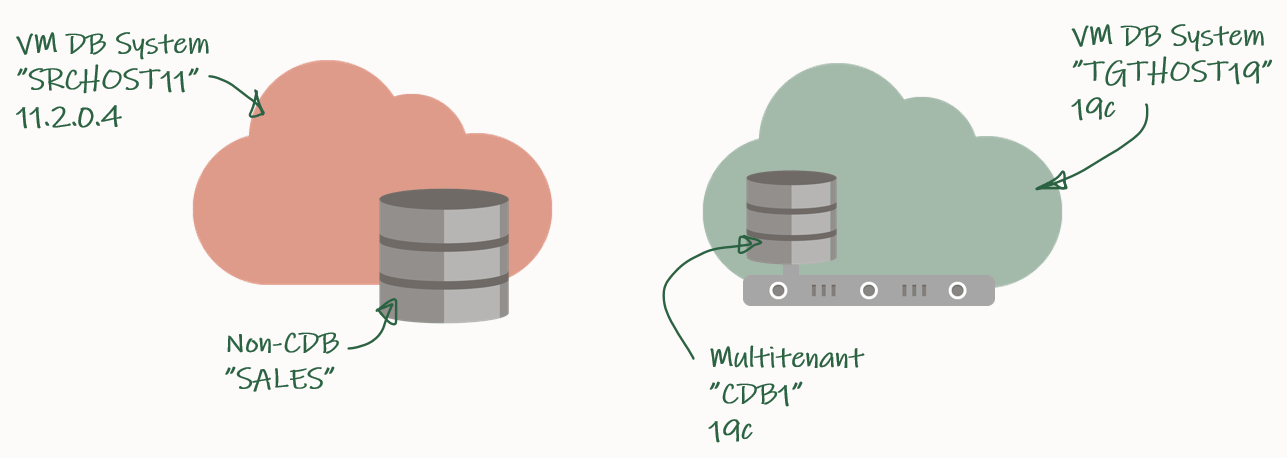
Overview of DB Systems and databases

My source environment is the red environment. The DB System is called SRCHOST11 and it has an 11.2.0.4 database that is called SALES. Due to the restrictions of the VM DB System I have to move the database to a new DB System in order to upgrade it. I have created a brand-new target environment – the green environment – on the release that I want to target. I have named the DB System TGTHOST19 and it has a multitenant database called CDB1. When I am done, the target environment – CDB1 – will also contain a PDB named SALES. The SALES PDB will be the original 11.2.0.4 database that has been upgraded and converted.

For a short period of time I need to spin up a second database instance on the target system. This second – or temporary – instance will be a duplicate of the source database (as non-CDB database) and I will upgrade it to the new release. Then I can plug in the database as a PDB in the precreated CDB database and get rid of the second/temporary instance. You will see how it works later in the blog post.

Backup Database

I need to exchange files between the source and the target systems, and I will use a File Storage service for that. Check out the documentation if you need help creating one – I created one already called upgsales and now I can mount it on my source system:

[opc@srchost11]$ sudo mkdir -p /mnt/upgsales
[opc@srchost11]$ sudo chmod 777 /mnt/upgsales/
[opc@srchost11]$ sudo mount x.x.x.x:/upgsales /mnt/upgsales

While the source database is still open and in use, I will start preparing the backup. First, the password file and wallet:

[oracle@srchost11]$ mkdir -p /mnt/upgsales/backup
[oracle@srchost11]$ cp /opt/oracle/dcs/commonstore/wallets/tde/$ORACLE_UNQNAME/ewallet.p12 /mnt/upgsales/
[oracle@srchost11]$ cp $ORACLE_HOME/dbs/orapw$ORACLE_SID /mnt/upgsales/orapw$ORACLE_SID

If you are really concerned about security, you can copy the wallet file directly to the target system – instead of via the File Storage service. The File Storage service itself is secured, but the fewer places you have a copy of the wallet – the better and the safer, I assume. Further, you can also encrypt traffic to and from the File Storage service.

Next, a PFile:

SALES SQL> CREATE PFILE='/mnt/upgsales/init.ora' FROM SPFILE;

And now I start a level 0 backup:

SALES RMAN> BACKUP INCREMENTAL LEVEL 0 DATABASE FORMAT '/mnt/upgsales/backup/lvl0%U' PLUS ARCHIVELOG FORMAT '/mnt/upgsales/backup/arch%U' ;
SALES RMAN> BACKUP CURRENT CONTROLFILE FORMAT '/mnt/upgsales/backup/controlfile';

Restore Database

On my target system, I need to access the File Storage service as well:

[opc@tgthost19]$ sudo mkdir -p /mnt/upgsales
[opc@tgthost19]$ sudo chmod 777 /mnt/upgsales/
[opc@tgthost19]$ sudo mount x.x.x.x:/upgsales /mnt/upgsales

Next, I will copy the password file and PFile into the target Oracle Home. I need that in order to start the temporary instance. Note, the name of the temporary instance will be SALES – the same as the source database SID:

[oracle@tgthost19]$ cp /mnt/upgsales/init.ora $ORACLE_HOME/dbs/initSALES.ora
[oracle@tgthost19]$ cp /mnt/upgsales/orapwSALES $ORACLE_HOME/dbs/orapwSALES

I also need to copy the wallet:

[oracle@tgthost19]$ mkdir -p /opt/oracle/dcs/commonstore/wallets/tde/SALES
[oracle@tgthost19]$ cp /mnt/upgsales/ewallet.p12 /opt/oracle/dcs/commonstore/wallets/tde/SALES/

And I need to create a directory for audit_file_dest:

[oracle@tgthost19]$ mkdir -p /u01/app/oracle/admin/SALES/adump

Now, I must edit the PFile:

[oracle@tgthost19]$ vi $ORACLE_HOME/dbs/initSALES.ora

And make the following changes:

  • Remove all the double-underscore parameters that contains the memory settings from last restart. That could for instance be SALES.__db_cache_size.
  • Set audit_file_dest=’/u01/app/oracle/admin/SALES/adump’
  • Set control_files=’+RECO/sales/controlfile/current.256.1048859635′
  • Set SALES.sga_target=6G
  • Set SALES.pga_aggregate_target=2G
  • Set db_unique_name=’SALES’

I don’t have an abundance of memory on this system, so I keep the memory settings. Strictly speaking you don’t have to change db_unique_name, but I am doing it so it will be easier to cleanup afterwards.

While I work on the temporary instance, I must shut down the other database – the pre-created one that eventually will hold the PDB. Most likely there is not enough memory on the system to support two databases:

[oracle@tgthost19]$ $ORACLE_HOME/bin/srvctl stop database -db $ORACLE_UNQNAME

Let’s start the temporary instance in NOMOUNT mode. Remember to set the environment:

[oracle@tgthost19]$ export ORACLE_UNQNAME=SALES
[oracle@tgthost19]$ export ORACLE_SID=SALES
[oracle@tgthost19]$ sql / as sysdba

SALES SQL> STARTUP NOMOUNT

And finally, I can start the restore using RMAN. Once the database is mounted I must open the keystore, otherwise, the database can’t perform recovery. Then, I can use the catalog command to find the backup pieces in my staging area. And finally, do the restore:

[oracle@tgthost19]$ rman target /

SALES RMAN> RESTORE CONTROLFILE FROM '/mnt/upgsales/backup/controlfile';
SALES RMAN> ALTER DATABASE MOUNT;
SALES RMAN> sql 'ADMINISTER KEY MANAGEMENT SET KEYSTORE OPEN FORCE KEYSTORE IDENTIFIED BY <SALES-keystore-password>';
SALES RMAN> sql "ADMINISTER KEY MANAGEMENT CREATE LOCAL AUTO_LOGIN KEYSTORE FROM KEYSTORE ''/opt/oracle/dcs/commonstore/wallets/tde/$ORACLE_UNQNAME/'' IDENTIFIED BY <SALES-keystore-password>";
SALES RMAN> CATALOG START WITH '/mnt/upgsales/backup' NOPROMPT;
SALES RMAN> RESTORE DATABASE;

The SALES database is now restored on my target system. I will leave it there – unrecovered and in MOUNT mode so I can apply incremental backups later on.

Incremental Backup/Recover

I can do as many incremental backup/recover cycles as I want. But what matters is that I make one and restore it – as close to the start of the downtime window as possible. This will significantly reduce the time it takes to make the final incremental backup/restore later on.

On my source database, start an incremental backup:

[oracle@srchost11]$ rman target /

SALES RMAN> BACKUP INCREMENTAL LEVEL 1 DATABASE FORMAT '/mnt/upgsales/backup/lvl1%U' PLUS ARCHIVELOG FORMAT '/mnt/upgsales/backup/arch%U';

Now, switch to the target system and recover using that backup. I use the CATALOG command to instruct RMAN to find new backups at the shared file storage.

[oracle@tgthost19]$ rman target /

RMAN SALES> CATALOG START WITH '/mnt/upgsales/backup' NOPROMPT;
RMAN SALES> RECOVER DATABASE;

RMAN will complain about a missing log file. But worry – this is expected and will be fixed later on:

RMAN-00571: ===========================================================
RMAN-00569: =============== ERROR MESSAGE STACK FOLLOWS ===============
RMAN-00571: ===========================================================
RMAN-03002: failure of recover command at 08/28/2020 09:06:51
RMAN-06054: media recovery requesting unknown archived log for thread 1 with sequence 60 and starting SCN of 793358

Down Time Starts

Now it is time to kick users off the database. Your precious downtime starts now.

Prepare Database For Upgrade

In my database I will create some sample data so I can verify the upgrade:

SALES SQL> CREATE USER UPG19 IDENTIFIED BY <secret-password>;
SALES SQL> ALTER USER UPG19 QUOTA UNLIMITED ON USERS;
SALES SQL> CREATE TABLE UPG19.ORDERS(ID NUMBER, CUSTOMER VARCHAR2(50), AMOUNT NUMBER) TABLESPACE USERS;
SALES SQL> INSERT INTO UPG19.ORDERS VALUES(1, 'John', 500);
SALES SQL> COMMIT;

I must prepare my database for upgrade on the source system. When I open the database on the target system, I can only do that in UPGRADE mode (because the database will be restored using 19c Oracle Home). In UPGRADE mode it is impossible to do the pre-upgrade tasks.

I will use the classic preupgrade.jar tool in this demo, but you could also use the newer AutoUpgrade. Always get the latest preupgrade tool from My Oracle Support. Upload the zip file (named preupgrade_19_cbuild_7_lf.zip in my demo) to the source system, extract to $ORACLE_HOME/rdbms/admin and do the pre-upgrade checks:

[oracle@srchost11]$ cp preupgrade_19_cbuild_7_lf.zip $ORACLE_HOME/rdbms/admin
[oracle@srchost11]$ cd $ORACLE_HOME/rdbms/admin
[oracle@srchost11]$ unzip preupgrade_19_cbuild_7_lf.zip

[oracle@srchost11]$ mkdir -p /mnt/upgsales/preupg_logs_SALES
[oracle@srchost11]$ cd /mnt/upgsales/preupg_logs_SALES
[oracle@srchost11]$ $ORACLE_HOME/jdk/bin/java -jar $ORACLE_HOME/rdbms/admin/preupgrade.jar FILE TEXT DIR .

You must upload the same version of the preupgrade tool to the target system before you can run the post-upgrade fixups. Hence, save the zip file so you don’t have to download it again.

Next, I will review the report generated by the tool:

[oracle@srchost11]$ more /mnt/upgsales/preupg_logs_SALES/preupgrade.log

And I can execute the pre-upgrade fixups:

SALES SQL> SET SERVEROUT ON
SALES SQL> @/mnt/upgsales/preupg_logs_SALES/preupgrade_fixups.sql

Final Incremental Backup/Recover

I can now make the last incremental backup on my source system. To be absolutely sure nothing else gets into the source database from now on, I restart the database in restricted mode:

[oracle@srchost11]$ sqlplus / as sysdba

SALES SQL> SHUTDOWN IMMEDIATE
SALES SQL> STARTUP RESTRICT

Then I use RMAN to archive the current log file and start the last backup:

[oracle@srchost11]$ rman target /

SALES RMAN> sql 'ALTER SYSTEM ARCHIVE LOG CURRENT';
SALES RMAN> BACKUP INCREMENTAL LEVEL 1 DATABASE FORMAT '/mnt/upgsales/backup/lvl1%U' PLUS ARCHIVELOG FORMAT '/mnt/upgsales/backup/arch%U';

Now, switch to the target system, catalog the new backups:

[oracle@tgthost19]$ rman target /

RMAN SALES> CATALOG START WITH '/mnt/upgsales/backup' NOPROMPT;

By default, RMAN will try to perform complete recovery. But I can’t do that because I don’t have the online redo logs. I must perform incomplete recovery. That sounds dangerous, but it is not. I archived the current log file after I had ensured that no one was using the system (I started in restricted mode, remember). To perform incomplete recovery, I must know at which sequence to stop. I will use the LIST command in RMAN to do that:

RMAN SALES> LIST BACKUP OF ARCHIVELOG ALL;
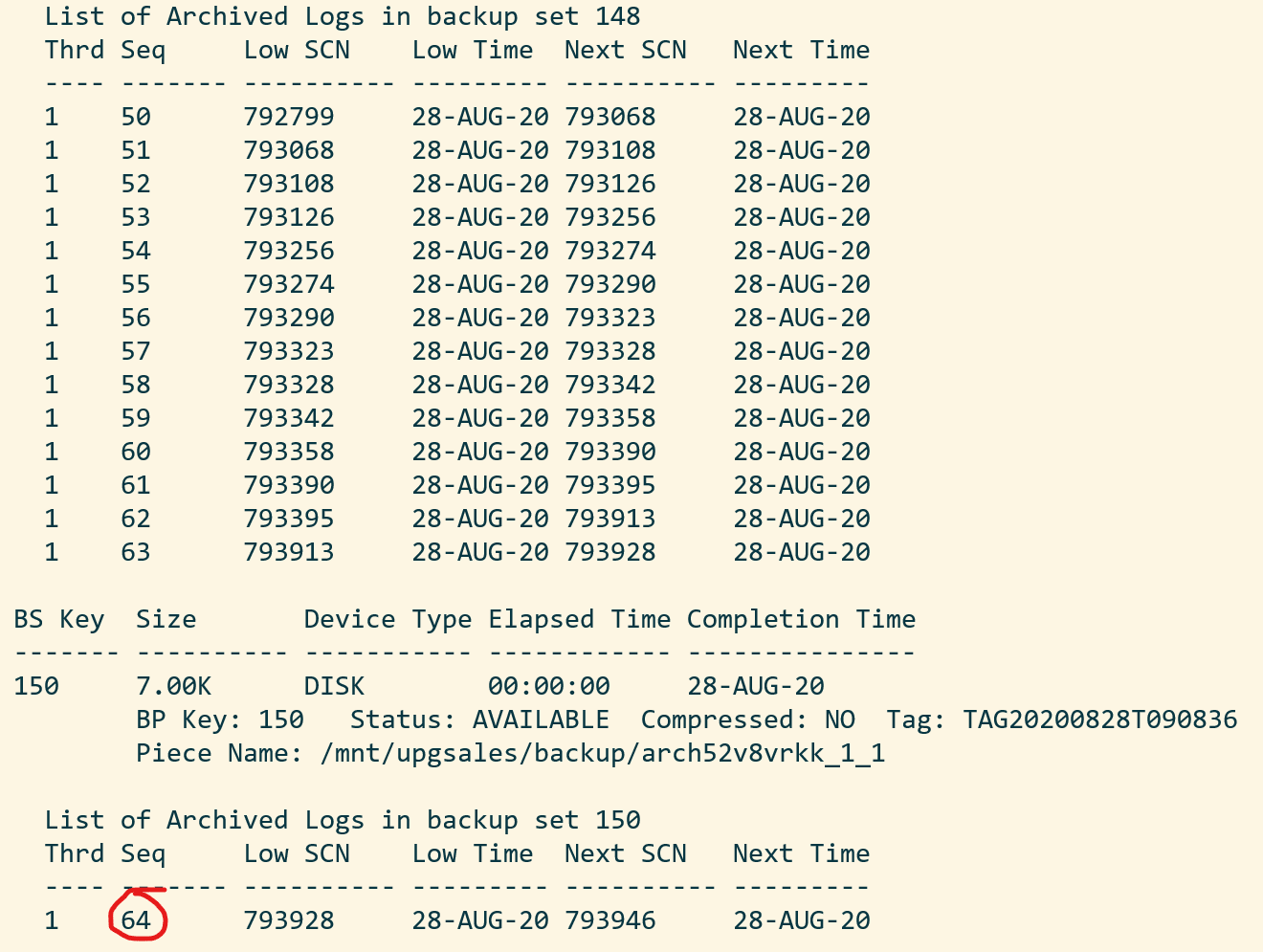
Sample output of RMAN command "list archivelog all" showing which sequence to restore until I take the last available sequence and add one. In my case, I will recover until sequence 65:

RMAN SALES> run {
   SET UNTIL SEQUENCE 65 THREAD 1;
   RECOVER DATABASE;
}

Finally, you can switch to SQLPlus and open the database. You could in theory also do that from RMAN but likely you will hit ORA-04023: Object SYS.STANDARD could not be validated or authorized:

[oracle@tgthost19]$ sqlplus / as sysdba

SALES SQL> ALTER DATABASE OPEN RESETLOGS UPGRADE;

Upgrade Database

I must upload the same version of the preupgrade tool to the target Oracle Home, before I can do the post-upgrade fixups:

[oracle@tgthost19]$ cp preupgrade_19_cbuild_7_lf.zip $ORACLE_HOME/rdbms/admin
[oracle@tgthost19]$ cd $ORACLE_HOME/rdbms/admin
[oracle@tgthost19]$ unzip preupgrade_19_cbuild_7_lf.zip

I can now upgrade the database. Ensure to use the same prompt that has the environment set to the SALES database – the temporary instance:

[oracle@tgthost19]$ mkdir -p /mnt/upgsales/upg_logs_SALES
[oracle@tgthost19]$ dbupgrade -l /mnt/upgsales/upg_logs_SALES

Once the upgrade completes, I will finish with the post-upgrade tasks

SQL> STARTUP

SQL> --Recompile
SQL> @$ORACLE_HOME/rdbms/admin/utlrp
SQL> --Check outcome of upgrade
SQL> @$ORACLE_HOME/rdbms/admin/utlusts.sql
SQL> --Post-upgrade fixups
SQL> @/mnt/upgsales/preupg_logs_$SOURCE_SID/postupgrade_fixups.sql
SQL> --Timezone file upgrade
SQL> SET SERVEROUTPUT ON
SQL> @$ORACLE_HOME/rdbms/admin/utltz_upg_check.sql
SQL> @$ORACLE_HOME/rdbms/admin/utltz_upg_apply.sql

Last, have a look in the report generated by preupgrade.jar to see if there are any post-upgrade tasks that you have to execute:

[oracle@tgthost19]$ more /mnt/upgsales/preupg_logs_SALES/preupgrade.log

Plug In Database

Now that the temporary database is upgraded let’s look at what we need to prepare for the conversion to a PDB. First, I will export the encryption keys:

SALES SQL> ADMINISTER KEY MANAGEMENT EXPORT ENCRYPTION KEYS WITH SECRET "<a-secret-password>" TO '/mnt/upgsales/key_export_SALES' FORCE KEYSTORE IDENTIFIED BY <SALES-keystore-password>;

And then I open the database in READ ONLY mode to create a manifest file. After that, I completely shut down the temporary database and, hopefully, it won’t be needed anymore:

SALES SQL> SHUTDOWN IMMEDIATE
SALES SQL> STARTUP MOUNT
SALES SQL> ALTER DATABASE OPEN READ ONLY;
SALES SQL> EXEC DBMS_PDB.DESCRIBE('/mnt/upgsales/manifest_sales.xml');
SALES SQL> SHUTDOWN IMMEDIATE

Now, I will restart CDB1 which I shut down previously. I will work in CDB1 for the rest of the blog post. Notice, how I am resetting my environment variables to the original values using the source command. You could also open a new SSH session instead. Anyway, just ensure that your environment is now set to work on the original database, CDB1:

[oracle@tgthost19]$ source ~/.bashrc
[oracle@tgthost19]$ env | grep ORA
[oracle@tgthost19]$ $ORACLE_HOME/bin/srvctl start database -db $ORACLE_UNQNAME

I check for plug in compatibility:

CDB1 SQL> SET SERVEROUT ON
CDB1 SQL> BEGIN 
    IF DBMS_PDB.CHECK_PLUG_COMPATIBILITY('/mnt/upgsales/manifest_sales.xml', 'SALES') THEN
        DBMS_OUTPUT.PUT_LINE('SUCCESS');
    ELSE
        DBMS_OUTPUT.PUT_LINE('ERROR');
    END IF;
END;
/

Hopefully, it should read out SUCCESS. If not, you can query PDB_PLUG_IN_VIOLATIONS to find out why:

CDB1 SQL> SELECT type, message, action FROM pdb_plug_in_violations WHERE name='SALES' and status='PENDING';

I can plug in the SALES database as a new PDB – which I also will call SALES. I am using the MOVE keyword to have my data files moved to a directory that matches the naming standard:

CDB1 SQL> CREATE PLUGGABLE DATABASE SALES USING '/mnt/upgsales/manifest_sales.xml' MOVE;
CDB1 SQL> ALTER PLUGGABLE DATABASE SALES OPEN;

I could also use the NOCOPY keyword and just use the data files from where they currently are placed. Later on, I could move the data files to a proper directory that follows the naming standard, and if I were on Enterprise Edition, I could even use online datafile move.

Next, I can switch to the SALES PDB and import my encryption keys from the file I made a little earlier. Note, that I must enter the secret that I used in the export. And now I have to enter the keystore password for CDB1:

CDB1 SQL> ALTER SESSION SET CONTAINER=SALES;
CDB1 SQL> ADMINISTER KEY MANAGEMENT IMPORT ENCRYPTION KEYS WITH SECRET "a-secret-password" FROM '/mnt/upgsales/key_export_SALES' FORCE KEYSTORE IDENTIFIED BY <CDB1-keystore-password> WITH BACKUP;

Be aware, that if your system tablespaces are encrypted, you might have to import the encryption key into CDB$ROOT as well before you can open the database.

Now, it is time to fully convert the database to a PDB:

CDB1 SQL> ALTER SESSION SET CONTAINER=SALES;
CDB1 SQL> @$ORACLE_HOME/rdbms/admin/noncdb_to_pdb.sql
CDB1 SQL> SHUTDOWN IMMEDIATE
CDB1 SQL> STARTUP

Now, check and resolve any plug-in violations:

CDB1 SQL> ALTER SESSION SET CONTAINER=CDB$ROOT;
CDB1 SQL> SELECT type, message, action FROM pdb_plug_in_violations WHERE name='SALES' and status='PENDING';

And finally, ensure that OPEN_MODE=READ WRITE and RESTRICTED=NO. When so, I can save the state of the PDB so it will auto-open whenever the CDB restarts:

CDB1 SQL> ALTER SESSION SET CONTAINER=CDB$ROOT;
CDB1 SQL> SELECT OPEN_MODE, RESTRICTED FROM V$PDBS WHERE NAME='SALES';
CDB1 SQL> ALTER PLUGGABLE DATABASE SALES SAVE STATE;

Verify that my test data exist:

CDB1 SQL> ALTER SESSION SET CONTAINER=SALES;
CDB1 SQL> SELECT * FROM UPG19.ORDERS;

That’s it. The database is now fully upgraded to 19c and converted to a PDB. Be sure to:

  • Start a backup
  • Test your application
  • Adjust your connection strings
  • And what else your procedure mandates

Wrap-Up

Let’s clean up on the target system! I can remove the files and folders that were created to support the temporary instance:

[oracle@tgthost19]$ #audit dest
[oracle@tgthost19]$ rm -rf /u01/app/oracle/admin/SALES/adump
[oracle@tgthost19]$ #diag dest
[oracle@tgthost19]$ rm -rf /u01/app/oracle/diag/rdbms/sales
[oracle@tgthost19]$ #wallet
[oracle@tgthost19]$ rm -rf /opt/oracle/dcs/commonstore/wallets/tde/SALES
[oracle@tgthost19]$ #instance files
[oracle@tgthost19]$ rm $ORACLE_HOME/dbs/initSALES.ora
[oracle@tgthost19]$ rm $ORACLE_HOME/dbs/orapwSALES
[oracle@tgthost19]$ rm $ORACLE_HOME/dbs/spfileSALES.ora
[oracle@tgthost19]$ rm $ORACLE_HOME/dbs/hc_SALES.dat
[oracle@tgthost19]$ rm $ORACLE_HOME/dbs/lkSALES
[oracle@tgthost19]$ #exported master key
[oracle@tgthost19]$ rm /mnt/upgsales/key_export_SALES

Also, since I stored data files in ASM I can delete those as well. Note you have to log on as grid to do that:

[grid@tgthost19]$ asmcmd rm -rf +DATA/SALES
[grid@tgthost19]$ asmcmd rm -rf +RECO/SALES

I can also drop the PDB that gets created automatically when you deploy the new DB System. In my case it is named CDB1_PDB1:

SQL> ALTER PLUGGABLE DATABASE CDB1_PDB1 CLOSE;
SQL> DROP PLUGGABLE DATABASE CDB1_PDB1 INCLUDING DATAFILES;

Also, I can remove the File Storage service that I created. If you want to keep log files from the upgrade (or other files) be sure to copy them somewhere else.

Last, when I am convinced that my upgraded and converted database is doing good, I can terminate the entire source DB system.

Tweaks

If you have a license for any of the Enterprise Edition offerings you might be able to use some of the below features to speed up and backup and recovery. Before using any of them be sure to check the license guide and confirm you have a proper license.

  • Block change tracking – reduces backup time because RMAN doesn’t need to scan the entire database.
  • Parallel backup and recovery – more channels, faster backups and faster restores.
  • Compression – reduces the size of the backups. Since you can apply incremental backups continuously the backup size should be fairly small anyway.

Disclaimer

I am not a backup expert (probably far from). When writing this post I was struggling a lot with missing archive logs. I even had to call an old mentor for advice. But in the end, I decided just to include them in all backups. Possibly, there is a die-hard-RMAN-expert out there that can tell me a better way of doing it. But for sure it doesn’t hurt to include them…

If you come up with a better way, please leave a comment. I would love to learn more.

Conclusion

You can upgrade a 11.2.0.4 database to 19c by moving the database to a new VM DB System. You can reduce downtime by using incremantal backups. You must convert the database to a pluggable database as well because multitenant is the only supported architecture for VM DB Systems on 19c.

References

Other Posts in This Series

Upgrading in the cloud – VM DB Systems – 11.2.0.4 to 19c (simple)

In this blog post I will show you how you can upgrade a database on 11.2.0.4 to 19c. It will also include conversion from the non-CDB architecture into a pluggable database. I have to do this because for VM DB Systems the only supported architecture for 19c is multitenant. Finally, I will use a Standard Edition database to show you something that can be used in any edition.

Overview of DB Systems and databases

My source environment is the red environment. The DB System is called SRCHOST11 and it has an 11.2.0.4 database that is called SALES. Due to the restrictions of the VM DB System I have to move the database to a new DB System in order to upgrade it. I have created a brand-new target environment – the green environment – on the release that I want to target. I have named the DB System TGTHOST19 and it has a multitenant database called CDB1. When I am done, the target environment – CDB1 – will also contain a PDB named SALES. The SALES PDB will be the original 11.2.0.4 database that has been upgraded and converted.

The aim of this blog post is to make it as easy as possible. When I have to move the database from the source DB System to the target DB System, I will just make a full backup that I can restore on the target environment. Obviously, this requires downtime and the amount depends on the size of the database and the transfer speed between the two DB Systems.

My highlevel plan for the task looks like this:

  • Prepare database for upgrade
  • Backup database
  • Restore database
  • Upgrade database
  • Plug in database
  • Wrap-Up

I will elaborate a little on the Restore database part. On VM DB Systems you are not allowed to create your own databases. You can only use the database that gets created when the system is provisioned. However, for a short period of time I need to spin up a second database instance on the target system. This second – or temporary – instance will be a duplicate of the source database (as non-CDB database) and I will upgrade it to the new release. Then I can plug in the database as a PDB in the precreated CDB database, and get rid of the second/temporary instance. You will see how it works later in the blog post.

Prepare Database For Upgrade

I need to exchange files between the source and the target systems and I will use a File Storage service for that. Check out the documentation if you need help creating one – I created one already called upgsales and now I can mount it on my source system:

[opc@srchost11]$ sudo mkdir -p /mnt/upgsales
[opc@srchost11]$ sudo chmod 777 /mnt/upgsales/
[opc@srchost11]$ sudo mount x.x.x.x:/upgsales /mnt/upgsales

In my database I will create some sample data so we can verify the upgrade:

SALES SQL> CREATE USER UPG19 IDENTIFIED BY <secret-password>;
SALES SQL> ALTER USER UPG19 QUOTA UNLIMITED ON USERS;
SALES SQL> CREATE TABLE UPG19.ORDERS(ID NUMBER, CUSTOMER VARCHAR2(50), AMOUNT NUMBER) TABLESPACE USERS;
SALES SQL> INSERT INTO UPG19.ORDERS VALUES(1, 'John', 500);
SALES SQL> COMMIT;

DOWN TIME STARTS NOW – get those users off!

I must prepare my database for upgrade on the source system. When I restore the database on the target system I can only open the database in UPGRADE mode (because the database will be restored using 19c Oracle Home). In UPGRADE mode it is impossible to do the pre-upgrade tasks.

I will use the classic preupgrade.jar tool in this demo, but you could also use the newer AutoUpgrade. Always get the latest preupgrade tool from My Oracle Support. Upload the zip file (named preupgrade_19_cbuild_7_lf.zip in my demo) to the source system, extract to $ORACLE_HOME/rdbms/admin and do the pre-upgrade checks:

[oracle@srchost11]$ cp preupgrade_19_cbuild_7_lf.zip $ORACLE_HOME/rdbms/admin
[oracle@srchost11]$ cd $ORACLE_HOME/rdbms/admin
[oracle@srchost11]$ unzip preupgrade_19_cbuild_7_lf.zip

[oracle@srchost11]$ mkdir -p /mnt/upgsales/preupg_logs_SALES
[oracle@srchost11]$ cd /mnt/upgsales/preupg_logs_SALES
[oracle@srchost11]$ $ORACLE_HOME/jdk/bin/java -jar $ORACLE_HOME/rdbms/admin/preupgrade.jar FILE TEXT DIR .

You must upload the same version of the preupgrade tool to the target system before you can run the post-upgrade fixups. Hence, save the zip file so you don’t have to download it again.

Next, I will review the report generated by the tool:

[oracle@srchost11]$ more /mnt/upgsales/preupg_logs_SALES/preupgrade.log

And I can execute the pre-upgrade fixups:

SALES SQL> SET SERVEROUT ON
SALES SQL> @/mnt/upgsales/preupg_logs_SALES/preupgrade_fixups.sql

Backup Database

The database is now prepared for upgrade. Next, I will get what I need to move the database. First, a PFile:

SALES SQL> CREATE PFILE='/mnt/upgsales/init.ora' FROM SPFILE;

Now I will shut down the database and restart in MOUNT mode. Then I can start a level 0 backup:

SALES SQL> SHUTDOWN IMMEDIATE
SALES SQL> STARTUP MOUNT
SALES SQL> EXIT

[oracle@srchost11]$ rman target /

SALES RMAN> BACKUP DATABASE FORMAT '/mnt/upgsales/db_%U';
SALES RMAN> BACKUP CURRENT CONTROLFILE FORMAT '/mnt/upgsales/cf_%U';

Now we just need the password file and wallet:

[oracle@srchost11]$ cp /opt/oracle/dcs/commonstore/wallets/tde/$ORACLE_UNQNAME/ewallet.p12 /mnt/upgsales/
[oracle@srchost11]$ cp $ORACLE_HOME/dbs/orapw$ORACLE_SID /mnt/upgsales/orapw$ORACLE_SID

If you are really concerned about security you can copy the wallet file directly to the target system – instead of via the File Storage service. The File Storage service itself is secured, but the fewer places you have a copy of the wallet – the better and the safer, I assume. Further, you can also encrypt traffic to and from the File Storage service.

Restore Database

On my target system, I need to access the File Storage service as well:

[opc@tgthost19]$ sudo mkdir -p /mnt/upgsales
[opc@tgthost19]$ sudo chmod 777 /mnt/upgsales/
[opc@tgthost19]$ sudo mount x.x.x.x:/upgsales /mnt/upgsales

Next, I will copy the password file and PFile into the target Oracle Home. I need that in order to start the temporary instance. Note, the name of the temporary instance will be SALES – the same as the source database SID:

[oracle@tgthost19]$ cp /mnt/upgsales/init.ora $ORACLE_HOME/dbs/initSALES.ora
[oracle@tgthost19]$ cp /mnt/upgsales/orapwSALES $ORACLE_HOME/dbs/orapwSALES

I also need to copy the wallet:

[oracle@tgthost19]$ mkdir -p /opt/oracle/dcs/commonstore/wallets/tde/SALES
[oracle@tgthost19]$ cp /mnt/upgsales/ewallet.p12 /opt/oracle/dcs/commonstore/wallets/tde/SALES/

And I need to create a directory for audit_file_dest:

[oracle@tgthost19]$ mkdir -p /u01/app/oracle/admin/SALES/adump

Now, I must edit the PFile:

[oracle@tgthost19]$ vi $ORACLE_HOME/dbs/initSALES.ora

And make the following changes:

  • Remove all the double-underscore parameters that contains the memory settings from last restart. That could for instance be SALES.__db_cache_size.
  • Set audit_file_dest=’/u01/app/oracle/admin/SALES/adump’
  • Set control_files=’+RECO/sales/controlfile/current.256.1048859635′
  • Set SALES.sga_target=6G
  • Set SALES.pga_aggregate_target=2G
  • Set db_unique_name=’SALES’

I don’t have an abundance of memory on this sytem, so I keep the memory settings. Strictly speaking you don’t have to change db_unique_name, but I am doing it so it will be easier to cleanup afterwards.

While I work on the temporary instance I must shut down the other database – the pre-created one that eventually will hold the PDB. Most likely there is not enough memory on the system to support two databases:

[oracle@tgthost19]$ sql / as sysdba

CDB1 SQL> SHUTDOWN IMMEDIATE

Let’s start the temporary instance in NOMOUNT mode. Remember to set the environment:

[oracle@tgthost19]$ export ORACLE_UNQNAME=SALES
[oracle@tgthost19]$ export ORACLE_SID=SALES
[oracle@tgthost19]$ sql / as sysdba

SALES SQL> STARTUP NOMOUNT

And finally, I can start the restore using RMAN. Notice how I am using the NOOPEN keyword which instructs RMAN to keep the database MOUNTED and not try to attempt to open the database. If you try to open the database it will fail because the database must be open in UPGRADE mode. At this point in time, the database itself is on 11.2.0.4 but running on 19c binaries:

[oracle@tgthost19]$ rman auxiliary /

SALES RMAN> DUPLICATE DATABASE TO SALES NOOPEN BACKUP LOCATION '/mnt/upgsales/';

Upgrade Database

RMAN left the database in MOUNTED mode. Before I can open the database I must open the keystore:

SQL> ADMINISTER KEY MANAGEMENT SET KEYSTORE OPEN FORCE KEYSTORE IDENTIFIED BY <source-keystore-password>;

Now, I can open the database and execute the RESETLOGS operation that RMAN didn’t do:

SQL> ALTER DATABASE OPEN RESETLOGS UPGRADE;

I must upload the same version of the preupgrade tool to the target Oracle Home, before I can do the post-upgrade fixups:

[oracle@tgthost19]$ cp preupgrade_19_cbuild_7_lf.zip $ORACLE_HOME/rdbms/admin
[oracle@tgthost19]$ cd $ORACLE_HOME/rdbms/admin
[oracle@tgthost19]$ unzip preupgrade_19_cbuild_7_lf.zip

And I can now upgrade the database:

[oracle@tgthost19]$ mkdir -p /mnt/upgsales/upg_logs_SALES
[oracle@tgthost19]$ dbupgrade -l /mnt/upgsales/upg_logs_SALES

Once the upgrade completes I will finish with the post-upgrade tasks

SQL> STARTUP

SQL> --Recompile
SQL> @$ORACLE_HOME/rdbms/admin/utlrp
SQL> --Check outcome of upgrade
SQL> @$ORACLE_HOME/rdbms/admin/utlusts.sql
SQL> --Post-upgrade fixups
SQL> @/mnt/upgsales/preupg_logs_$SOURCE_SID/postupgrade_fixups.sql
SQL> --Timezone file upgrade
SQL> SET SERVEROUTPUT ON
SQL> @$ORACLE_HOME/rdbms/admin/utltz_upg_check.sql
SQL> @$ORACLE_HOME/rdbms/admin/utltz_upg_apply.sql

Last, have a look in the report generated by preupgrade.jar to see if there are any post-upgrade tasks that you have to execute:

[oracle@tgthost19]$ more /mnt/upgsales/preupg_logs_SALES/preupgrade.log

Plug In Database

Now that the temporary database is upgraded let’s look at what we need to prepare for the conversion to a PDB. First, I will export the encryption keys:

SALES SQL> ADMINISTER KEY MANAGEMENT EXPORT ENCRYPTION KEYS WITH SECRET "<a-secret-password>" TO '/mnt/upgsales/key_export_SALES' FORCE KEYSTORE IDENTIFIED BY <SALES-keystore-password>;

And then I open the database in READ ONLY mode to create a manifest file. After that, I completely shutdown the temporary database and, hopefully, it wont be needed anymore:

SALES SQL> SHUTDOWN IMMEDIATE
SALES SQL> STARTUP MOUNT
SALES SQL> ALTER DATABASE OPEN READ ONLY;
SALES SQL> EXEC DBMS_PDB.DESCRIBE('/mnt/upgsales/manifest_sales.xml');
SALES SQL> SHUTDOWN IMMEDIATE

Now, I will restart CDB1 which I shut down previously. I will work in CDB1 for the rest of the blog post. Notice, how I am resetting my environment variables to the original values using the source command. You could also open a new SSH session instead. Anyway, just ensure that your environment is now set to work on the original database, CDB1:

[oracle@tgthost19]$ source ~/.bashrc
[oracle@tgthost19]$ env | grep ORA
[oracle@tgthost19]$ sql / as sysdba

CDB1 SQL> STARTUP

I check for plug in compability:

CDB1 SQL> SET SERVEROUT ON
CDB1 SQL> BEGIN 
    IF DBMS_PDB.CHECK_PLUG_COMPATIBILITY('/mnt/upgsales/manifest_sales.xml', 'SALES') THEN
        DBMS_OUTPUT.PUT_LINE('SUCCESS');
    ELSE
        DBMS_OUTPUT.PUT_LINE('ERROR');
    END IF;
END;
/

Hopefully, it should read out SUCCESS. If not, you can query PDB_PLUG_IN_VIOLATIONS to find out why:

CDB1 SQL> SELECT type, message, action FROM pdb_plug_in_violations WHERE name='SALES' and status='PENDING';

I can plugin the SALES database as a new PDB – which I also will call SALES. I am using the MOVE keyword to have my data files moved to a directory that matches the naming standard:

CDB1 SQL> CREATE PLUGGABLE DATABASE SALES USING '/mnt/upgsales/manifest_sales.xml' MOVE;
CDB1 SQL> ALTER PLUGGABLE DATABASE SALES OPEN;

I could also use the NOCOPY keyword and just use the data files from where they currently are placed. Later on, I could move the data files to a proper directory that follows the naming standard, and if I were on Enterprise Edition I could even use online datafile move.

Next, I can switch to the SALES PDB and import my encryption keys from the file I made a little earlier. Note, that I must enter the secret that I used in the export. And now I have to enter the keystore password for CDB1:

CDB1 SQL> ALTER SESSION SET CONTAINER=SALES;
CDB1 SQL> ADMINISTER KEY MANAGEMENT IMPORT ENCRYPTION KEYS WITH SECRET "a-secret-password" FROM '/mnt/upgsales/key_export_SALES' FORCE KEYSTORE IDENTIFIED BY <CDB1-keystore-password> WITH BACKUP;

Be aware, that if your system tablespaces are encrypted, you might have to import the encryption key into CDB$ROOT as well before you can open the database.

Now, it is time to fully convert the database into a PDB:

CDB1 SQL> ALTER SESSION SET CONTAINER=SALES;
CDB1 SQL> @$ORACLE_HOME/rdbms/admin/noncdb_to_pdb.sql
CDB1 SQL> SHUTDOWN IMMEDIATE
CDB1 SQL> STARTUP

Now, check and resolve any plug in violations:

CDB1 SQL> ALTER SESSION SET CONTAINER=CDB$ROOT;
CDB1 SQL> SELECT type, message, action FROM pdb_plug_in_violations WHERE name='SALES' and status='PENDING';

And finally, ensure that OPEN_MODE=READ WRITE and RESTRICTED=NO. When so, I can save the state of the PDB so it will auto-open whenever the CDB restarts:

CDB1 SQL> ALTER SESSION SET CONTAINER=CDB$ROOT;
CDB1 SQL> SELECT OPEN_MODE, RESTRICTED FROM V$PDBS WHERE NAME='SALES';
CDB1 SQL> ALTER PLUGGABLE DATABASE SALES SAVE STATE;

That’s it. The database is now fully upgraded to 19c and converted to a PDB. Be sure to:

  • Start a backup
  • Test your application
  • Adjust your connection strings
  • And what else your procedure mandates

Wrap-Up

Let’s clean up on the target system! I can remove the files and folders that were created to support the temporary instance:

[oracle@tgthost19]$ #audit dest
[oracle@tgthost19]$ rm -rf /u01/app/oracle/admin/SALES/adump
[oracle@tgthost19]$ #diag dest
[oracle@tgthost19]$ rm -rf /u01/app/oracle/diag/rdbms/sales
[oracle@tgthost19]$ #wallet
[oracle@tgthost19]$ rm -rf /opt/oracle/dcs/commonstore/wallets/tde/SALES
[oracle@tgthost19]$ #instance files
[oracle@tgthost19]$ rm $ORACLE_HOME/dbs/initSALES.ora
[oracle@tgthost19]$ rm $ORACLE_HOME/dbs/orapwSALES
[oracle@tgthost19]$ rm $ORACLE_HOME/dbs/spfileSALES.ora
[oracle@tgthost19]$ rm $ORACLE_HOME/dbs/hc_SALES.dat
[oracle@tgthost19]$ rm $ORACLE_HOME/dbs/lkSALES
[oracle@tgthost19]$ #exported master key
[oracle@tgthost19]$ rm /mnt/upgsales/key_export_SALES

Also, since I stored data files in ASM I can delete those as well. Note you have to log on as grid to do that:

[grid@tgthost19]$ asmcmd rm -rf +DATA/SALES
[grid@tgthost19]$ asmcmd rm -rf +RECO/SALES

I can also drop the PDB that gets created automatically when you deploy the new DB System. In my case it is named CDB1_PDB1:

SQL> ALTER PLUGGABLE DATABASE CDB1_PDB1 CLOSE;
SQL> DROP PLUGGABLE DATABASE CDB1_PDB1 INCLUDING DATAFILES;

Also, I can remove the File Storage service that I created. If you want to keep log files from the upgrade (or other files) be sure to copy them somewhere else.

Last, when I am convinced that my upgraded and converted database is doing good, I can terminate the entire source DB system.

Tweaks

The transfer speed to the File Storage service is depending on the number of CPUs on your system (more CPUs, more network speed). If the bottleneck is the network, you can try to temporarily add more CPUs.

If you have a license for any of the Enterprise Edition offerings you might be able to use some of the below features to speed up and backup and recovery. Before using any of them be sure to check the license guide and confirm you have a proper license.

  • Parallel backup and recovery – more channels, faster backups and faster restores.
  • Compression – reduces the size of the backups which is beneficial when they are transported over the network.

Conclusion

You can upgrade a 11.2.0.4 database to 19c by moving the database to a new VM DB System. You must convert the database to a pluggable database as well because multitenant is the only supported architecture for VM DB Systems on 19c.

References

Other Posts in This Series

Upgrading in the cloud – VM DB Systems – Transfer Speed

Actually, this blog post doesn’t have anything to do with upgrades – and yet it does. I will be talking about how fast you can transfer data from one VM DB System to another. How does that relate to upgrading? In some situations, it will have a direct impact on the downtime needed to upgrade a VM DB System. Allow me to explain.

For now – when you need to upgrade a VM DB System you have to provision a brand-new system, move the database and then upgrade. The move part is where the transfer speed comes into play. Whether you are transferring a cold copy of the database or doing RMAN backups you will eventually end up with a bottleneck in terms of getting the data from one system to the other. Other more elegant approaches (like having a standby on the new system) can’t be used because of the limitations of VM DB Systems. You are – for instance – not allowed to install any other Oracle Homes on a system than the one that comes when the system is provisioned.

Now back to transfer speed. There are four factors that comes into play:

  • How fast can the source system read the data from disk
  • How fast can the source system send the data over the network
  • How fast can the target system receive the data from the network
  • How fast can the target system write the data to disk

That now boils down to two things:

  • I/O throughput
  • Network speed

I/O Throughput

A VM DB System uses block storage that is allocated when the system is created. The speed of the storage depends on the amount of storage you provision. The more storage, the faster disks.

Storage (GB) Throughput MB/s
256 120
512 240
1024 480
2048 960
4096 1280
6144 1280
8192 1280
10240 1600
12288 1920
14336 2240
16384 2560
18432 2880
20480 3200

You can scale up on storage and get more throughput but be aware that you can’t scale down. Once you have allocated storage there is no way to get rid of it again. So, it is not really suitable for a one-time operation. The good news is that storage scales online so there is no need for downtime to make changes.

But block storage is network attached. So even if the storage is really, you must still have network capacity to send it.

Network Speed

The network speed of your VM DB System depends on the number of OCPUs that you allocate. The more OCPUs, the more network speed.

Shape Throughput MB/s
VM.Standard.2.1 128
VM.Standard.2.2 256
VM.Standard.2.4 512
VM.Standard.2.8 1024
VM.Standard.2.16 2048
VM.Standard.2.24 3200

You can scale up and scale down a VM DB System. So if you need more network throughput for a period of time, you can just scale up. You only need $$$ and downtime. I did some wristwatch measurements and it takes roughly 10 minutes to do a scale operation (either up or down).

Conclusion

If you want to increase the transfer speed between two VM DB Systems, you have two options:

  • Add more OCPUs
  • Add more storage

Adding OCPUs is easy and can be reverted once there is no longer a need for the increased throughput. Storage however can only scale up. Obviously, you have to consider the limits of both the sending system as well as the receiving system.

If you end up in a situation where downtime matters to you and you need to move data between two VM DB Systems, you can increase transfer speeds by scaling up.

But since the storage is network attached, you need twice as much network bandwidth as I/O throughput. The VM must use network bandwidth on receiving the data from the remote host, and again to send the data to the storage system. If you are using ASM with redundancy, you need even more network bandwidth.

I recommend that you test the throughput in your specific system to know the limits, and prove the numbers.

Other Posts in This Series

Zero Downtime Migration – The Pro Tips

Here are my pro tips. It is a little mix and match of all my notes that didn’t make it into the previous blog posts but are still too good to go.

Pro Tip 1: Log Files

If something goes south where can you find the log files? On the ZDM service host:

  • $ZDM_BASE/chkbase/scheduled
  • $ZDM_BASE/crsdata/<hostname>/rhp

On the source and target hosts you can also find additional log files containing all the commands that are executed by ZDM:

  • $ORACLE_BASE/zdm/zdm_<db_unique_name>_<zdm_job_id>/zdm/log

Other sources:

  • Alert log
  • Data Pump process trace file DM00

Data Pump log file

  • Directory referenced by directory object
  • $ORACLE_HOME/rdbms/log/<PDB GUID>

Pro Tip 2: Troubleshooting

When you are troubleshooting it is sometimes useful to get rid of all the log files and have ZDM start all over. Some of the log files get really big and are a hard to read, so I usually stop the ZDM service, delete all the log files, and restart ZDM and my troubleshooting. But only do this if there are no other jobs running than the one you are troubleshooting:

[zdmuser@zdmhost]$ $ZDM_HOME/bin/zdmservice stop
[zdmuser@zdmhost]$ rm $ZDM_BASE/crsdata/*/rhp/rhpserver.log*
[zdmuser@zdmhost]$ rm $ZDM_BASE/chkbase/scheduled/*
[zdmuser@zdmhost]$ $ZDM_HOME/bin/zdmservice start

There are also several chapters on troubleshooting:

Pro Tip 3: Aborting A Job

Sometimes it is useful to completely restart a migration. If a database migration is already registered in ZDM, you are not allowed to specify another migration job. First, you have to abort the existing job, before you can enter a new migration job.

[zdmuser@zdmhost]$ $ZDM_HOME/bin/zdmcli abort job -jobid n

Now, you can use zdmcli migrate database command again.

Pro Tip 4: Show All Phases

A ZDM migration is split into phases, and you can have ZDM pause after each of the phases. The documentation has a list of all phases but you can also get it directly from the ZDM tool itself for a specific migration job:

[zdmuser@zdmhost]$ $ZDM_HOME/bin/zdmcli migrate database \
   -rsp ~/migrate.rsp
   ... \
   ... \
   ... \
   -listphases

Pro Tip 5: Adding Custom Scripts

You can add your own custom scripts to run before or after a phase in the migration job. You can use the -listphases command (described above) to get a list of all the phases. Then decide whether your script should run before or after that phase. This is called an action plug-in. You can bundle those together in a template to make it easier to re-use. If this is something you need, you should dive into the documentation.

If you target an Autonomous Database, you are not allowed to execute scripts on the target database host. Instead, you can .sql scripts.

The environment in which the script starts has some environment variables that you can use, like:

  • Database (ZDM_SRCDB)
  • Oracle Home (ZDM_SRCDBHOME)
  • ZDM Phase (RHP_PHASE)

Pro Tip 6: GoldenGate Health Check

You can use the healthcheck script on the source and target databases – where the extract and replicat process is running. It will give you invaluable information for your troubleshooting experience and it is a good idea to run and attach a health check if you need to contact My Oracle Support. It is like an AWR report but with information specific to Oracle GoldenGate replication.

Generate report by:

  • Installing objects in database: ogghc_install.sql
  • Execute health check: ogghc_run.sql
  • Optionally, clean-up objects: ogghc_uninstall.sql

For GoldenGate MicroServices Architecture find the scripts on the GoldenGate hub:

  • /u01/app/ogg/oraclenn/lib/sql/healthcheck

And run the scripts in source and target database.

Pro Tip 7: Convert From Single Instance To RAC

A useful feature of ZDM is that it can convert a single instance database to a RAC database in OCI. And it is super simple to do that. The only thing you have to do is to create the target placeholder database as a RAC database. ZDM will detect that and take care of the rest.

Finally, let me mention that if the source database is RAC One Node or RAC, then the target database must be a RAC database. Be sure to create the target placeholder database as RAC.

Pro Tip 8: Get Data Pump Log File in Autonomous Database

When you are importing into Autonomous Database, the Data Pump log file is stored in the directory DATA_PUMP_DIR. But in Autonomous Database you don’t have access to the underlying file system, so how do you get the log file? One approach is to upload the log file into Object Storage.

  1. ZDM will create a set of credentials as part of the migration workflow. Find the name of the credentials (or create new ones using DBMS_CLOUD):
select owner, credential_name, username, enabled from dba_credentials;
  1. Find the name of the Data Pump log file:
select * from dbms_cloud.list_files('DATA_PUMP_DIR');
  1. Upload it. If you need help generating the URI, check the documentation:
begin
    DBMS_CLOUD.PUT_OBJECT (
       credential_name => '<your credential>',
       object_uri      => 'https://objectstorage.<region>.oraclecloud.com/n/<namespace>/b/<bucket>/',
       directory_name  => 'DATA_PUMP_DIR',
       file_name       => '<file name>');
end;
/
  1. Your OCI Console to download the Data Pump log file.

Other Blog Posts in This Series

Zero Downtime Migration – Install And Configure ZDM

To use Zero Downtime Migration (ZDM) I must install a Zero Downtime Migration service host. It is the piece of software that will control the entire process of migrating my database into Oracle Cloud Infrastructure (OCI). This post describes the process for ZDM version 21. The requirements are:

  • Must be running Oracle Linux 7 or newer.
  • 100 GB disk space according to the documentation. I could do with way less – basically there should be a few GBs for the binaries and then space for configuration and log files.
  • SSH access (port 22) to each of the database hosts.
  • Recommended to install it on a separate server (although technically possible to use one of the database hosts).

Create and configure server

In my example, I will install the ZDM service host on a compute instance in OCI. There are no requirements to CPU nor memory and ZDM is only acting as a coordinator – all the work is done by the database hosts – so I can use the smallest compute shape available. I was inspired to use OCI CLI after reading a blog post by Michał. I will use that approach to create the compute instance. But I could just as well use the web interface or REST APIs.

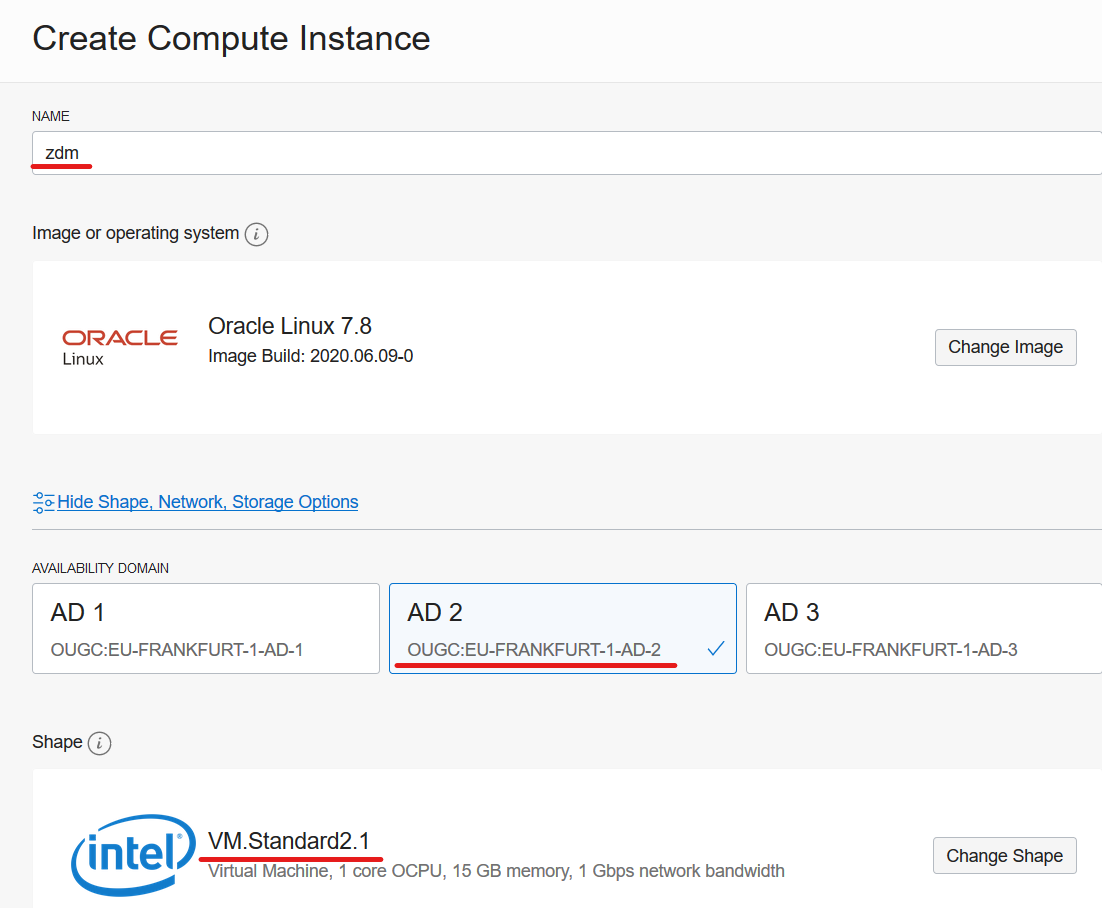
First, I will define a few variables that you have to change to your needs. DISPLAYNAME is the hostname of my compute instance – and also the name I see in the OCI webpage. AVAILDOM is the availability domain into which the compute instance is created. SHAPE is the compute shape:

DISPLAYNAME=zdm
AVAILDOM=OUGC:EU-FRANKFURT-1-AD-1
SHAPE=VM.Standard2.1

When I create a compute instance using the webpage these are the values: Screenshot of OCI webpage where display name, availability domain and shape are shown

In addition, I will define the OCID of my compartment, and also the OCID of the subnet that I will use. I am making sure to select a subnet that I can reach via SSH from my own computer. Last, I have the public key file:

COMPARTMENTID="..."
SUBNETID="..."
PUBKEYFILE="/path/to/key-file.pub"

Because I want to use the latest Oracle Linux 7 image I will query for the OCID of that and store it in a variable:

IMAGEID=`oci compute image list \
   --compartment-id $COMPARTMENTID \
   --operating-system "Oracle Linux" \
   --sort-by TIMECREATED \
   --query "data[?contains(\"display-name\", 'GPU')==\\\`false\\\` && contains(\"display-name\", 'Oracle-Linux-7')==\\\`true\\\`].{DisplayName:\"display-name\", OCID:\"id\"} | [0]" \
   | grep OCID \
   | awk -F'[\"|\"]' '{print $4}'`

And now I can create the compute instance:

oci compute instance launch \
 --compartment-id $COMPARTMENTID \
 --display-name $DISPLAYNAME \
 --availability-domain $AVAILDOM \
 --subnet-id $SUBNETID \
 --image-id $IMAGEID \
 --shape $SHAPE \
 --ssh-authorized-keys-file $PUBKEYFILE \
 --wait-for-state RUNNING

The command will wait until the compute instance is up and running because I used the wait-for-state RUNNING option. Now, I can get the public IP address so I can connect to the instance:

VMID=`oci compute instance list \
  --compartment-id $COMPARTMENTID \
  --display-name $DISPLAYNAME \
  --lifecycle-state RUNNING \
  | grep \"id\" \
  | awk -F'[\"|\"]' '{print $4}'`
oci compute instance list-vnics \
 --instance-id $VMID \
 | grep public-ip \
 | awk -F'[\"|\"]' '{print $4}'

Prepare Host

The installation process is described in the documentation which you should visit to get the latest changes. Log on to the ZDM service host and install required packages (python36 is needed for OCI CLI):

[root@zdm]$ yum -y install \
  glibc-devel \
  expect \
  unzip \
  libaio \
  kernel-uek-devel-$(uname -r) \
  python36

Create a group (ZDM) and user (ZDMUSER). This is only needed on the ZDM Service Host. You don’t need this user on the database hosts:

[root@zdm]$ groupadd zdm ; useradd -g zdm zdmuser

Make it possible to SSH to the box as zdmuser. I will just reuse the SSH keys from opc:

[root@zdm]$ cp -r /home/opc/.ssh /home/zdmuser/.ssh ; chown -R zdmuser:zdm /home/zdmuser/.ssh

Create directory for Oracle software and change permissions:

[root@zdm]$ mkdir /u01 ; chown zdmuser:zdm /u01

Edit hosts file, and ensure name resolution work to the source host (srchost) and target hosts (tgthost):

[root@zdm]$ echo -e "[ip address] srchost" >> /etc/hosts
[root@zdm]$ echo -e "[ip address] tgthost" >> /etc/hosts

Install And Configure ZDM

Now, to install ZDM I will log on as zdmuser and set the environment in my .bashrc file:

[zdmuser@zdm]$ echo "INVENTORY_LOCATION=/u01/app/oraInventory; export INVENTORY_LOCATION" >> ~/.bashrc
[zdmuser@zdm]$ echo "ORACLE_BASE=/u01/app/oracle; export ORACLE_BASE" >> ~/.bashrc
[zdmuser@zdm]$ echo "ZDM_BASE=\$ORACLE_BASE; export ZDM_BASE" >> ~/.bashrc
[zdmuser@zdm]$ echo "ZDM_HOME=\$ZDM_BASE/zdm21; export ZDM_HOME" >> ~/.bashrc
[zdmuser@zdm]$ echo "ZDM_INSTALL_LOC=/u01/zdm21-inst; export ZDM_INSTALL_LOC" >> ~/.bashrc
[zdmuser@zdm]$ source ~/.bashrc

Create directories

[zdmuser@zdm]$ mkdir -p $ORACLE_BASE $ZDM_BASE $ZDM_HOME $ZDM_INSTALL_LOC

Next, download the ZDM software into $ZDM_INSTALL_LOC.

Once downloaded, start the installation:

[zdmuser@zdm]$ ./zdminstall.sh setup \
  oraclehome=$ZDM_HOME \
  oraclebase=$ZDM_BASE \
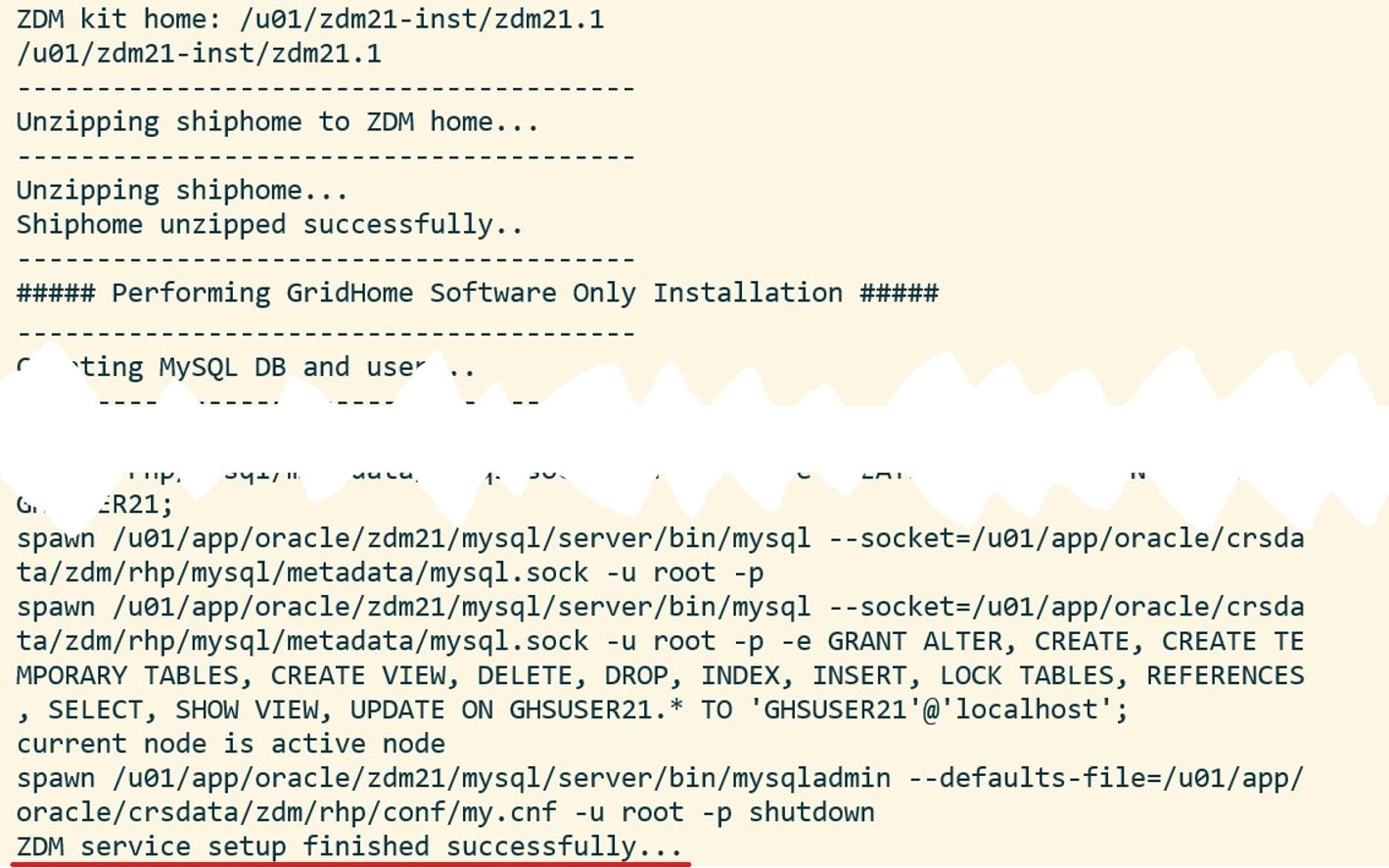
  ziploc=./zdm_home.zip -zdm

And it should look something similar to this: Screenshot of a successful ZDM installation

Start the ZDM service:

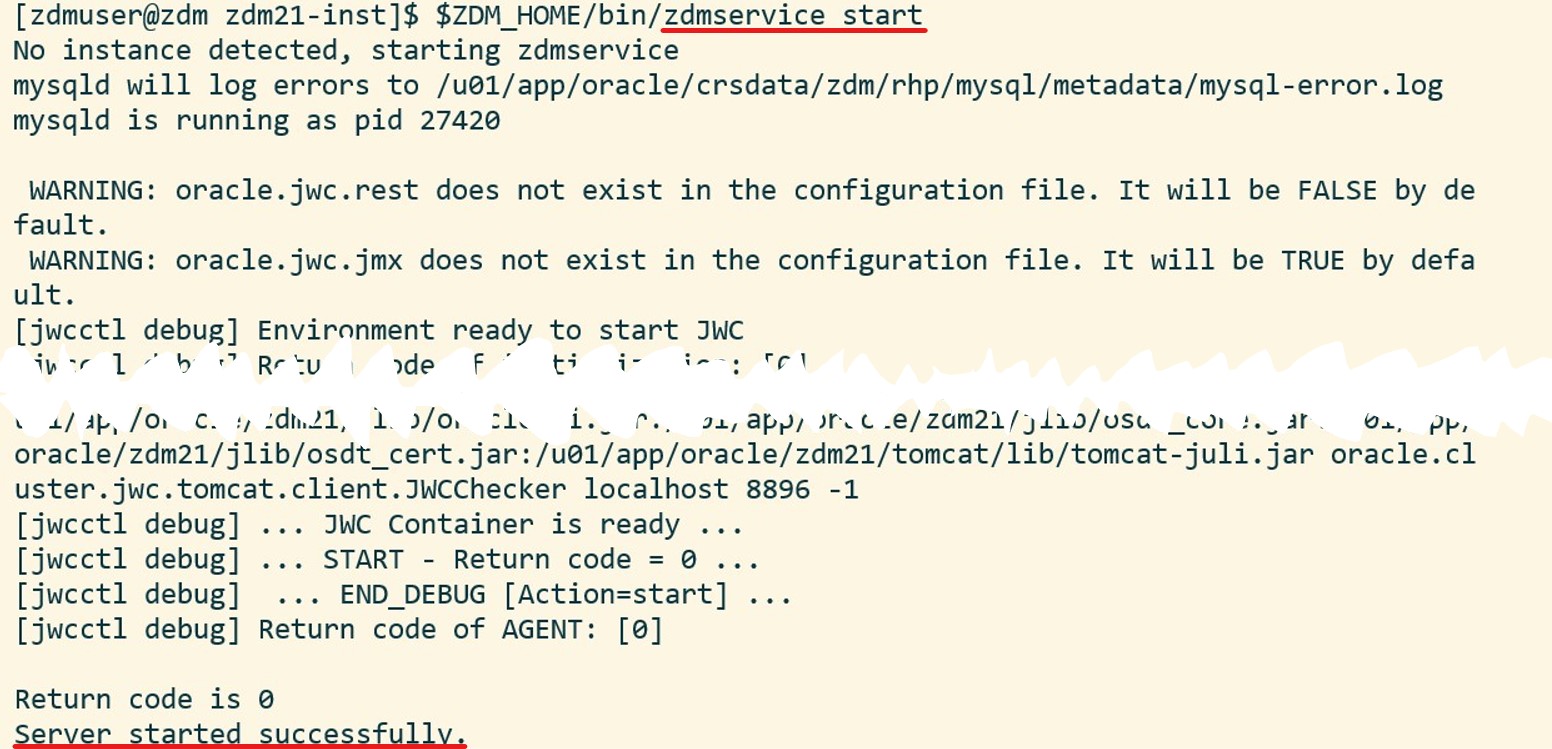
[zdmuser@zdm]$ $ZDM_HOME/bin/zdmservice start

Which should produce something like this: Sample output when starting ZDM service (jwcctl debug jwc) And, optionally, I can verify the status of the ZDM service:

[zdmuser@zdm]$ $ZDM_HOME/bin/zdmservice status

The ZDM service is running

Install OCI CLI

You might need OCI CLI as part of the migration. It is simple to install, so I always do it:

bash -c "$(curl -L https://raw.githubusercontent.com/oracle/oci-cli/master/scripts/install/install.sh)"
oci setup config

You find further instructions here.

Configure Network Connectivity

The ZDM service host must communicate with the source and target hosts via SSH. For that purpose I need private key files to each of the hosts. The private key files must be without a passphrase, in RSA/PEM format and I have to put them at /home/zdmuser/.ssh/[host name]. In my demo, the files are to be named:

  • /home/zdmuser/.ssh/srchost
  • /home/zdmuser/.ssh/tgthost

Ensure that only zdmuser can read them:

[zdmuser@zdm]$ chmod 400 /home/zdmuser/.ssh/srchost
[zdmuser@zdm]$ chmod 400 /home/zdmuser/.ssh/tgthost

Now, I will verify the connection. In my example I will connect to opc on both database hosts, but you can change it if you like:

[zdmuser@zdm]$ ssh -i /home/zdmuser/.ssh/srchost opc@srchost
[zdmuser@zdm]$ ssh -i /home/zdmuser/.ssh/tgthost opc@tgthost

If you get an error when connecting ensure the following:

  • The public key is added to /home/opc/.ssh/authorized_keys on both database hosts (change opc if you are connecting as another user)
  • The key files are in RSA/PEM format (the private key file should start with -----BEGIN RSA PRIVATE KEY-----)
  • The key files are without a passphrase

That’s It

Now, I have a working ZDM service host. I am ready to start the migration process.

It is probably also a good idea to find a way to start the ZDM service automatically, if the server restarts.

There is also a community marketplace image that comes with ZDM already installed. You can read about it here; evaluate it and see if it is something for you.

Other Blog Posts in This Series

Zero Downtime Migration

When you need to migrate into OCI we have a cool – and free – tool that you can use: Zero Downtime Migration (ZDM).

You can use Zero Downtime Migration to easily migrate to Oracle Cloud Infrastructure - OCI

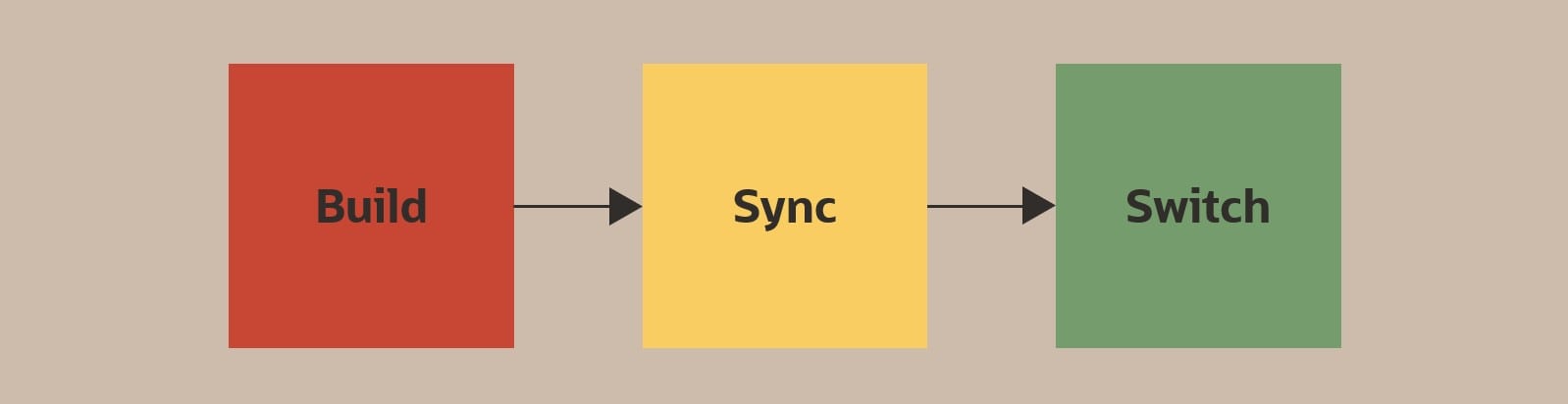
In short: ZDM builds a copy of your database in OCI. It keeps the OCI database in sync with the on-prem database until you are ready to complete the migration. Then connections are simply switched over to the OCI database. ZDM will take care of all the steps and ensure nothing is lost in the process.

In this blog post series, I will take you through the entire process using version 21 (the latest at time of writing). In the end you will know all there is to know – and you can start migrating your databases into OCI.

Source Database

Your source database can be located:

  • On-prem
  • OCI Classic (you know, our old cloud)
  • OCI (the new cloud, useful when you want to migrate between regions or locations or between system types)

Requirements:

  • The source database must be running 11.2.0.4 or newer
  • Source platform must be Linux

Options

You can migrate your database in two ways – each of them in an online and offline manner:

  • Physical Online – The entire database is migrated by restoring a backup of the database and instantiate that as a standby database. The standby database is kept in sync with redo apply. It is online because the only downtime needed is to perform a regular switchover.
  • Physical Offline – The entire database is migrated by restoring a backup of the database. It is offline because there is downtime while the backup is created, transferred and restored in OCI.
  • Logical Online – One or more schemas are migrated using Data Pump. In addition, Oracle GoldenGate is used to keep the OCI database in sync to avoid downtime. It is online because the only downtime needed is to switch over the users to the new database.
  • Logical Offline – Like the online option but without Oracle GoldenGate on top. It is offline because the database is unavailable during the export and import operation.

Free? Easy?

I know what you think right now. First, you say it is a free tool, and now you mention Oracle GoldenGate. We don’t have a license for Oracle GoldenGate. Possibly, you are also thinking that Oracle GoldenGate is complex. Let me address that:

Free

If you migrate your database into OCI (currently ExaCC and Exadata on-prem is excluded), you can use Oracle GoldenGate (for migration purposes only) without paying a separate license – provided you use the OCI Marketplace image. It says:

Oracle GoldenGate for Oracle – Database Migrations can be used for 183 days to perform migrations into Oracle databases located in Oracle Cloud Infrastructure using the following tools:

  • Oracle Zero Downtime Migration
  • Oracle Cloud Infrastructure Database Migration

So no license for Oracle GoldenGate to handle the migration. You still have to pay for the underlying compute instance – but no license.

Complex

To install Oracle GoldenGate simply follow the wizard to deploy your installation. It is basically just click-click-click. Afterwards, you need to configure the extract and replicat process, but ZDM takes care of that for you. If all goes well, you won’t even have to log into the Oracle GoldenGate Hub.

Yes, Oracle GoldenGate is a complex product, but for this purpose you should not worry. I promise you. It is super easy.

Comparison

Physical Online Physical Offline Logical Online Logical Offline
TARGET PLATFORMS
ATP-D x x
ATP-S x x
ADW-D x x
ADW-S x x
ExaCS x x x x
ExaCC x x x x
Exadata (on-prem) x x x x
Bare Metal DBCS x x x x
Virtual Machine DBCS x x x x
RELEASE AND EDITIONS
SE2 x x x
EE x x x x
Migrate from SE2 to EE x x
Migrate to same version x x x x
Migrate to same version, higher patch level x x x x
Migrate to higher version (see note 1) x x
ARCHITECTURE
Non-CDB x x x x
CDB (see note 2) x x x x
Migrate into PDB – no extra downtime x x
Migrate into PDB – with extra downtime (see note 3) x x
Single instance x x x x
RAC One Node (see note 4) x x x x
RAC x x x x
Migrate from single instance to RAC x x x x
Migrate from RAC to single instance x x
ENCRYPTION
Unencrypted (see note 5) x x x x
Encrypted x x x x
Encrypt data-in-transit during migration (see note 6) x x x x

Note 1: When doing physical migrations, you can’t migrate directly into a higher release. However, you are free to upgrade the database afterwards. But that will incur additional downtime.

Note 2: When migrating databases using the physical option all PDBs are migrated. If you use the logical approach, you migrate each PDB individually and you can choose which you want.

Note 3: When you migrate databases using the physical option, you can optionally convert the database into a PDB afterwards. However, that will incur additional downtime while the noncdb_to_pdb.sql script is executed.

Note 4: RAC One Node are always migrated into RAC.

Note 5: All databases must be encrypted in OCI. An unencrypted database is always encrypted when it is created in OCI.

Note 6: A combination of techniques are in play here (dump file encryption, SQL*Net encryption, HTTPS, SSH/rsync) and it depends a lot of how you choose to carry out the migration. As an example, when doing a physical online migration if the source database is not encrypted, it will be encrypted on-the-fly once they are created in OCI. The initial backup of the source database is sent over an encrypted connection to OCI Object Storage, and redo are transferred over encrypted SQL*Net.

Network Connectivity

  • The ZDM service host needs SSH access (22) to the source database. Unless the target database is an Autonomous Database then it also needs SSH access to the target database host.
  • If you plan on using OCI Object Storage as a staging area, the source database needs access to OCI Object Storage over HTTPS (443). Unless the target database is an Autonomous Database, the same applies to the target database host.
  • SQL*Net connection (1521) are needed between the two databases hosts.
  • If you will be using Oracle GoldenGate as well, you need SQL*Net connection (1521) from the GoldenGate Hub and to the source and target database. In addition, you need HTTPS (443) from the ZDM service host to the GoldenGate Hub.

And then there are all the special cases with proxy and Bastion host which I will not cover here.

References

In case you want to read more here are some useful links:

Other Blog Posts in This Series

This is the introduction blog post in this series. Over the next days the other blog posts will follow. Stay tuned!

Upgrading in the cloud – VM DB Systems – What about downgrade?

In a previous blog post I showed how you could upgrade a 12.2 PDB by plugging it into a 19c CDB. But what about downgrade? Yeah, downgrade. You know, that really cool feature that you never practice, but you know you should.

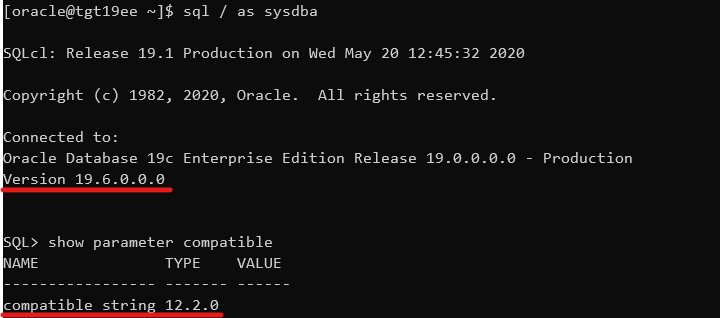
In the previous blog post, I used the CDB that gets automatically created when you deploy a new 19c VM DB System and it comes with COMPATIBLE set to 19.0.0 – the default. When you provision a new VM DB System there is no way to control that parameter. Thus, when I plug in my old release PDB into the new release CDB the COMPATIBLE parameter is automatically raised, and I have lost the possibility of doing a downgrade. The only option to get back to the old release would be a Data Pump export.

If you want to preserve the possibility of doing a database downgrade, I strongly recommend you switch to Bare Metal DB Systems or ExaCS which are much more flexible. But if you insist on using VM DB Systems there is an option – it is cumbersome – but doable. And believe it or not – after working with Oracle Database for so many years it was the first time ever that I had to a downgrade – not even in a lab or a test environment (which became fairly obvious after I had asked for advice the 100th time that day).

Drop pre-created 19c database

To get a 19c CDB with a non-default COMPATIBLE setting we will drop the pre-created database and replace it with a backup that has the proper COMPATIBLE setting. This is supported and the same approach is used in the whitepaper “Hybrid Data Guard to Oracle Cloud Infrastructure”. It is a good read and it has a lot of script examples that I stole… oh… got inspired by.

Connect to the new release VM DB System and ensure that the environment variable ORACLE_UNQNAME is set to the DB_UNIQUE_NAME of the database:

echo $ORACLE_UNQNAME

If it is not set, you can get it from srvctl:

srvctl config database
export ORACLE_UNQNAME=...

Generate a script that can delete all data -, temp -, redo log – and control files:

SET HEADING OFF LINESIZE 999 PAGESIZE 999 FEEDBACK OFF TRIMSPOOL ON TIMING OFF
SPOOL /tmp/db_replace_files.lst
SELECT 'asmcmd rm '|| name FROM V$DATAFILE UNION ALL SELECT 'asmcmd rm '|| name FROM V$TEMPFILE UNION ALL SELECT 'asmcmd rm '|| member FROM V$LOGFILE UNION ALL SELECT 'asmcmd rm '|| name FROM V$CONTROLFILE;
SPOOL OFF
host chmod 777 /tmp/db_replace_files.lst

You must edit the script and get rid of the unneeded lines. Next, stop the database:

srvctl stop database -d $ORACLE_UNQNAME -o immediate

And log on as grid and delete the files using the script we just created:

. /tmp/db_replace_files.lst

As oracle, now restart the database instance in NOMOUNT mode (can’t really go further since we nuked the control files) and set the COMPATIBLE to the same setting as the old release CDB.

srvctl start database -db $ORACLE_UNQNAME -o NOMOUNT

sql / as sysdba
SQL> ALTER SYSTEM SET COMPATIBLE='12.2.0' SCOPE=SPFILE;
SQL> CREATE PFILE FROM SPFILE;

srvctl stop database -db $ORACLE_UNQNAME -o immediate
srvctl start database -db $ORACLE_UNQNAME -o nomount

sql / as sysdba
SQL> SHOW PARAMETER COMPATIBLE

Now we have a new release instance running with the old COMPATIBLE setting. Obviously, it is of no use – yet. Starting a 19c instance with a lower compatible setting

Create a backup of old release CDB

I will use the old release CDB as the source for my new release CDB and thus preserve my COMPATIBLE setting. Obviously, the old release CDB must be upgraded to the new release, so let us first must ensure that the source CDB can actually be upgraded. Use AutoUpgrade in ANALYZE and FIXUPS mode which is described in a previous blog post. We must execute the ANALYZE and FIXUPS mode on the source system because the target system will only be able to open the database in UPGRADE mode, and these steps must be executed while the database is running in normal mode.

Next, I will create a File Storage Service that I can use to share files between the two VM DB Systems. The File Storage Service is really nice because the transfer speed in and out of the service depends on the network bandwidth of your VM DB System. So, if you add more CPUs to the system, you get more network bandwidth to the service automatically. It is really easy to create a File Storage Service and it is very well documented, so I will skip that part here. After that you can mount the file system in your systems (as opc):

sudo mkdir -p /mnt/db-downgrade-122
sudo mount x.x.x.x:/db-downgrade-122 /mnt/db-downgrade-122
sudo chmod 777 /mnt/db-downgrade-122

I can now take a backup of the CDB and store it directly in my NFS mount point:

rman target / 

RMAN> BACKUP DATABASE ROOT FORMAT '/mnt/db-downgrade-122/cdbroot_%U' PLUGGABLE DATABASE 'PDB$SEED' FORMAT '/mnt/db-downgrade-122/pdbseed_%U' PLUS ARCHIVELOG FORMAT '/mnt/db-downgrade-122/arch_%U';
RMAN> BACKUP CURRENT CONTROLFILE FORMAT '/mnt/db-downgrade-122/cf_%U';

Since the database is encrypted, we also need a copy of the keystore (or wallet). An easy solution could be to put the keystore files into the File Storage Service but a safer approach is to transfer the file directly using scp. Although, the keystore is protected by a password, it is still safer to keep them separated.

At time of writing, in OCI you can find the location of the keystore in sqlnet.ora.

cat $ORACLE_HOME/network/admin/sqlnet.ora | grep -i encryption_wallet

But that will change at some point in time because as of Oracle Database release 19c the sqlnet.ora parameter ENCRYPTION_WALLET_LOCATION is deprecated. You might have to look at the database parameter WALLET_ROOT instead.

For now, just note down the location of the keystore.

Restore old release CDB and upgrade

Now we can restore the backup of the 12.2 database using the 19c binaries. This is supported and in fact newer releases of RMAN can always restore lower release backups. However, normally RMAN will try to open the database in normal mode which we can’t do because of the version mismatch. I will use the NOOPEN keyword which causes RMAN to leave the database in MOUNT mode and I can manually open the database with RESETLOGS and in UPGRADE mode.

But first we must copy the keystore files from the source database to the new release DB System. In my example I am also copying the auto-login keystore which you shouldn’t do if you are using local auto-login keystores. In that situation the auto-login keystore should be re-created at the new release system:

cd 
scp -i  oracle@:/cwallet.sso cwallet.sso
scp -i  oracle@:/ewallet.p12 ewallet.p12

Now let’s do the restore and open the database in upgrade mode:

rman auxiliary /

RMAN> DUPLICATE DATABASE TO CDB1 AS ENCRYPTED NOOPEN SKIP PLUGGABLE DATABASE SALES BACKUP LOCATION '/mnt/db-downgrade-122/';

And in the end, you can see that RMAN does not open the database: Using the NOPEN keyword you can prevent RMAN from opening a database at the end of the restore and recover operation

Then, you can open the database in UPGRADE mode and with RESETLOGS option to complete the restore. Also, drop the skipped pluggable databases from the data dictionary:

ALTER DATABASE OPEN RESETLOGS UPGRADE;
DROP PLUGGABLE DATABASE SALES INCLUDING DATAFILES;

Finally, you can use AutoUpgrade in UPGRADE mode to upgrade the CDB to the new release. You now have a new target system running on 19c but with a lower COMPATIBLE setting.

If you want to know more about the UPGRADE mode, have a look in the documentation.

Downgrading a PDB

Previously, we have laid the groundworks for the being able to do a downgrade. For the following, I am assuming that you have already upgraded your PDB to 19c and now you ended up in a big doo doo and have to downgrade.

Downgrading in VM DB Systems are also slightly more complicated than on other systems. Remember that VM DB Systems does only support one Oracle Home (the one that comes deployed automatically) and that means that we must move the database back to the source system. For that operation we can’t use data guard, RMAN, or any other fancy approach because they only work to the same or newer release. So, we will have to do an old-school cold copy of the database – and that requires additional downtime. But let’s get started!

I will create a file that gives me all the commands I need to copy the data files out of ASM and into my File Storage Service (you could also scp them directly to the old release system):

SET HEADING OFF LINESIZE 999 PAGESIZE 999 FEEDBACK OFF TRIMSPOOL ON TIMING OFF
SPOOL /tmp/db_downgrade_files.lst
SELECT 'asmcmd cp ' || name || ' ''/mnt/dbbackupstaging' || SUBSTR(name, INSTR(name, '/', -1 )) || '''' FROM V$DATAFILE
UNION
SELECT 'chown oracle:oinstall /mnt/dbbackupstaging' || SUBSTR(name, INSTR(name, '/', -1 )) FROM V$DATAFILE ORDER BY 1;
SPOOL OFF

And then I can proceed with the actual downgrade. I need to ensure that the unified audit trail is emptied before the downgrade:

ALTER PLUGGABLE DATABASE SALES CLOSE;
ALTER PLUGGABLE DATABASE SALES OPEN DOWNGRADE;
EXEC DBMS_AUDIT_MGMT.CLEAN_AUDIT_TRAIL(DBMS_AUDIT_MGMT.AUDIT_TRAIL_UNIFIED, FALSE);
SPOOL /tmp/db_downgrade.lst
SET TERMOUT ON TIMING ON SERVEROUT ON ECHO ON
@?/rdbms/admin/catdwgrd.sql
SPOOL OFF

Unplug the PDB and because the PDB is encrypted I have to specify a password that can protect the sensitive information inside the manifest file:

ALTER SESSION SET CONTAINER=CDB$ROOT;
ALTER PLUGGABLE DATABASE SALES CLOSE;
ALTER PLUGGABLE DATABASE SALES UNPLUG INTO '/mnt/db-downgrade-122/manifest_sales.xml' ENCRYPT USING [a-secret-password];

Now we can copy the data files from the local storage and on to the File Storage Service so we can use at the source system. Use the commands that we generated previously:

asmcmd ...
chown ...

Now switching to the old release system and create the PDB from manifest file. I will use the data files right off the File Storage Service and optionally I can move them afterwards – as an online operation (you might not want to do that, but I ran out of disk space):

CREATE PLUGGABLE DATABASE SALES USING '/mnt/db-downgrade-122/manifest_sales.xml' SOURCE_FILE_DIRECTORY='/mnt/db-downgrade-122' NOCOPY KEYSTORE IDENTIFIED BY [keystore-password] DECRYPT USING [a-secret-password];

Start up the database in UPGRADE mode and open the keystore:

ALTER PLUGGABLE DATABASE SALES OPEN UPGRADE;
ADMINISTER KEY MANAGEMENT SET KEYSTORE CLOSE CONTAINER=all;
ADMINISTER KEY MANAGEMENT SET KEYSTORE OPEN IDENTIFIED BY [keystore-password] CONTAINER=all;

Switch to the SALES PDB and complete the downgrade:

ALTER SESSION SET CONTAINER=SALES;
SET TERMOUT ON ECHO ON TIMING ON
SPOOL /home/oracle/sales_catreload.log
@?/rdbms/admin/catrelod.sql
SPOOL OFF

Restart, Recompile and fresh stats:

ALTER PLUGGABLE DATABASE SALES CLOSE IMMEDIATE;
ALTER PLUGGABLE DATABASE SALES OPEN;
@?/rdbms/admin/utlrp.sql
EXEC DBMS_STATS.GATHER_DICTIONARY_STATS;
EXEC DBMS_STATS.GATHER_FIXED_OBJECT_STATS;

Check the state of the Oracle Data Dictionary

SET SQLFORMAT ANSICONSOLE LINES 300
SELECT COMP_ID, COMP_NAME, VERSION, STATUS FROM DBA_REGISTRY ORDER BY MODIFIED;

And there you have it. Not exactly super easy, which is why I highly recommend you to look at Bare Metal DB Systems or Exadata DB Systems if you are required to be able to do downgrades (or be prepared to use Data Pump instead).

Other Posts in This Series

Upgrading in the cloud – VM DB Systems – 12.2.0.1 PDB to 19c

In this blog post I will show you how to upgrade a 12.2.0.1 PDB to 19c when it is running in a VM DB System. I have a PDB called SALES and it is running Standard Edition 2 (yes, this procedure works for Standard Edition 2 as well). In a previous blog post I went over the restrictions that apply to VM DB System and having those in mind I can create a high-level plan for the upgrade:

  1. Check plug-in compatibility in the new release CDB
  2. Use AutoUpgrade to analyze the PDB
  3. Create a refreshable PDB on the new system
  4. Downtime starts
  5. Use AutoUpgrade to execute pre-upgrade fixups
  6. Refresh the new PDB
  7. Upgrade the new PDB
  8. Test and wrap-up

The refreshable PDB feature was introduced with in Oracle Database release 12.2 so you can’t use this procedure for lower versions. Your source database must be at least on release 12.2. If not, you must clone the entire database in traditional manner, which will be discussed in a later blog post.

Check plug-in compatibility of the PDB in the new release CDB

I will start by checking whether my PDB can be plugged into the new release CDB. You should describe the PDB to generate a manifest file:

EXEC DBMS_PDB.DESCRIBE('/home/oracle/sales.xml', 'SALES');

Transfer the XML file to the target system and check plug-in compatibility. Instead of transferring the file between the two systems you can also use the File Storage Service to create a shared file system that can be accessed via a NFS client.

BEGIN 
    IF DBMS_PDB.CHECK_PLUG_COMPATIBILITY('/home/oracle/sales.xml', 'SALES') THEN
        DBMS_OUTPUT.PUT_LINE('SUCCESS');
    ELSE
        DBMS_OUTPUT.PUT_LINE('ERROR');
    END IF;
END;
/

Look at the result:

SELECT type, message, action FROM pdb_plug_in_violations WHERE name='SALES' and status='PENDING';

As expected, I do see some plug-in violations: Drag Racing Obviously, there is a difference in database release and patch level. The database upgrade will take care of those issues. Also, you get a warning about COMPATIBLE being different. This is expected and the COMPATIBLE setting will be automatically changed once we plug the PDB into the new release CDB. The underscore parameters are added automatically when you create a VM DB System in OCI and they are there for a good reason. RECYCLEBIN is on in my new release CDB – I can live with that, and finally I have unencrypted tablespaces. For this test it is not critical, but it should never be so in a real database. Remember, for a plug-in operation to complete (i.e. you can open the PDB in READ WRITE mode and RESTRICTED=NO) there must not be any errors. Warnings are accepted but should be ideally be fixed as well.

Use AutoUpgrade to analyze the PDB

I need to create a config file for AutoUpgrade, and I will give it a better name:

cd
java -jar $ORACLE_HOME/rdbms/admin/autoupgrade.jar -create_sample_file config
mv sample_config.cfg upg19_sales.cfg

Edit the config file. See here for description of the parameters. Note that we can’t specify a target_home because it is not present, instead you must specify the target_version. Also, I specify that only one of the PDBs should be analyzed using pdbs parameter. AutoUpgrade will always check CDB$ROOT and PDB$SEED regardless of pdbs setting. This is by design. I ended up with this config file:

global.autoupg_log_dir=/home/oracle/upg_logs

upg1.dbname=CDB1
upg1.start_time=NOW
upg1.source_home=/u01/app/oracle/product/12.2.0.1/dbhome_1
upg1.sid=CDB1
upg1.log_dir=/home/oracle/upg_logs
upg1.target_version=19
upg1.pdbs=SALES

Now, analyze the database:

java -jar $ORACLE_HOME/rdbms/admin/autoupgrade.jar -config ~/upg19_sales.cfg -mode analyze

Check the analyze result. You can disregard the checks from containers CDB$ROOT, PDB$SEED and all other PDBs than SALES. Also, only look at the issues where STAGE=PRECHECKS and fixup_available=NO:

more ~/upg_logs/$ORACLE_SID/100/prechecks/*preupgrade.log

In OCI I receive a warning from the check TDE_IN_USE. It is expected and you don’t have to do anything. The newly provisioned target system is properly configured. Also, OCI itself has a habit of setting a lot of underscore parameters. Just let them be.

Create a refreshable PDB on the new system

While I wait for downtime to start, I will create a refreshable PDB. I need to copy the PDB to the target system and to avoid doing that during downtime, I will use the refreshable PDB feature. When I refresh it, it will only need to apply the recent-most changes from the source PDB which is much faster than a full clone, obviously. I need a common user in the source CDB that can be used by the database link over which the cloning will take place:

CREATE USER c##clone_user IDENTIFIED BY FOObar11## CONTAINER=ALL;
GRANT CREATE SESSION, CREATE PLUGGABLE DATABASE TO c##clone_user CONTAINER=ALL; 

In the target CDB, create a database link that points to the source CDB:

CREATE DATABASE LINK clone_link CONNECT TO c##clone_user IDENTIFIED BY FOObar11## USING '10.0.1.45/ CDB1_fra1jf.sub02121342350.daniel.oraclevcn.com';

Check that it works

SELECT count(*) FROM all_objects@clone_link;

If you get ORA-02085 execute

ALTER SESSION SET GLOBAL_NAMES=FALSE;

Let’s create the refreshable PDB. I will set it to REFRESH MODE MANUAL but you could also configure it to refresh automatically at regular intervals, e.g. every 10 minutes, using REFRESH MODE EVERY 10 MINUTES clause. The keystore password is needed for security reasons. It is the same password as you specified for SYS when you created the system (parameter –admin-password):

CREATE PLUGGABLE DATABASE SALES FROM SALES@CLONE_LINK
PARALLEL 4
REFRESH MODE MANUAL
KEYSTORE IDENTIFIED BY "...";

If you get this error:

CREATE PLUGGABLE DATABASE SALES FROM SALES@CLONE_LINK
 *
ERROR at line 1:
ORA-19505: failed to identify file "+DATA/CDB1_FRA1JF/A4EBB0BCBC427D8FE0532D01000A9AEC/DATAFILE/users.275.1039631039"
ORA-15173: entry 'CDB1_FRA1JF' does not exist in directory '/'

You are missing patch 29469563. Now – sit back and relax and wait for down time to start. You can periodically refresh the PDB to further minimize the final refresh time:

ALTER PLUGGABLE DATABASE SALES REFRESH;

Downtime starts

Now it is time to kick users off. Drain the database of connections – or actually just drain the PDB – and prevent users from accessing the database.

Use AutoUpgrade to execute pre-upgrade fixups

Now we can run the preupgrade fixups to prepare the database for upgrade. I will re-use the config file I created earlier, but change the processing mode to fixups:

java -jar $ORACLE_HOME/rdbms/admin/autoupgrade.jar -config ~/upg19_sales.cfg -mode fixups

You should re-check the analyze log file to ensure that no new issues are reported. Note how the path has changed because of a new AutoUpgrade jobid. It increments by one on each run:

more ~/upg_logs/$ORACLE_SID/101/prechecks/*preupgrade.log

Refresh the new PDB

I suggest that you create a tracking table. This way you can ensure that you have all the latest changes in the new PDB:

ALTER SESSION SET CONTAINER=SALES;
CREATE USER UPG_TRACKING IDENTIFIED BY FOObar11##;
ALTER USER UPG_TRACKING QUOTA UNLIMITED ON USERS;
CREATE TABLE UPG_TRACKING.SUCCESS (C1 NUMBER);
INSERT INTO UPG_TRACKING.SUCCESS VALUES (42);
COMMIT;

Shut down the PDB to ensure no one logs on accidentally:

ALTER PLUGGABLE DATABASE SALES CLOSE IMMEDIATE;

And do the final refresh:

ALTER PLUGGABLE DATABASE SALES REFRESH;

Upgrade the new PDB

Now we are done at the source system. We have made the final refresh and all my data are transferred to the new PDB; it is time to convert the refreshable PDB into a regular PDB and open it in upgrade mode:

ALTER PLUGGABLE DATABASE SALES REFRESH MODE NONE;
ALTER PLUGGABLE DATABASE SALES OPEN UPGRADE;

I will double check that all my changes are in my new PDB:

ALTER SESSION SET CONTAINER=SALES;
SELECT * FROM UPG_TRACKING.SUCCESS;

Right now, you can’t use AutoUpgrade for unplug/plug upgrades when source and target CDB are not on the same host, so we will do it the old fashion way (which is nice as it refreshes your skills). I have four CPUs in my system and I only need to upgrade this PDB so let’s ensure that all CPUs are allocated to the upgrade – that’s the option -N 4.

mkdir -p ~/upg_logs/SALES
dbupgrade -c SALES -l ~/upg_logs/SALES -N 4

But it also reminds you how nice AutoUpgrade is. It does so many things automatically. I will only do the essential things. For a real-life upgrade you should consult the upgrade guide to get the full procedure.

Open PDB and set it to auto-start:

ALTER PLUGGABLE DATABASE SALES OPEN;
ALTER PLUGGABLE DATABASE SALES SAVE STATE;

Recompile objects:

ALTER SESSION SET CONTAINER=SALES;
@$ORACLE_HOME/rdbms/admin/utlrp

Check the upgrade with post-upgrade status tool

@$ORACLE_HOME/rdbms/admin/utlusts.sql SALES

Check the state of the Oracle Data Dictionary. If you get an error from the SET command, you are probably using SQLPlus. You should try out SQLcl. It is so much nicer.

SET SQLFORMAT ANSICONSOLE LINES 300
SELECT COMP_ID, COMP_NAME, VERSION, STATUS FROM DBA_REGISTRY ORDER BY MODIFIED;

Because we ran the analyze on the source system, there is no post-upgrade fixups available, and I didn’t use AutoUpgrade for the actual upgrade (which would have figured it out automatically). You need to look in the pre-upgrade analyze log file on the source system. Again, I will only need to look at the issues from SALES PDB:

more ~/upg_logs/$ORACLE_SID/101/prechecks/*preupgrade.log

You could also look in the HTML files that is placed in the same directory, if you need something more readable and a better description of the issues. Otherwise, have a look at the My Oracle Support document “Database Preupgrade tool check list. (Doc ID 2380601.1)”. Even though is says that there is a fixup available you must do it manually. In my case it was:

  • Dictionary stats
  • Fixed object stats
  • Time zone file upgrade

So, let’s do it:

EXEC DBMS_STATS.GATHER_DICTIONARY_STATS;
EXEC DBMS_STATS.GATHER_FIXED_OBJECT_STATS;

And finally upgrade the time zone file:

SET SERVEROUTPUT ON
@$ORACLE_HOME/rdbms/admin/utltz_upg_check.sql
@$ORACLE_HOME/rdbms/admin/utltz_upg_apply.sql

Clean up the tracking user and database link:

DROP USER UPG_TRACKING CASCADE;
ALTER SESSION SET CONTAINER=CDB$ROOT;
DROP DATABASE LINK clone_link;

Since we have moved the database to a new host, you must update your connect strings and tnsadmin files to point to the new server and service name.

Test and wrap-up

Now it is also time to let in the application testers, start a level 0 backup and what else is on your runbook. Finally, I can now delete the source VM DB System:

oci db system terminate --db-system-id "..."

That should be it. Should something happen during the upgrade it is really easy to make a fallback. Just re-open the source PDB and you are back in business. Speaking of fallback one thing that you must keep in mind is that once you plug in your PDB to a higher release CDB the COMPATIBLE parameter is automatically raised – no questions asked. And that does prevent you from making a database downgrade, if it should be necessary. If you need to go back to the previous release you must use Data Pump and do a regular export/import.

Other Posts in This Series