Performance Stability after Upgrade and Migration

Yesterday I gave a talk to the Danish Oracle User Group. The topic was Performance stability after upgrade and migration and included something about statistics, a lot about SQL Plan Management and a few recommendations for parameters in Oracle Database 19c.

Danish Oracle User Group

If you are interested you can download the slides and have a look yourself. The talk itself was not recorded.

You Want More?

The content I presented is part of a revamped webinar that Roy, Mike and I are giving on Thursday, 4 March 2021 at 19:00 CET. We call it

Performance Stability, Tips, Tricks & Underscores

> The third webinar the series addresses performance stability, tips, tricks and underscores. Participants learn how to perform proactive testing before upgrading to Oracle Database19c. > >Topics that will be covered during this session: > >* Testing Principles >* Ensure Performance Stability >* SQL Plan Management >* Real Application Testing >* Tips, Tricks & Underscores to get the best out of Oracle Database 19c

It is all tech – no buzzwords and marketing. We have to keep it within two hours, but I think that we already have way too much content. I assure you it will be action packed.

If that sounds interesting, sign up and I will see you next Thursday. It will be so much fun.

Otherwise, you can find the recording a few days after. In addition, most of the content will also be cut into bite-size pieces and uploaded to our YouTube channel – why not subscribe?

Links

Upgrade Internals – Webinar

Here is a little teaser for our upcoming webinar on Database Upgrade Internals – and so much more on Wednesday 10 February 2021 at 10:00 CET. You can still sign up.

Virtual Classroom Series - Upgrade to Oracle Database 19c

We have a special guest star joining, Frederick Alvarez – one of the masterminds behind AutoUpgrade. In addition, as usual Mike Dietrich will be there, and we have prepared a whole lot of new contents for this webinar. And – if I have to say so myself – it has become quite good and interesting. If you are still not convinced take a look at this!

What Actually Happens During Upgrade

We will go into the upgrade itself, dissect it, and discover what actually happens. Hopefully, it will no longer be a black box to you.

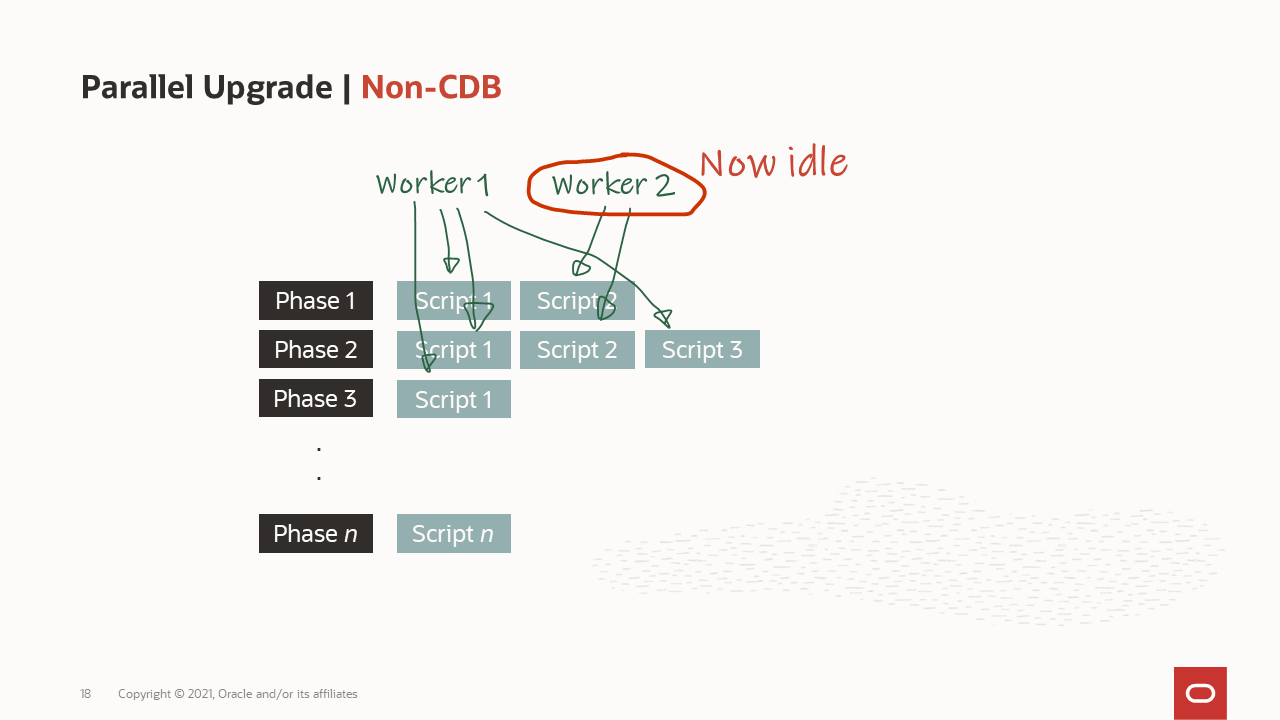
How are the workers processing the upgrade? How are the workers processing the upgrade?
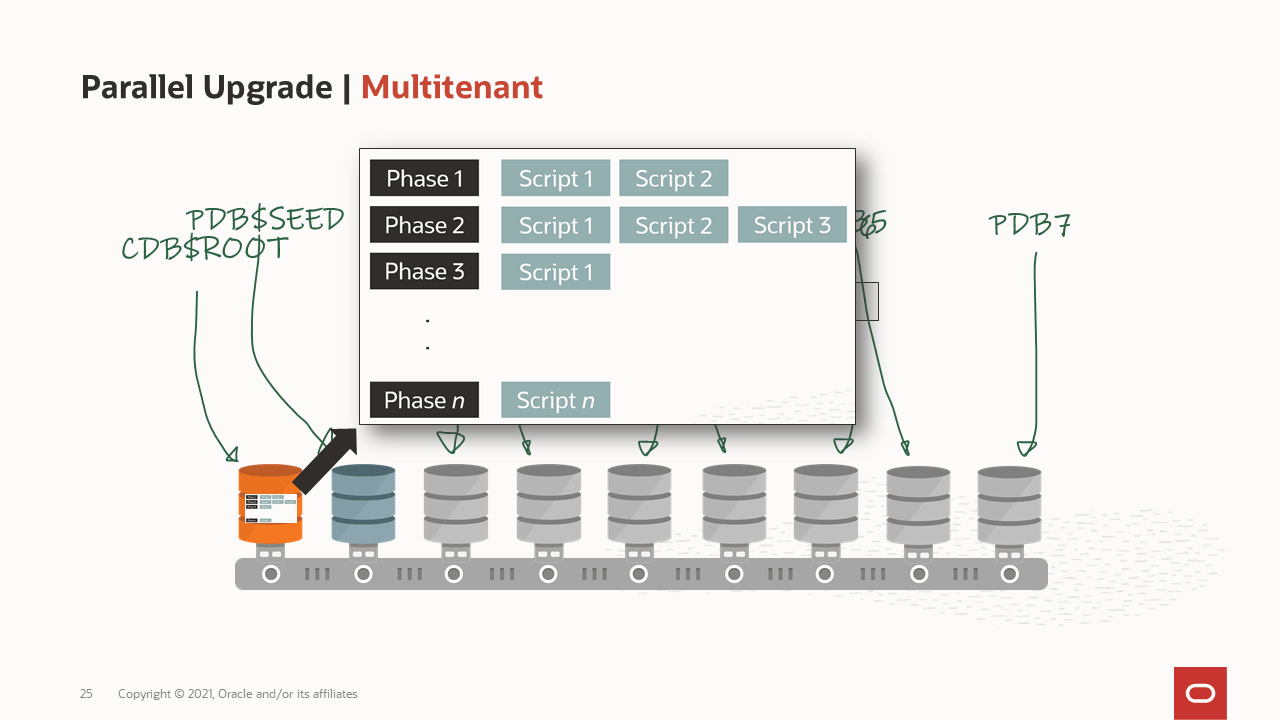
How is a container database upgraded? How is a container database upgraded?

What goes on in the phases of the upgrade? What goes on in the phases of the upgrade?
I Need More Power, Scotty

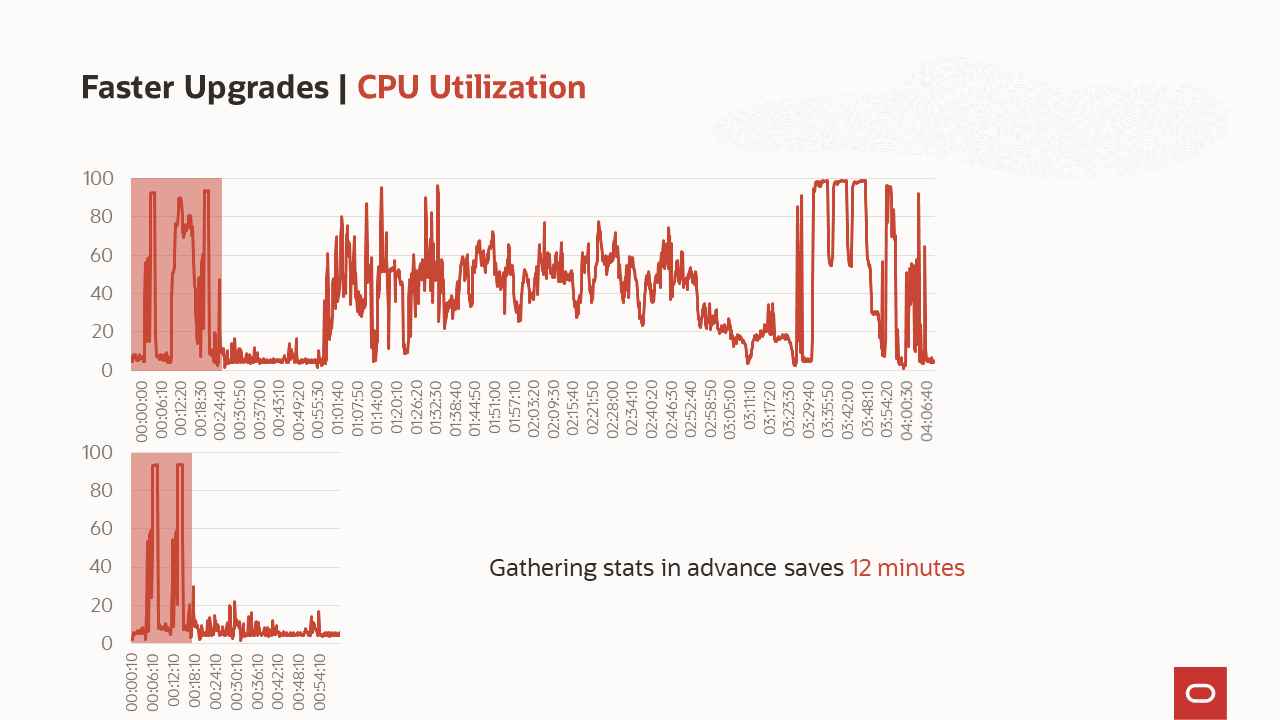
We will also cover, how you can make your upgrade faster and show what you can achieve.

What is the benefit of gathering stats before the upgrade? What is the benefit of gathering stats before the upgrade?

What Can You Achieve With AutoUpgrade

A deep dive into the checks that are executed by AutoUpgrade. A list of some of the comprehensive checks that are executed by AutoUpgrade A list of some of the comprehensive checks that are executed by AutoUpgrade
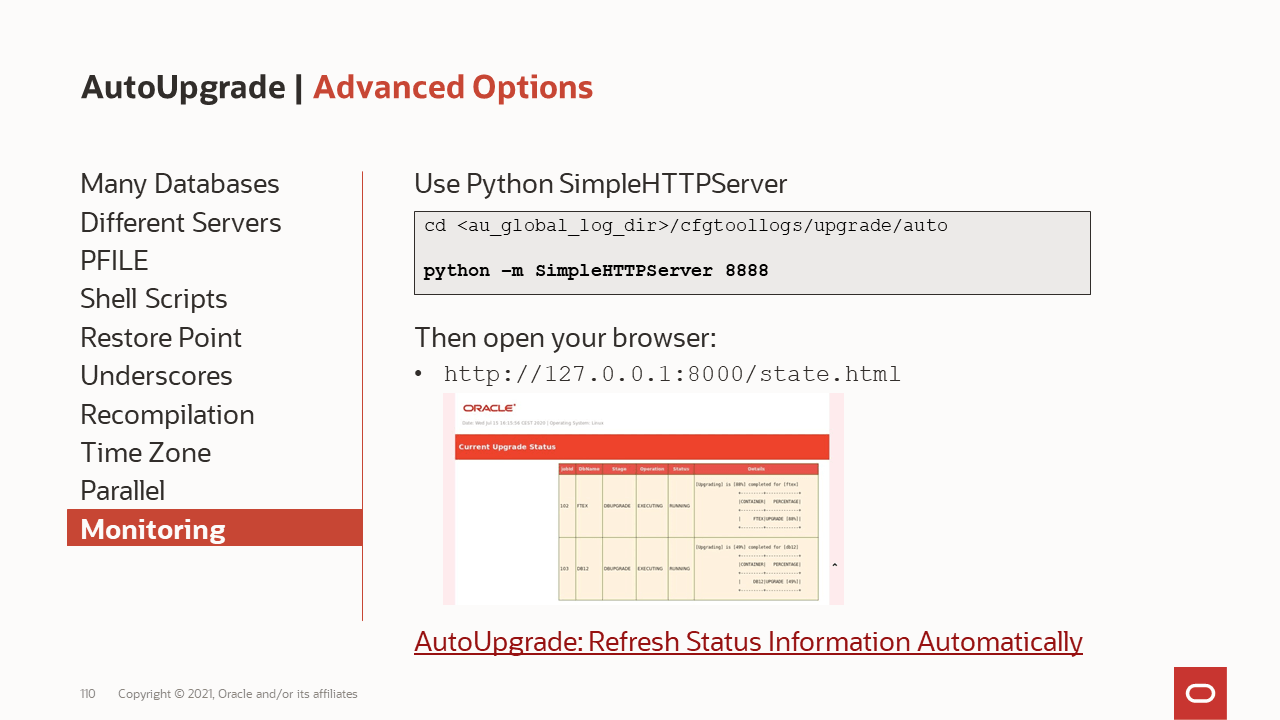
One page monitoring One page monitoring

The Old Releases

For those of you on very old releases, we will discuss how you can upgrade to Oracle Database 19c.

What to consider when doing upgrades from very old releases What to consider when doing upgrades from very old releases

See You

Once the webinar is over we will publish a recording and make the slides available for download.

See you on wednesday!

Control Upgrade Parallelism In AutoUpgrade

Under the hood, AutoUpgrade uses the Parallel Upgrade Utility or catctl.pl to do the database upgrade. The Parallel Upgrade Utility has a long list of options that you can configure. The parallel options being the most notable. In your AutoUpgrade config file you can now specify a subset of options to catctl.pl using the parameter catctl_options.

Now, you should not expect a 10x improvement by adding a ton of CPUs to your upgrade. Mike Dietrich posted a really good article that explains what matters to an upgrade when it comes to performance. But f you want to squeeze out the very last resources on your system during upgrade, or want to fine-tune the distribution of CPUs the resource consumption, you can do it with AutoUpgrade.

How

First, you can find a list of catctl parameters in the documentation.

When you have determined the parameters that you want to use, specify them in your config file either globally (for all upgrades):

global.catctl_options=-N 8

or locally for a specific upgrade:

upg1.catctl_options=-N 8

The above examples will run the upgrade of PDBs using eight parallel processes.

You should have a look in the documentation to know the minimum and maximum values for the settings. At least for the parallel settings it is really good to know.

Non-CDB

Support for this parameter and non-CDB databases was added in 21.1.2. To ensure that the upgrade runs with as many parallel processes as possible:

upg1.catctl_options=-n 8

CDB and PDB

When you upgrade a CDB the following happen:

  • First, CDB$ROOT is upgraded using eight parallel processes.
  • Next, a number of PDBs are upgraded concurrently, starting with PDB$SEED. The total number of parallel processes to use is controlled by the parameter n.
  • Each individual PDB is upgraded using a number of SQL processes as well. This is controlled by the parameter N.

This means that the number of PDBs that are upgraded at the same time is: n / N

What is the best value of n?

  • If you are conservative you set n to CPU_COUNT.
  • If you are bold, you could probably raise it further, because some of the phases in the upgrade runs serially or doesn’t use the full parallel capacity. Try to set n to CPU_COUNT + 10 % and see how loaded your CPUs get. Keep increasing until you find a suitable level.

In the documentation there are some really good examples and explanations of using N and n together.

On a system with CPU_COUNT=48, put the following in your AutoUpgrade config file to run 6 PDB upgrades concurrently using 8 parallel processes:

upg1.catctl_options=-n 48 -N 8

Note, regardless of what you specify, when it comes to CDB$ROOT AutoUpgrade will always run with the maximum number of parallel processes. CDB$ROOT is special and it must be upgraded before any of the other ones can start. Hence, it makes sense to get it completed as fast as possible.

If you are doing an unplug-plug upgrade of a single PDB it could be a good idea to add more parallel processes to that single upgrade. If you want to use 8 parallel processes:

upg1.catctl_options=-N 8

Conclusion

It can be useful to override the default parallel settings during upgrades. You should not expect a 10x performance improvement, but you might squeeze out the very last resources. What is the best setting? It depends. You should go with the defaults, or test it using your own databases.

History

12 April 2021: Added information about support of non-CDB databases as of AutoUpgrade 21.1.2.

AutoUpgrade One-liner

You can use AutoUpgrade to upgrade a database using only a single command line. No config file is needed!

Whenever we talk about AutoUpgrade, we also mention the config file. The file that contains information about what has to be upgraded. A very simple version of such a config file could look like this:

upg1.sid=DB12
upg1.source_home=/u01/app/oracle/product/12.2.0.1
upg1.target_home=/u01/app/oracle/product/19

This is the preferred and recommended way of using AutoUpgrade. But you can actually specify everything on the command line.

Upgrade in One Line

By using the command line option config_values you can now specify the config file entries on the command line. Instead of using the above config file you could execute:

java -jar autoupgrade.jar \
   -config_values "sid=DB12,source_home=/u01/app/oracle/product/12.2.0.1,target_home=/u01/app/oracle/product/19" \
   -mode analyze

Notice how I used config_values to specify the contents of the config file. The prefix that you have to use in the config file (in this case upg1) is not used here (only for global entries, like global.autoupg_log_dir).

If you have several databases to upgrade, you separate them with as asterisk (*):

-config_values "sid=DB1,...,*,sid=DB2,...,*,sid=DB3,..."

Using Environment Variables

A few of the config file entries can be specified as environment variables instead:

Config file entry Environment variable
sid $ORACLE_SID
source_home $ORACLE_HOME
target_home $ORACLE_TARGET_HOME
target_version $ORACLE_TARGET_VERSION

So, you can start AutoUpgrade like this as well:

export ORACLE_SID=DB12
export ORACLE_HOME=/u01/app/oracle/product/12.2.0.1
export ORACLE_TARGET_HOME=/u01/app/oracle/product/19
java -jar autoupgrade.jar -config_values -mode analyze

And it works fine on Windows as well. Just use set instead of export.

What Happens

AutoUpgrade first needs to determine the global logging directory (global.autoupg_log_dir).

  • If you specify the global logging directory it will be used.
  • If you do not specify the global logging directory one of the following will be used:
    • Linux/Unix: /tmp/autoupgrade
    • Windows: C:\Users\name\AppData\Local\Temp\autoupgrade

Next, AutoUpgrade will create a config file using the information supplied either using config_values or from the environment.

From here on AutoUpgrade behaves as usual.

Conclusion

If needed, you can provide all input to AutoUpgrade in one command line. This is useful if you are using AutoUpgrade in scripts or from Ansible or similar orchestration tools.

I would still recommend the use of a config file. It is easier to read and write the options in a nice formatted text file. Further, you avoid the potential trouble of escaping characters on the command line. And, finally, you avoid having a very long an unreadable command line. These arguments are, by the way, the same we use when we recommend using a parameter file (.par) for Data Pump.

Further Reading

How to Upgrade a Single PDB

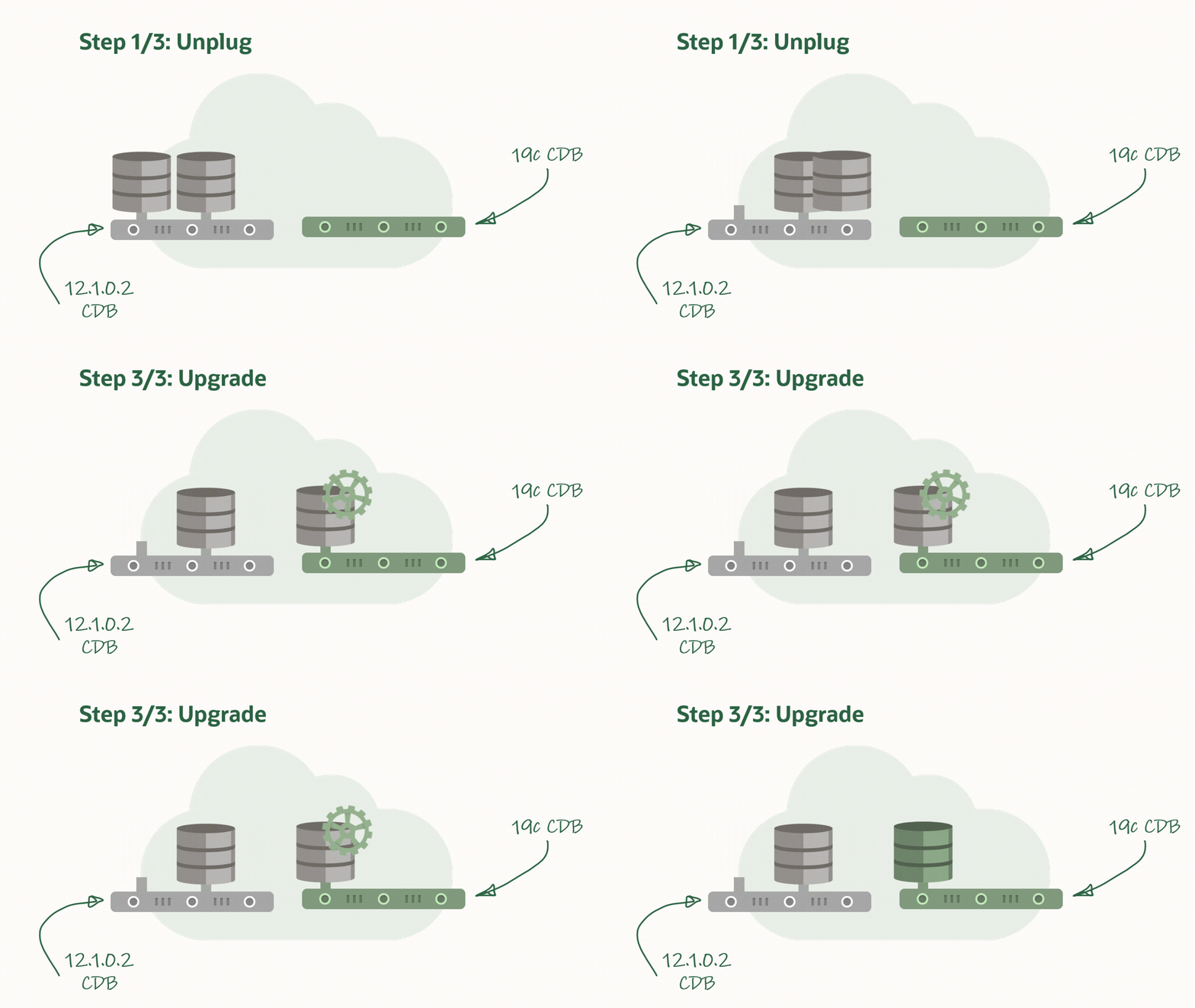
AutoUpgrade now supports unplug-plug upgrades. You unplug a PDB from a lower release CDB and you plug it into a higher release CDB. After plug-in the PDB is upgraded and eventually it can be opened in normal, READ WRITE mode.

Concept of unplug-plug upgrades which are supported with AutoUpgrade version 21.1.1

When it comes to upgrading in the multitenant world, I am a big fan of unplug-plug upgrades. The concept comes with a number of benefits:

  • It is much faster to upgrade an individual PDB using unplug-plug compared to a CDB with just one PDB in it. When you do an unplug-plug upgrade, the database just need to upgrade the PDB. Compare that to a CDB which first upgrades CDB$ROOT, and then PDB$SEED and any user PDBs.
  • You don’t have to arrange downtime for all the PDBs in the CDB. Downtime is just needed for the PDB that you will upgrade.
  • Combine it with refreshable PDBs and you can still have a really good fallback option. You can check out a previous blog post to see how you can use refreshable PDBs.

AutoUpgrade and Unplug-plug Upgrade

Starting from version 21, AutoUpgrade can now perform unplug-plug upgrades. A newer version of AutoUpgrade can upgrade to older database releases as well, so don’t worry if the AutoUpgrade version doesn’t match the Oracle Database release that you are upgrading to.

There are some requirements that must be met in order to perform unplug-upgrade, so I suggest that you take a look in the documentation.

You have to create the target CDB yourself. It is by design that AutoUpgrade doesn’t do this for you. First, creating a CDB requires a lot of information and it can be done in many different ways (ASM? Which components? RAC?). You would need a very long config file to supply all that information. Also, it takes time to create a CDB and if AutoUpgrade would have to do that inside the maintenance window, it would be prolonged considerably.

During unplug-plug upgrades AutoUpgrade also allows you to change the name of the PDBs and you can decide whether you want to reuse the unplugged data files or take a copy.

How to

Imagine the following AutoUpgrade config file:

upg1.sid=CDB1
upg1.target_cdb=CDB2
upg1.pdbs=hr,logistics
upg1.source_home=/u01/app/oracle/product/12.2.0.1
upg1.target_home=/u01/app/oracle/product/19
upg1.target_pdb_name.hr=people

AutoUpgrade will unplug PDBs hr and logistics from CDB1 and plug them into CDB2. In addition, it will change the name of hr to people when it is plugged into CDB2. Finally, you must specify the Oracle Home of the two CDBs, so AutoUpgrade can set the environment correctly and connect to the databases.

If you use lsj command to monitor the progress it does actually look like you are only upgrading one of the PDBs:

upg> lsj
+----+-------+---------+---------+-------+--------------+--------+------------------+
|Job#|DB_NAME|    STAGE|OPERATION| STATUS|    START_TIME| UPDATED|           MESSAGE|
+----+-------+---------+---------+-------+--------------+--------+------------------+
| 100|   CDB1|DBUPGRADE|EXECUTING|RUNNING|20/12/22 15:25|15:29:03|13%Upgraded PEOPLE|
+----+-------+---------+---------+-------+--------------+--------+------------------+
Total jobs 1

But if you look into the details with status -job 100 you can see that both PDBs are upgraded in parallel:

upg> status -job 100

... (removed a lot of information)

Details:
[Upgrading] is [0%] completed for [cdb1-people] 
                 +---------+-------------+
                 |CONTAINER|   PERCENTAGE|
                 +---------+-------------+
                 |   PEOPLE|UPGRADE [13%]|
                 |LOGISTICS|UPGRADE [13%]|
                 +---------+-------------+

When the upgrade completes, the PDBs are ready to be used. I suggest that you verify that the databases are open in READ WRITE mode and not in restricted mode. Finally, save the state, so the PDBs start automatically together with the CDB:

SQL> select name, open_mode, restricted from v$pdbs where name in ('PEOPLE', 'LOGISTICS');
SQL> --Verify open_mode=read write and restricted=no
SQL> alter pluggable database people save state;
SQL> alter pluggable database logistics save state;

Caution

With unplug-plug upgrades you can’t use Flashback Database as your fallback plan. It doesn’t work across the plug-in operation. You either have to:

  • Instruct AutoUpgrade to copy the unplugged data files before it plugs into the higher release CDB. That way, you still have the old unplugged data files, and just re-create the PDB in the lower release CDB. But you will have extra downtime because you need to copy the data files.
  • Use Refreshable PDBs to build a copy of your PDB in the higher release, target CDB. When you want to do the upgrade, perform the last refresh and upgrade the refreshable PDB.

Both of the above options require additional disk space to hold a copy of the database.

Of course, you can also use your regular backups as fallback.

What If

Your Target CDB Has a Standby Database?

For now, don’t use AutoUpgrade to make unplug-plug upgrades, if the target CDB has standby databases. A plug-in operation with a standby database is a tricky maneuvre, at least when you want to re-use the data files. We are still trying to figure out how to implement it in AutoUpgrade.

Having said that, it is absolutely doable. You can read more about in the following MOS notes:

You Are Using TDE Tablespace Encryption?

For now, don’t use AutoUpgrade to perform unplug-plug upgrades, if any tablespace in the PDB is encrypted with TDE Tablespace Encryption. We are working on making AutoUpgrade capable of better interacting with the TDE keystore, so keep an eye out for coming versions.

If TDE Tablespace Encryption is enabled in the target CDB, you can still use AutoUpgrade. The PDB will be plugged in as an unencrypted PDB.

Conclusion

Doing unplug-plug upgrades is now supported by AutoUpgrade as of version 21. It includes useful features for renaming PDBs and using copies of unplugged data files.

There is a video on YouTube that shows the procedure. And while you are there, I suggest that you subscribe to our channel.

Further Reading

Upgrading in the Cloud – VM DB Systems – Automated Upgrade to 19c – The Details

Following a previous blog post here are all the details on automated upgrades in OCI, and (possibly) the answers to your questions.

Precheck

The precheck ensures the database is ready to upgrade. It uses DBUA which again uses preupgrade.jar to execute the checks. It is similar to running AutoUpgrade in analyze mode. The check is non-intrusive and can be executed while the database is in use.

Normally, when you use preupgrade.jar we always recommend you download the latest version from My Oracle Support. However, this is not possible when you use the tooling. The new, target Oracle Home is always deployed as part of the precheck process – and deleted again after the precheck. There is no way you can replace the preupgrade.jar package. You must use the version of preupgrade.jar that comes with the Oracle Home.

If there are no issues that prevent you from upgrading, you will see this message: The precheck completed and found no errors - the database is ready to upgrade

However, it could also be that there is an error in the database that must be fixed: If a critical issue prevents you from upgrading, a message will be displayed in the console

If you want to see the output from the precheck you must log on to the database host and find the file:

vi $ORACLE_BASE/cfgtoollogs/dbua/upgrade<timestamp>/$ORACLE_UNQNAME/upgrade.xml

Only the XML output is available, which might be a little hard to read. If you prefer you can also download AutoUpgrade to the server and run it in analyze mode. It can produce a much better output, and it works even if the target Oracle Home is not present. Create a simple config file:

upg1.sid=DB11204
upg1.source_home=/u01/app/oracle/product/11.2.0.4/dbhome_1
upg1.target_version=19

And now start AutoUpgrade in analyze mode:

java -jar autoupgrade.jar -config DB11204.cfg -mode analyze

You can use the preupgrade report to determine which issues prevents the upgrade from starting.

The database must be in ARCHIVELOG mode and the size of your Fast Recovery Area (FRA) must be at least 15G (parameter db_recovery_file_dest_size). As well, you must have 15G of free space on the mount point that hosts the FRA.

Upgrade

When you upgrade your database, all PDBs in the database are upgraded as well. There is no way to change it. If a PDB is closed when the upgrade starts, it is opened and upgraded. After the upgrade, the PDB is left opened and in READ WRITE state. But the state is not saved, so after a CDB restart, the PDB will start in whatever state that has been previously saved.

The first version of the tooling does not support standby database. If your database is a primary database, you must remove the standby database, upgrade, and then recreate the standby database. It is in the plan for future enhancements to get this streamlined.

Fallback

Enterprise Edition databases are protected by a guaranteed restore point (GRP) and Flashback Database. The tooling automatically creates the GRP before it starts to work on the database. If an error occurs during the upgrade, you can use the OCI console to initiate a roll back.

If the database upgrade fails on an Enterprise Edition database it is possible to roll back to a guaranteed restore point using Flashback Database

After successful upgrade the GRP is dropped again. The GRP only protects the database during the upgrade, so you can’t rely on the GRP as a fallback mechanism if you decide to fall back after the upgrade. Let’s say that your testing reveals a critical problem after the upgrade, then your only fallback mechanism is to restore a backup.

Since Flashback Database is an Enterprise Edition feature, this fallback mechanism is not available on Standard Edition databases.

In addition, it is strongly recommended that you perform a manual backup of the database before you start the upgrade. The console will also give you this warning, before you can start the upgrade.

Monitoring and Troubleshooting

When you have started the upgrade, you can’t monitor it from the console. You must log on to the host. When you do so, be aware that the timestamps shown in the OCI console are UTC, but the timestamps in the log files on the host is local timestamp (depending on your region).

Using dbcli

Log on as root and use the dbcli tool to monitor the progress. First, list jobs:

[root@host]$ dbcli list-jobs

Which should produce a list like this: Use dbcli list-jobs to list the jobs - including the upgrade - that run on the host Next, you can get additional information about the job using the ID:

[root@host]$ dbcli describe-job -i <id>

Which give you more details: dbcli describe-job can give you more detailed information about the upgrade

Using DBUA Log Files

But you can get even better information by looking in the log files from DBUA. Use the job id from the dbcli command to find the log file:

[oracle@host]$ export ORACLE_BASE=/u01/app/oracle
[oracle@host]$ export DBCLI_JOBID=f4b2597f-990f-4442-a774-153f3713fb7a
[oracle@host]$ tail -f -n 10 $ORACLE_BASE/cfgtoollogs/dbua/$DBCLI_JOBID/silent.log

And for really detailed information look in this directory:

[oracle@host]$ export ORACLE_BASE=/u01/app/oracle
[oracle@host]$ export DBCLI_JOBID=f4b2597f-990f-4442-a774-153f3713fb7a
[oracle@host]$ cd $ORACLE_BASE/cfgtoollogs/dbua/$DBCLI_JOBID/$ORACLE_UNQNAME

Using DCS Agent

The OCI control plane communicates with your DB System using an agent, and sometimes it can be useful to look in those logs:

[root@host]$ cd /opt/oracle/dcs/log
[root@host]$ vi dcs-agent.log

To find the log entries that are related to a specific upgrade search for the job ID:

[root@host]$ cat dcs-agent.log | grep "<job-id>" | more

Q&A

Which version and release update can I upgrade to?

The tooling only allows upgrades to Database 19c. If you need to upgrade to any other version, you must do it manually.

You can decide to upgrade to an Oracle provided image or a custom image: When you upgrade you can choose an Oracle provided image, or your own custom database software image However, for both type of images, the Release Update (or patch level) must be the latest or previous two Release Updates. Even if you have a custom database software image that is older, it can’t be used. You must upgrade to one of the recent Release Updates. If you select 19.0.0.0 you will not get the base release, but the latest Release Update. If you use the APIs this is a smart way of specifying that you always want the latest Release Update.


Where are my log files?

The output from the precheck is stored here:

  • $ORACLE_BASE/cfgtoollogs/dbua/upgrade<timestamp>

The output from the actual upgrade is stored here:

  • $ORACLE_BASE/cfgtoollogs/dbua/<job-id>
  • $ORACLE_BASE/cfgtoollogs/dbua/<job-id>/$ORACLE_UNQNAME

In addition, you can get details about the upgrade using dbcli:

[root@host]$ dbcli list-jobs
[root@host]$ dbcli describe-job -i <job-id>

Why is it taking so long to perform a precheck?

It consists of three phases:

  1. Deploy new Oracle Home to the VM DB System
  2. Precheck of the database
  3. Removing the new Oracle Home

The precheck (phase 2) is really fast. Just as fast as if you would run AutoUpgrade in analyze mode or using preupgrade.jar. The extra time is needed to deploy and remove the Oracle Home again. For each execution of the precheck the procedure repeats, and a new Oracle Home is deployed. It is never re-used.

Why is the upgrade slower than if I do it manually?

Typically, when you upgrade a database you have already – outside of the maintenance window – deployed a new Oracle Home. When you use the tooling, this happens inside the maintenance window. The tooling can’t deploy an Oracle Home prior to the upgrade. In addition, the upgrade is executed with DBUA using default options, which for instance means that the time zone file is upgraded as well. If you are sensitive to downtime and would like to complete the upgrade faster, you must perform the upgrade manually.

Will my 11.2.0.4 database get converted to a PDB?

No, the database is upgraded as-is and there is no PDB conversion. We are working on making it possible to perform the non-CDB conversion as well. If you must convert the non-CDB to a PDB, you must move the database to a new VM DB System that already have a CDB provision. In that case, I would recommend that you use the manual upgrade and plug-in as described in another blog post.

Can I perform an automated upgrade using dbcli?

No, although the command line help of dbcli suggests that such an option exist, it can’t be used.

Other Posts in This Series

New Version of AutoUpgrade

Our developers just published a new version of AutoUpgrade. Head over to My Oracle Support and download version 21.1.1.

The version says 21, but it can still upgrade your databases to lower release. So, you should use this new version to upgrade to Oracle Database 19c as well.

The supported target Oracle Database versions that are supported by the new version of AutoUpgrade

What’s New

A total of 48 enhancements and bug fixes made it into the new release. It has been 35 working days since the last release (and that includes Thanksgiving week) which means that the team has put in – on average – close to 1,5 changes into AutoUpgrade every, single working day. I find that quite impressive. And it really supports our message that you should always use the latest version of AutoUpgrade.

In My Oracle Support note 2485457.1 you can find a complete change log. Also, you can also visit the 21c New Feature Guide for additional information.

Unplug/plug Upgrade

The first things that I would like to highlight is unplug/plug upgrade. Instead of upgrading an entire CDB, you can now choose to unplug one or many PDBs, plug them into a higher release CDB, and upgrade the individual PDBs.

How an unplug/upgrade works of an Oracle Database PDB

How do you specify to upgrade only one PDB? Use target_cdb and pdbs?

upg1.sid=CDB1
upg1.pdbs=PDB3
upg1.source_home=/u01/app/oracle/product/12.2.0.1
upg1.target_home=/u01/app/oracle/product/19
upg1.target_cdb=CDB2

When doing unplug/plug upgrades you must be aware of the COMPATIBLE setting in the higher release CDB. If COMPATIBLE is higher, when the PDB plugs in, COMPATIBLE will silently and automatically be raised by the CDB. This means that you lose the capability of doing downgrades and flashback database.

You can read more about unplug/plug upgrades in the documentation

AutoUpgrade and Oracle Data Guard

In addition, AutoUpgrade now detects that you are upgrading a primary database in a Data Guard setup. In that case, it will automatically defer redo log transport to the standby databases and disable the Data Guard broker. After the upgrade, the broker is automatically restarted, but you need to manually reconfigure the standby databases, and eventually re-enable redo log transport.

You might ask: Why don’t AutoUpgrade handle it all for me? This is to preserve your fallback capabilities. Even after a successful upgrade, you still might want to revert back to the old version. Let’s say your testing finds a critical issue. You might still have a restore point on the primary database, but what if – for some reason – flashing back fails? Then you still have your standby database which was disabled right before the upgrade.

You can read more about AutoUpgrade and Data Guard in the documentation.

More

A few hints for the interested reader to explore. Have a look at the config file option catctl_options. You can use that to control the level of parallelism for a specific upgrade.

Also, if you don’t want AutoUpgrade to handle your network files (e.g. sqlnet.ora, tnsnames.ora) you disable it using manage_network_files.

You can read more about those options in the documentation.

Conclusion

Get the latest version of AutoUpgrade and benefit from the many new features. Keep an eye out for additional blog posts that will dig deeper into the new features.

Is AutoUpgrade resumable?

Short answer: Yes!

Recently, I have been asked a few similar questions:

  • What happens if my SSH session with AutoUpgrade is lost? (see appendix)
  • What happens if AutoUpgrade crashes?
  • What happens if I exit the console by mistake?

First, don’t panic. Second, just restart AutoUpgrade using the same command line. During startup, AutoUpgrade will figure out that it should recover the lost session, and will restart the upgrades.

AutoUpgrade can automatically detect a previous session, and restart from where it left

When AutoUpgrade dies or is terminated, the database upgrades that it started, dies with it. This could happen if you lost your SSH session. The database upgrade stops, but the database is still running, most likely in UPGRADE mode. If you exit AutoUpgrade by mistake (typing exit in the job console), it will first stop the upgrade, and then shutdown the database. In any case, when you afterwards restart AutoUpgrade, it will figure out that a previous AutoUpgrade session was running. It will recover information from the previous session, and if needed restart the database. After that, it will restart the upgrade. If the previous database upgrade was at phase 54, AutoUpgrade will restart from phase 54. This means that all previous work in the upgrade is preserved, and you can resume as if nothing had happened.

Don’t Recover Previous Session

If you for some reason don’t want AutoUpgrade to recover the previous session. Let’s imagine that AutoUpgrade crashed, and you decided to restore the database. Now you want to start all over. In that case, you need to clear the recovery data, otherwise, AutoUpgrade will get confused.

You can read more about the parameters in the documentation.

The Little Hammer (Preferred)

You can clear the recovery for a specific job by adding clear_recovery_data on the command line and use jobs parameter to specific exactly for which jobs recovery data must be cleared.

$ java -jar autoupgrade.jar -config PROD.cfg -mode analyze -clear_recovery_data -jobs 100,101,102

Now, AutoUpgrade will start right from the beginning again but only for the specified jobs.

The Big Hammer

If you don’t specify jobs parameter then AutoUpgrade will clear recovery data for all jobs:

$ java -jar autoupgrade.jar -config PROD.cfg -mode analyze -clear_recovery_data

Be advised, that this will happen for all the upgrades that are specified in the config file. Remember, that one of the big benefits of AutoUpgrade is that one config file can be used to upgrade 10s or 100s of databases.

The Sledgehammer

I would recommend the previous hammers but use this approach as the last solution: Delete all files that are used by AutoUpgrade.

First, delete the directory specified in global.autoupg_log_dir. Next, delete the directory specified in .log_dir. Typically and by default, the second directory is a subdirectory to the first one, so in most cases you just have to delete the first directory. If you have multiple upgrades specified in the same config file you potentially need to delete multiple directories for prefix1.log_dir, prefix2.log_dir and so forth.

Be aware that you are clearing out all information that is used by AutoUpgrade. If you use the same global logging directory for multiple AutoUpgrade sessions (which I would not recommend), then you will be seriously messing things up. But if you are only upgrading this specific database on the server, then you can safely delete the directories to start all over.

Restoring a Test Database – Starting All Over

Very often a test database is upgraded multiple times. Even after a successful upgrade, you might want to retry the upgrade with different settings. If you use AutoUpgrade you must clear the recovery data as specified above. AutoUpgrade doesn’t know that you have restored the database. For all it know, the previous upgrade was successful.

Conclusion

Resuming an AutoUpgrade session is very simple. Just start AutoUpgrade with the same command line. It identifies the previous AutoUpgrade session, and resumes automatically. All the previous work is recovered, and the upgrade will resume from where it was stopped.

Appendix

Lost SSH Session

I heard from several people that they experienced the SSH session timing out because AutoUpgrade didn’t produce any screen output while the upgrade took place. We have put into a our plans to make some sort of regular screen output, so this should be avioded.

Before it is implemented, I would suggest that you look at the keep alive options in SSH:

$ man ssh

Personally, I always start SSH this way, and you can put it into your SSH config:

ssh -o ServerAliveInterval=300

Upgrade & Plug In: With ASM, Data Guard, TDE and no Keystore Password

I was helping a customer the other day together with Mike. They were upgrading from 18c to 19c and had to convert the database to a PDB as well. At first glance, it seemed pretty straightforward, but things got complicated because:

  • They have standby databases and want the Data Guard setup to survive the plug-in operation.
  • They are using ASM.
  • They are using TDE Tablespace Encryption and have also encrypted their SYSTEM and SYSAUX tablespace.
  • The DBA that will carry out the upgrade and plug-in is not allowed to have the TDE Keystore password. They have separation of duties, so only the security admins have the keystore password.

Can you do that? Yes, you can! Let me tell you how.

Upgrade

First, upgrade the database. You can easily maintain the Data Guard setup during an upgrade. I wrote a blog post about a little while ago. In addition, to upgrade a database with encrypted tablespaces you don’t need the keystore password. You must configure the database to use an auto login keystore, and that’s it. If you are concerned about the use of an auto-login keystore, you can simply remove it again after the upgrade.

External Store for a Keystore Password

The plug-in operation will require the keystore password. But the DBA doesn’t know it – so we need to find a solution for that. The solution is to store the keystore password in an external store. I also wrote a blog post about that a while ago. When you have it configured you can exchange the commands that require a keystore password, like:

SQL> ADMINISTER KEY MANAGEMENT ... KEYSTORE IDENTIFIED BY "S3c3tPassw0rd";

With this:

SQL> ADMINISTER KEY MANAGEMENT ... KEYSTORE IDENTIFIED BY EXTERNAL STORE;

The database will get the keystore password from an external store, which is basically a file in the file system which is encrypted with a password that only the database know.

The security admins would need to do this in the CDB that will receive the non-CDB database. They can do it in advance, so they can relax while the DBA carries out the operation in a maintenance window. If the TDE keystore is already configured using the WALLET_ROOT parameter, you can use the feature right away. Otherwise, you need a database restart to configure it.

Like with the auto-login keystore, if you are concerned about the security, you can simply disable it again after the operation.

Plug In

Now things get complicated. When you plug in your non-CDB database the manifest file contains information on where the data files are located – but only on the primary database. This is an extract of a manifest file (the one you create with DBMS_PDB.DESCRIBE):

<PDB>
  ...
  <tablespace>
    <name>SYSTEM</name>
    ...
	<file>
      <path>+DATA/SALES1/DATAFILE/system.311.1058127529</path>

After plug-in, the CDB can start to use the data files right away. It reads from the manifest files where the data files are located. But there is no information on where files are located on the standby database. To overcome this you must create aliases in the ASM instance on the standby host. The aliases will point back to the original data files (used by the standby database). So, when the plug-in happens and redo start to flow to the standby database, it will know which data files to recover. If you are storing data files in a regular file system, you could use soft links to serve the same purpose.

The procedure is already very well described:

I won’t repeat the procedure as the above articles are really good. But these articles don’t consider the situation where your SYSTEM and/or SYSAUX tablespace is encrypted.

If that is the case, you must import your encryption keys into CDB$ROOT before you execute the CREATE PLUGGABLE DATABASE command. In Reusing the Source Standby Database Files When Plugging a non-CDB as a PDB into the Primary Database of a Data Guard Configuration (Doc ID 2273304.1) it should happen right before step 17.2.2:

SQL> alter session set container=CDB$ROOT;
SQL> administer key management import keys ... keystore identified by external store ... ;
SQL> --Continue with step 17.2.2
SQL> create pluggable database .... ;

Dots and Underscores

When you follow the MOS notes you might wonder why the dots in the ASM aliases are replaced with underscores. At first glance, I had no idea, but it worked. I later learned the following:

The format for an ASM filename is [filetype|tablespacename].[ASM file number].[file incarnation], but basically it is three pieces of name separated by periods. We can’t create any filename or alias that mimics that format. So the scripts change those periods to underscores (‘_’). That is allowed.

ORA-15032 and ORA-15046

Most likely you get this error because there are already existing aliases on the ASM file. Only one alias is allowed per file.

  1. You can verify that by using the ls command in ASMCMD. If it is an alias the Name column will look similar to this alias1 => +DATA/......
  2. Ensure the database is not using the alias. If it does, rename the file in the database.
  3. Remove the alias from ASM. It is strongly recommended to use rmalias. Although also possible with rm I consider it much safer to use rmalias.

Conclusion

You can upgrade and convert your database to a PDB without comprising your standby database. In addition to that, you can configure your database in such a way that you don’t even need to type in the TDE keystore password.

Enabling Local Undo With AutoUpgrade

If you have databases that run in shared undo mode you should switch to local undo mode. Starting from 12.2 this is the default and recommended undo mode, and it offers a lot of cool functionality. Obviously, at the expense of having multiple undo tablespaces. There are already many good blog posts out there that the benefits of local undo and how to enable it.

AutoUpgrade To The Rescue

If you are planning an upgrade with AutoUpgrade, you can also enable local undo during the upgrade. You should simply just configure it in the config file:

upg1.enable_local_undo=YES

And AutoUpgrade will take care of the rest for you. It will even create undo tablespaces in PDB$SEED and all of the PDBs. Once again AutoUpgrade can make your life easier.

What Happens

Before creating the new undo tablespaces, the database will determine the attributes of the tablespace. By default, it will use a ratio of 30% compared to CDB$ROOT:

  • Initial data file size (calculated from current file size)
  • Maximum data files size (MAXBYTES)
  • Grow by (INCREMENT_BY)

Example (default ration 30 %):

Attribute CDB$ROOT PDB
Initial data file size current file size, 500M 150M
Maximum data file size 32G 9.6G
Grow by 5M 1.5M

You can control the ratio using the parameter _seed_root_undo_ratio in CDB$ROOT. To set the percentage to 10% use the following command before the upgrade:

ALTER SYSTEM SET "_seed_root_undo_ratio"=10 SCOPE=SPFILE;

With this knowledge you can now calculate the space you need for all those extra undo tablespaces. Thus, you can avoid to run out of disk space, or have the tablespace set at undesirable size.

After the upgrade, I would advice you to review the undo tablespace size per PDB. Different workload requires different amount of undo. And especially the increment_by attribute can become so low that it will lead to too frequent data file grow operations.

If your database is already in local undo mode then the parameter _seed_root_undo_ratio has no effect at all. The database will not start a grow or shrink operation to meet the ratio defined by the parameter. Once you have switched to local undo mode, you are in full control yourself.

Conclusion

Be sure to enable local undo for all CDBs databases when you upgrade to 12.2 or later releases. If you have many PDBs and you use AutoUpgrade to enable it, be aware of disk space needed for all those tablespaces. And review the settings afterwards.

Mike Dietrich wrote about a similar situation when you create CDBs using DBCA.

Resources